Help for use

How to Apply Different Hours to an Offer in Reservit Activities (Set Variable Time Slots)

Article summary: This comprehensive tutorial explains how to apply variable hours to your specific offers within the Reservit Activities platform. You will learn how to configure custom schedules by assigning unique time slots to designated validity dates. Mastering this setup allows you to offer flexible booking options that perfectly match your seasonal availability and daily operational capacity.

The 5 key steps to apply different hours to an offer:

  • Access the pricing setup: Open your specific offer profile and click on the "Prices" tab to begin your configuration.

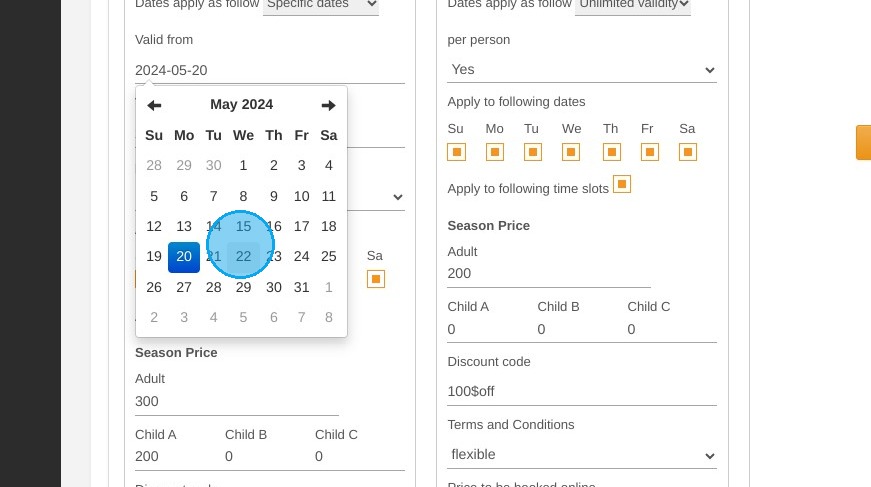
  • Select the specific validity dates: Choose the "Specific dates" option in the date application field and select your desired timeframe directly on the calendar.

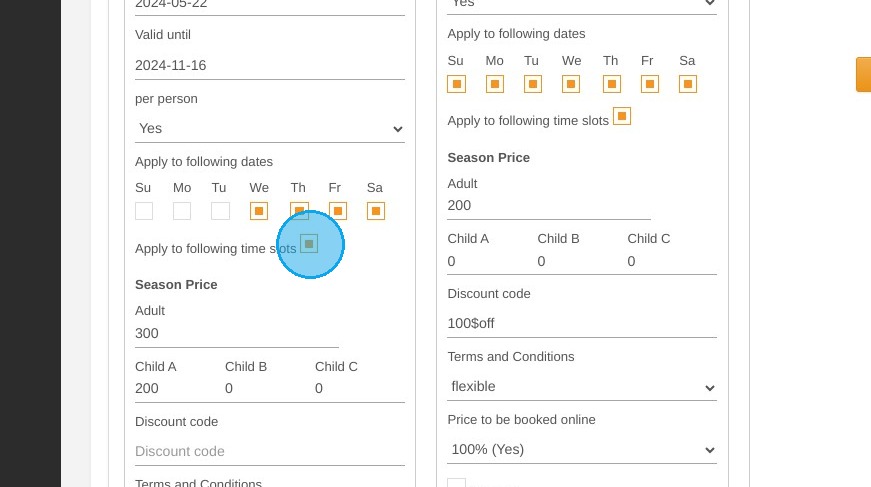
  • Enable variable time slots: Uncheck the default "Applicable to following time slots" box to unlock custom hourly configurations for those dates.

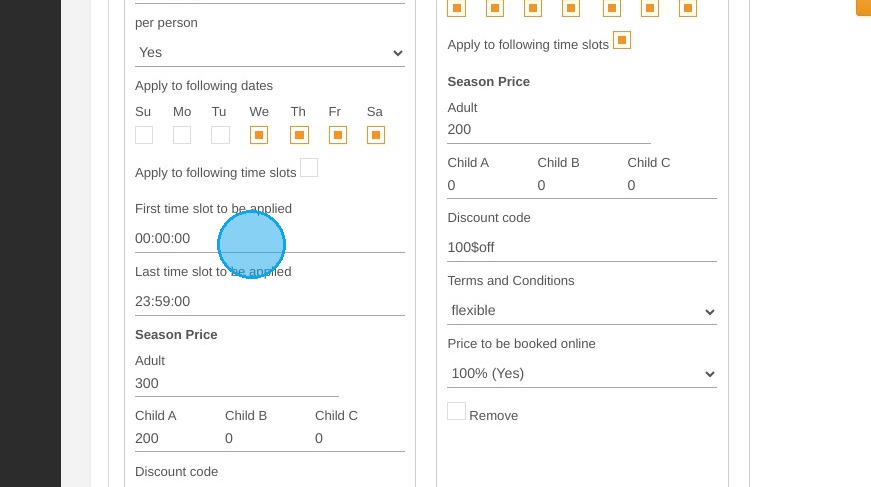
  • Define the customized hours: Enter the precise operating hours and time slots that will apply exclusively to your newly selected dates.

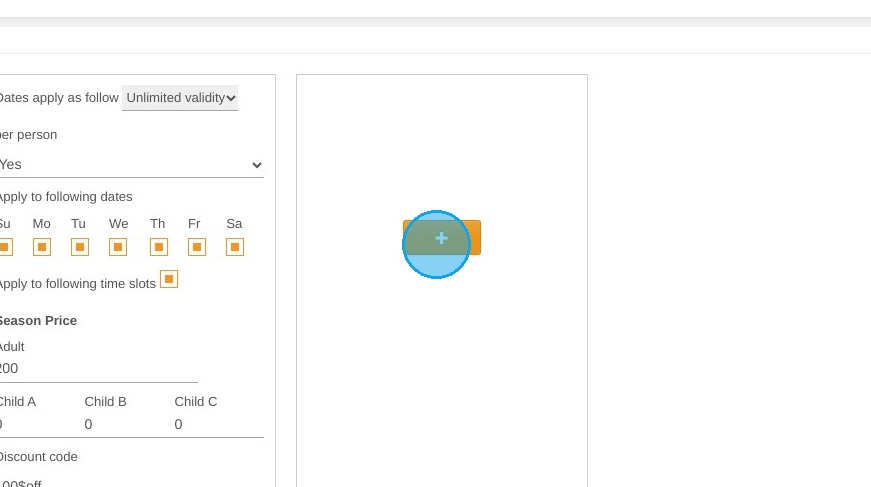
  • Save and repeat: Save your modifications and repeat the process to group and configure additional variable schedules for different periods.

Why follow this guide? Customizing your offer hours prevents online scheduling conflicts and ensures your digital availability accurately reflects your real-world operational changes. It gives you total flexibility over your booking calendar, allowing you to easily adapt to peak seasons, holidays, or special events without manually monitoring every reservation.

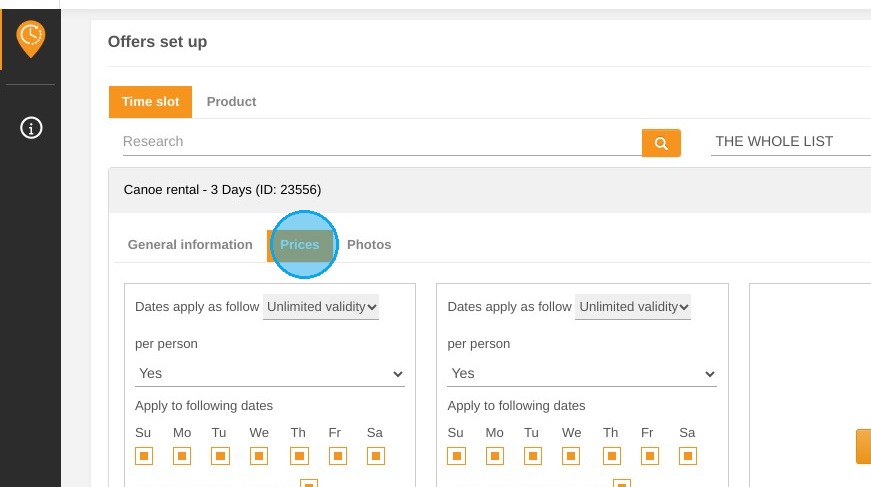
1. In your offer, click "Prices"
https://colony-recorder.s3.amazonaws.com/files/2024-05-20/6b201fee-e404-4529-8551-b112dfeb0ec7/ascreenshot_8d9160d7e3af43ad83b83315e157b903_text_export.jpeg

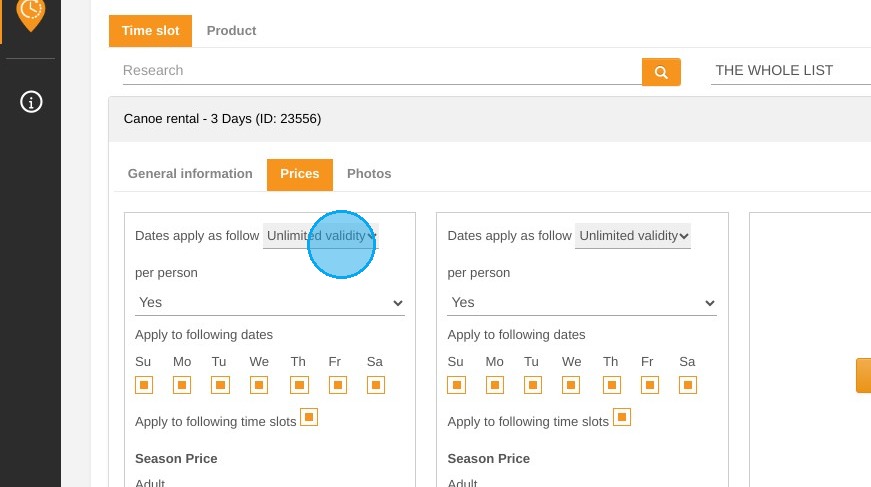
2. Then select the ''Specific dates'' configuration in the ''Date apply as follow'' field.
https://colony-recorder.s3.amazonaws.com/files/2024-05-20/a2981229-73b0-419e-9f4b-1bc2c0785c94/ascreenshot_b39d45f2b29c46c0957457b9a5dbf6b8_text_export.jpeg

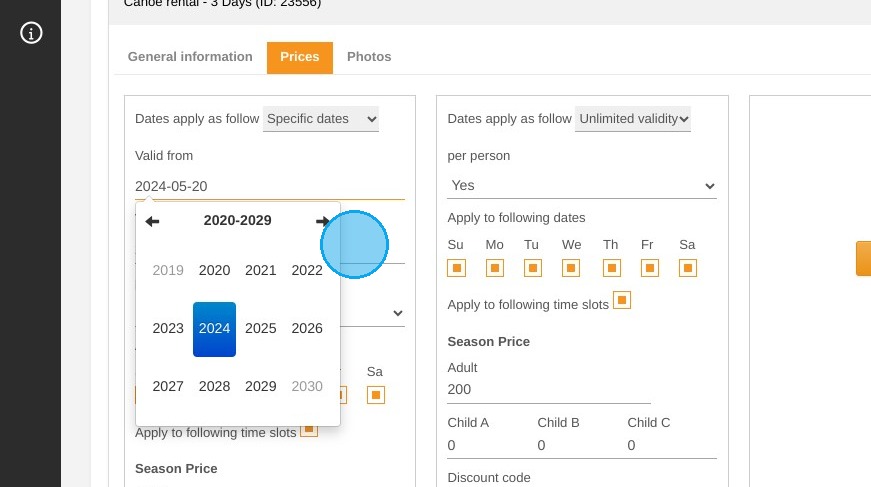
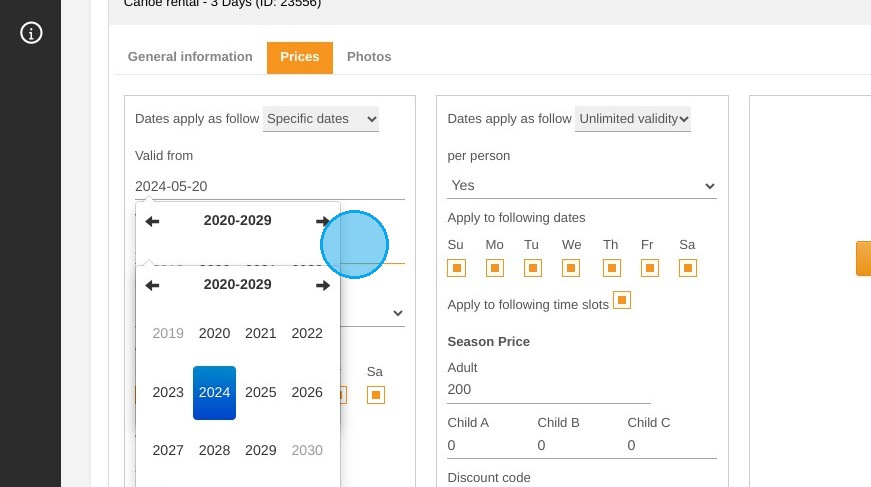
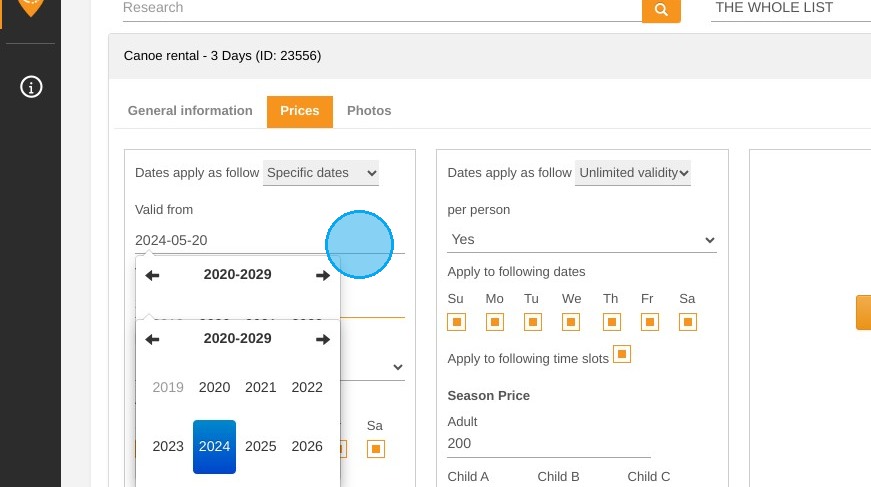
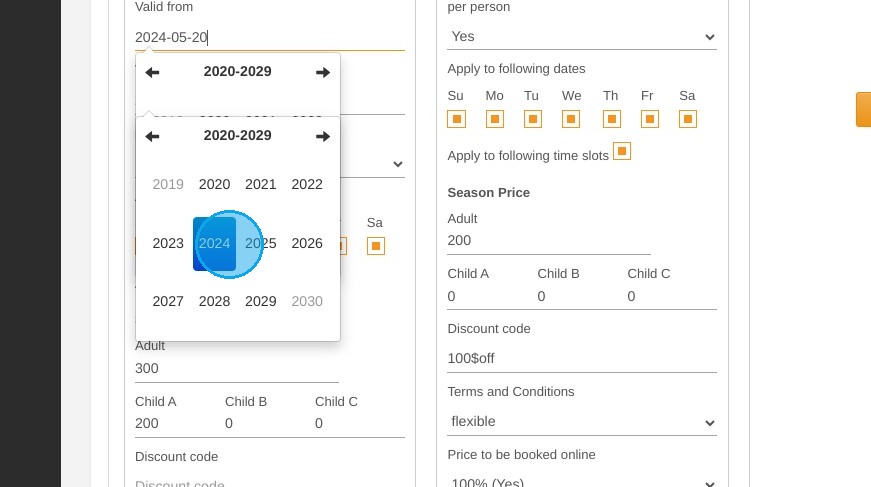
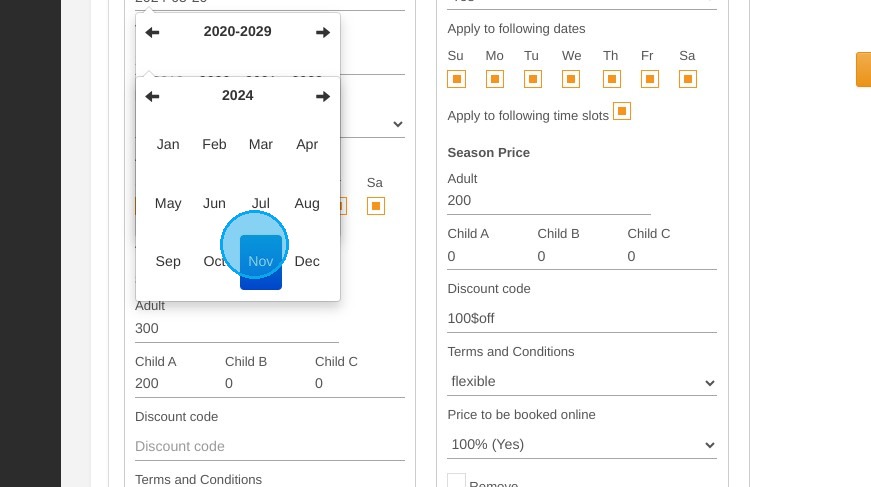
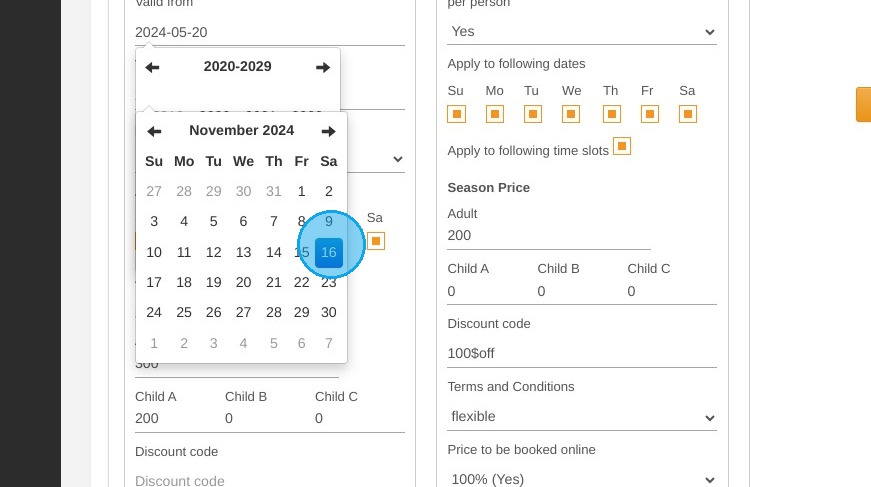
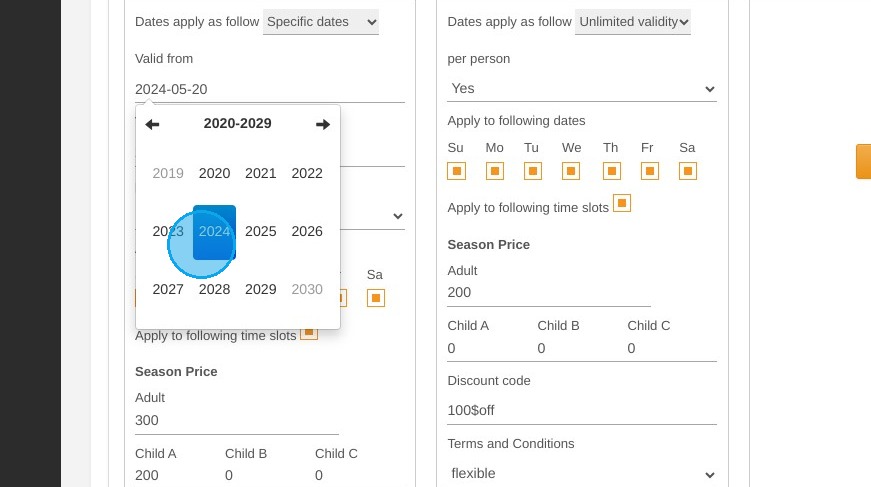
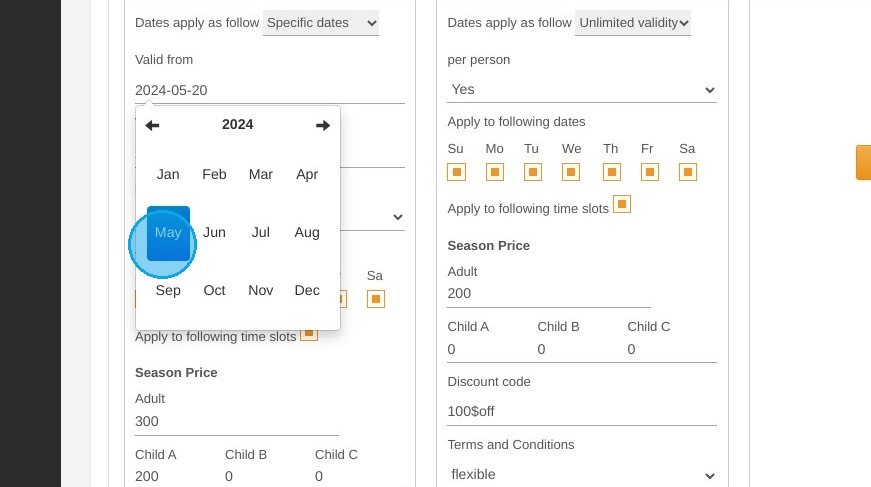
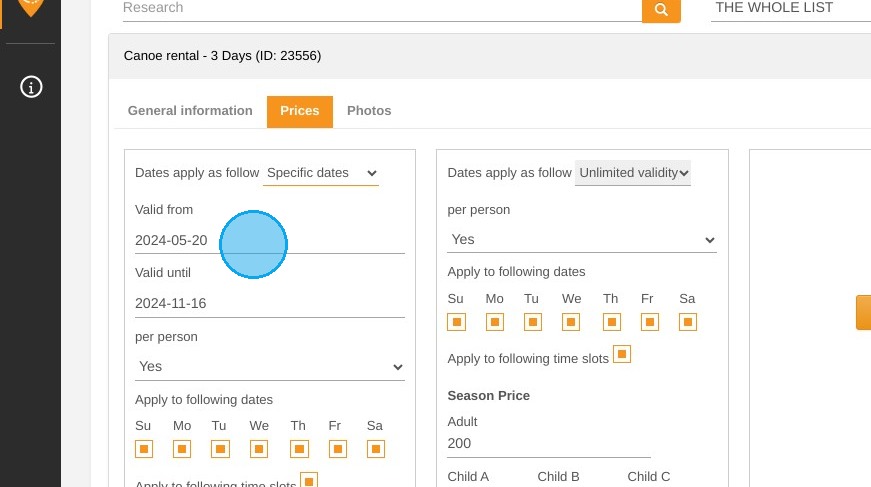
3. Then select your validity dates for the chosen schedule.
https://colony-recorder.s3.amazonaws.com/files/2024-05-20/703f88f4-d0e1-43b5-a242-5050907f4633/ascreenshot_6935102fb4544263bcd0942586807fb0_text_export.jpeg
https://colony-recorder.s3.amazonaws.com/files/2024-05-20/a71f6789-69f4-4a3b-a016-8aa5fe7174a7/ascreenshot_409cacd429e04ff3be528573c159a06f_text_export.jpeg
https://colony-recorder.s3.amazonaws.com/files/2024-05-20/3d61ddeb-adc6-4f85-aa28-b512b4ab3f14/ascreenshot_3adf7734e7ee474eb114e56f6653cf7c_text_export.jpeg
https://colony-recorder.s3.amazonaws.com/files/2024-05-20/83625375-9b01-471b-85e0-449bc7536988/ascreenshot_3b8d7c23b9d14d30ba9b282dd003a26f_text_export.jpeg
https://colony-recorder.s3.amazonaws.com/files/2024-05-20/2f50a0d9-7fd6-43bc-a3f6-e80f750e8450/ascreenshot_95e80e7ceb2c478397afc63a77344245_text_export.jpeg
https://colony-recorder.s3.amazonaws.com/files/2024-05-20/a8c9c3e4-8a7f-446f-8d6c-c2f17e1b3a13/ascreenshot_3a7b7e7d51a94fdea1e1a19a446d44b0_text_export.jpeg
https://colony-recorder.s3.amazonaws.com/files/2024-05-20/c0369bac-a5b6-496a-8a51-b7ca5f9c352b/ascreenshot_471fe48a8add43349011078d9e948a82_text_export.jpeg
https://colony-recorder.s3.amazonaws.com/files/2024-05-20/beba6911-8624-4c62-8ee5-a28949fbe0bb/ascreenshot_e4086c6d1437402d8f9b1192fbc7699a_text_export.jpeg
https://colony-recorder.s3.amazonaws.com/files/2024-05-20/f619e6f8-d113-4d25-8930-e05b4fff3c6f/ascreenshot_5d49bfd6e8fd40a2a1976a844a169043_text_export.jpeg
https://colony-recorder.s3.amazonaws.com/files/2024-05-20/7825660f-49e9-4ab9-a413-189bc464503d/ascreenshot_8e4da4ef6b074273845c212cbabe087f_text_export.jpeg

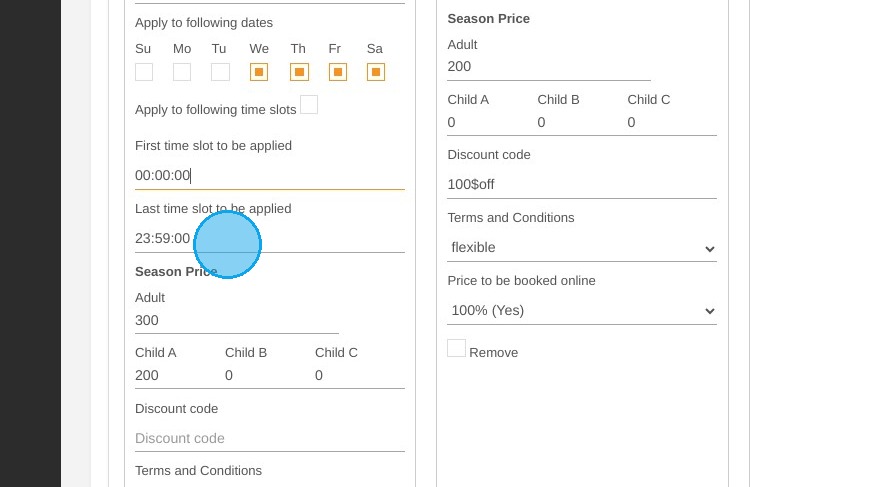
4. To select variable times according to dates, uncheck the box ''Applicable to following time slots''.
https://colony-recorder.s3.amazonaws.com/files/2024-05-20/7cf0bb64-0966-4dea-8878-3ef925fd2c05/ascreenshot_94592fc02091411fab706588fae1e672_text_export.jpeg

5. Then enter the slot times applicable to the selected dates.
https://colony-recorder.s3.amazonaws.com/files/2024-05-20/e27ba44c-0753-4a6f-9428-031114c9a1c7/ascreenshot_2b39f03772464fbdb43cc36dee76c7cd_text_export.jpeg
https://colony-recorder.s3.amazonaws.com/files/2024-05-20/2f42caee-7b85-4bcb-b6f3-661434f6d0fc/ascreenshot_692bf487d28a4ae48cf0d18b4dc0b495_text_export.jpeg

6. Repeat as many times as necessary.
https://colony-recorder.s3.amazonaws.com/files/2024-05-20/579a6717-5605-47d1-bc53-3368bbc1ba95/ascreenshot_7cbd05c7c951446e9b802ff87bb3492a_text_export.jpeg

Tip: To simplify your configurations, try to group your time slots together as much as possible.

Alert: Don't forget to save your changes.