Help for use

How to Configure Your Reference Rate by Occupancy in Reservit

Article Summary: This step-by-step tutorial explains how to easily configure your reference rate using a price per occupancy model in Reservit Accommodation. You will learn how to set up your base pricing plan, apply it to specific units and distribution channels, and accurately update your price grid for different occupancies and dates. Mastering this configuration ensures your lodging property maintains accurate and competitive pricing for every guest count across your direct booking channels.

The 5 key steps to configure your reference rate by occupancy:

  • Create your base offer: Navigate to your rates and availability settings, add a new regular rate, and select the "Official Site" model.

  • Define the pricing model: Edit the offer's settings to select the specific "price per occupancy" option.

  • Select units and channels: Choose the specific rooms or units that will use this reference rate and define exactly where the offer will be distributed.

  • Update the price grid: Use the advanced editing tool to input your exact rates for different guest occupancies across your selected time periods.

  • Verify your setup: Perform a final check on your live reservation pages to ensure the new pricing accurately reflects the number of guests.

Why follow this guide? Following this straightforward process prevents costly pricing errors and ensures your base rates accurately reflect the number of guests in real-time. Setting up your reference rate correctly from the start saves you valuable administrative time and establishes a solid foundation for your overall revenue management strategy.

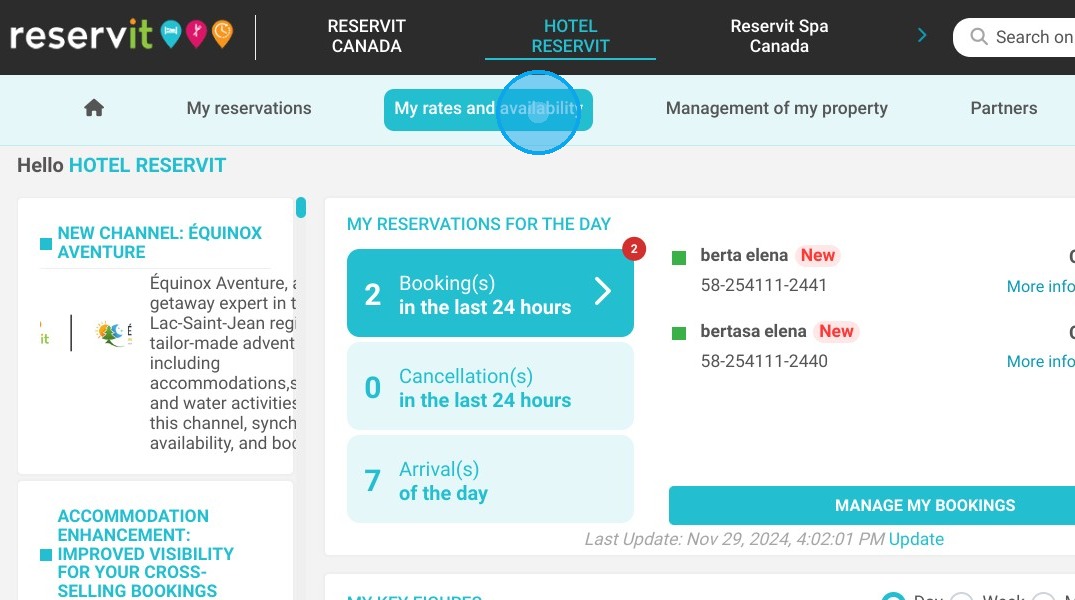
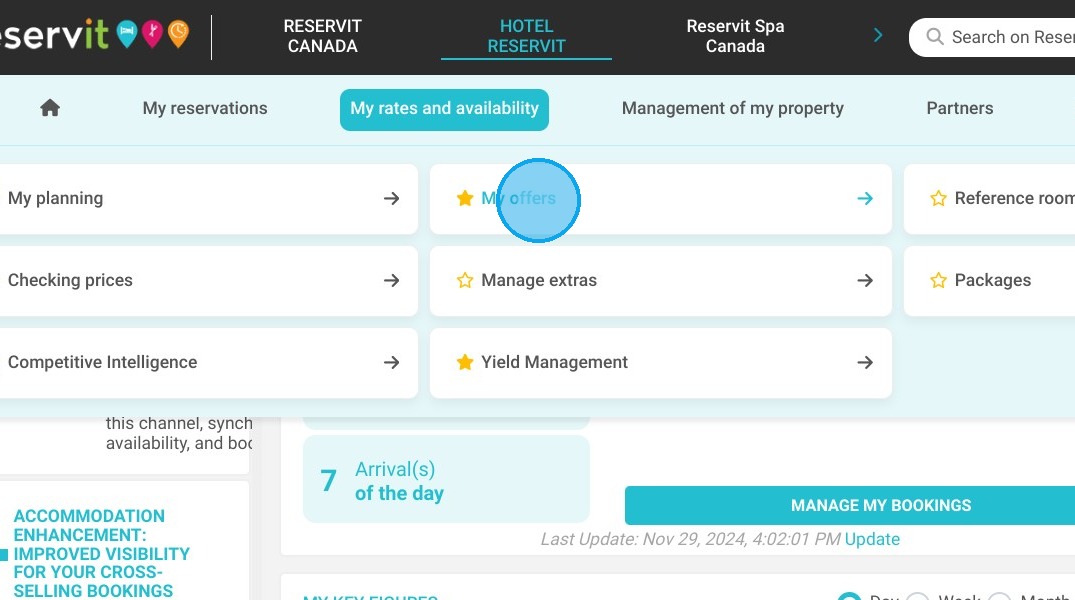
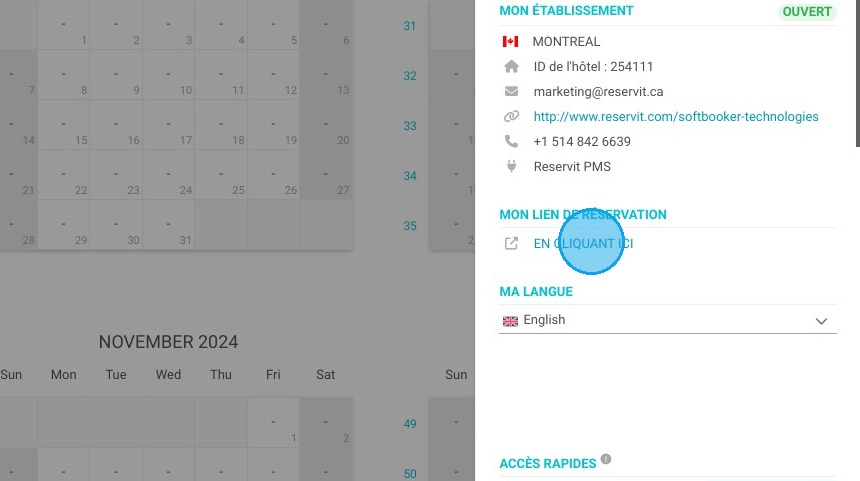
1. Click "My rates and availability" then "My offers" and select the one that you wish to edit.

https://colony-recorder.s3.amazonaws.com/files/2024-11-29/c15be68d-6703-42c7-b7fd-e2a8c57a0550/File_18a6cae301224892bd5aa8b1628022e5_text_export.jpeg
https://colony-recorder.s3.amazonaws.com/files/2024-11-29/e75a0292-1d09-4667-82ae-7a00310e6770/File_9b9f9a9b0aea462fb5b81877177a49bb_text_export.jpeg

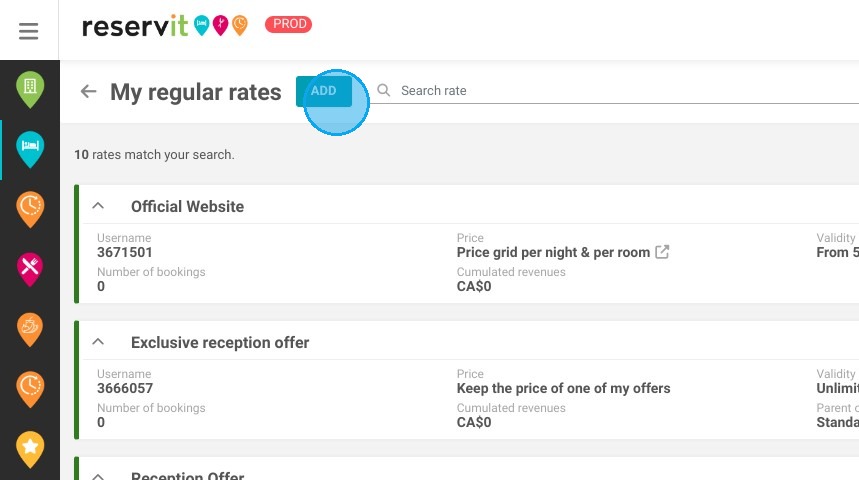
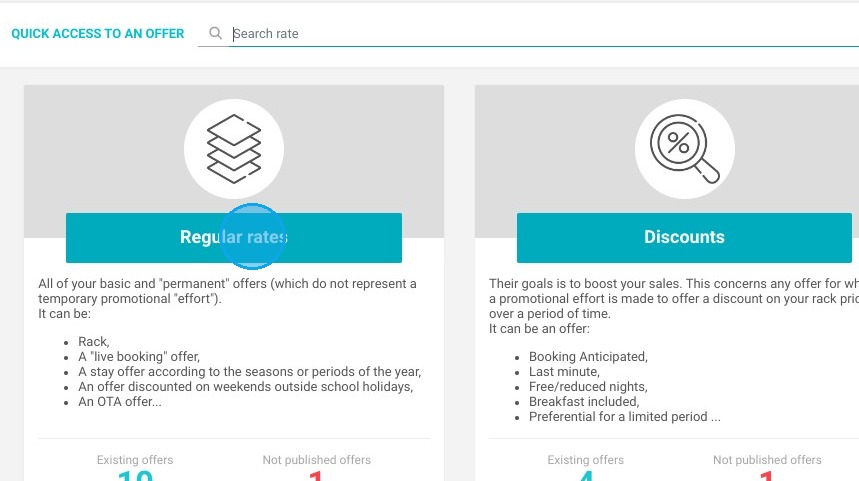
2. Click "Regular rates" and Click "ADD"
https://colony-recorder.s3.amazonaws.com/files/2024-05-01/2afc69b9-61d0-4722-8b47-545facac346d/ascreenshot_42f821ac984c4bcab53219aef412f18c_text_export.jpeg
https://colony-recorder.s3.amazonaws.com/files/2024-05-01/4218a8a3-b671-4689-bd58-b18bf75710ab/ascreenshot_d544778bfcaf4fc186d1d4ed5249db17_text_export.jpeg

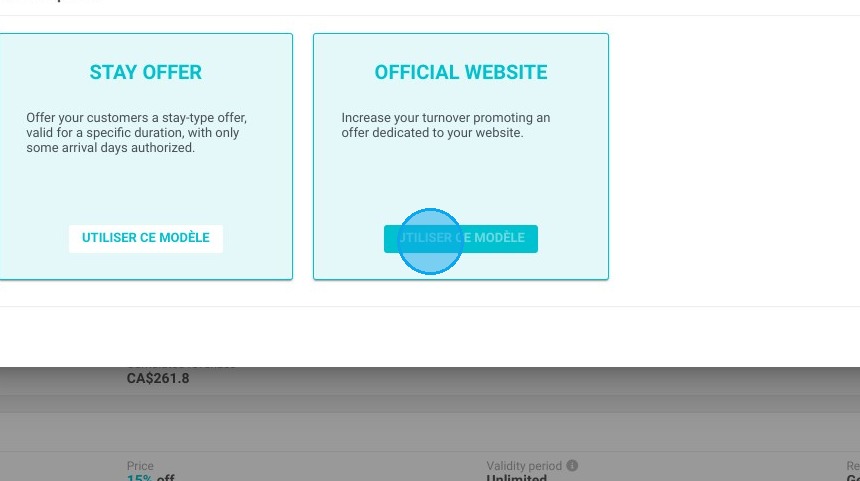
3. We will use the “Official Site” model since this will be your reference offer
https://colony-recorder.s3.amazonaws.com/files/2024-05-01/b114297f-db82-4fad-8254-ae1ec2aad984/ascreenshot_b86844af96214dc38e2f8577ce9fbddb_text_export.jpeg

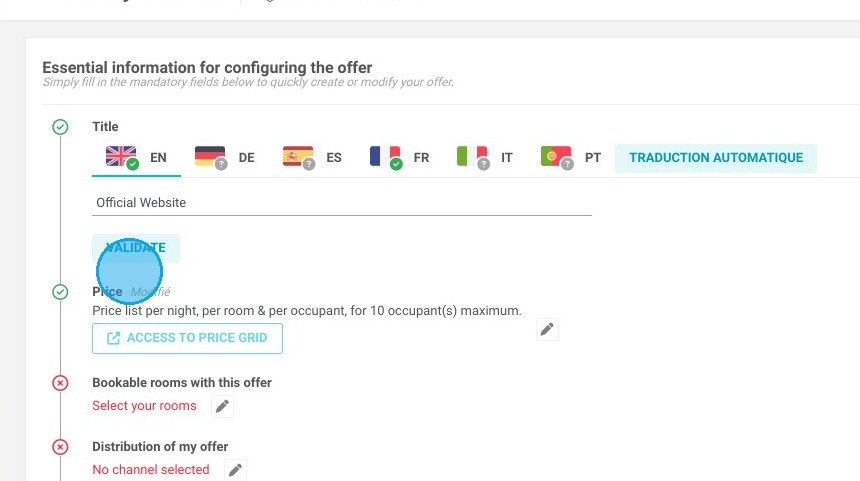
4. Enter the name of the offer and click on Validate
https://colony-recorder.s3.amazonaws.com/files/2024-05-01/2a03bc28-4481-4fde-abea-06e2e0bd82f9/ascreenshot_3d481362c4b04038a3bd1608b6cebf2d_text_export.jpeg

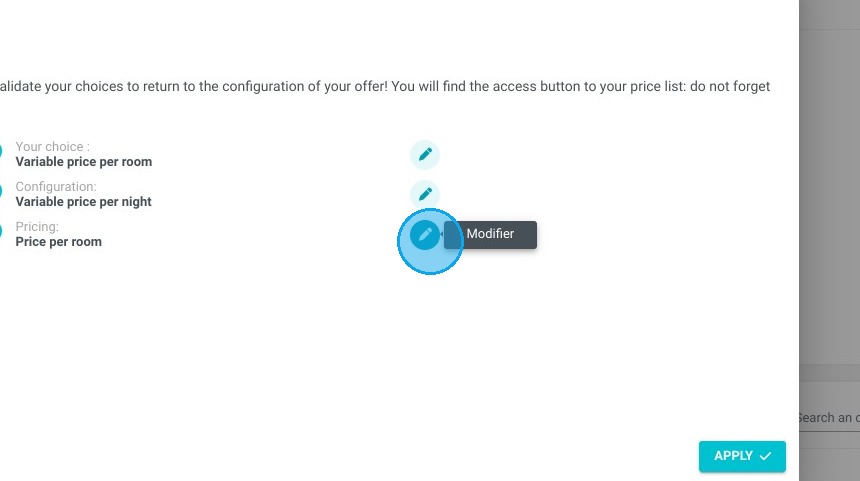
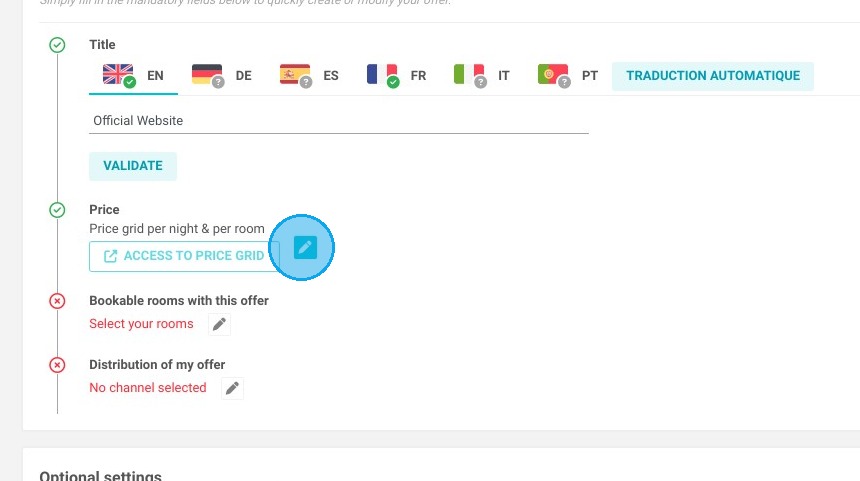
5. Click on the pencil at the price level
https://colony-recorder.s3.amazonaws.com/files/2024-05-01/dabc3639-9595-4c77-9b2c-d4b6596ed3ca/ascreenshot_285abe151aaf4030b473cfb76bc70717_text_export.jpeg

6. Modify and apply

https://colony-recorder.s3.amazonaws.com/files/2024-05-01/b6006213-9939-479b-a21e-270ac6ee269f/ascreenshot_f8e7144e9f0543ec8485cb1364b70912_text_export.jpeg

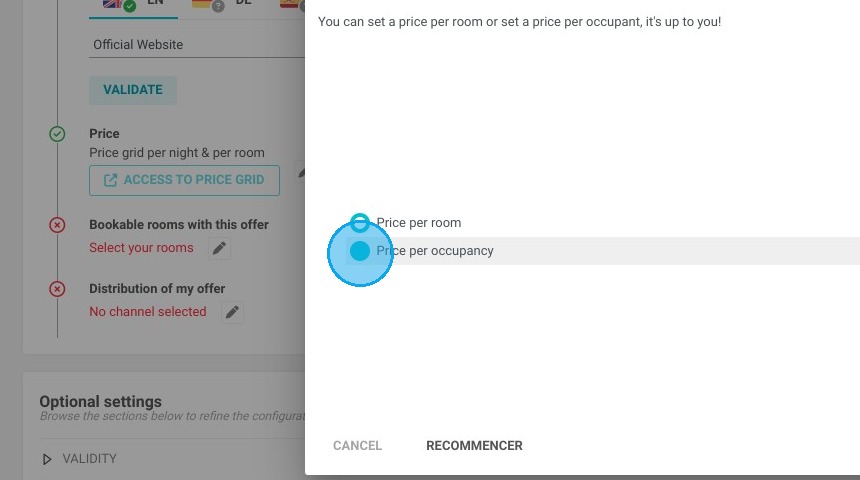
7. Select the price per occupancy

https://colony-recorder.s3.amazonaws.com/files/2024-05-01/86733945-3e22-4fda-9313-d1bea5f22142/ascreenshot_adb9f63456824345b2e84476156d5645_text_export.jpeg

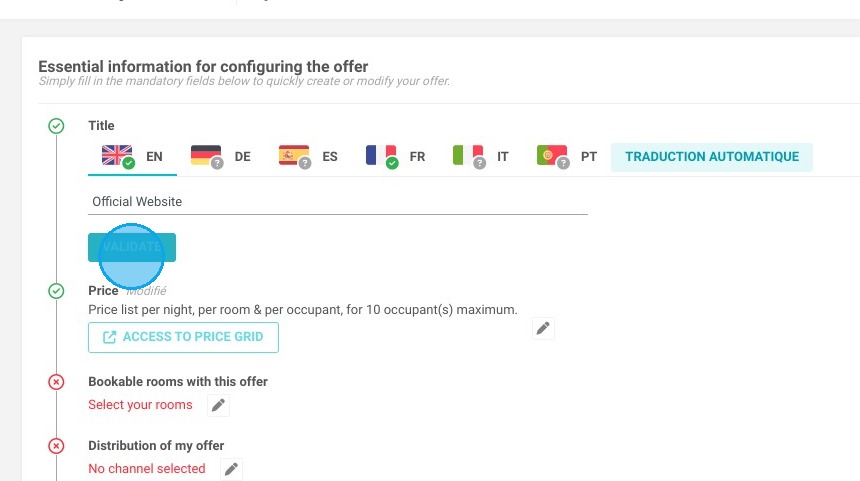
8. Click "VALIDATE"

https://colony-recorder.s3.amazonaws.com/files/2024-05-01/1faf17da-d002-4f40-b1c8-176f638e941e/ascreenshot_e2f075b46dbc4013a4ae2ea664f23799_text_export.jpeg

9. Click here.

https://colony-recorder.s3.amazonaws.com/files/2024-05-01/95cea5b6-6f50-4a51-99c8-8e7f5e1b1e44/ascreenshot_b2808ff99fb7470ab8598f7b73e53d93_text_export.jpeg

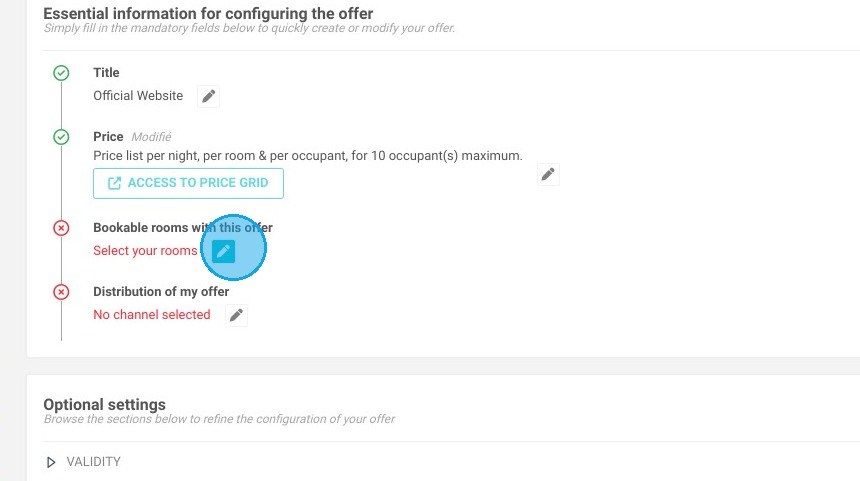
10. Click here.

https://colony-recorder.s3.amazonaws.com/files/2024-05-01/42c31f9b-c8a8-4037-81e1-55a44f5a0213/ascreenshot_e2a7562cd50749c29fa2cb7aed4bcd29_text_export.jpeg

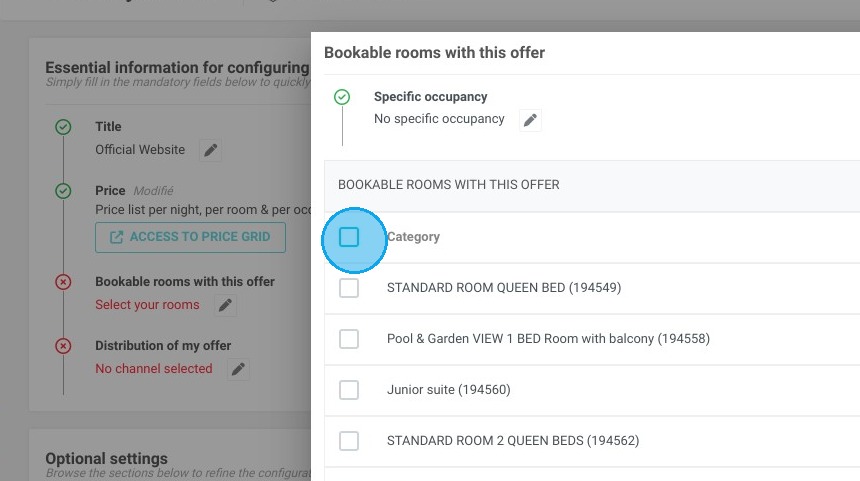
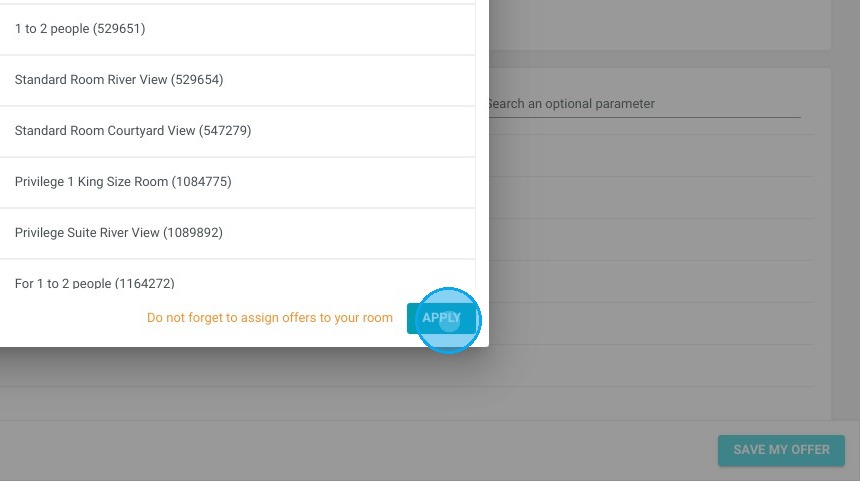
11. Select all your units for which you want to define your reference rate
https://colony-recorder.s3.amazonaws.com/files/2024-05-01/0f94ba63-a76b-4e2b-9699-0e29dfdc0de9/ascreenshot_e921513b9c8047748f229a41d9876b8f_text_export.jpeg

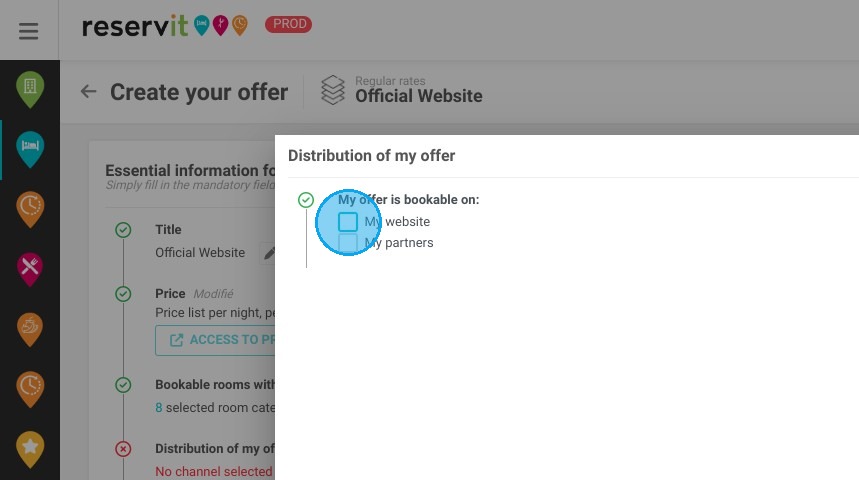
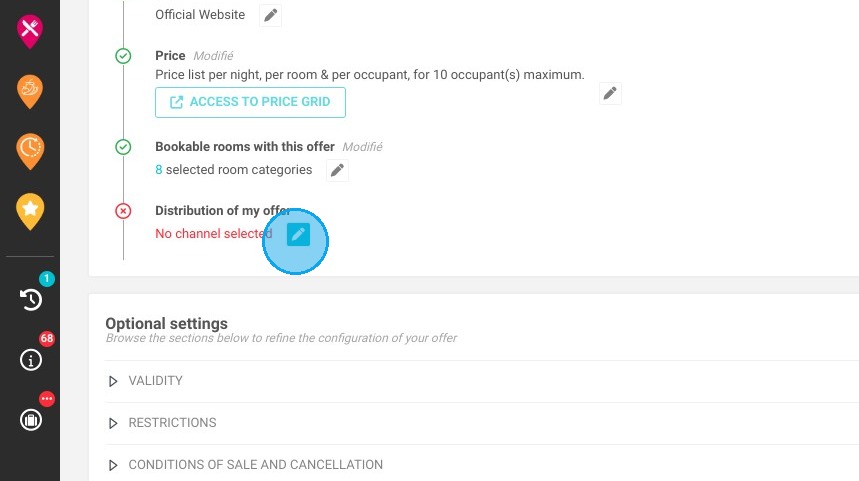
12. Select where you would like to distribute this offer
Click here.
https://colony-recorder.s3.amazonaws.com/files/2024-05-01/fedf2261-7b12-4a1e-b440-aec846126dc4/ascreenshot_ab40b536a22e4bc79b546af7c37924df_text_export.jpeg
https://colony-recorder.s3.amazonaws.com/files/2024-05-01/b6a04973-5ed6-4fa5-9447-d3ced8aa090c/ascreenshot_3bdfc74aad374d5f95b3baa8e6b7c0d0_text_export.jpeg

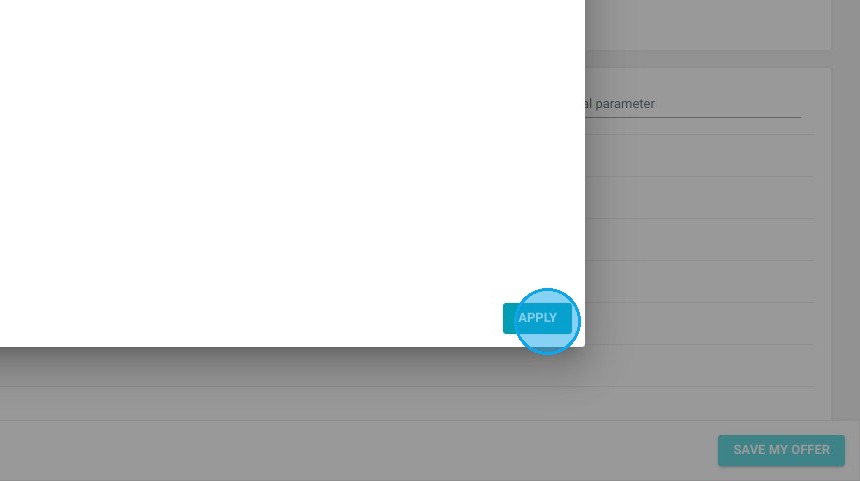
13. Click "APPLY"

https://colony-recorder.s3.amazonaws.com/files/2024-05-01/1fcd9852-f054-4078-ba2b-d54974ccb29e/ascreenshot_0a8bdc86e6654c85afa2742e549cef5e_text_export.jpeg

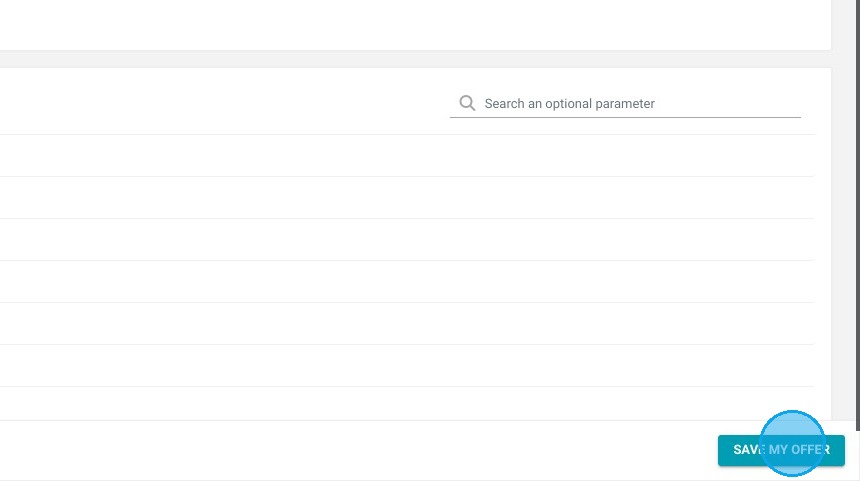
14. Click "SAVE MY OFFER"

https://colony-recorder.s3.amazonaws.com/files/2024-05-01/9b29322b-6819-4a04-9682-e04aad458ad8/ascreenshot_ecbebff853e44707bf3e310b6f6d2cd0_text_export.jpeg

15. Click "ACCESS TO PRICE GRID"

https://colony-recorder.s3.amazonaws.com/files/2024-05-01/6d76b2f0-b6ae-484e-a130-345a73f18f8a/ascreenshot_064821e7bb444d62a24522f5a7329b47_text_export.jpeg

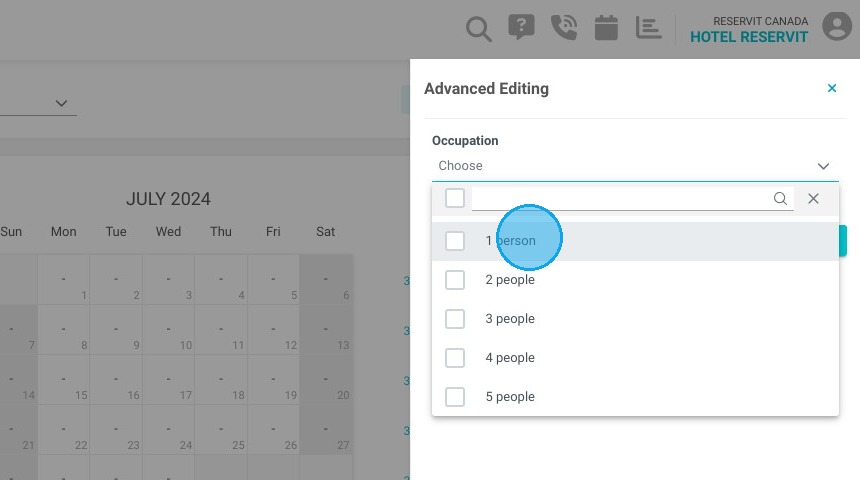
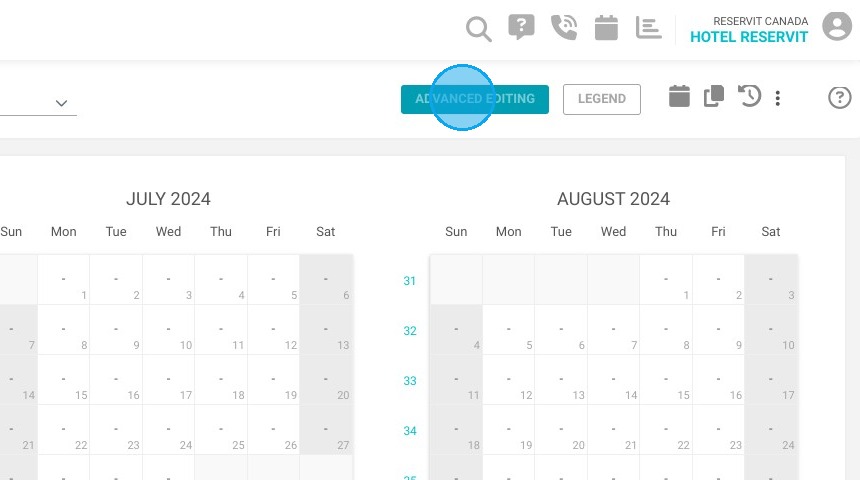
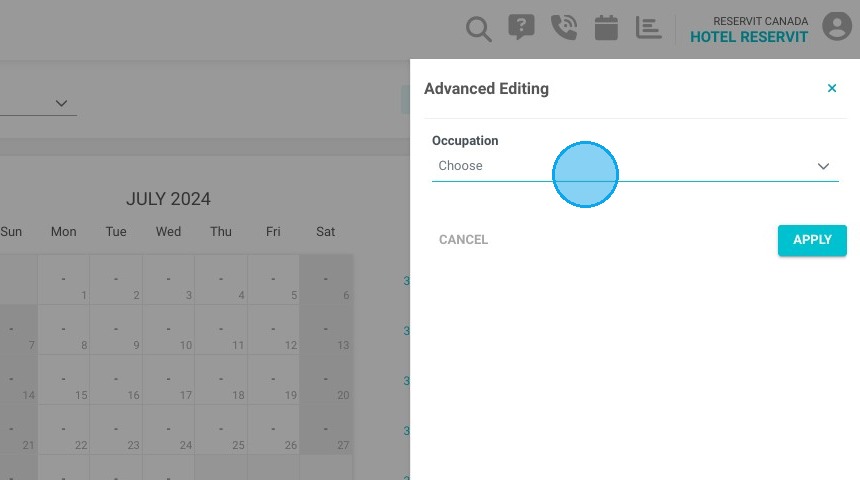
16. Select “ADVANCED EDIT” to input your Reference Price. Choose the specific occupancy for which you would like to set rates for the selected room.

The selected room is currently set for one occupant; use the drop-down menu to adjust the room or occupancy settings as needed.
https://colony-recorder.s3.amazonaws.com/files/2024-05-01/24e605c3-6d4f-403a-b05b-2805f73739c4/ascreenshot_95b08a02ae294e7f93ee0fe7883f1a06_text_export.jpeg
https://colony-recorder.s3.amazonaws.com/files/2024-05-01/9646f99c-9d9e-4057-8949-90d5cb8e359a/ascreenshot_24c10420fdec4b439dcc84f0f422b552_text_export.jpeg
https://colony-recorder.s3.amazonaws.com/files/2024-05-01/0f2dcd29-6c0a-49bf-8cf3-3dee3272a8af/ascreenshot_b057e18bcd6a4cd79ced2b356ab6f5a4_text_export.jpeg

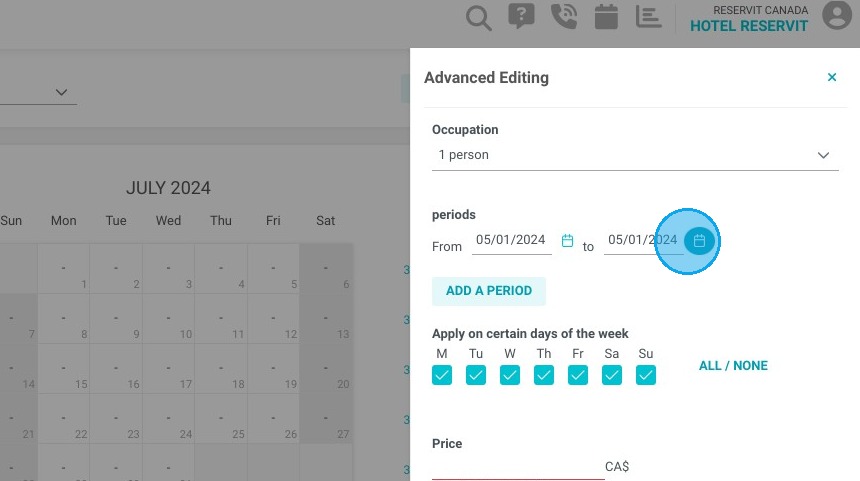
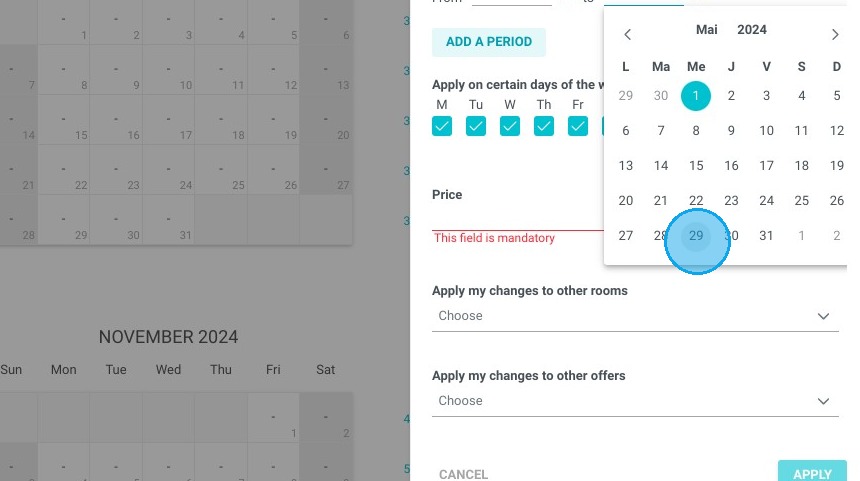
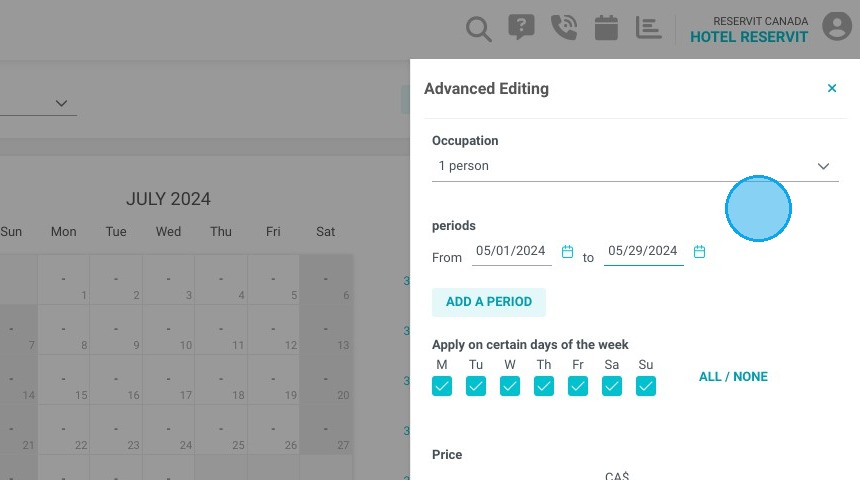
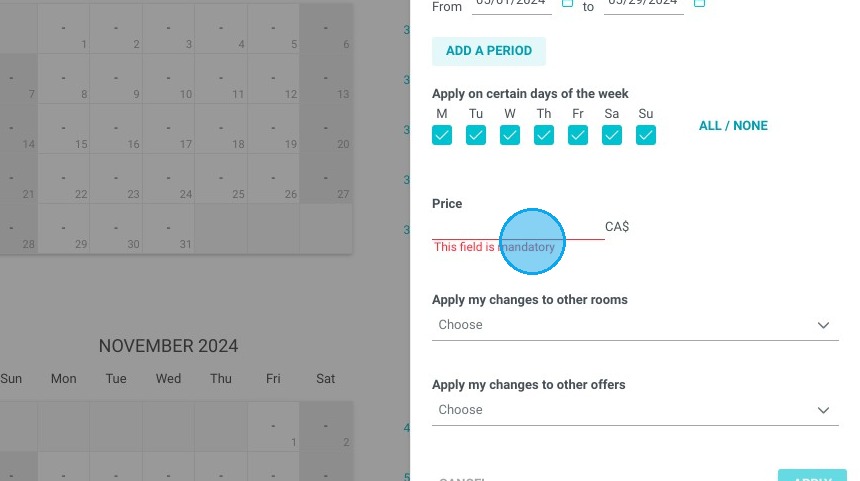
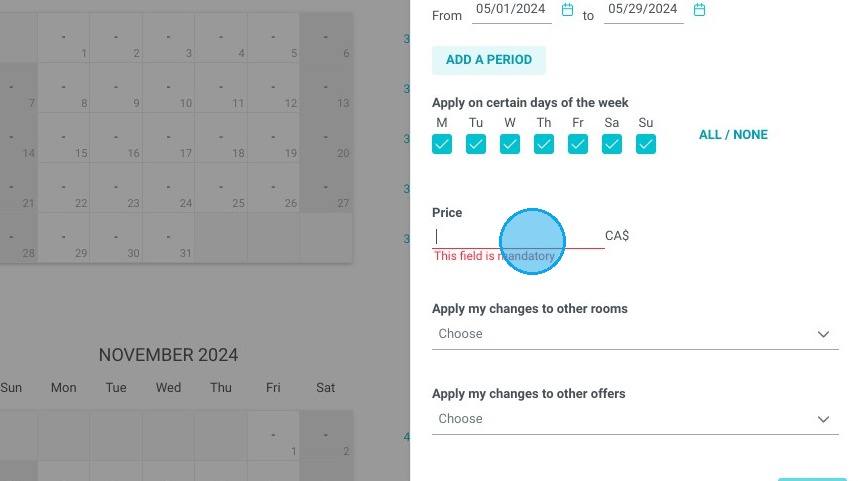
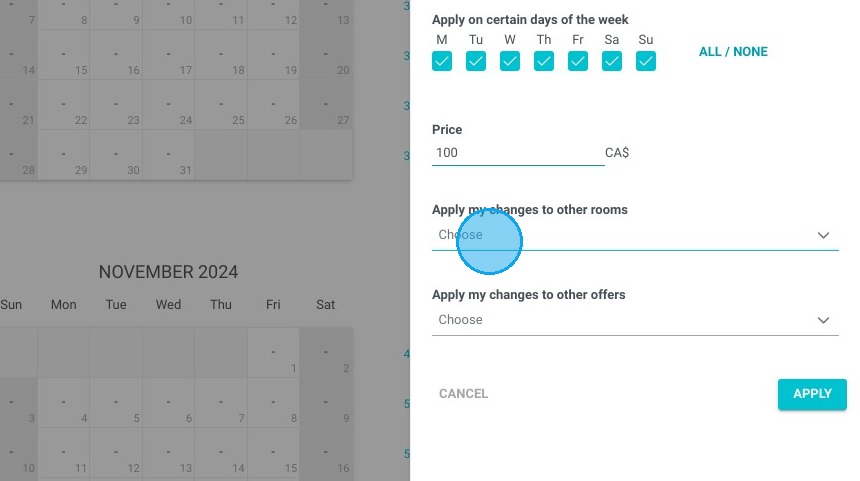
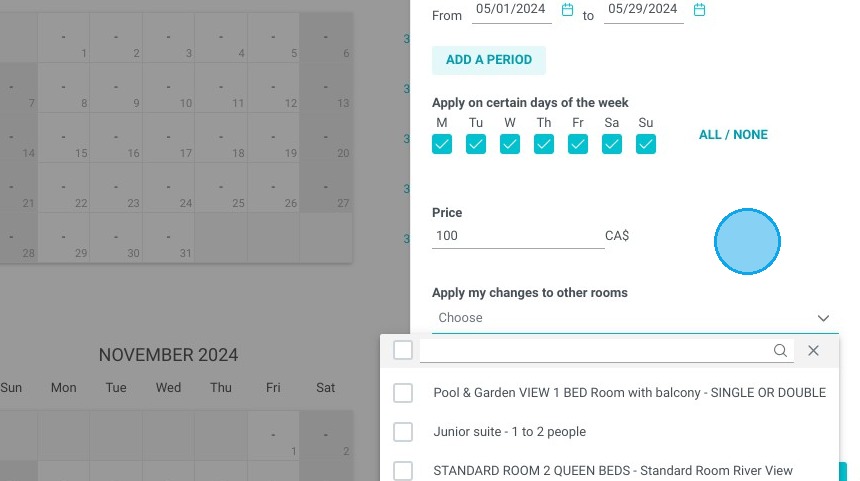
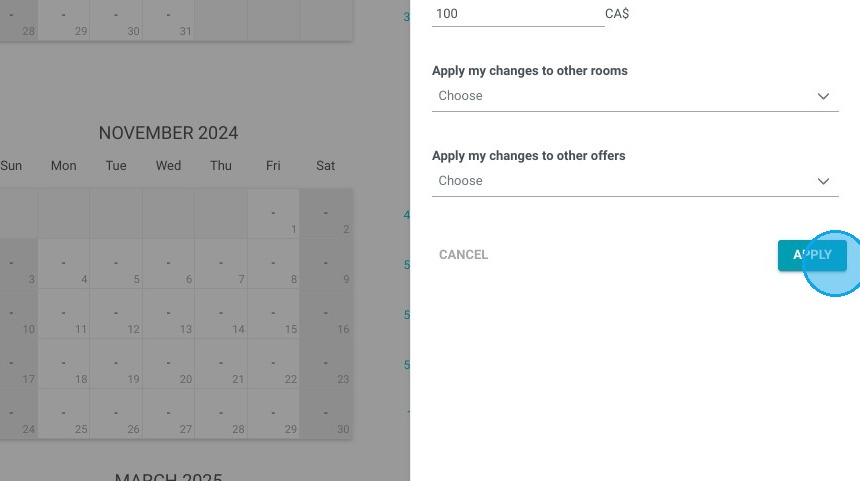
17. Select the desired timeframe for your pricing. Specify the rates for each chosen occupation.

Click "APPLY."

https://colony-recorder.s3.amazonaws.com/files/2024-05-01/714091a1-6327-40be-b4a8-32b97239002e/ascreenshot_6f41cbcb38d3424281b4a48769c28452_text_export.jpeg
https://colony-recorder.s3.amazonaws.com/files/2024-05-01/038c0c46-1d36-4897-8a10-eb0cfd2ffbe3/ascreenshot_f9f9b6cc86ae414b99e344e772ae0e55_text_export.jpeg
https://colony-recorder.s3.amazonaws.com/files/2024-05-01/23cef279-460a-429c-ad47-1e439baa8674/ascreenshot_003a35d4cd8c4d338dbf3a741de9f5d9_text_export.jpeg
https://colony-recorder.s3.amazonaws.com/files/2024-05-01/1de31c04-ea40-4ccd-9c61-15f8ee9f9a27/ascreenshot_cb7d5bbf710f4bc3aca432549aa50165_text_export.jpeg
https://colony-recorder.s3.amazonaws.com/files/2024-05-01/297001b9-f661-4b1e-beca-676782609da7/ascreenshot_5939675f8f5249e29d70f62ccfe1a73e_text_export.jpeg
https://colony-recorder.s3.amazonaws.com/files/2024-05-01/6f8ec53e-d860-4316-843e-b154c19ab1a9/ascreenshot_7e78aa9b4fea47dfa2af60a206eee973_text_export.jpeg
https://colony-recorder.s3.amazonaws.com/files/2024-05-01/cf24b783-7622-414a-8416-2d46969ecb72/ascreenshot_f6f653bdf4f44d6da240b248a66d0c21_text_export.jpeg
https://colony-recorder.s3.amazonaws.com/files/2024-05-01/2d838ace-0c89-45f3-b5fd-19a1cc25db15/ascreenshot_6c186ae28eff4d468847d16b35ba0f3c_text_export.jpeg

18. Last check, I check on the reservation pages that the offer goes up with the correct prices.

https://colony-recorder.s3.amazonaws.com/files/2024-05-01/07db9376-937d-4e3d-b56a-0e2137e7ae48/ascreenshot_a418bd9d939045c2a2ecfec765166fc0_text_export.jpeg