Article Summary: This comprehensive tutorial explains how to effectively create and manage room blocks and partner offers within Reservit Accommodation. You will learn how to configure specific room categories, assign dedicated physical inventory, and set up negotiated rate plans tailored for your tour operators or corporate groups. Mastering this group allotment process allows you to securely manage contracted inventory and easily provide your B2B partners with direct, customized booking links.
The 5 key steps to manage room blocks and partner offers:
-
Configure the room categories: Create specific room categories and types dedicated to your partner blocks, ensuring you define the correct taxes and restrict the distribution channels appropriately.
-
Link physical inventory: Connect your existing physical units or create new ones to associate directly with your newly established room block categories.
-
Create a dedicated rate plan: Build a specific pricing offer with negotiated rates, linking it strictly to the designated partner and the blocked room types.
-
Verify and publish: Review your configured pricing grid, save the new offer configuration, and publish it to make the rates active.
-
Generate the booking link: Access your partner management settings to extract the direct URL, allowing your partners or group members to seamlessly book their reserved rooms.
Why follow this guide? Following this precise configuration guide prevents costly overbooking and ensures your contracted group rates are never accidentally exposed to public distribution channels. It optimizes your B2B sales management by fully automating the reservation process for your corporate partners and tour operators, saving you significant administrative time.
Tip: In the hotel industry, a 'room block' is an arrangement between a hotel and a tour operator or company. This implies that a certain quantity of rooms are reserved for a specific group or company over a given period.
If you are able to use sales limits, we recommend using sales limits rather than allotments and room blocks for more flexibility in your marketing.
Alert: Allotment management is not a feature supported by distributors such as Booking.com, Expedia, Airbnb, VRBO or Google.
Alert: Before continuing with this tutorial, you must have already created your group as a partner.
Room block setup
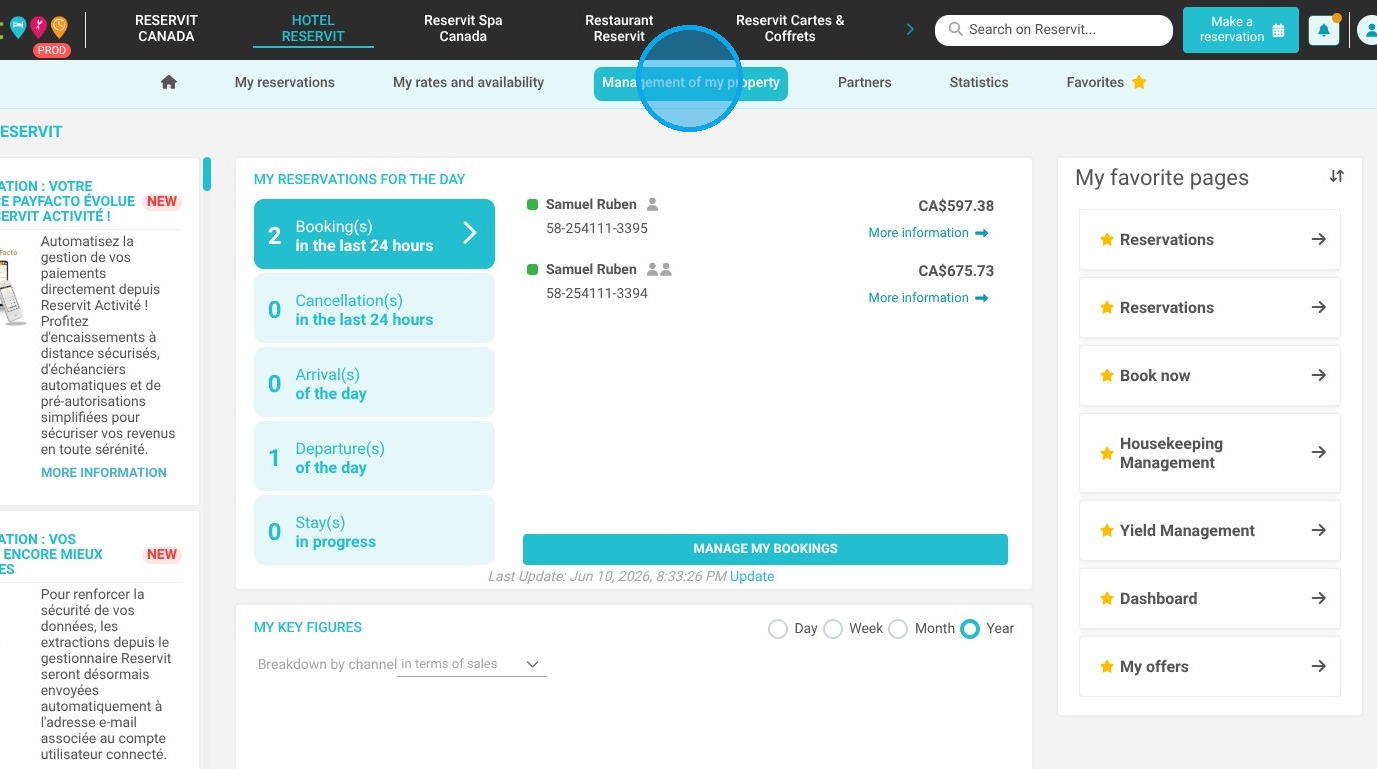
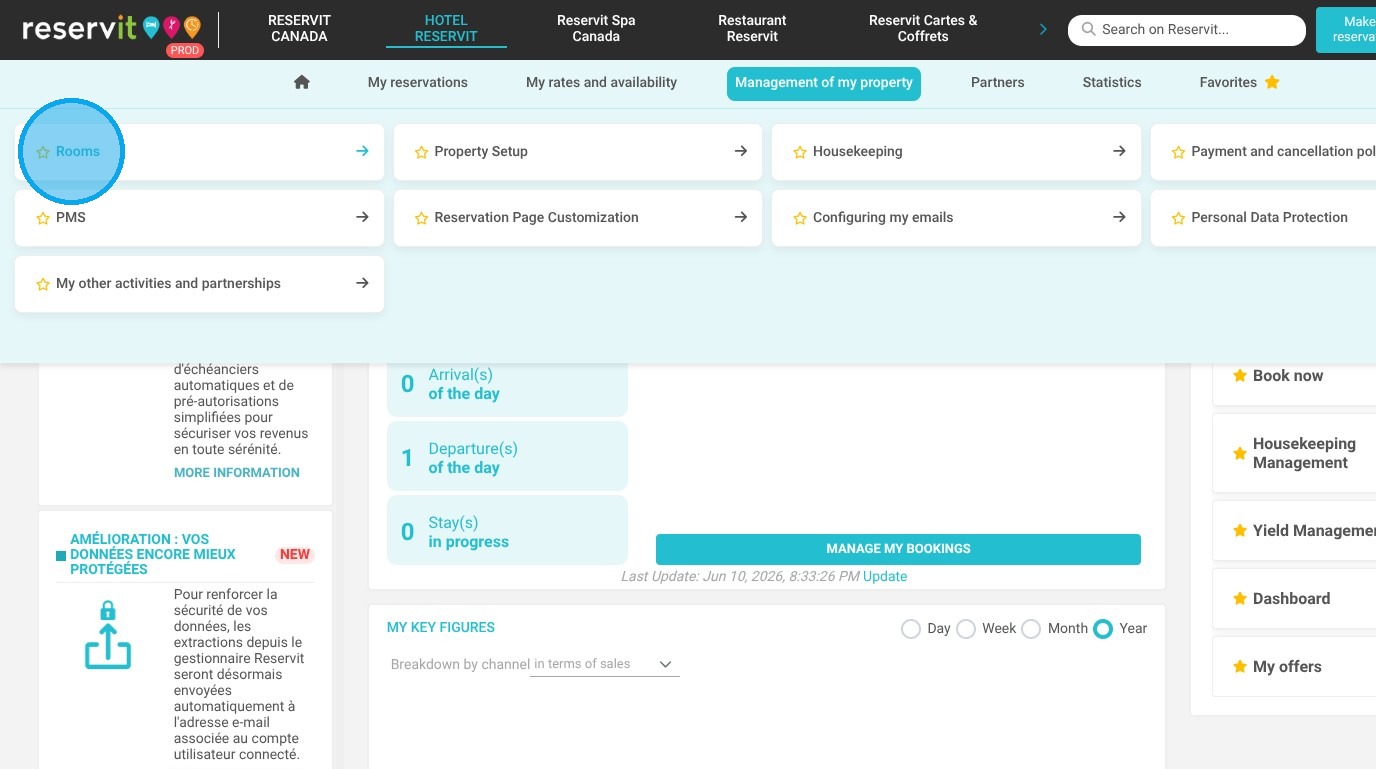
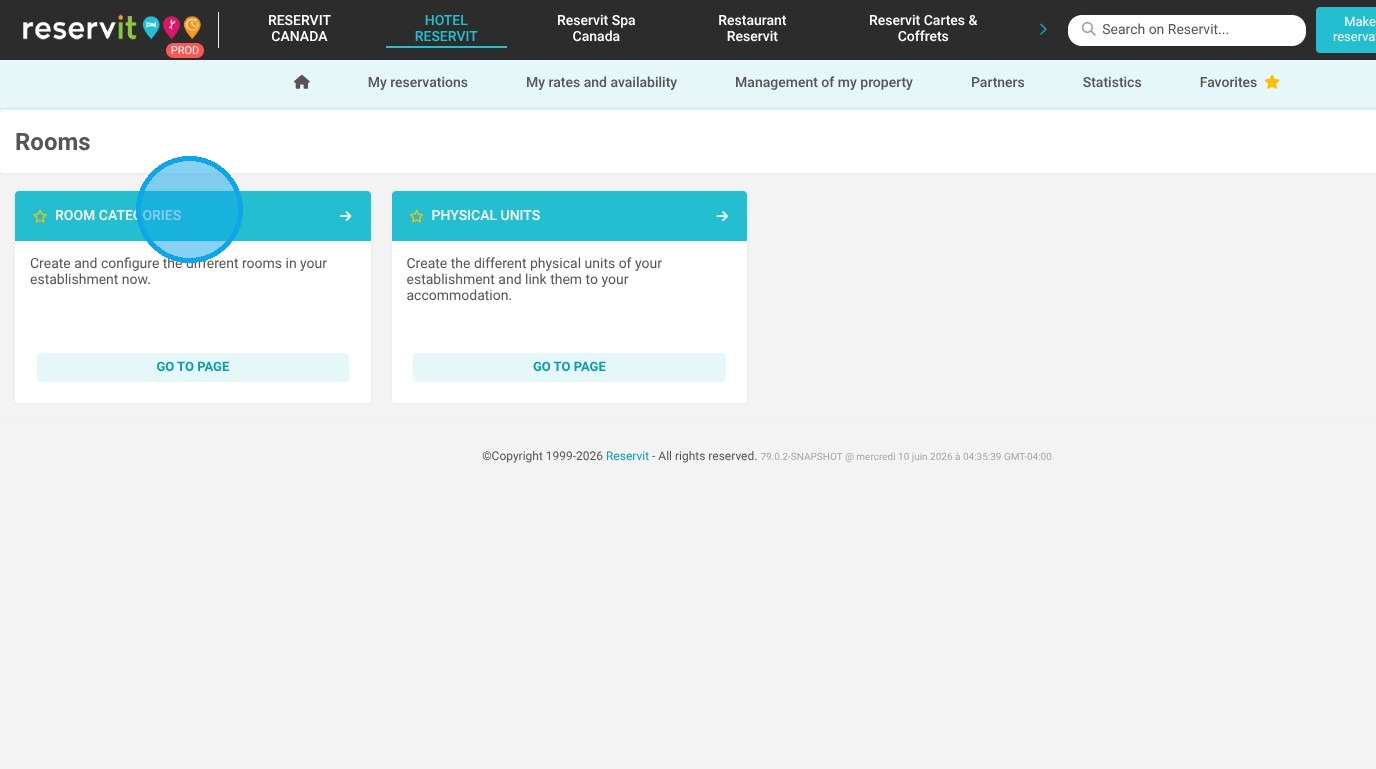
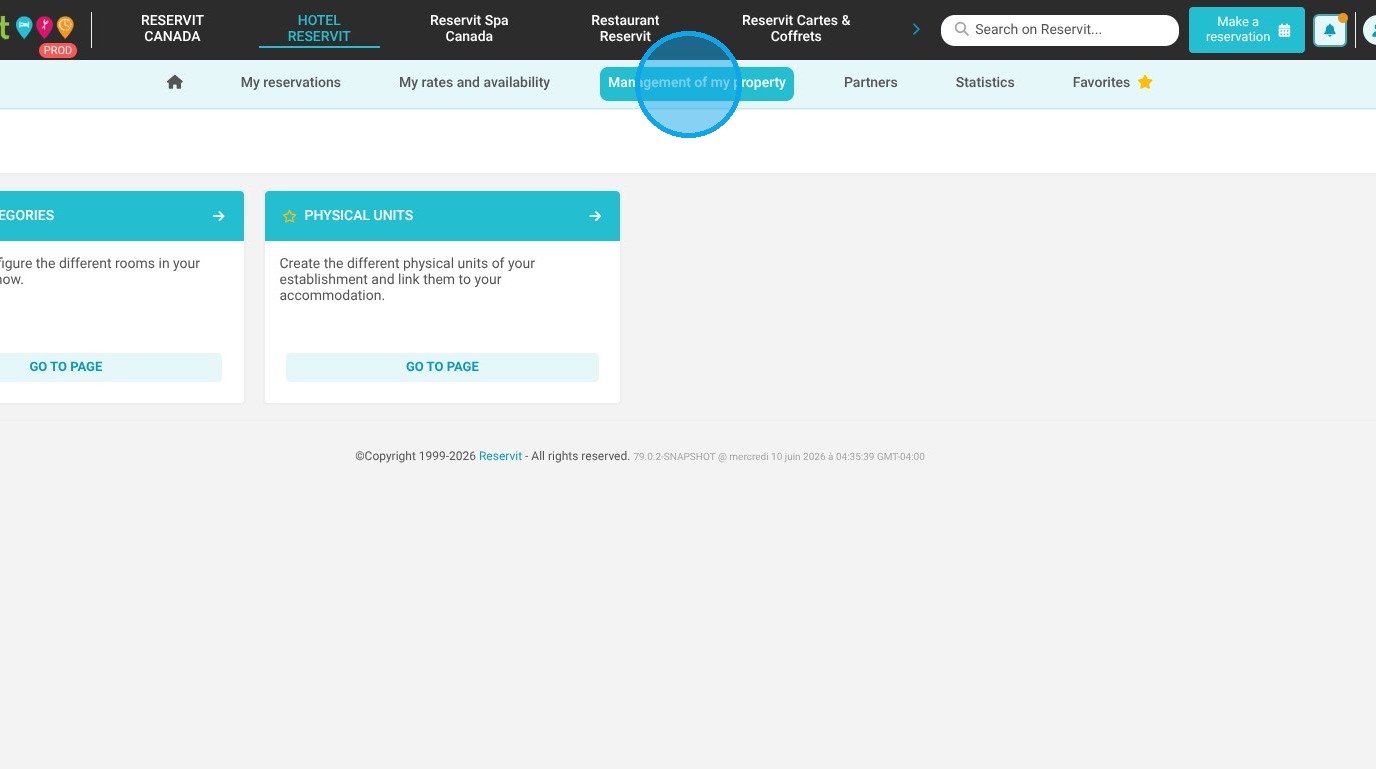
1. Click "Management of my property", then "Rooms" and "Room categories"
2. Follow the steps of creation and "SAVE"
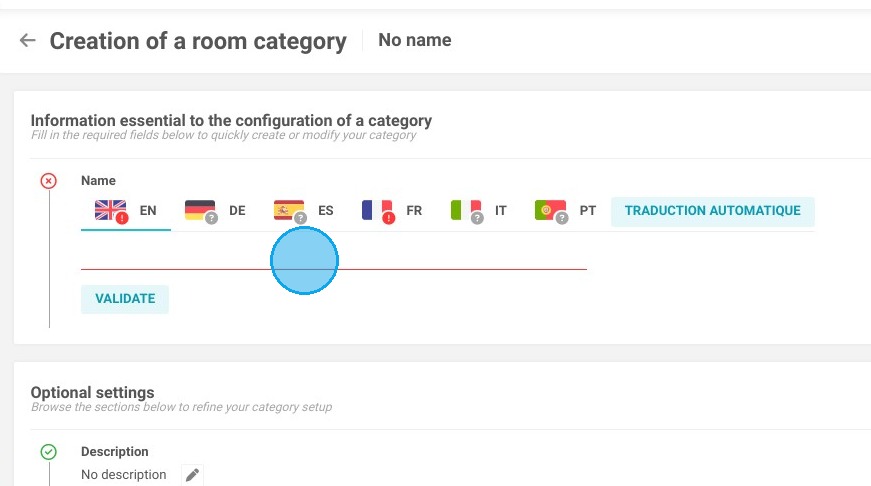
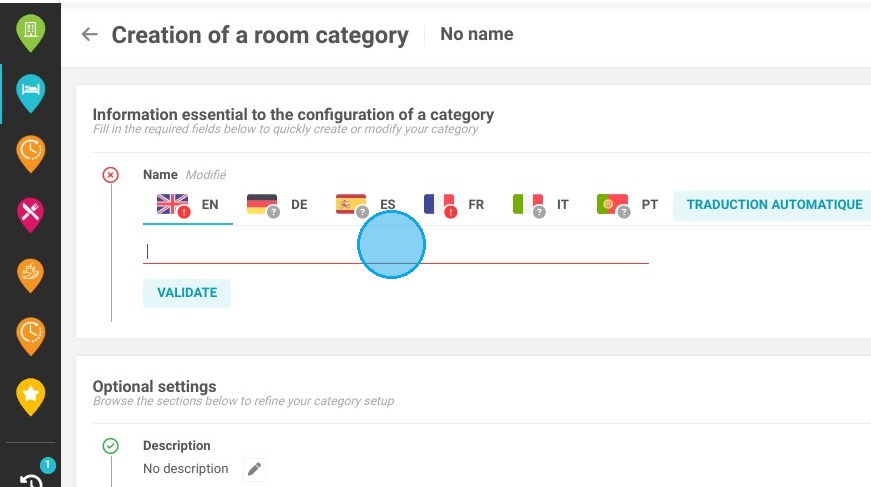
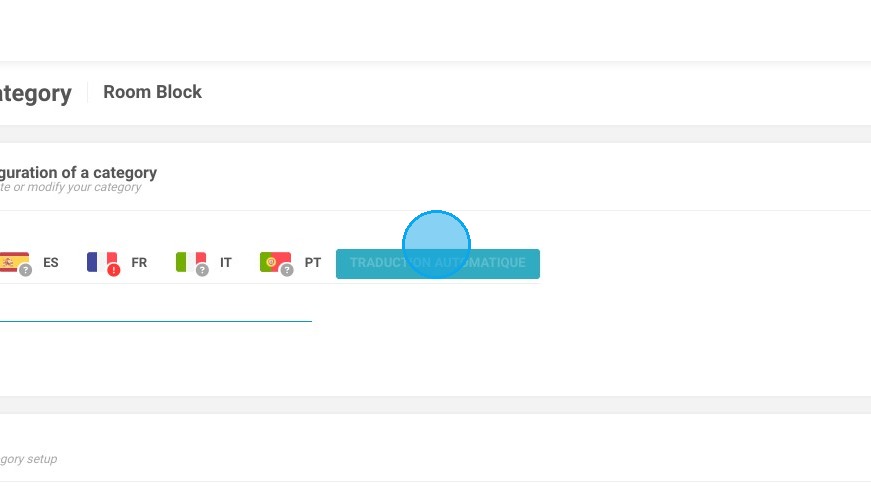
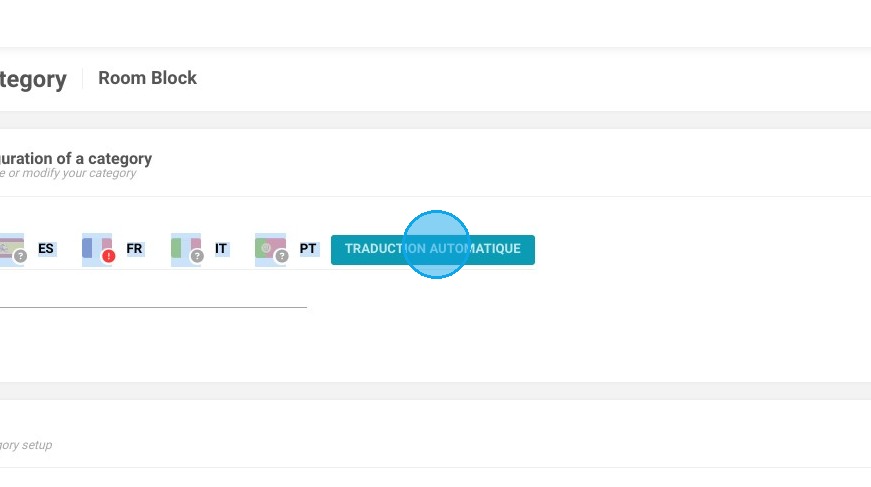
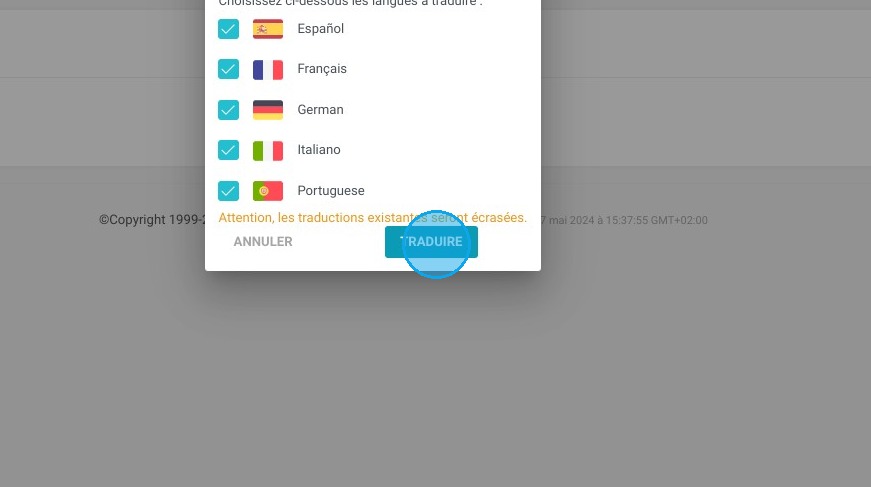
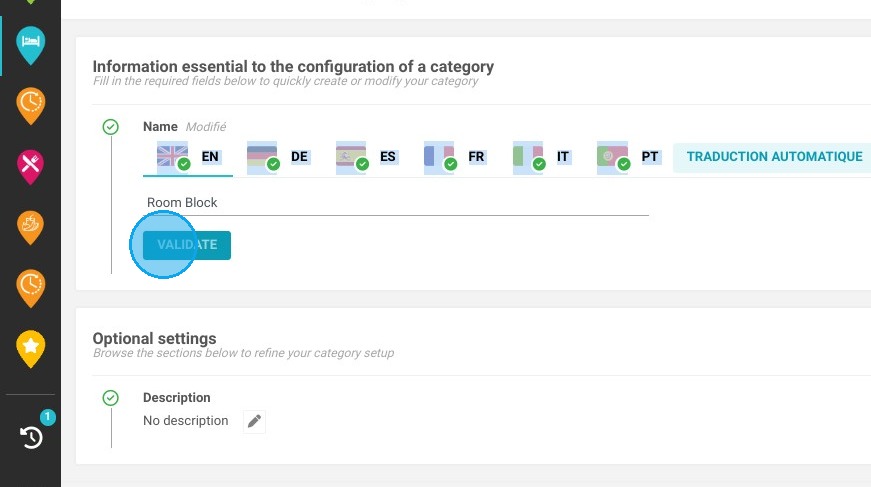
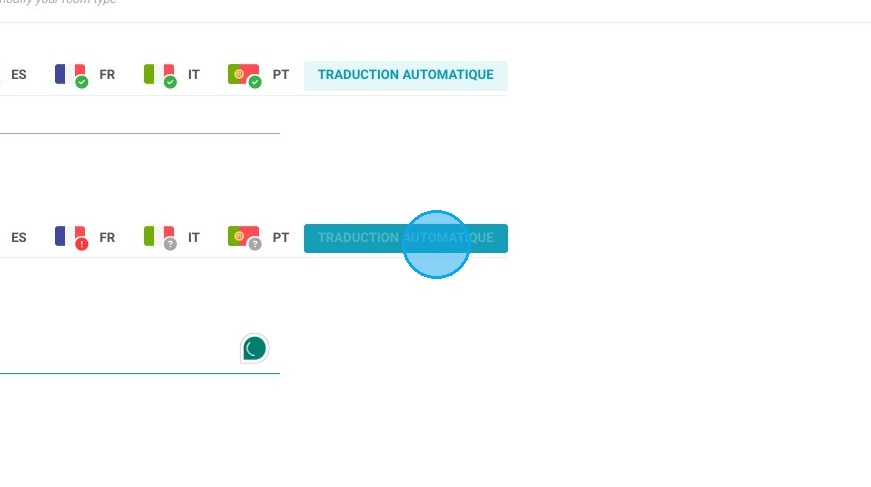
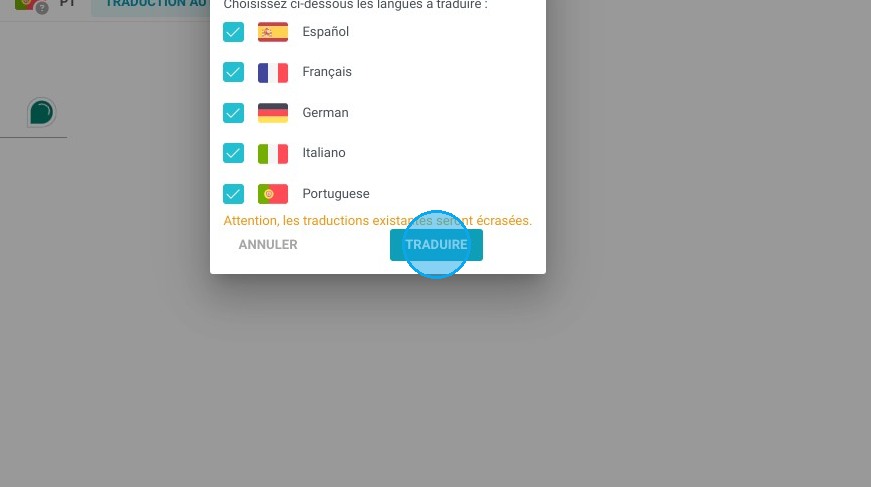
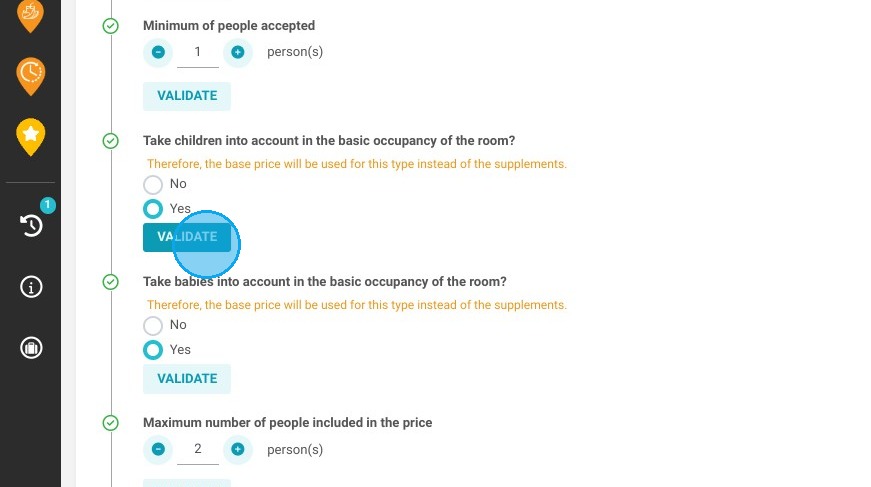
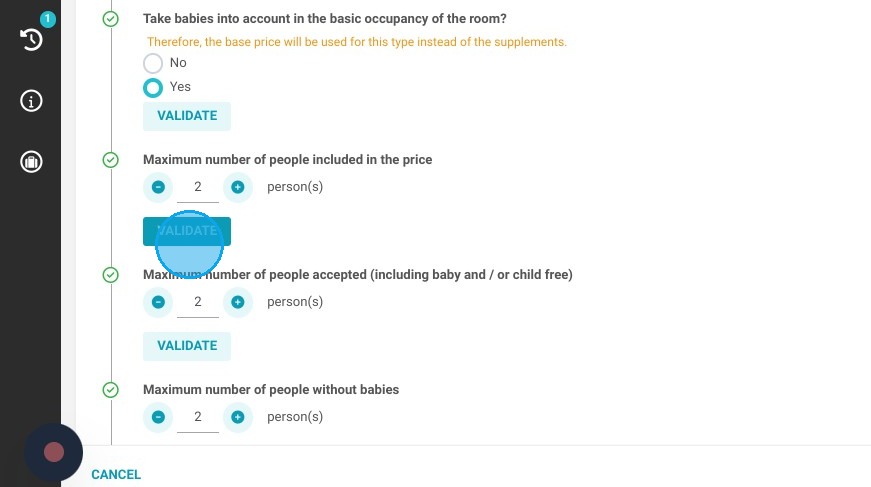
3. Next, you'll need to create the type of room you're offering your partner. For example, we'll offer them a standard room with a garden view. Follow the different steps of creation.
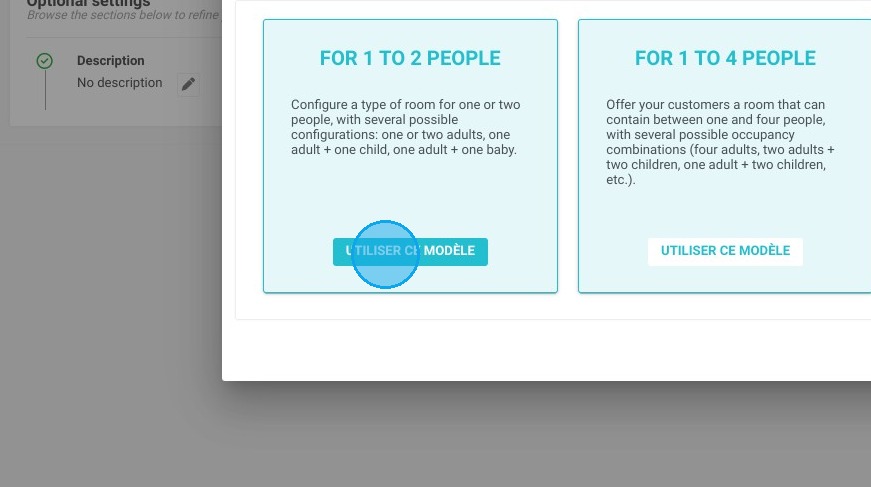
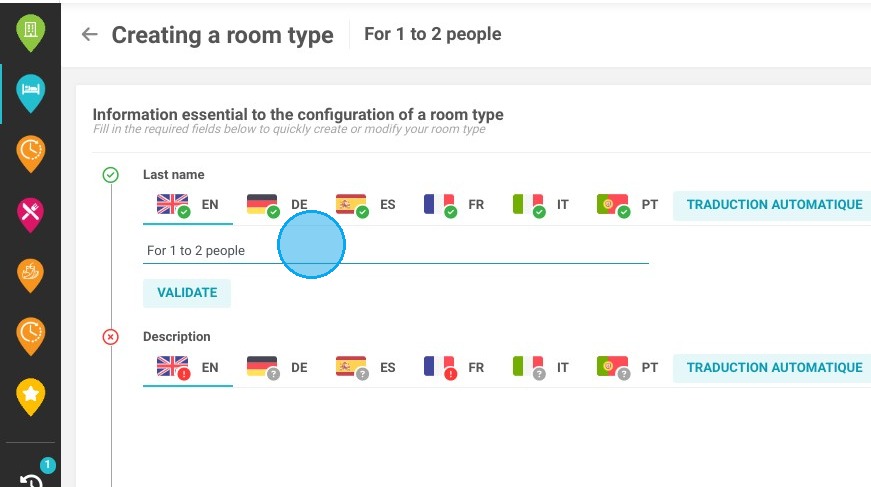
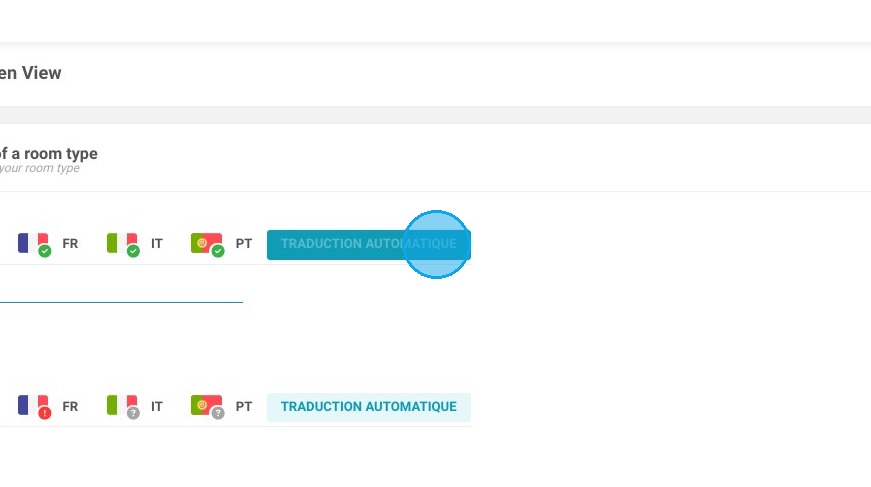
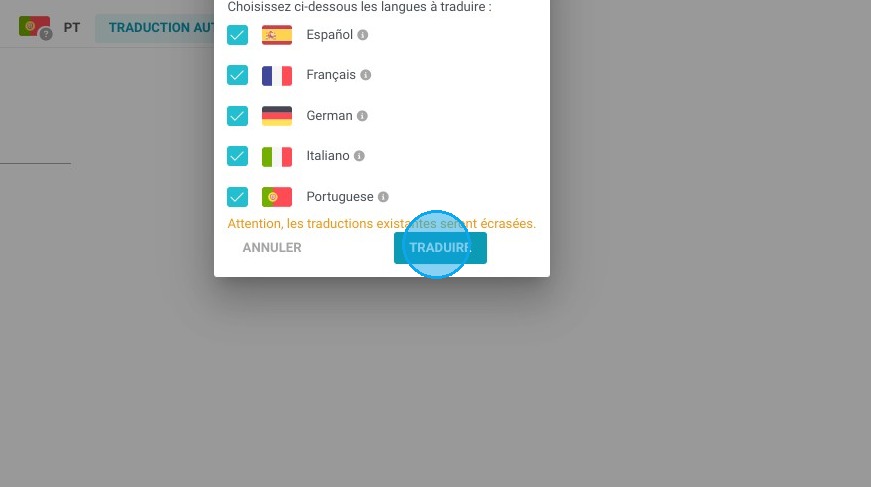
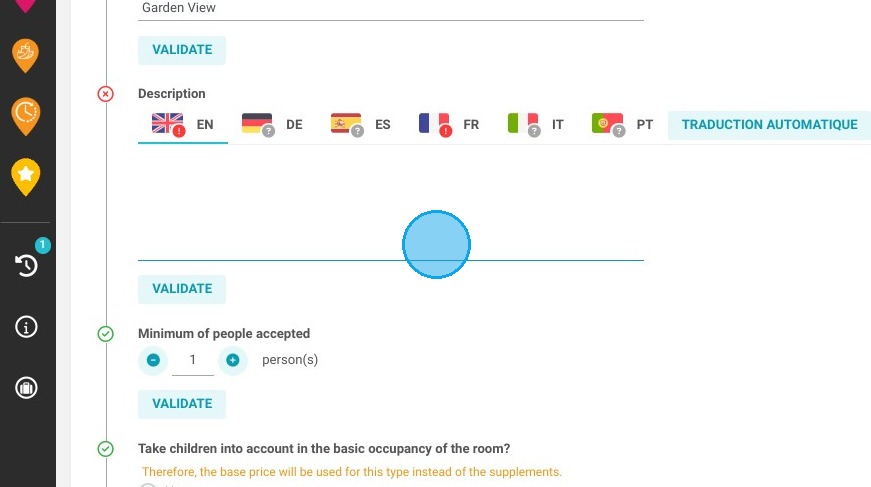
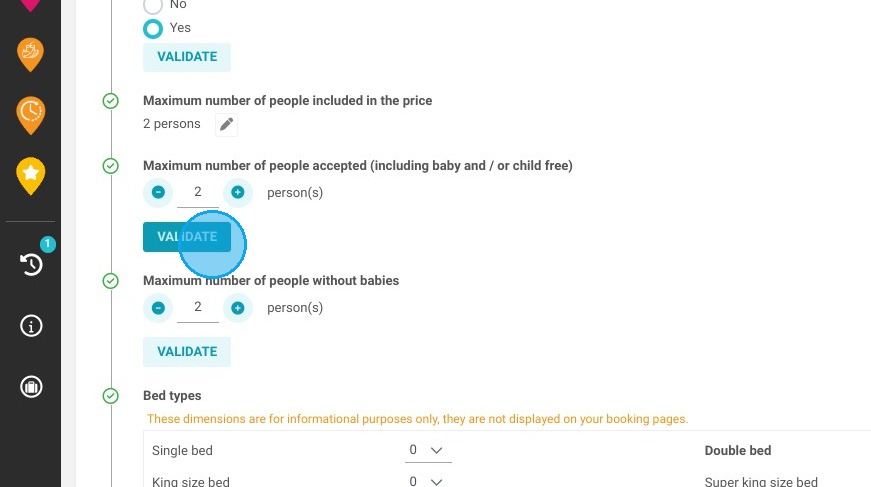
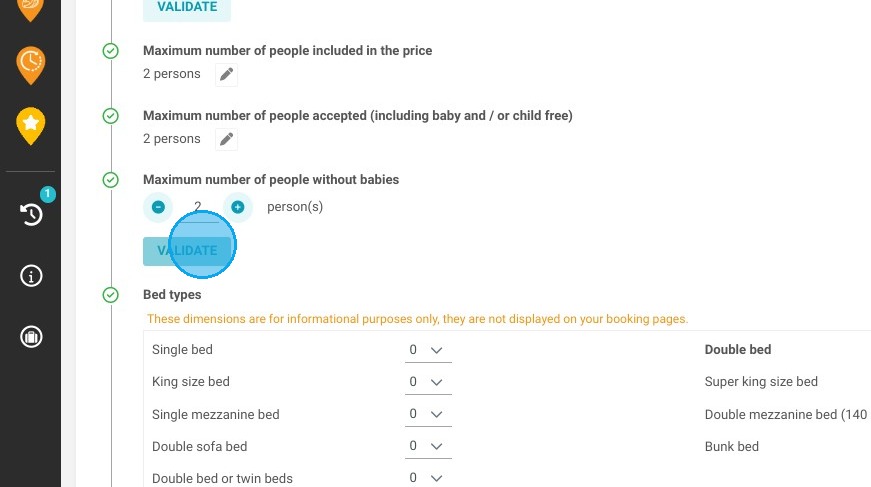
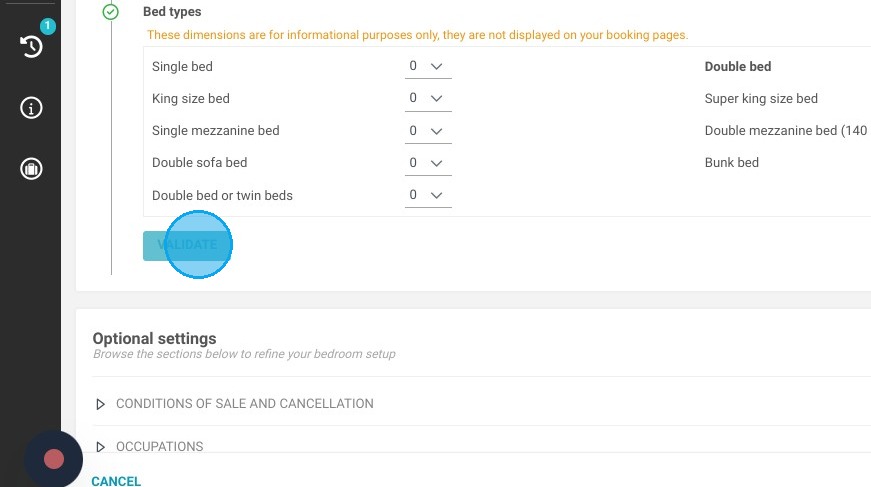
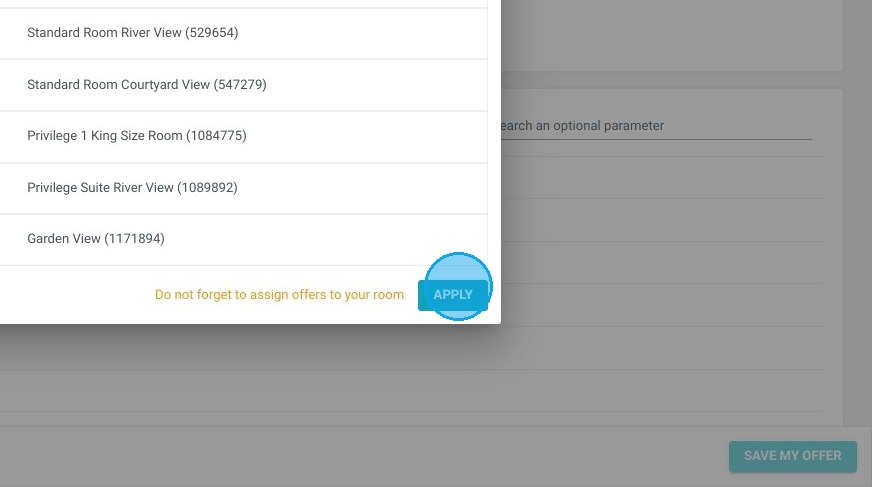
4. At the "DISTRIBUTION" step, click on the pencil to uncheck website then all other partners not concerned by this room category.
Click "APPLY" to save.
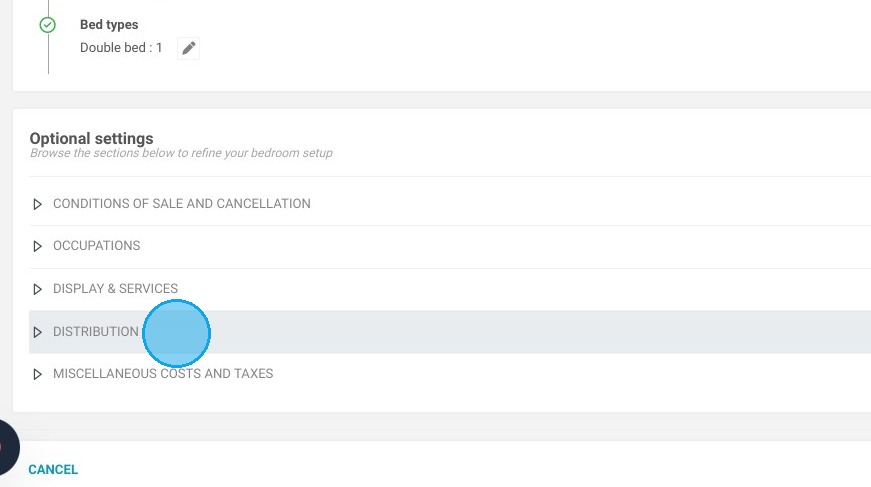
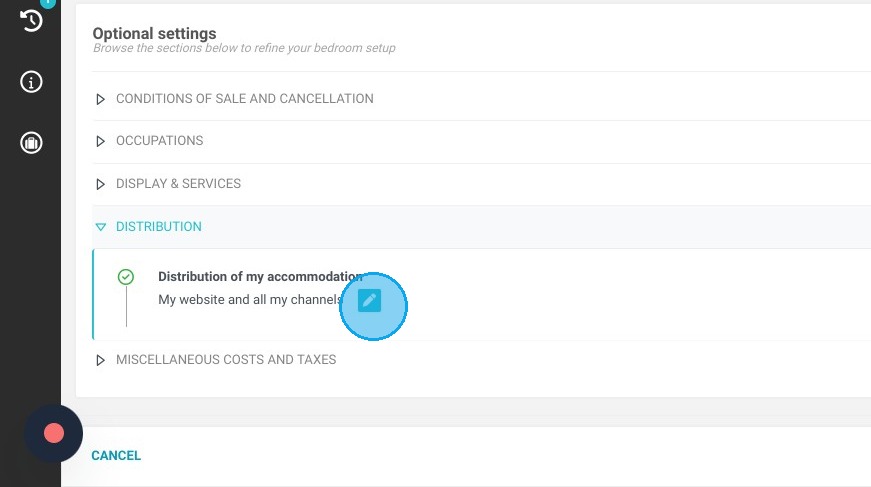
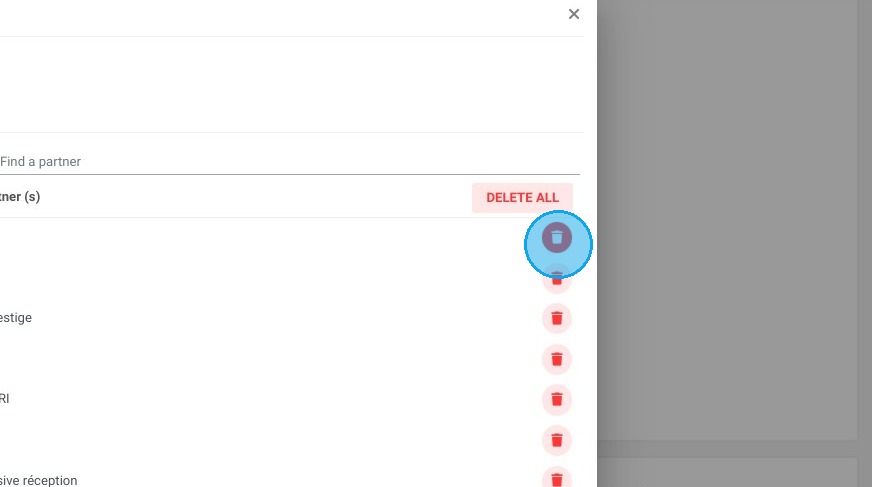
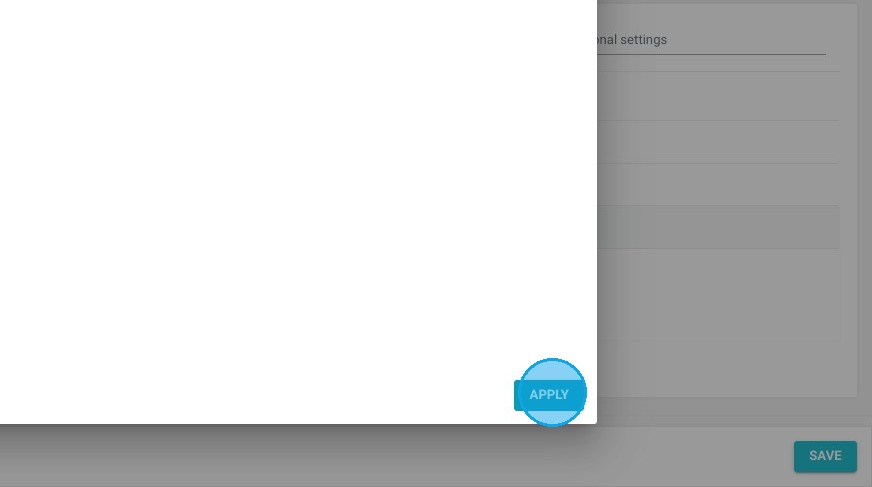
5. In the "MISCELLANEOUS COSTS AND TAXES" section, check that you are allocating the right taxes to your partner.
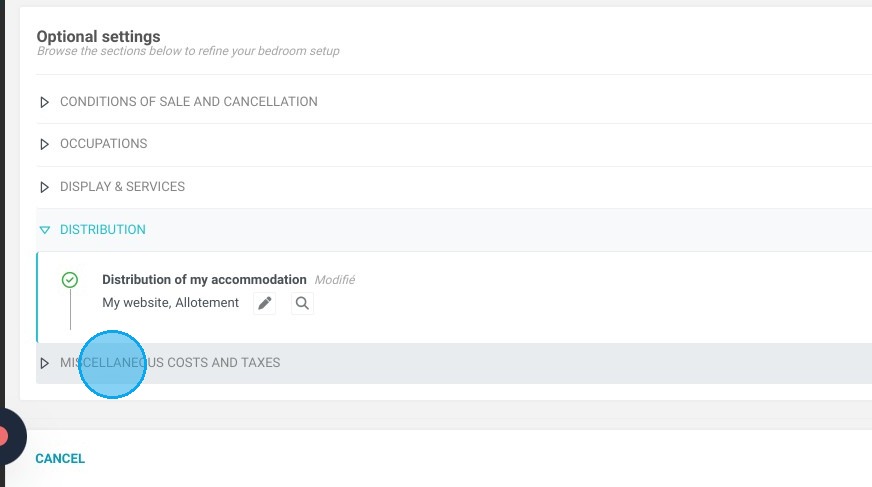
6. Click "SAVE"
Inventory linked to the room block
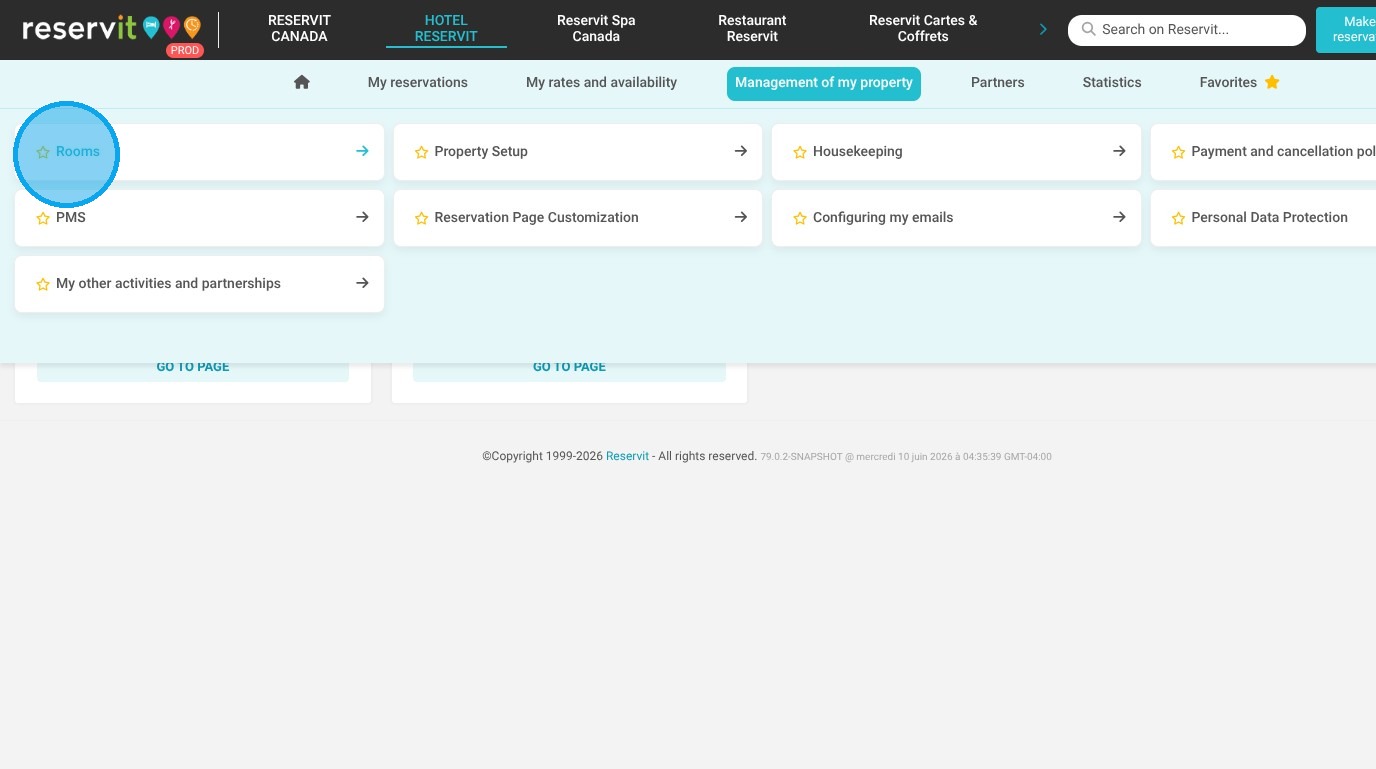
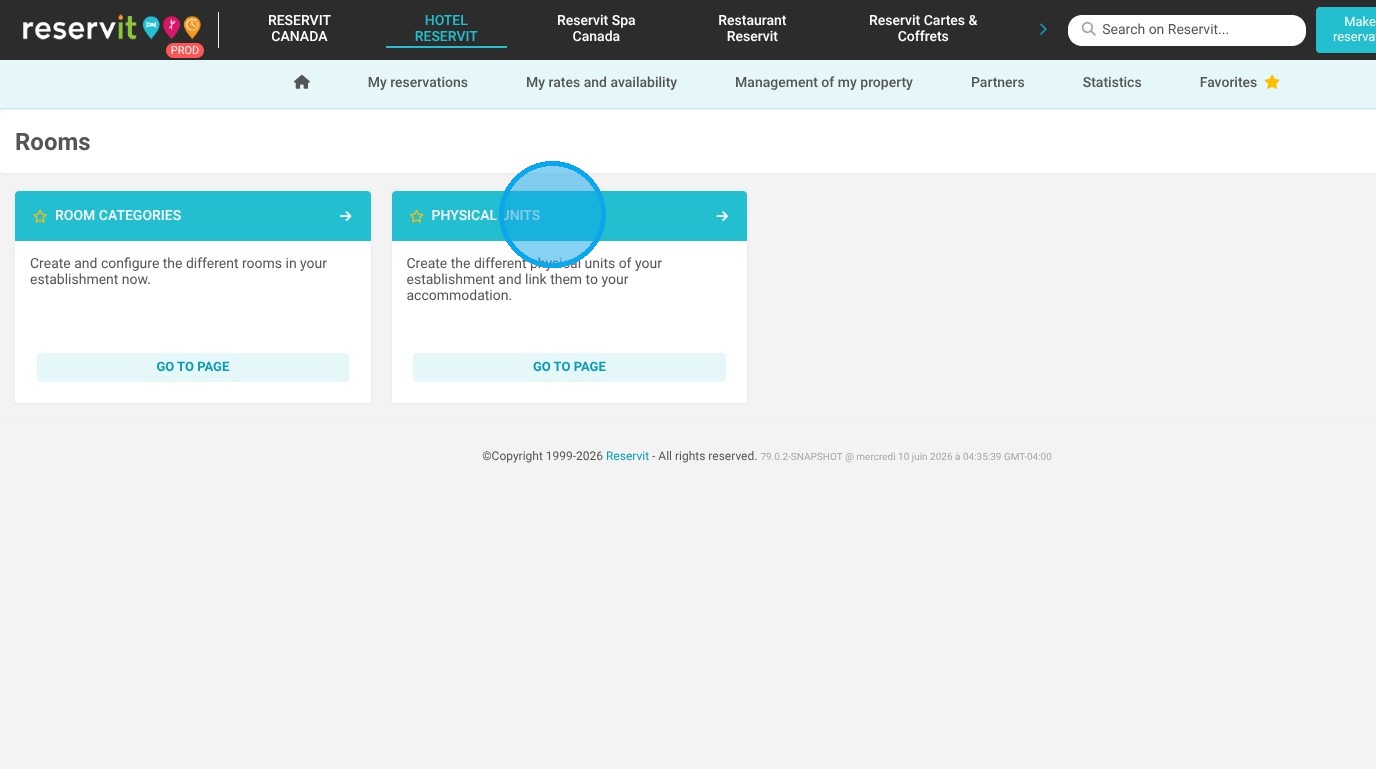
7. Once you've created your category and room type, click "Management of my property" then "Rooms" and "Physical Units". At this stage you can link your existing rooms or create the physical rooms offered to your partner.
Creation of a dedicated offer for a block of rooms
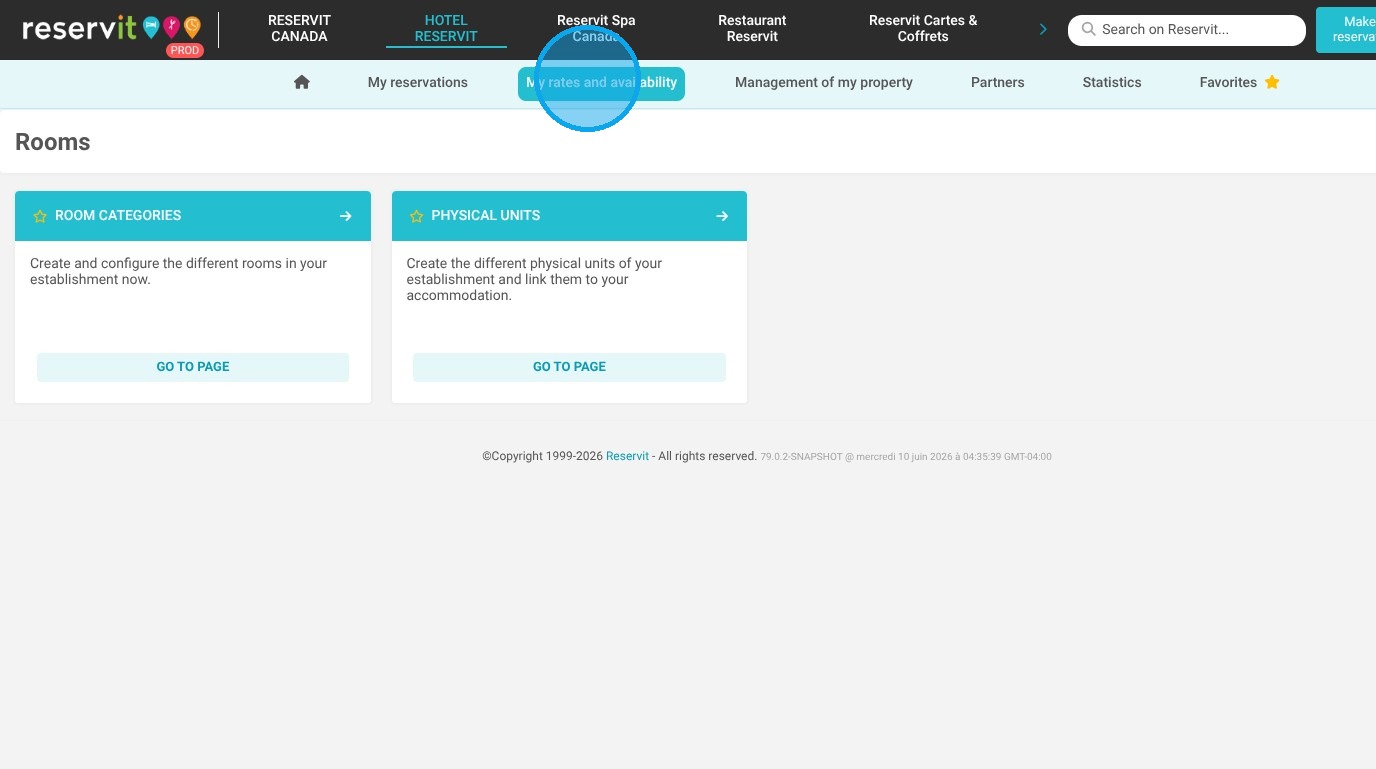
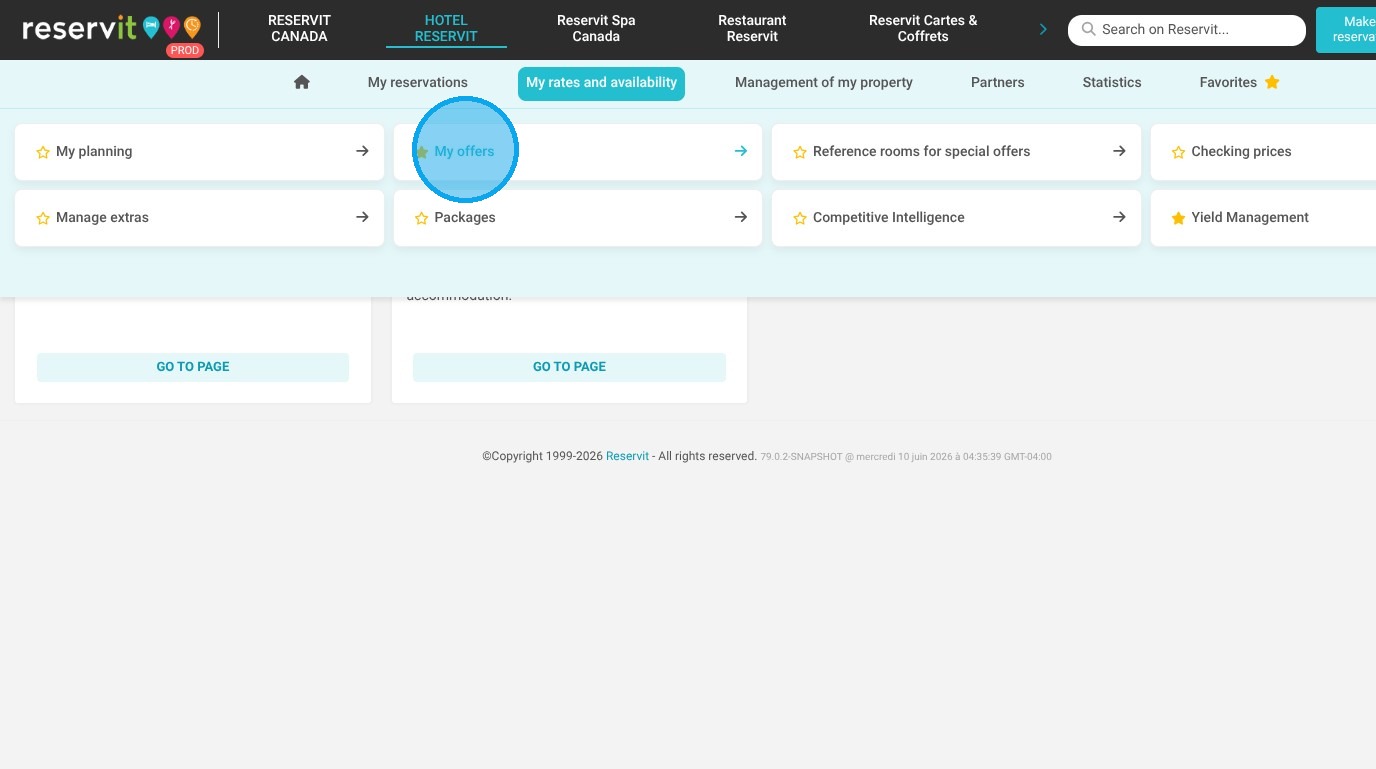
8. You must then create your offer for your partner with the negotiated price. To do this, click "My rates and availability" and click "My offers" and add a new price plan.
You can use a template if you wish. You'll need to select the room you've just created in distributed rooms, and the name of your partner in distribution.
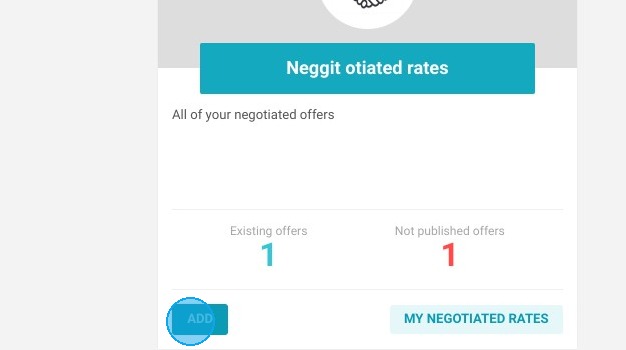
9. Add a new offer
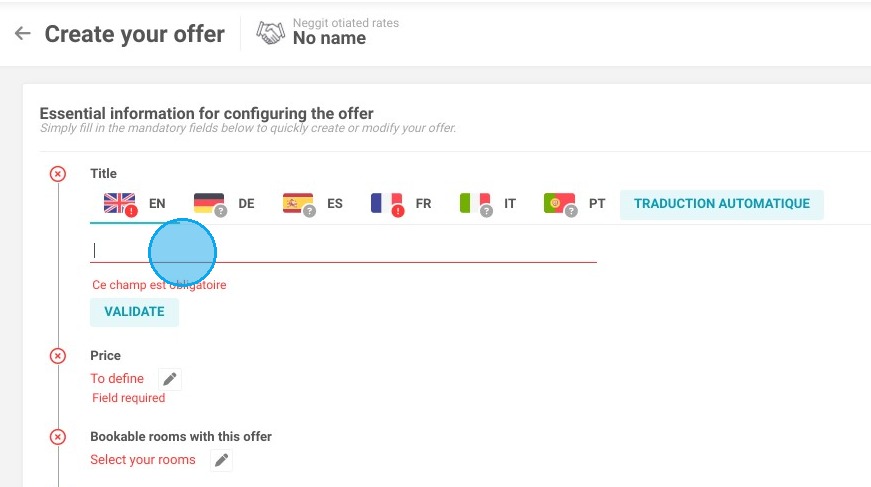
10. Follow the different steps of setup
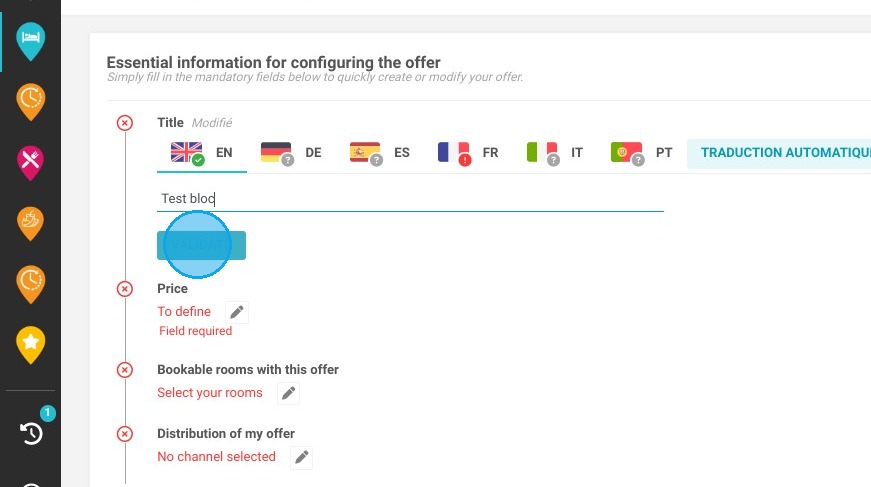
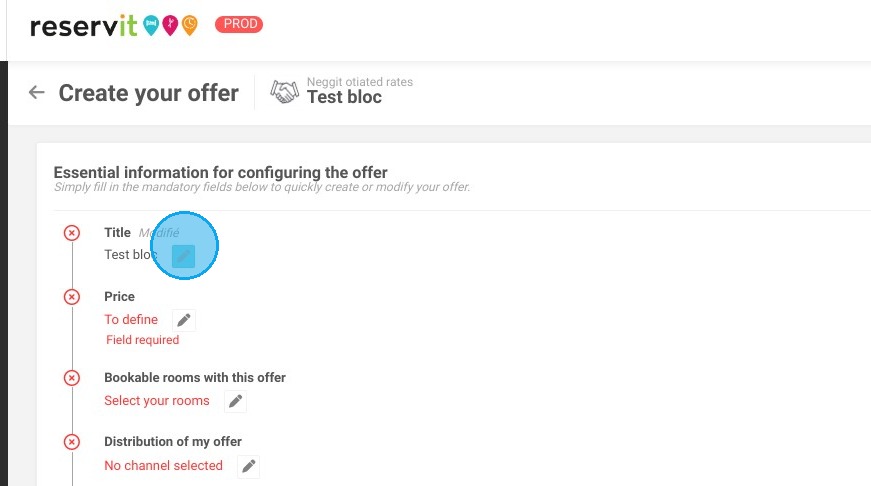
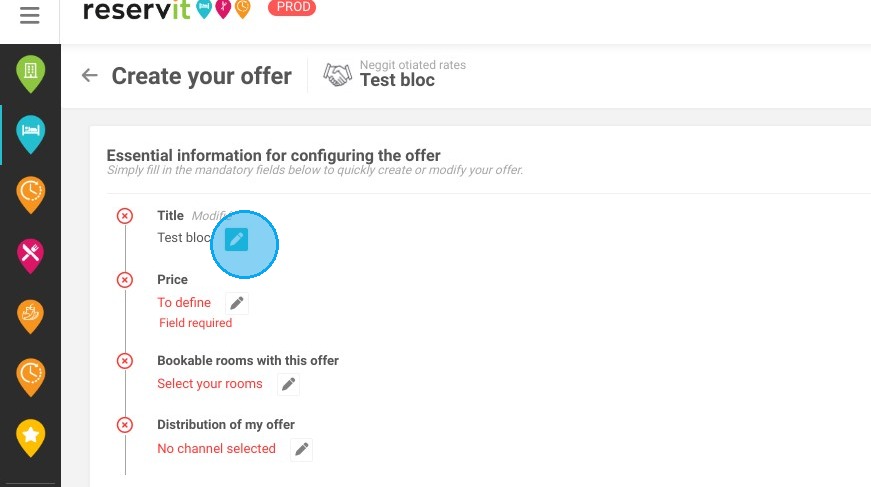
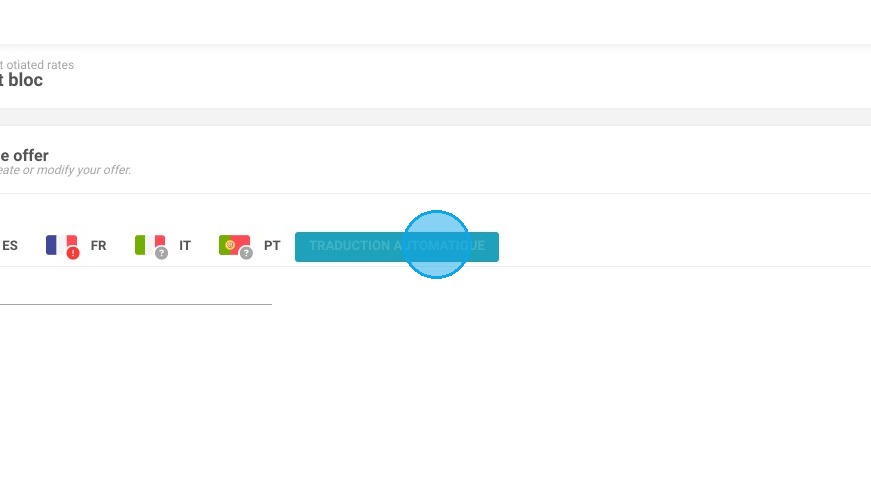
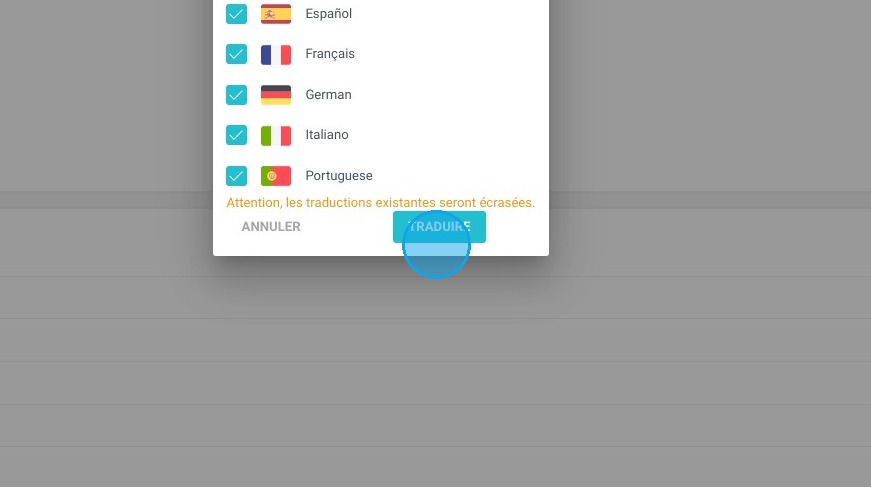
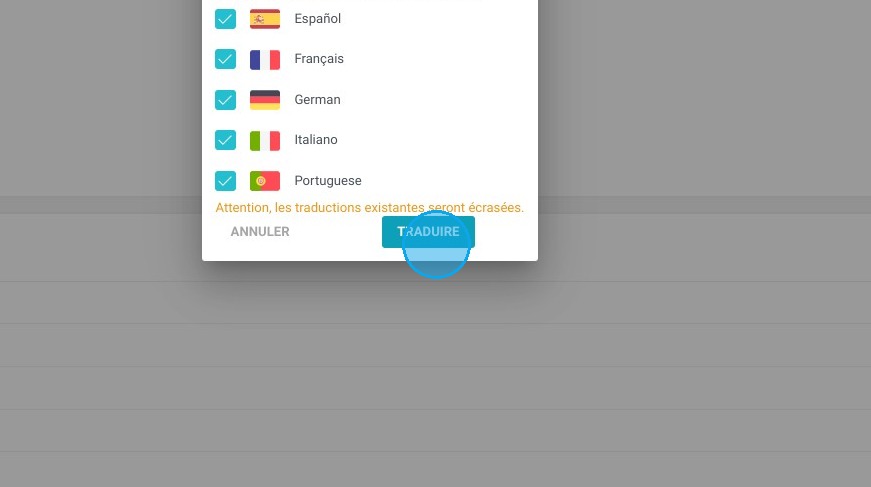
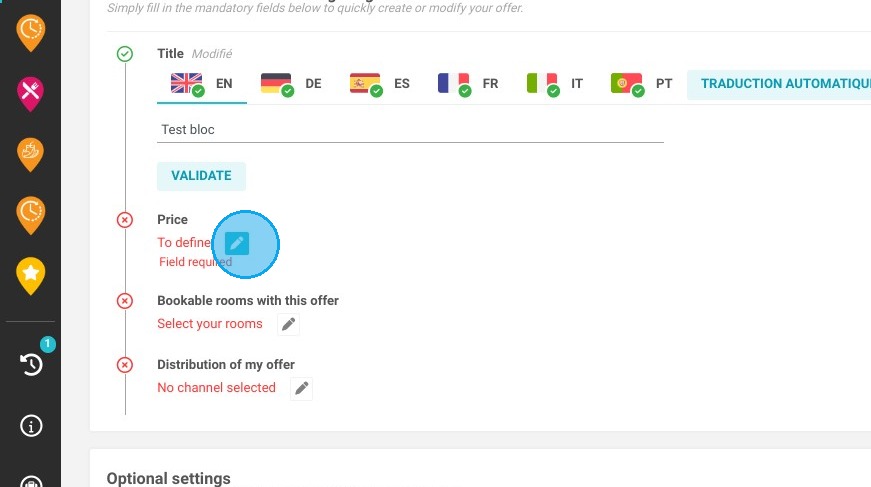
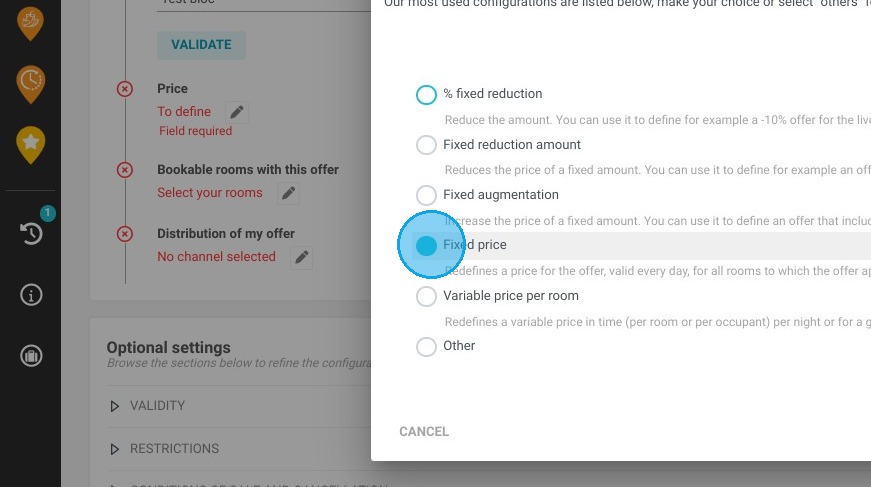
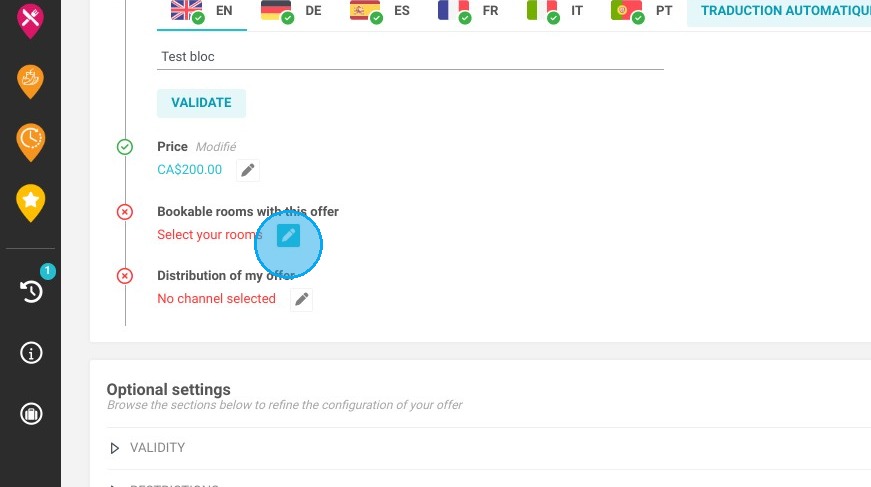
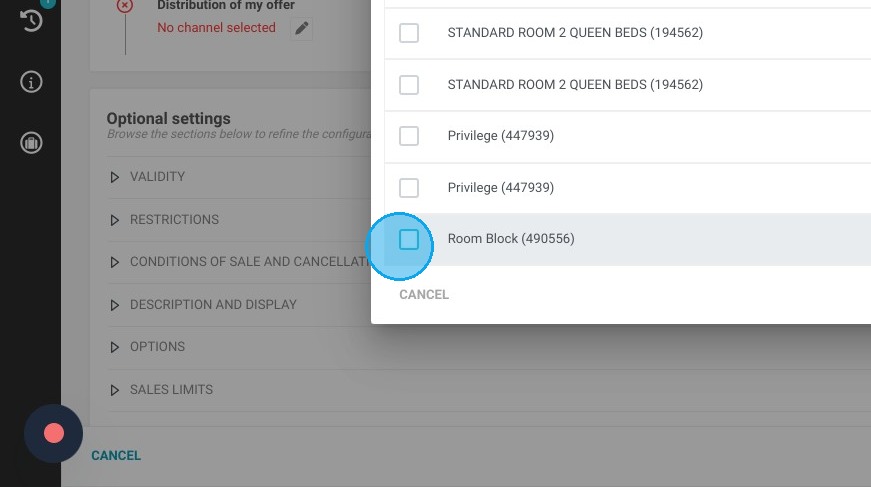
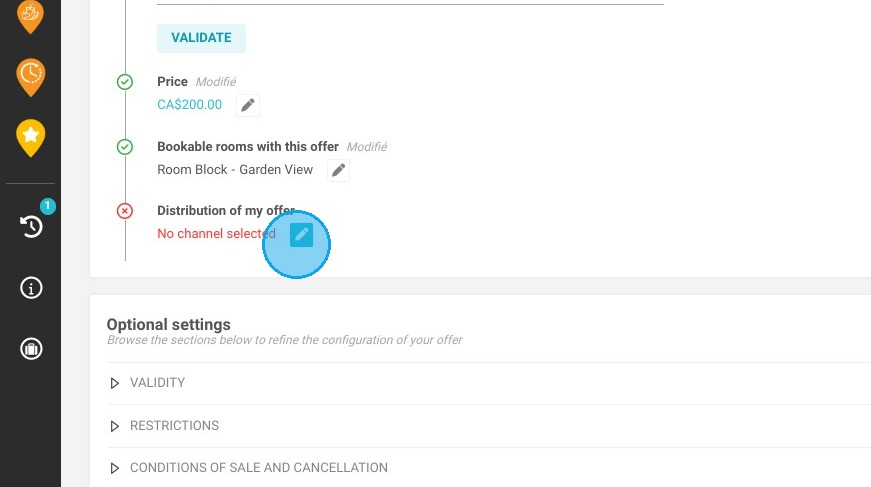
11. At the step "My offer is bookable on'', don't forget to link this offer to your selected partner.
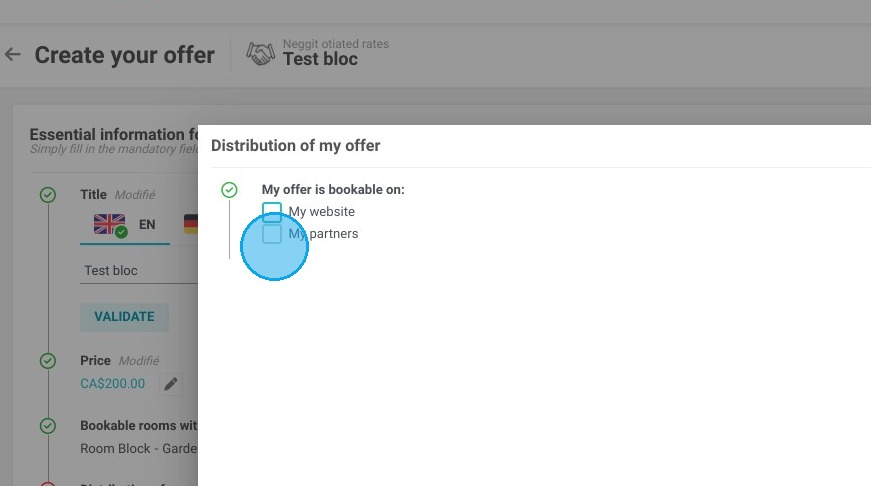
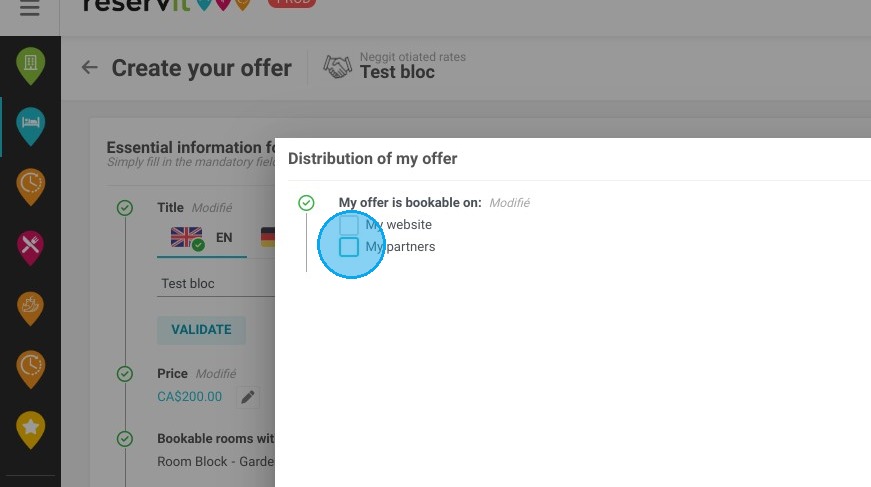
12. Click "SAVE MY OFFER"
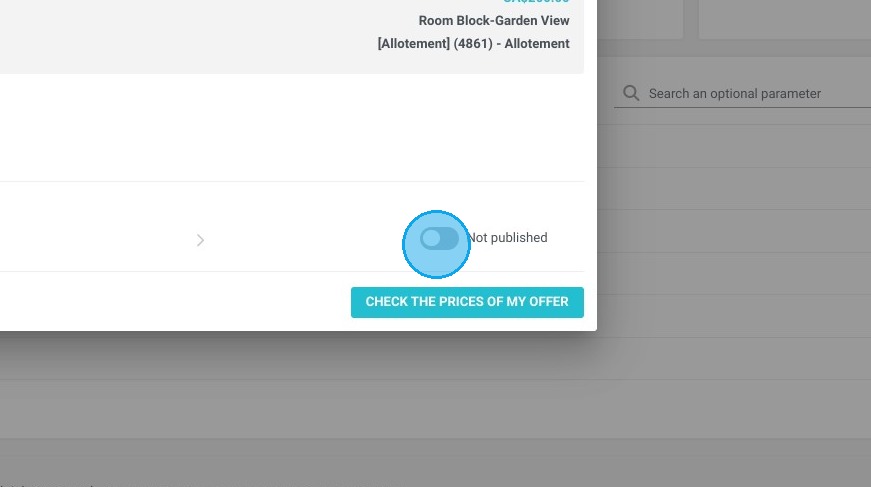
13. Publish the offer once you have checked the prices.
Room block booking links
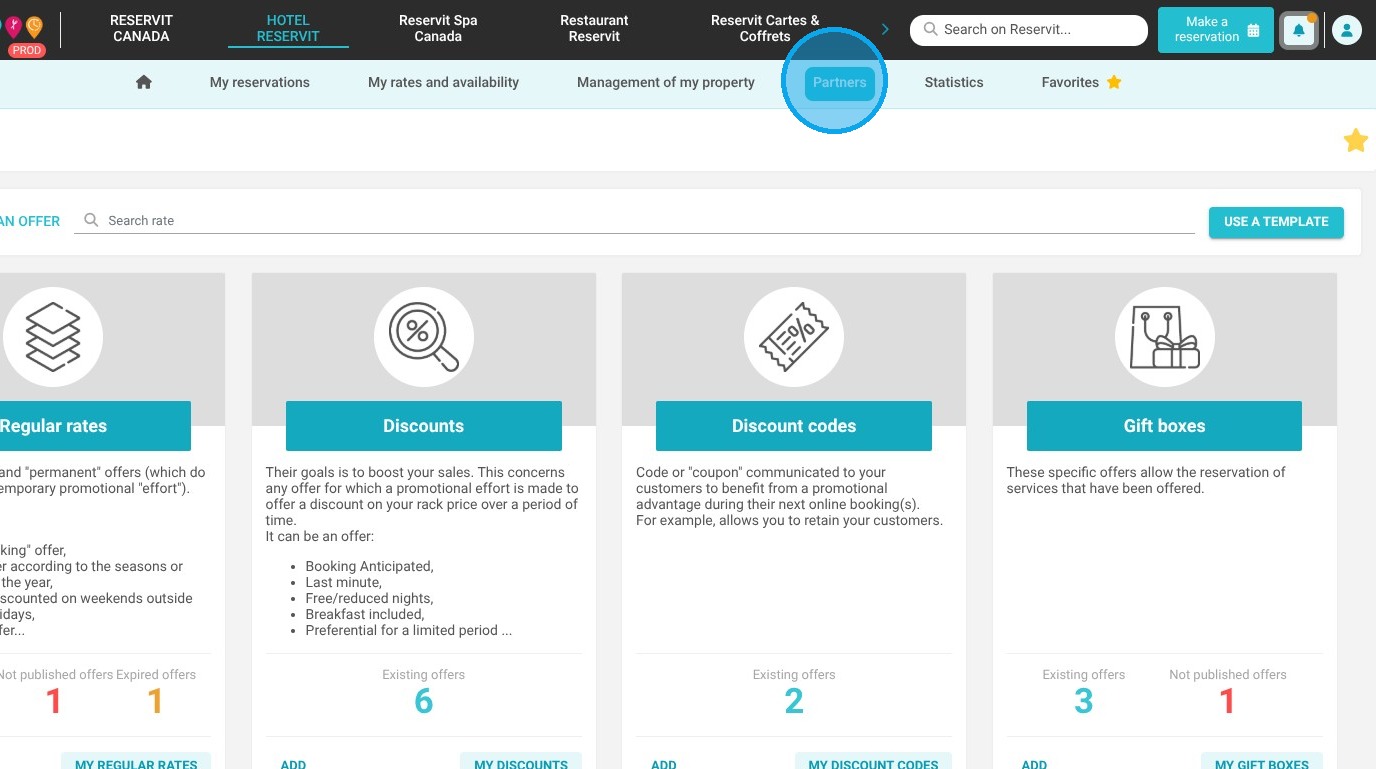
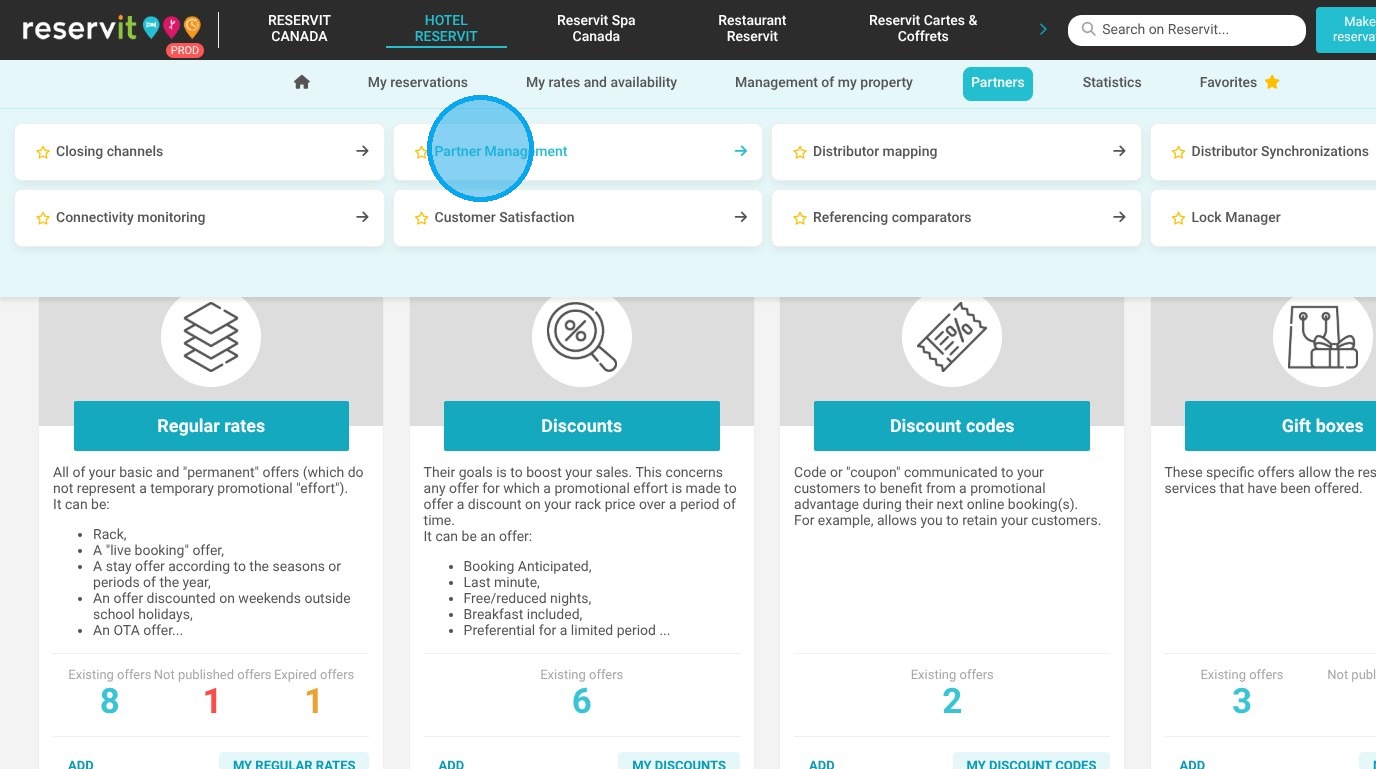
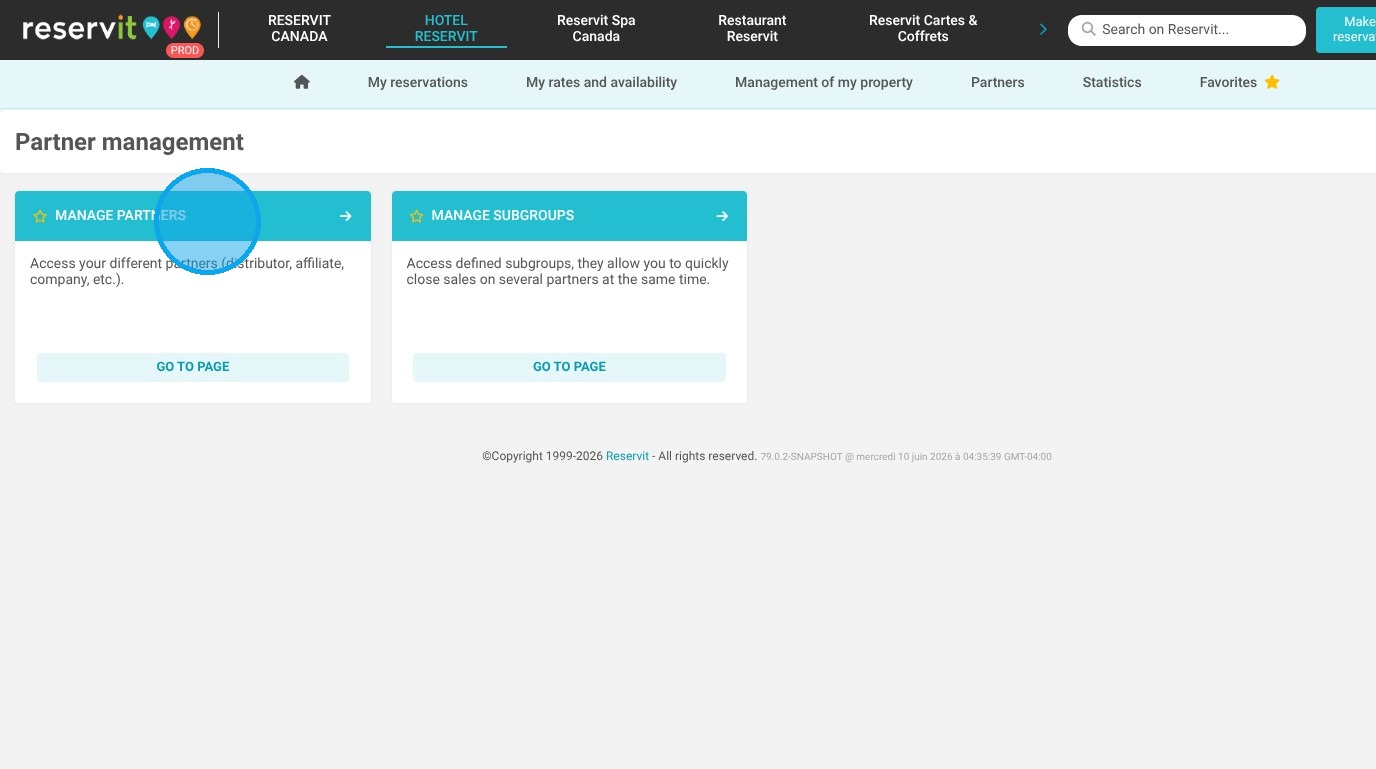
14. Upon completion, we'll retrieve the partner's booking URL by navigating to "Partners," selecting "Partner Management," and then clicking "Manage partners."
15. Click on the list of partners
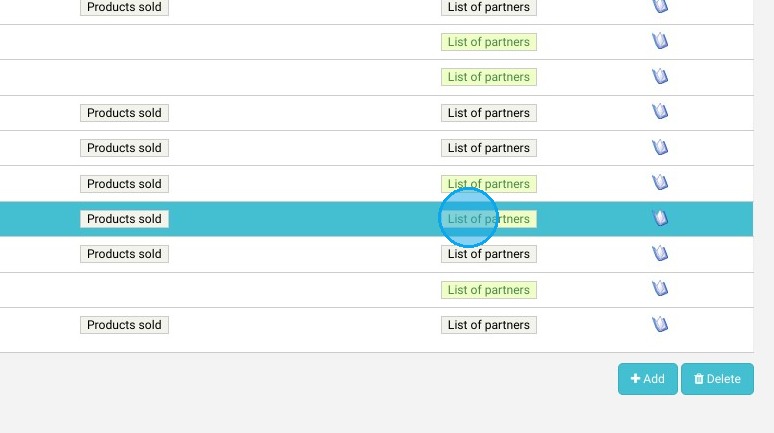
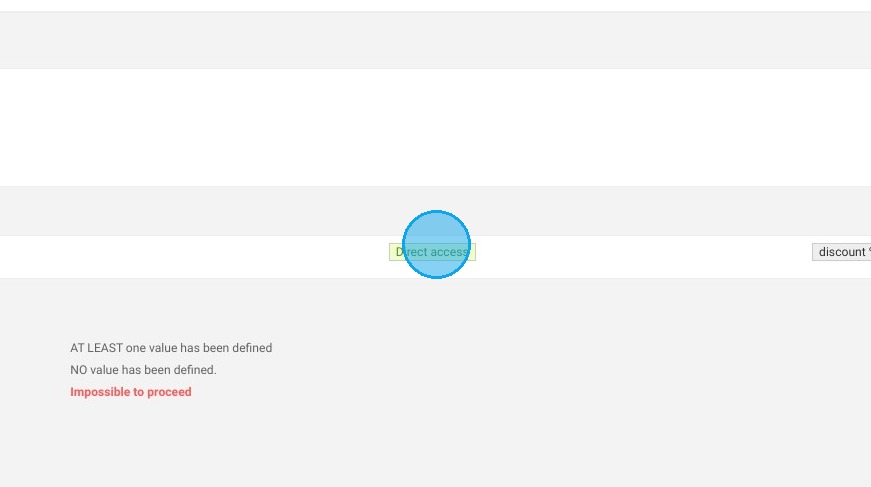
16. And "Direct Access" to extract the URL.