Article summary: This step-by-step guide explains how to effectively add internal comments and team notes to your bookings within the Reservit Activities platform. You will learn how to quickly leave visible messages for your staff using both the quick reservation calendar and the advanced reservation module. Utilizing this communication feature improves internal collaboration and ensures your entire team has the essential context they need for every guest arrival.
The 5 key steps to add internal comments to a booking:
-
Access the quick reservation tool: Click on the shortcut directly on your calendar to initiate a new quick reservation.
-
Add a note in the quick view: Locate the specific "Internal comment" field within the quick booking window to leave a direct message for your team members.
-
Open the advanced reservation module: Alternatively, navigate to the main reservation activity module to manage more detailed bookings.
-
Leave a comment in the advanced view: Scroll to the bottom of the detailed reservation page to find and fill out the "Internal commentary" section.
-
Protect sensitive payment data: Never enter credit card details in the internal comments, as the Reservit software automatically hides bank data to maintain strict security compliance.
Why follow this guide? Following this guide streamlines your internal front-desk communication by keeping critical guest information and operational notes centralized within the booking itself. It eliminates the need for external messaging tools and prevents costly service errors by ensuring all staff members are perfectly aligned on specific customer needs.
Tip: Leave an internal comment about the reservation that will be visible to your entire team.
Alert: Do not enter credit card information in the internal comment: Reservit will mask it to protect banking data.
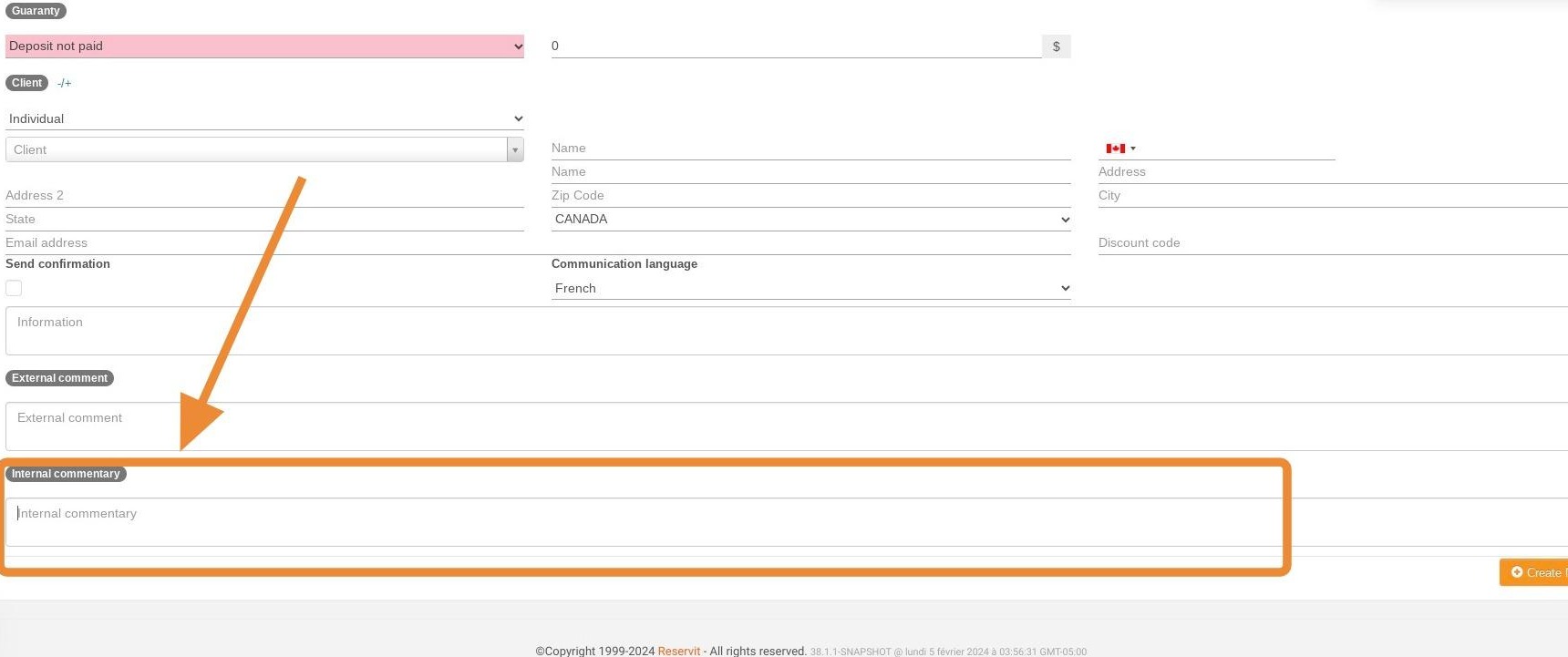
Addition of an "internal comment" field in the quick reservation module
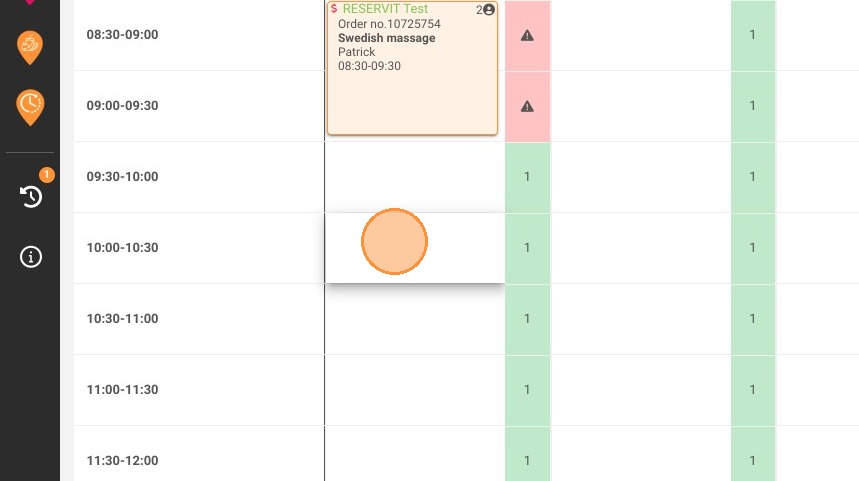
1. Click there and create a reservation
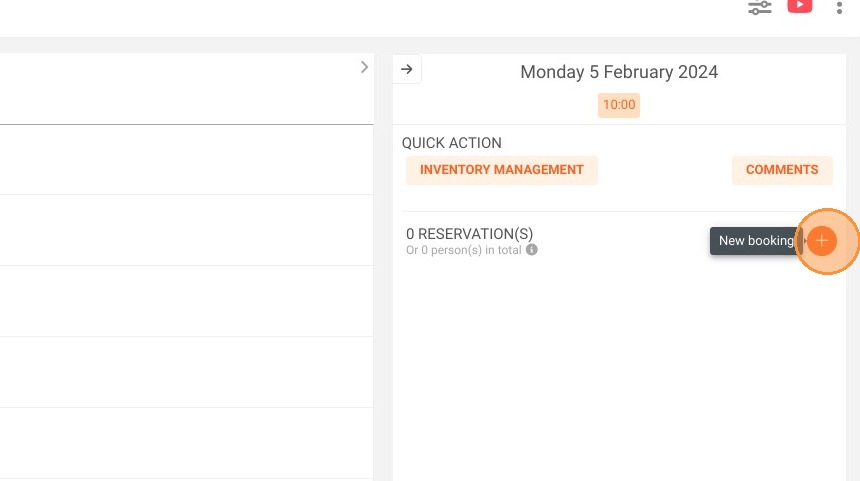
2. You can leave an "internal commentary" there.
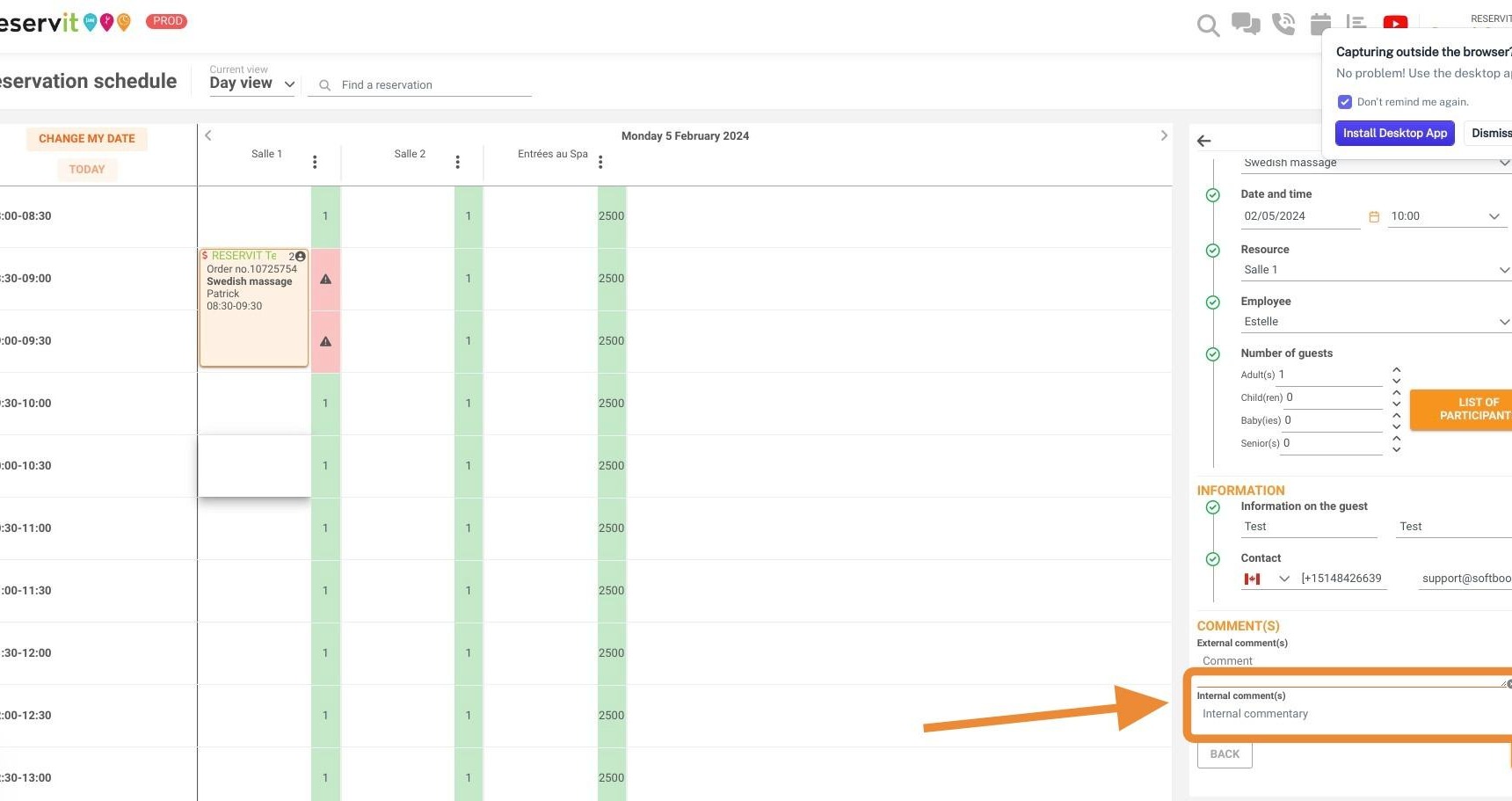
Addition of an "internal comment" field in the reservation activity module
3. Click on reservation activity module.
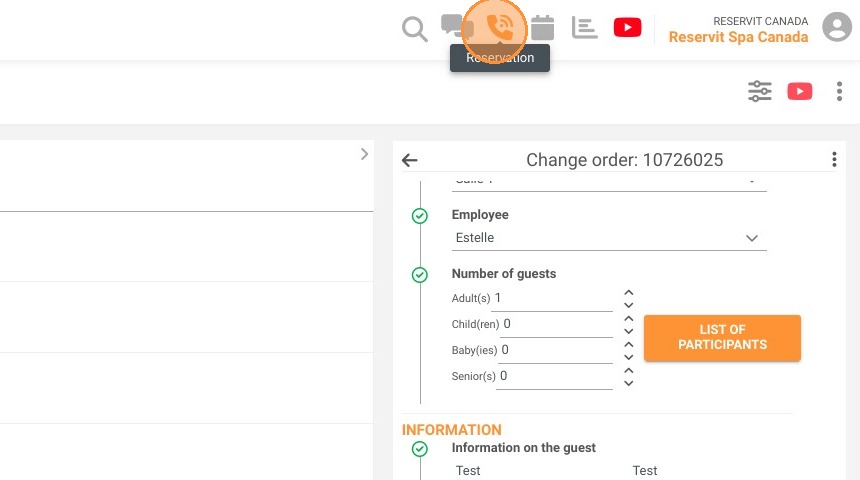
4. You can leave an "internal commentary" at the bottom of the page.