Article Summary: This tutorial explains how to easily customize the display order of your rooms and units on both your manager dashboard and public booking engine in Reservit Accommodation. You will learn how to access the internal sorting tools and strategically arrange your inventory to highlight specific accommodations. Optimizing your unit display order improves the overall user experience, allowing you to prioritize your most popular or profitable rooms for better direct conversion rates.
The 4 Key Steps to Set the Display Order of Units:
-
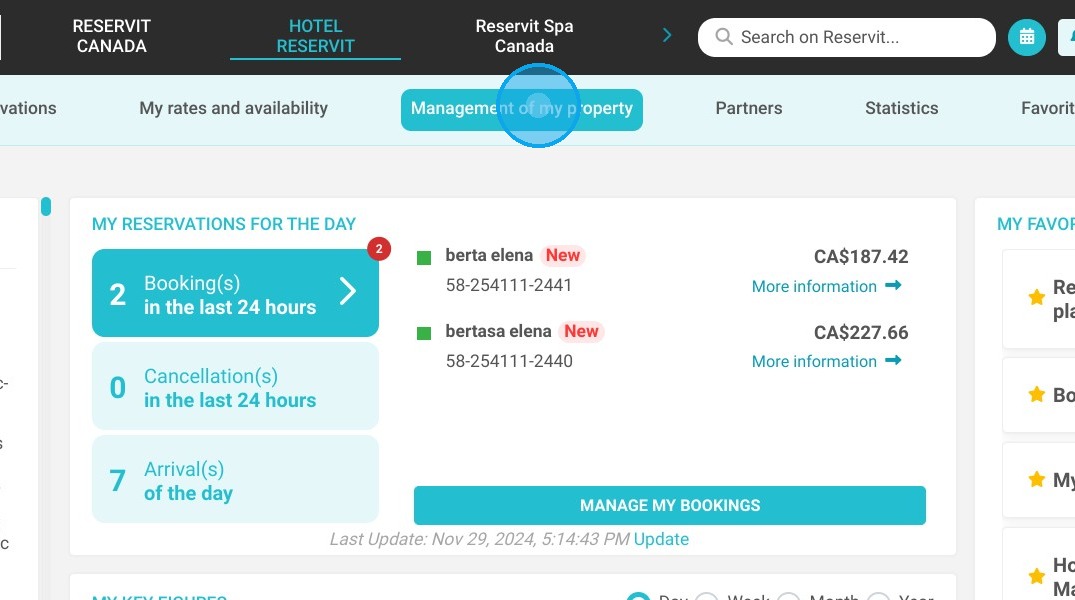
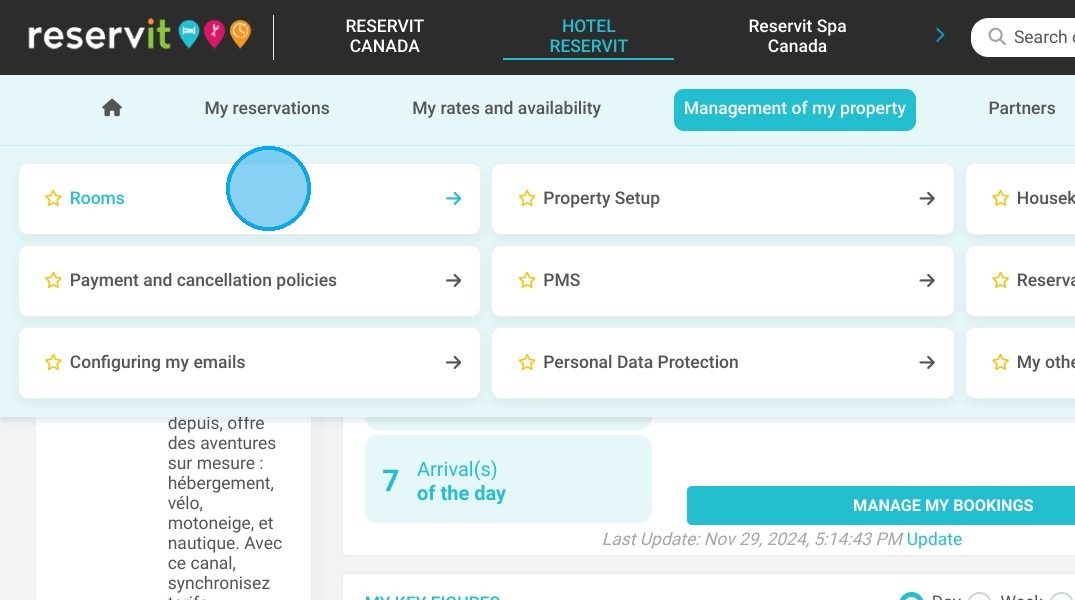
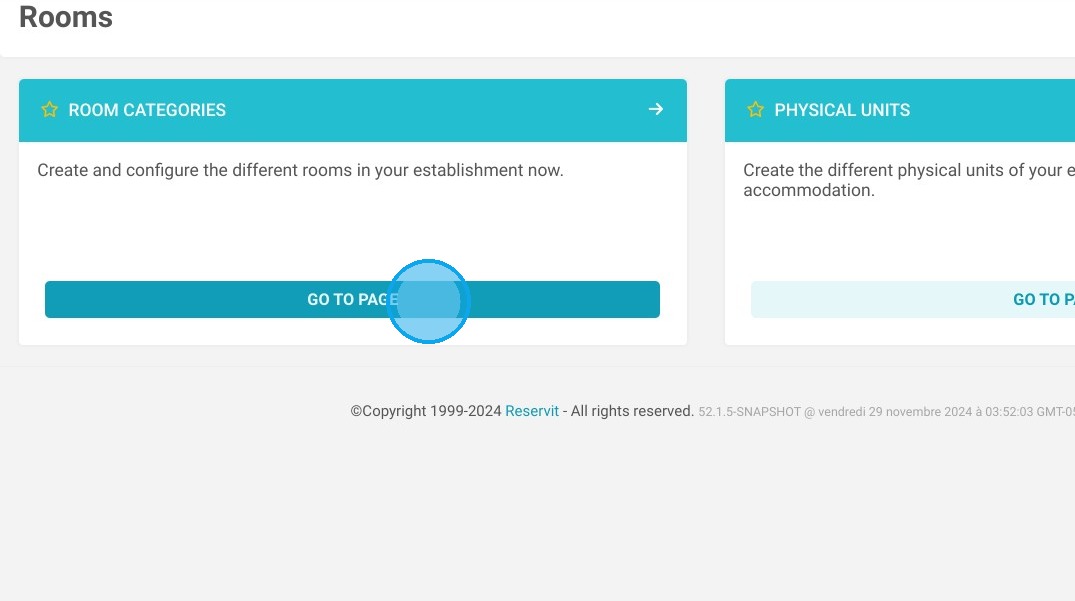
Access Room Categories: Navigate to the "Management of my property" tab, select "My Rooms" (or "My Units"), and click on "Category" to view your current inventory.
-
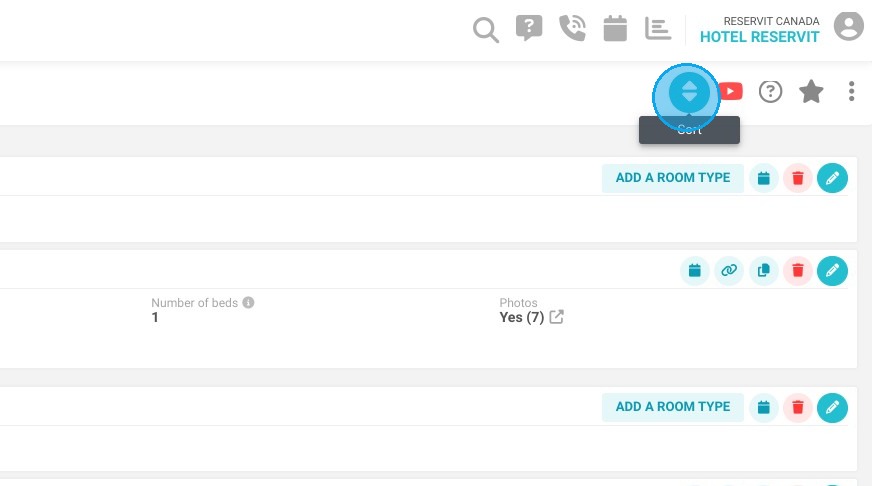
Open the Sort Tool: Locate and click the "Sort" button on the right side of your screen to access your display configuration settings.
-
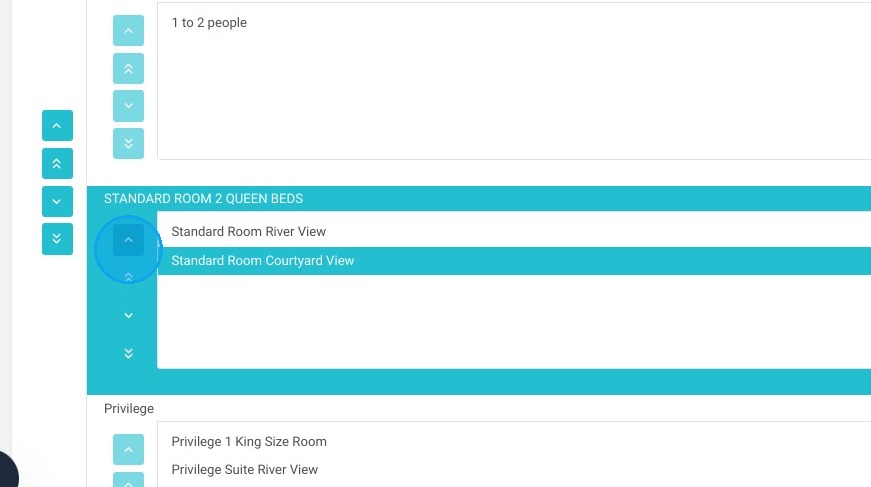
Arrange Your Inventory: Use the up and down arrows to easily move selected items and establish your preferred ranking for both the manager and customer-facing booking pages.
-
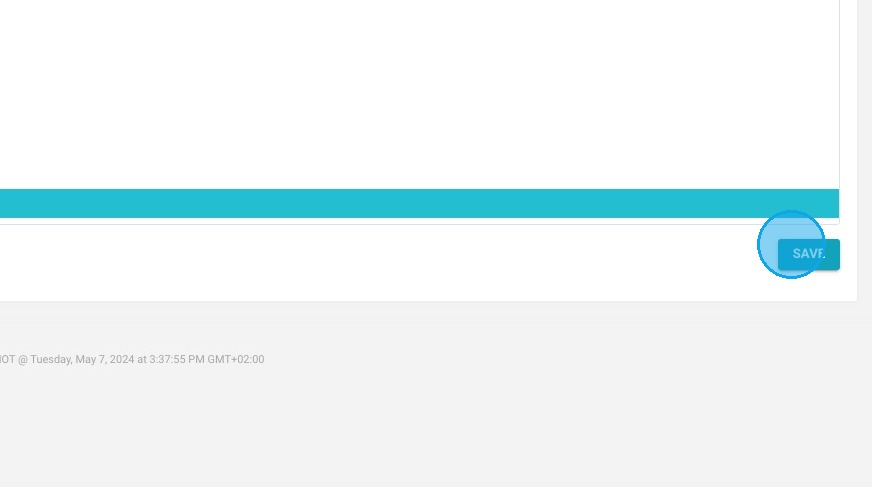
Save Your Layout: Click the "SAVE" button to validate your new arrangement and instantly apply the updated display order to your live booking engine.
Why follow this guide? Customizing your unit display order gives you strategic control over how your inventory is presented, helping you seamlessly push high-margin or priority rooms to the top of the search results. This simple optimization prevents customers from endlessly scrolling, streamlining their booking journey and actively boosting your online sales strategy.
1. Click "Management of my property", ''My Rooms'' or ''My Units'' and ''Category''
2. On the right of the screen, click on “Sort”.
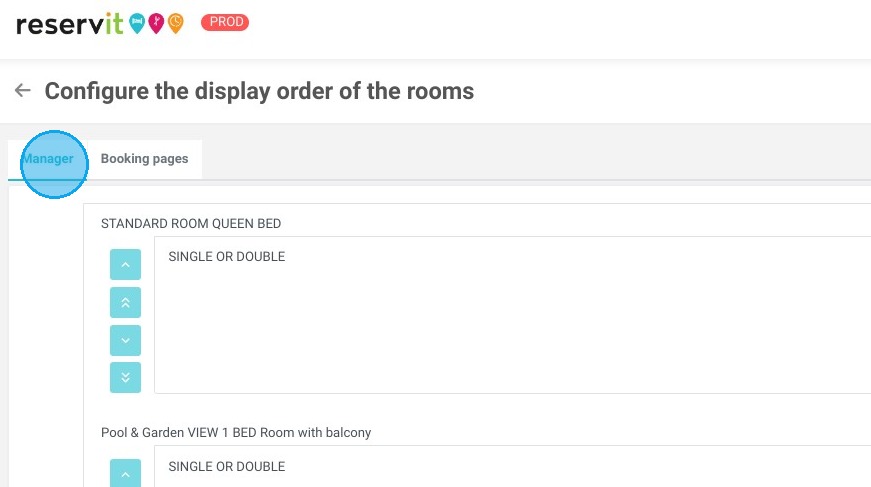
3. This screen allows you to select the display order in your manager and on your booking pages.
4. Use the arrows to move the selected item up or down.
5. Don't forget to click “SAVE” to validate your display.