Help for use

Training Kit - Making and changing a reservation

Article Summary: This comprehensive tutorial will teach you how to efficiently create, modify, and cancel reservations directly within Reservit Accommodation. You will learn the complete booking workflow—from selecting dates and entering guest information to updating room rates and managing payments. Mastering these steps ensures a seamless reservation process, improving both your operational efficiency and the guest experience.

The 5 Key Steps to Manage Your Reservations:

  • Search for Availability: Enter the desired arrival and departure dates, along with the number of guests, to find open units.

  • Create the Booking: Select the appropriate room and accurately input the client's contact information, ensuring they are set to receive a confirmation email.

  • Secure and Confirm: Choose a payment method or guarantee policy (or opt for no warranty), then finalize the new reservation.

  • Cancel a Reservation: Navigate to your booking management dashboard to locate the reservation and quickly update its status to cancel.

  • Modify Booking Details: Edit an existing reservation to adjust stay dates or pricing, check the new availability, and validate your updates.

Why follow this guide? Following these standardized steps will help you avoid costly booking errors, save valuable time during daily operations, and ensure your Reservit Accommodation management records remain perfectly accurate and up-to-date.

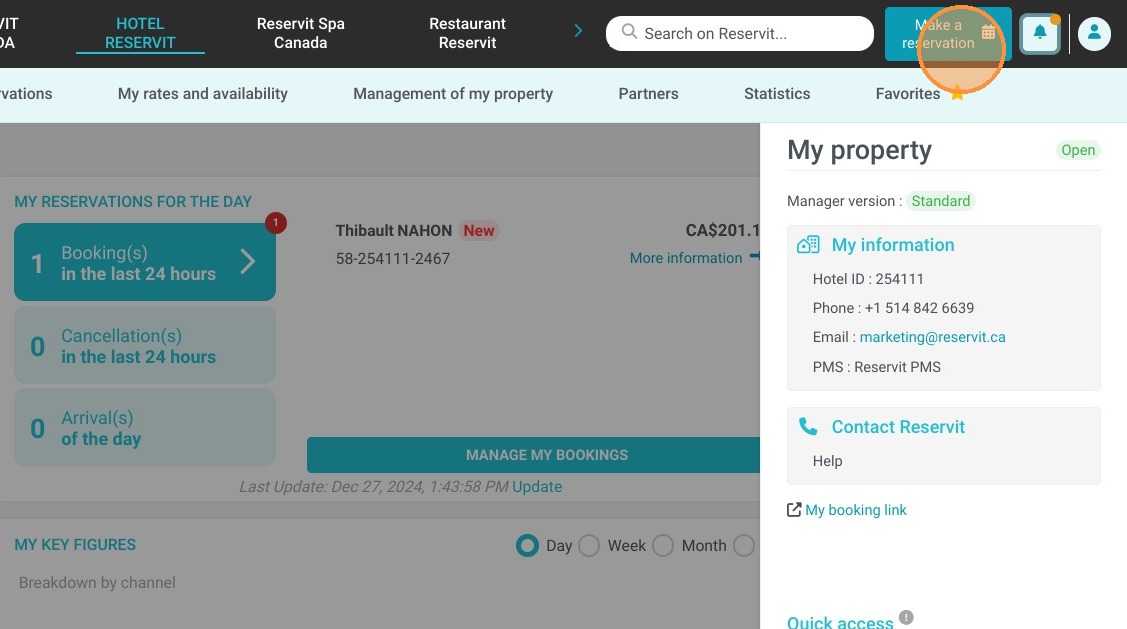
1. Click "Make a reservation"
https://colony-recorder.s3.amazonaws.com/files/2024-12-27/d68d237f-0ee3-492f-9b6d-e96188cf75dd/ascreenshot_aa4d86975cf44f3b9ba5c05d38da73ad_text_export.jpeg

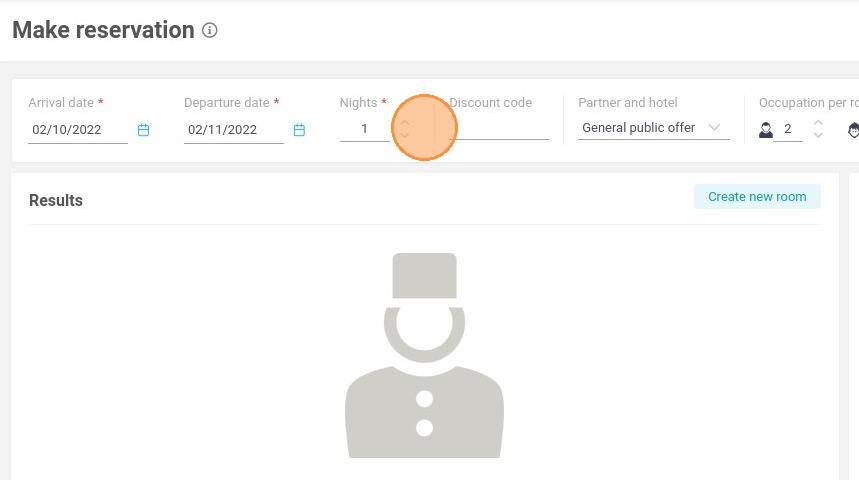
2. Choose the arrival and departure dates
https://colony-recorder.s3.amazonaws.com/files/2024-12-27/1d85d671-1c0c-4553-af73-bd712944899a/user_cropped_screenshot_e26af4e9e9094f499bf1c65f513eae63_text_export.jpeg

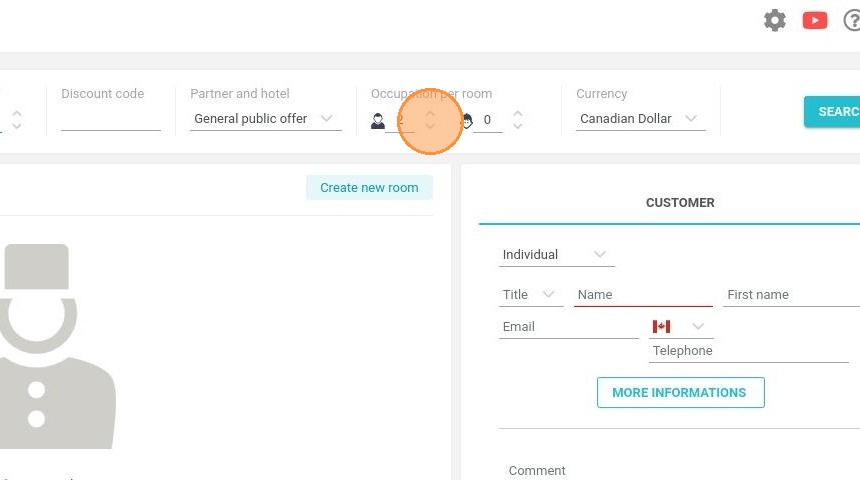
3. Select the number of people

https://colony-recorder.s3.amazonaws.com/files/2024-12-27/1e046bee-1380-42e1-90ec-f7184661a694/user_cropped_screenshot_ae2a4c4b81e34eb99f575658f6d7b265_text_export.jpeg

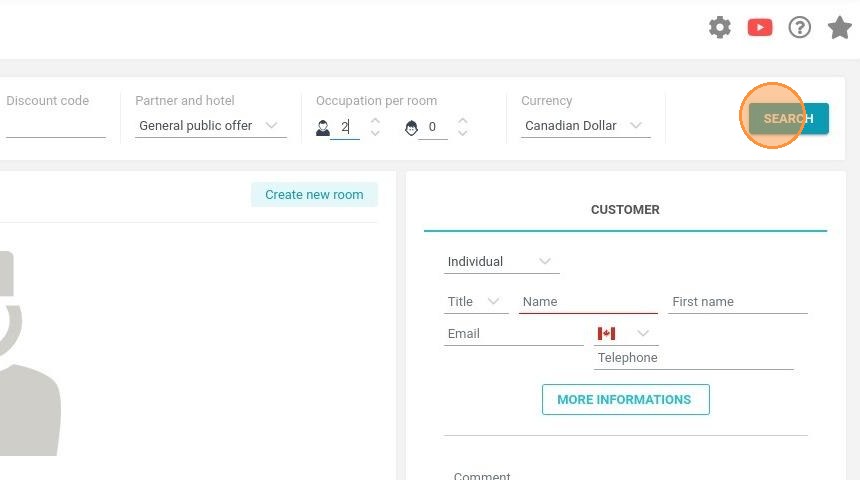
4. Click on "SEARCH"

https://colony-recorder.s3.amazonaws.com/files/2024-12-27/5ae9ded3-56b8-4b56-96f9-c70f2221e13b/user_cropped_screenshot_85adad2a4d9443ab8ac091ff50d2df63_text_export.jpeg

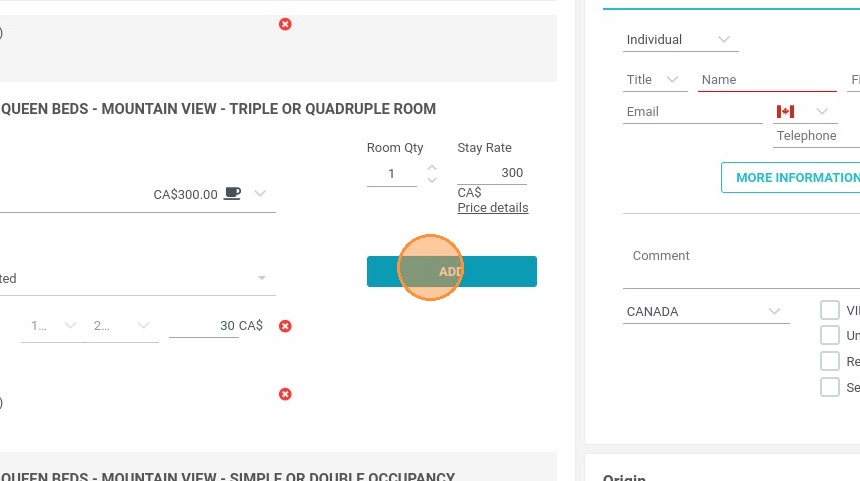
5. Once the unit find in the list of results, click on "ADD"

https://colony-recorder.s3.amazonaws.com/files/2022-02-09/820d595e-1b1c-4d1f-a127-81f1be68b82b/ascreenshot_9e42dc98fa6a40f68508055cd5141206_text_export.jpeg

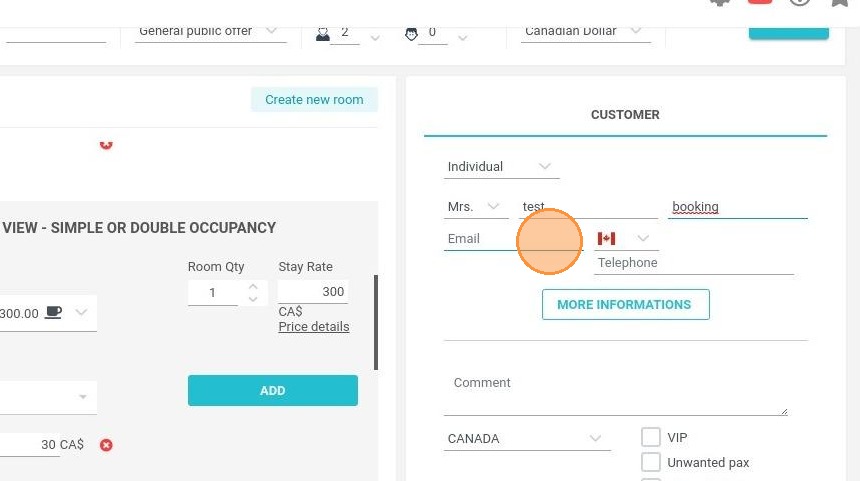
6. On the selection on the right side of the page, fill in the information about the client (Name, First name, Email).
https://colony-recorder.s3.amazonaws.com/files/2024-12-27/e9cd7071-0227-4efc-a4bb-d4c415e436f1/user_cropped_screenshot_79842e98f0af4bd3851254ece4f2244d_text_export.jpeg

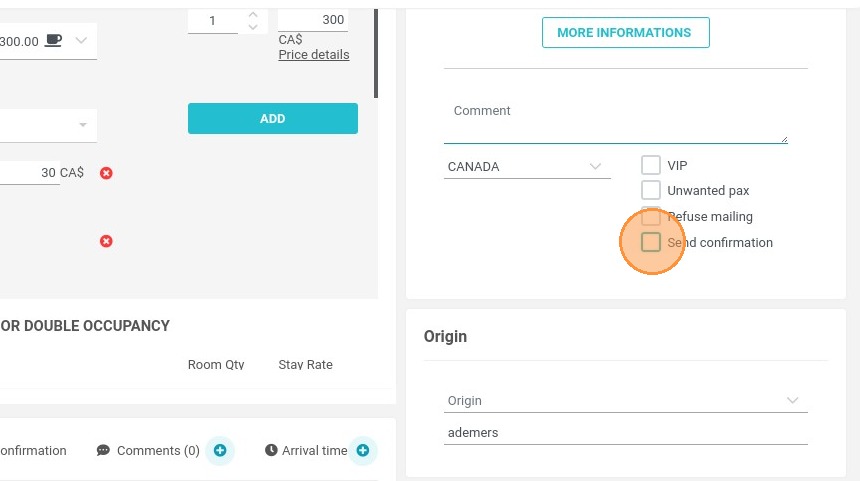
7. If the box "send confirmation" is not checked, the client will note automatically receive the confirmation email.
https://colony-recorder.s3.amazonaws.com/files/2022-02-09/cff001e8-f512-4854-a00a-986b6513bcad/ascreenshot_67d866aac36a4f5ca2c25da82ac53c7e_text_export.jpeg

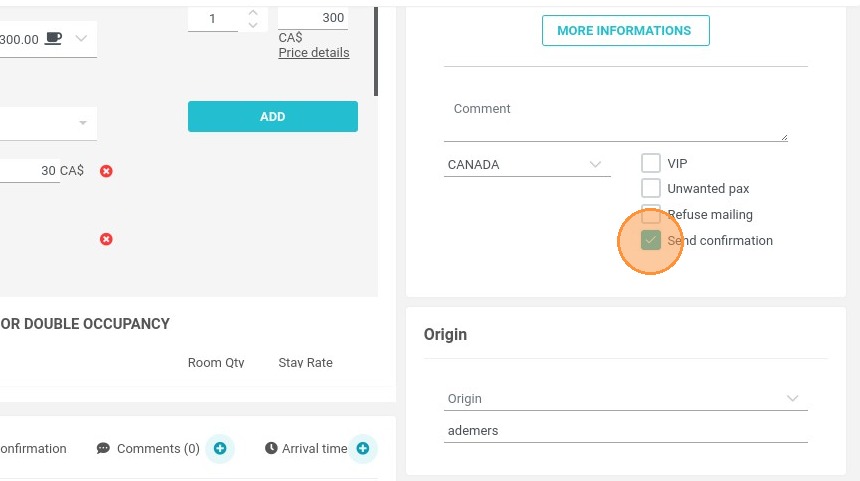
8. Check the box if you want to send it
https://colony-recorder.s3.amazonaws.com/files/2022-02-09/1ae7e4e8-339e-4b6e-92cf-eb3de2f23e76/ascreenshot_d53302d3a95948b7994fa7df4bc65af0_text_export.jpeg

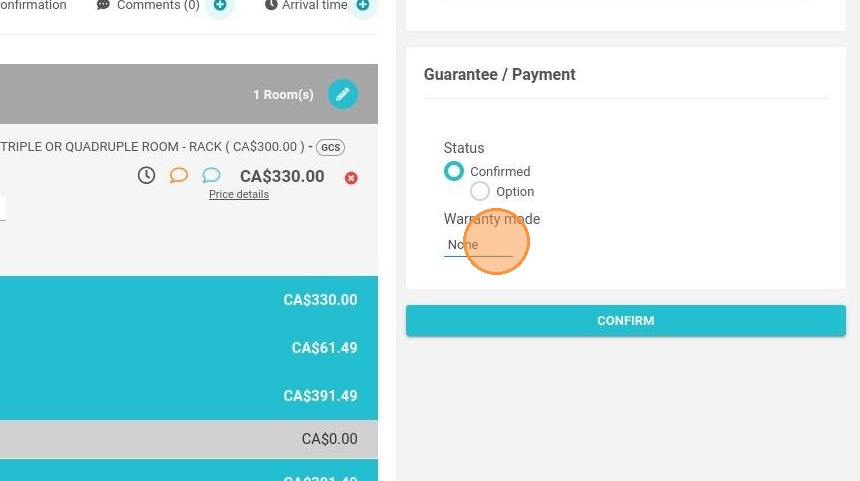
9. In Guarantee/Payment, you can confirm the reservation without any warranty mode

https://colony-recorder.s3.amazonaws.com/files/2024-12-27/3df855cd-8a32-43ed-bd15-1e95c730e298/user_cropped_screenshot_093cf7a3875941869e6f3a7671ebf096_text_export.jpeg

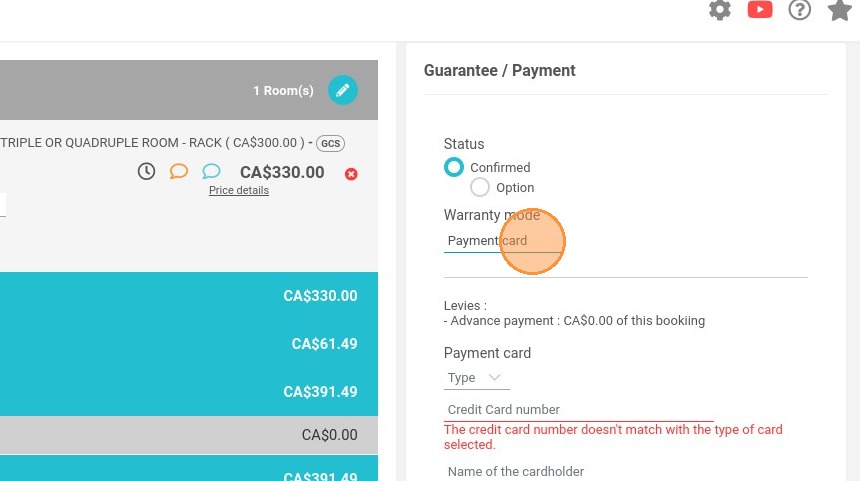
10. Or register banking information

https://colony-recorder.s3.amazonaws.com/files/2022-02-09/ef772c88-584a-4f45-87be-a312f1f8970f/ascreenshot_520272ab5b464edabef2951c9d96e8ac_text_export.jpeg

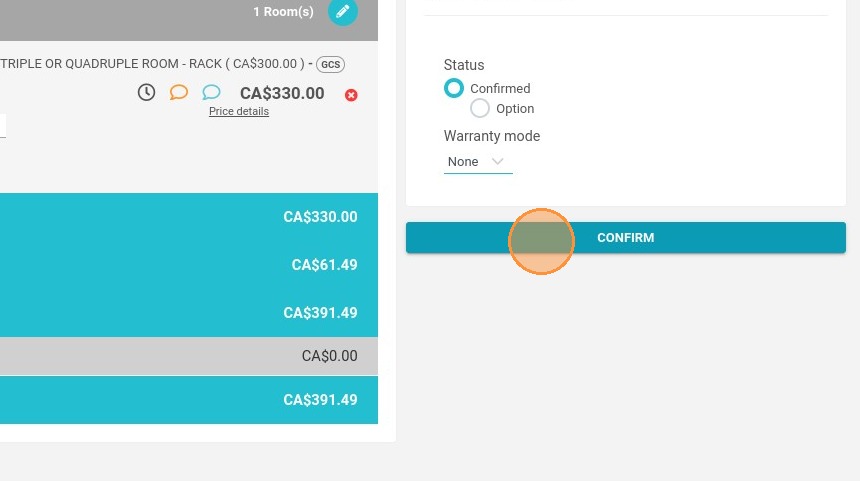
11. To finalize the reservation click on "CONFIRM"
https://colony-recorder.s3.amazonaws.com/files/2022-02-09/15e0c9b6-05f5-40c7-b855-3817604219d8/ascreenshot_410a55d92d144979808bc676099b6582_text_export.jpeg

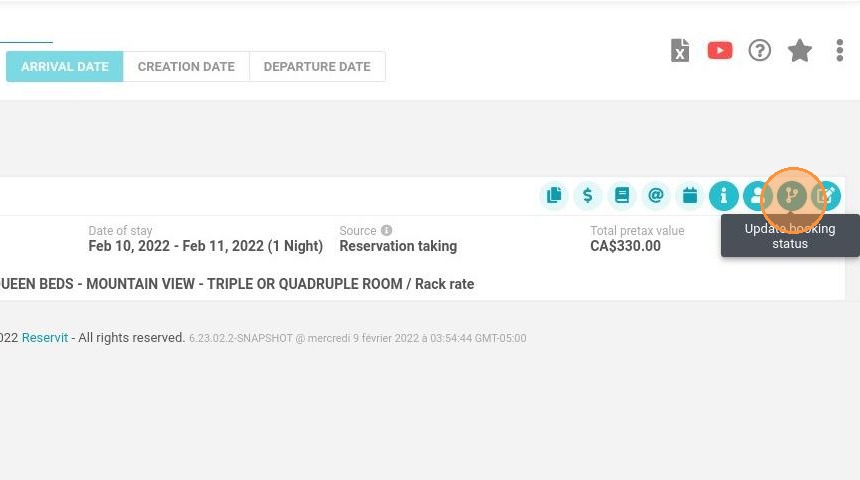
12. To modify the reservation, go to booking - manage reservations
https://colony-recorder.s3.amazonaws.com/files/2024-12-27/786cfa08-df0f-4867-80d9-8c5850d1a8e2/user_cropped_screenshot_0a090a64621f4479bd5c2cea6929eb4f_text_export.jpeg

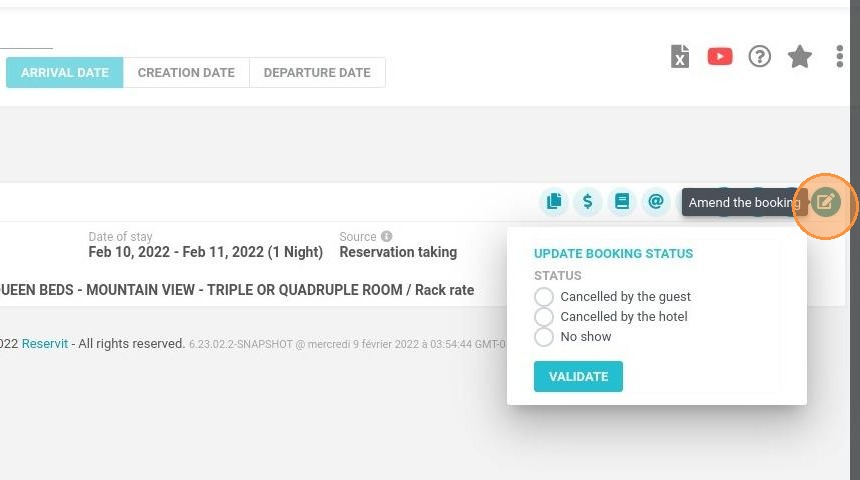
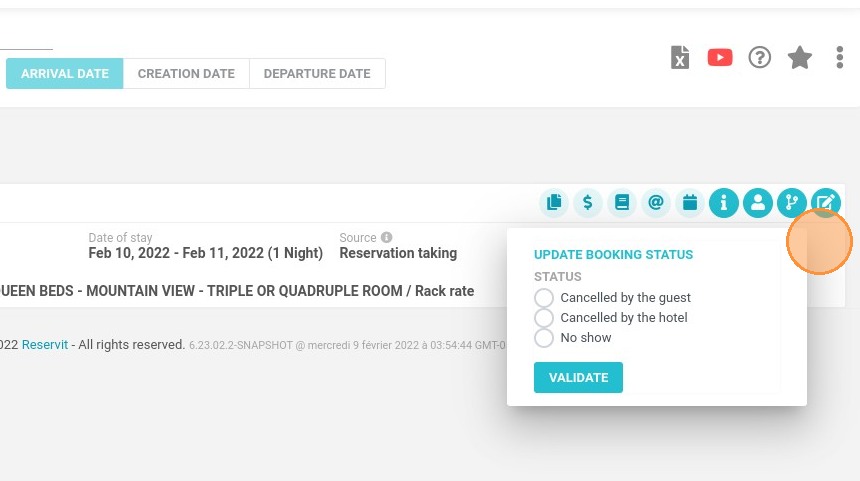
13. On the reservation, you can cancel it with the button "Update booking status"
https://colony-recorder.s3.amazonaws.com/files/2022-02-09/7ba687f1-d51c-41aa-b30c-893cc49e3de3/ascreenshot_ad41a5a55dbc488e9bcc5091b5c187b6_text_export.jpeg

14. To makes changes on dates or rates, click on "Amend the booking"

https://colony-recorder.s3.amazonaws.com/files/2024-12-27/d9143c18-1ee0-4cef-894e-7954c57541eb/user_cropped_screenshot_3de43856a6c646dfa6388b1ed4d8a73c_text_export.jpeg

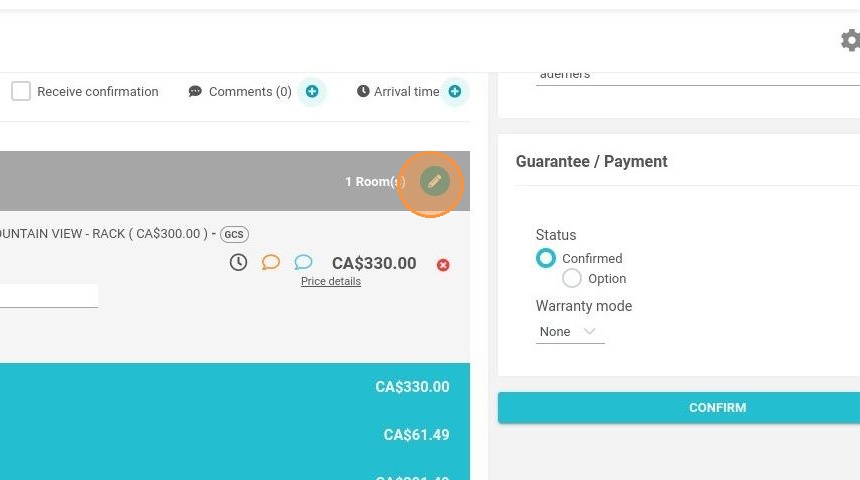
15. In booking details, click on the pencil to make changes
https://colony-recorder.s3.amazonaws.com/files/2024-12-27/4616cac2-6f5f-4bba-b52a-5fb2713f501a/user_cropped_screenshot_13f97c84816e4ecebee27592e60b6515_text_export.jpeg

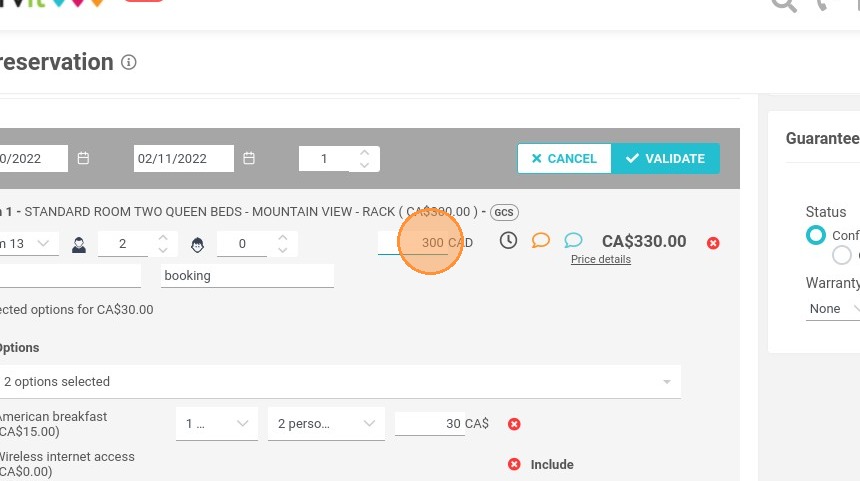
16. For example, you can change the price
https://colony-recorder.s3.amazonaws.com/files/2022-02-09/2c82b2be-a0d2-4553-8a74-6f7910aa66e8/ascreenshot_7e78ec890ea248b89ac8caa016f1be0d_text_export.jpeg

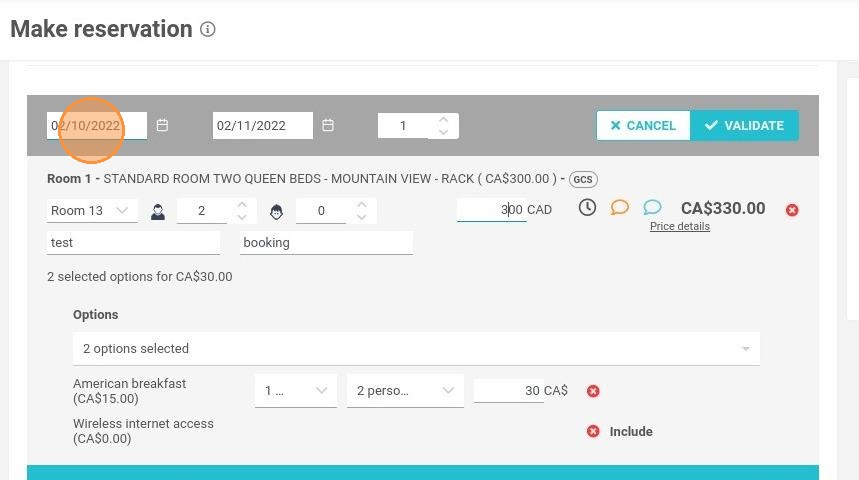
17. Or the booking dates

https://colony-recorder.s3.amazonaws.com/files/2024-12-27/48f01335-be5e-4dcb-bbb0-3ea30b792136/user_cropped_screenshot_e3f38c9cf1794994a558017e3b7617fe_text_export.jpeg

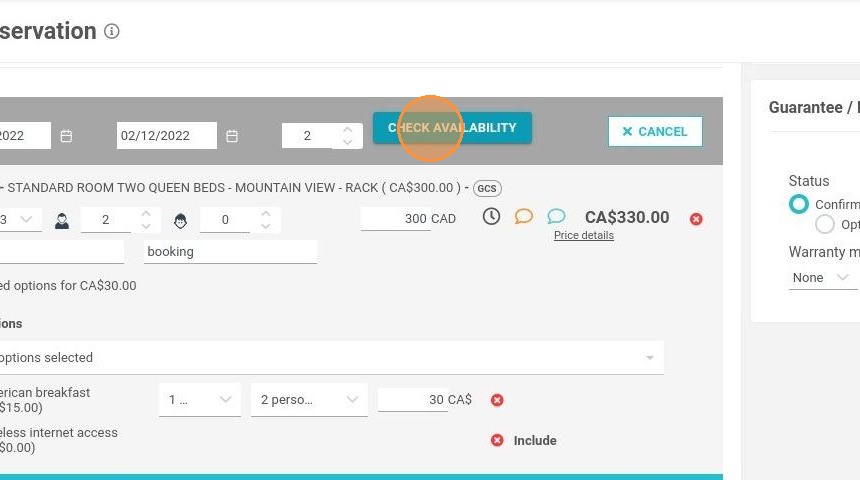
18. Click on "CHECK AVAILABILITY"

https://colony-recorder.s3.amazonaws.com/files/2024-12-27/5e0ac0df-5b5e-49ce-8982-67a76247831f/user_cropped_screenshot_5c3d9f55f4f44cb9854b8439fe635218_text_export.jpeg

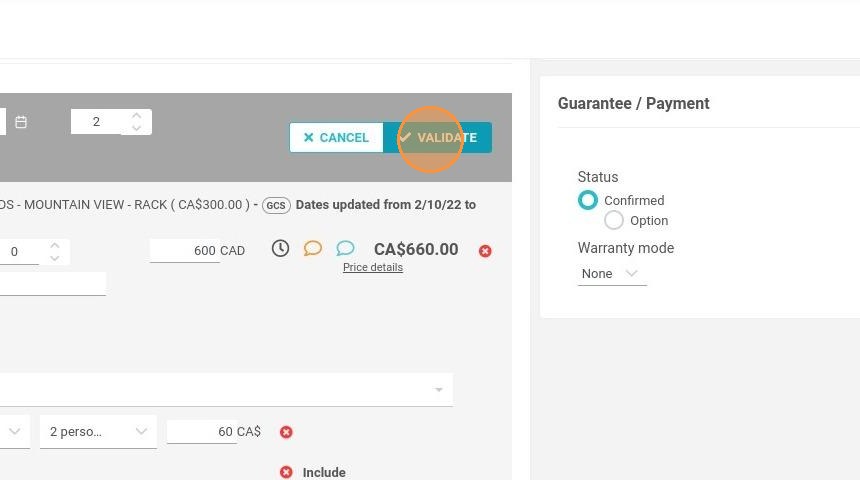
19. Then click on "VALIDATE"

https://colony-recorder.s3.amazonaws.com/files/2024-12-27/022e4931-bc36-4e5f-b86e-b0249595a028/user_cropped_screenshot_98343e62b7cb4b50b27556f371ee7f34_text_export.jpeg

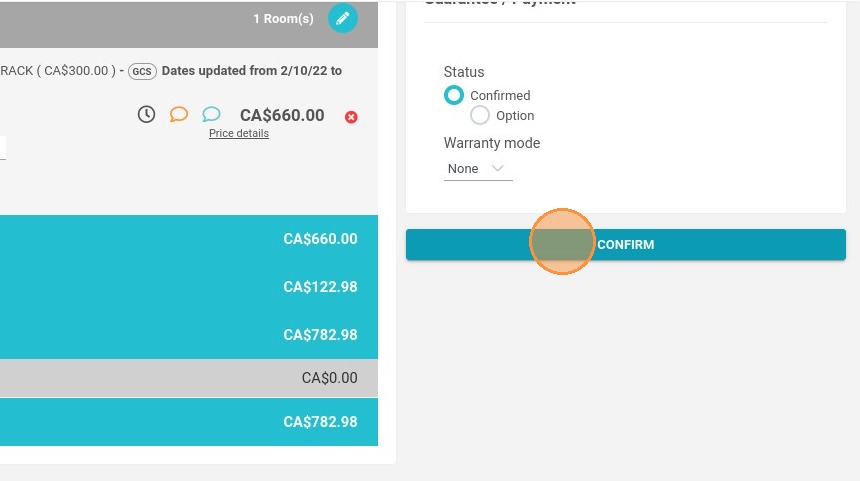
20. When all the changes are made, click on "CONFIRM"
https://colony-recorder.s3.amazonaws.com/files/2022-02-09/4edc311f-c740-4d6f-a214-15735396f706/ascreenshot_1033b00a6cff4edcb8d910b74b7b1fad_text_export.jpeg