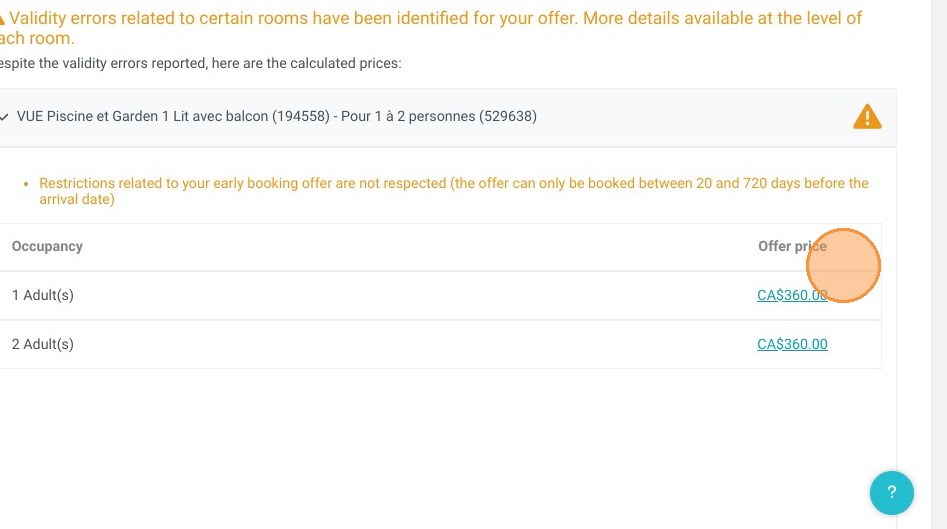
Article Summary: This step-by-step tutorial explains how to actively use the price checking feature within Reservit Accommodation to verify your rate configurations. You will learn how to filter your search by specific units, targeted offers, and date ranges to analyze your pricing setup and easily spot any discrepancies. Mastering this verification process ensures your lodging prices are 100% accurate before they reach your booking engine, protecting your property's revenue and online reputation.
The 4 key steps to check your prices:
-
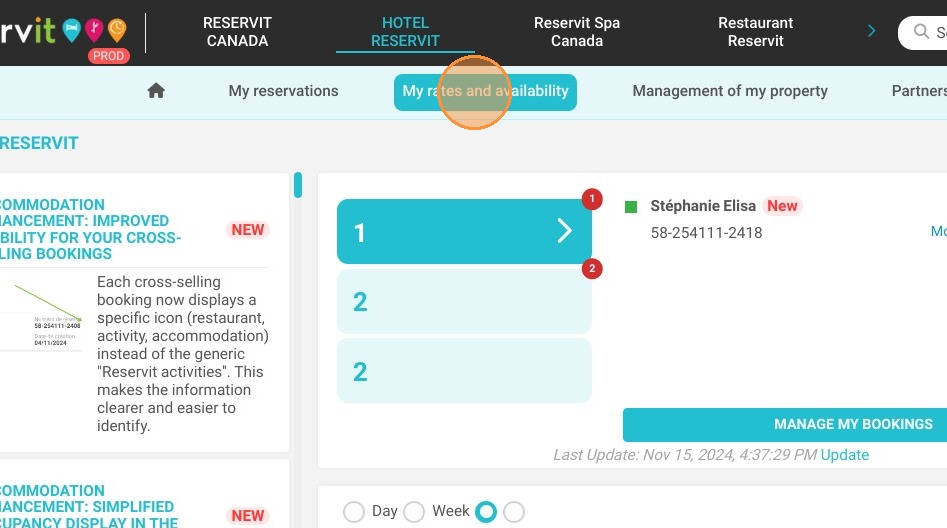
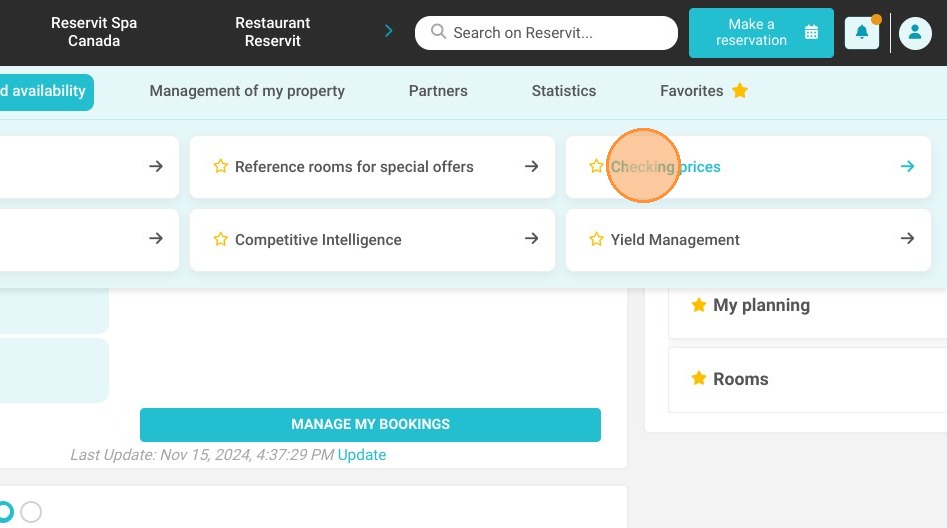
Access the checking tool: Navigate to your "My rates and availability" menu and click on the "Checking prices" tab.
-
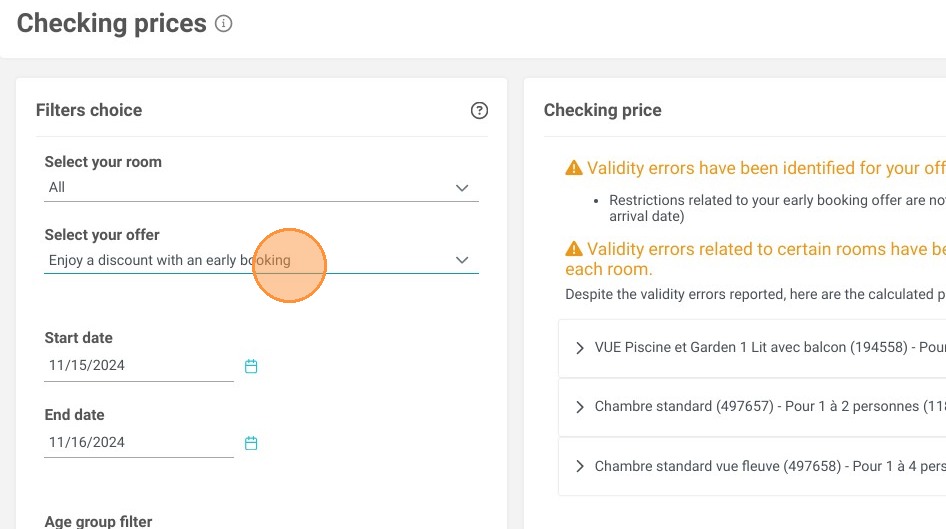
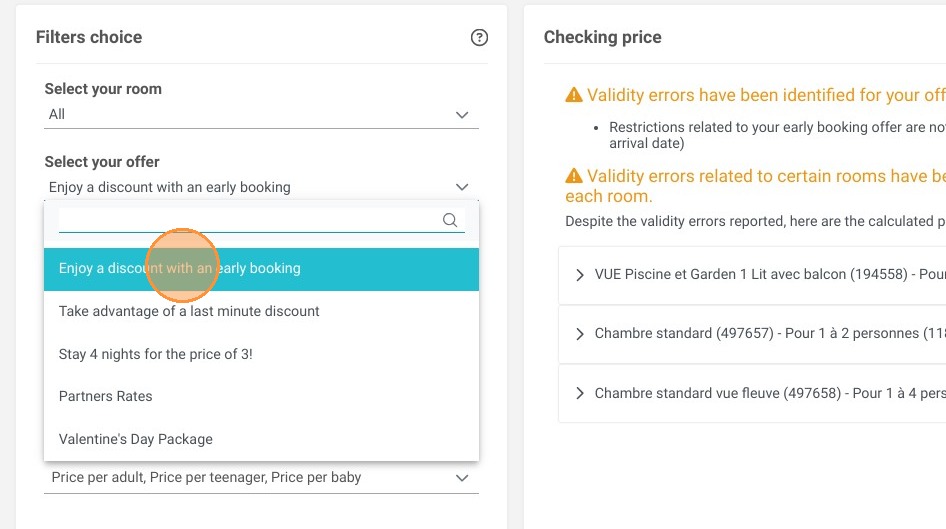
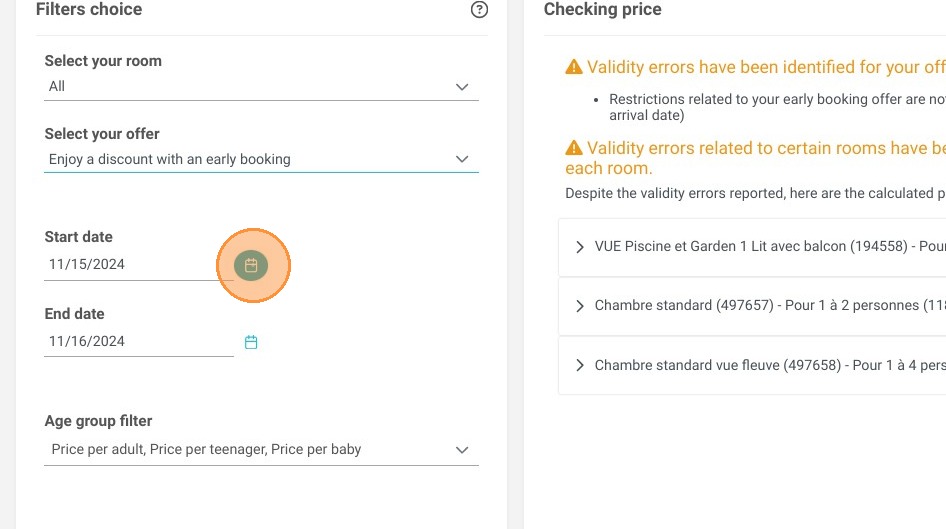
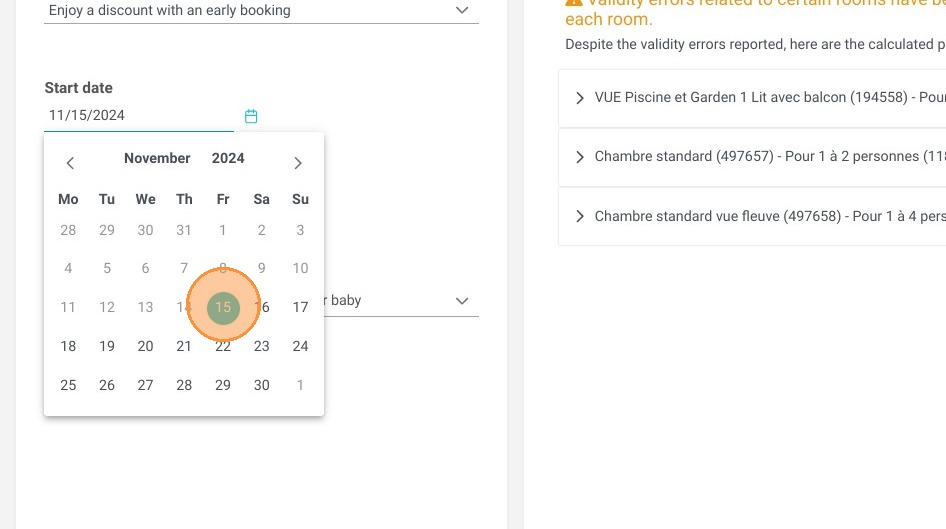
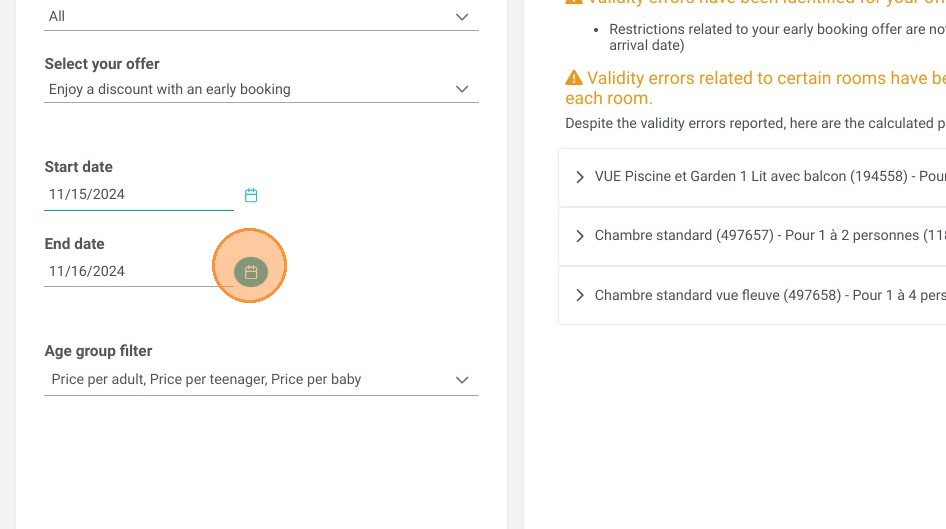
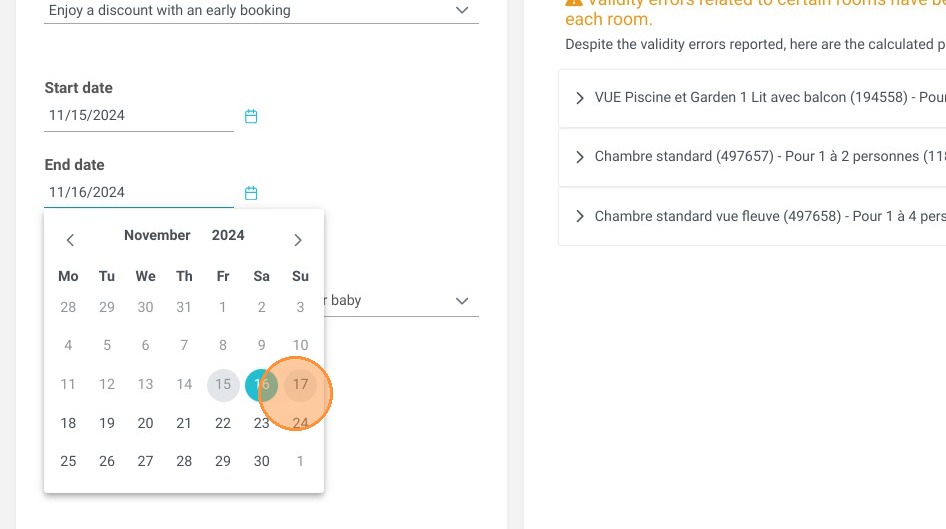
Configure your analysis: Select the specific "Concerned Unit," choose the "Offer to analyze," and set your exact "Verification dates" on the dashboard.
-
Apply occupancy filters: Click on the "Age group filter" if you need to test how your rates apply to different guest demographics (like adults versus children).
-
Review detected errors: Run the check and carefully review the screen, as the software will automatically identify and display any pricing or configuration errors.
Why follow this guide? Following this guide allows you to proactively catch missing rates, setup conflicts, or pricing errors before a guest ever sees them. By routinely validating your rate plans, you avoid costly revenue losses and guarantee a secure, error-free booking experience across all your distribution channels.
1. Click "My rates and availability"
2. Click "Checking prices"
3. On this page, the following settings are available:
-
Concerned Unit
-
Offer to analyze
-
Verification dates
4. Click "Age group filter"
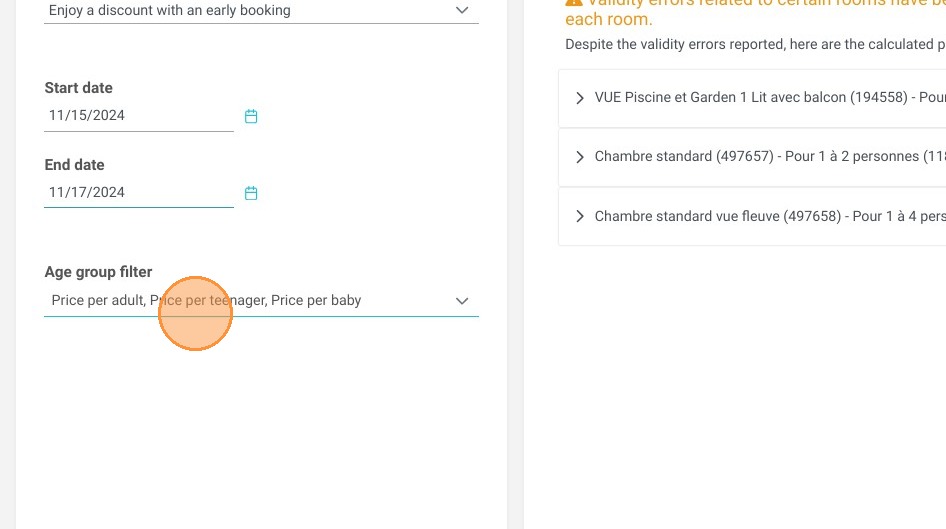
5. If any errors are detected, the software will display the error details for you.