Article summary: This comprehensive guide provides step-by-step instructions on how to create, edit, and manage extra options and add-ons within the Reservit Activities platform. You will learn how to easily configure service details, set pricing, adjust inventory levels, and enable online bookability for your additional services. Mastering this feature allows you to seamlessly upsell to your customers, offering an enriched booking experience while increasing your overall revenue per reservation.
The 5 key steps to create and edit extra options:
-
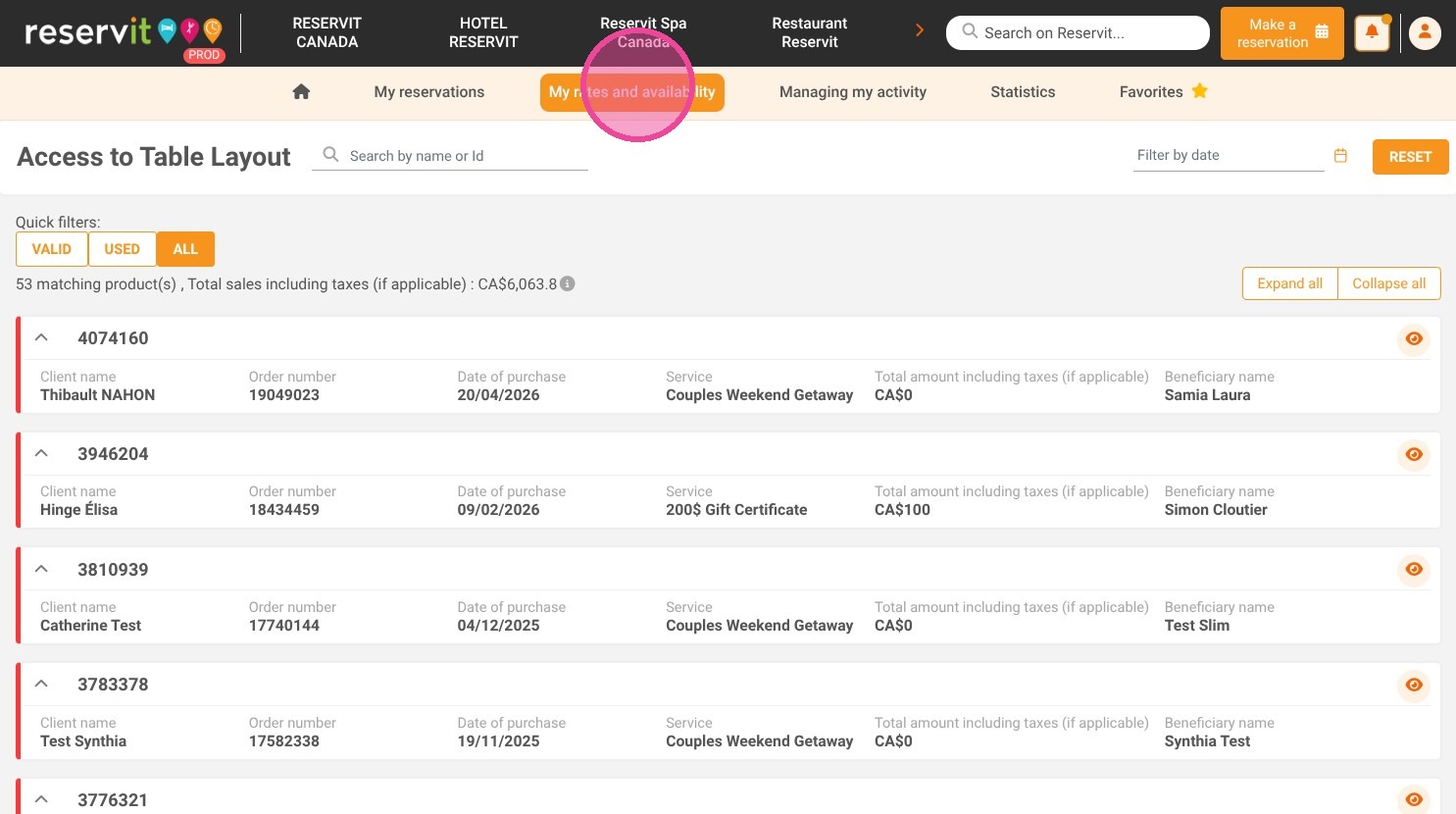
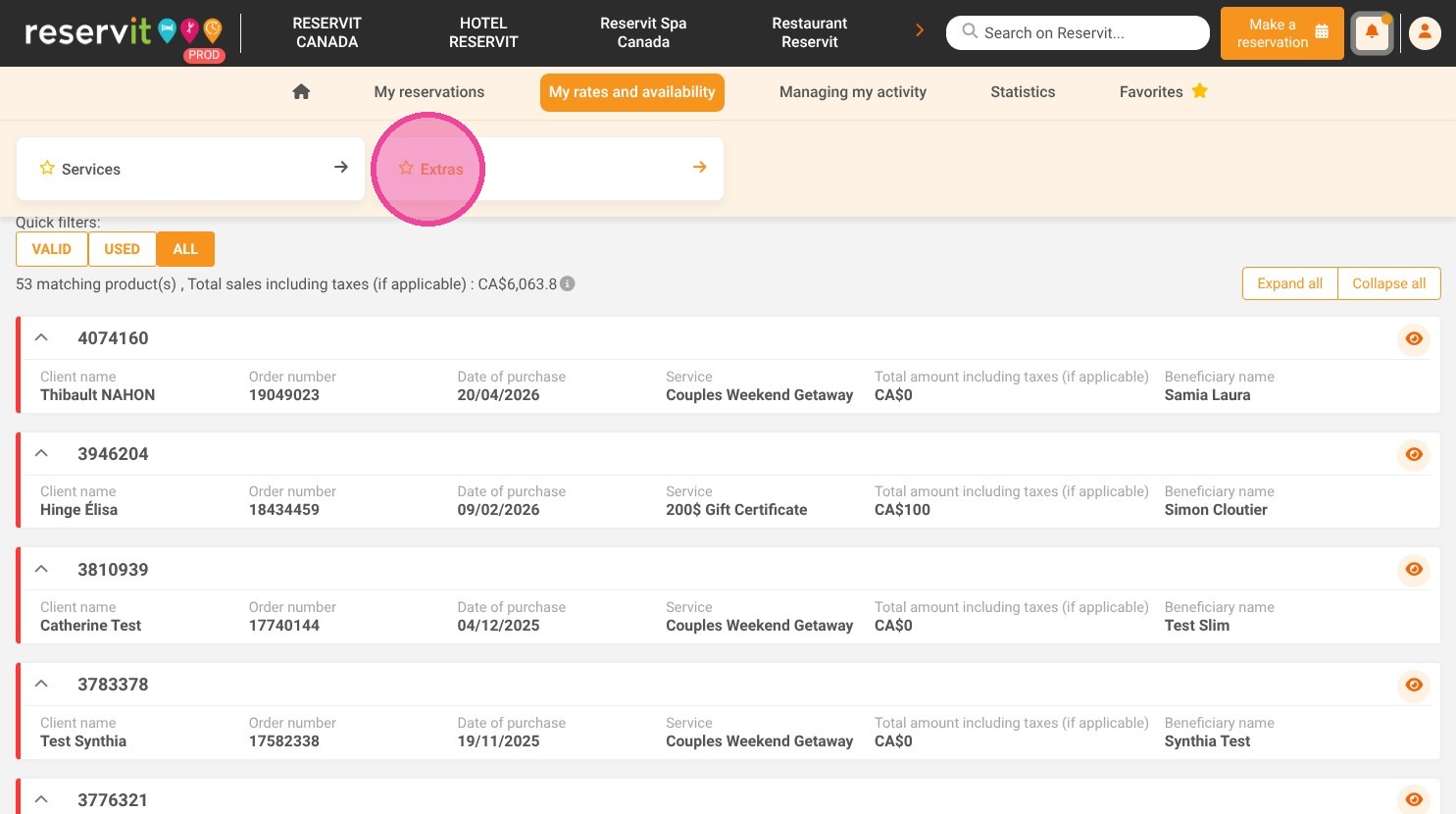
Access the extras menu: Navigate to "My rates and availability" on your main dashboard and select "Extras" to access your add-on management section.
-
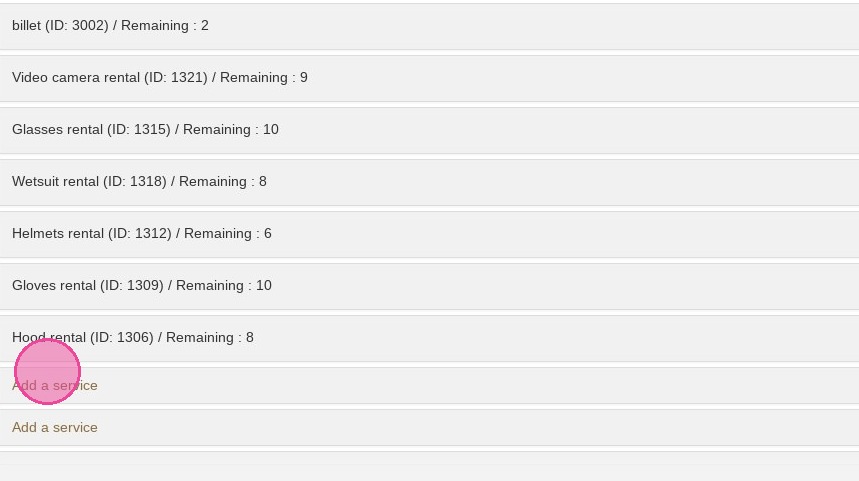
Create or modify a service: Choose to edit an existing option from your current list or click to add a brand-new extra service to your catalog.
-
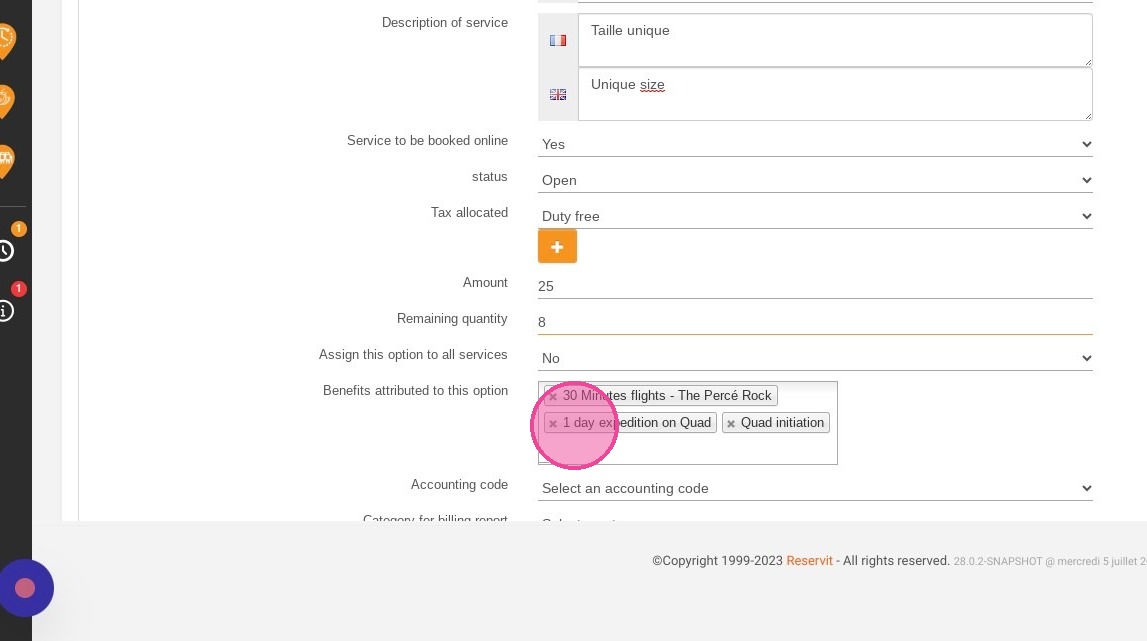
Define details and visibility: Enter the service name and a clear description, then select "Yes" to make the option instantly available for online booking.
-
Configure pricing and inventory: Set the base price (before taxes) for your add-on and input the remaining quantity to ensure your stock is accurately tracked.
-
Assign associated services: Link the specific services or activities this option applies to in order to finalize your setup.
Why follow this guide? Following this streamlined setup ensures your extra services are correctly priced and perfectly synced with your inventory, preventing embarrassing overbookings. It optimizes your sales strategy by allowing you to easily offer profitable, customizable add-ons directly during the customer's online checkout process.
1. Click "My rates and availability" then "Extras"
2. You can either add a new service or edit one.
3. Complete the service name and description if necessary.
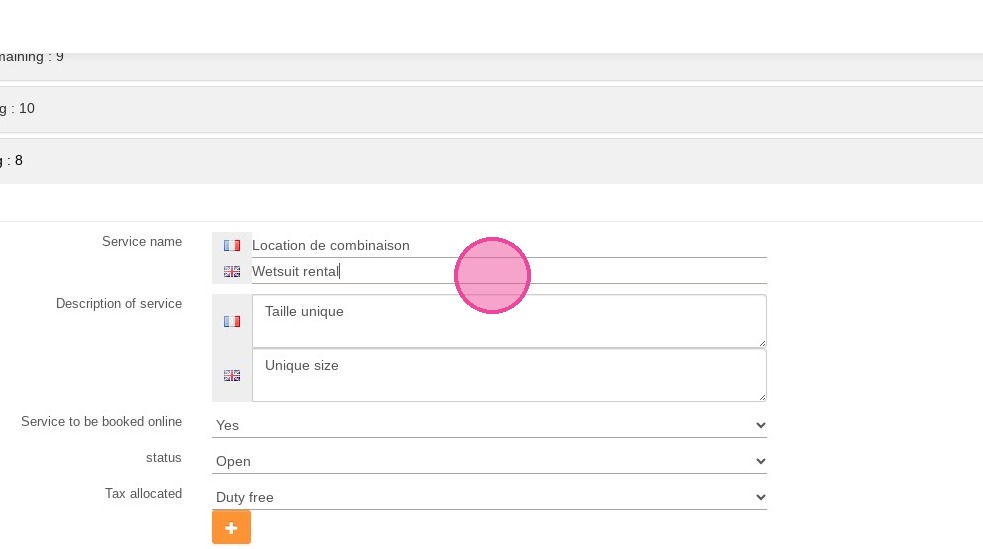
4. Select "Yes" if you want the service to be booked online.
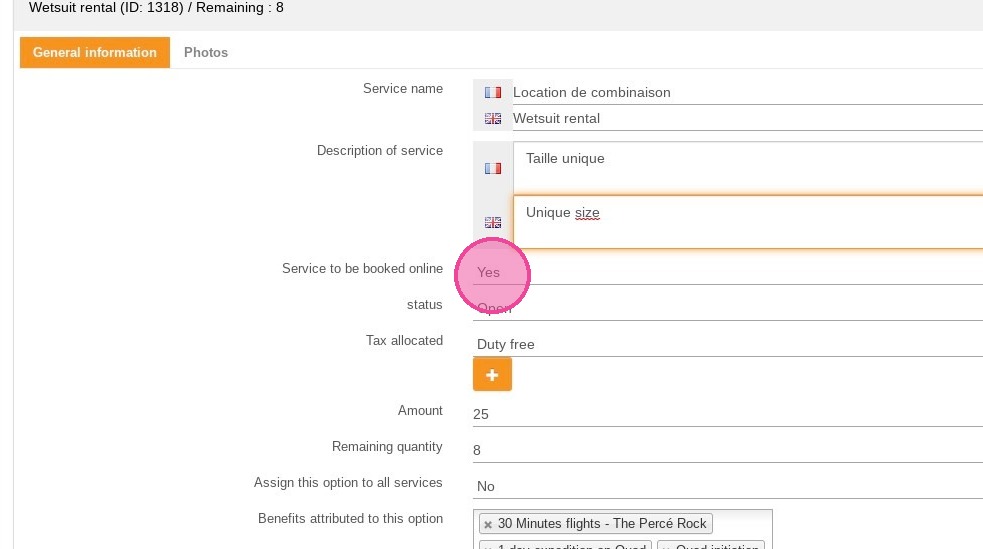
5. Insert price before taxes.
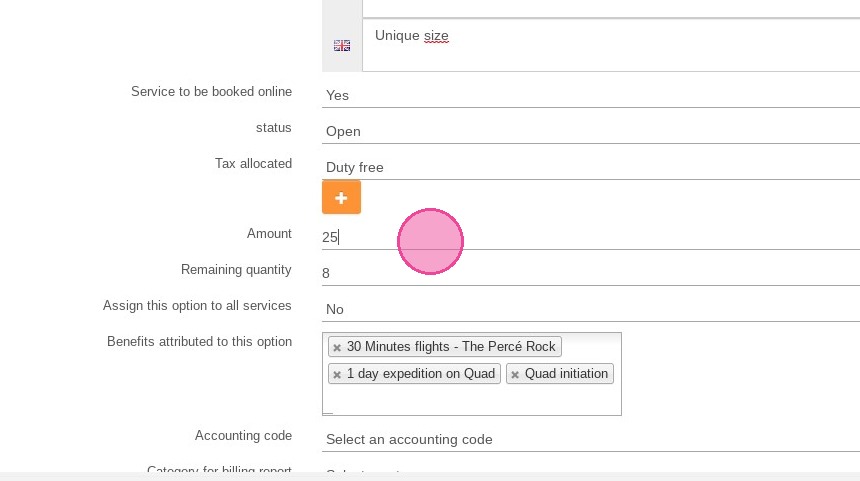
6. Add remaining quantity (Inventory).
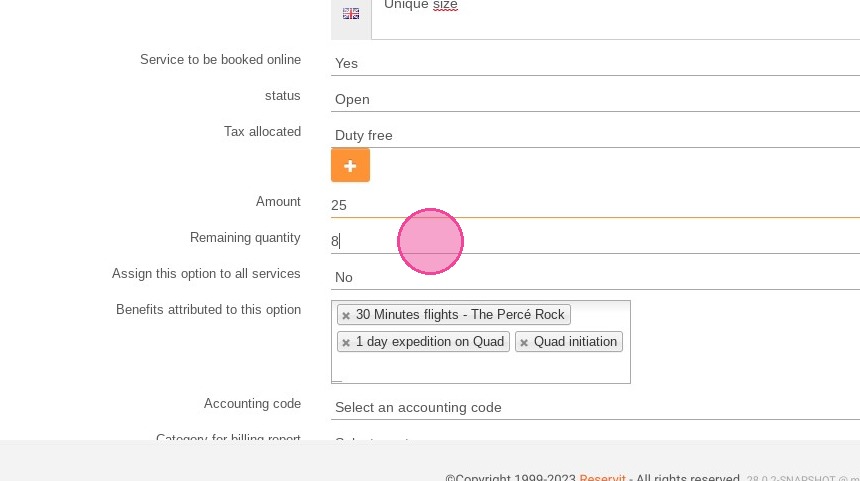
7. Assign the services this option applies to.