

Article summary: This tutorial shows you how to extract the list of your reservations over a period, in a CSV file (for a spreadsheet) or a PDF file, and how to view the list of your customers.
The 3 key steps to export your reservations:
-
Open the extraction: Go to Statistics > Extraction of reservations.
-
Choose the criteria: Period, type of date, statuses, file format and version.
-
Confirm: Click Confirm to get the file.
Why follow this guide? A regular export helps you track your occupancy, plan your purchases and compare your services from one week to the next.
Export your reservations
1. Go to Statistics > Extraction of reservations.

2. Enter the Start date and the End date (by default, the current month).
3. In From, choose Arrival (date of the meal) or Creation (date the booking was made).
4. Leave Type of offers on schedule & Product, or choose schedule for your restaurant services only.
5. Choose the Extract file format: CSV for a spreadsheet, PDF to print.
6. Choose the Version of the extraction: Standard or Detailed.
7. In Reservation status, select All or only Confirmed bookings, Cancelled bookings or Bookings on request.
8. Click Confirm.
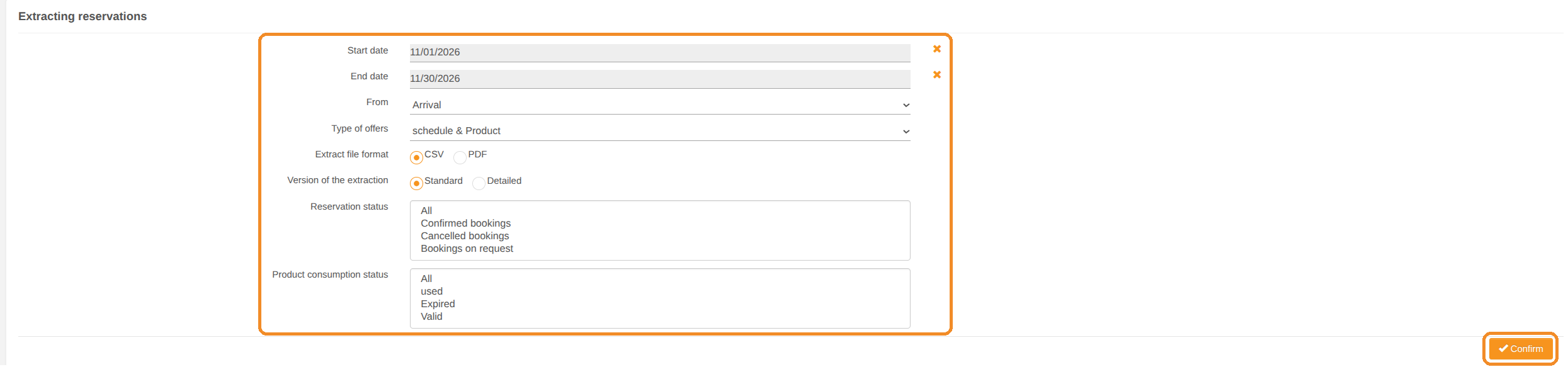
Product consumption status applies to products (for example gift vouchers): leave All for your table bookings.
View your customers
9. Go to My reservations > Customer management: you will find all the customers who have made a booking.
10. Search for a customer by last name, first name, company name or city, and filter by Vip, Unwanted pax, Allow mailing or Type. ADVANCED SEARCH offers more criteria.
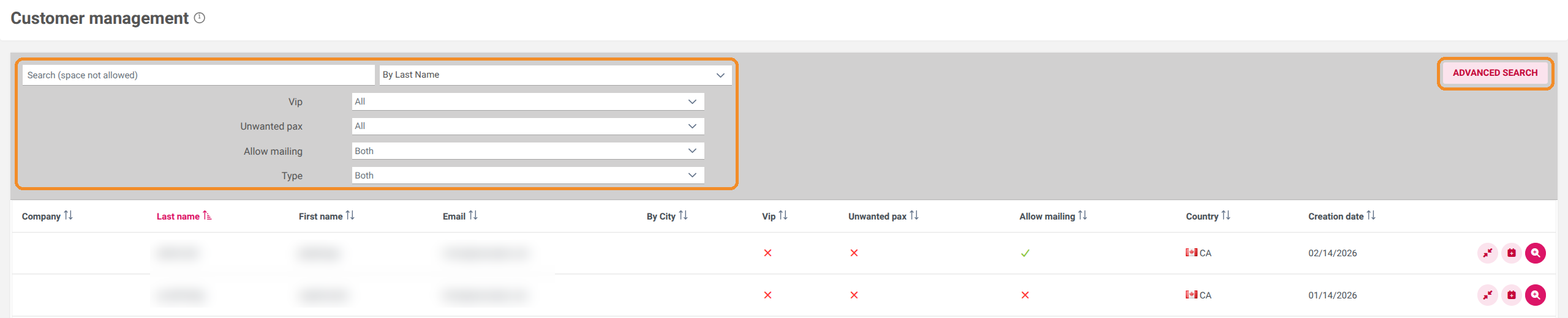
For each customer, the buttons on the right let you Merge two duplicate records, Book for this customer and View details of the customer record.