

Article summary: This step-by-step guide explains how to manually integrate a missing reservation from Reservit into your Property Management System (PMS). You will learn how to access your booking logs and manually trigger the synchronization process to resend the essential reservation data. Mastering this quick troubleshooting step ensures your front desk always has accurate, up-to-date booking information, preventing operational delays and potential overbookings.
The 4 key steps to resend a reservation to your PMS:
-
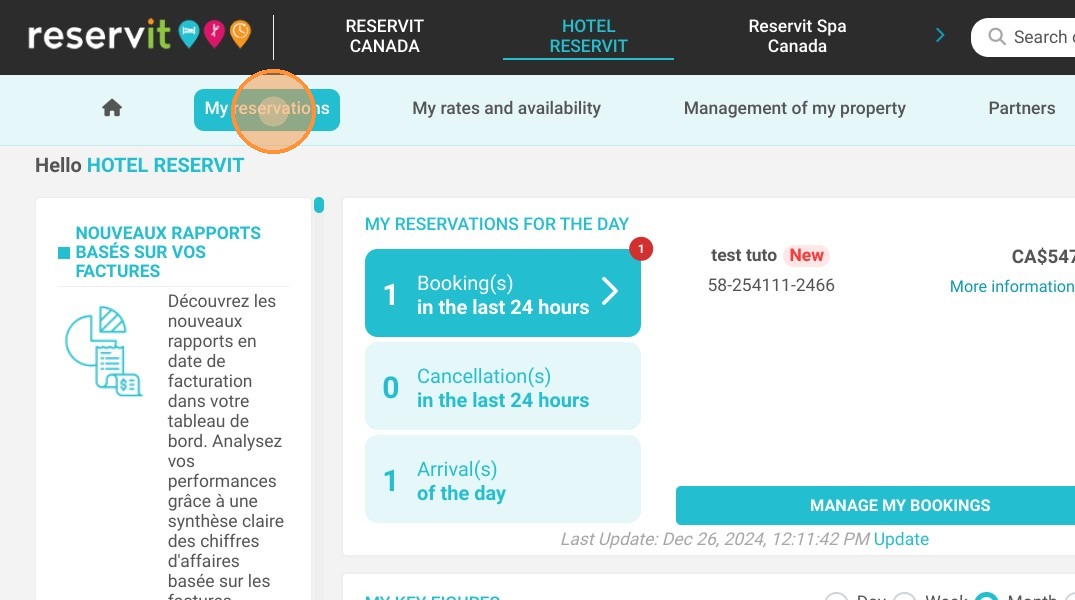
Navigate to your reservations: Use the search bar or the main menu to access "My reservations" and open your complete list of bookings.
-
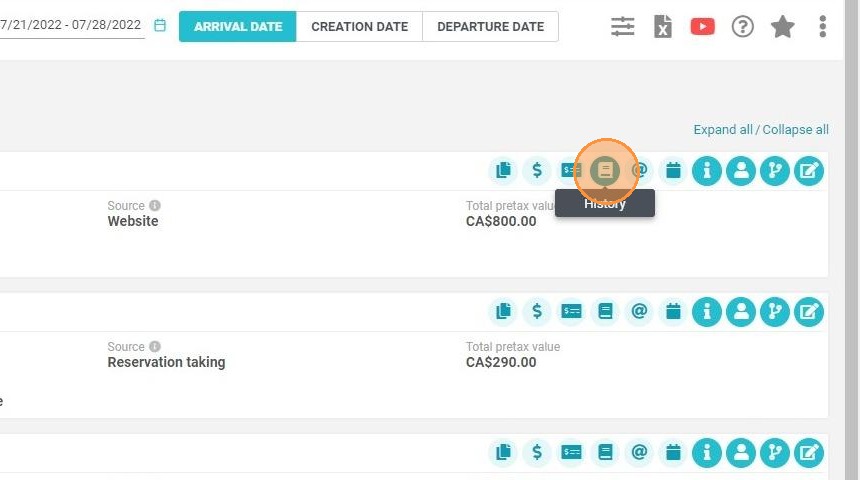
Access the reservation log: Locate the missing booking in your list and click on the book pictogram to open the specific document history for that reservation.
-
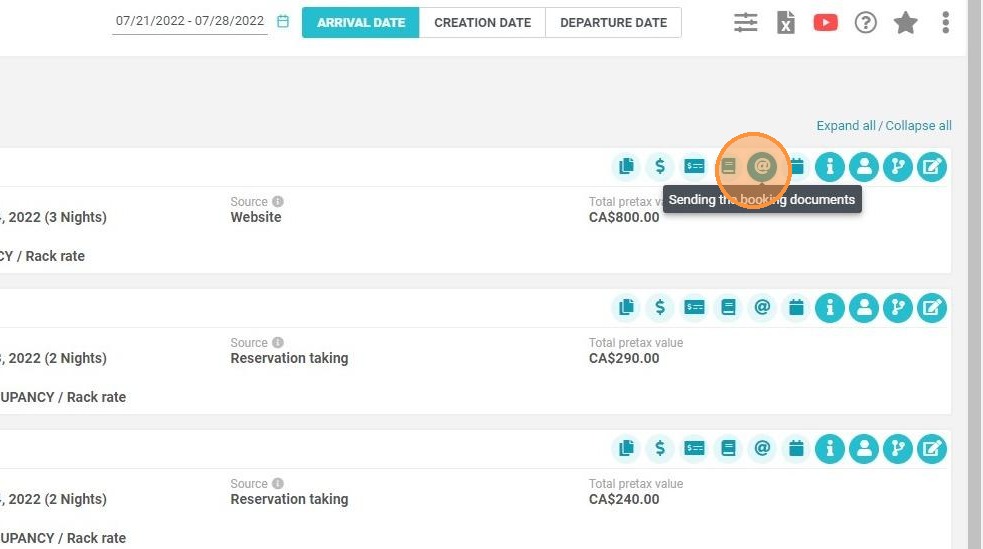
Trigger the synchronization: Click on the "@" pictogram to command the system to resend the reservation documents to your connected management software.
-
Confirm the integration: Select "Yes" to validate the manual push, and then check your PMS to ensure the reservation is now fully visible and correctly integrated.
Why follow this guide? Knowing how to manually push a reservation prevents front desk confusion and eliminates the risk of double-bookings when occasional automatic synchronization delays occur. It empowers your staff to instantly resolve missing bookings and keep operations running smoothly without needing to wait for technical support.
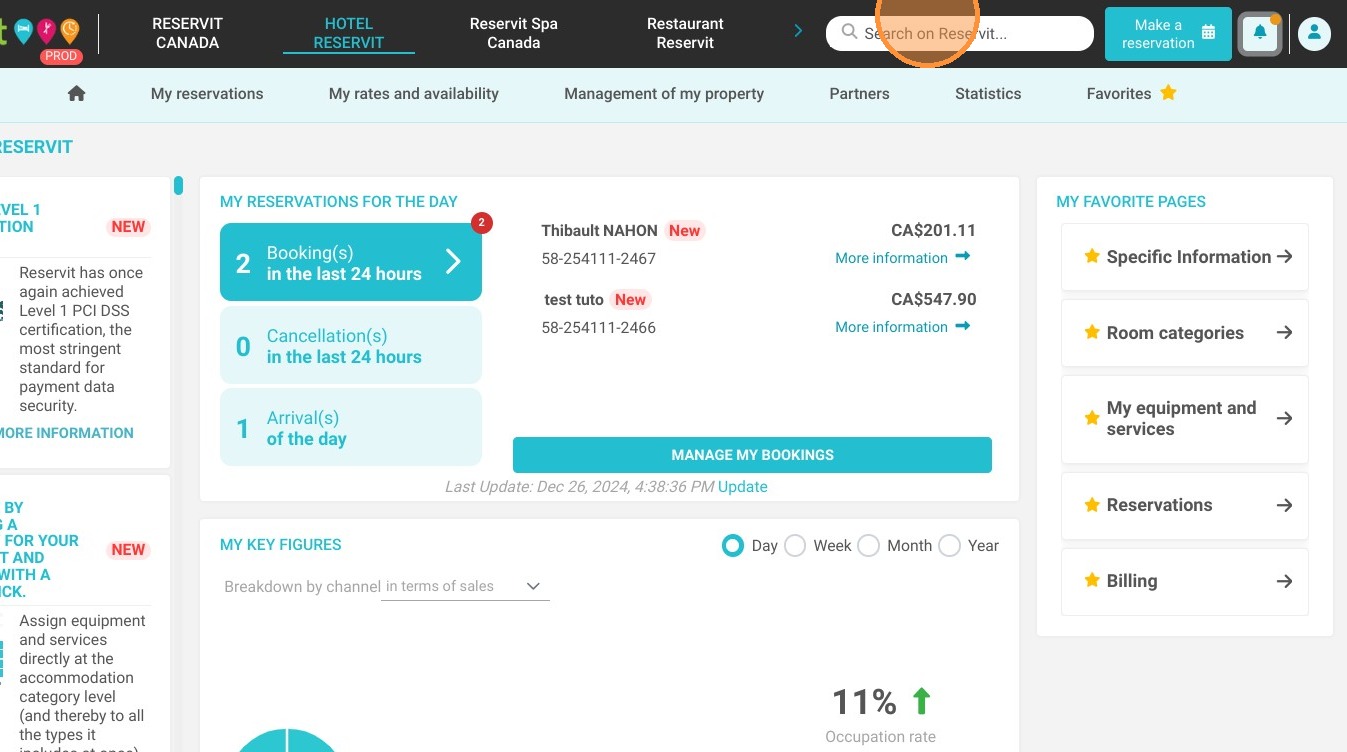
1. Click on ''Search on Reservit''
2. Click "My reservations"
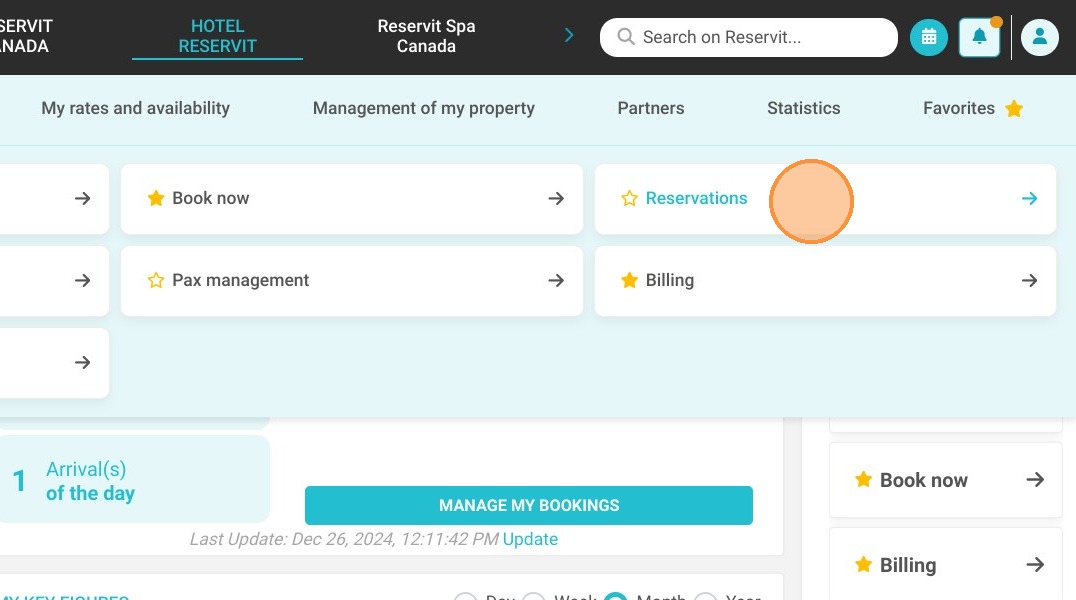
3. Go to My reservations > Reservations.
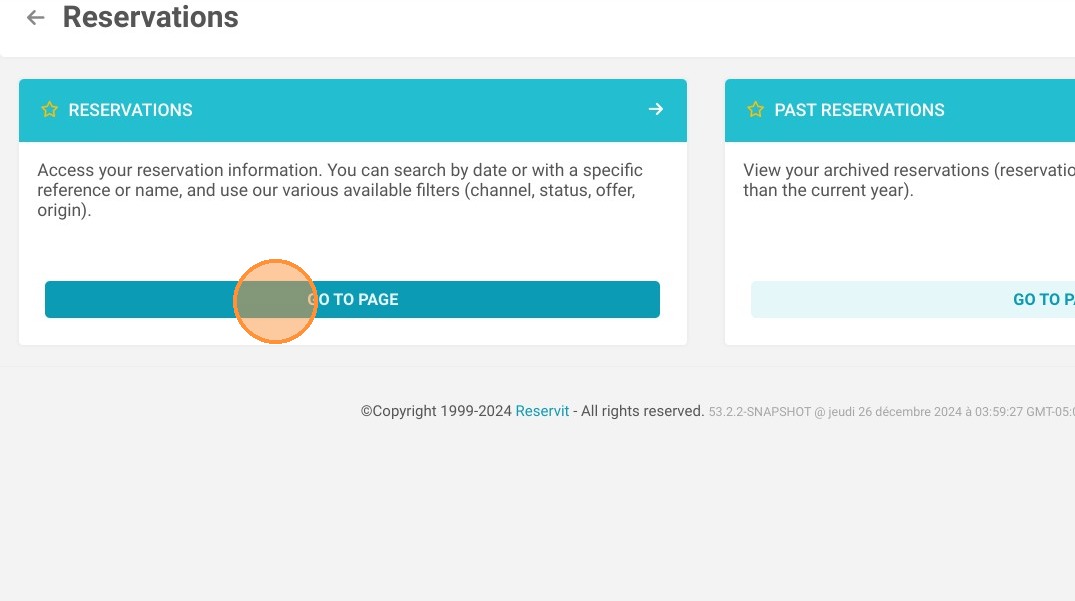
4. Click on Reservations again.
5. Click on the pictogram representing a book.
Tip: As a reminder, Reservit sends the reservation information to your management software every 3 hours, 5 times.
6. Click on the @ pictogram to resend the reservation documents
7. Check "Yes".
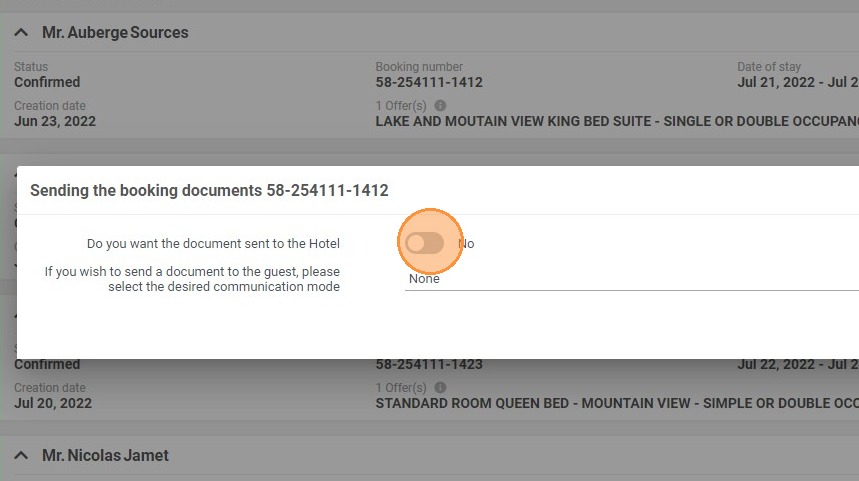
Tip: The reservation should now be visible in your management software.