

Article Summary: This tutorial explains how to move a guest to another room or change the category of a reservation in Reservit Accommodation. Drag and drop on the calendar only changes the physical room: the reservation keeps its original category, offer and price (useful for a room swap or a complimentary upgrade). To really change the booked category, and update the reservation and its price, you need to edit the reservation.
The 5 key steps:
-
Find the reservation: on the reservation calendar or with the search bar.
-
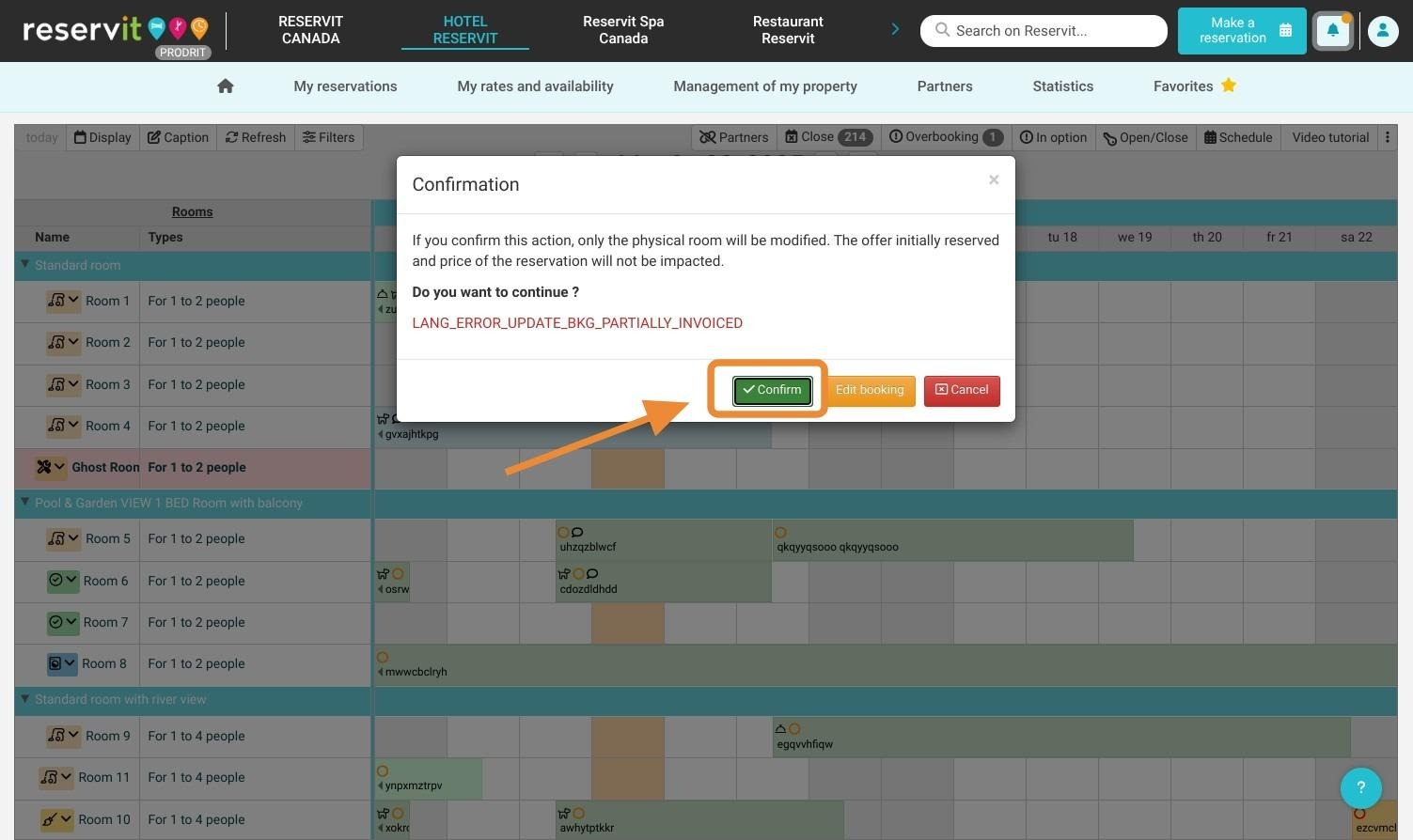
Change the room only: drag and drop the reservation onto the new room, then click Confirm. The category, offer and price do not change.
-
Change the category: edit the reservation with the Edit pencil, then run a search on the stay dates.
-
Replace the room in the cart: add the new category with ADD, then remove the old line with the red cross.
-
Confirm: check the price, then click CONFIRM. The reservation keeps its number.
Why follow this guide? You choose the right method for each situation: a simple move on the schedule, or a real category change that updates the guest's reservation and price.
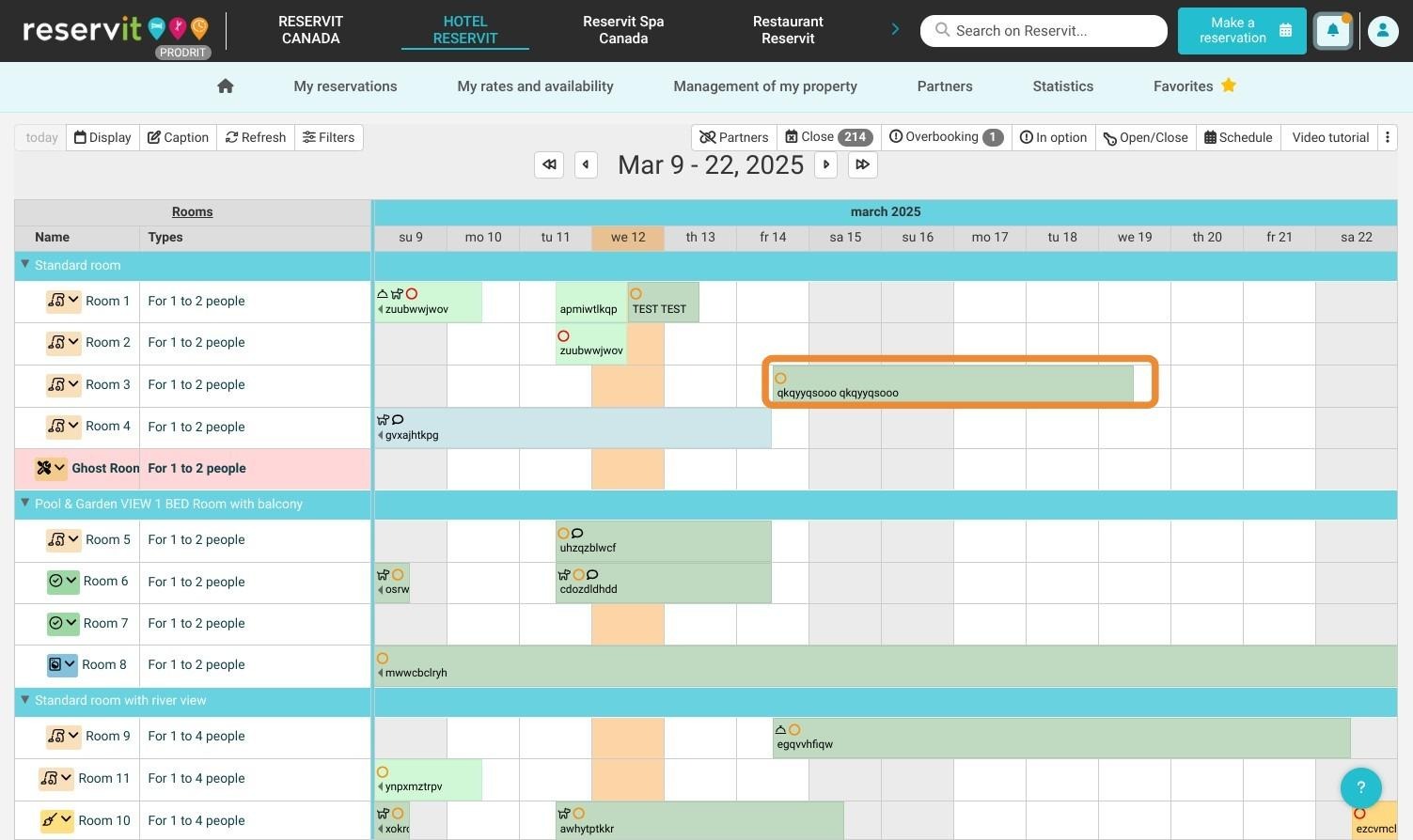
1. Access the reservation calendar or use the search bar to find the reservation.
Change the room without changing the booked category (drag and drop)
Use this method for a room swap or a complimentary upgrade: the guest stays in another room, but the reservation (category, offer, price) does not change.
2. Click and hold the reservation, then drag it onto the new room.
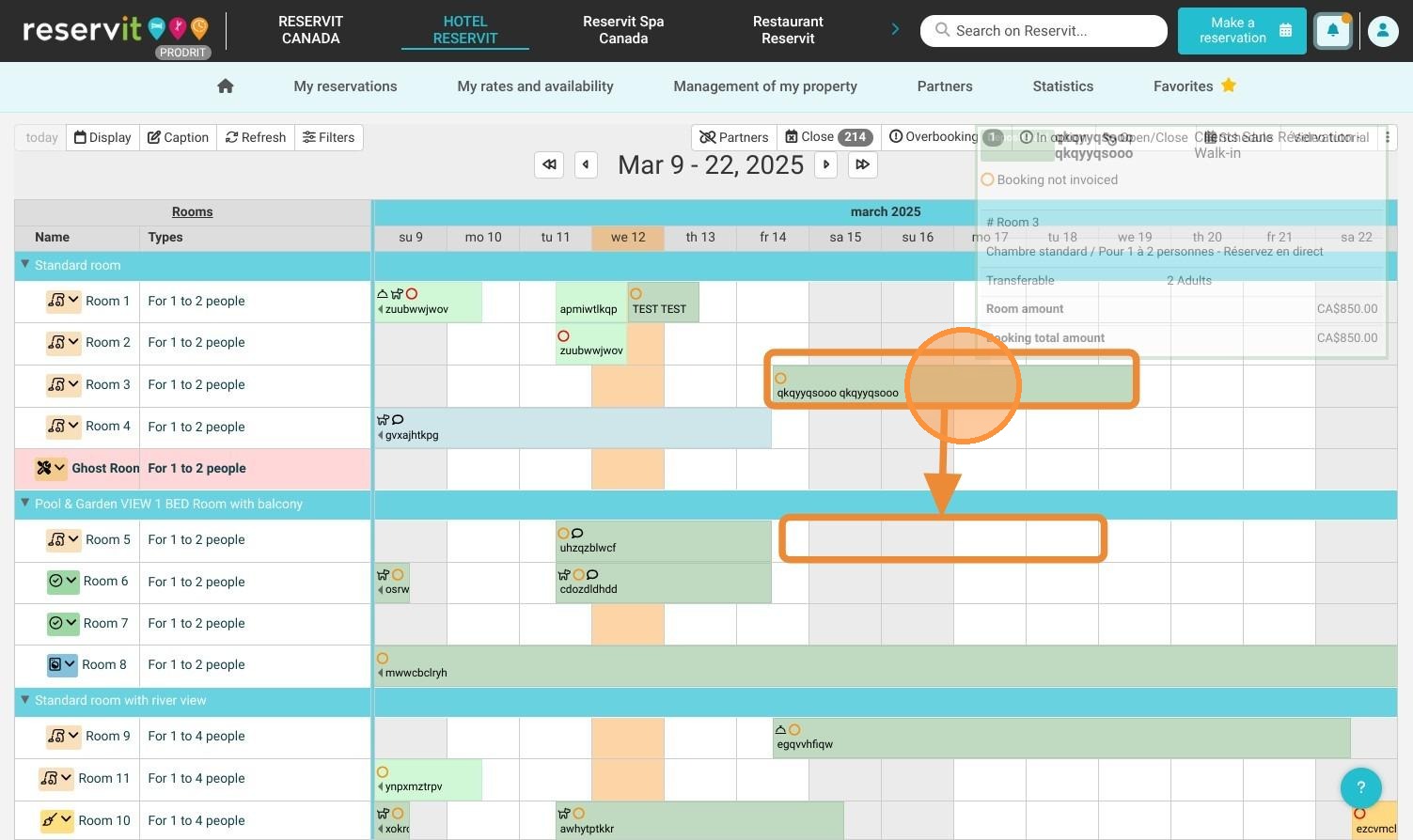
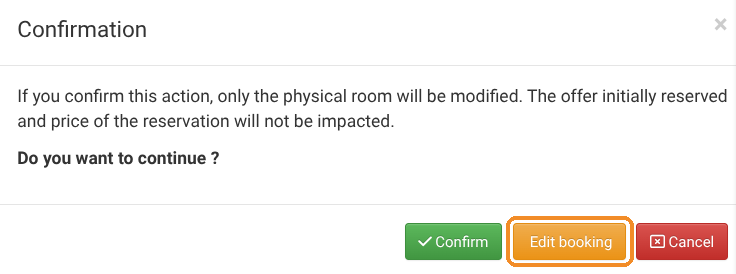
3. In the confirmation window, click Confirm.
4. The guest now appears in the new room on the schedule. The reservation keeps its original category, offer and price.
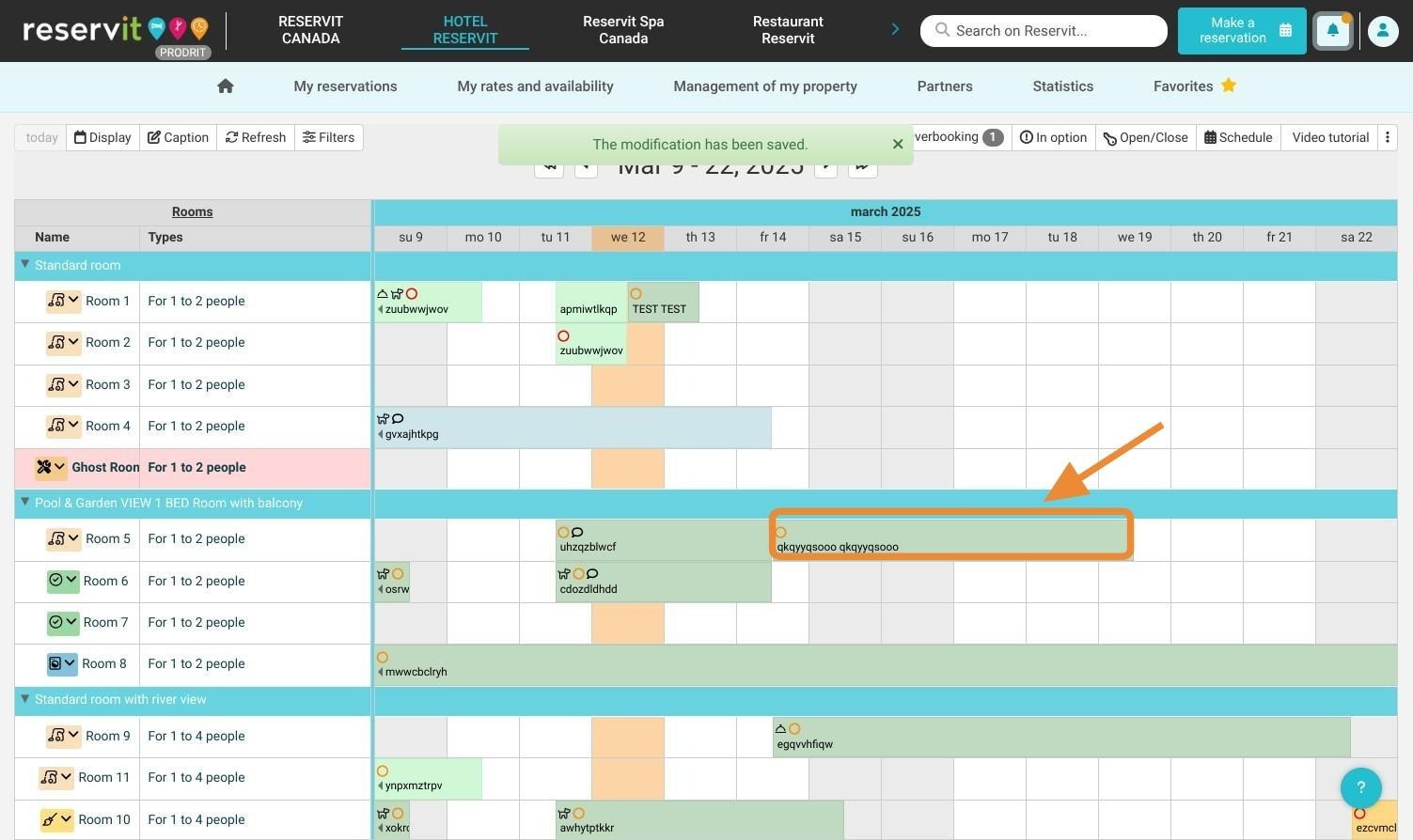
Warning: after a drag and drop, the guest's reservation still shows the category booked at first (for example the old cabin). This is normal: as the confirmation window says, only the physical room is changed. To show the new category on the reservation, follow the next section.
Change the category of the reservation (reservation and price updated)
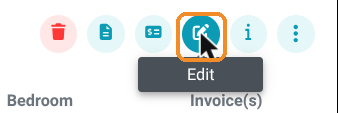
5. On the calendar, click the reservation, then the Edit pencil at the top of the panel.
If you have just dragged and dropped, you can also click Edit booking in the confirmation window.
6. At the top of the screen, enter the arrival and departure dates of the stay (the search opens on today's date), then click SEARCH.


7. In the results, click ADD on the new category. It is added to the cart, under the old one.
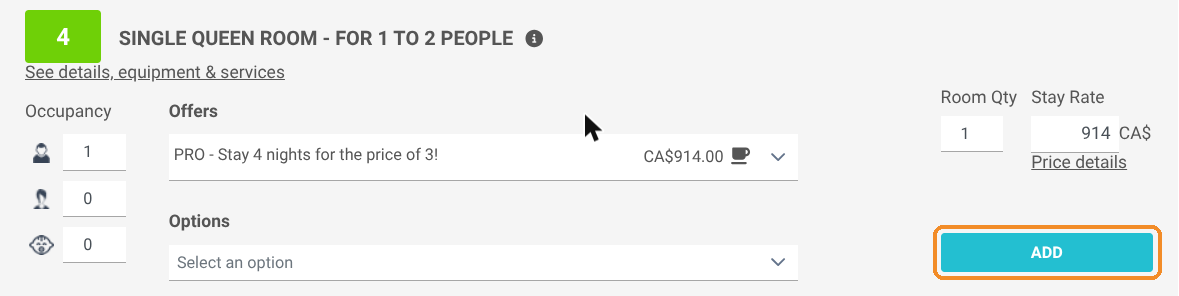
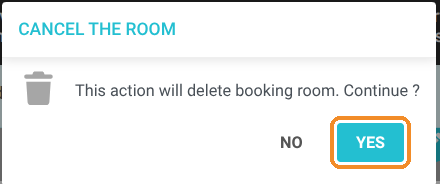
8. In the cart, click the red cross on the line of the old category, then click YES.
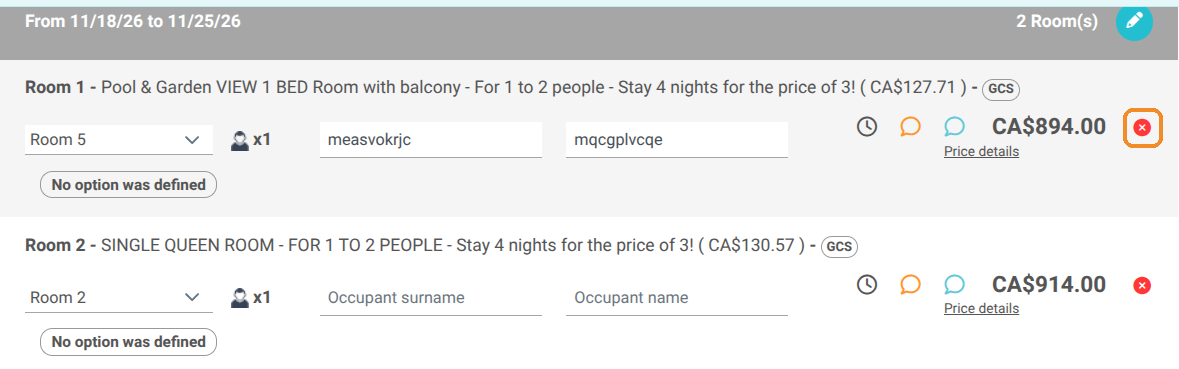
9. Check the price: it is recalculated from the new category's offer. To change it, click the pencil in the cart, enter the amount, then validate.

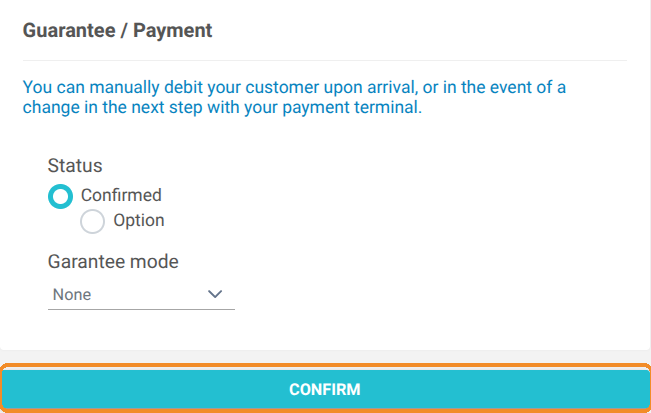
10. Click CONFIRM.
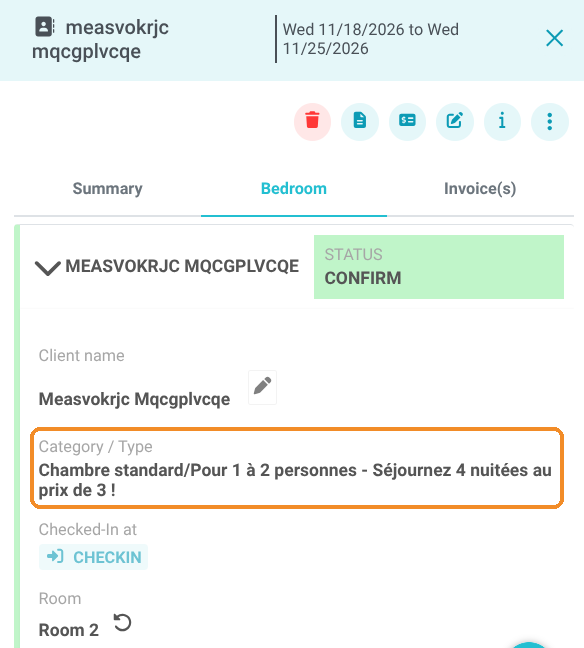
11. The reservation keeps its number. In the reservation, Category / Type shows the new category, with its new room and new price.
Good to know: in the cart, the room number drop-down list only offers rooms of the same category. This is why you need to add the new category through the search, then remove the old line.