

Article summary: This practical tutorial guides you step by step to efficiently configure and adjust operating hours and time slots within your Reservit Activities platform. You will learn how to modify your general settings and reflect these changes on your resources to optimize the management of your online bookings. With this guide, you ensure perfect consistency between your actual availability and what is displayed to your customers.
The 5 key steps to adjust your operating hours:
-
Access the establishment configuration: Log in and navigate to the "Managing my activity" menu, then "Property Setup", and finally "Property information".
-
Select the dedicated section: Go to the specific section entitled "Schedule and duration".
-
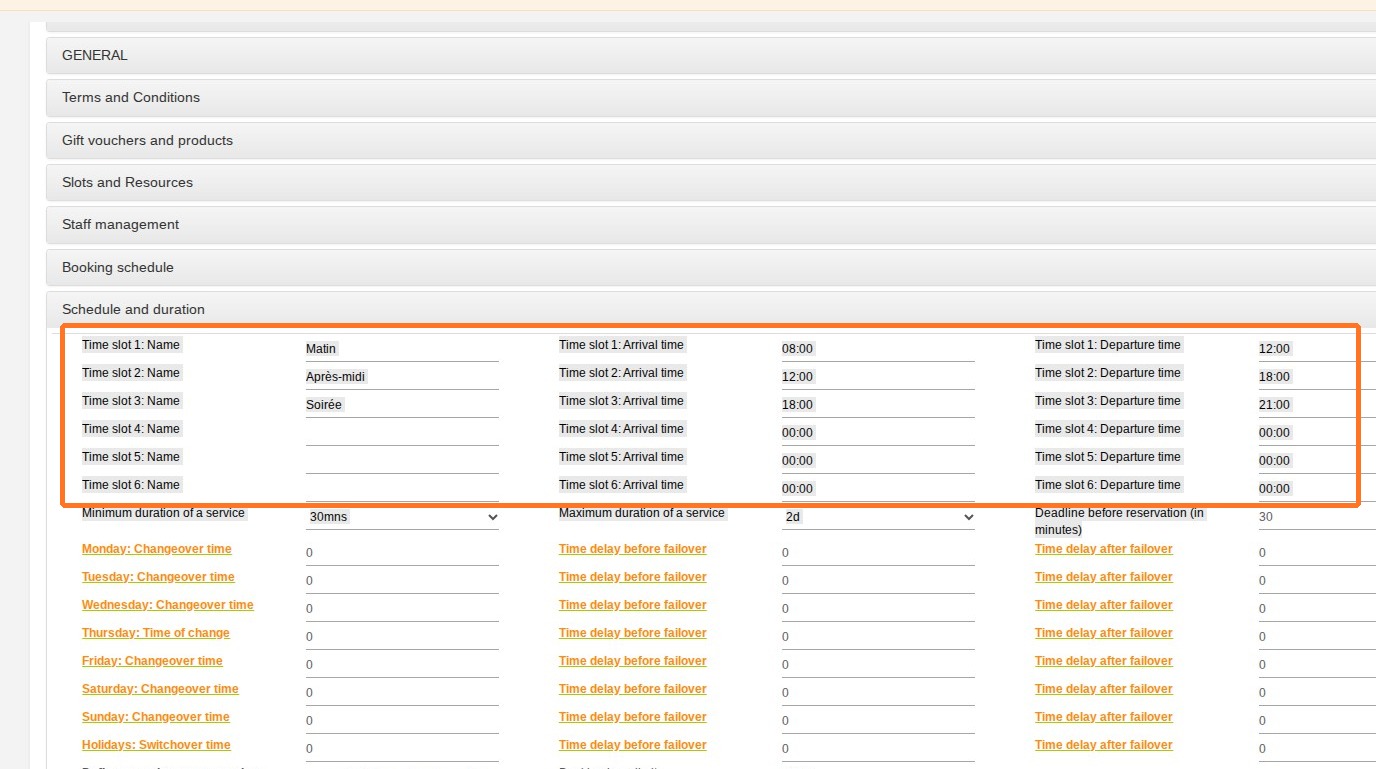
Configure the time slots: Create or modify your time slots (up to 6 possible configurations), making sure to strictly use the 24-hour format (e.g., 20:00).
-
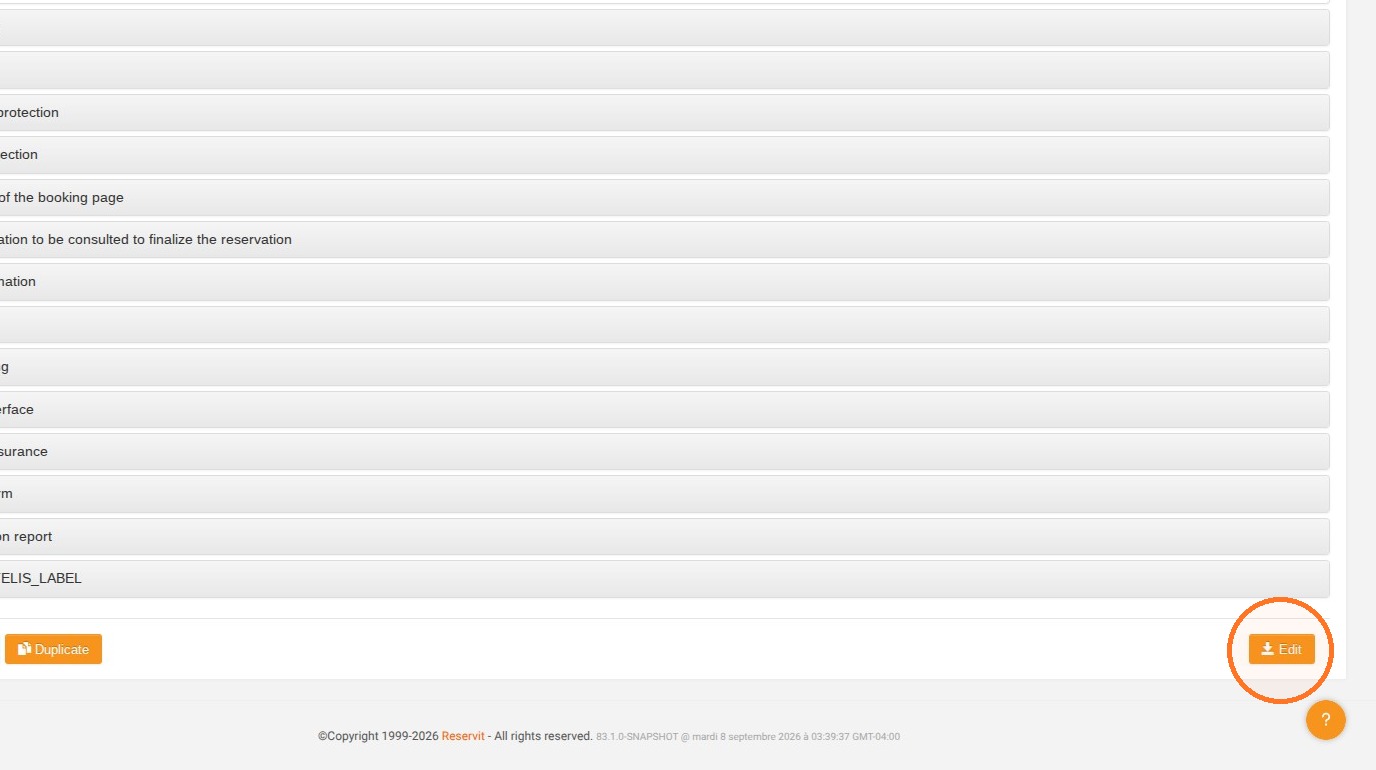
Save the modifications: Click on the "Edit" button to save all your new settings.
-
Apply to resources and calendar: Adjust the schedules of your resources and associated services, then customize your calendar view to correctly visualize your changes.
Why follow this guide? By mastering your schedule configuration, you avoid overbooking errors and scheduling conflicts between your services and resources. It is a valuable time saver that secures your customer journey and maximizes the operational efficiency of your establishment.
1. Go to "Managing my activity", then "Property Setup" and "Property information".
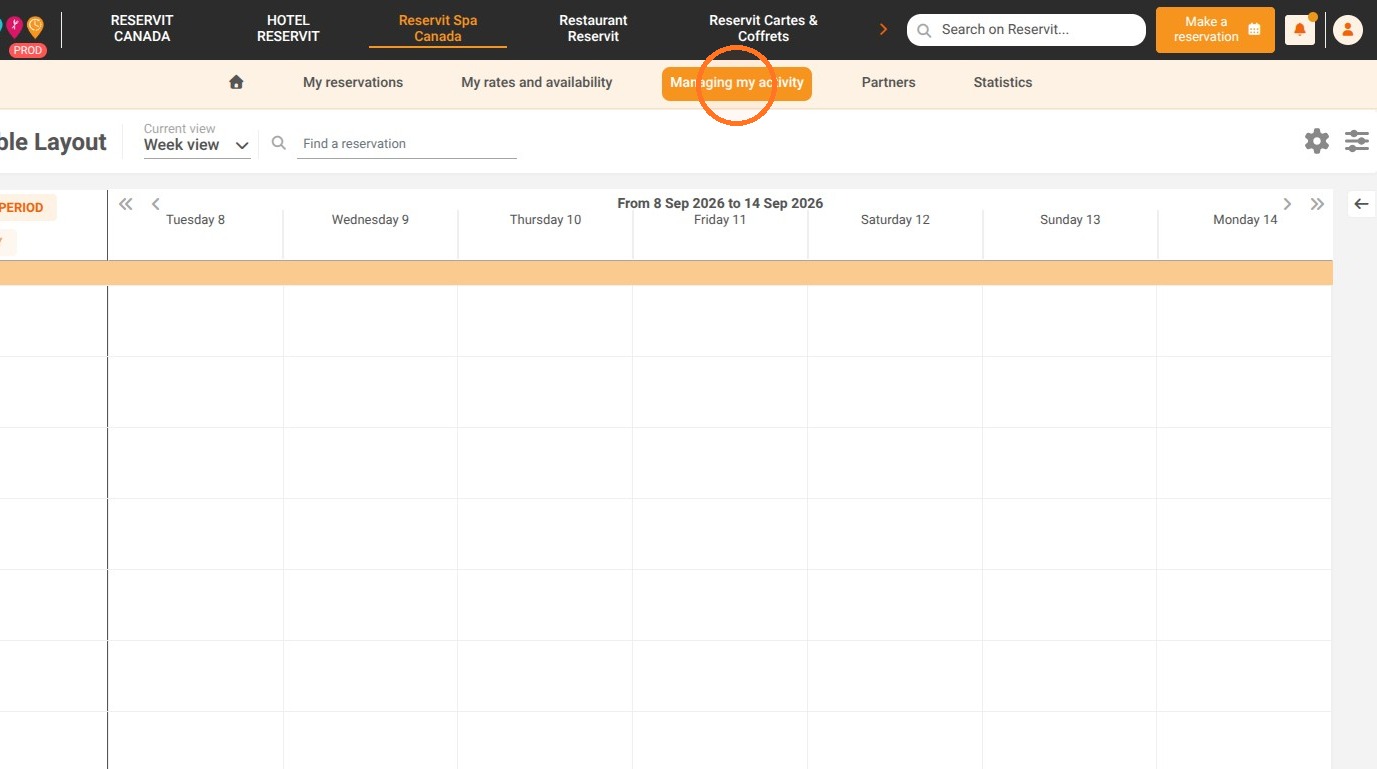
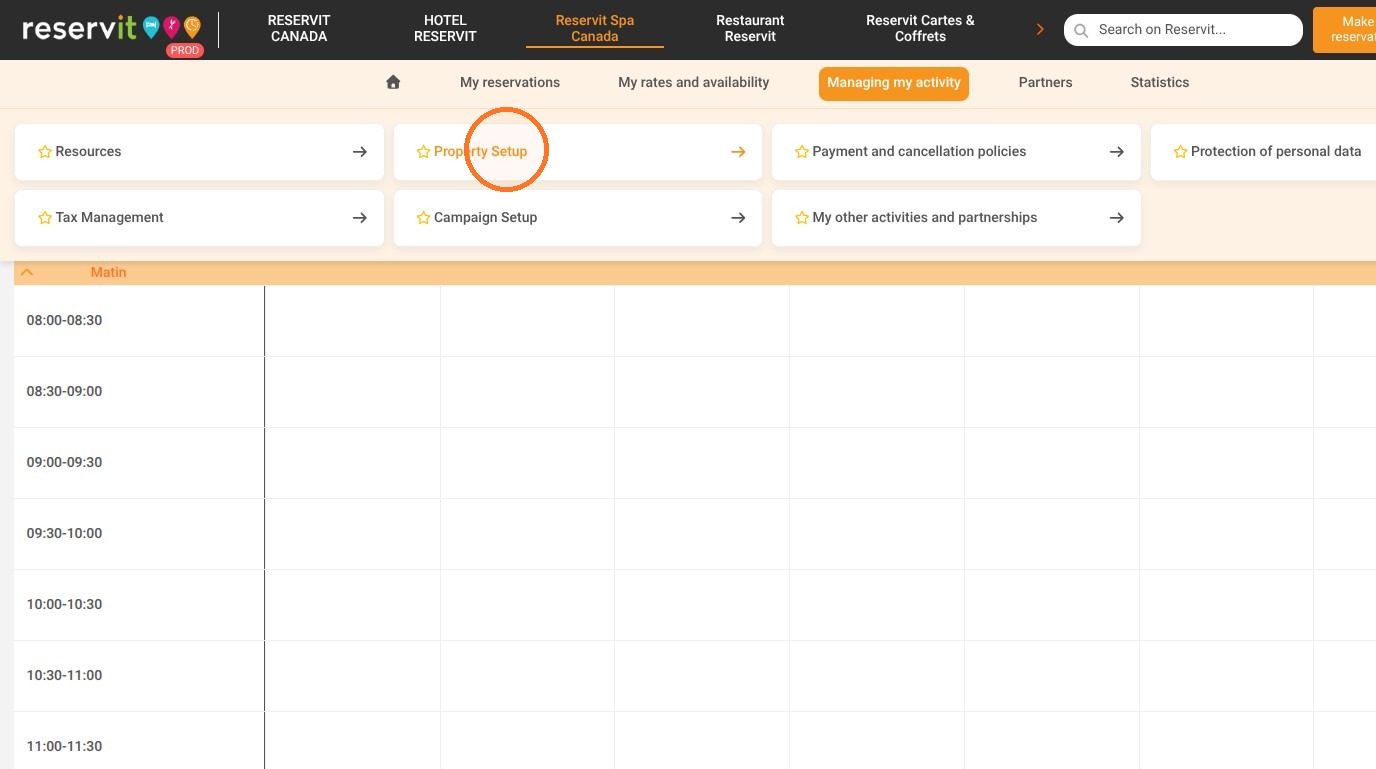
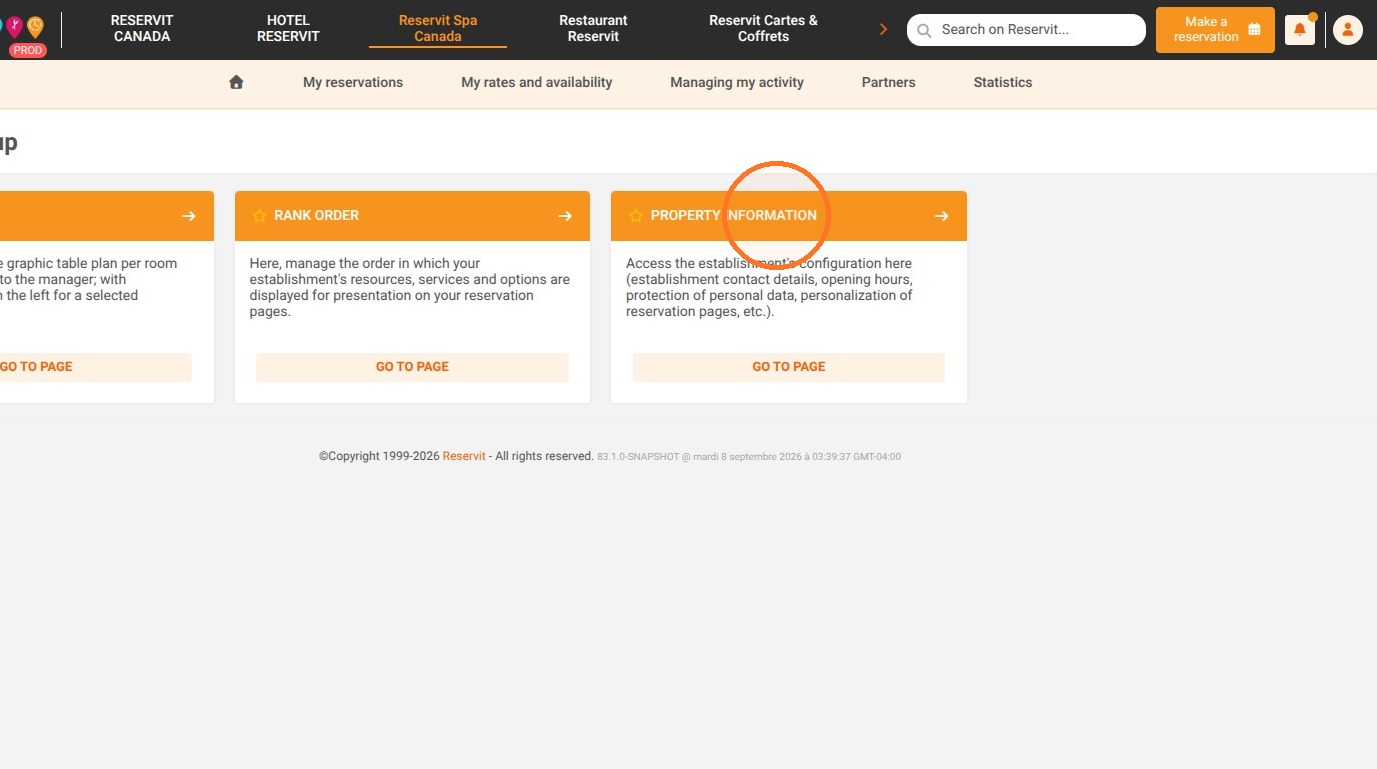
2. Go to "Schedule and duration"
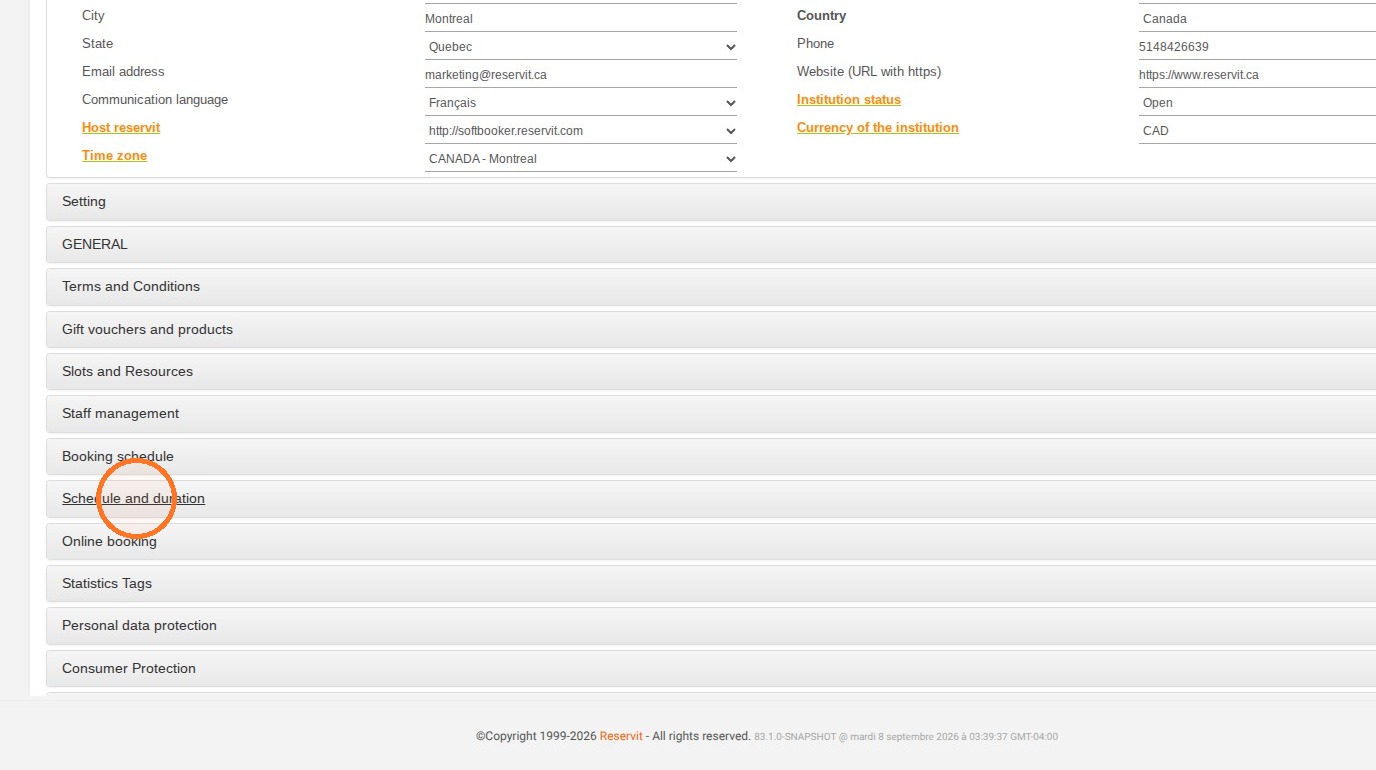
3. In this section of the configuration, you will find your available time slots in Reservit Activities. You can create up to 6 different time slots. Create or modify your time slots. The time format is 24-hour and must be entered as 20:00 for 08:00 PM.
4. Click on "Edit" to save your changes.
-
Once the hours are adjusted, don't forget to go to your resource configuration to apply them.
-
If you have services with schedules that do not match the resource schedules, don't forget to adjust them.
-
Finally, to visualize them in your management calendar, don't forget to add them to your view in the view customization.