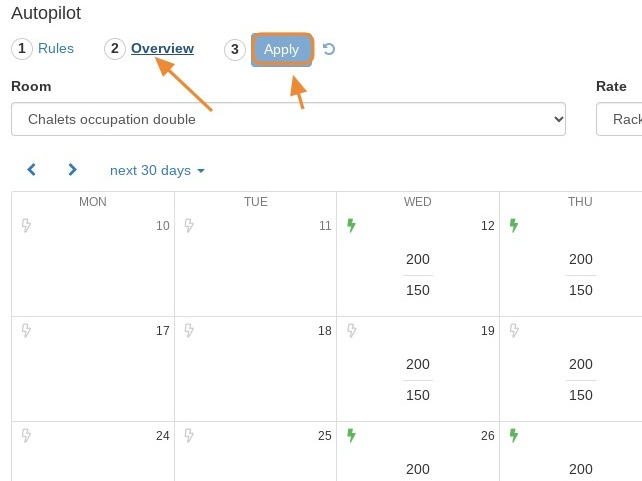
Article summary: This guide explains how to set up and edit autopilot rules within Reservit's Yield Management module. You will learn how to configure dynamic pricing parameters, define minimum and maximum thresholds for specific rooms and dates, and schedule specific deactivation periods. Mastering this automation tool allows you to seamlessly maximize your revenue and occupancy rates without needing to constantly monitor your booking engine.
The 5 key steps to configure autopilot for yield management:
-
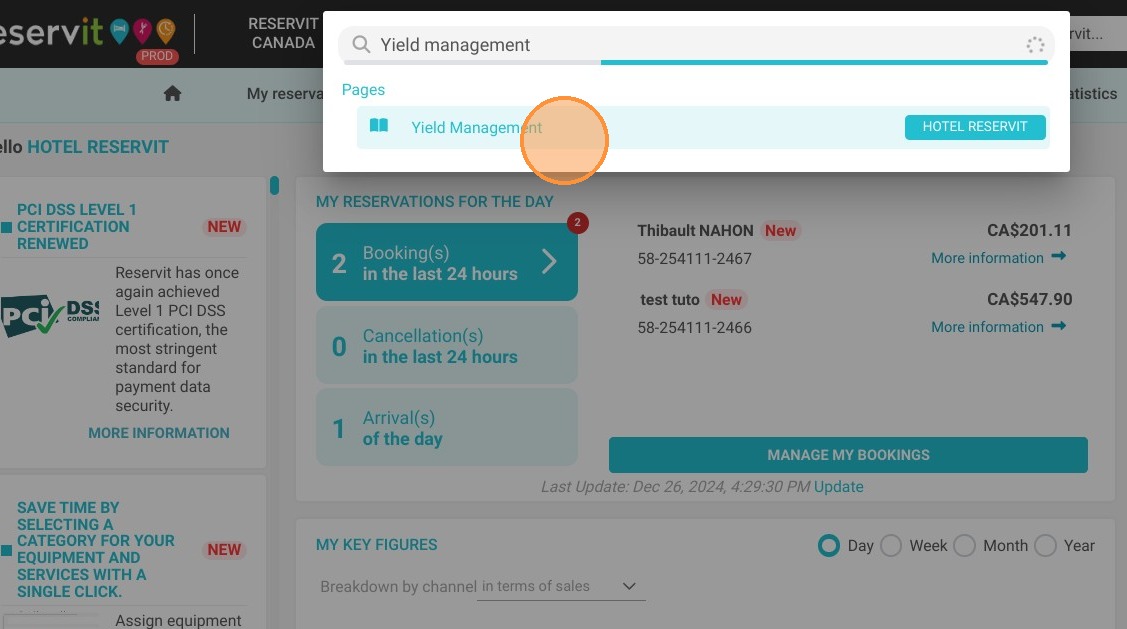
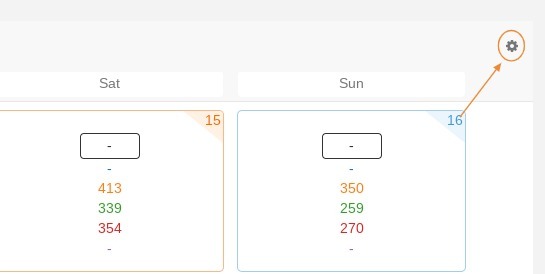
Navigate to settings: Use the main search bar to open the "Yield management" module, then click the gear icon at the top of the screen to access your configuration settings.
-
Access the autopilot tab: Once your general parameters are verified, click on the "autopilot" tab to begin creating your automated revenue rules.
-
Create and configure rules: Rename your new rule and establish specific parameters by setting your minimum and maximum thresholds for your chosen rooms, rates, and date ranges.
-
Schedule deactivation rules: If necessary, configure a "deactivate" rule to temporarily pause your yield management automation during specific dates or special events.
-
Review and apply: Navigate to the "overview" tab to review your newly created rules, then click "apply" to officially activate your dynamic pricing strategy.
Why follow this guide? By automating your rate modifications through autopilot rules, you eliminate the need for tedious, daily manual price adjustments and drastically reduce the risk of human error. This setup saves your revenue management team valuable time while ensuring your property is always selling at the most profitable price based on real-time market demand.
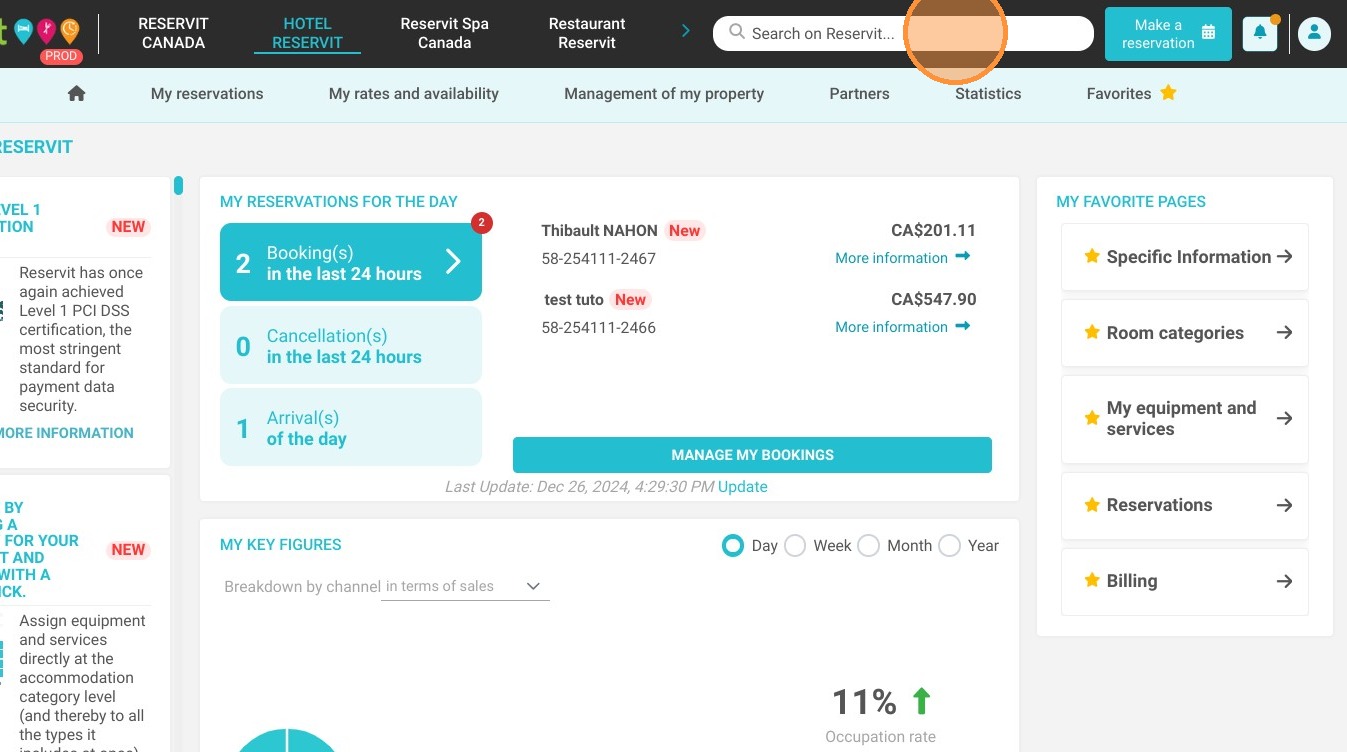
1. Click "Search on Reservit..."
2. Click on ''Yield management''
3. Click the gear icon at the top.
4. You will be redirected to this page.
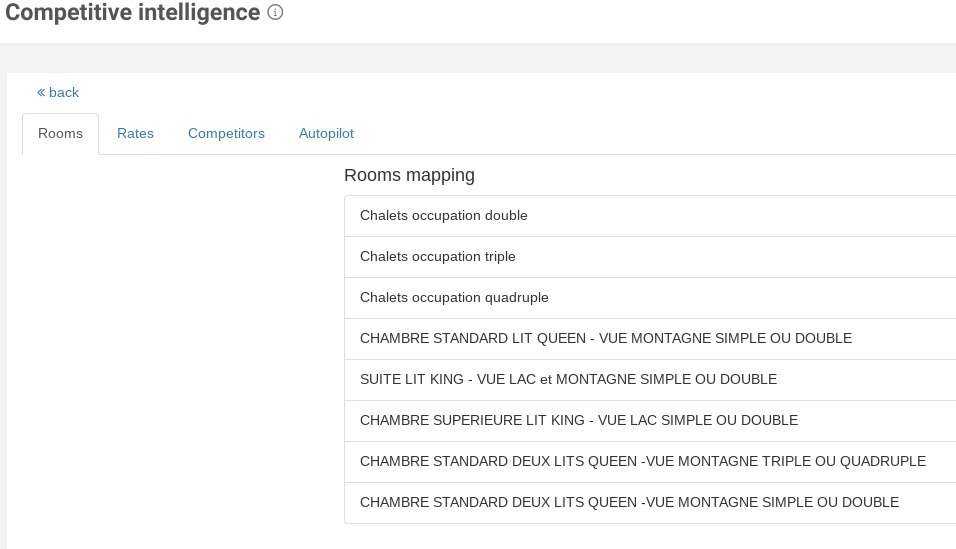
5. When all your parameters are configured, you can add some rules in the "autopilot" tab.
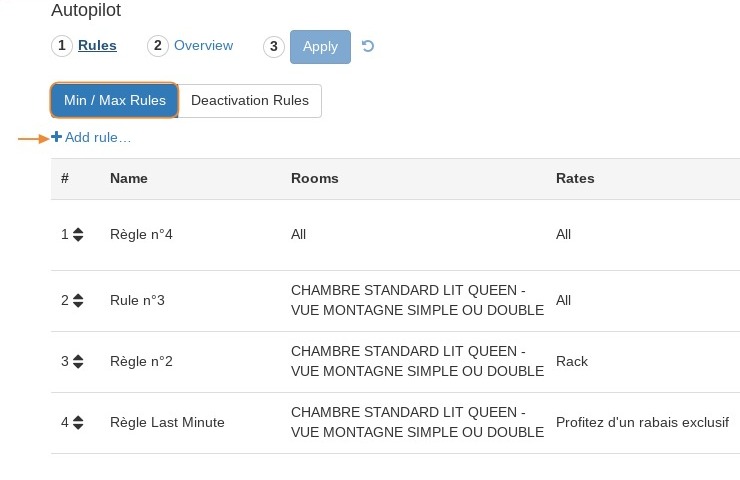
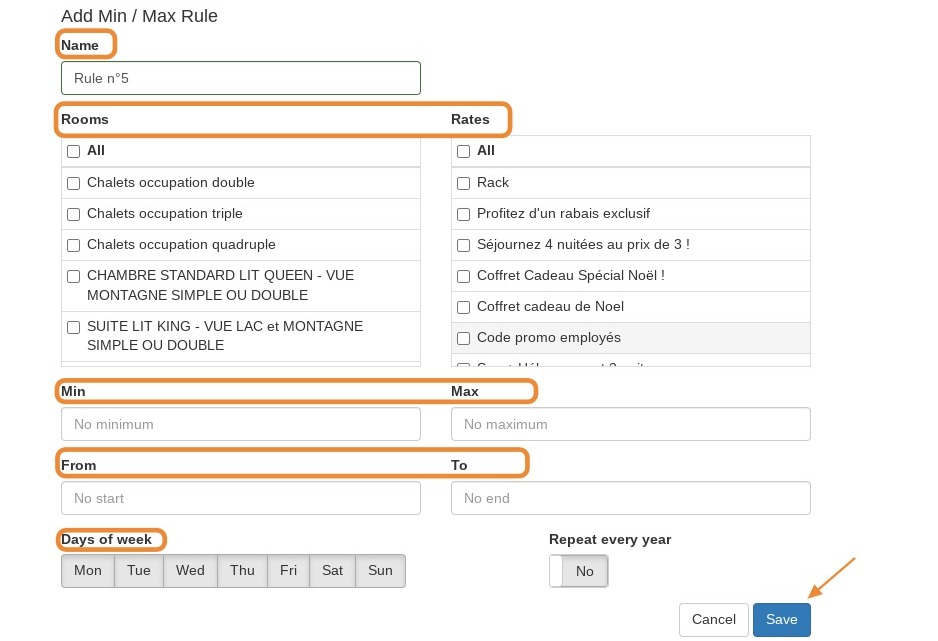
6. Rename the rule and add your parameters.
For example, you can insert a "min" and a "Max", choose your rooms, your rates and your dates. Save.
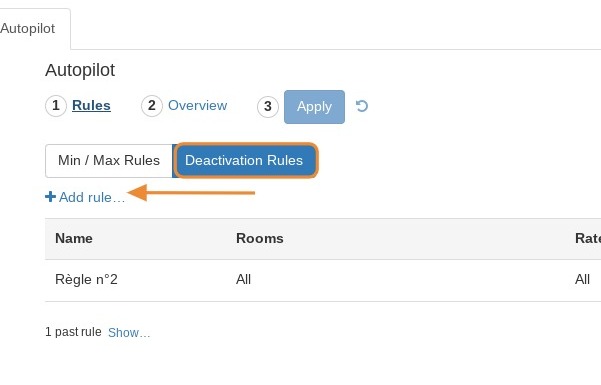
7. At the same time, you can configure a deactivate rule to stop the Yield management for a period for example.
8. Now, click on "overview" and apply.