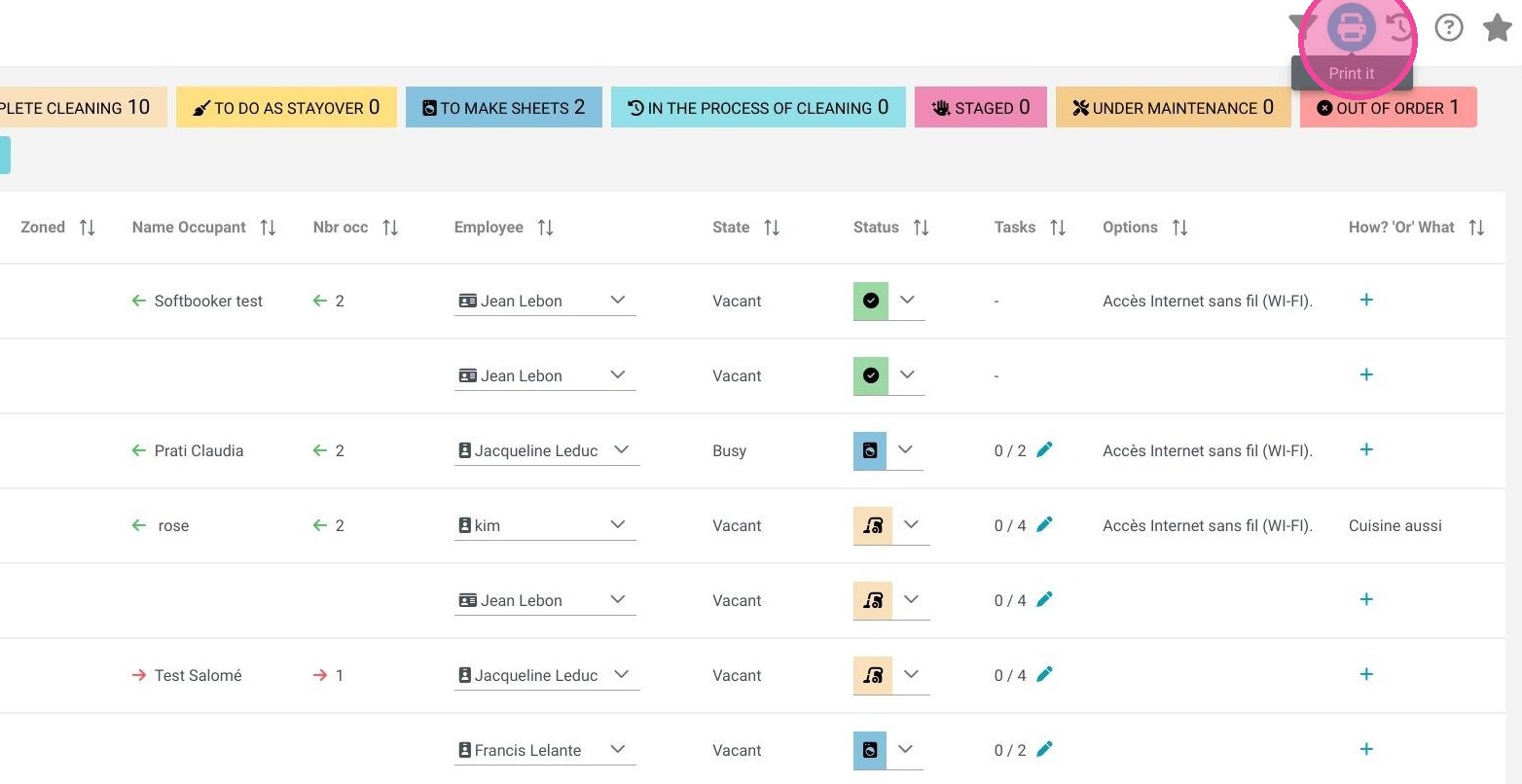
Article Summary: This comprehensive guide explains how to configure and utilize the housekeeping management module within Reservit PMS. You will learn how to customize room cleanliness statuses, assign physical units to your staff, create specialized tasks or items, and execute bulk updates. Mastering these operational workflows bridges the gap between your floor crew and the front desk, ensuring rapid room turnarounds and live availability tracking.
The 4 Key Steps to Configure and Manage Housekeeping
-
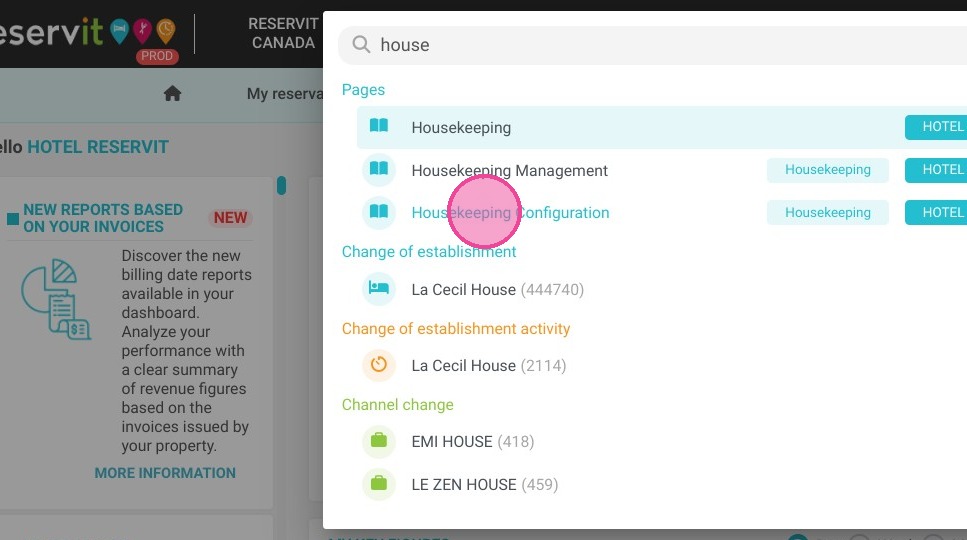
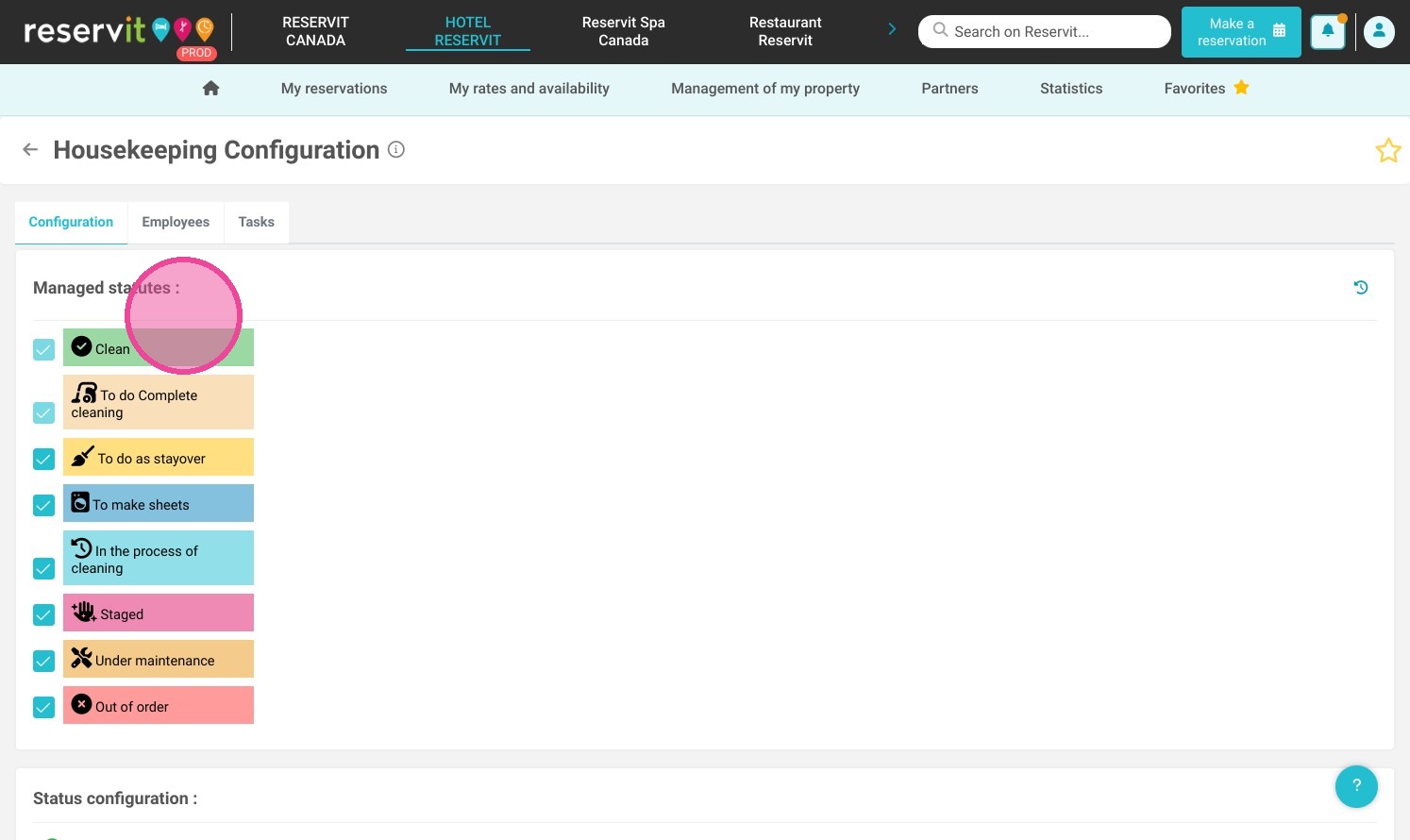
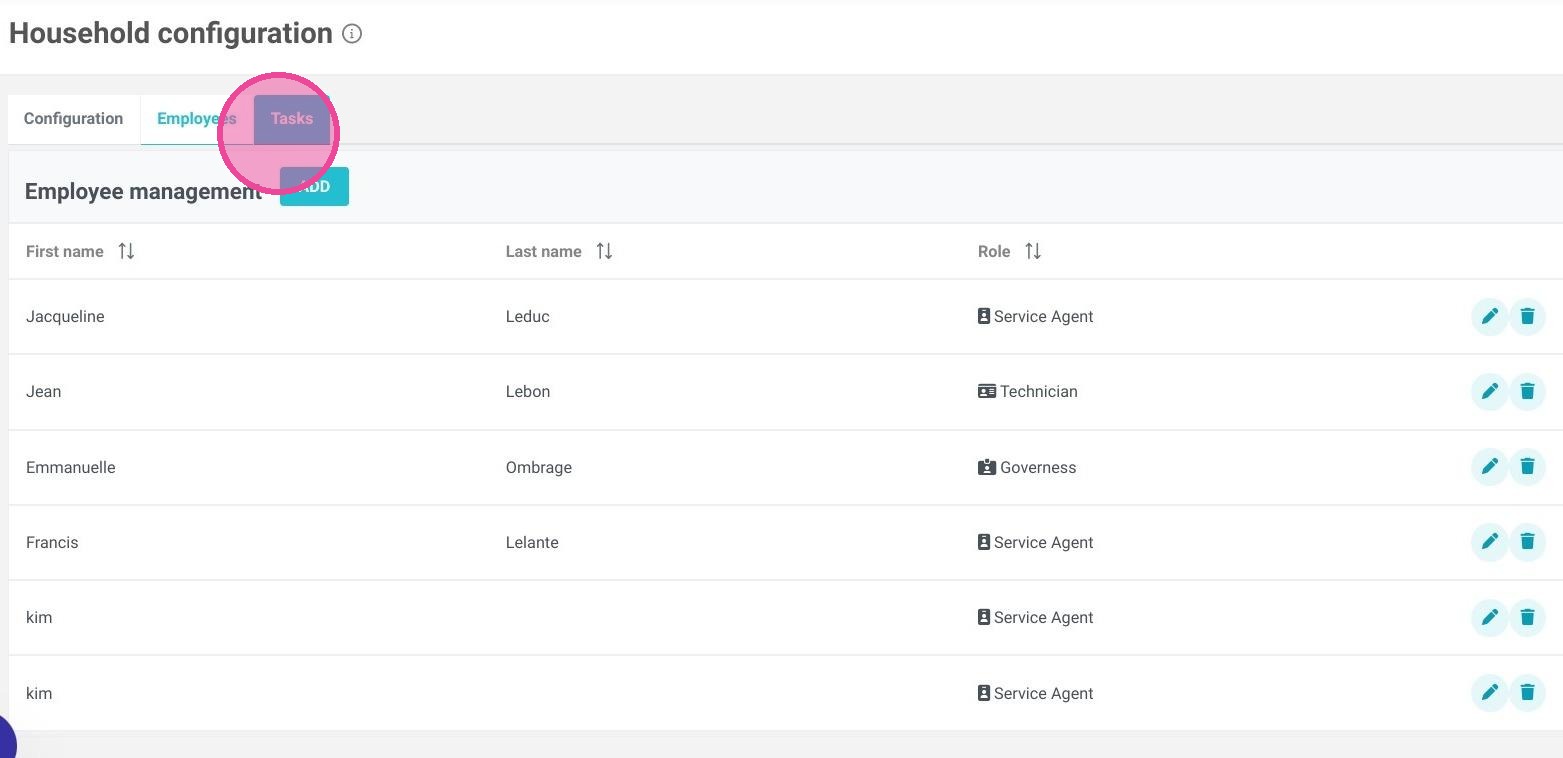
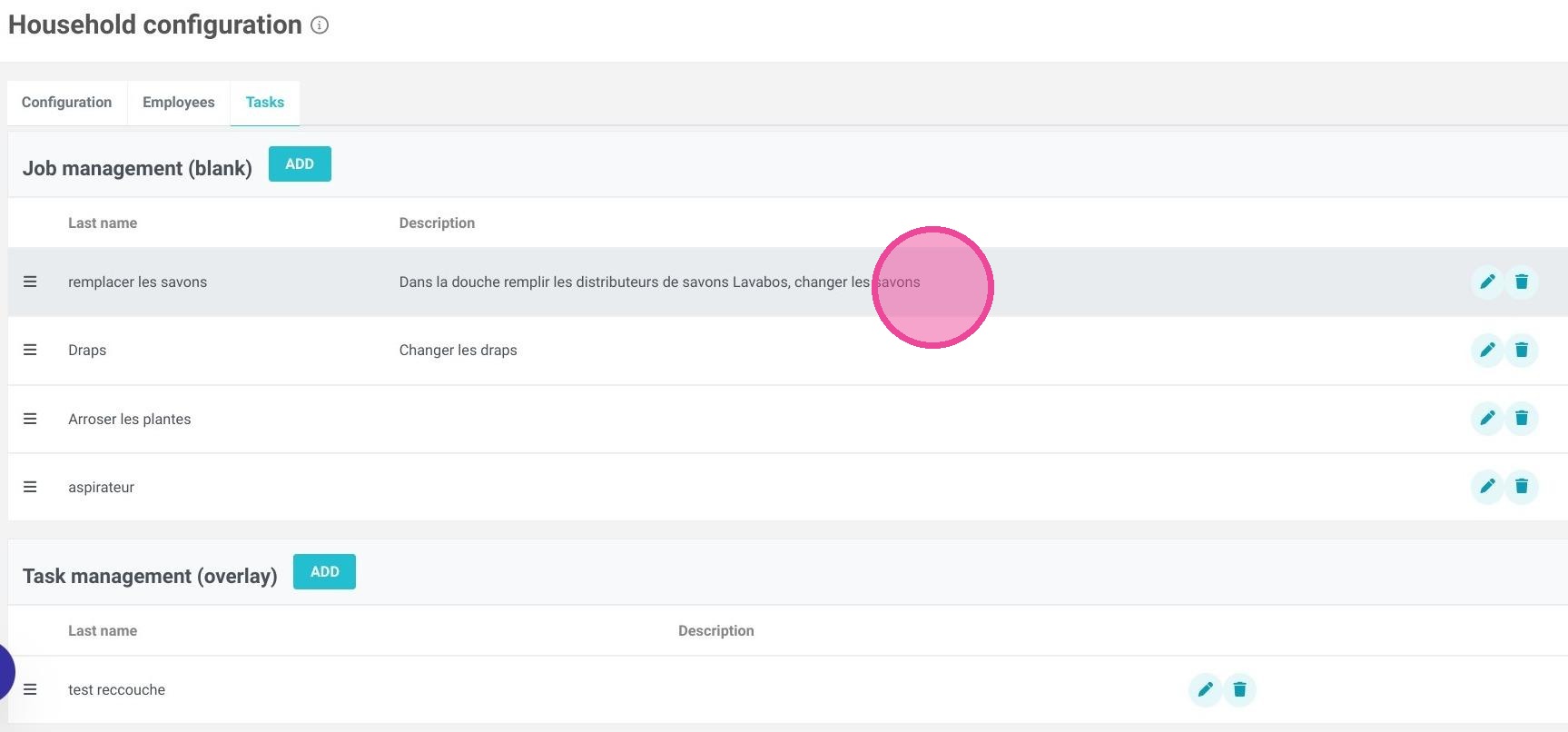
Configure Cleanliness Statuses & Tasks: Click the search bar, type "Housekeeping Configuration," and select the active room statuses your property utilizes. Within this dashboard, create specific tasks and add structural checklist items that automatically bind to each designated status.
-
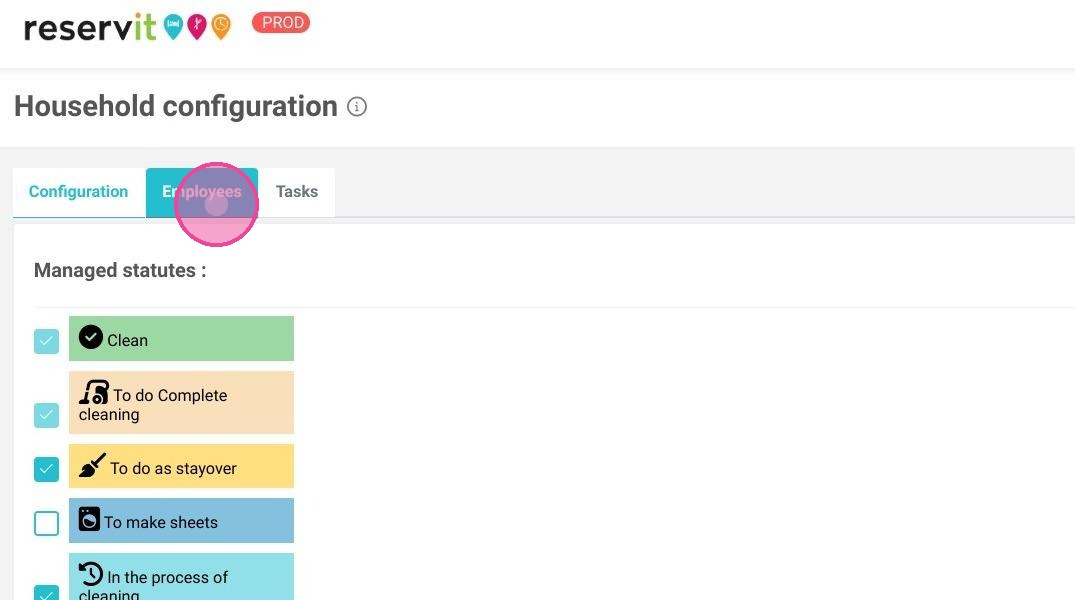
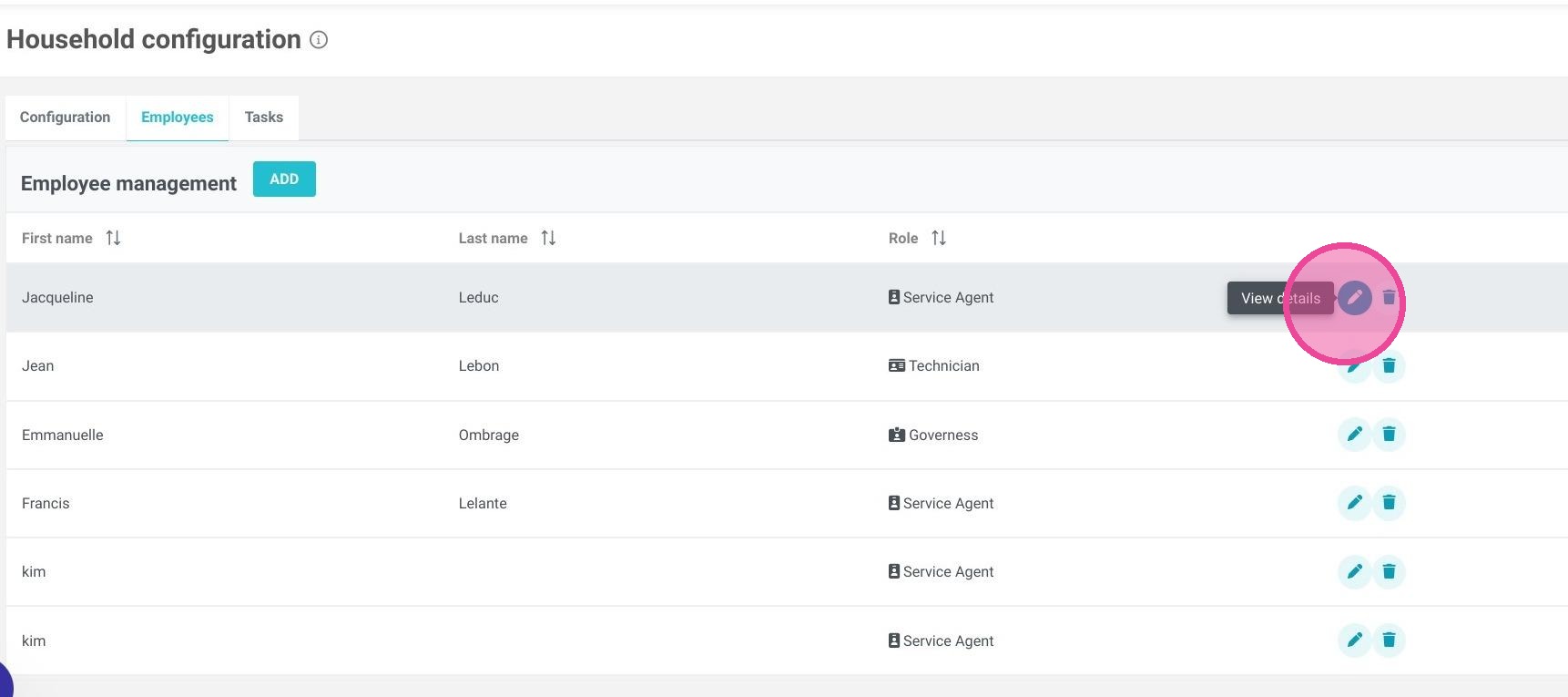
Build the Employee Roster: Navigate to the "Employees" tab inside the configuration menu to add new housekeeping crew members or modify existing personnel profiles to ready them for daily floor assignments.
-
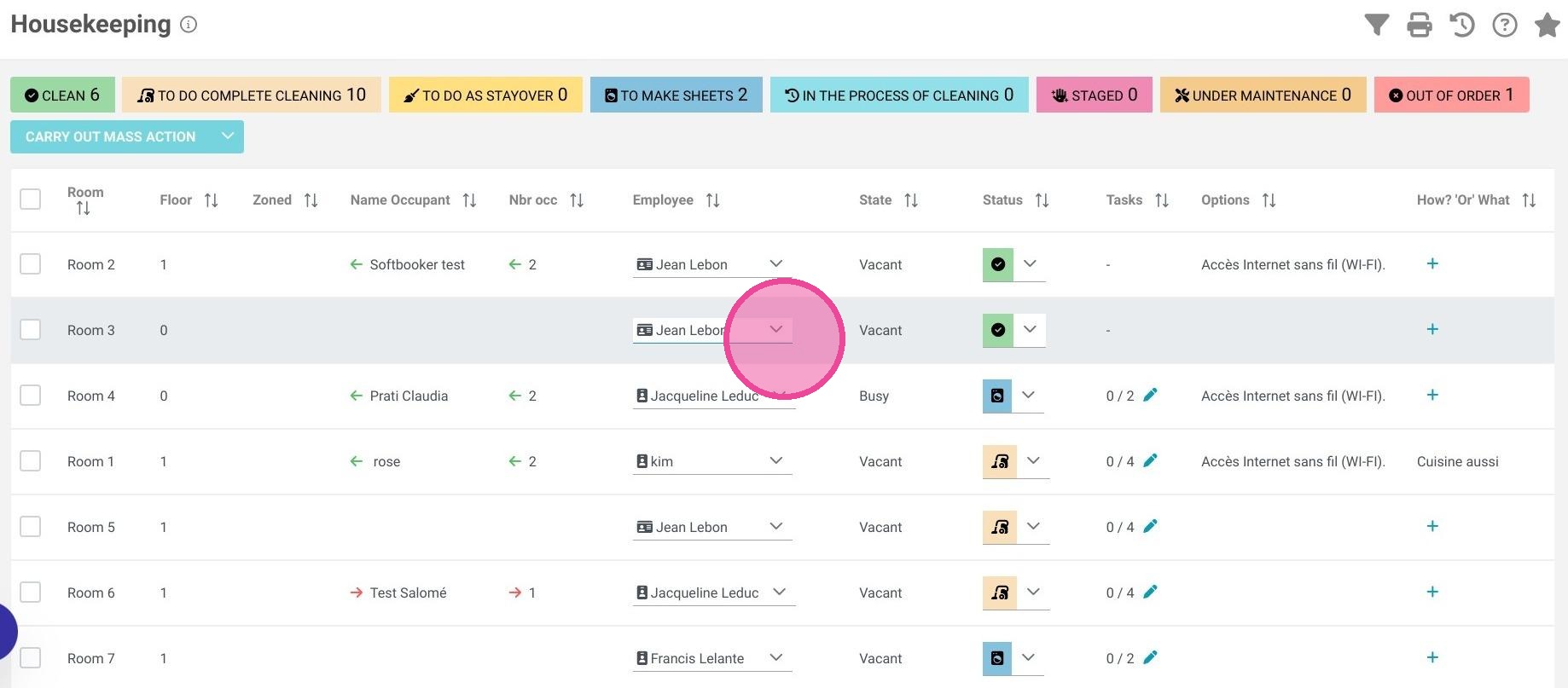
Execute Daily Staff Assignments: Search for and open the "Housekeeping Management" dashboard. From this daily grid, smoothly map out your on-duty employees to their assigned physical room numbers.
-
Process Status Overrides & Mass Actions: Update individual room clean statuses on the fly as sections are turned over, or check the boxes next to multiple rooms to execute time-saving mass actions (like changing an entire floor from "Dirty" to "Clean") before printing out the completed worksheet tab.
Tip (Optimizing Turnaround Adjustments): Utilizing the internal comments field on individual rooms is a lifesaver for flagging split-bed configurations, maintenance notes, or VIP arrival items. Doing a quick pass on comments before pushing mass actions guarantees your printed daily sheet keeps your floor supervisors perfectly aligned with front-desk expectations.
Why Follow This Guide?
Following this tutorial completely eliminates the chaotic guesswork of manual radio check-ins and paper trail discrepancies during heavy turnover windows. It optimizes your operational efficiency, shields your front-desk agents from accidentally assigning guests to unready spaces, and ensures your live room-readiness tracking remains completely accurate from morning checkout to evening arrival.
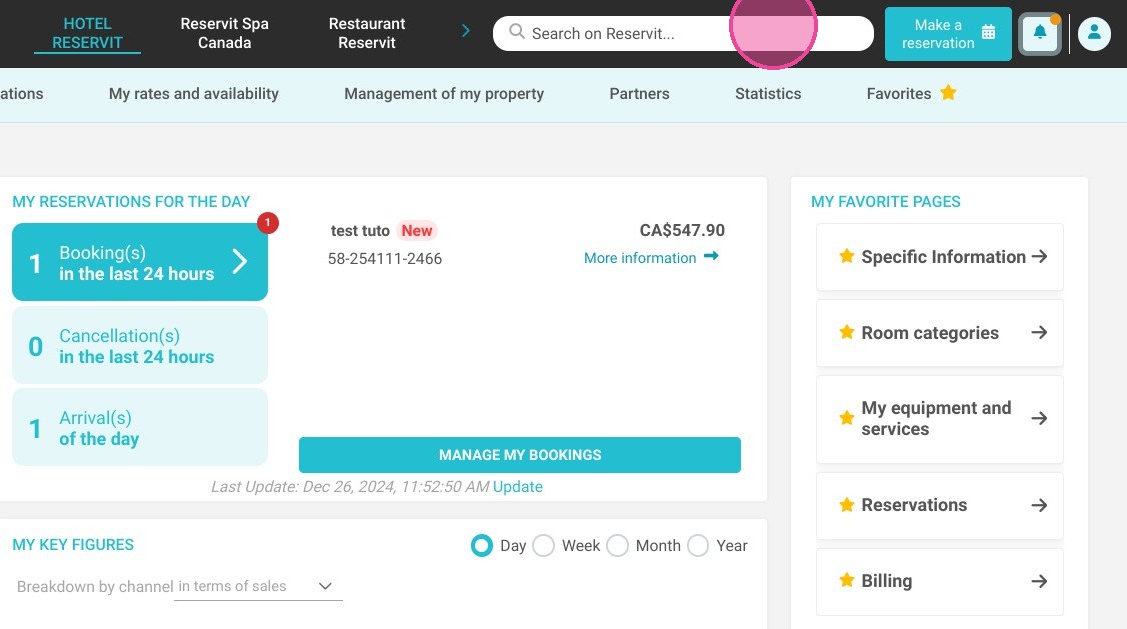
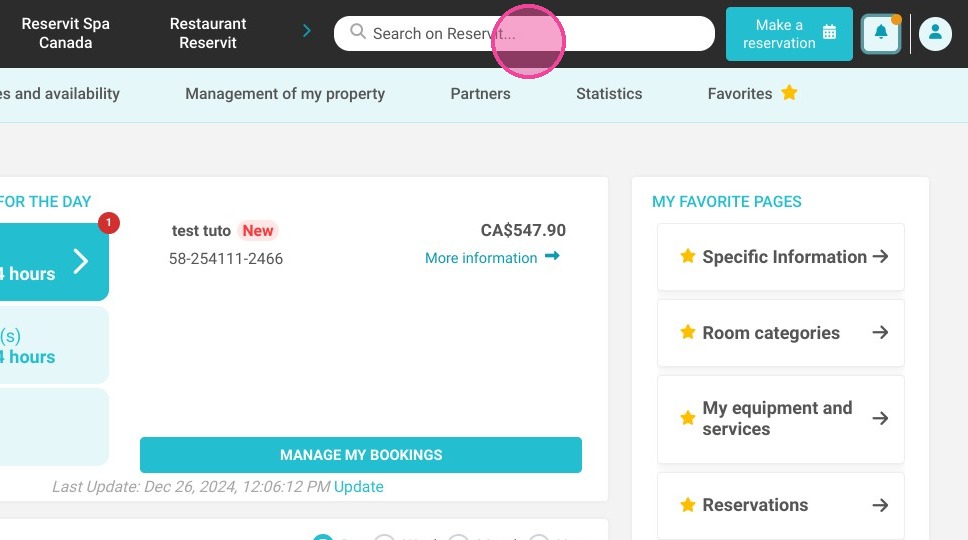
1. Click "Search on Reservit..."
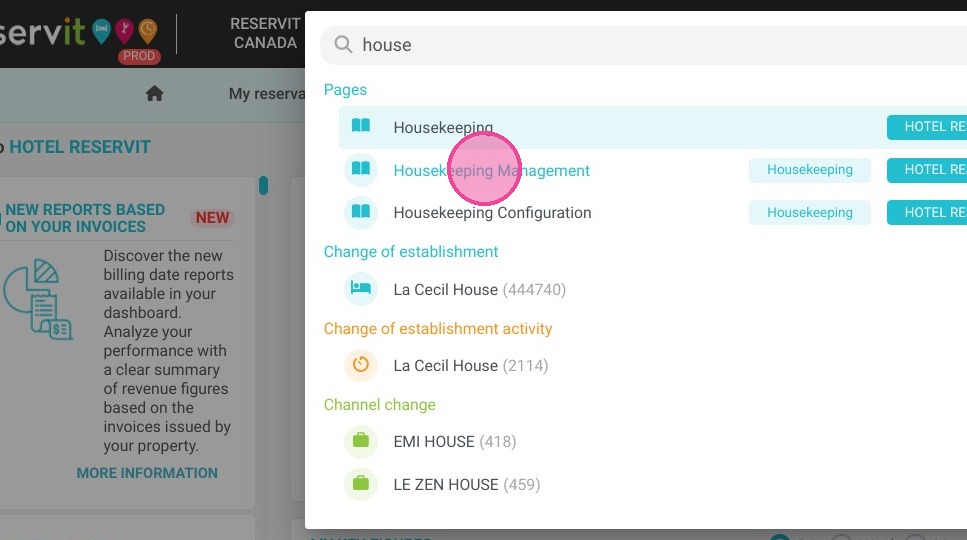
2. Type "Housekeeping Configuration"
3. Choose the different statuses you want to use.
4. Configure rooms to be assigned to staff. Click on ''Employees''
5. You can add or modify existing items.
6. You can also add tasks there.
7. They will be associated with the different statuses.
8. Click "Search on Reservit..."
Click "Housekeeping Management"
9. Assign staff to rooms.
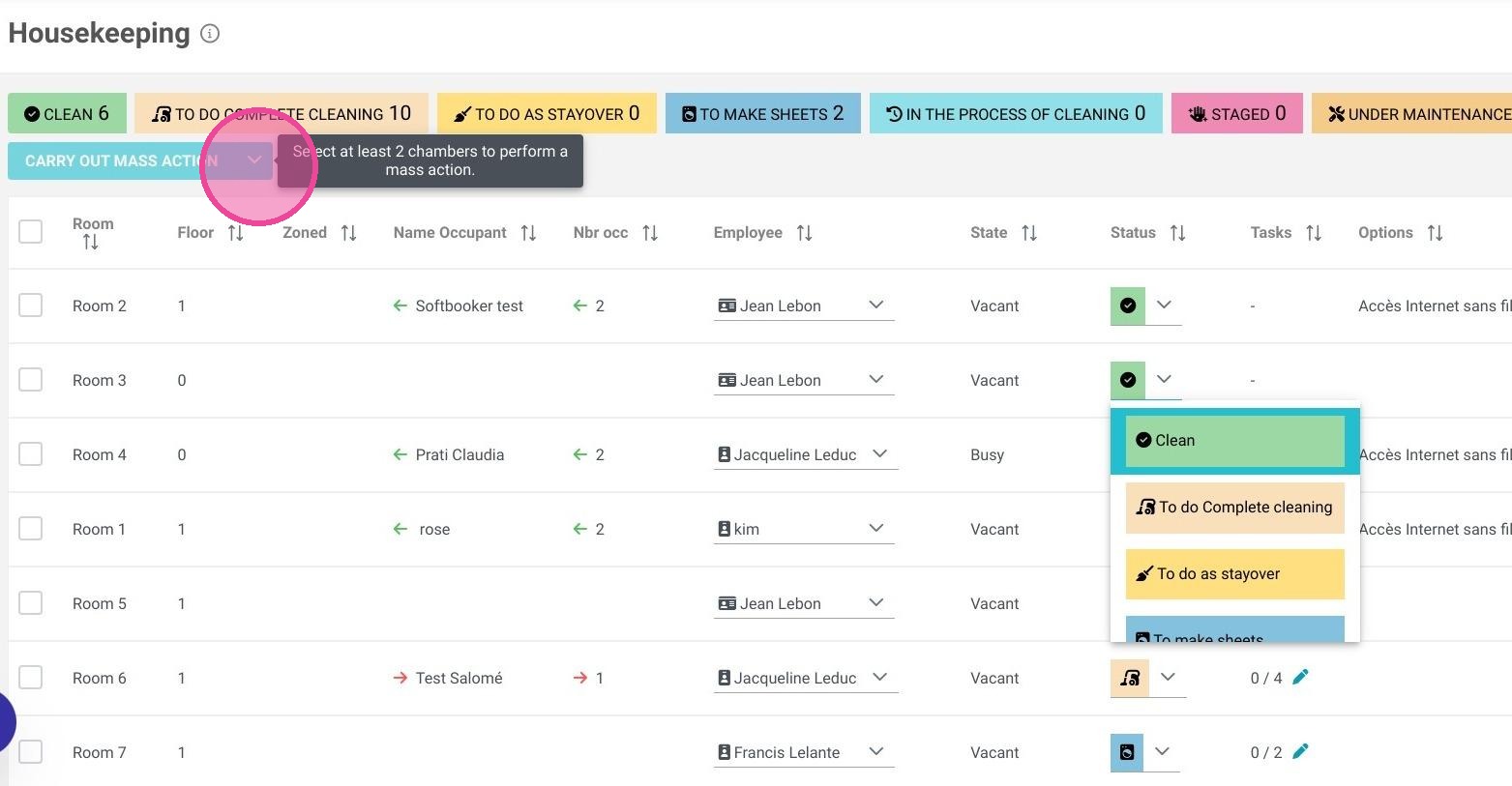
10. Change status.
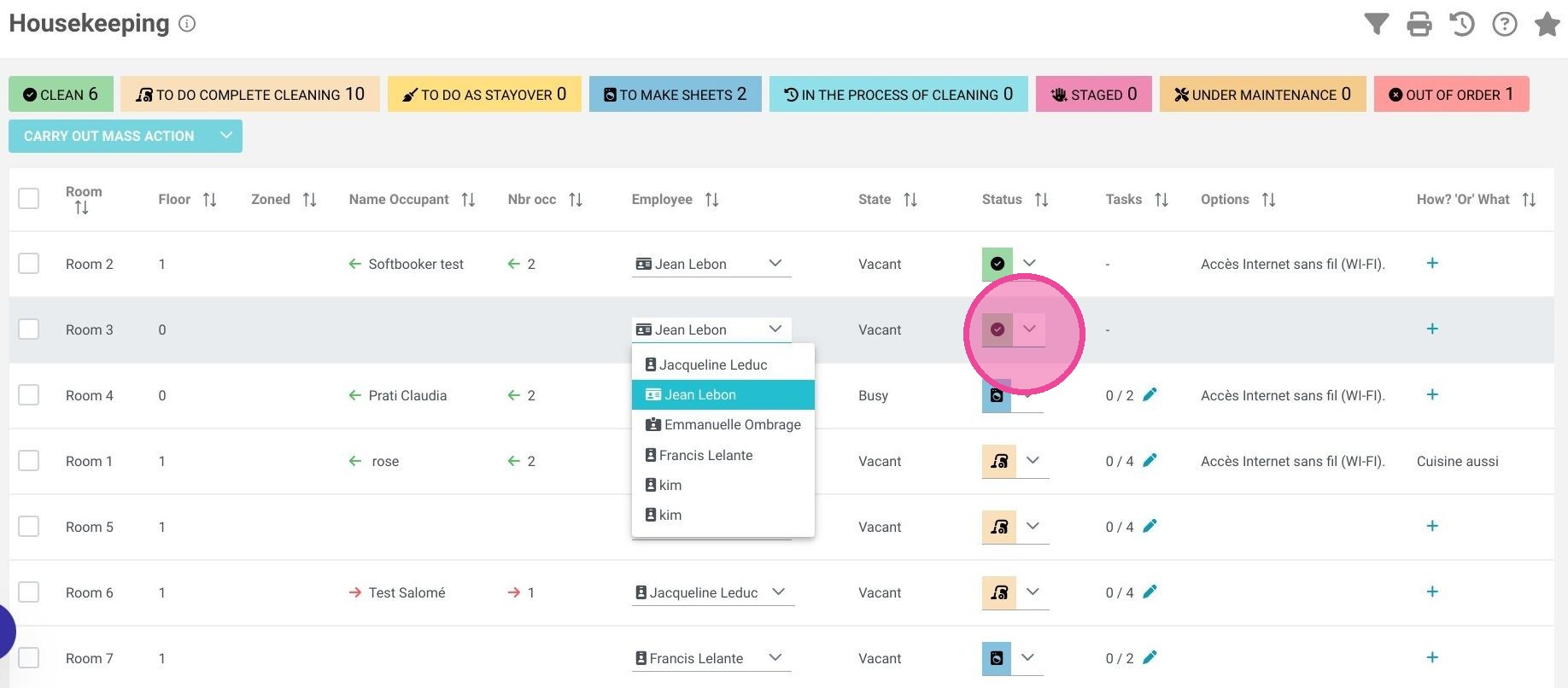
11. You can select multiple rooms and perform mass actions. This will allow you to change the status of several rooms at the same time.
12. You can also add comments
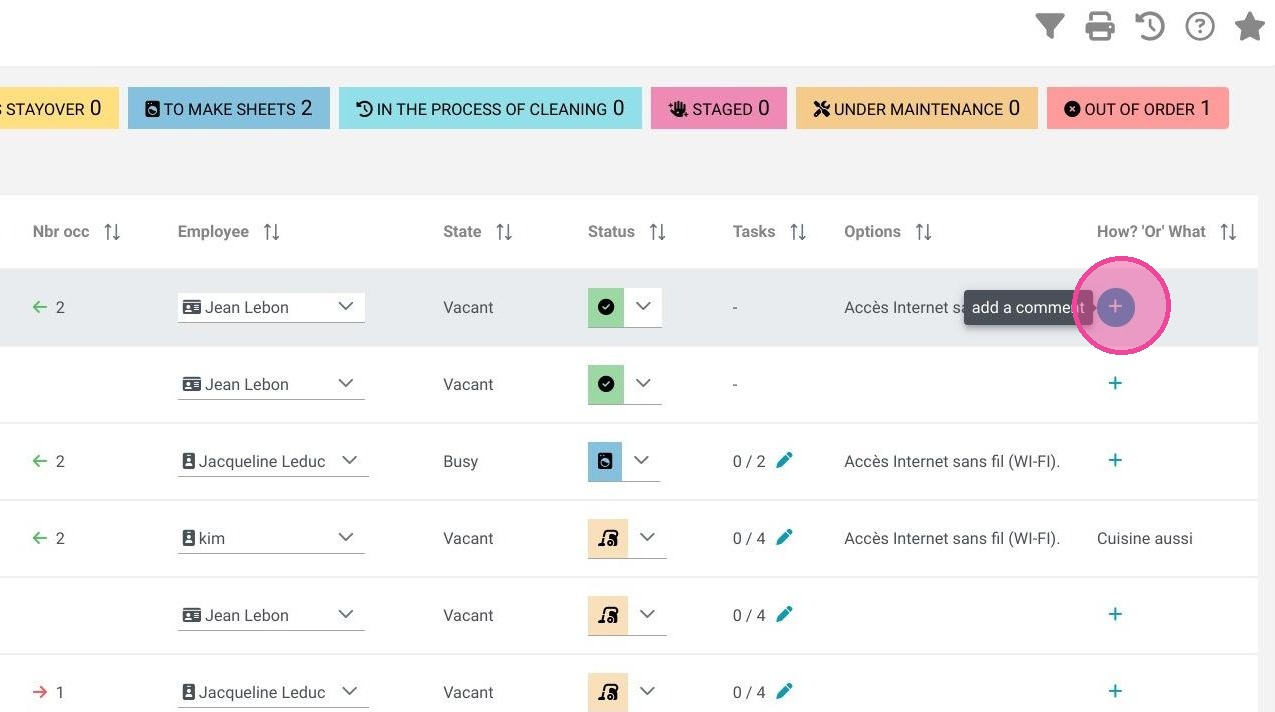
13. You can print this tab.