Article Summary: This step-by-step tutorial explains how to easily extract and export a list of your reservations using Reservit Activities. You will learn how to accurately filter your booking data by specific dates, categories, and service types, as well as how to customize your final export format (CSV or PDF). Mastering this extraction process allows you to efficiently gather critical reservation data for financial reporting, daily operational management, and business analysis.
The 5 key steps to extract your reservation list:
-
Navigate to the extraction tool: Open the "Statistics" menu from your dashboard and click on "Extraction of reservations."
-
Set your date parameters: Choose your start and end dates, and specify whether to filter by the date of arrival (the activity date) or the date of creation (the booking/purchase date).
-
Filter your activity data: Narrow down your list by selecting specific activity categories and service types, such as scheduled time slots or retail products like gift cards.
-
Select the file format and details: Choose whether you want your report exported as a CSV (Excel) spreadsheet or a PDF document, and decide between a standard or detailed version depending on the data fields you need.
-
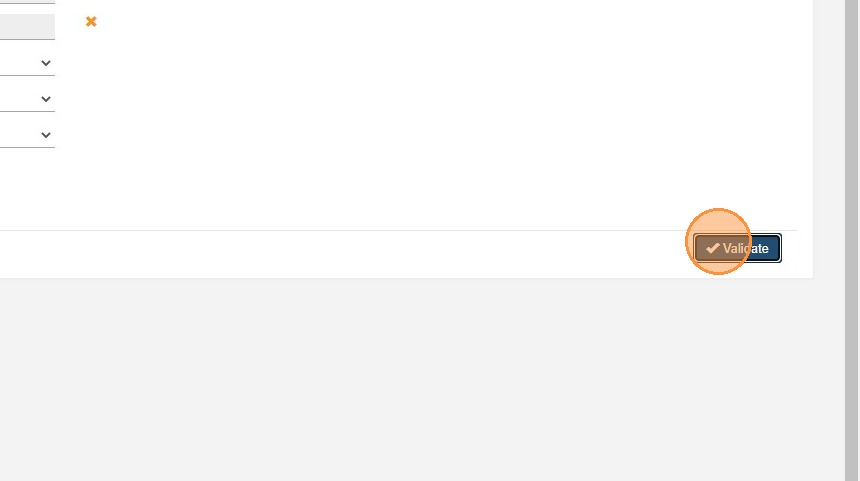
Generate your report: Click validate to instantly process and generate your customized reservation extraction file.
Why follow this guide? Regularly exporting your reservation data ensures you have accurate, up-to-date records for financial tracking and daily staff planning. Automating this reporting process saves valuable administrative time, eliminates manual data entry errors, and helps you make informed decisions based on clear booking analytics.
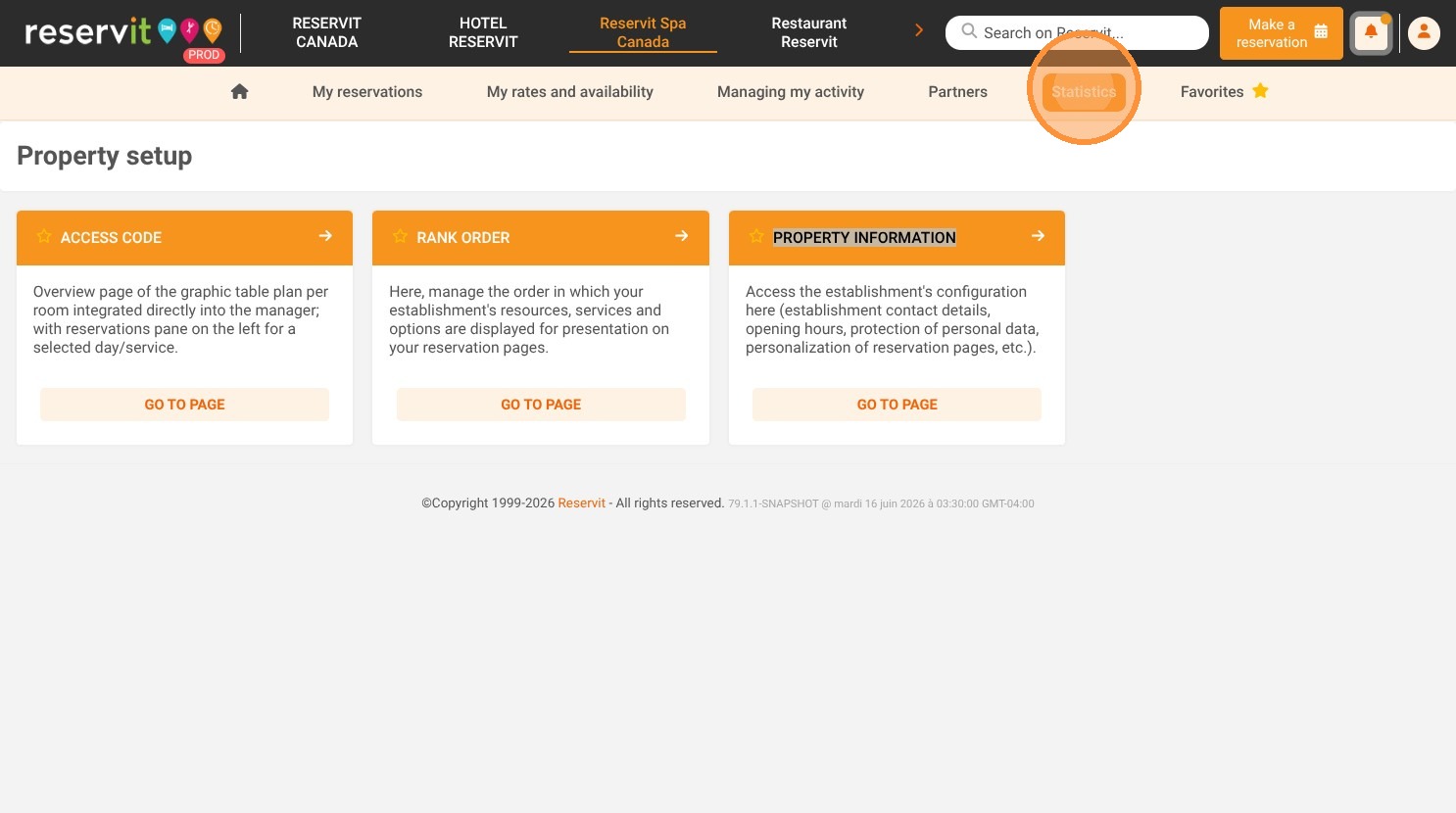
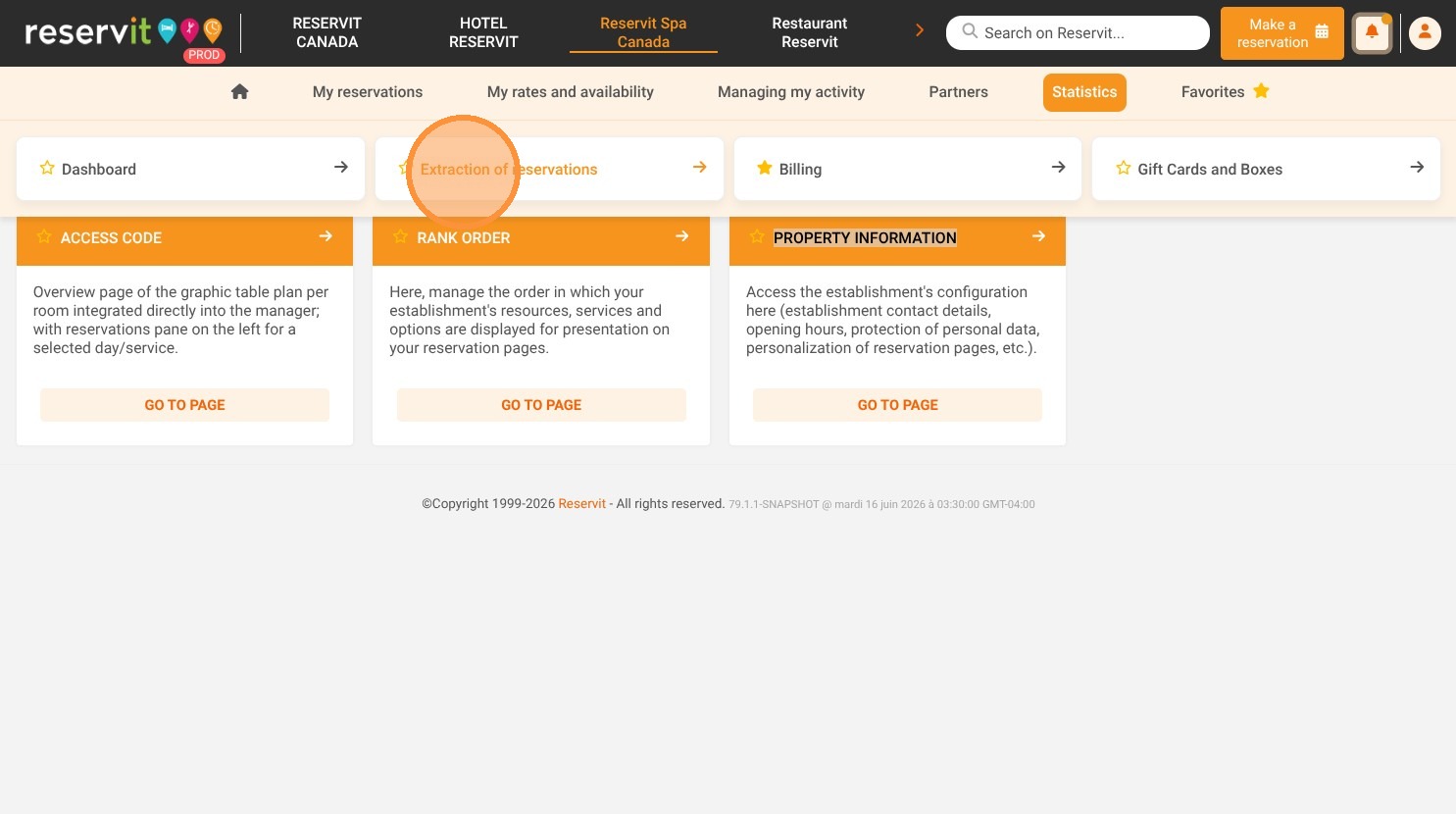
1. Click "Statistics" then click "Extraction of reservations"
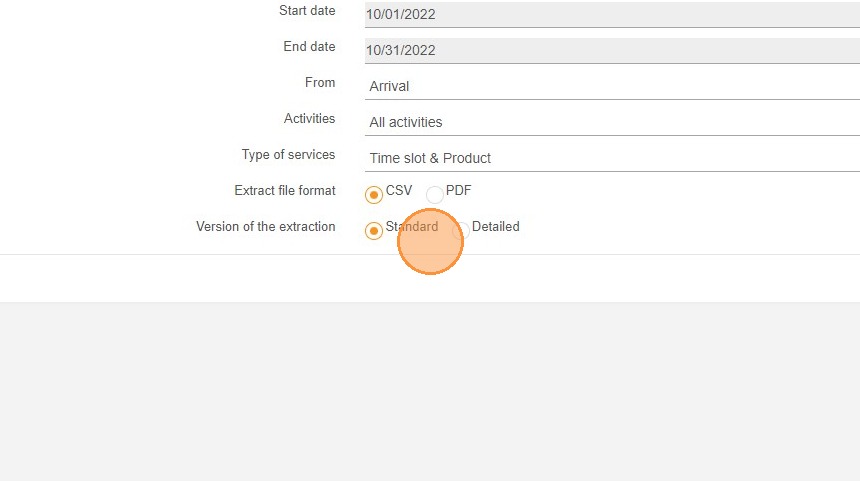
2. Choose the start and end dates for your extraction.
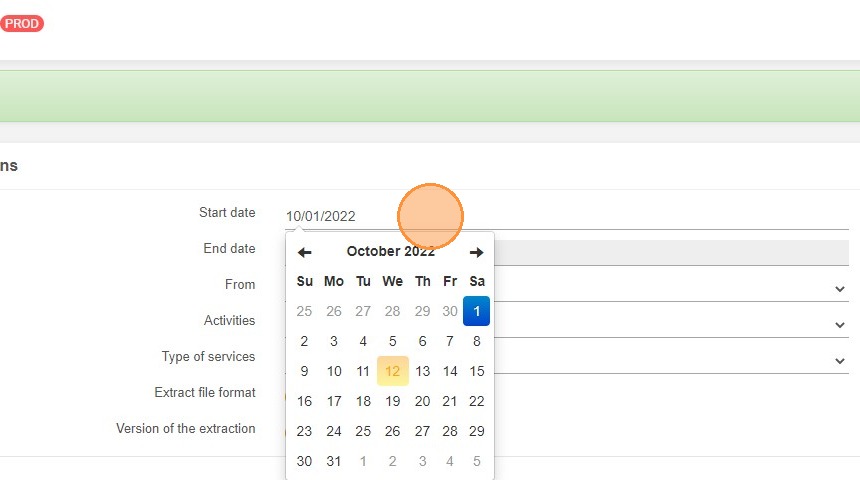
3. Choose the dates of arrival (date of the service/activity) or of creation (date of the purchase).
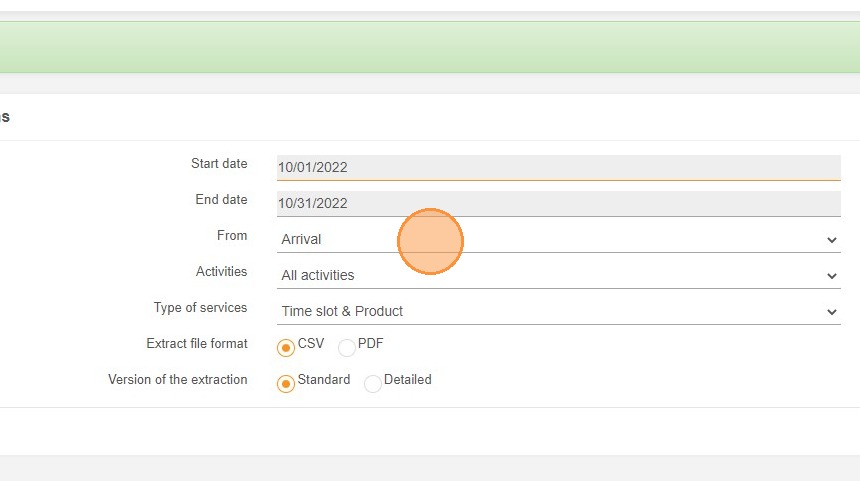
4. If you have different categories of activities, you can select only one or display them all.
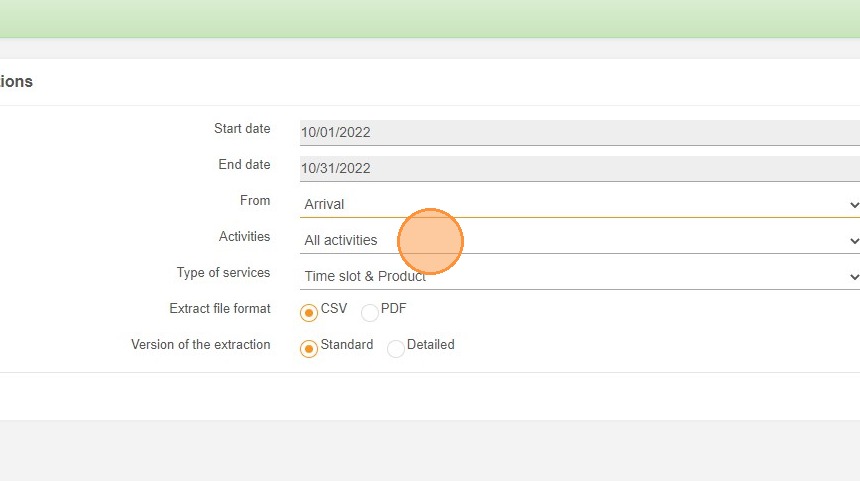
5. Choose the type of services: time slot allows you to define services with schedules and product allows you to offer gift cards and boxes if you have subscribed to them.
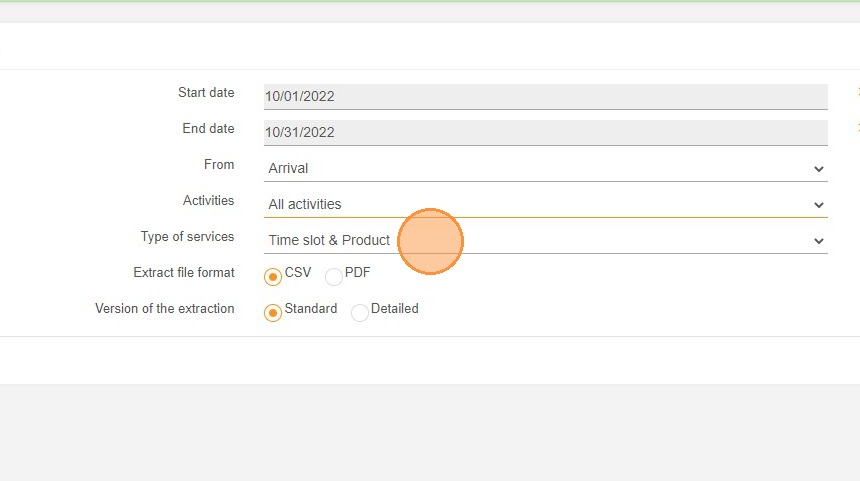
6. Choose the format of the extraction, in CSV (excel) or PDF.
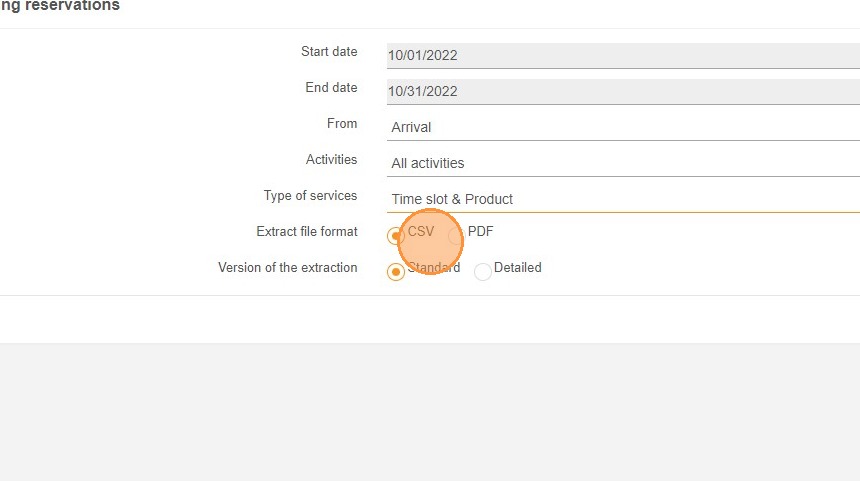
7. Choose the version of the extraction, standard or detailed. The detailed version includes more fields.
8. Validate to generate the extraction.