Help for use
Auto Light Dark
Auto Light Dark

How to generate a payment link or send a payment request in Reservit Activities

Article Summary: This tutorial explains how to easily generate a secure payment link for your customers directly from Reservit Activities. You will learn how to send a remote payment request, whether immediately when taking a new reservation or later for an existing booking. With this feature, you will simplify your transactions and secure your revenue collection in just a few clicks.

The 4 key steps to generate a payment link:

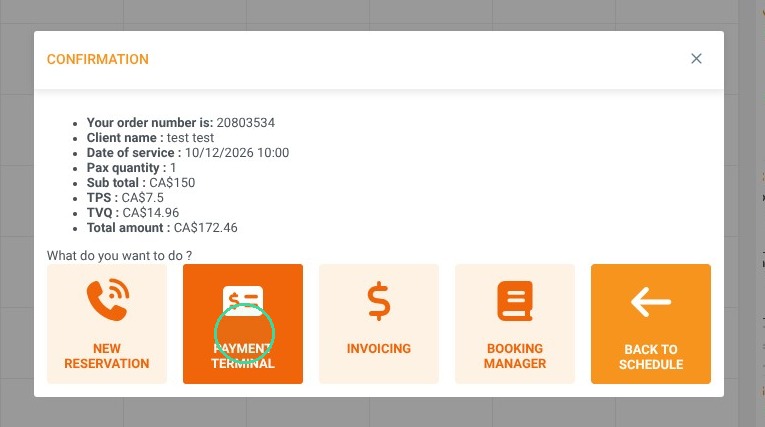
  • Access the virtual terminal: At the end of a new reservation, or via "Reservation Management" for an existing booking, click the "Payment Terminal" button.

  • Select the payment method: On your terminal interface, choose the specific "Payment Link" option.

  • Verify billing details: Adjust the transaction amount if necessary and make sure the recipient's email address is correct.

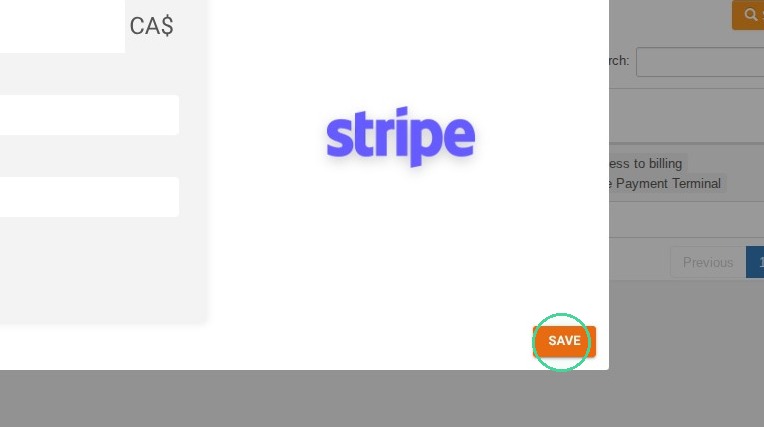
  • Validate and send the request: Click the "Save" button to automatically generate the link and send it securely to your customer.

Why follow this guide? Sending a payment link saves you valuable daily time and offers total flexibility for your customers to pay for their booking remotely. It is an essential solution to quickly secure your revenue, confirm pending bookings, and drastically limit the risk of unpaid orders.

ALERT! Payment links are not available with all payment processors.

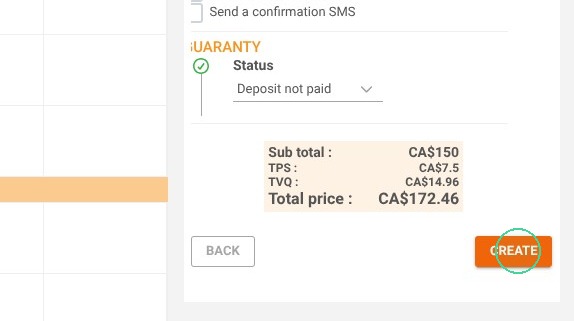
1. Once your reservation is completed, click on "PAYMENT TERMINAL"
https://colony-recorder.s3.us-west-1.amazonaws.com/files/2026-10-08/0f2fe7e1-a803-4c97-8b4b-905f8d26235a/action-9bdf30141219451fbc374e5b66d27417_0943509d67e84be4a53ccc50213b069a_text_export.jpeg
https://colony-recorder.s3.us-west-1.amazonaws.com/files/2026-10-08/c710c39f-98c0-4859-a720-8667ccbc444d/action-edeebbde1d1045deb6825ed5ef5c618b_9b95b0eeadb545eea03bd08b6d3a0d23_text_export.jpeg

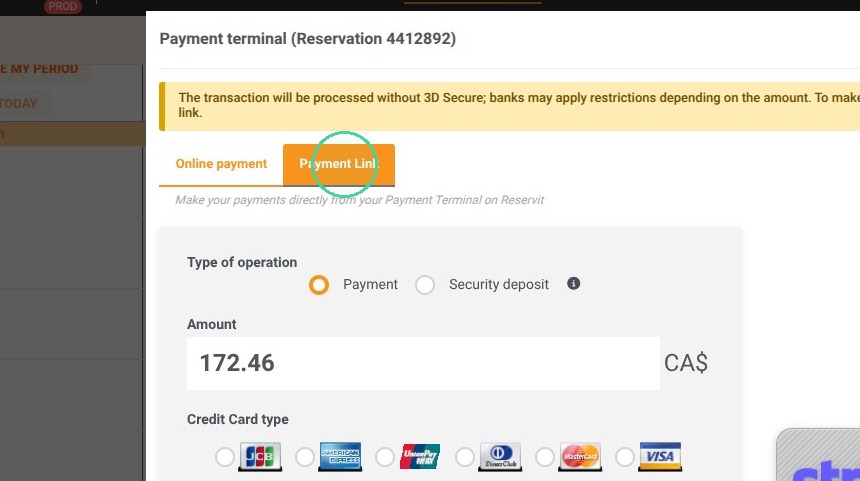
2. Your payment terminal page will open, then select "Payment Link".
https://colony-recorder.s3.us-west-1.amazonaws.com/files/2026-10-08/cc89609c-bea4-4408-b8db-5826496174dd/action-af39a5b11471411fa9f7b8cec42fa6b8_b7036dd839bf4a76a26604fc61511d92_text_export.jpeg

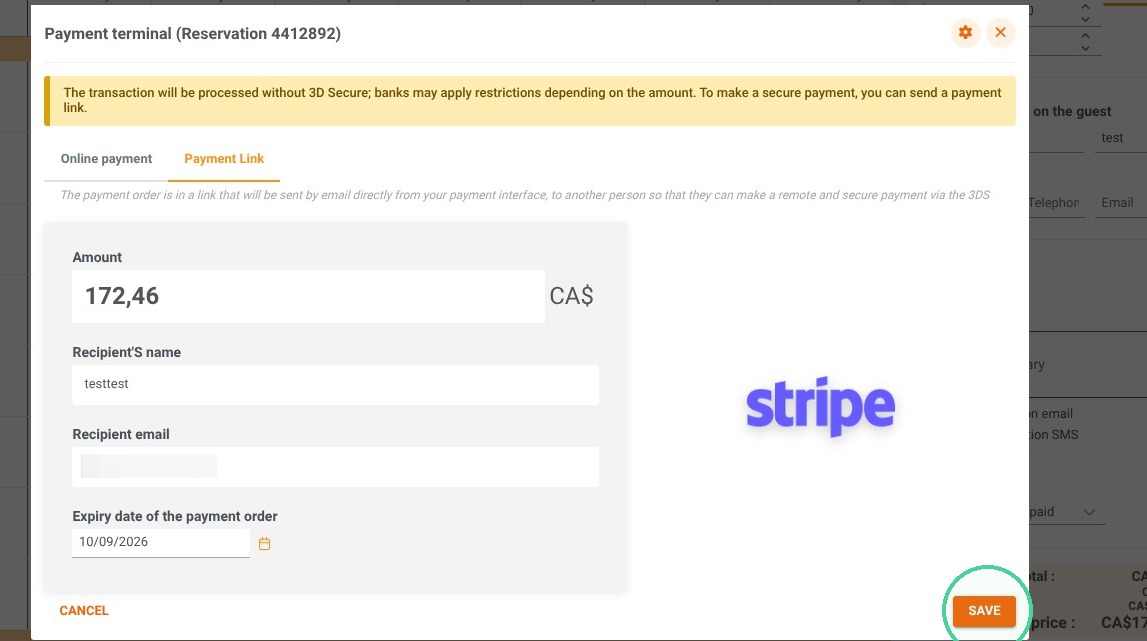
3. You can modify the amount or change the recipient's email address. Once ready, click "SAVE".
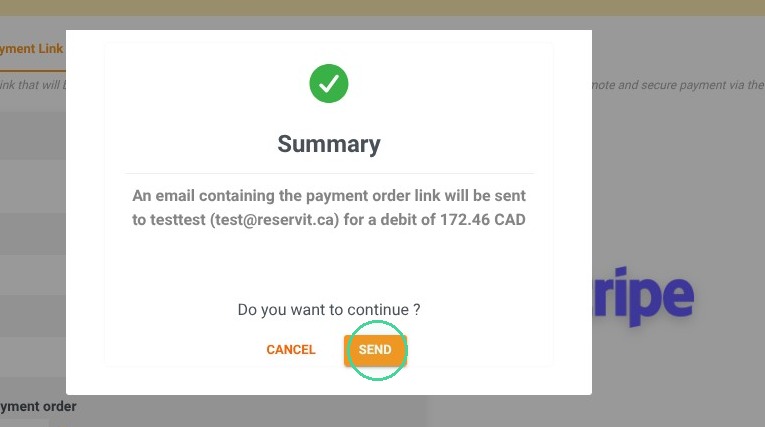
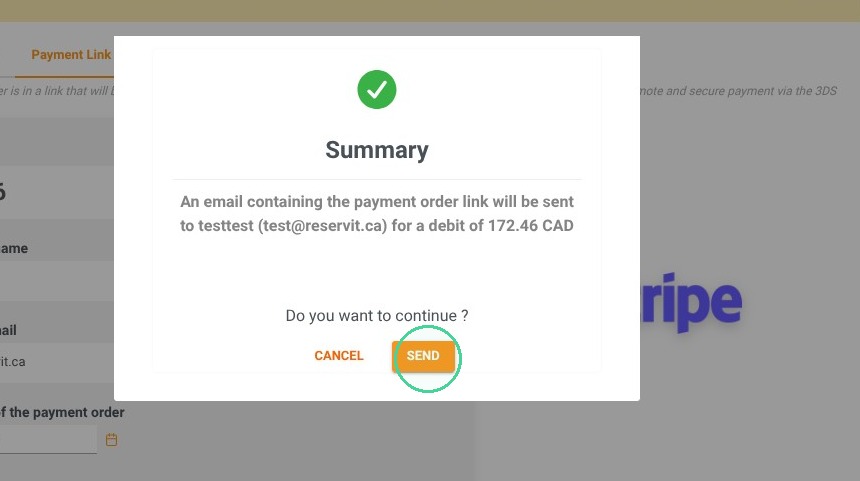
Click Send
https://colony-recorder.s3.us-west-1.amazonaws.com/files/2026-10-08/7690c359-9183-4ff4-99f6-4ea3bbbcc596/user_cropped_screenshot_9854757411ff453abe0a70742008c6a0_text_export.jpeg
https://colony-recorder.s3.us-west-1.amazonaws.com/files/2026-10-08/f798eea6-6fa4-4d05-8177-9792bef04d0d/action-1382cdd6a8414b80a5bd6dd368f2f771_144ba4ad4ddb44aeaf678625157b0cd1_text_export.jpeg

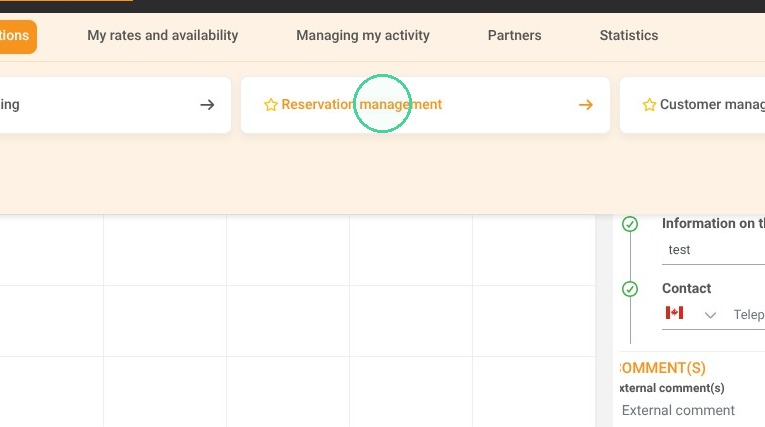
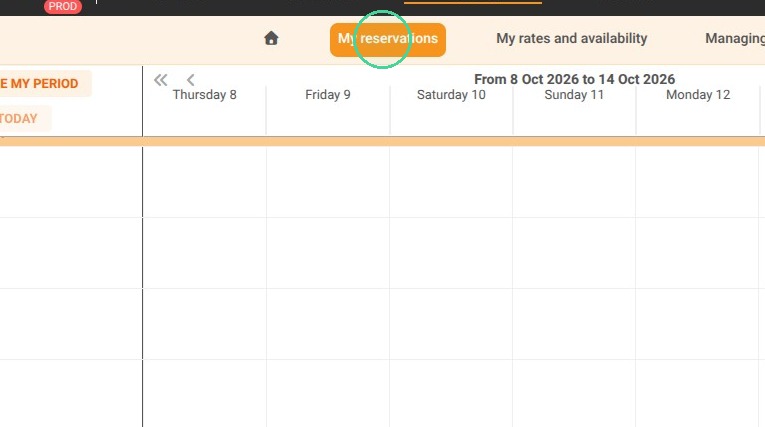
4. Click "My reservations" and click "Reservation management"
https://colony-recorder.s3.us-west-1.amazonaws.com/files/2026-10-08/6bc9298e-61a6-428b-8015-debd8915edc4/action-1f0217a86dac4a96ab68a6acf23ef90a_43abc3d057a54829bc68d960cc12597c_text_export.jpeg
https://colony-recorder.s3.us-west-1.amazonaws.com/files/2026-10-08/3c422e9e-d94a-413c-9859-5a9b8e816dce/action-15d6849792f3424fbb60913b74877003_d3178a70f0ca434eb50d6f6d76799f4c_text_export.jpeg

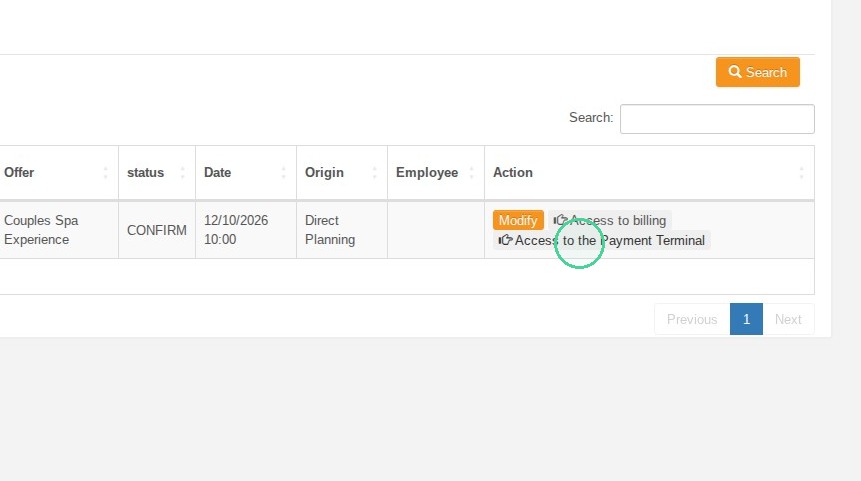
5. Find the reservation, then click on "Access to the Payment Terminal"
https://colony-recorder.s3.us-west-1.amazonaws.com/files/2026-10-08/9e2757f3-da14-4372-a47d-b70622e5fb0a/action-cb507821252045c5b34d2f3984d15bd9_fb6b203bbdeb4d4ba4c8ce9f93a2f971_text_export.jpeg

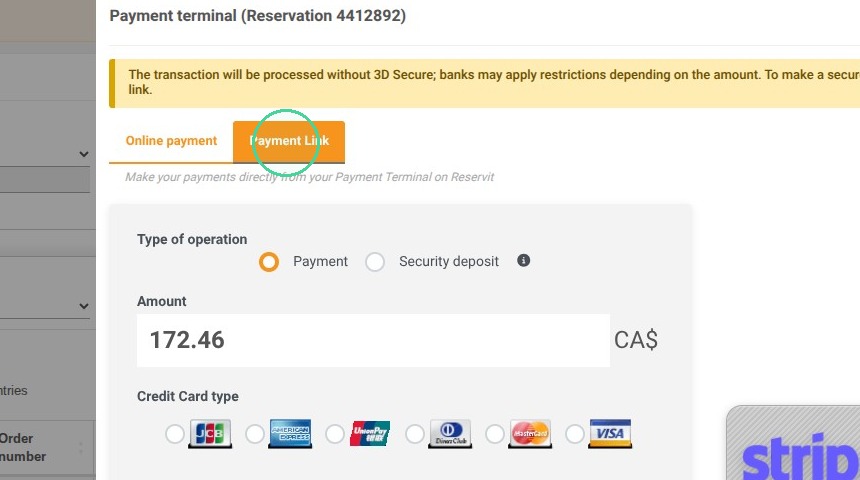
6. Same step, click on "Payment Link".
https://colony-recorder.s3.us-west-1.amazonaws.com/files/2026-10-08/945649a7-da84-4dcf-bb2b-369ebba24323/action-36d68aa1ef0842938a62b59f40745514_2a3d909f66ff4b5b8ef6ed995becc534_text_export.jpeg

7. Then "Save" and ''Send''

https://colony-recorder.s3.us-west-1.amazonaws.com/files/2026-10-08/b6426abf-2952-481b-97a3-aa02cbfce75a/action-4be5860953524ed8be0ccda40e52dda4_6f618d22ff214b3aa39c3d668c0624c4_text_export.jpeg
https://colony-recorder.s3.us-west-1.amazonaws.com/files/2026-10-08/88b3336b-cd52-47ce-9294-1be1fa080e27/action-2d51c7bbbf3442e7889c7a1090bc42ff_f583fe00222141138ac2101f922eca65_text_export.jpeg