

Article Summary: This step-by-step guide walks you through the essential process of identifying and combining duplicate guest records within the Reservit platform. You will learn how to centralize stay histories and guest preferences into a single "master profile" to ensure data integrity and a seamless check-in experience. Maintaining a clean database is critical for accurate reporting and personalized hotel marketing.
The 5 Key Steps to Merging Customer Profiles:
-
Access Guest Management: Navigate to "My reservations" and select "Pax management" to view your customer database.
-
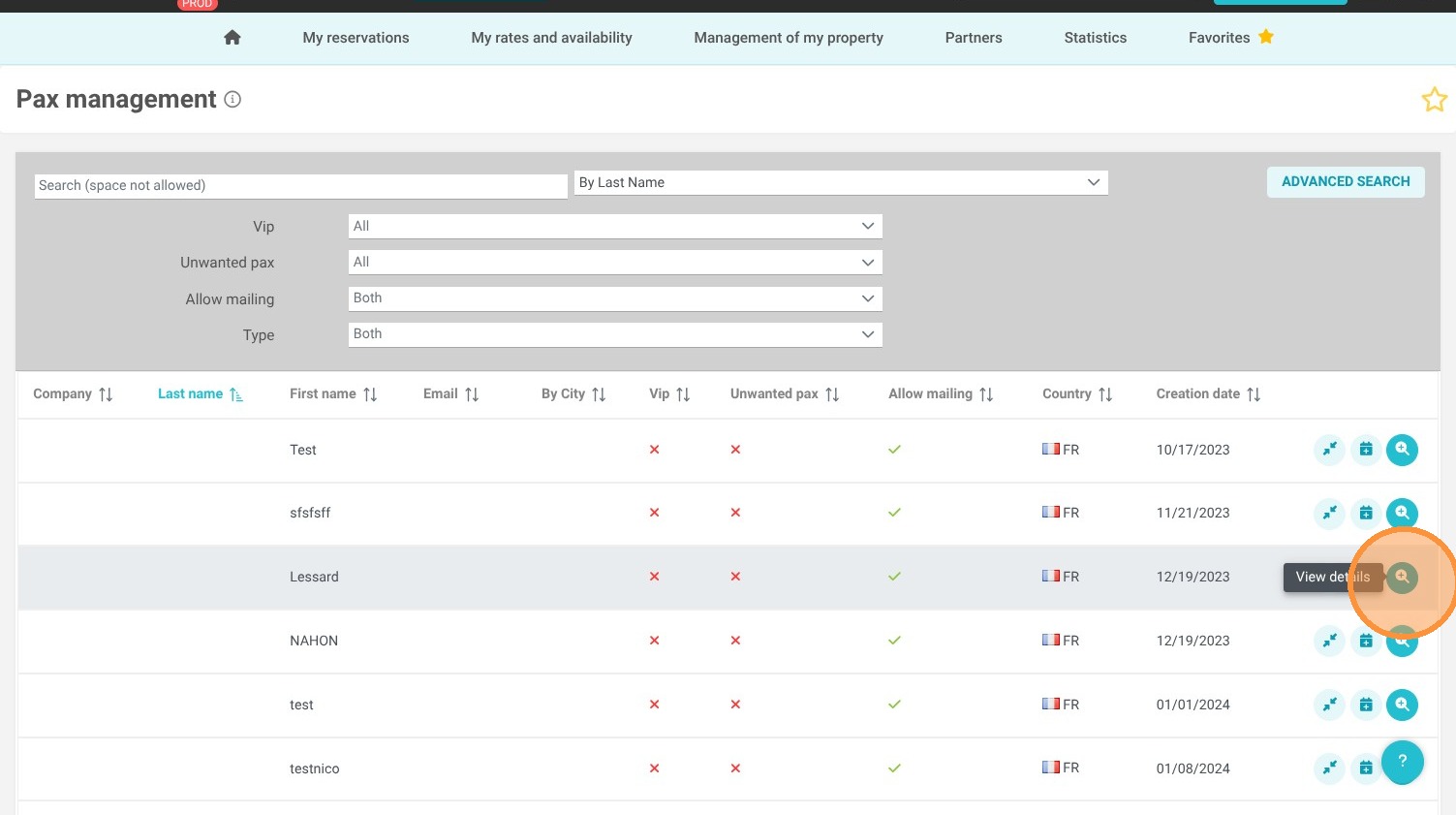
Identify the Record: Locate the specific guest profile you wish to edit by clicking the magnifying glass icon.
-
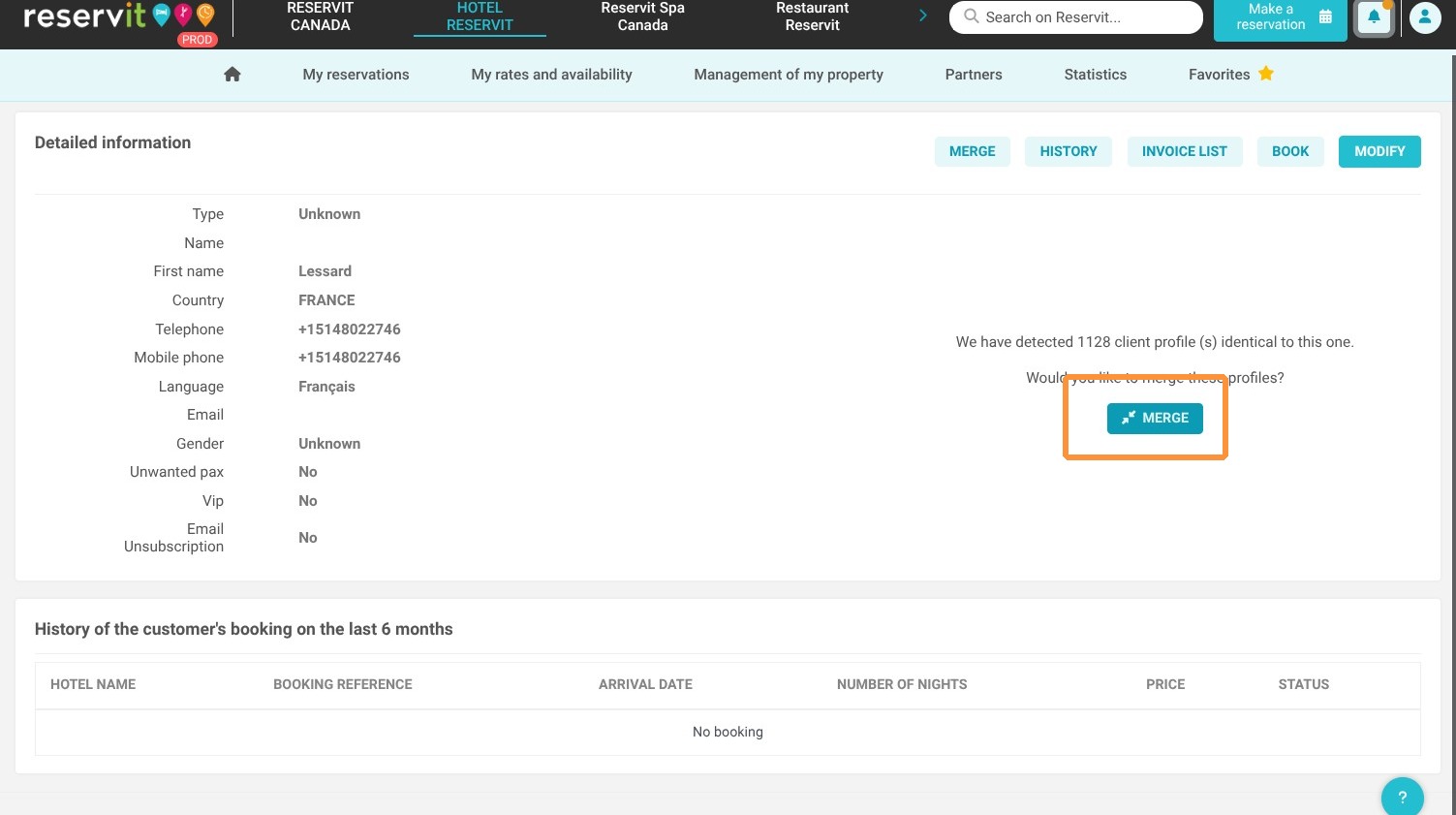
Detect Similarities: Use the system’s automated detection tool to display all potential duplicate profiles.
-
Compare Details: Review the data side-by-side to determine which information is most accurate and select the primary profile to retain.
-
Execute the Merge: Confirm the operation to consolidate stay histories into the chosen profile.
Why Follow This Guide? Cleaning your database prevents fragmented guest data, saving your front desk team time and reducing administrative errors. By centralizing guest information, you ensure more reliable analytics and provide a high-quality, personalized service for returning guests.

1. Click "My reservations" then "Pax management"
2. Choose the customer to edit by clicking on the magnifying glass.
3. The system will then detect customers with similar profiles. Click on merge to see the similar profiles.
4. Choose one of the profiles you want to merge and click the merge button.
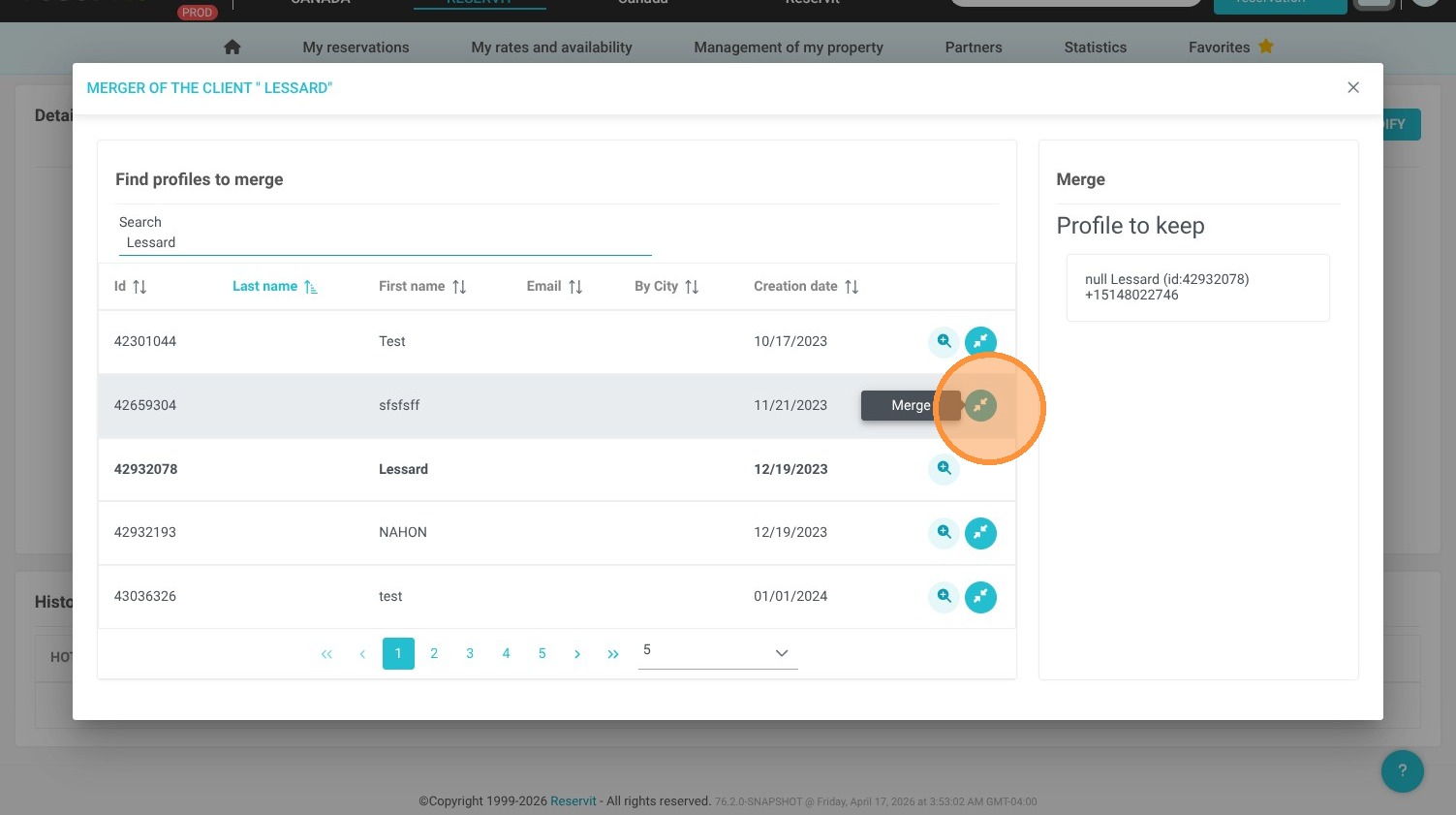
5. Both profiles will appear on the right.
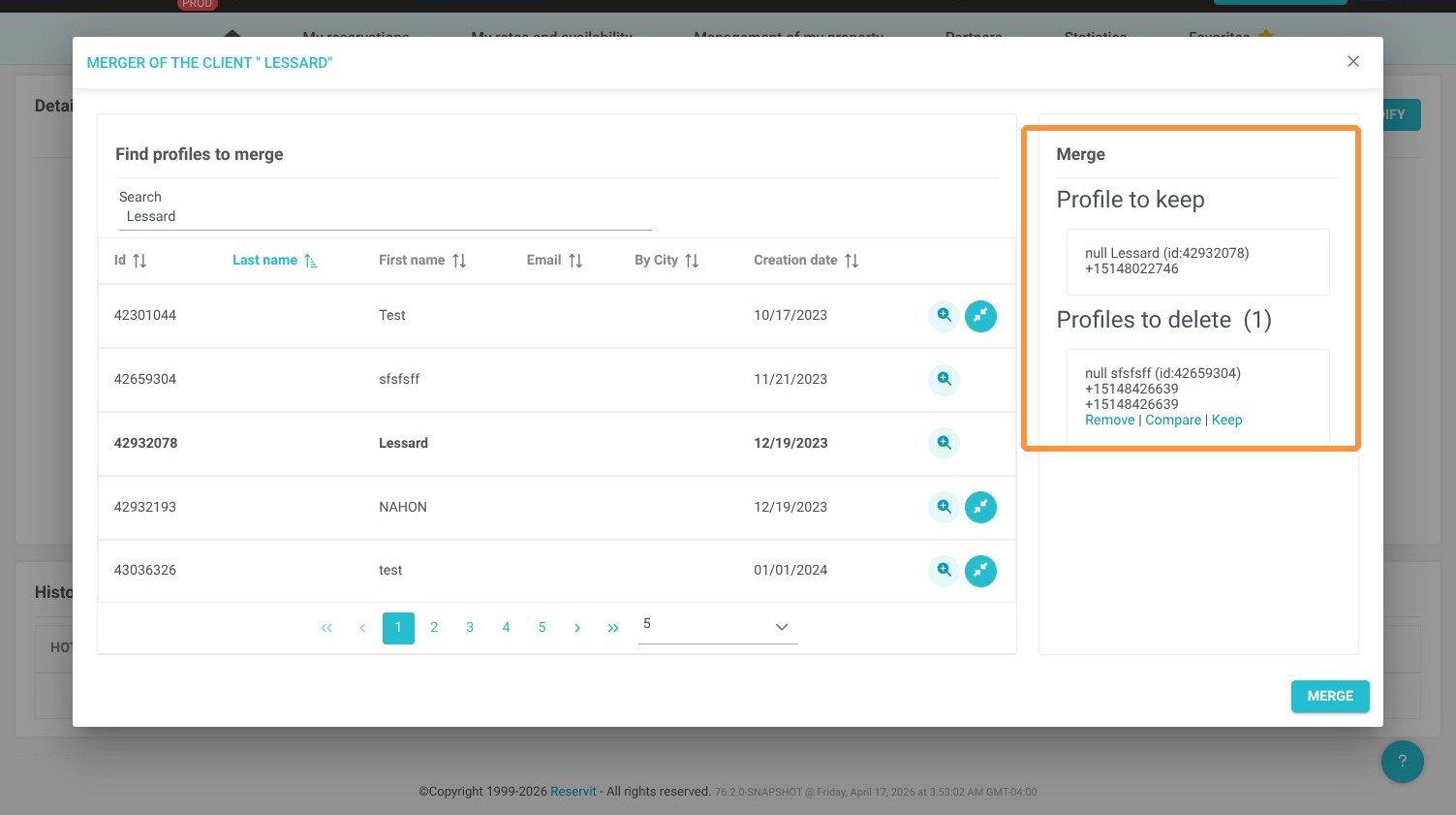
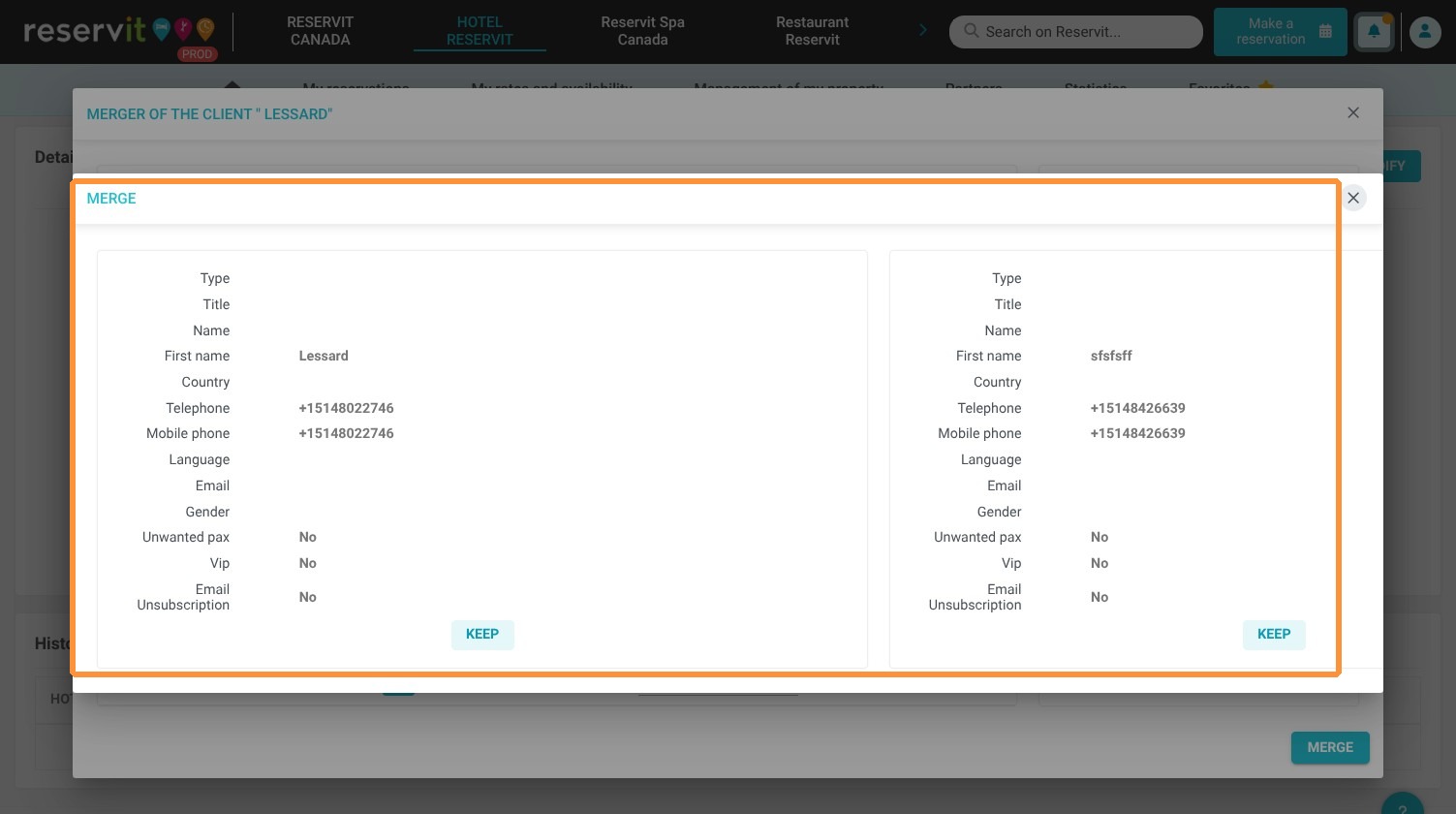
6. Click on "Compare" to view the details and compare the profiles. Click on keep to retain the desired profile.
7. The profile to be kept will appear at the top. Click on "Merge" to merge the profile(s) into the one you are keeping.
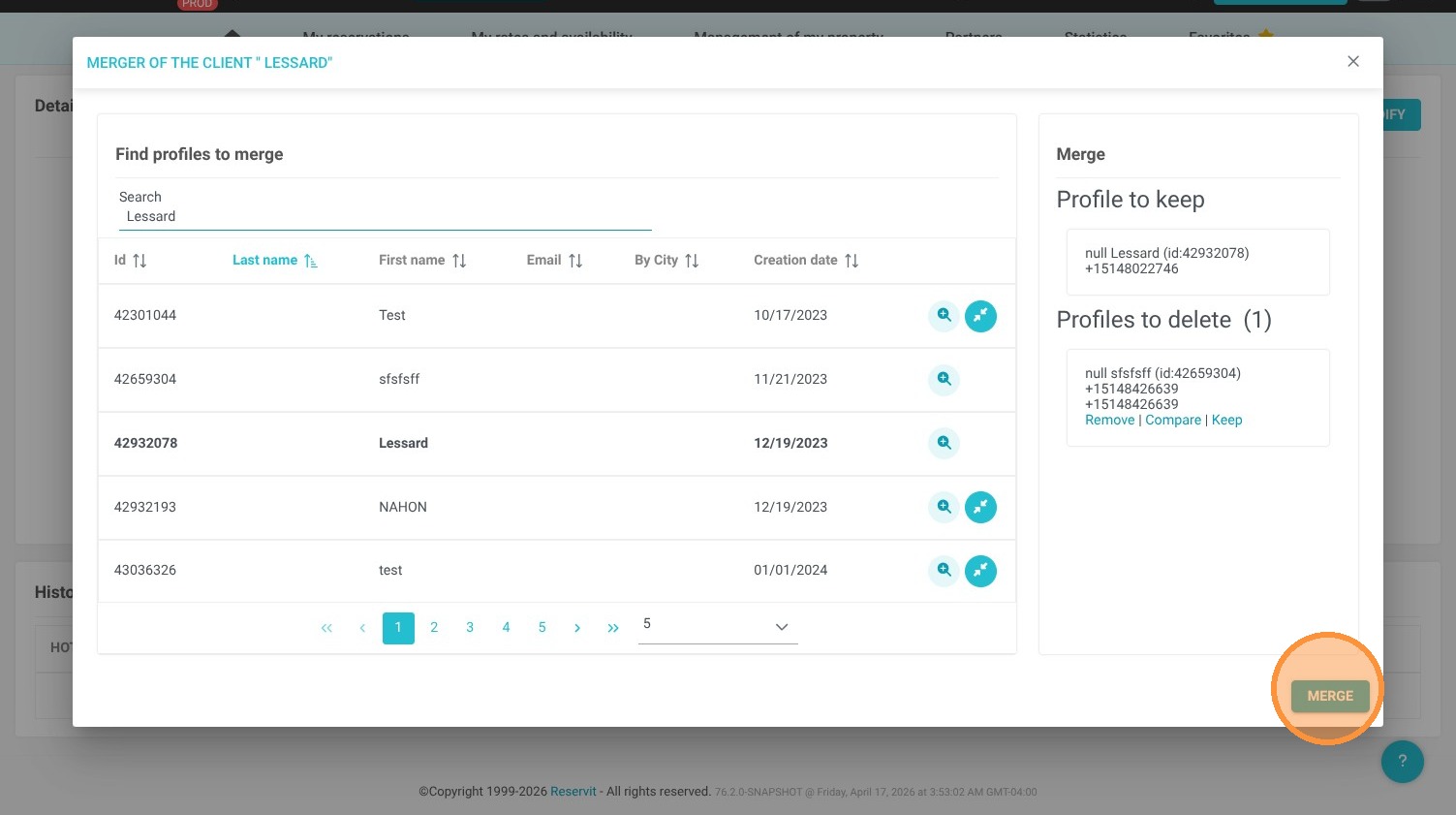
Alert: The merge operation may take several seconds.
-
Your customers' reservations will be merged
-
Your customers' billing accounts will NOT be merged