Article summary: This comprehensive guide explains step-by-step how to create and set up a compound tax in your Reservit Accommodations software. You will discover the method for dividing the share of a single booking across several distinct tax rates and associating your accounting codes with them. Thanks to this tutorial, automate your complex tax calculations and guarantee the complete accuracy of your end-of-month financial reports.
The 5 key steps to set up your compound tax on Reservit:
-
Access the tax manager: Log in to your Reservit portal, then click sequentially on "Manage of my property", "Property Setup", and under the "Tax management" box, select "GO TO PAGE" before clicking "ADD".
-
Set up the tax family and the first tax line: Fill in the multilingual titles (French/English), verify the "Percentage" selection, and precisely define the share of the total amount subject to the first tax rate (e.g., 90% of the booking subject to a 10% rate).
-
Add the second tax line: Click the "ADD A LINE" button, then enter the name of this second tax and configure the remaining share of the total amount subject to this second rate (e.g., the remaining 10% of the booking subject to a 20% rate).
-
Associate accounting codes and restrictions: Enter the corresponding accounting code for each tax line created and, if necessary, set start and end dates to limit the time validity of the compound tax.
-
Save and group rates: Check the "Group taxes with the same rate" option for each line, finalize by clicking "SAVE", then proceed with the final assignment of this tax to your units, options, or hotel offers.
Why follow this guide? This tutorial allows you to secure your hotel accounting in compliance with advanced tax regulations without risking errors associated with manual processing. By correctly setting up your compound taxes on Reservit, you save valuable time during monthly closings and ensure completely transparent accounting reports.
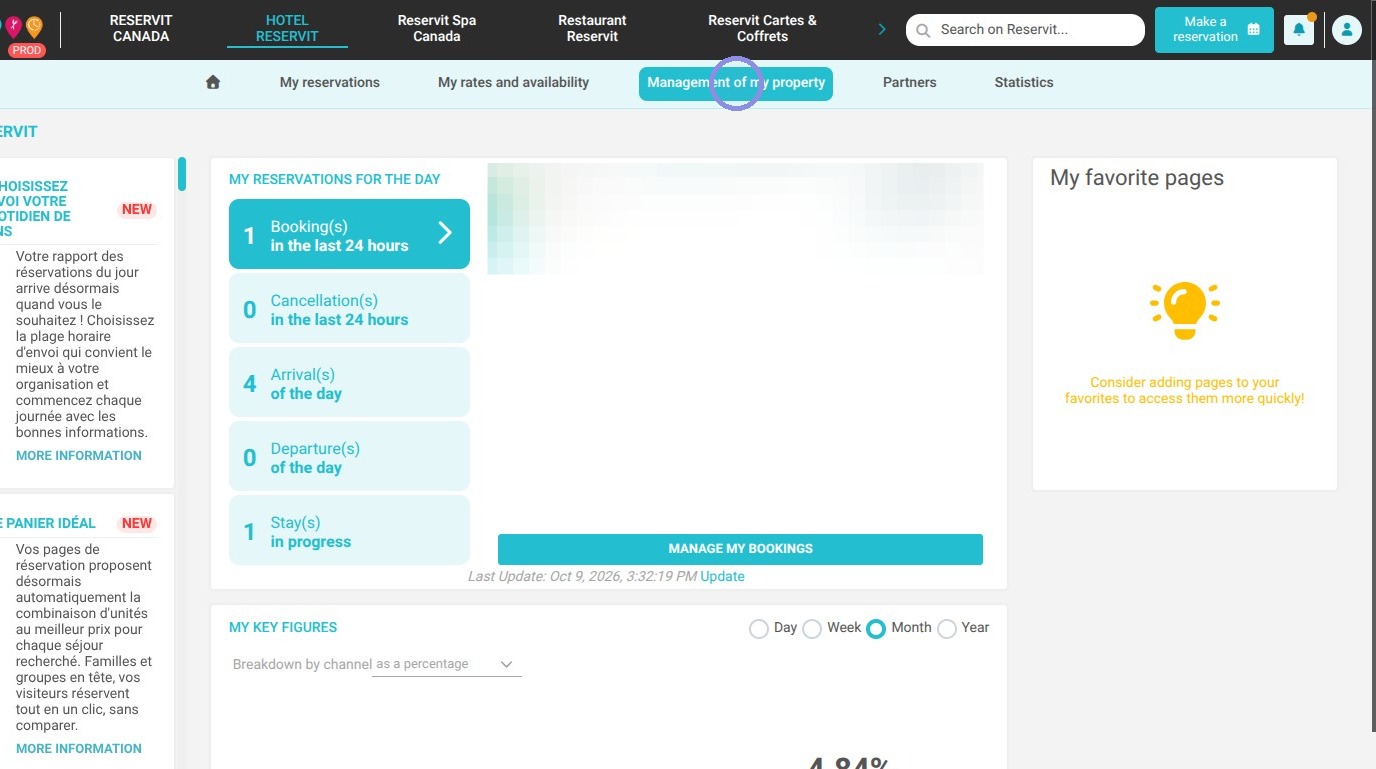
1. Go to "Management of my property", click "Property Setup"
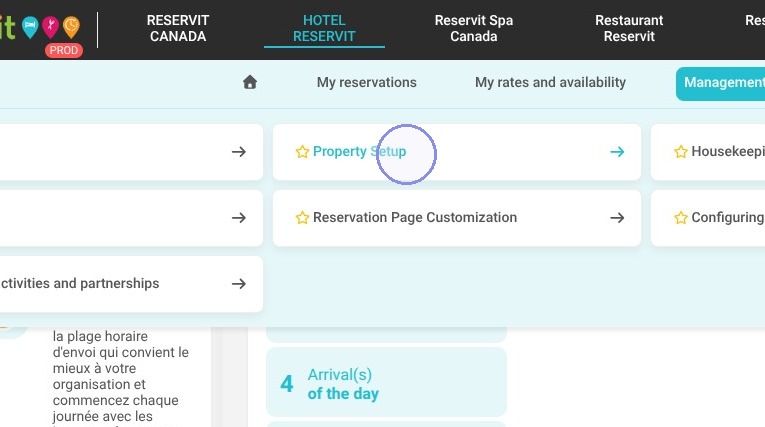
2. Click Go to page under Manage Taxes.
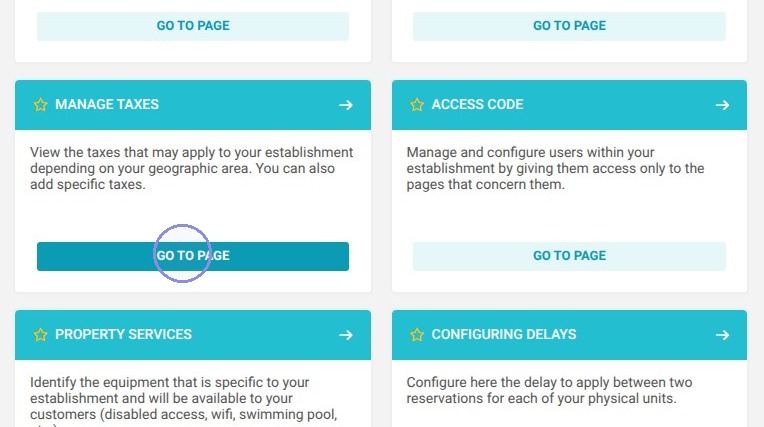
3. Click "Add"
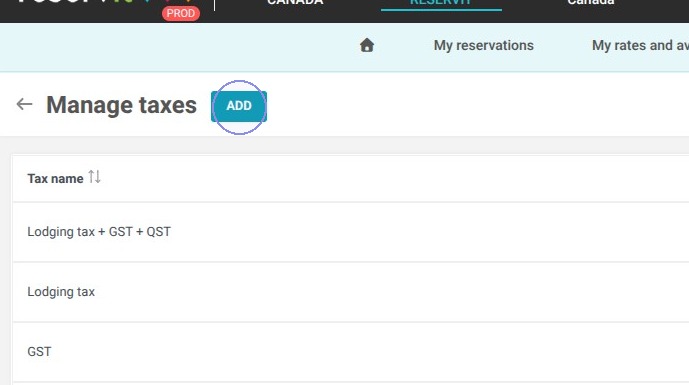
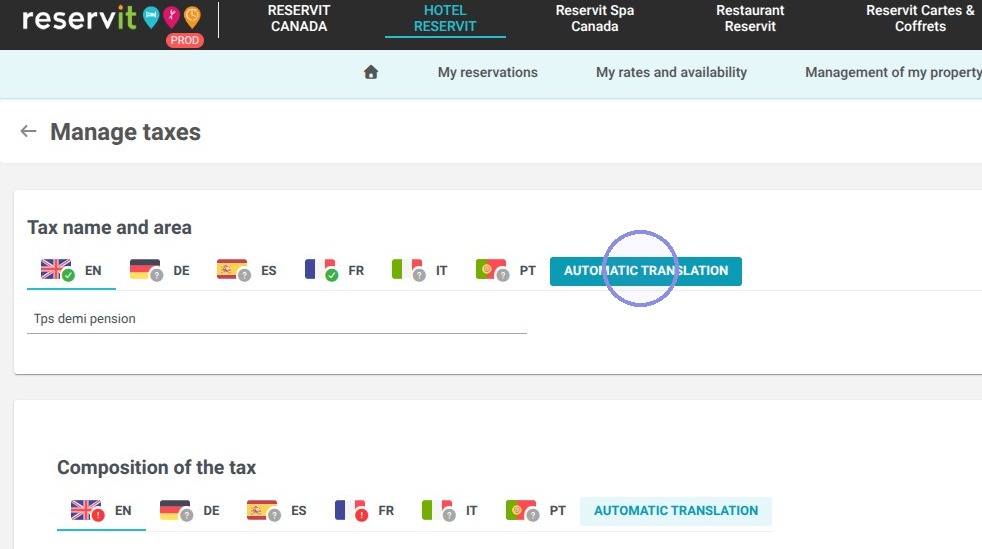
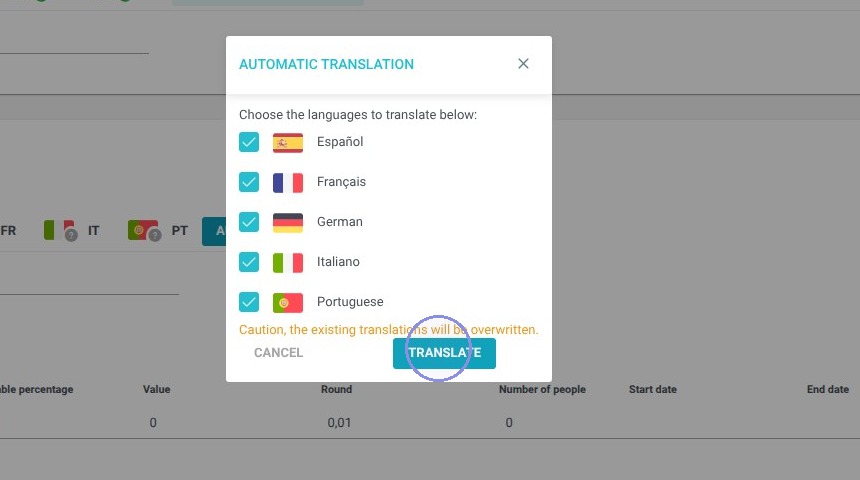
4. Enter the name of this tax family in English then do the Automatic Translation to translate it in the other languages
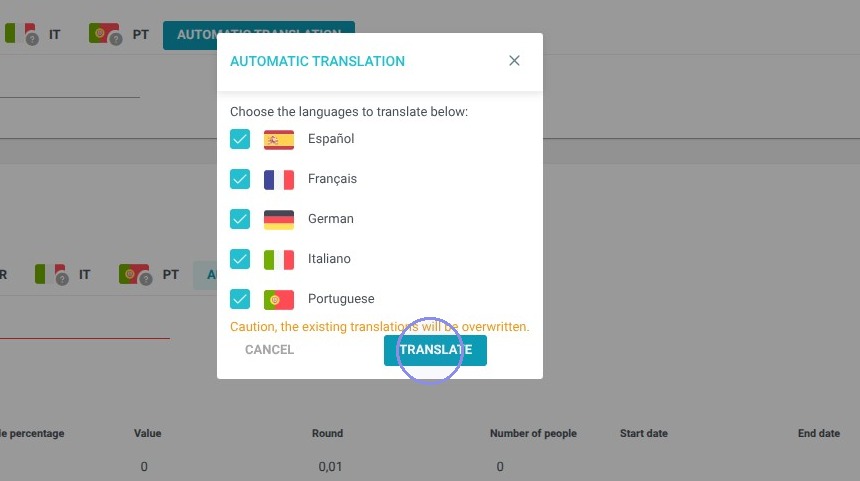
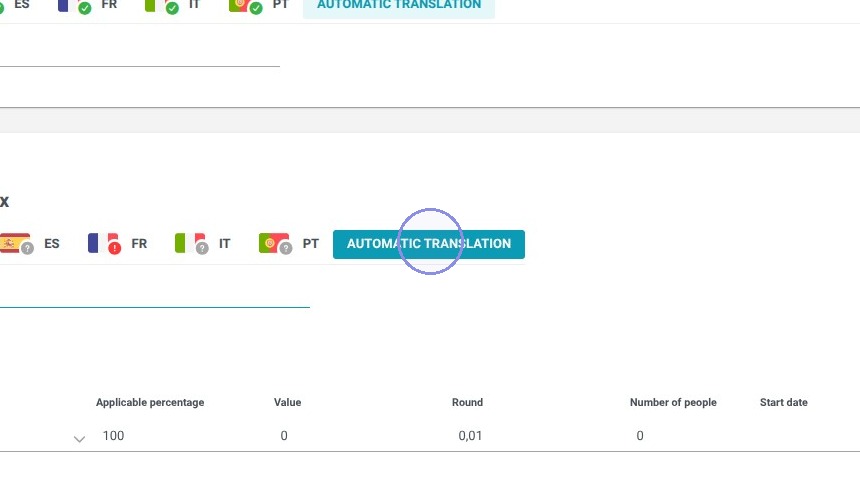
5. Enter the name of the first tax in English then translate it with the Automatic Translation button.
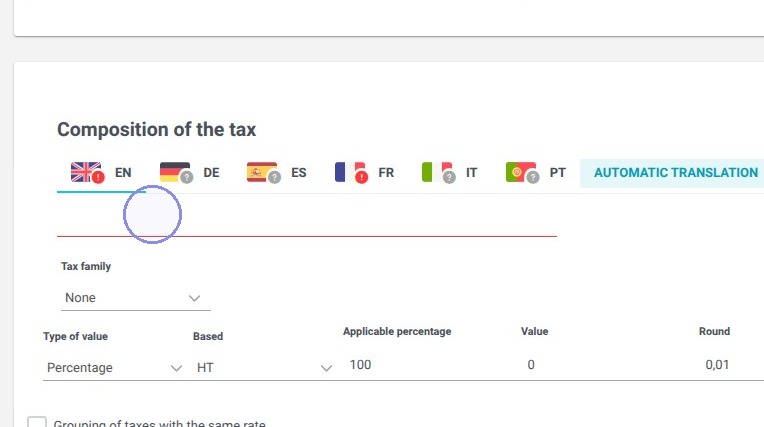
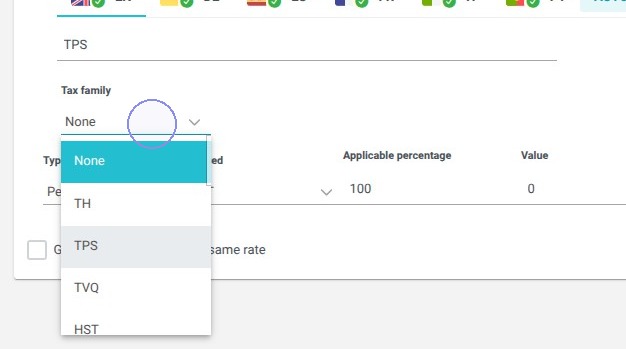
6. The tax family is used only by non-European hotels.
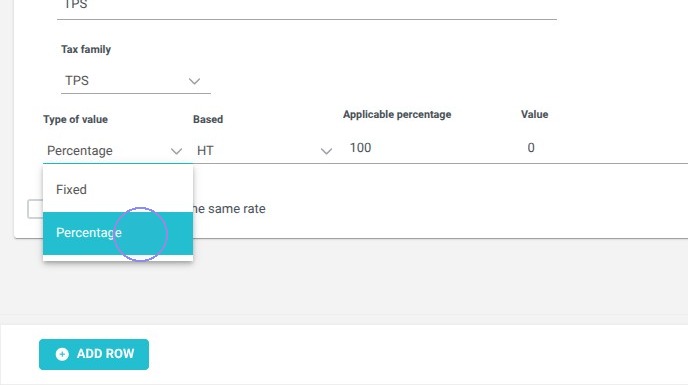
7. Verify that your tax is set to "Percentage" and HT (Exclude from taxe).
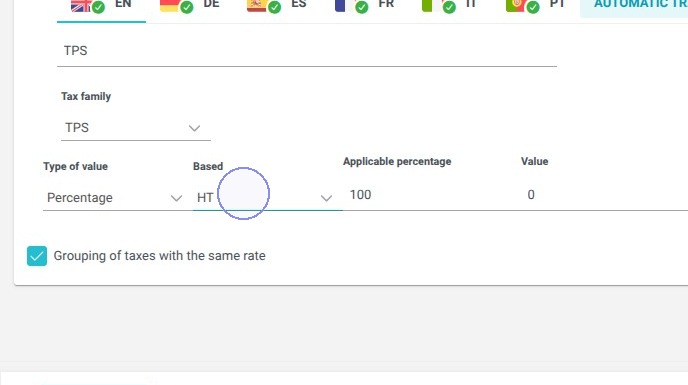
8. Enter the percentage of the total amount subject to this tax.
Example:
For a 100$ booking, I want 90$ to be subject to a 10% tax, which corresponds to 90% of the total amount.
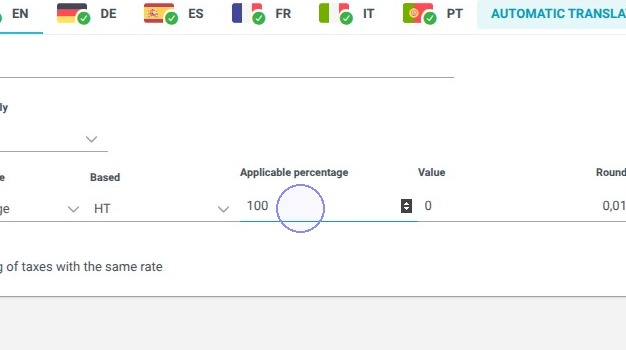
9. Enter the tax percentage.
Example:
I want 90% of my booking to be subject to a 10% tax. I write 10 here.
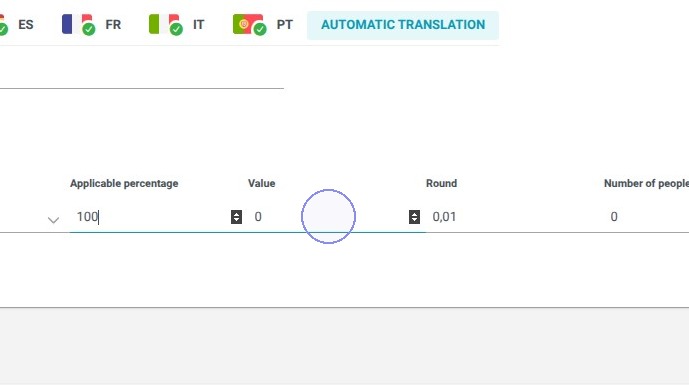
10. Enter a start date and an end date if you want to limit this compound tax in time.
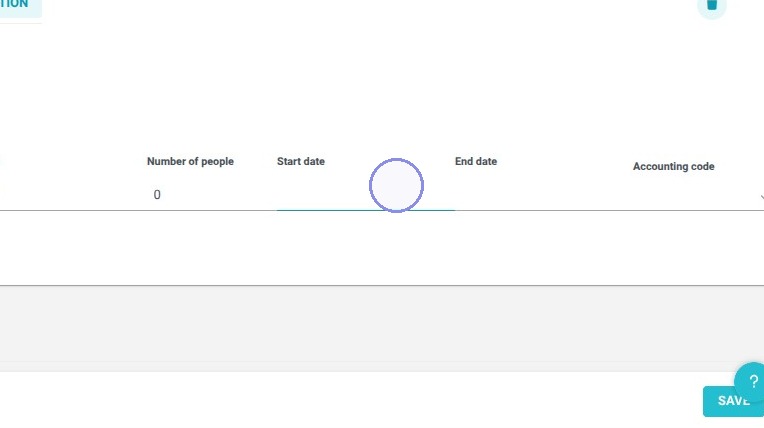
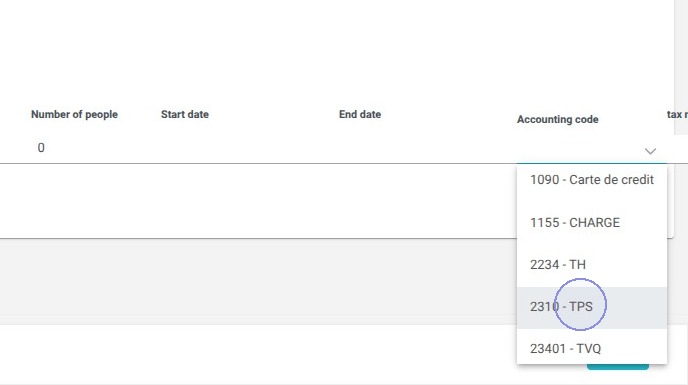
11. Add the corresponding accounting code.
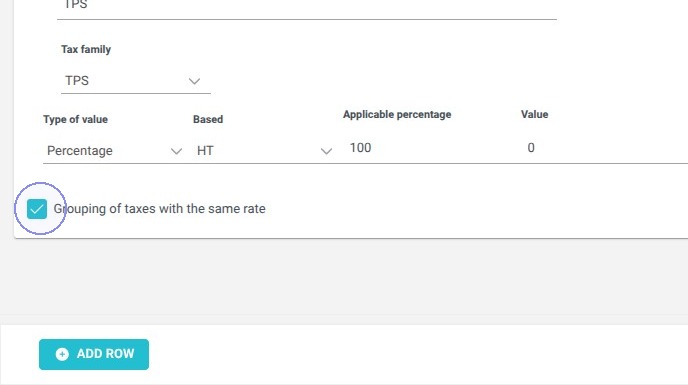
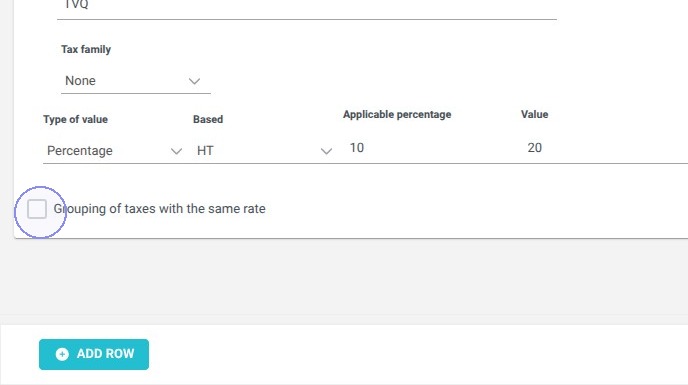
12. Click the Grouping of taxes with the same rate checkbox.
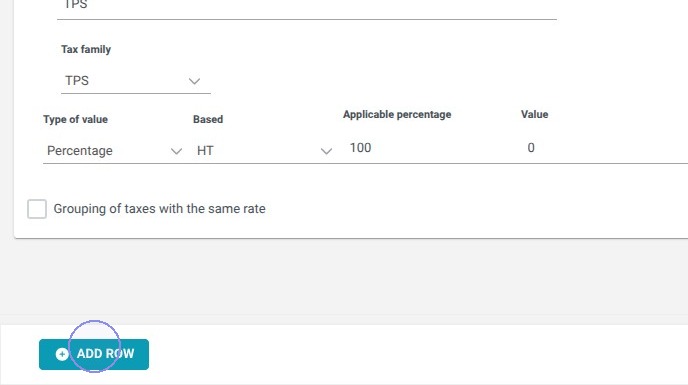
13. Click "Add row" to add the second taxe
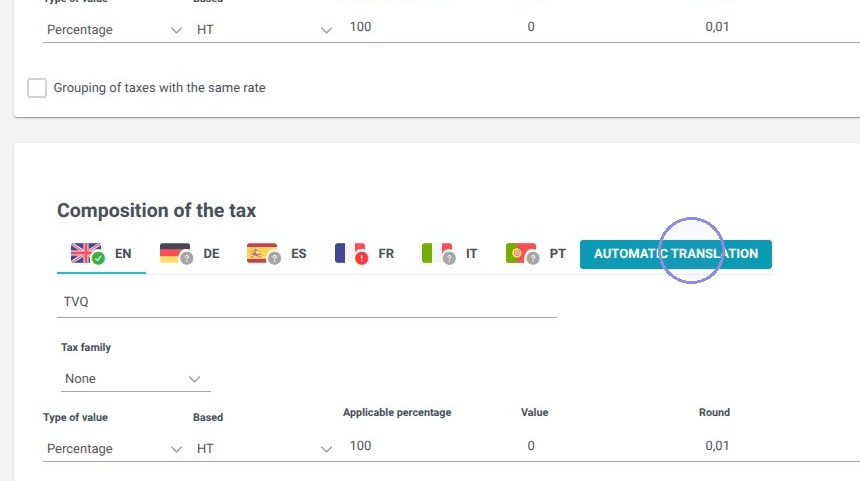
14. Enter the name of the second tax in English then translate it with the Automatic Translation buton
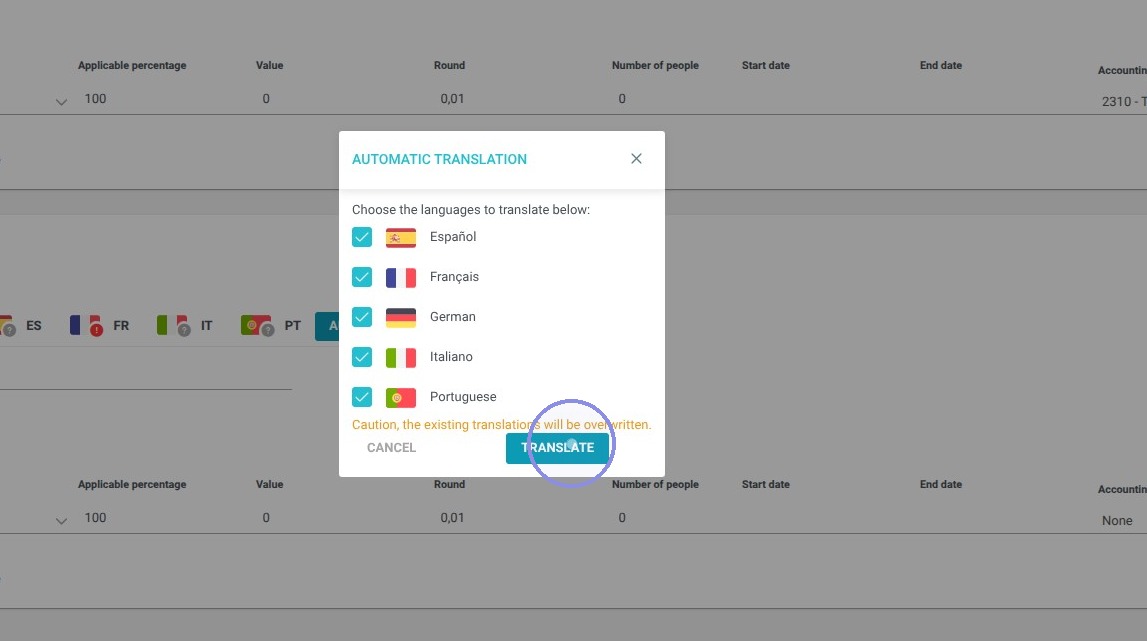
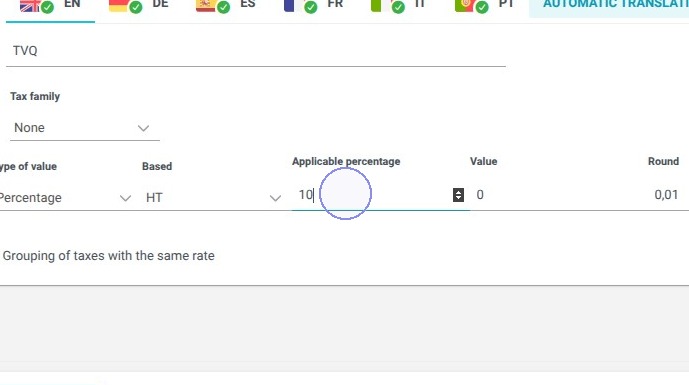
15. Enter the percentage of the total amount subject to this tax.
Example:
For our 100$ booking, 90$ is subject to a 10% tax and 10$ is subject to a 20% tax. That is an applicable percentage of 10%.
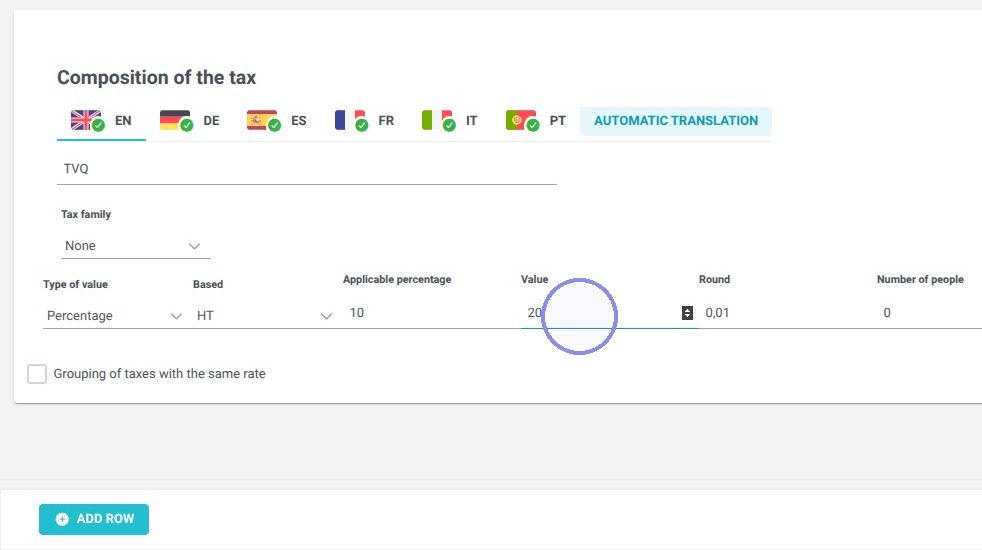
16. Enter the tax percentage.
Example:
I want 10% of my booking to be subject to a 20% tax. I write 20 here.
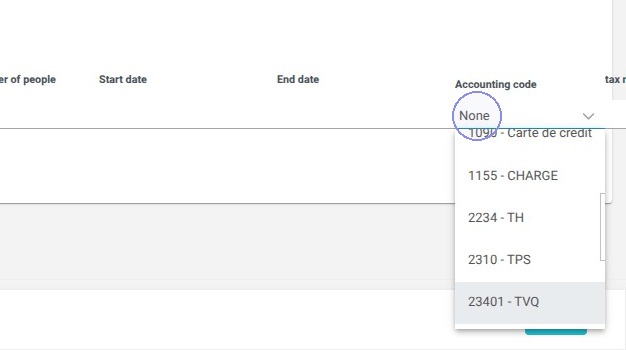
17. Add the corresponding accounting code.
18. Click the Grouping of taxes with the same rate checkbox for the new tax row.
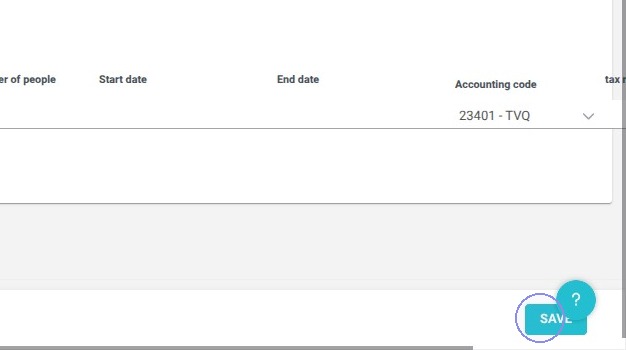
19. Click Save.
20. If you want to:
-
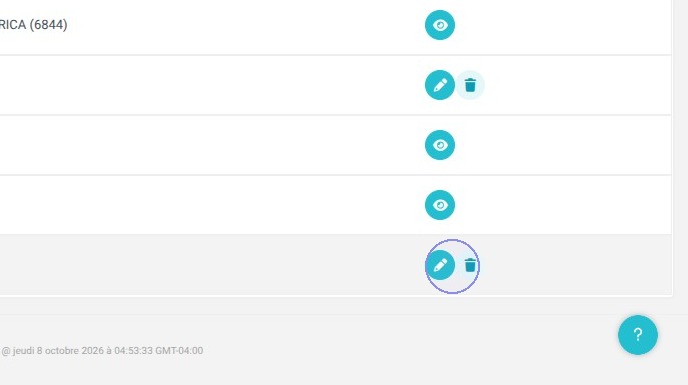
Edit your compound tax, click on the pencil.
-
Delete your compound tax, click on the trash can.