Article Summary: This step-by-step tutorial explains how to easily update your terms and conditions within Reservit Activities. You will learn how to edit your establishment's terms of sale and translate them into multiple languages to accommodate all your guests. Keeping these policies up-to-date ensures that accurate, legally binding information is automatically included in every customer's booking confirmation email.
The 4 key steps to edit your terms and conditions:
-
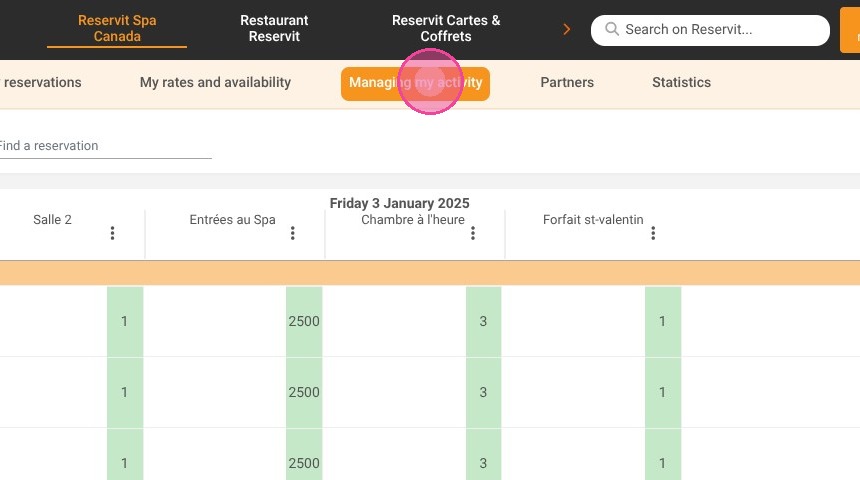
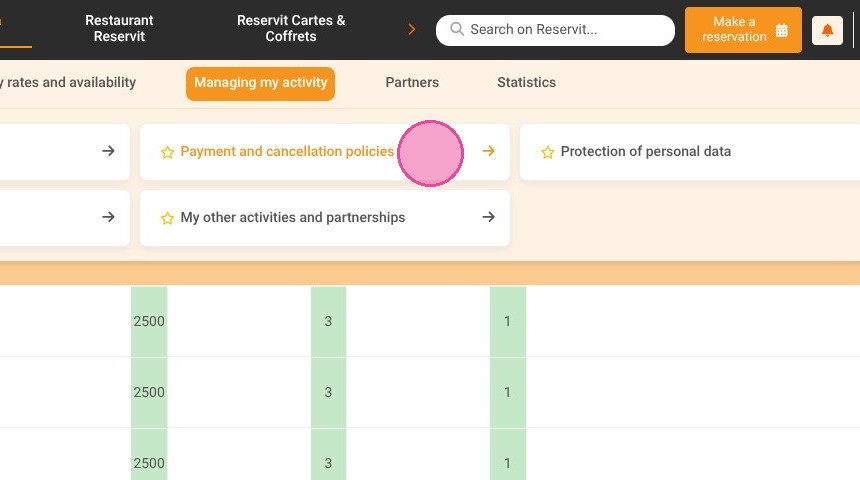
Navigate to your policies: Open the "Managing my activity" menu and select "Payment and cancellation policies."
-
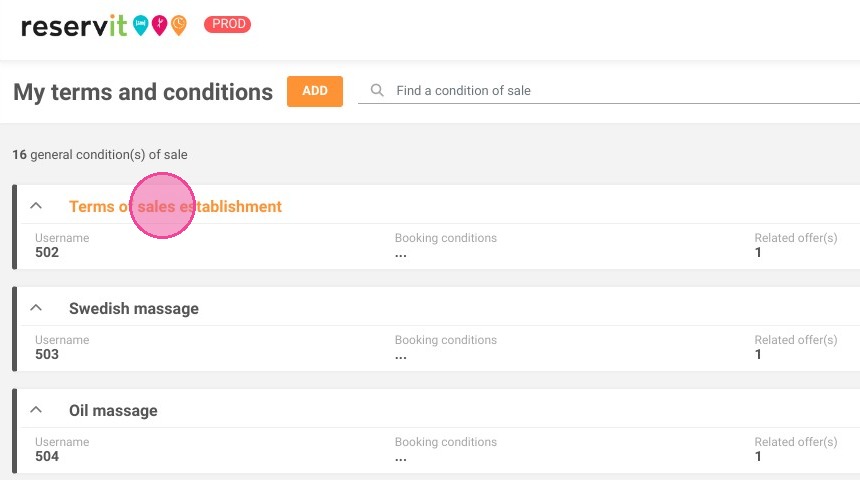
Access the terms editor: Click on "Terms of sales establishment" to open the text editor and update your current conditions.
-
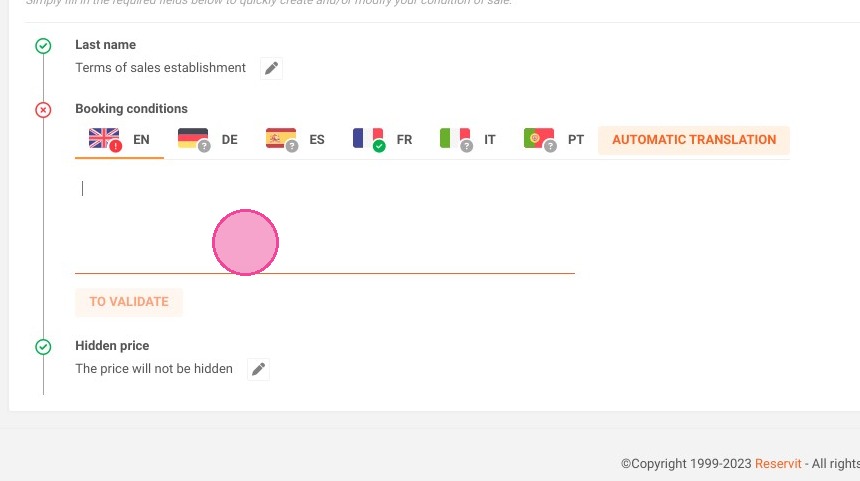
Translate your text: Use the language tabs to translate your specific rules and policies into different languages for international customers.
-
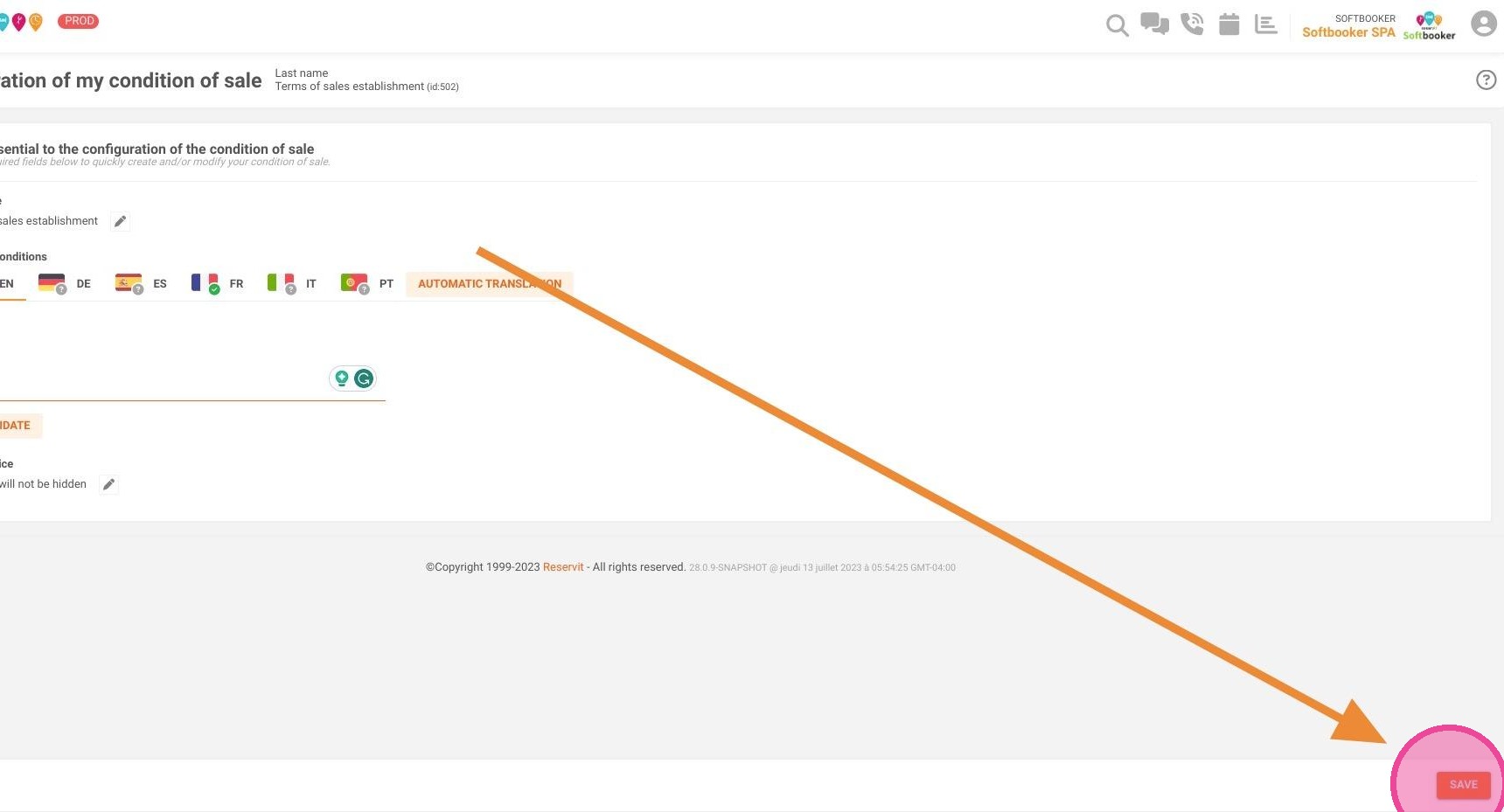
Save your changes: Click "SAVE" to instantly apply the updates, ensuring they are automatically attached to all future booking confirmations.
Why follow this guide? Regularly updating your terms of sale protects your business from payment disputes and prevents costly customer misunderstandings regarding cancellations. By configuring this once, you automate your legal communication, ensuring every guest receives clear rules without any manual effort from your staff.
Tip: Be sure to update your terms and conditions. It will be included in the email confirming your customer's booking.
1. Click "Managing my activity"
2. Then ''Payment and cancellation policies''
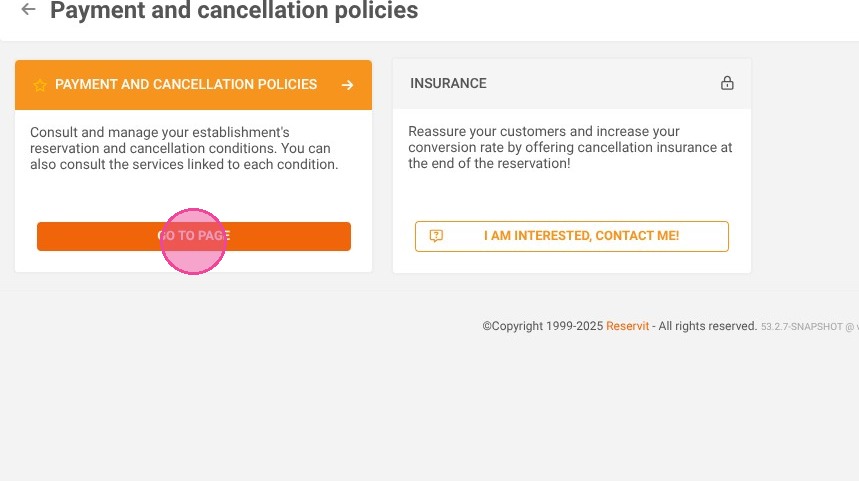
3. Click "Terms of sales establishment"
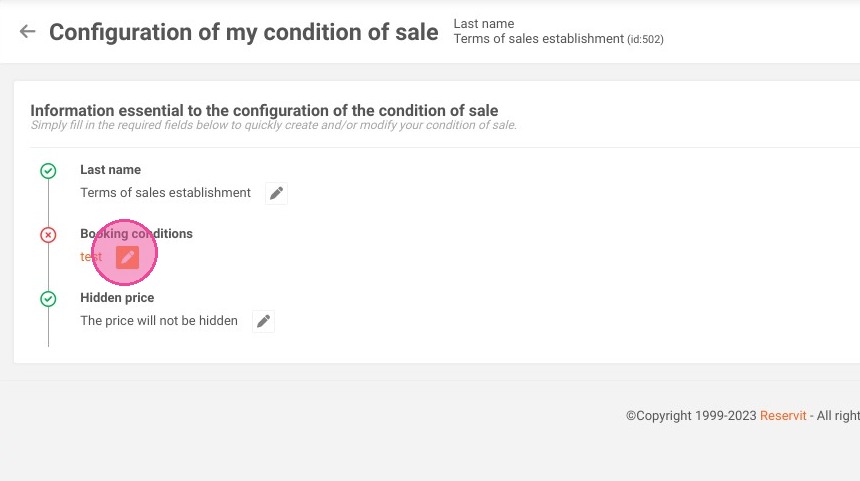
4. Click here to update conditions.
5. You can translate your conditions into different languages.
6. Click "SAVE".