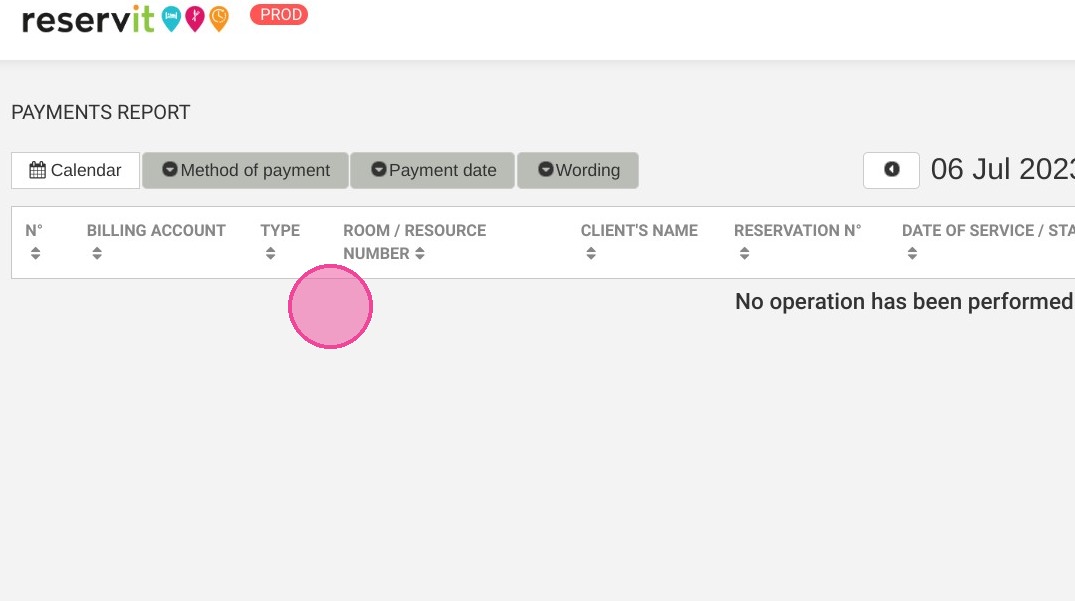
Article Summary: This step-by-step tutorial explains how to easily generate and customize a comprehensive payments report within Reservit Activities. You will learn how to filter transactions by date, specific payment methods, and customized wordings to view a detailed summary of your financial history. Mastering this reporting tool allows you to accurately track your daily revenue, simplify your accounting processes, and easily export essential billing data.
The 5 key steps to generate a payments report:
-
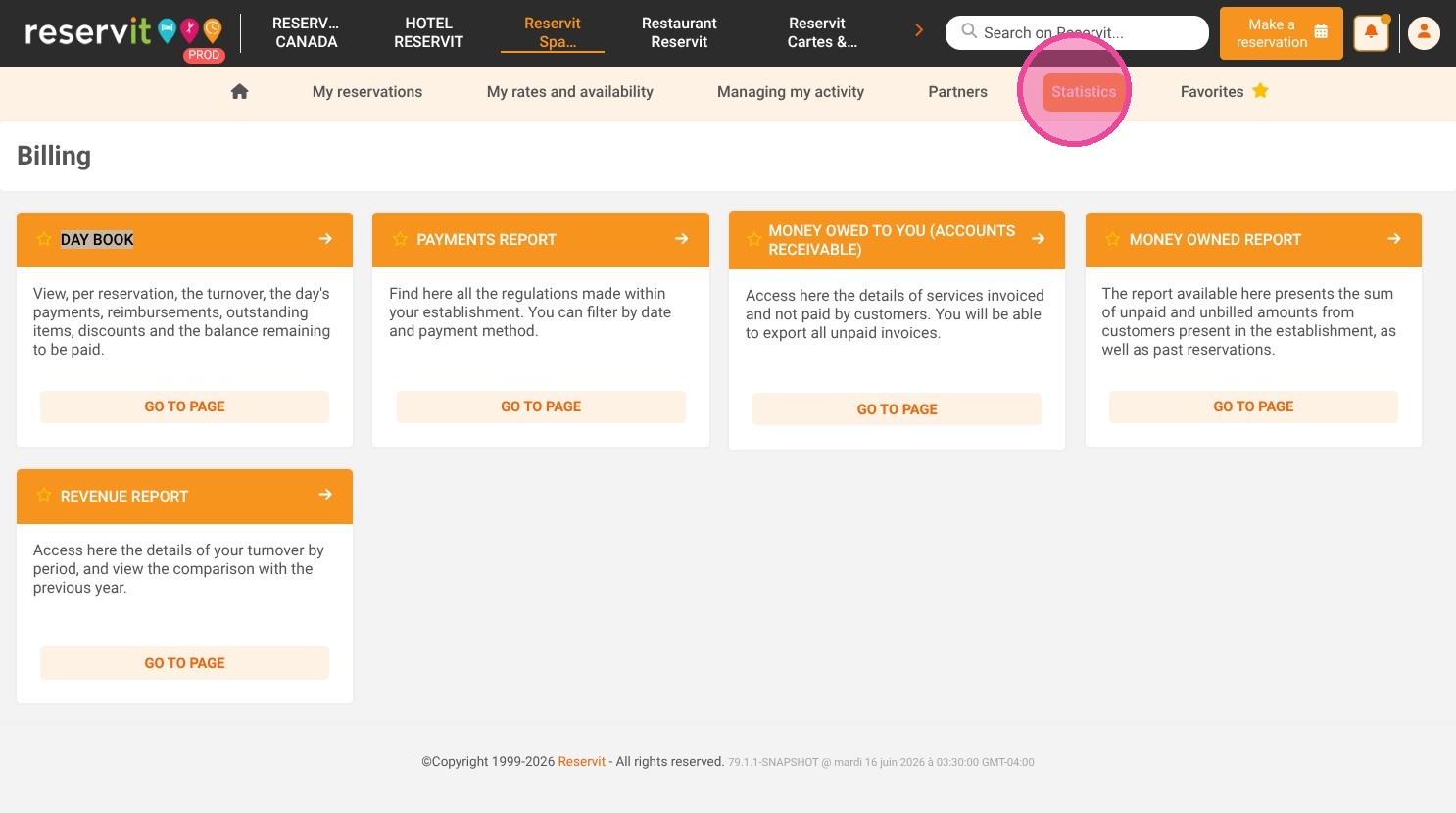
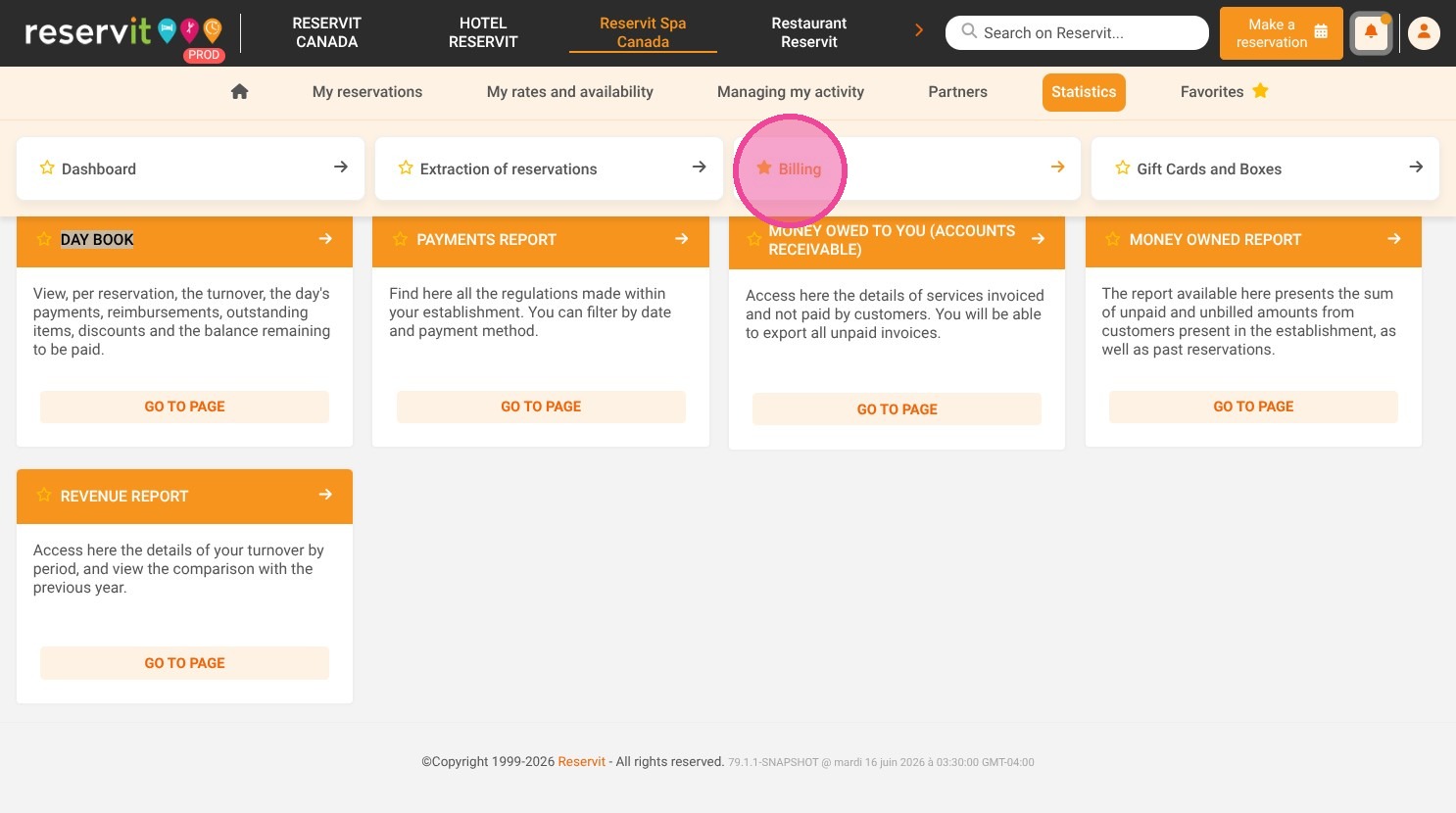
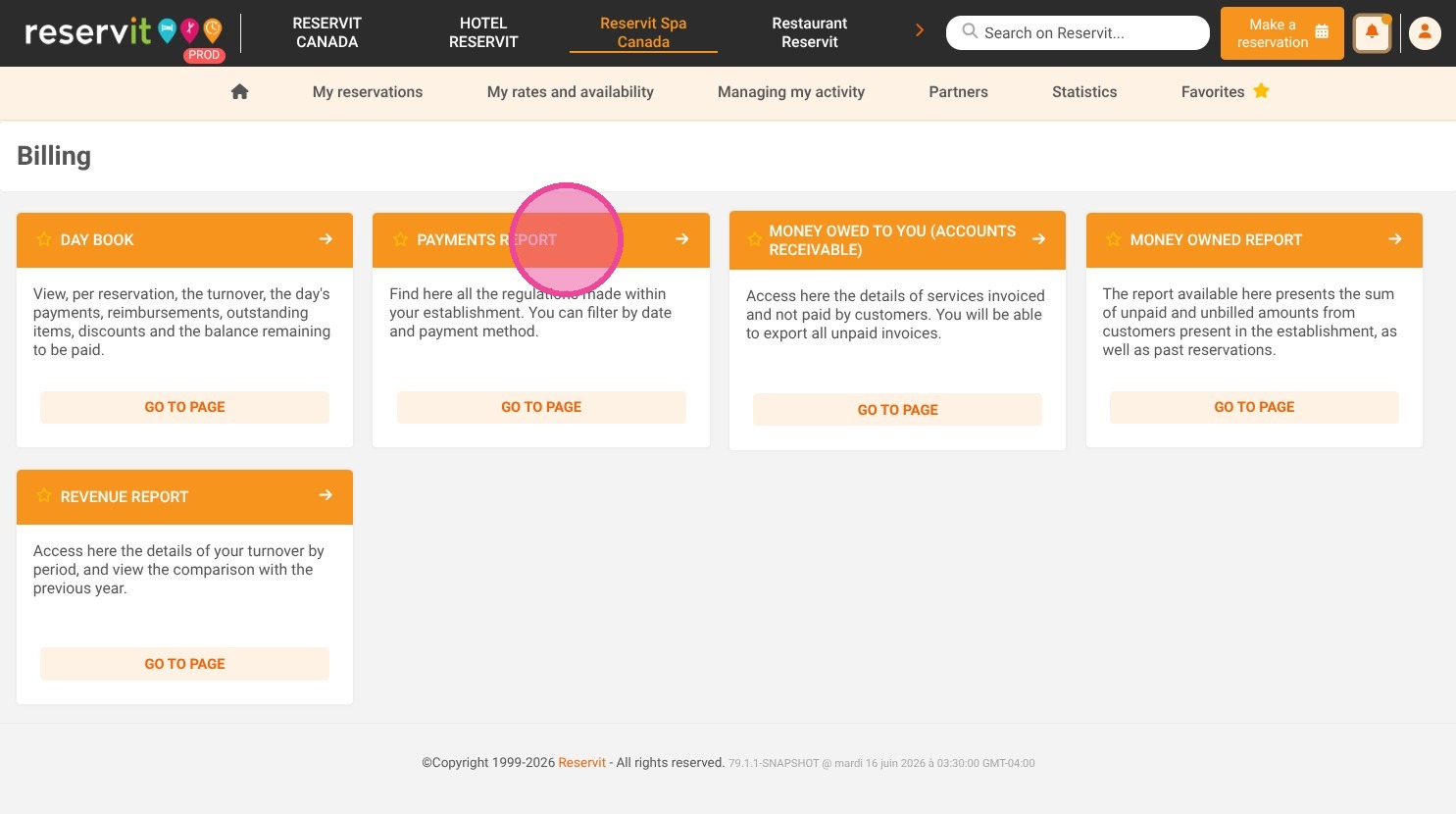
Access the reporting dashboard: Navigate to the "Statistics" menu, select "Billing," and click on "Payments report" to open the tool.
-
Define your time period: Use the calendar feature to select the specific date range you want to analyze for your transaction history.
-
Filter your payment details: Refine your report by selecting specific payment methods, exact payment dates, and relevant wording criteria.
-
Review transaction data: Review the "Payment Terminal History" and the generated summary table to verify the specific details of your transactions.
-
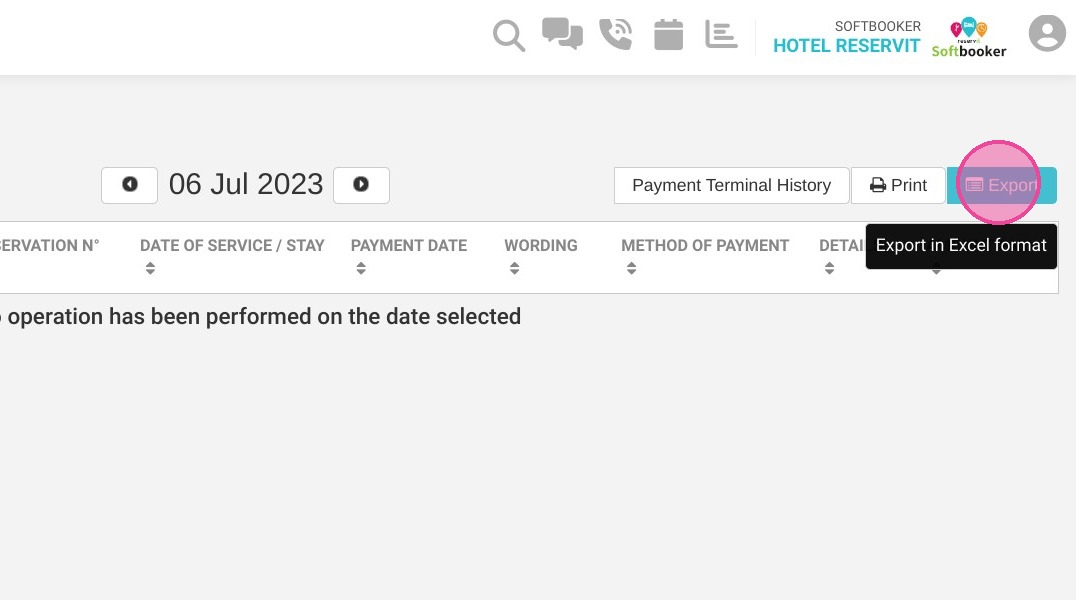
Export or print your data: Click "Print" for a physical copy or select "Export" to download the financial data into a file for your accounting software.
Why follow this guide? Regularly generating and reviewing your payments report ensures that your financial records remain perfectly accurate and helps you quickly spot any billing discrepancies. Standardizing this export process saves you valuable administrative time and significantly streamlines your bookkeeping and financial reconciliation.
1. Click "Statistics" then "Billing" and "Payments report"
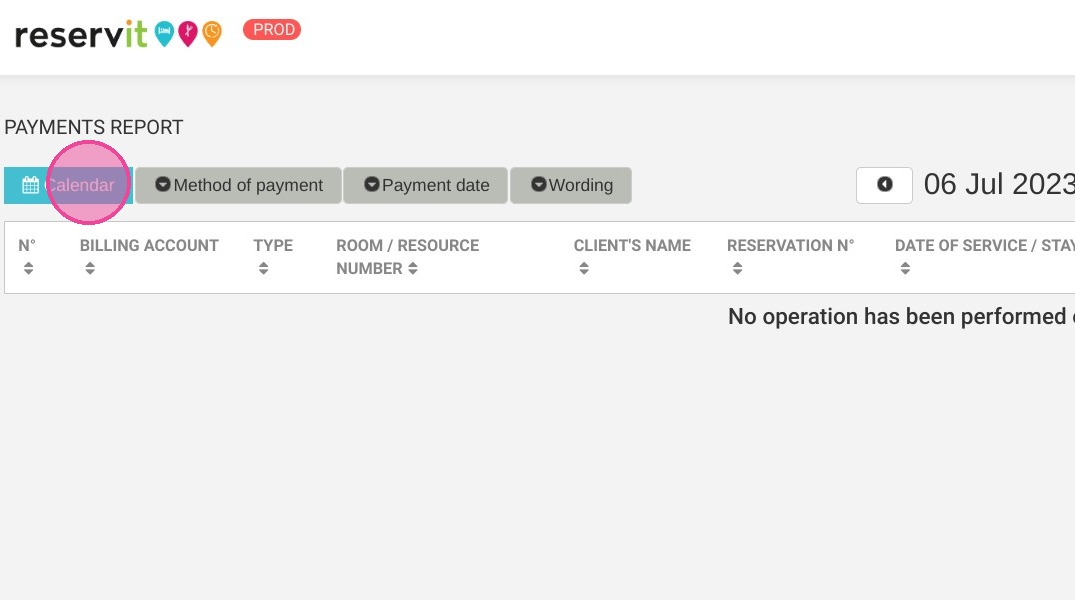
2. In the "Calendar", you can choose your period of time
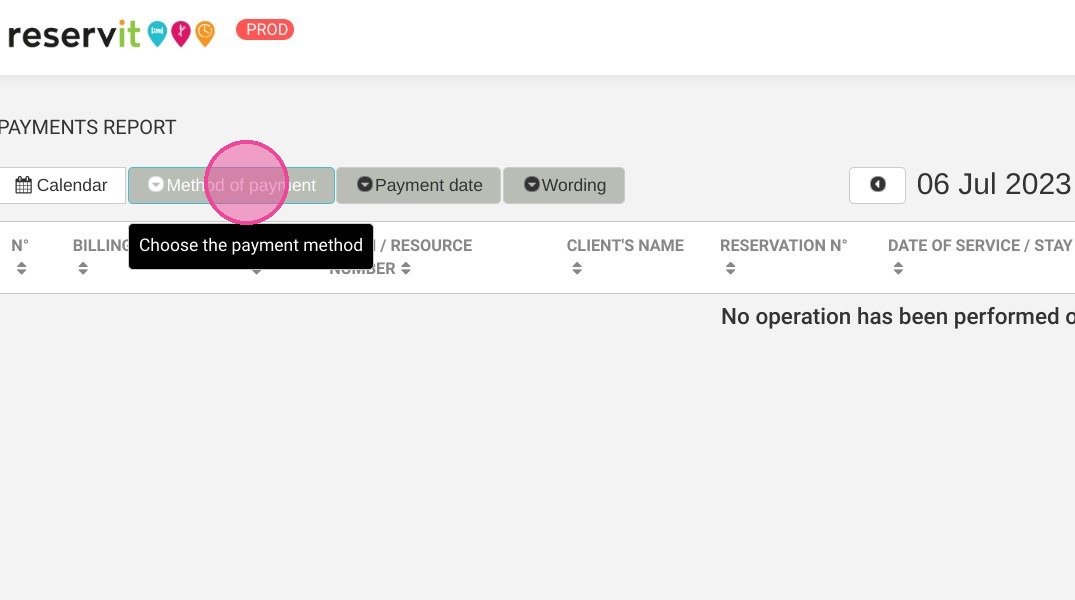
3. You can select the "Method of payment"
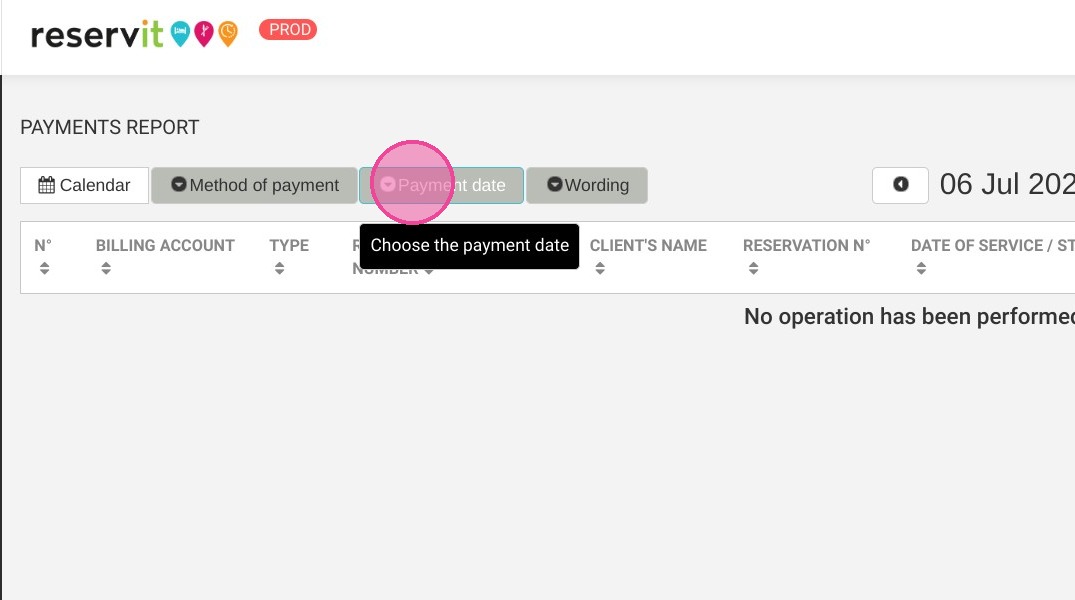
4. You can select the "Payment date"
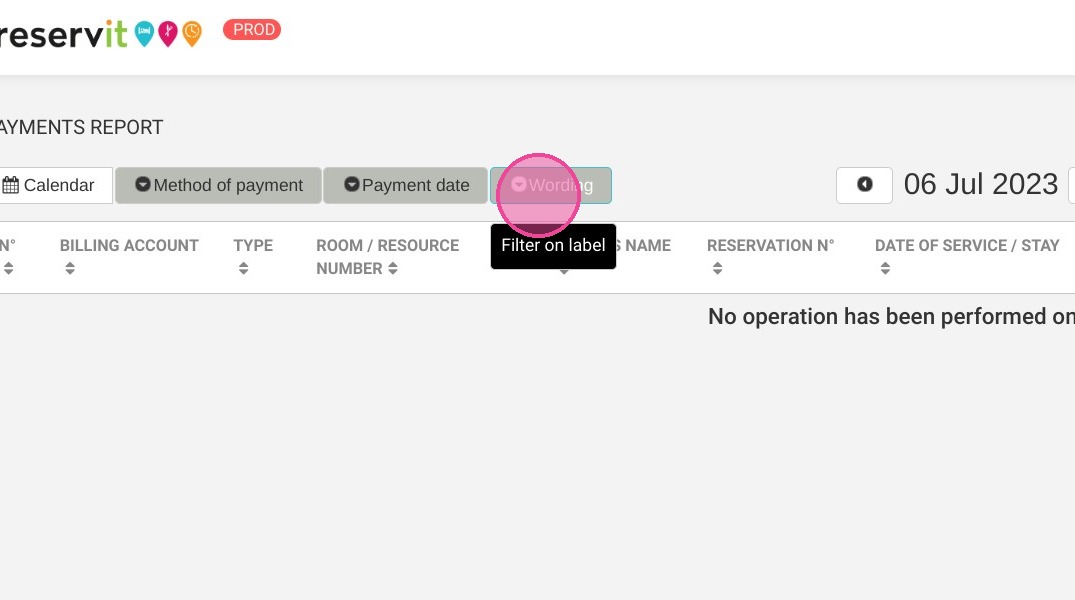
5. You can select the "Wording"
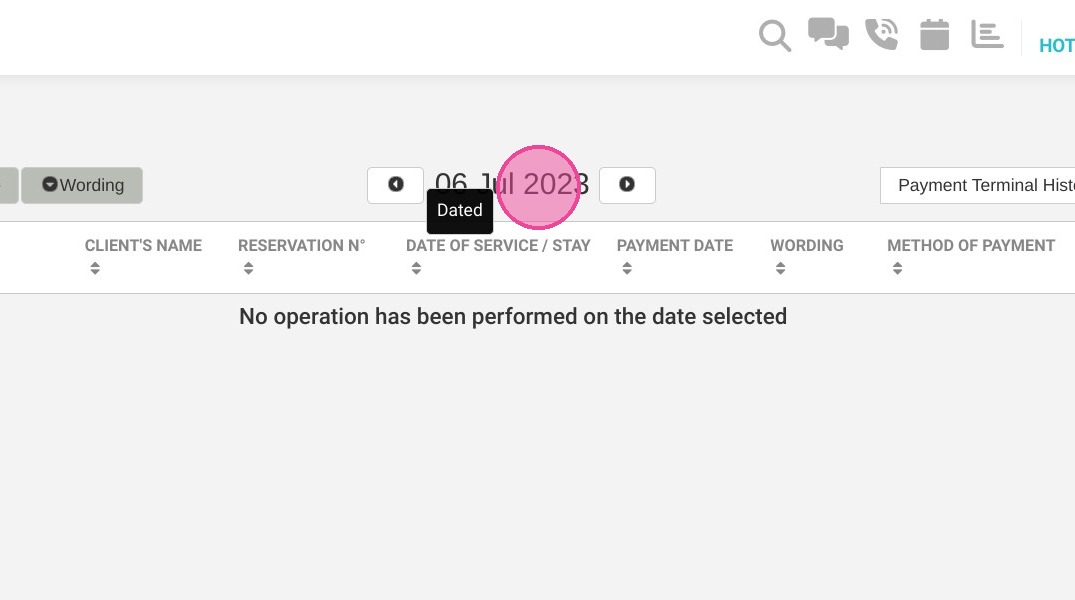
6. Here is the date that you can select
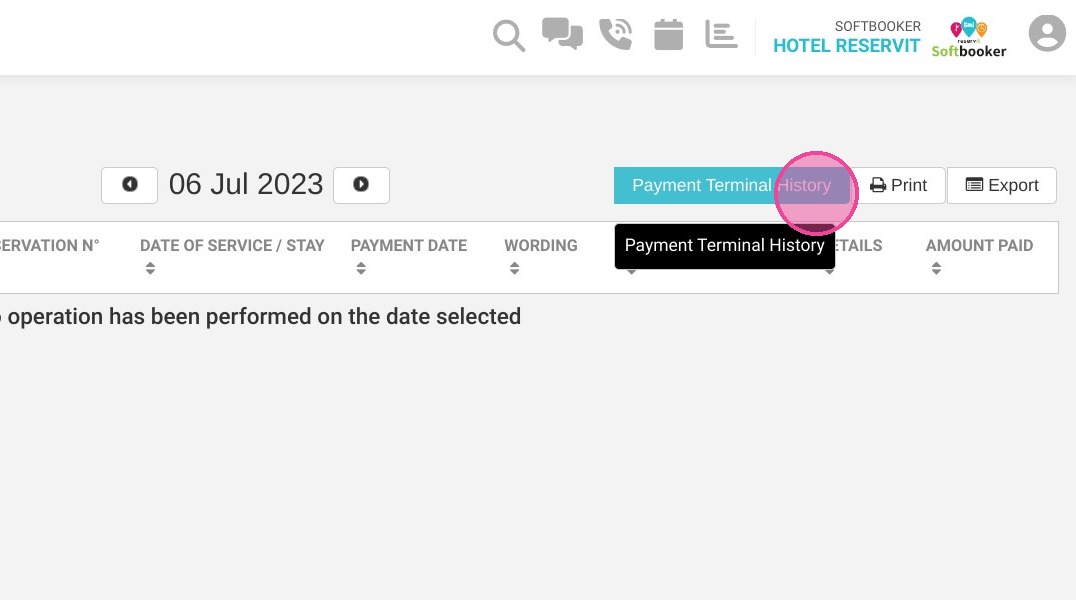
7. Here you have the "Payment Terminal History"
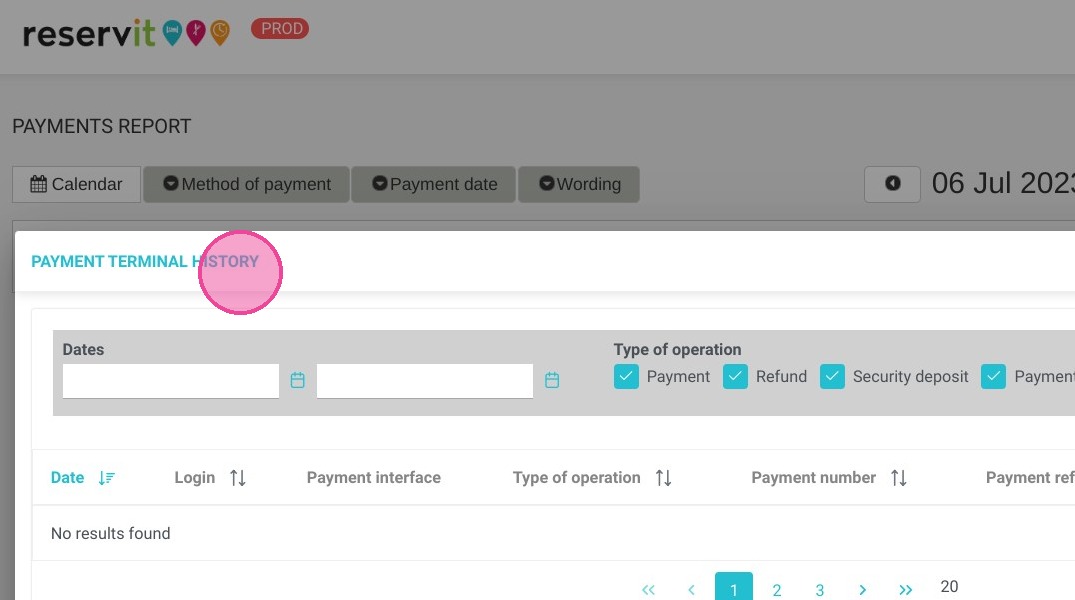
8. Here you have the details of the "Payment Terminal History"
9. "Print"
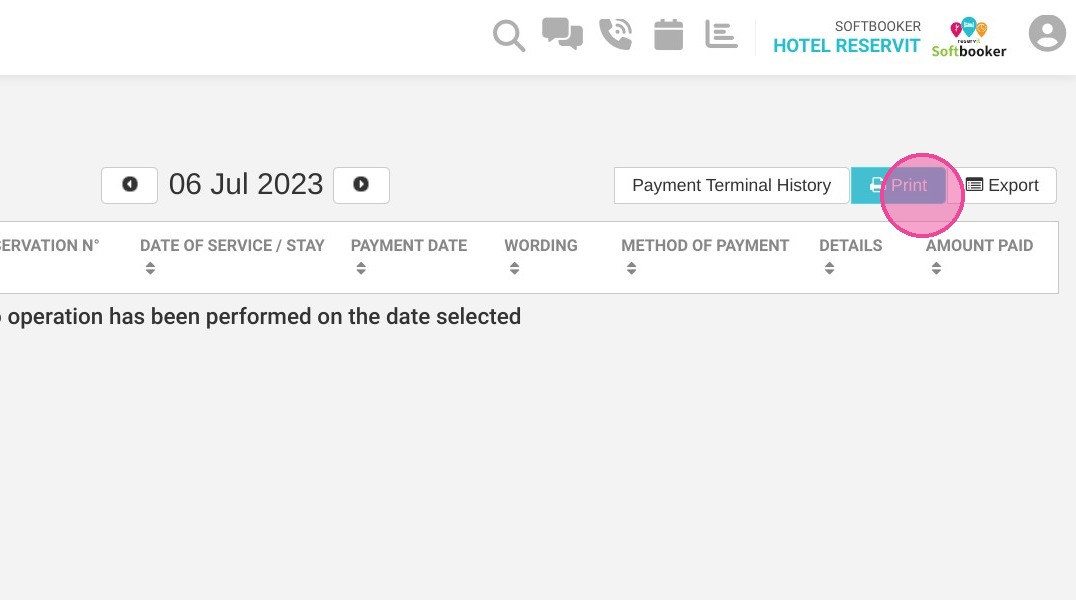
10. You can "Export" it into a file
11. Here is the summary table of payment information