Article Summary: This step-by-step tutorial explains how to effectively track unpaid invoices and chase debtors using the accounts receivable feature in Reservit Activities. You will learn how to generate a comprehensive report of outstanding balances, identify overdue payments, and easily filter data by specific payment deadlines. Mastering this debt collection tool helps you secure your cash flow, streamline your financial follow-ups, and ensure no pending payments slip through the cracks.
The 5 key steps to manage accounts receivable and chase debtors:
-
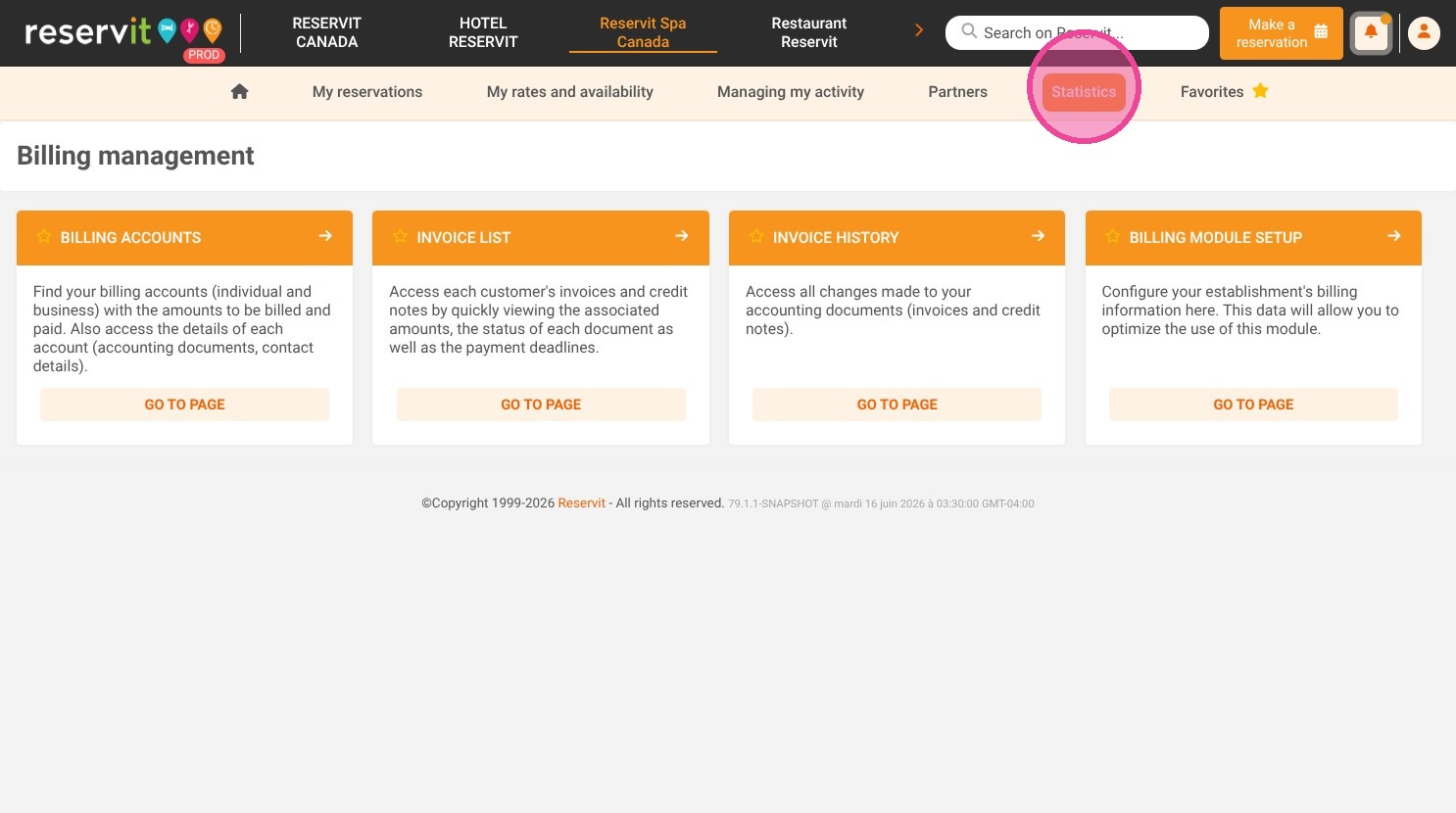
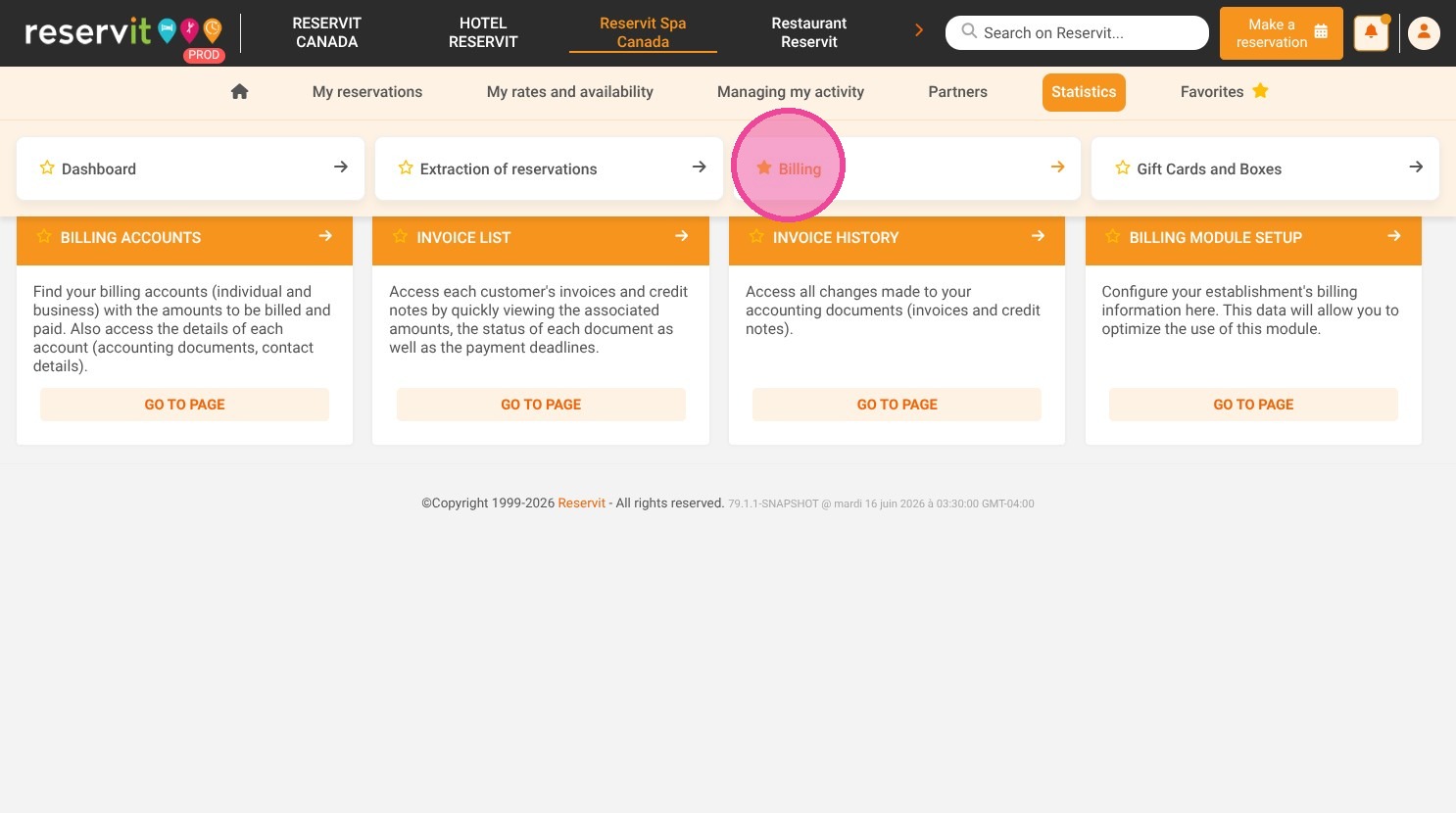
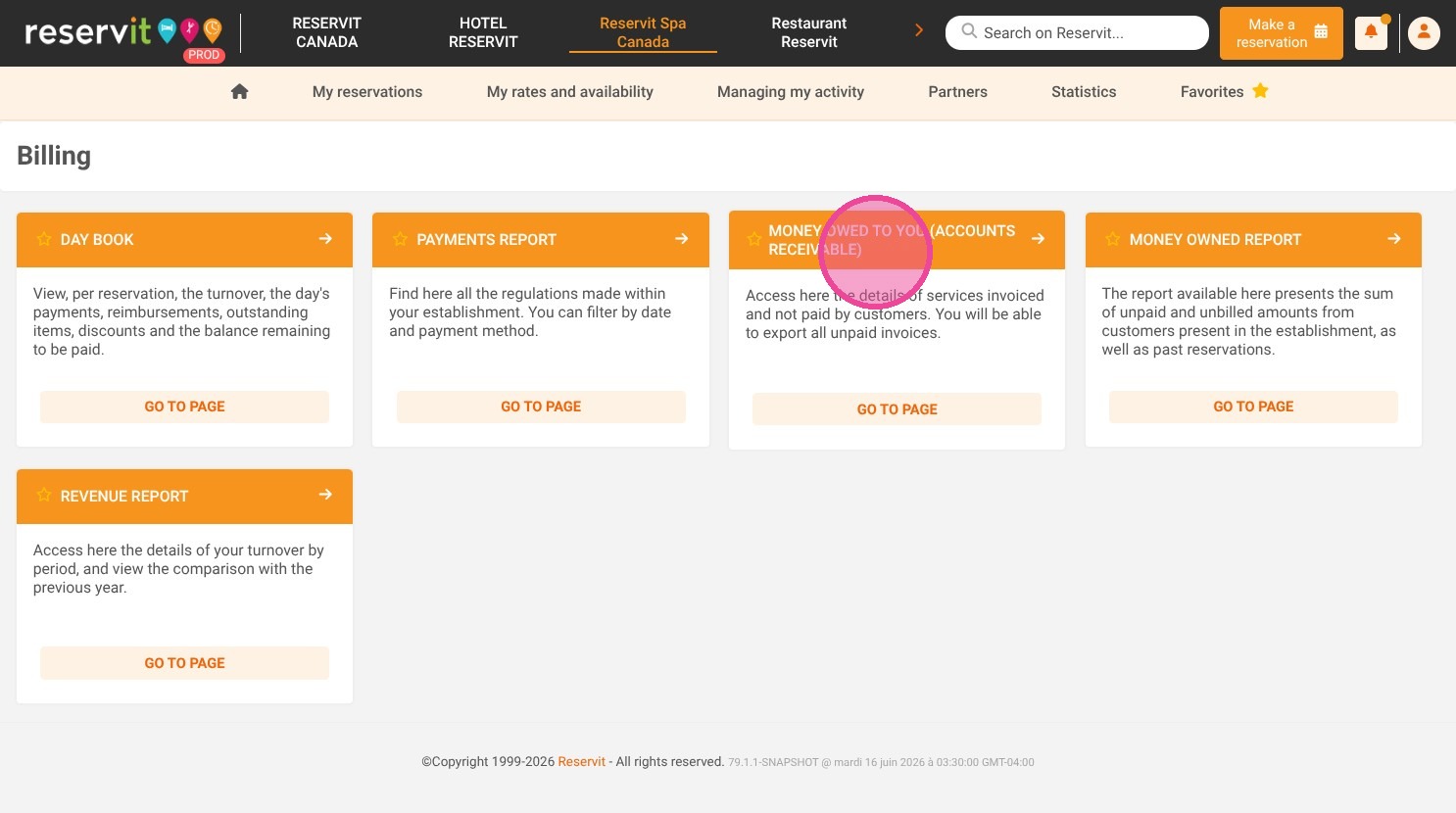
Access the receivables report: Navigate to the "Statistics" menu, select "Billing," and click on "Money owed to you (accounts receivable)" to open your debtor dashboard.
-
Filter by payment deadline: Use the date selection tool to set a specific payment limit, allowing you to narrow down the list based on your collection timeline.
-
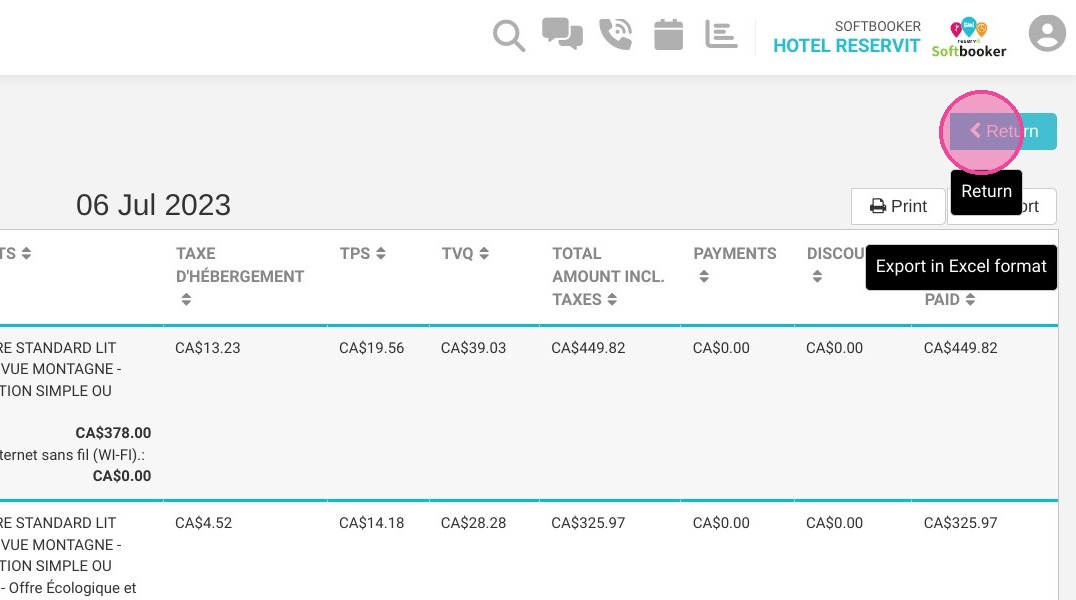
Identify overdue accounts: Review the generated list of "To be paid" invoices, paying immediate attention to any lines displayed in red font, which indicate the payment deadline has passed.
-
Review outstanding balances: Check the "Payments" column to view any partial payments already associated with an invoice so you can accurately calculate the remaining balance owed.
-
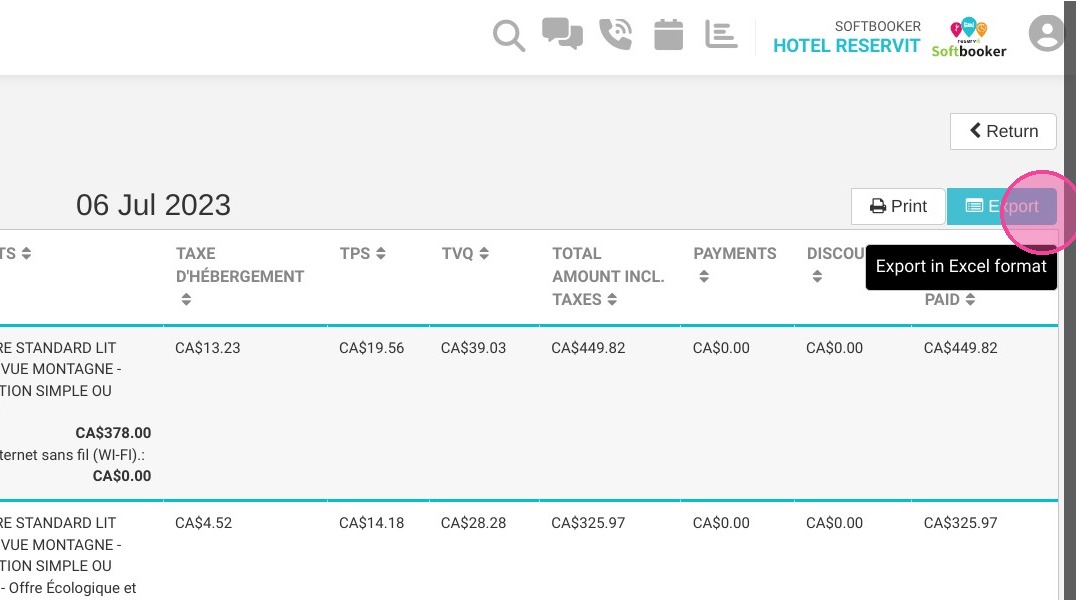
Export and print your list: Click "Export" to download the data into a file for your accounting records, or click "Print" to generate a physical copy for your administrative team.
Why follow this guide? Proactively tracking your accounts receivable saves you hours of manual accounting work and eliminates the risk of forgotten or lost payments. By consistently monitoring this automated report, you optimize your business's revenue collection process and ensure a healthy, predictable cash flow.
Alert: Invoices included in this report are only those in "To be paid" status. As soon as an invoice changes its status to "invoices paid", it no longer appears in the report.
Tip: Lines in red font correspond to invoices that have passed the payment deadline.
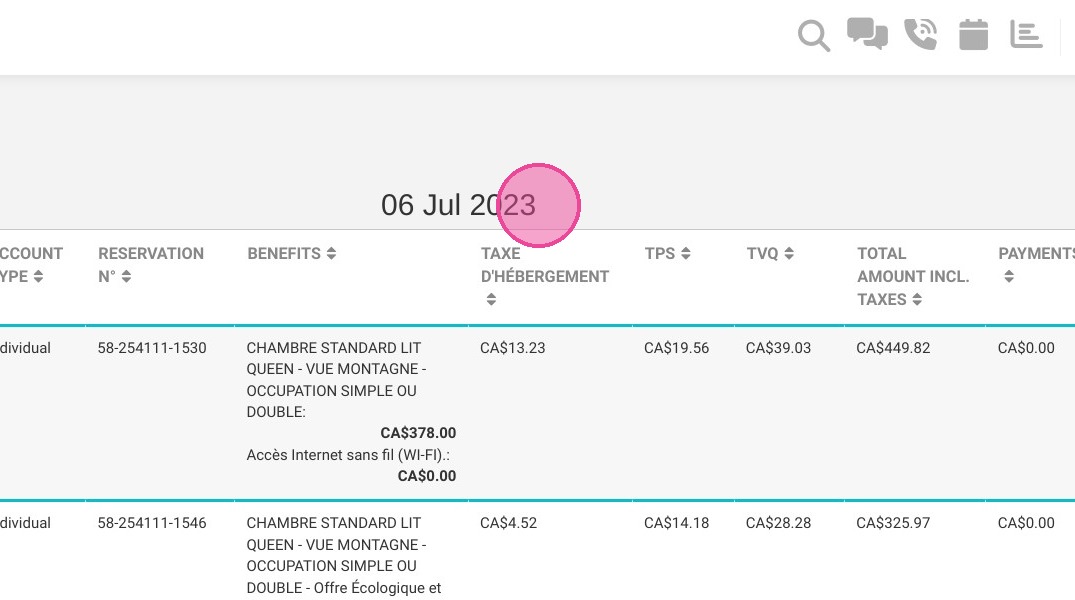
If one or more payments are associated with an invoice, the sum of these must appear in the "Payments" column. This will allow you to calculate the outstanding balance.
1. Click "Statistics" then "Billing" and click "Money owed to you (accounts receivable)"
2. You have "Invoice n°"
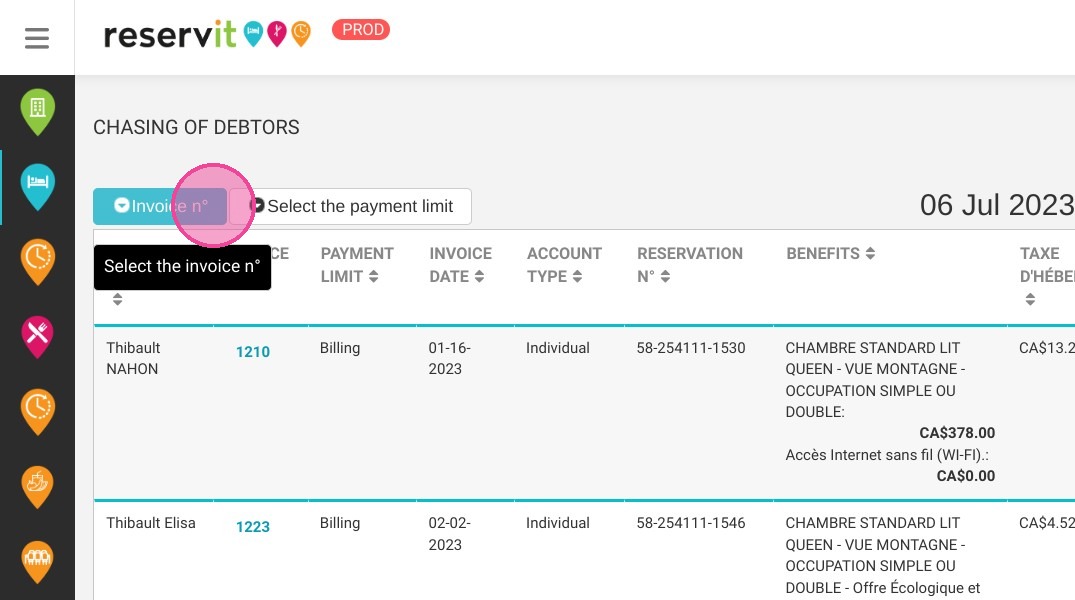
3. You can "Select the payment limit"
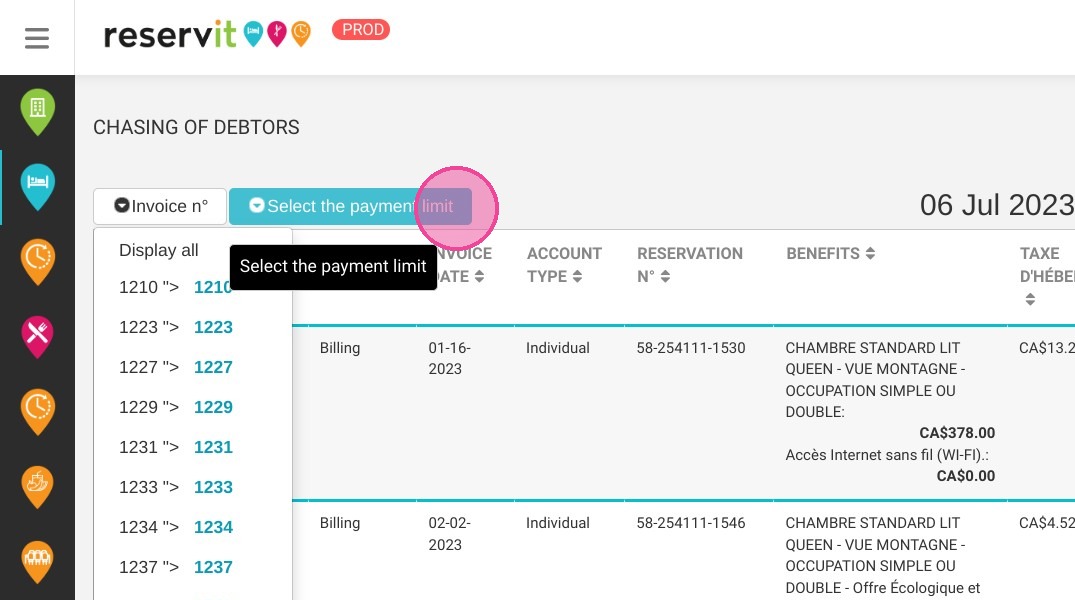
4. Here you have the date.
5. You can "Print"
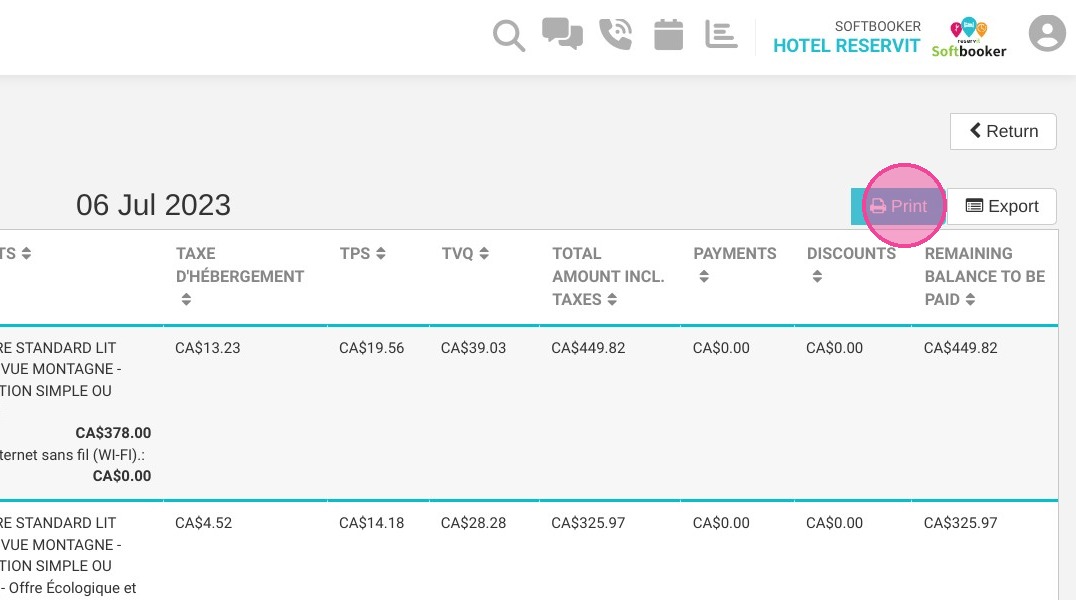
6. You can "Export"
7. And "Return"