Article Summary: This step-by-step tutorial explains how to access and utilize the Day Book feature within Reservit Activities to efficiently monitor your daily billing and operational data. You will learn how to navigate to your daily statistics, review detailed transaction and booking information for specific dates, and seamlessly export your financial reports. Mastering the Day Book provides you with valuable daily insights, allowing you to track revenue accurately and keep your accounting perfectly organized.
The 4 key steps to utilize your Day Book report:
-
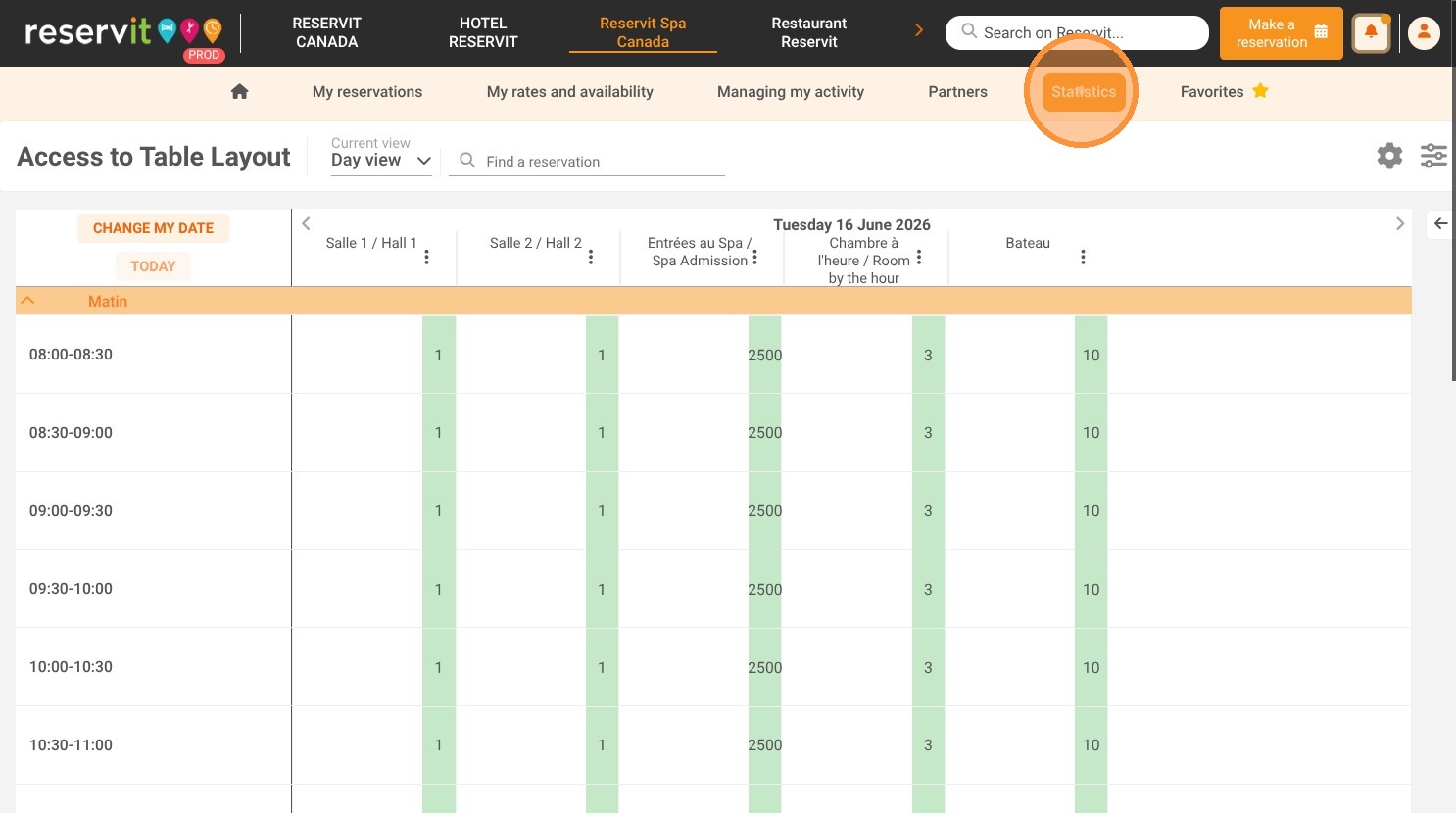
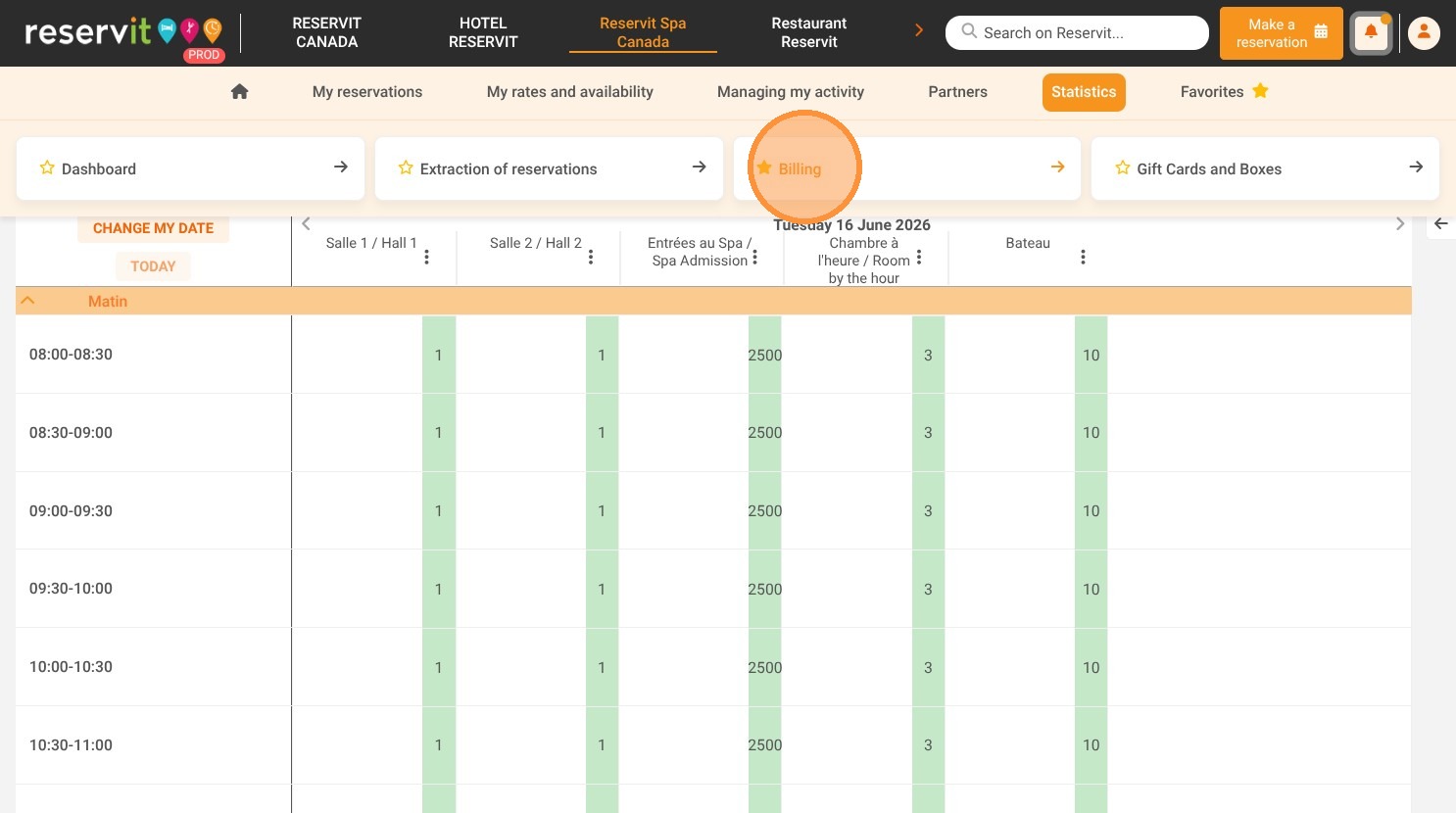
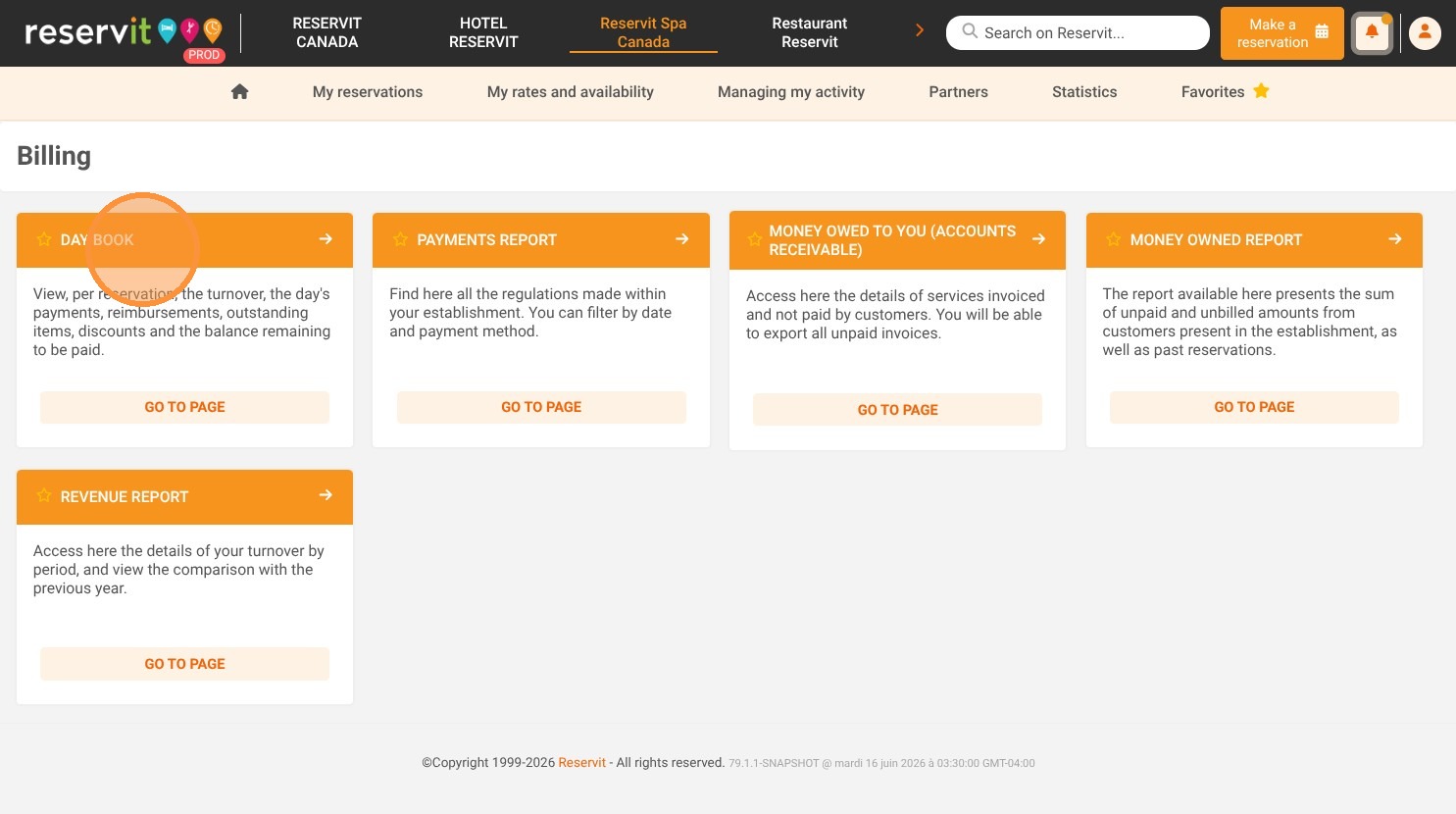
Navigate to your daily reports: Open the "Statistics" menu from your dashboard, select "Billing," and click on "Day book" to view your daily financial overview.
-
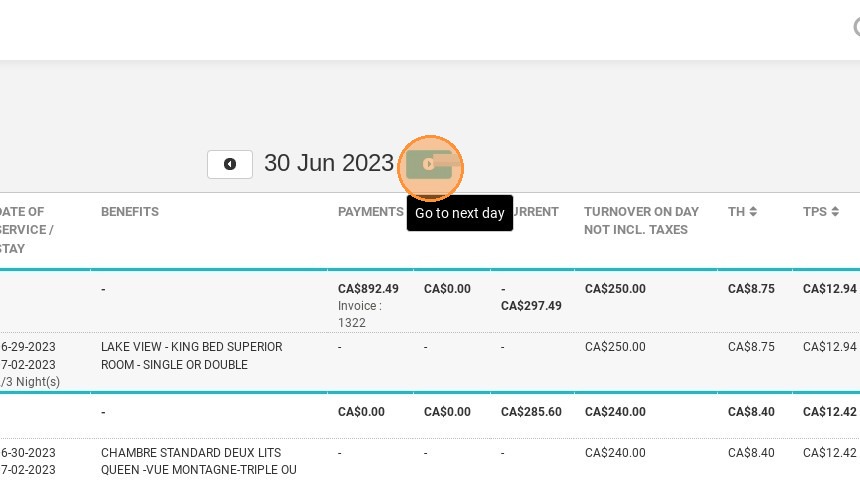
Select specific dates: Use the navigation tools to easily click through and view the booking and billing data for the current, previous, or next day.
-
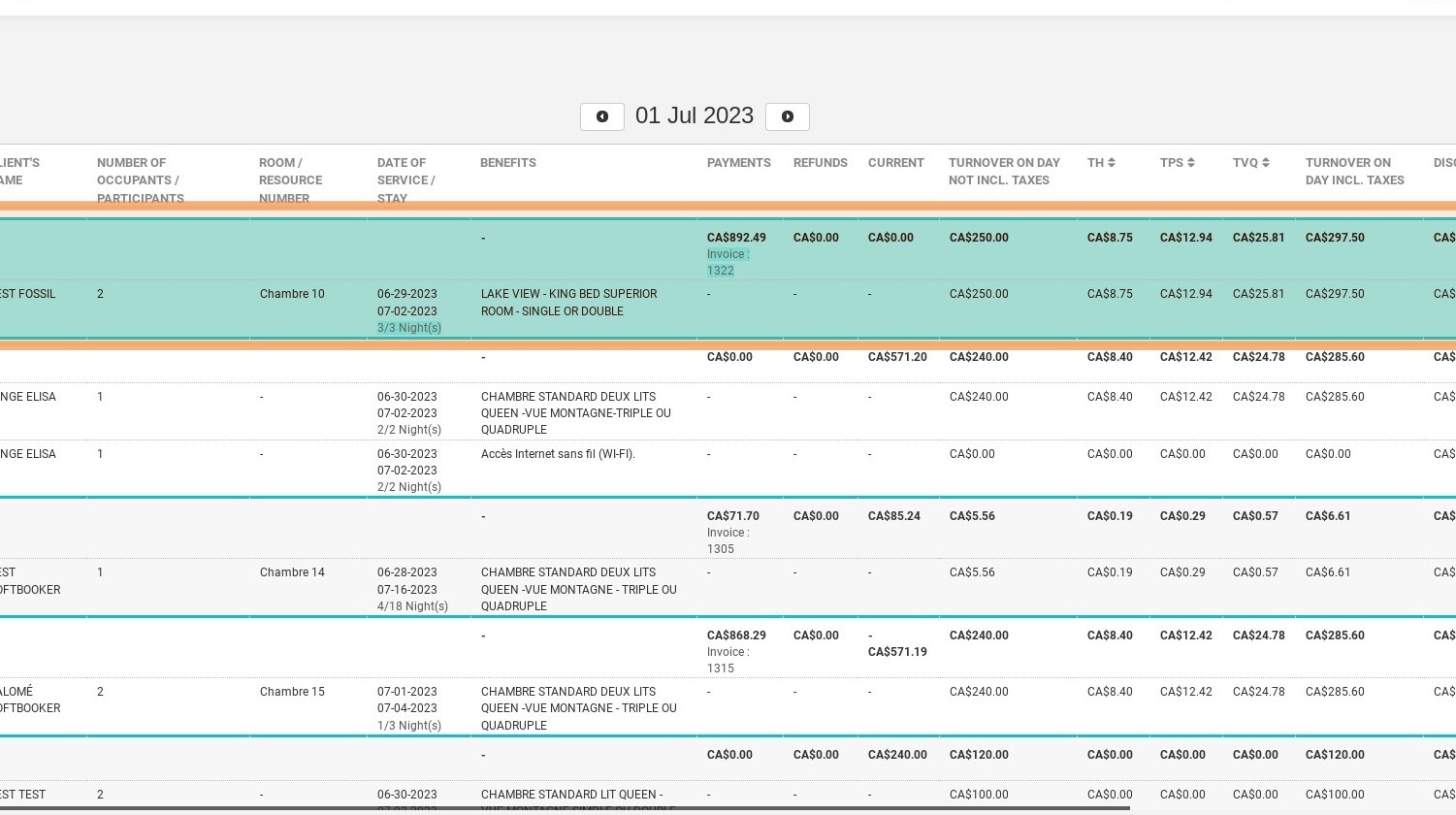
Review booking details: Scroll through the interface to find and review all the essential billing information and details associated with each reservation for that specific day.
-
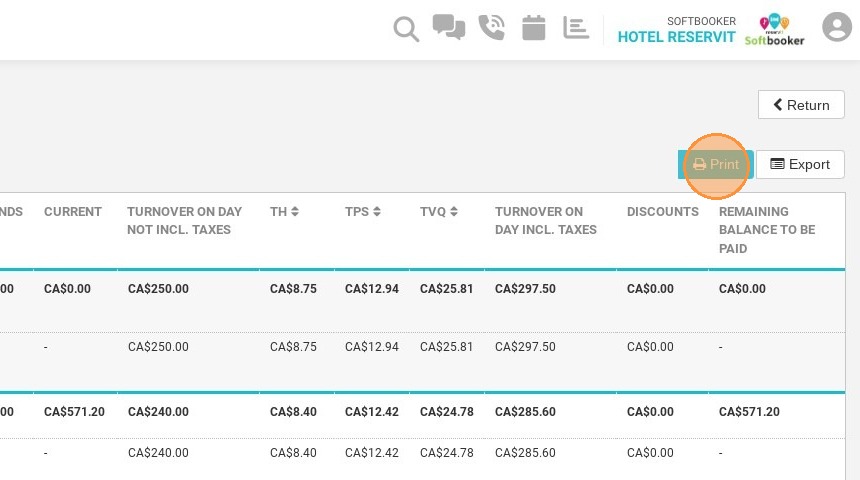
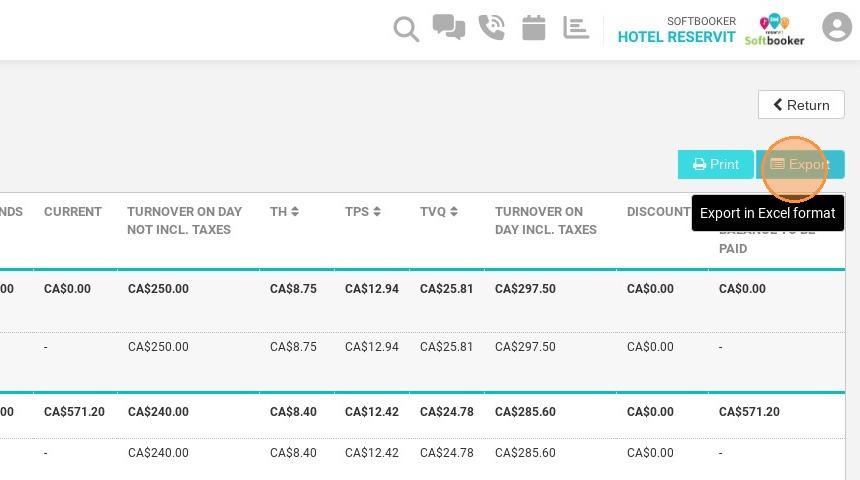
Export and print data: Click the print icon to generate a hard copy, or select the export option to instantly download the daily report as an Excel file for deeper financial analysis.
Why follow this guide? Regularly reviewing your Day Book ensures that you keep accurate track of your daily financial transactions and quickly catch any billing discrepancies. Exporting this pre-organized data directly into Excel saves significant administrative time and heavily streamlines your daily accounting reconciliation.
1. Click "Statistics" then "Billing" and "Day book"
2. Click here to see next day
3. You can print the report
4. You can export the report to excel
5. Here you can find all the information about the booking