

Article Summary: This tutorial explains how to set up a tourist tax calculated as a percentage of the room rate in Reservit Accommodation, with a single rate or a rate that changes by period, and how to cap it. You will also see how to assign it to your offers and check the calculated amount before using it.
Warning: this tutorial does not apply to properties located in North America.
The 5 Key Steps to Set Up a Percentage Tourist Tax:
-
Open the screen: "Management of my property" > property setup, "LODGING TAX" tile.
-
Choose the price type: "Percentage" for a single rate, "Pourcentage Variable" for a rate by period.
-
Set the cap: a fixed cap, or "Montant variable" for a cap by period.
-
Assign the tax: to all your offers or only to some of them.
-
Check: run a booking simulation to check the amount.
Why follow this guide? For some properties (for example unclassified accommodation in France), the tourist tax is not a fixed amount but a capped percentage of the room rate. This guide lets you match the calculation method set by your municipality, even when the rate or the cap changes during the year.
How the tax is calculated: Reservit applies the rate to the room rate excluding VAT, per person and per night, then limits the result to the cap of the period, for each night. The rates and caps to use are set by your municipality: check them with your municipality before entering them.
Open the Lodging Tax screen
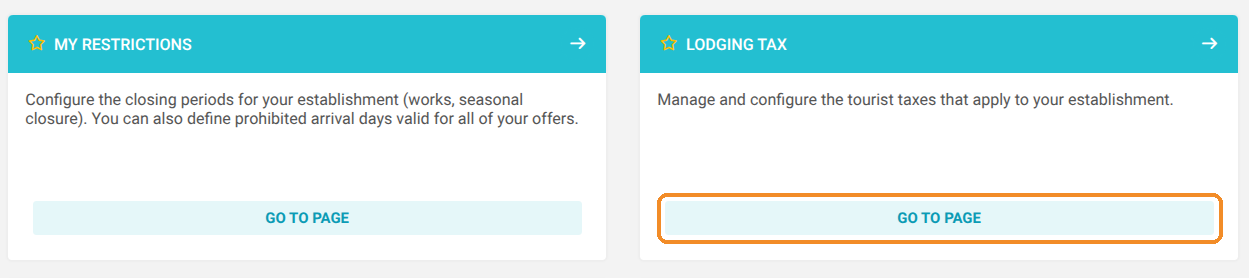
1. In "Management of my property", open the setup of your property, then click "GO TO PAGE" on the "LODGING TAX" tile.
2. Click "ADD" to create a new tax. To change an existing tax, click the open icon of its line instead: the settings are the same.

Choose the price type
3. Enter the name of the tax as your guests should see it ("AUTOMATIC TRANSLATION" fills in the other languages). In "Price type", choose:
-
"Percentage" if the same rate applies all year;
-
"Pourcentage Variable" if the rate changes by period (this label is not translated in the English interface).
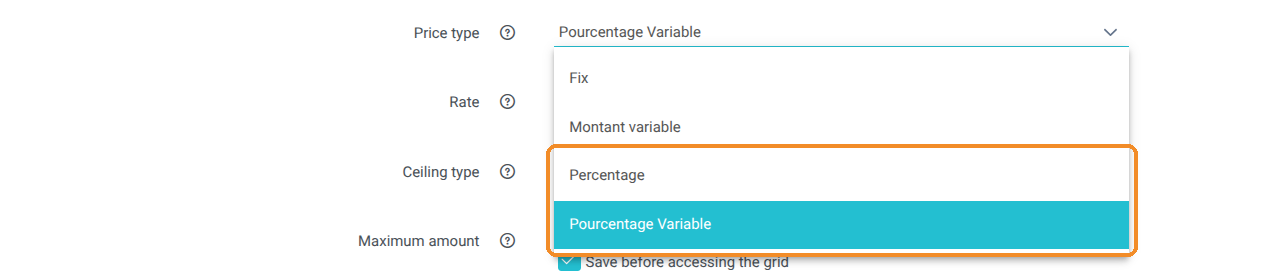
Single rate: "Percentage" price type
4. Enter the rate in the "Rate" field. In "Ceiling type", choose the fixed amount and enter the cap per person and per night in "Maximum amount". Then go straight to "Other settings and assignment".
Rate by period: "Pourcentage Variable" price type
5. With "Pourcentage Variable", the "Rate" field is replaced by an "ACCESS THE GRID" button. In the same way, if you choose "Montant variable" in "Ceiling type", the cap is set in a grid. Click the first "ACCESS THE GRID" (the rate one): the tax is saved automatically before the grid opens.
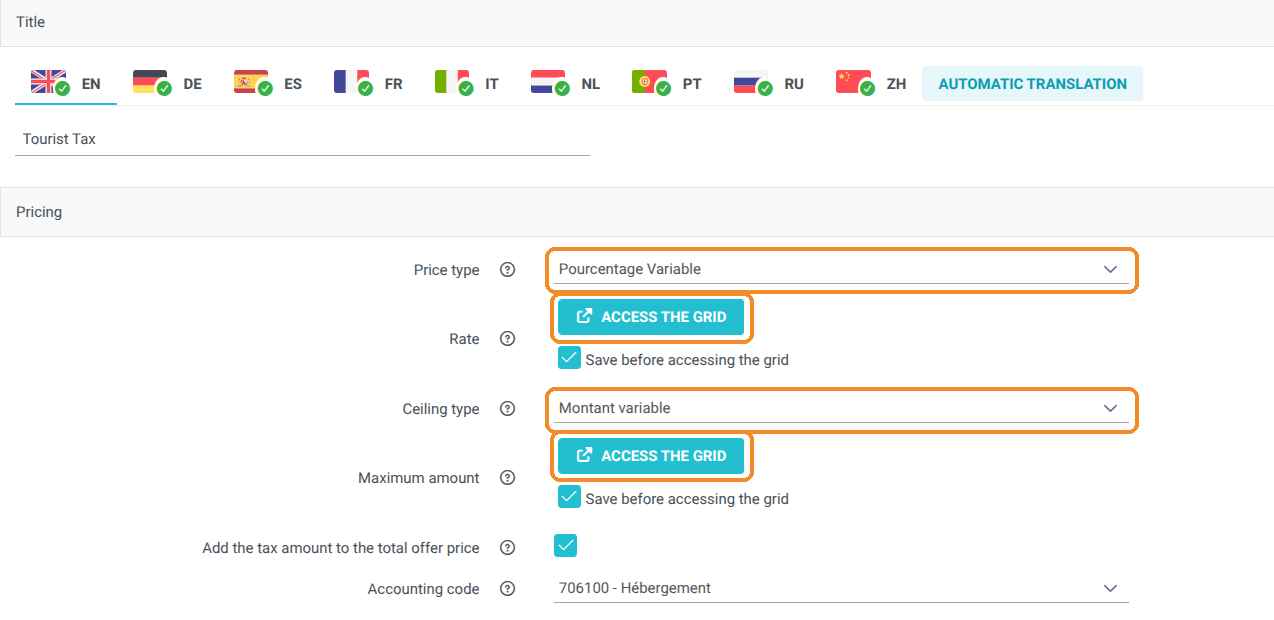
6. In the rate grid, for each period:
-
enter the rate in "Enter a new ratio", then click "OK";
-
choose the dates of the period ("from" / "to") and, if needed, the relevant days;
-
click "Apply": the calendar is colored for the period.
Repeat for each period (for example 5% in November, then 3% in December).

7. Once all periods are applied, click "Save" at the bottom of the grid. A confirmation message is shown. Then go back to the tax page with the "Back" link at the bottom of the page.
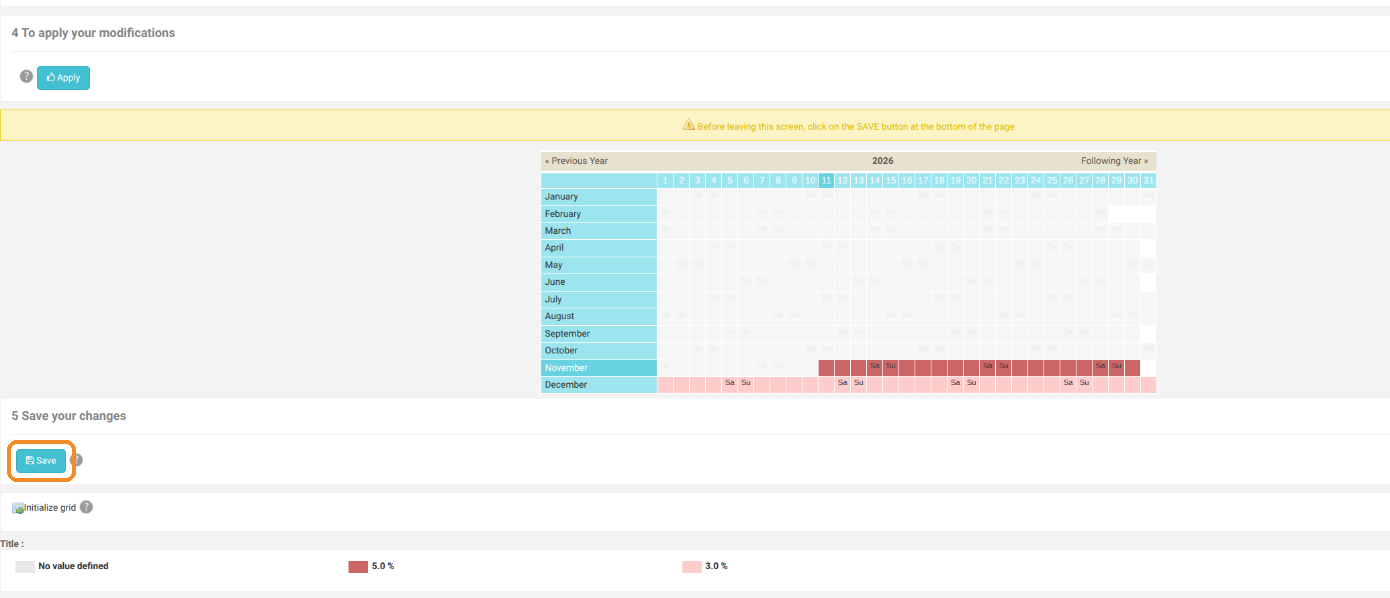
Warning: "Apply" only prepares your changes. If you leave the grid without clicking "Save", they are lost.
8. If your cap also changes by period ("Ceiling type" set to "Montant variable"), click the second "ACCESS THE GRID" and do the same: enter the cap in "Enter a new price", click "OK", choose the dates, click "Apply", then "Save". An amount of 0 means no cap applies for the period.

Other settings and assignment
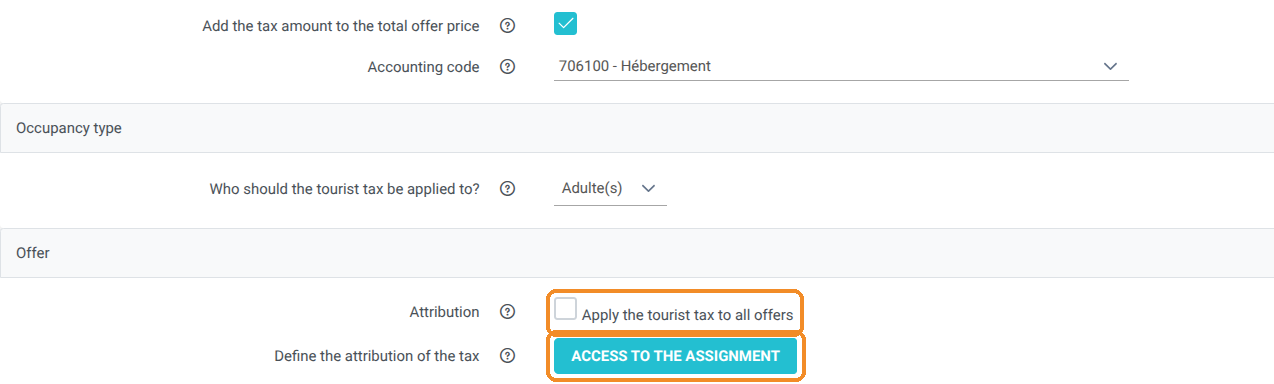
9. On the tax page, choose the "Accounting code" and, in "Who should the tourist tax be applied to?", the people concerned (for example adults). In the "Offer" section, the "Apply the tourist tax to all offers" box is ticked by default. To apply the tax to some offers only, untick it, then click "ACCESS TO THE ASSIGNMENT".
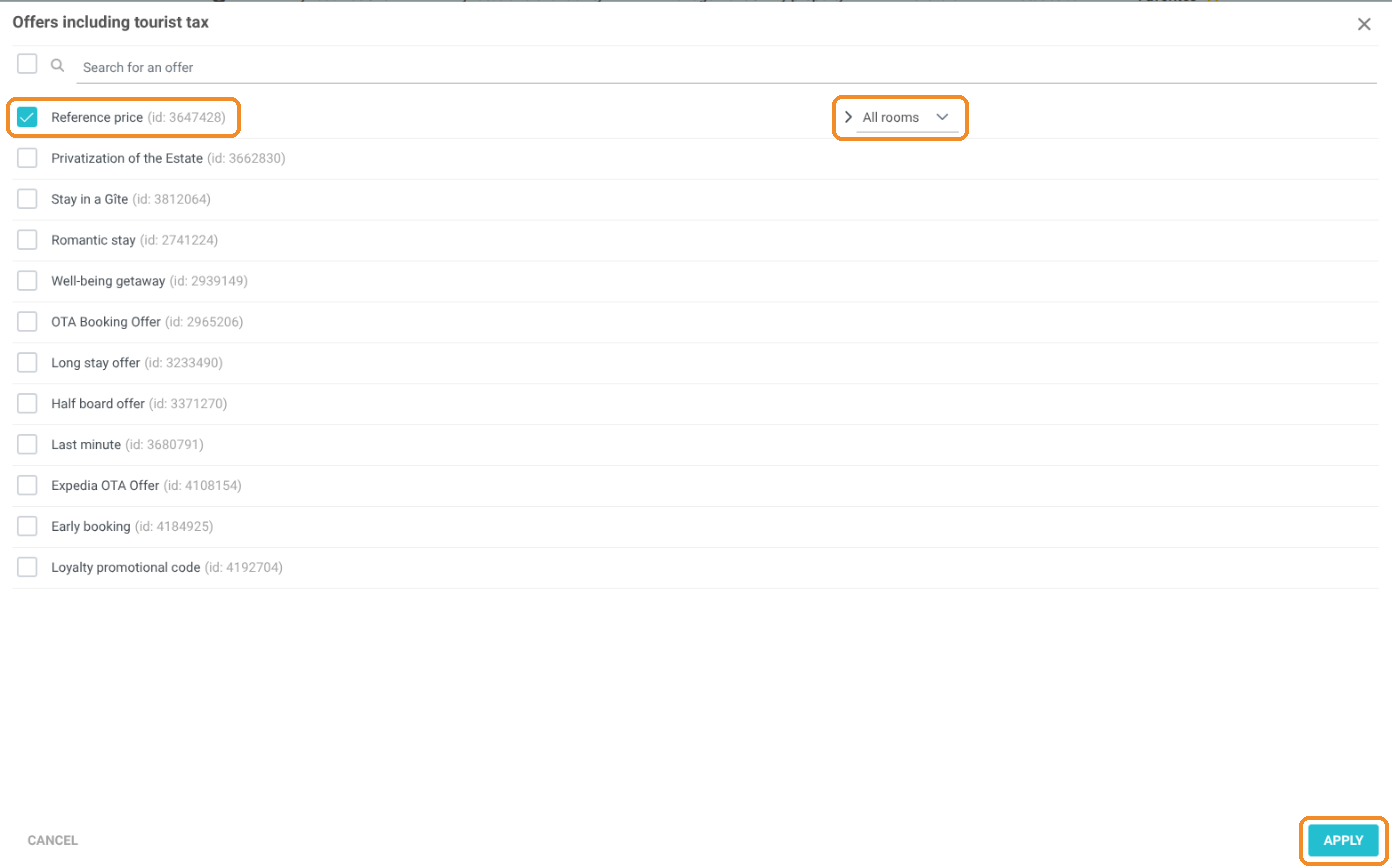
10. In the "Offers including tourist tax" window, tick the offers concerned and, if needed, choose the rooms in "All rooms". Click "APPLY", then "SAVE AND QUIT" on the tax page.
Check the calculated amount
11. Click "Make a reservation", choose dates and a number of guests, then click "SEARCH". Without confirming a booking, check the amount of the tax in the options of the offer: the tax is shown as mandatory, with the total for the stay.
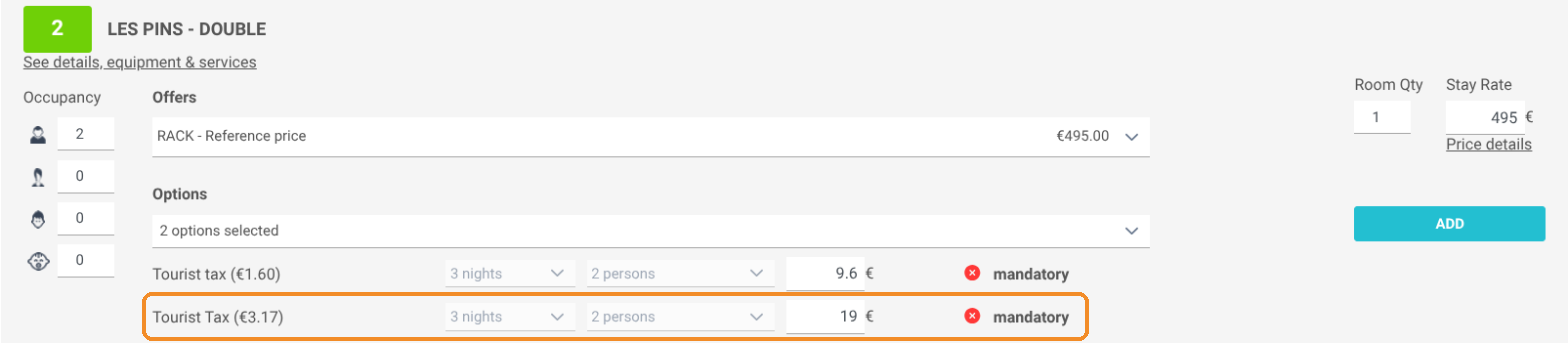
Warning: if an older tourist tax (for example a fixed amount) is still assigned to the same offer, both taxes are added up, as in the example above. Remove the older tax from the offer, or change it directly instead of creating a new one.
Calculation example: 3-night stay from November 29 to December 2, 2 adults, €165 per night including VAT (10%), that is €75 excluding VAT per person and per night. Rate of 5% capped at €4 in November, 3% capped at €2 in December.
Nights of November 29 and 30: 5% x €75 = €3.75 (below the €4 cap).
Night of December 1: 3% x €75 = €2.25, reduced to the €2 cap.
Total: 2 adults x (3.75 + 3.75 + 2) = €19.
Good to know: for a fixed tourist tax per person and per night, see the tutorial How to Change the Tourist Tax Amount in Reservit Accommodation.