Article summary: Learn how to configure automated direct debit rules for virtual credit cards (VCC) within your Reservit accommodation platform. This step-by-step tutorial guides you through setting up payment triggers, selecting providers, and defining precise withdrawal amounts based on your property's booking policy. By mastering this feature, you will streamline your billing workflow, secure card processing, and optimize your daily reservation management.
The 5 key steps to configure direct debit rules for virtual cards:
-
Navigate to payment policies: Go to your property management settings and access the "Direct Debit Virtual Cards" section to add a new rule.
-
Define the rule trigger and timing: Name your rule and select whether the transaction will execute before or after the check-in or check-out date.
-
Select your payment provider: Choose the relevant booking partner and select the payment gateway provider responsible for handling the transaction.
-
Set up the withdrawal amount: Choose your pricing model (such as a specific percentage) and decide if the deposit calculates based on the total stay or accommodation only.
-
Apply and save your configuration: Review your settings, click "Apply" to validate the parameters, and don't forget to save the rule to activate it.
Why follow this guide? Automating your virtual card charges eliminates manual processing errors and secures your revenue automatically around guest arrival timelines. This operational optimization saves your team valuable administrative time while guaranteeing full alignment with your cancellation policies.
1. Click "Management of my property" then "Payment and cancellation policies" and ''Direct Debit Virtual Cards''
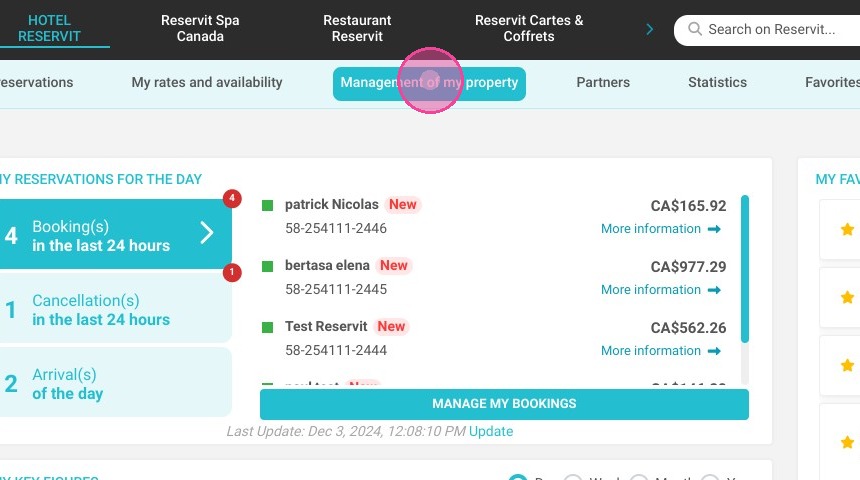
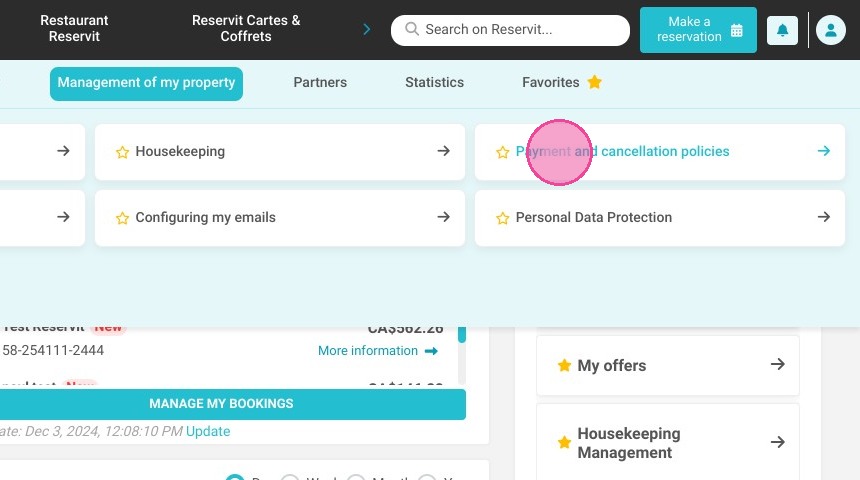
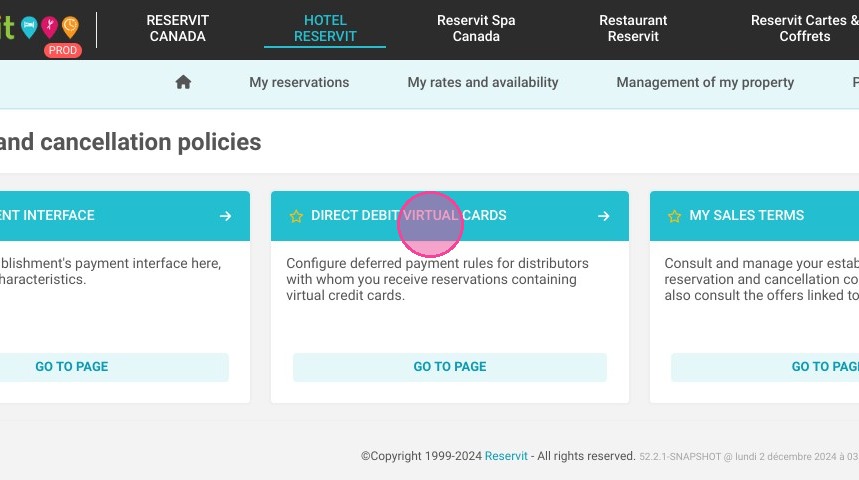
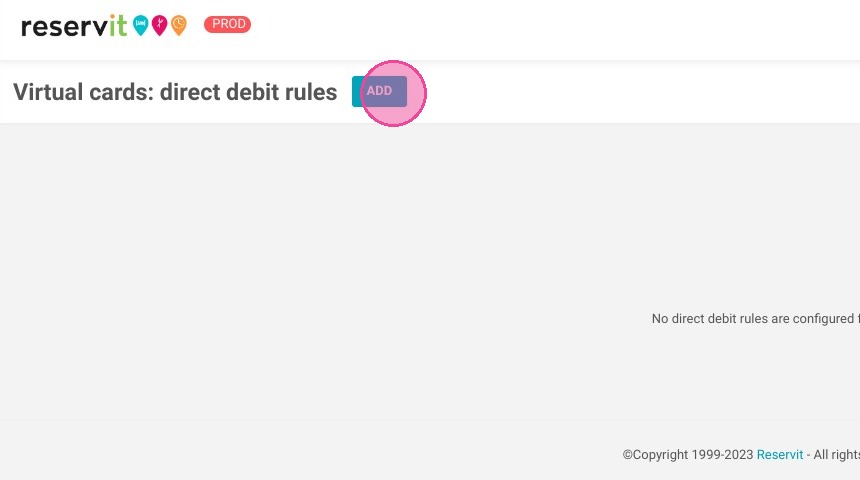
2. Click "ADD" to create a new rule.
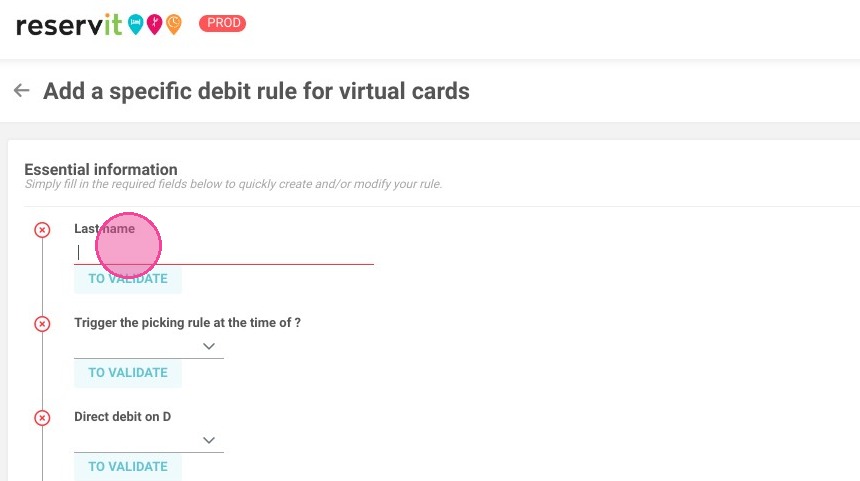
3. Add a name
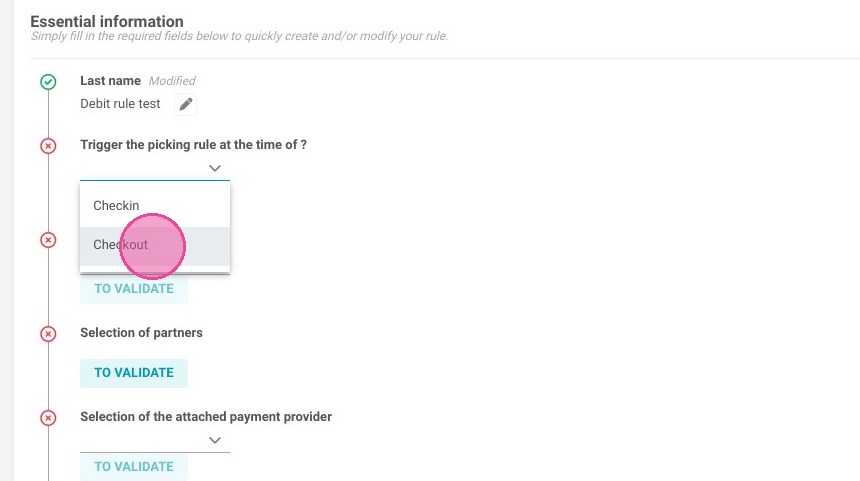
4. Then choose whether it triggers at "Check-in" or "Check-out"
5. You can select the debit day of the virtual credit card after or before the Check-in/Check-out
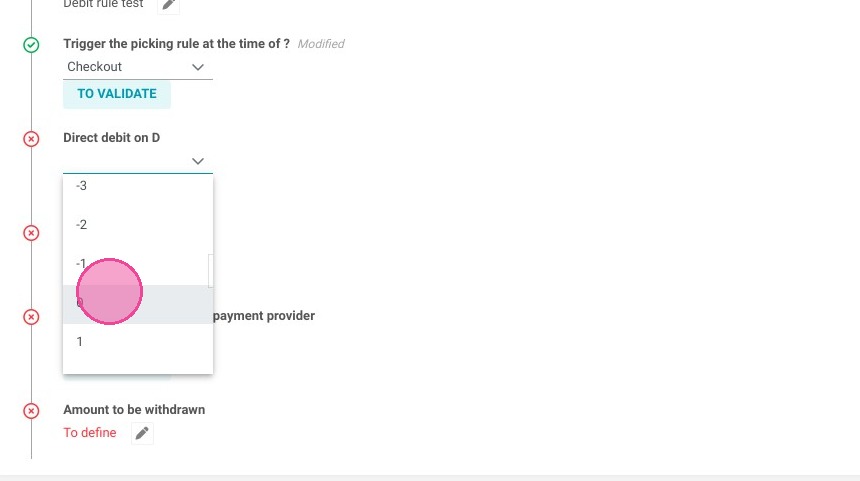
Alert: Warning, you must know how long your software keeps card information and not exceed it.
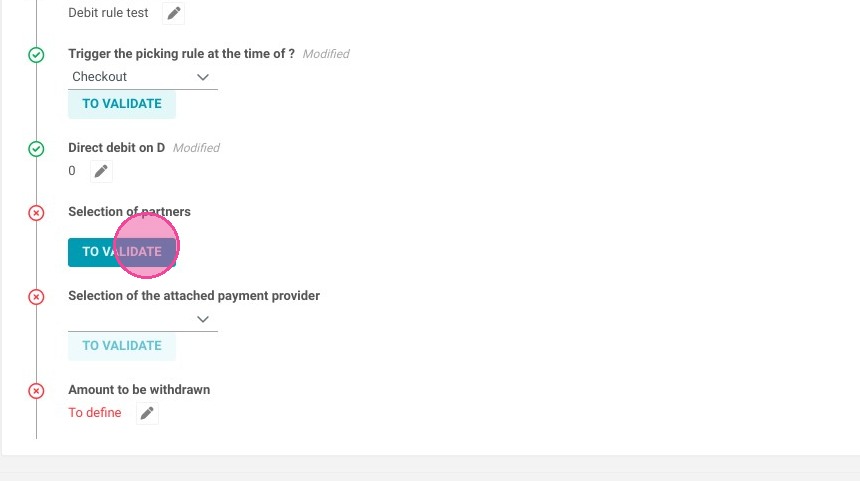
6. Select a partner if needed.
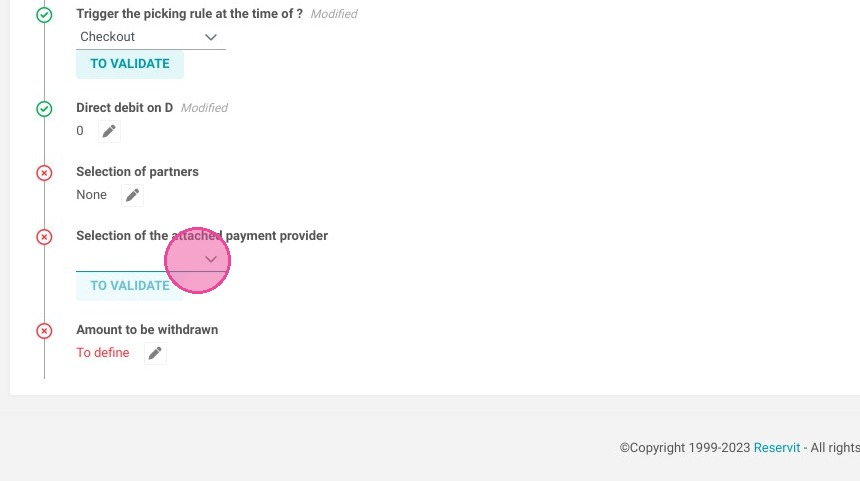
7. Select your payment provider.
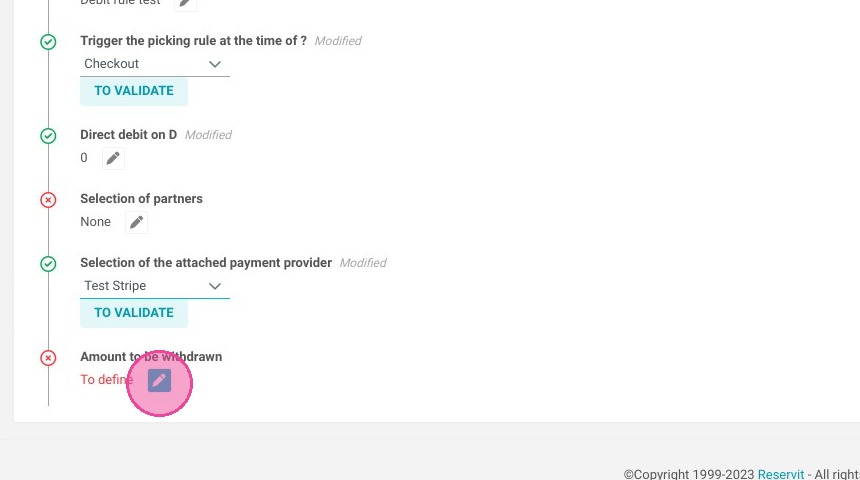
8. Now, edit the withdrawal amount.
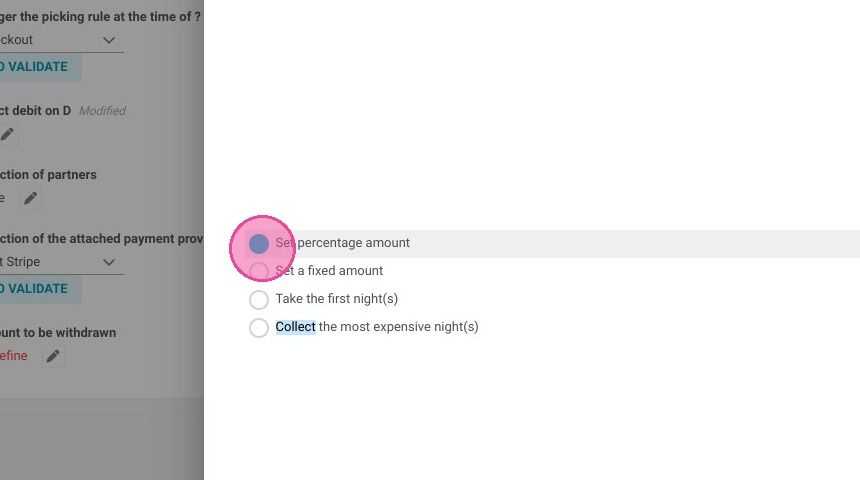
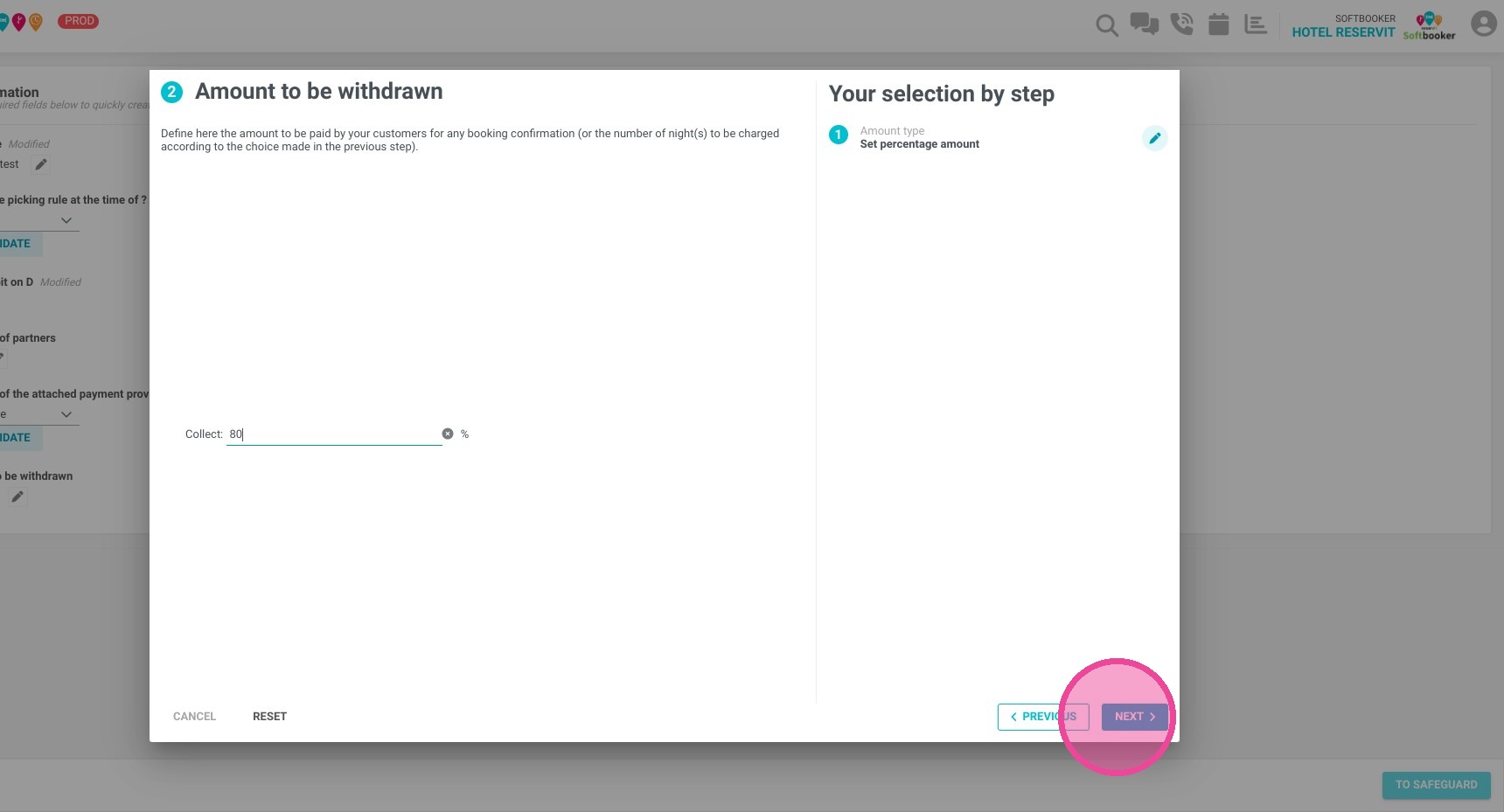
9. You have different setups available. For this example, we will use "Set percentage amount"
10. Type your percentage amount and click "next"
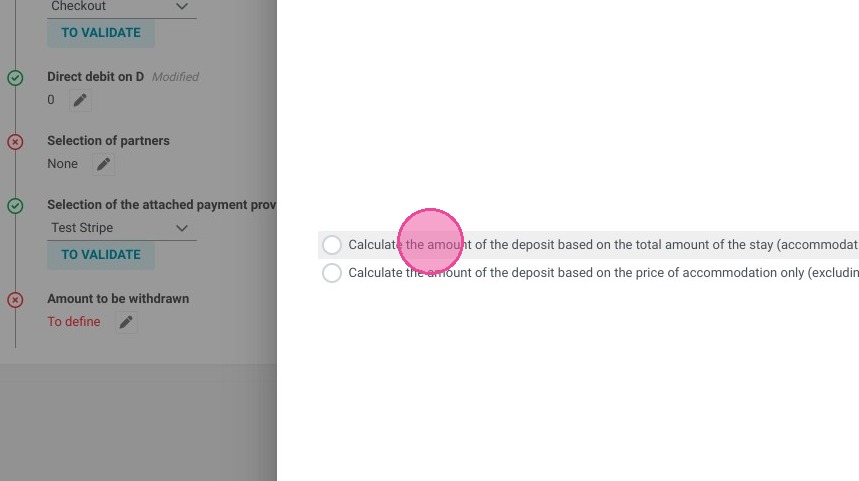
11. You will have to choose between calculating the deposit on the total amount of the stay or calculating the deposit on the price of accommodation only (excluding extras)
12. Once you are sure you can click "Apply"
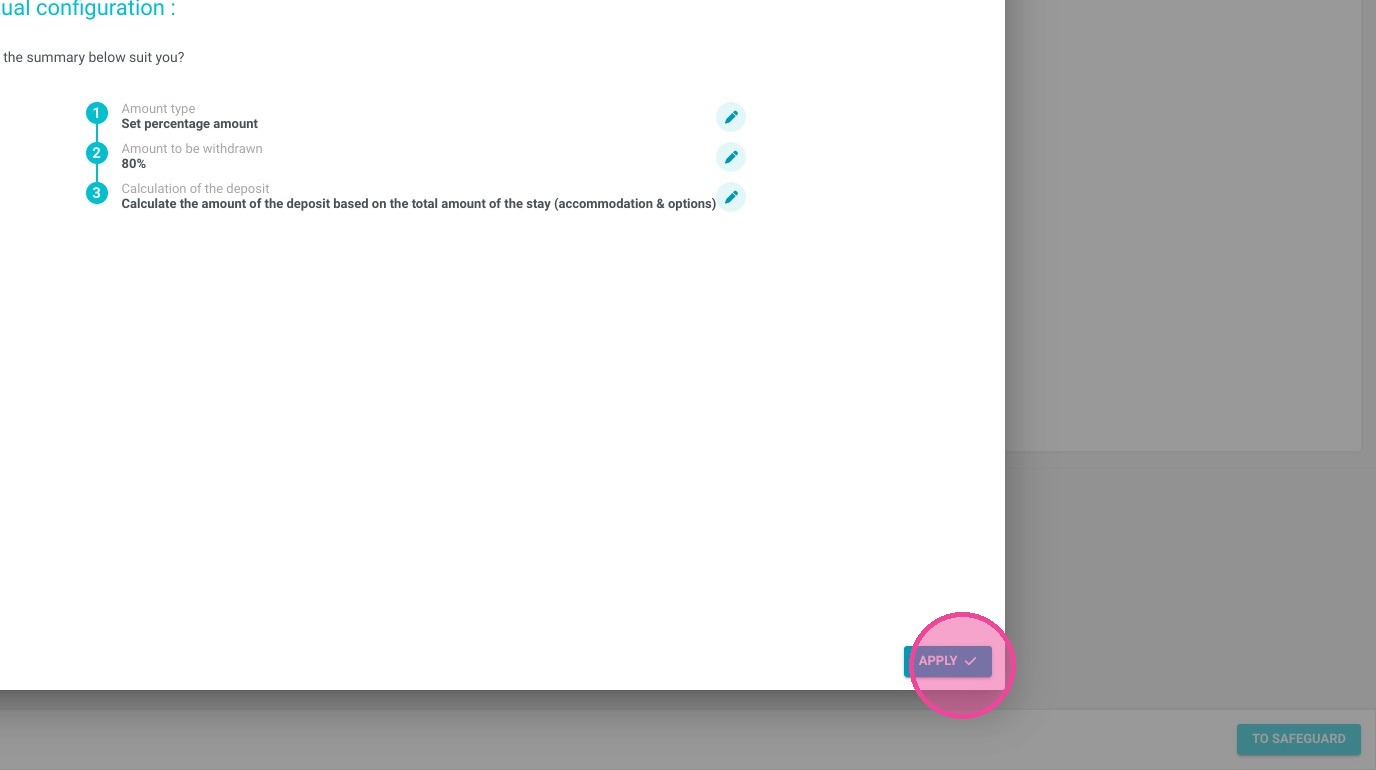
13. Don't forget to "Save" your rule.