Article summary: This tutorial explains how to easily set up your booking and cancellation conditions within Reservit Accommodation. You will learn how to configure deposit rules, credit card guarantees, and fees related to no-shows. With this comprehensive guide, you can provide a clear sales framework for your guests while effectively protecting your property's revenue.
The 5 key steps to configure your terms of sale:
-
Access payment policies: From your property management menu, navigate to the payment and cancellation policies section to access your terms of sale.
-
Create and customize your conditions: Select an existing policy or create a new one, then customize its name and descriptive fields (make sure to include translations, such as French).
-
Define deposits and guarantees: Choose whether to require a deposit at the time of booking and whether you want to keep the guest's credit card details on file as a guarantee.
-
Adjust cancellation and modification rules: Set your cancellation fees, no-show penalties, and determine if the guest is allowed to modify or cancel their booking directly online.
-
Save and apply to your offers: Save your global settings, then go to your offers menu to link this new booking condition directly to your selected offers.
Why follow this guide? Following this guide allows you to secure your bookings and reduce financial disputes related to late cancellations or no-shows. By automating your payment and guarantee rules directly within your booking engine, you save valuable time in your daily operations.
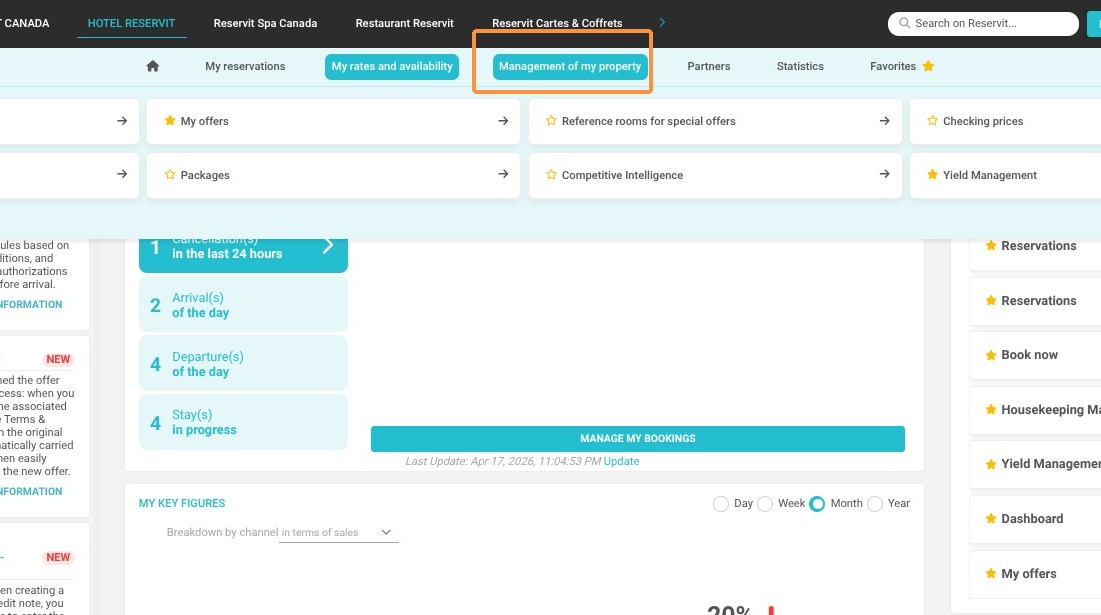
1. Click "Management of my property"
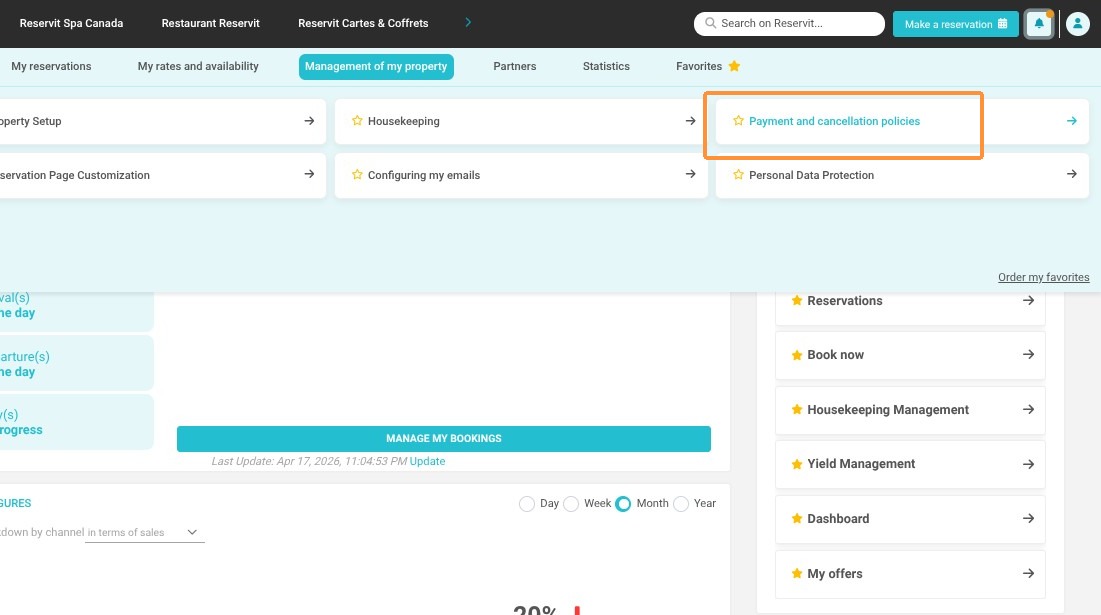
2. Click "Payment and cancellation policies"
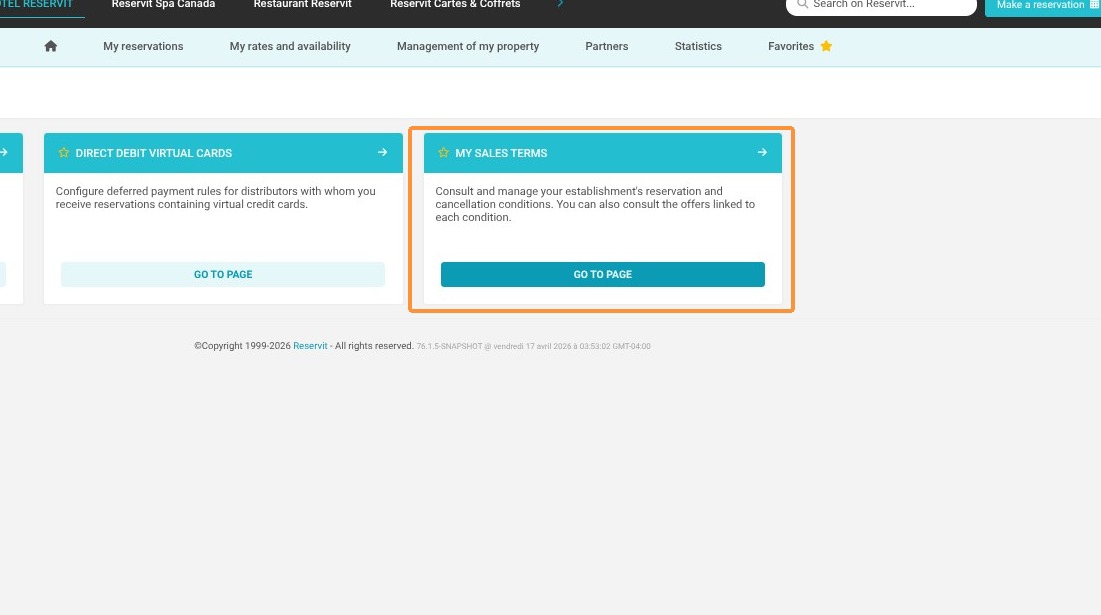
3. Click "My Sales Terms"
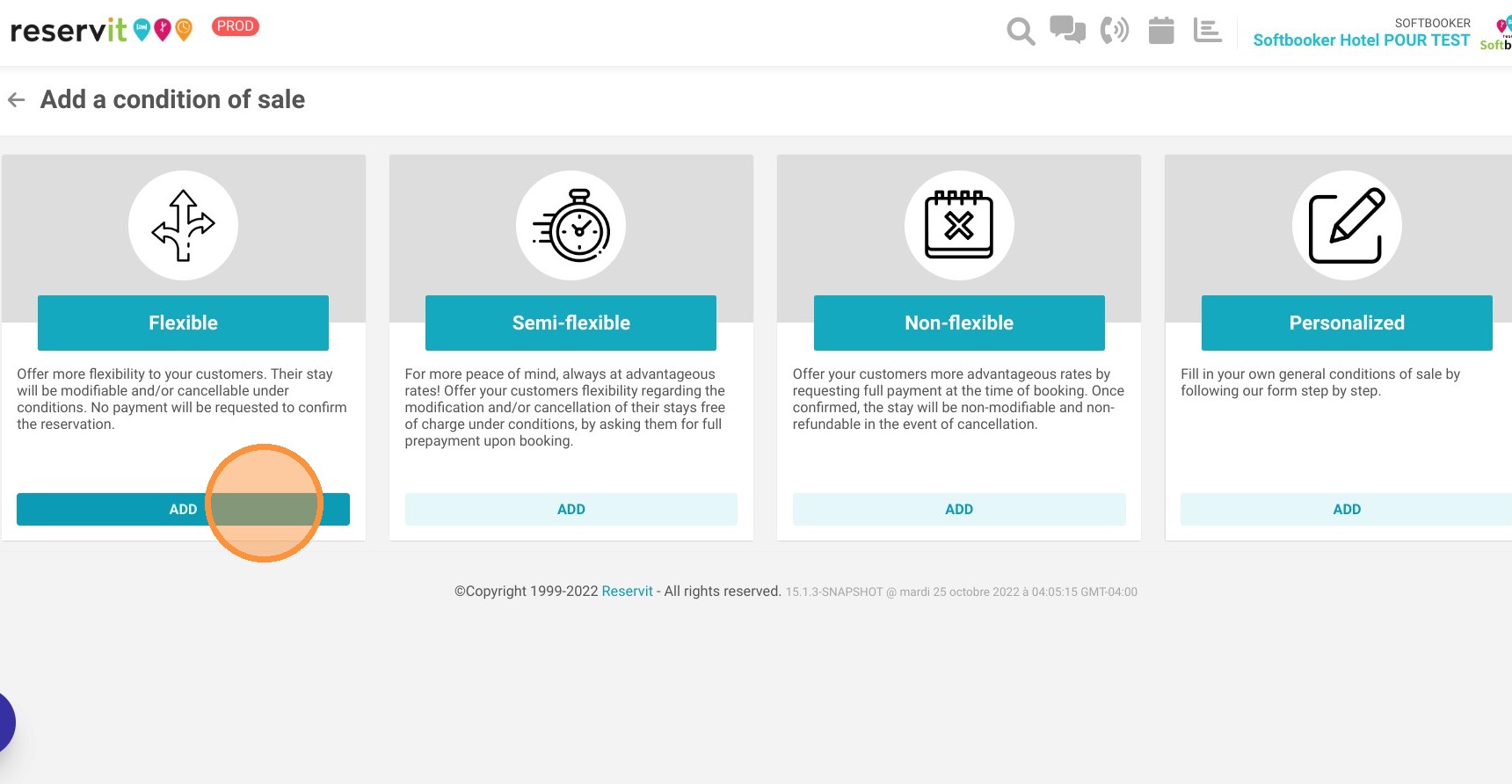
4. You have different sales conditions that you can select. Choose the appropriate one.
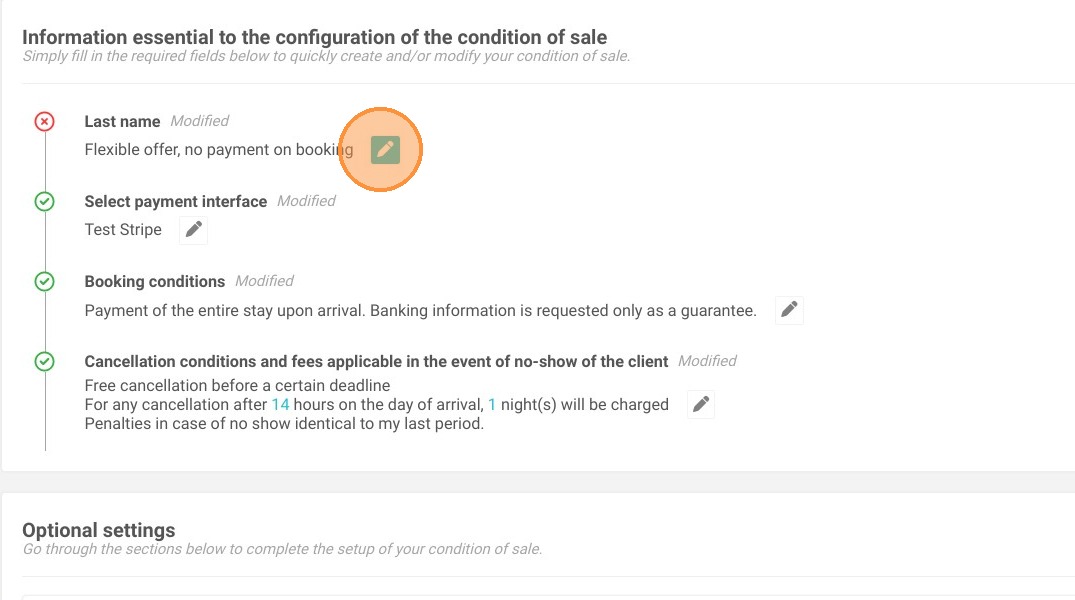
5. Each field can be personalized by clicking on the pen.
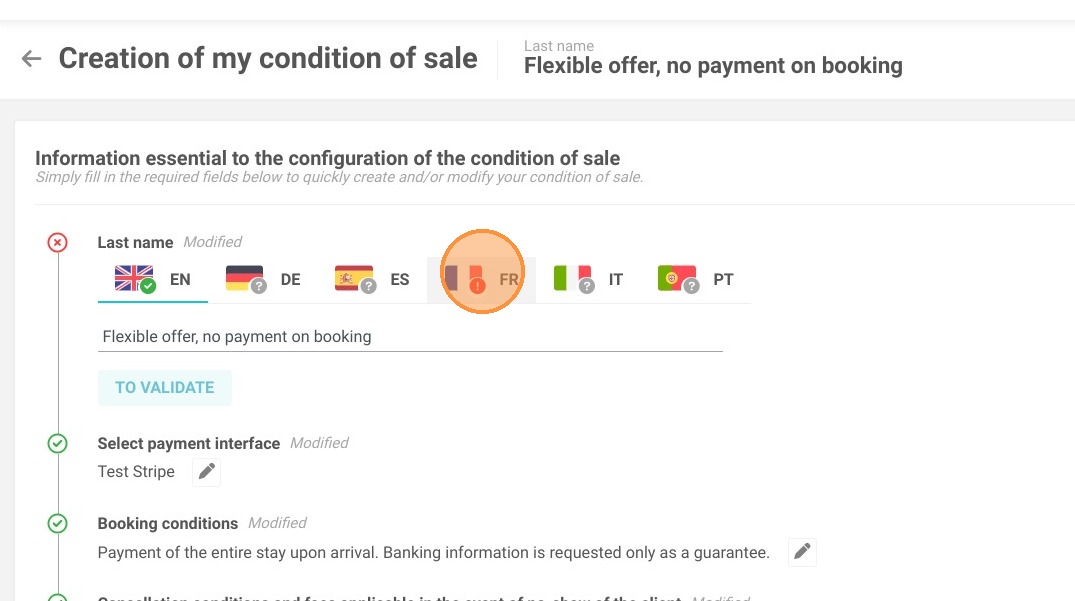
6. Don't forget to add the name of your sale condition in French too!
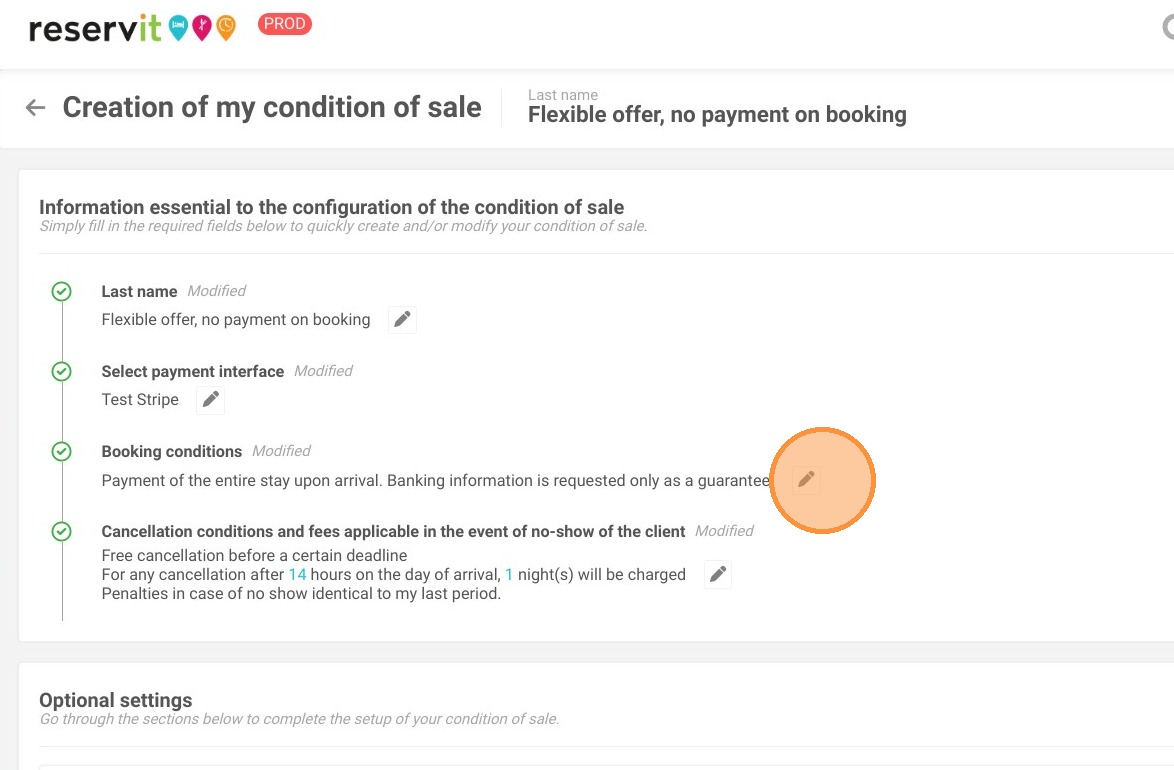
7. If you want to personalize the "Booking Conditions" field, click on the pen.
8. Then, click on "RESET"
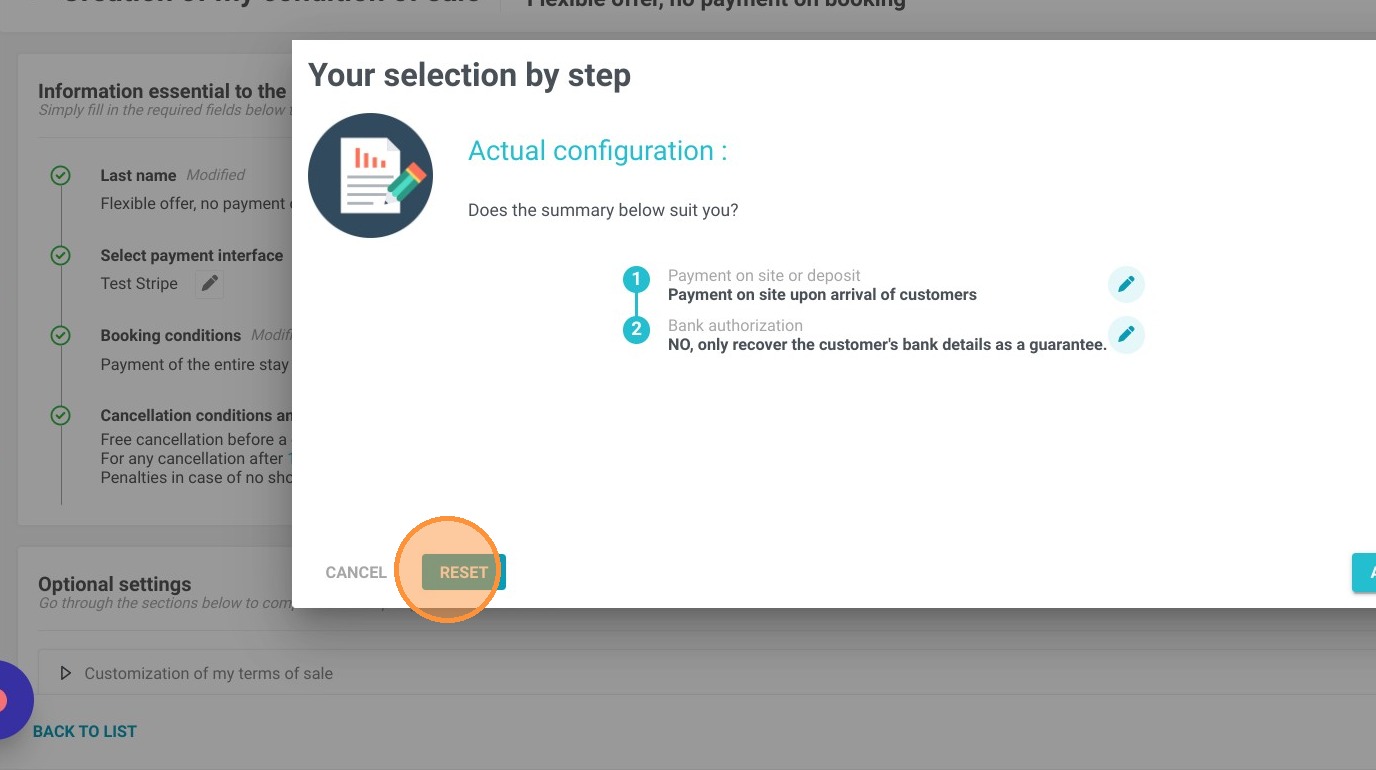
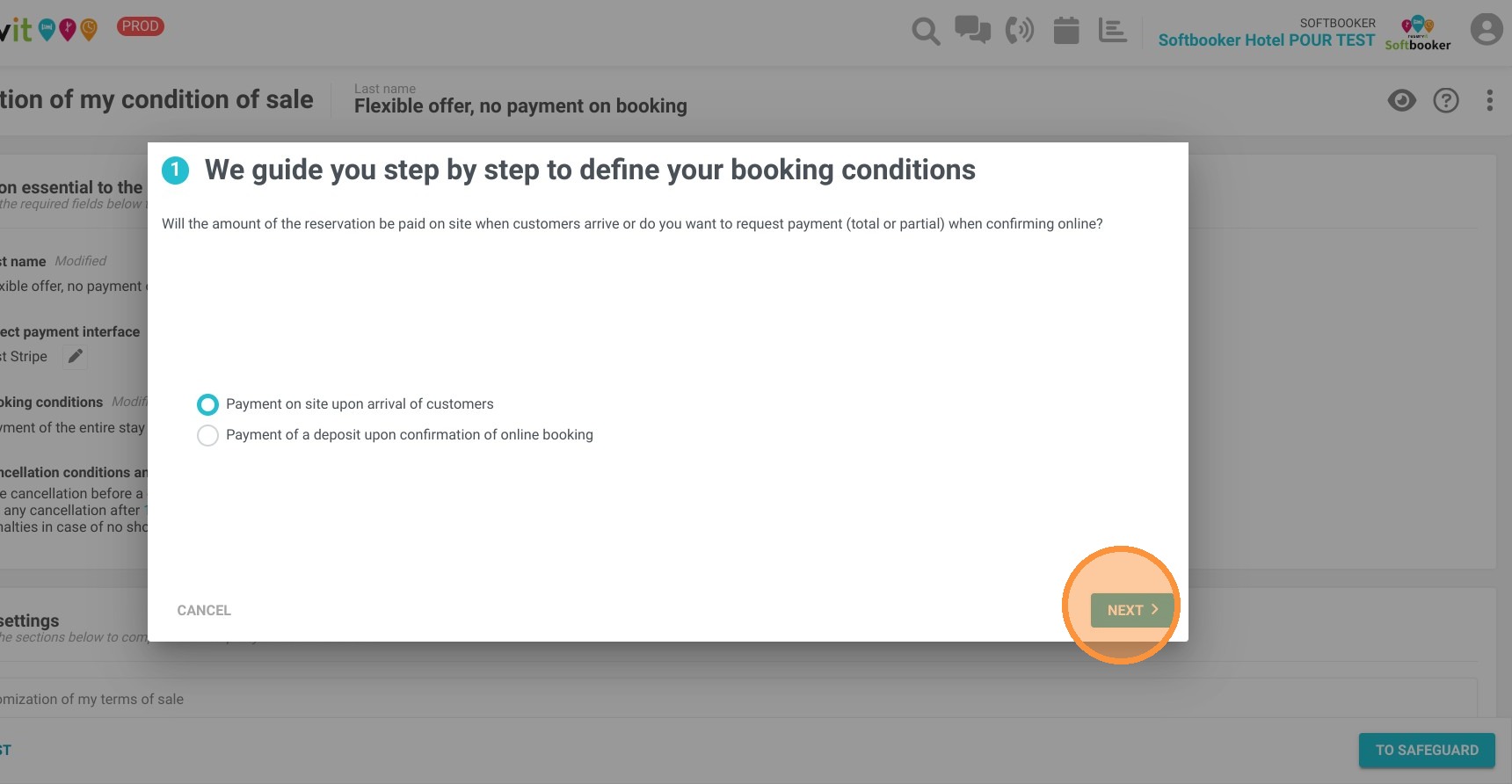
9. Here you can choose to take a deposit or not.
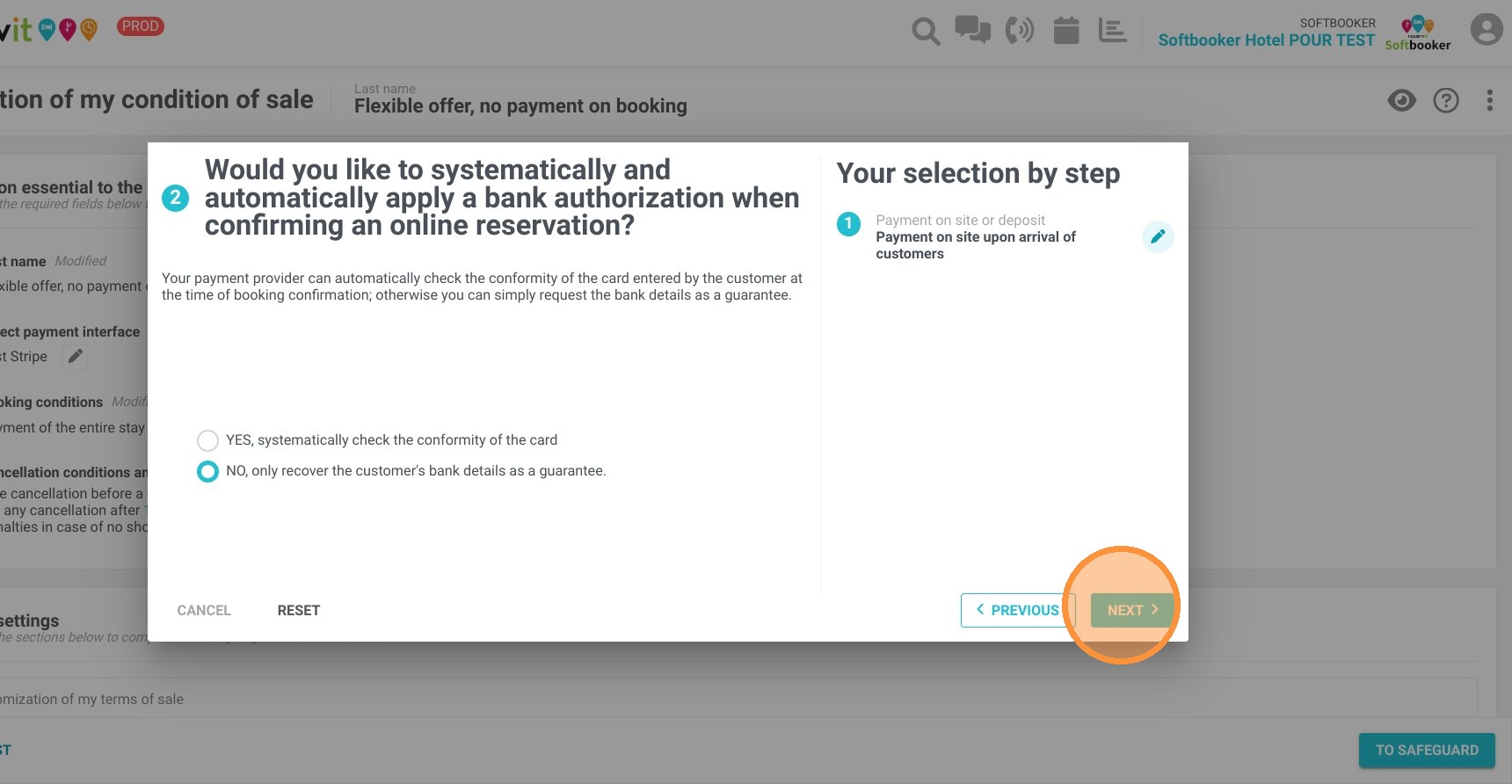
10. Then you can choose if you want to keep the credit card of the client on file as a guarantee.
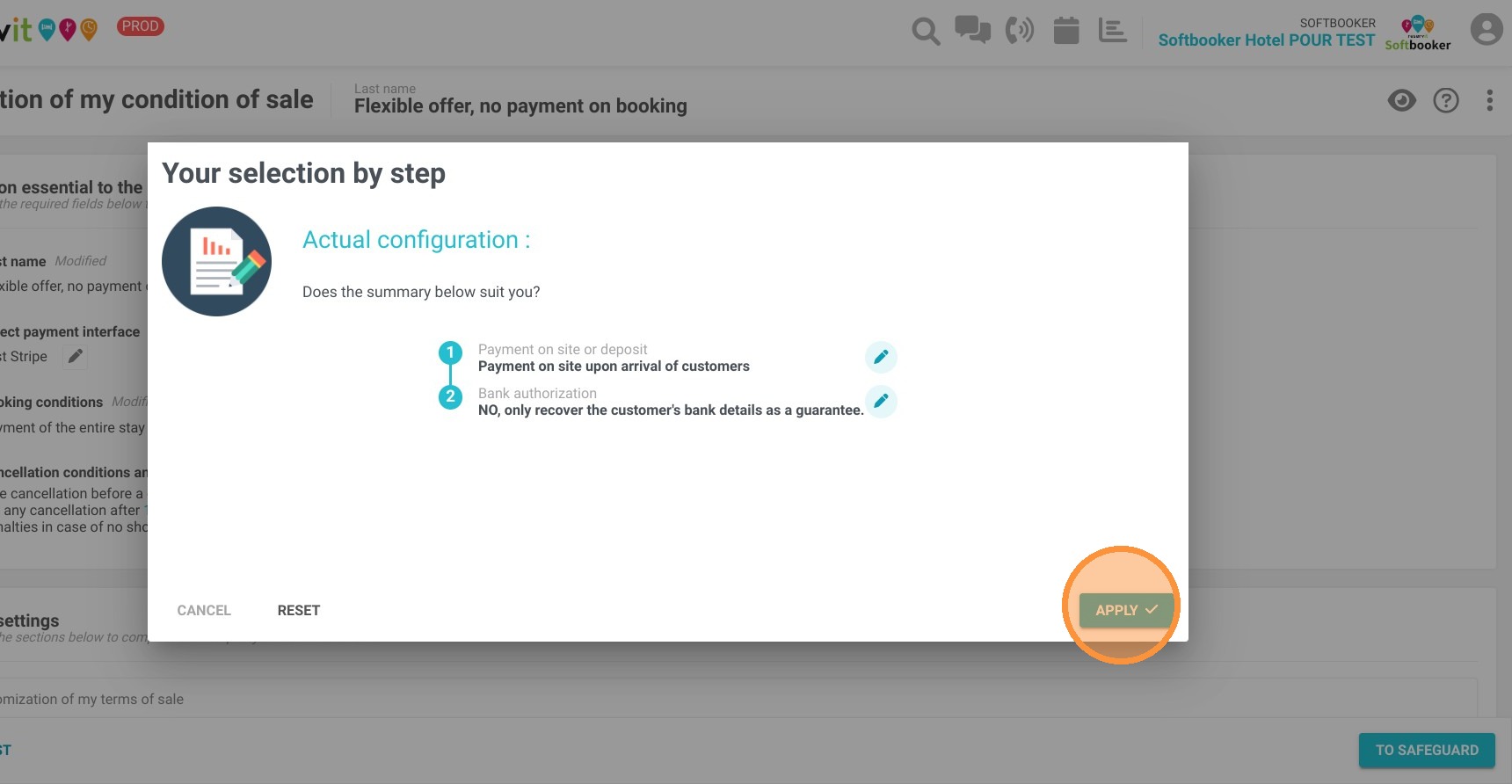
11. Click "APPLY" to save your changes.
12. You can personalize the cancellation conditions and the fees in case of a no-show.
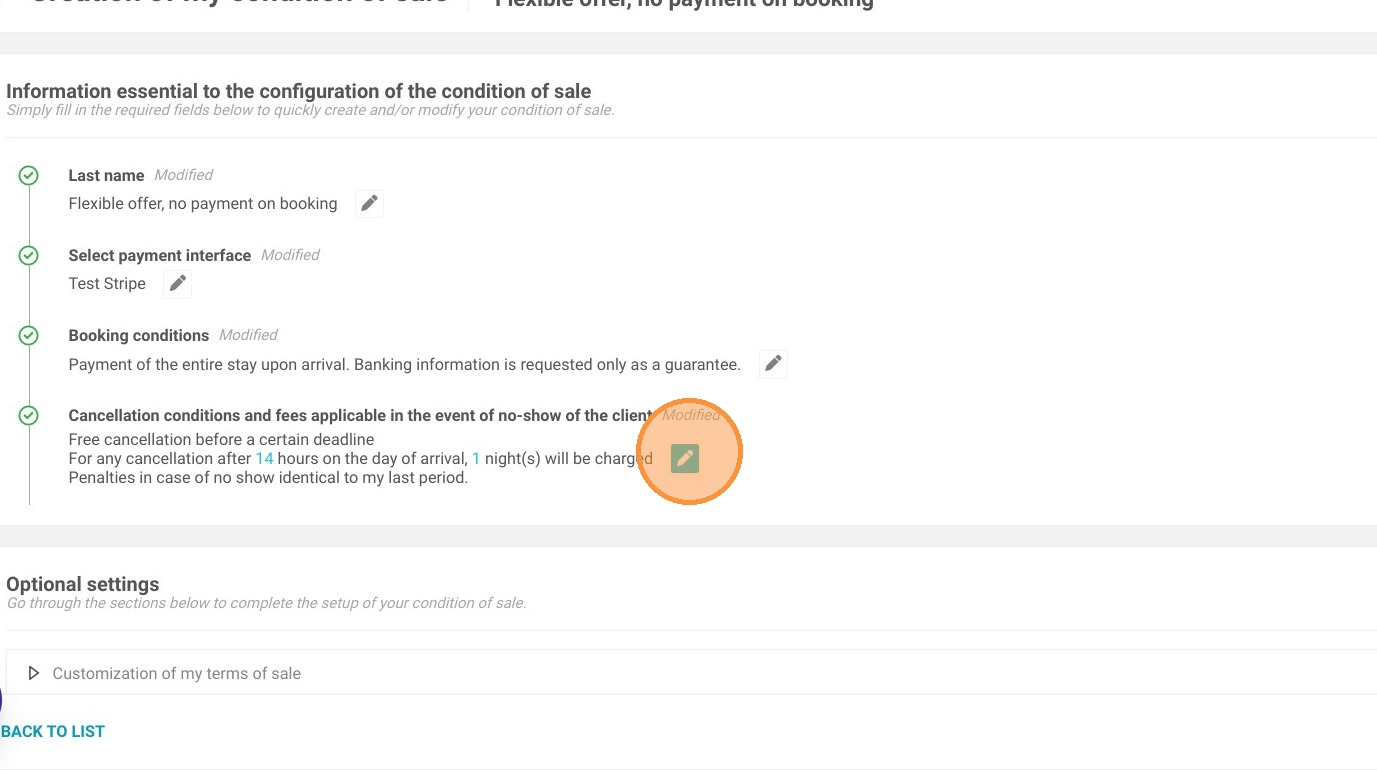
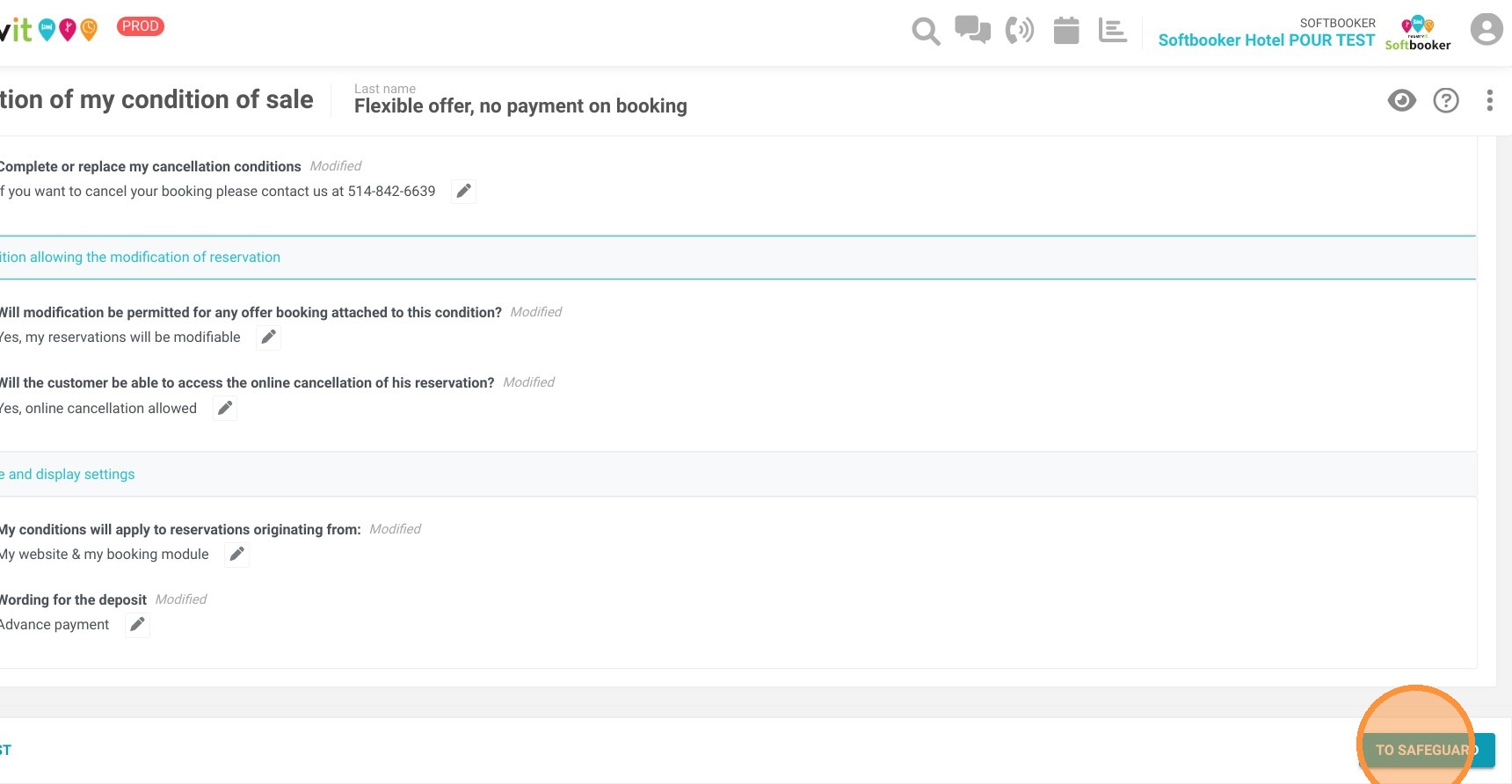
13. You have optional settings. In the first section "Customization of my terms of sale" you can use the generated booking conditions or add your specific information.
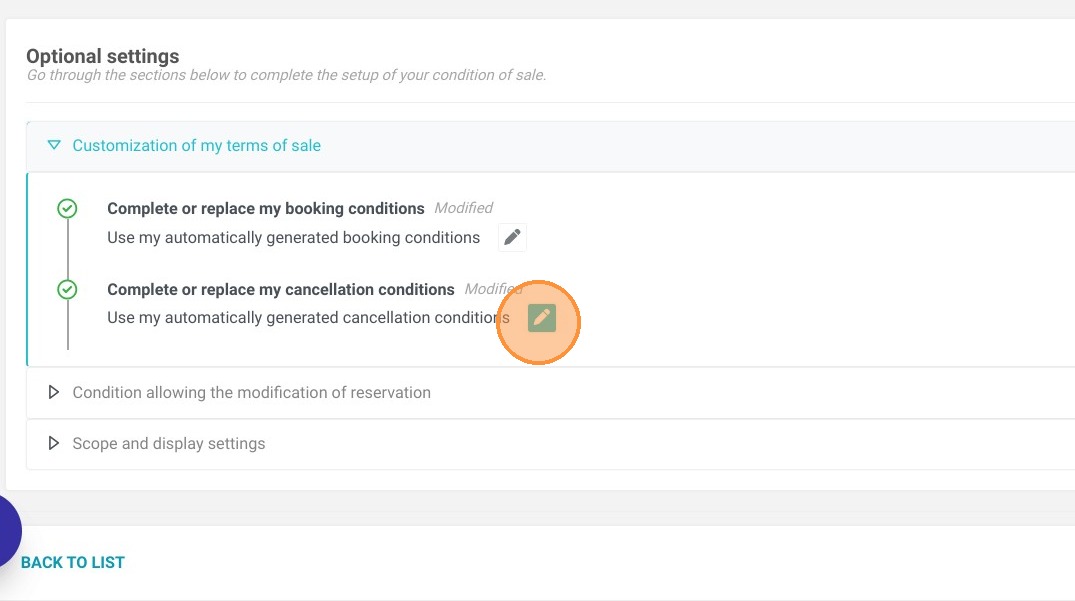
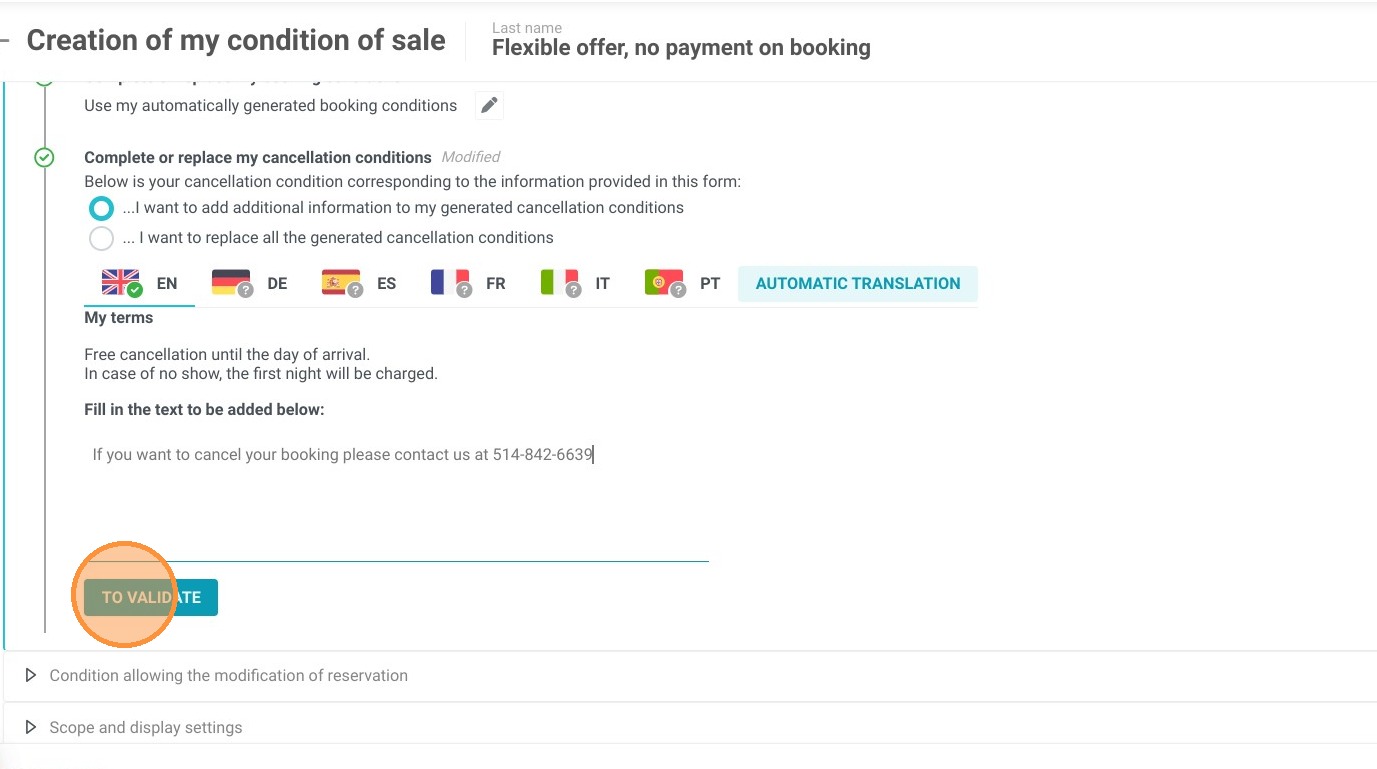
14. For example, click on "Complete or replace my cancellation conditions". Here you can choose if you want to add information or replace all the generated cancellation conditions.
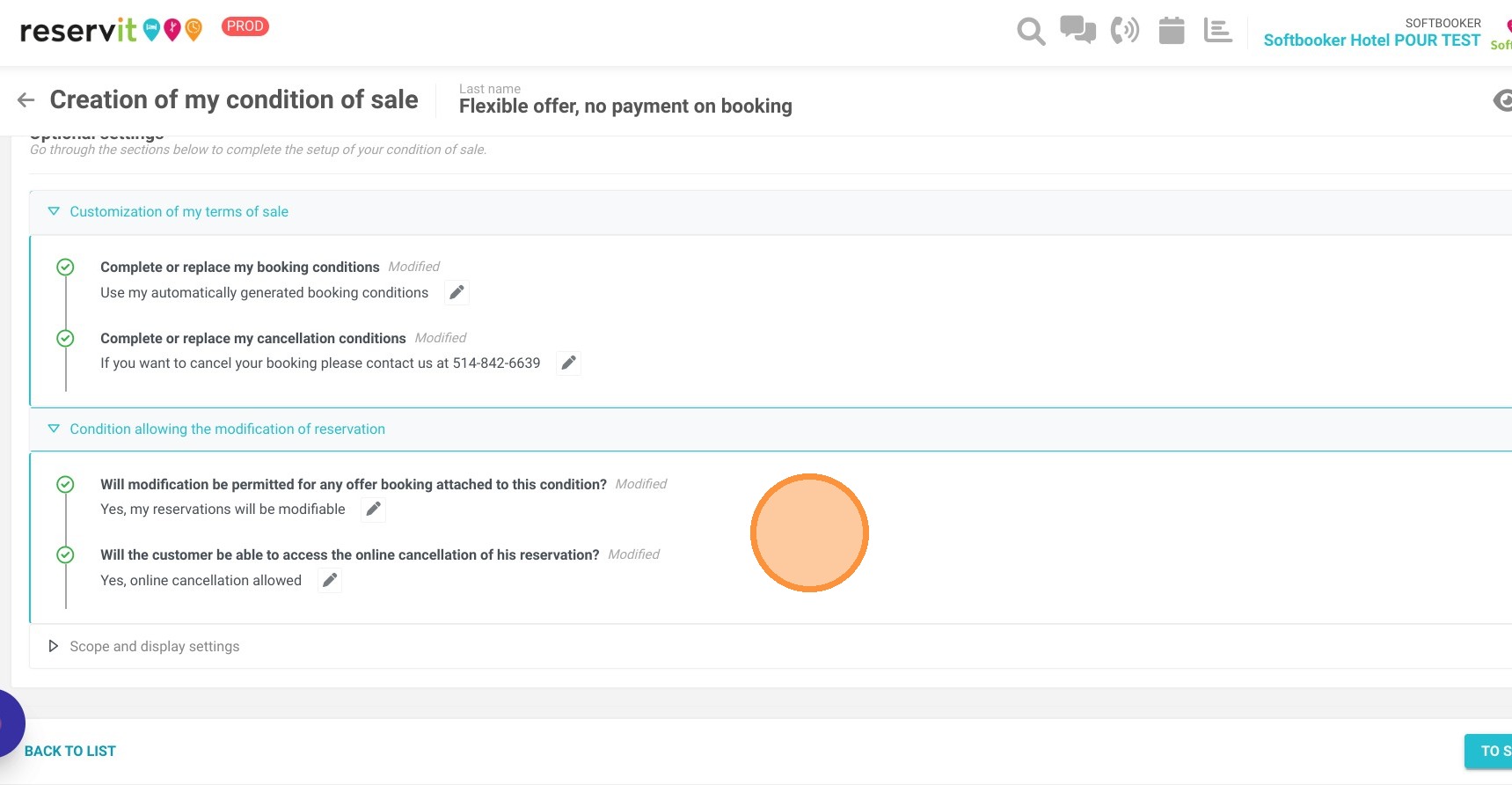
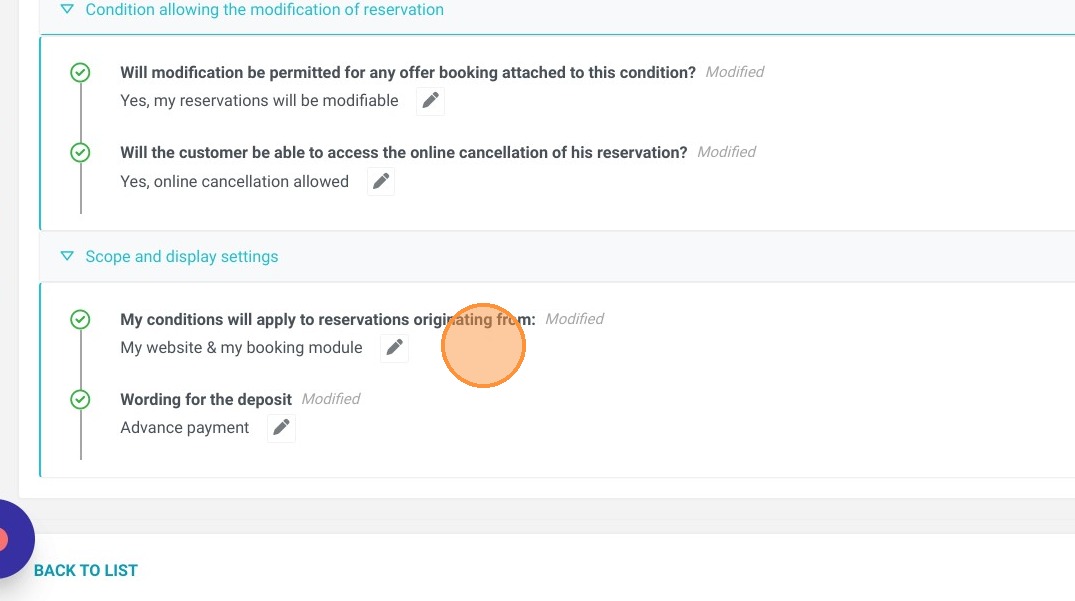
15. In the section "Condition allowing the modification of reservation" you can choose if you accept modification and if the client can cancel the booking online.
16. The last section "Scope and display settings" lets you select the bookings to which it applies and the wording of the deposit.
17. Do not forget to save your changes!
Then go to the blue menu - Offers - My offers to add this booking condition to the selected offers.