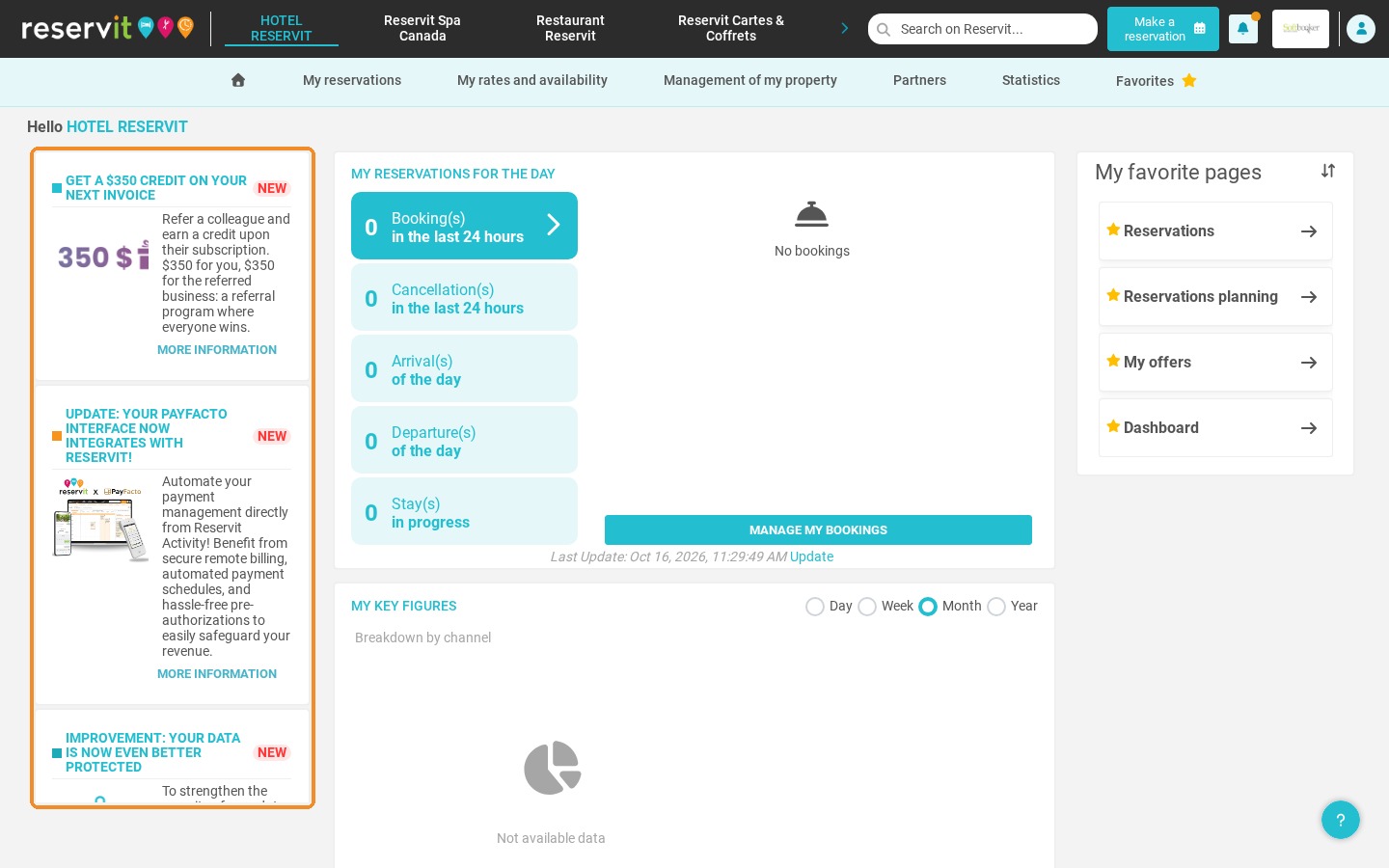
Article Summary: This tutorial presents the home screen of your Reservit Accommodation manager. You will discover the main areas of the screen: the top bar to switch products, search and make a reservation, the main menu, your reservations of the day, your key figures, your favorite pages and the latest Reservit news. Knowing this screen lets you find the information you need from the moment you log in.
The 5 Key Areas of Your Home Screen:
-
The top bar: Switch between your Reservit products, search the manager, make a reservation and open your notifications and user menu.
-
The main menu: Access all the sections of the manager: reservations, rates and availability, property management, partners and statistics.
-
My reservations for the day: See at a glance the bookings and cancellations of the last 24 hours, and the arrivals, departures and stays of the day.
-
My key figures: Follow your activity by channel for the day, week, month or year.
-
My favorite pages and news: Open your most used pages in one click and keep up with the latest Reservit features.
Why Follow This Guide? The home screen is your daily dashboard. Knowing what each area shows helps you check your activity in seconds and reach the right page without searching through the menus.
The top bar
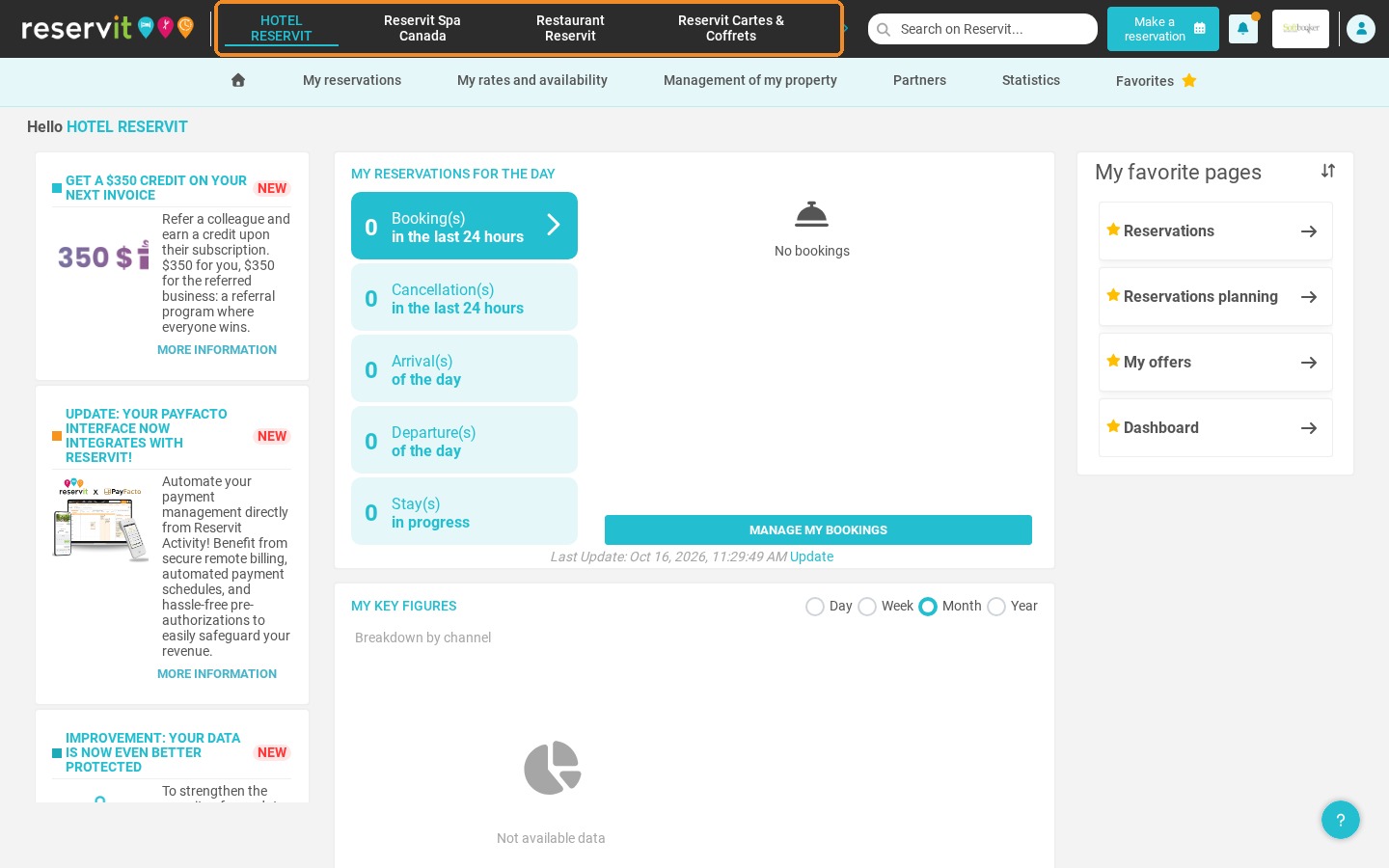
1. At the top left, switch between the Reservit products of your account (for example Accommodation, Activities, Restaurant or Gift Cards and Certificates).
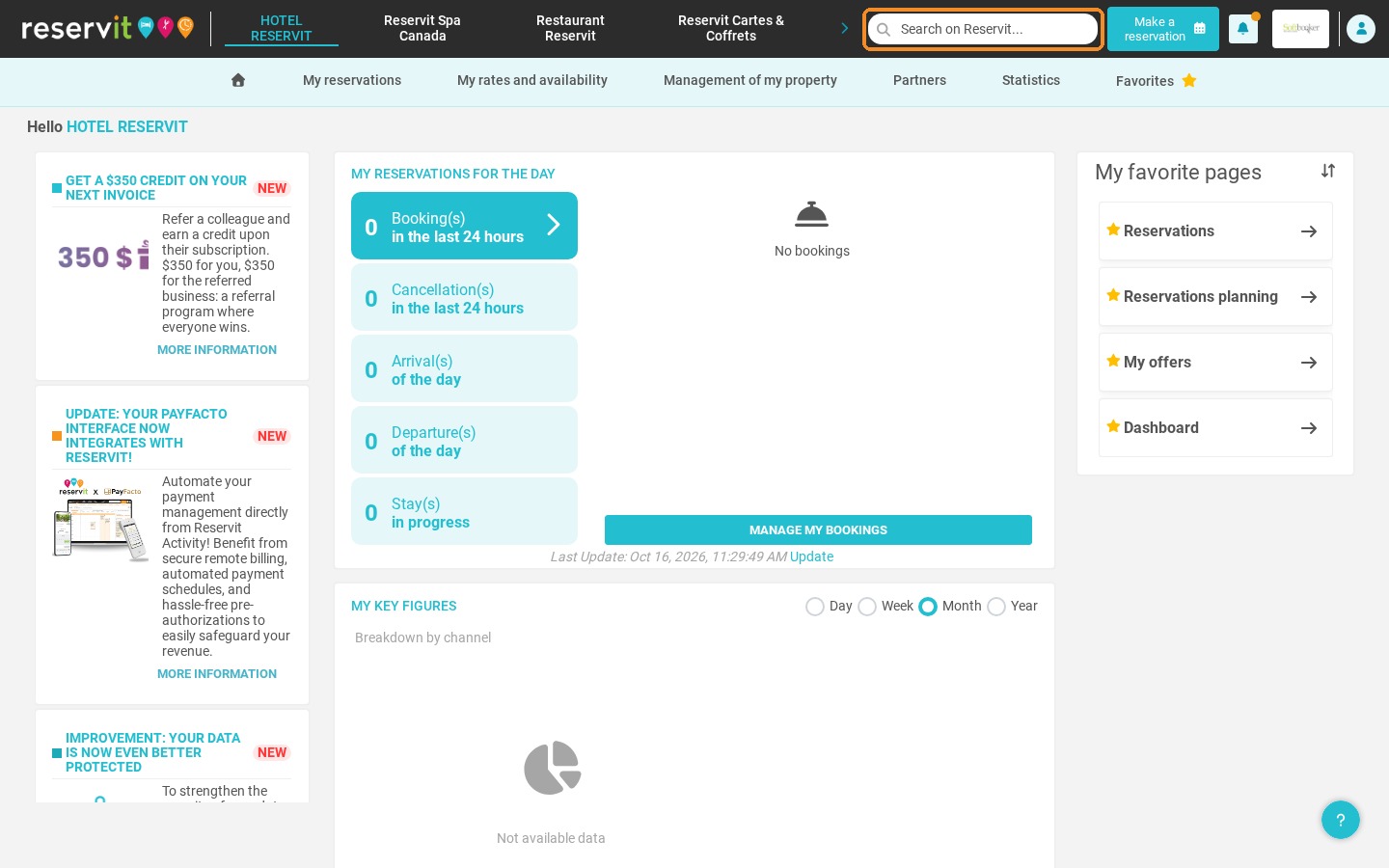
2. Use the search bar to quickly find a page of the manager.
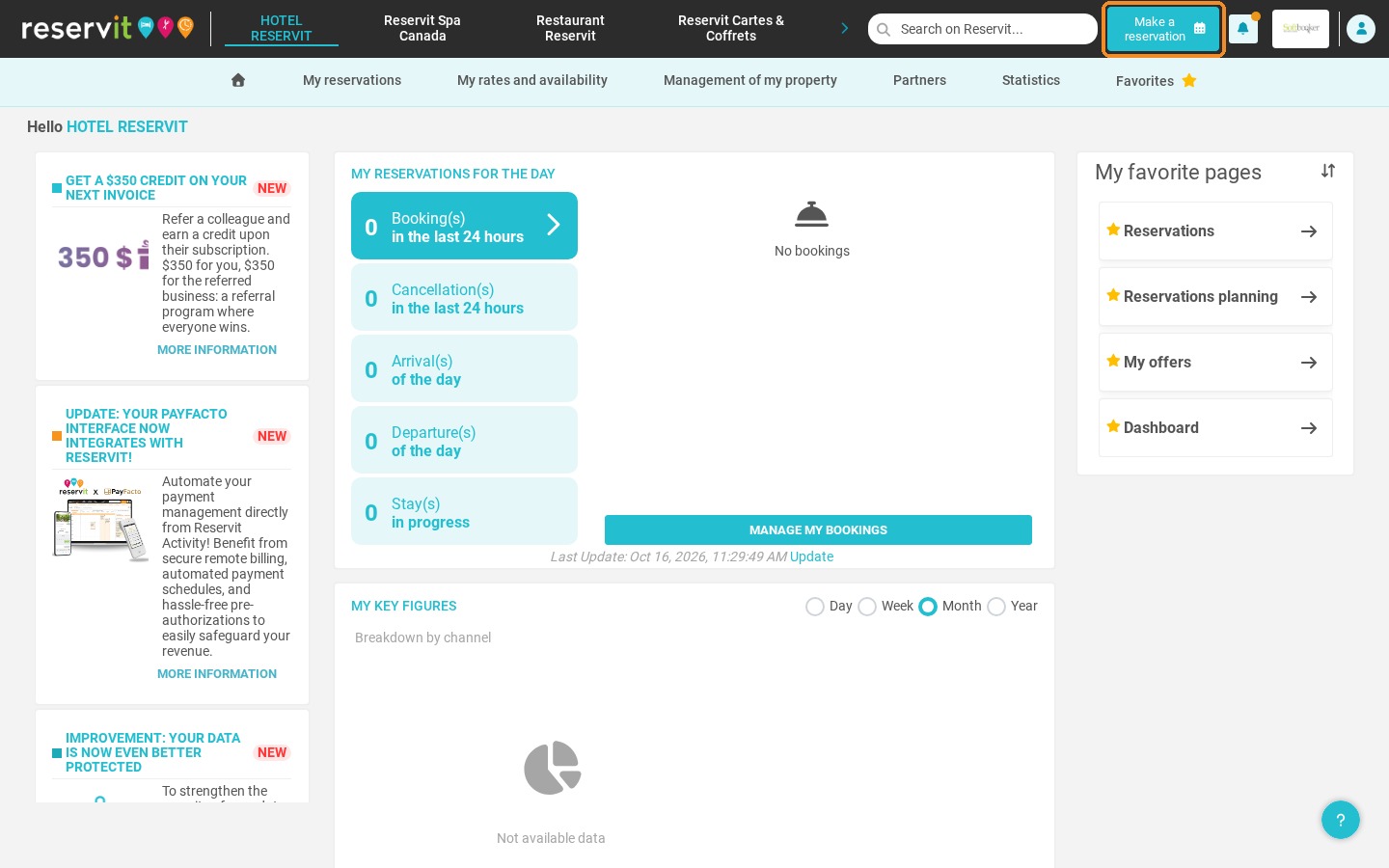
3. Click "Make a reservation" to create a booking from any page.
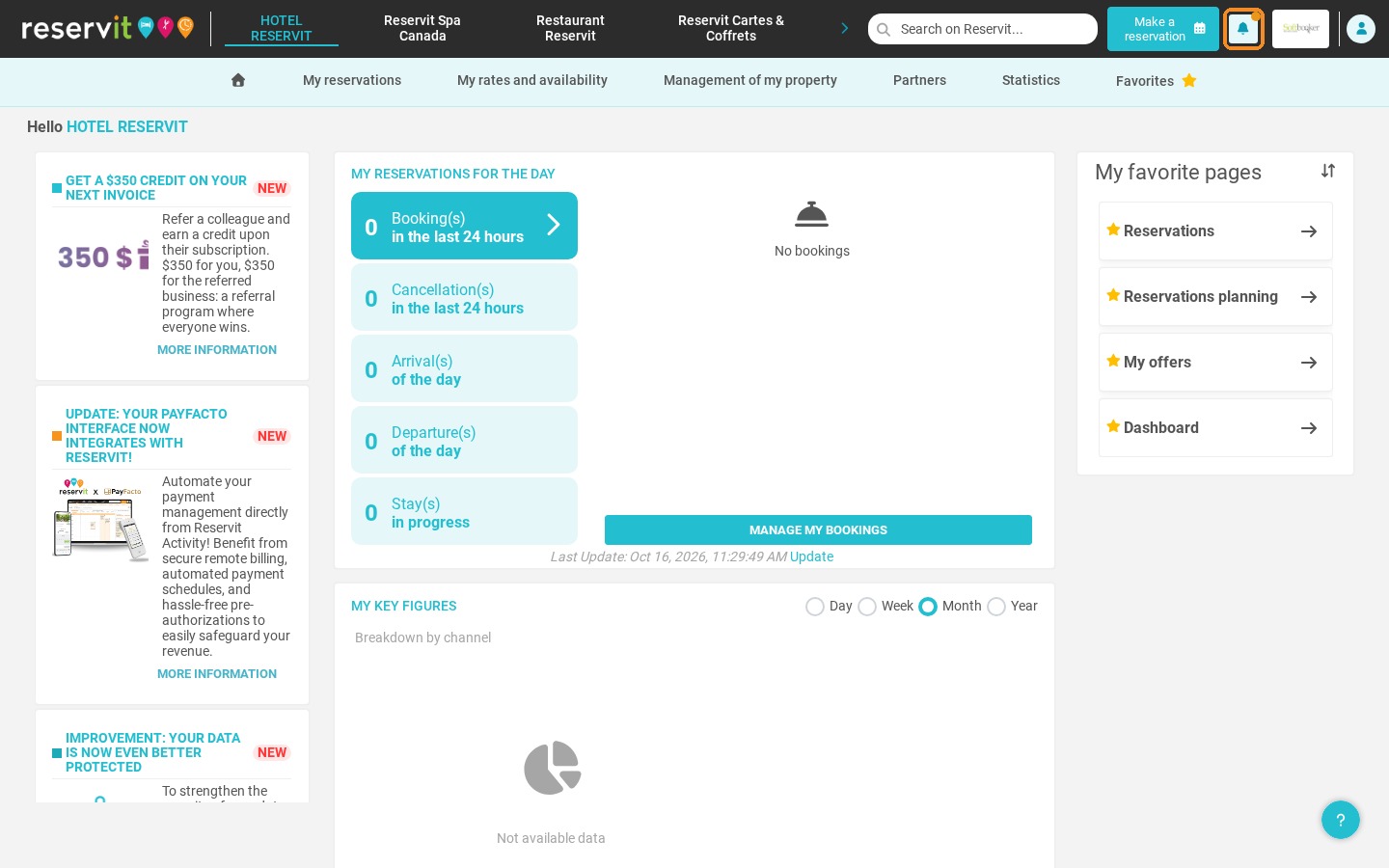
4. The bell icon displays your notifications.
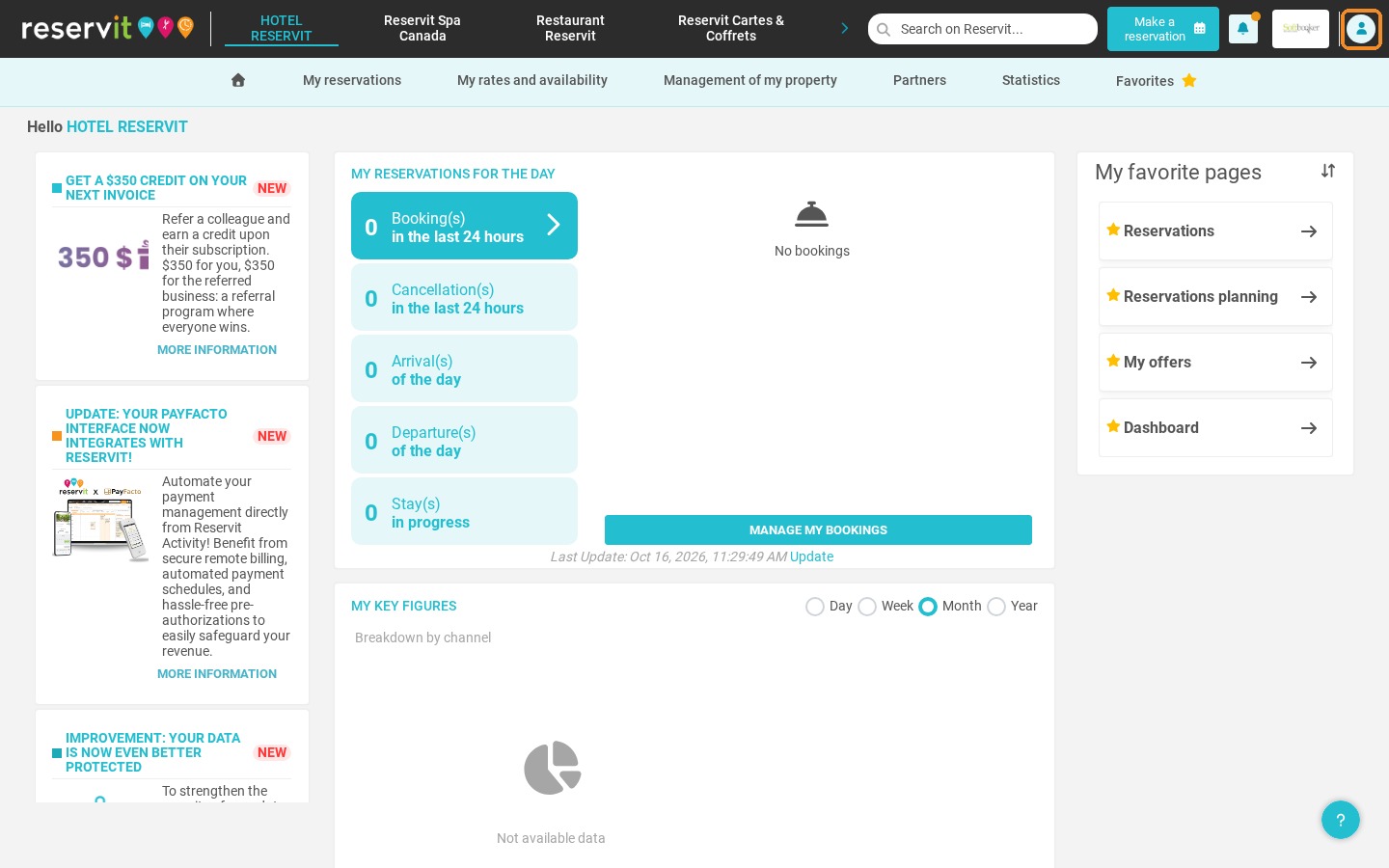
5. The user icon opens your user menu, where you can for example change the language of the interface.
The main menu
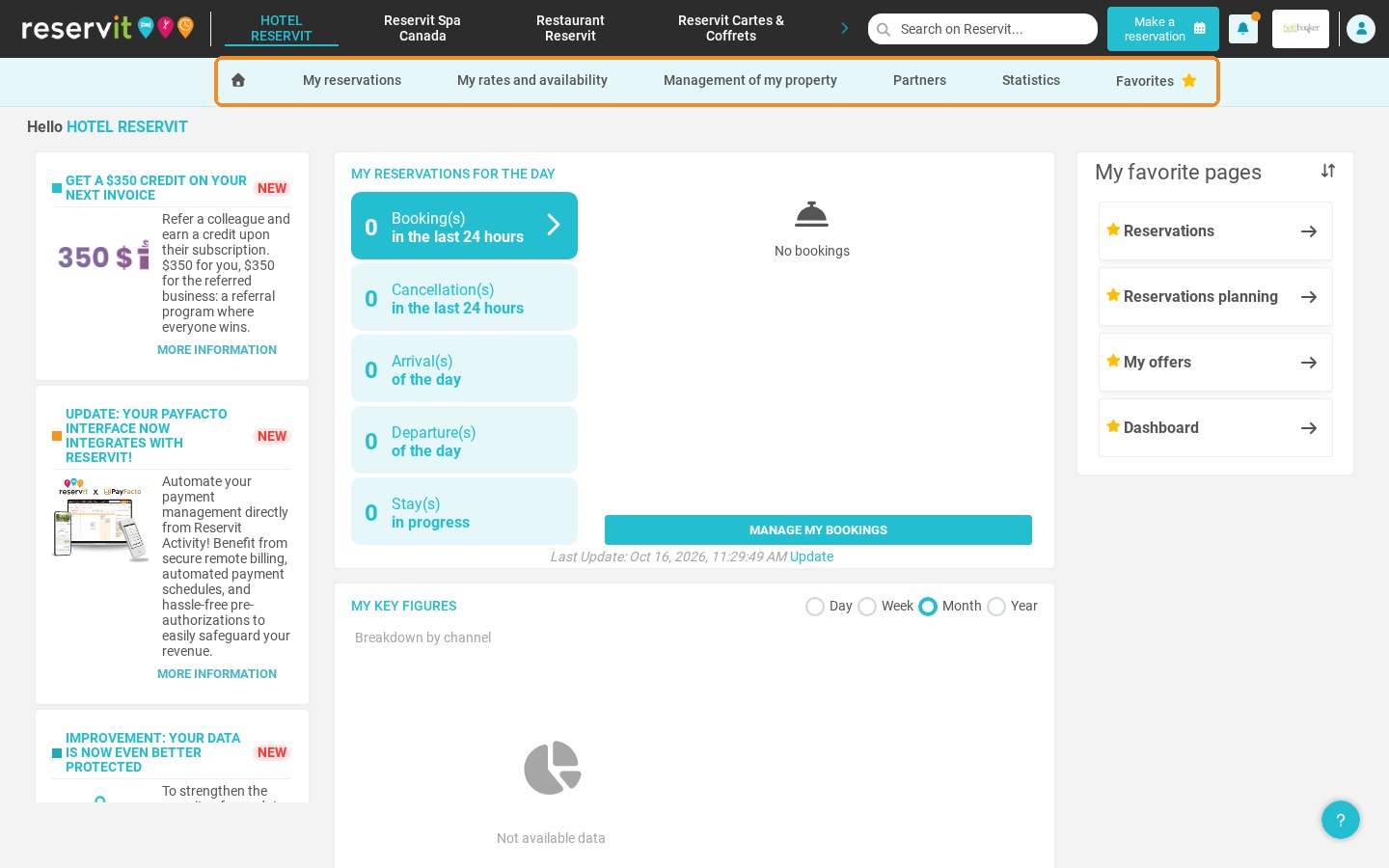
6. The main menu gives access to all the sections of the manager: "My reservations", "My rates and availability", "Management of my property", "Partners", "Statistics" and "Favorites".
The dashboard
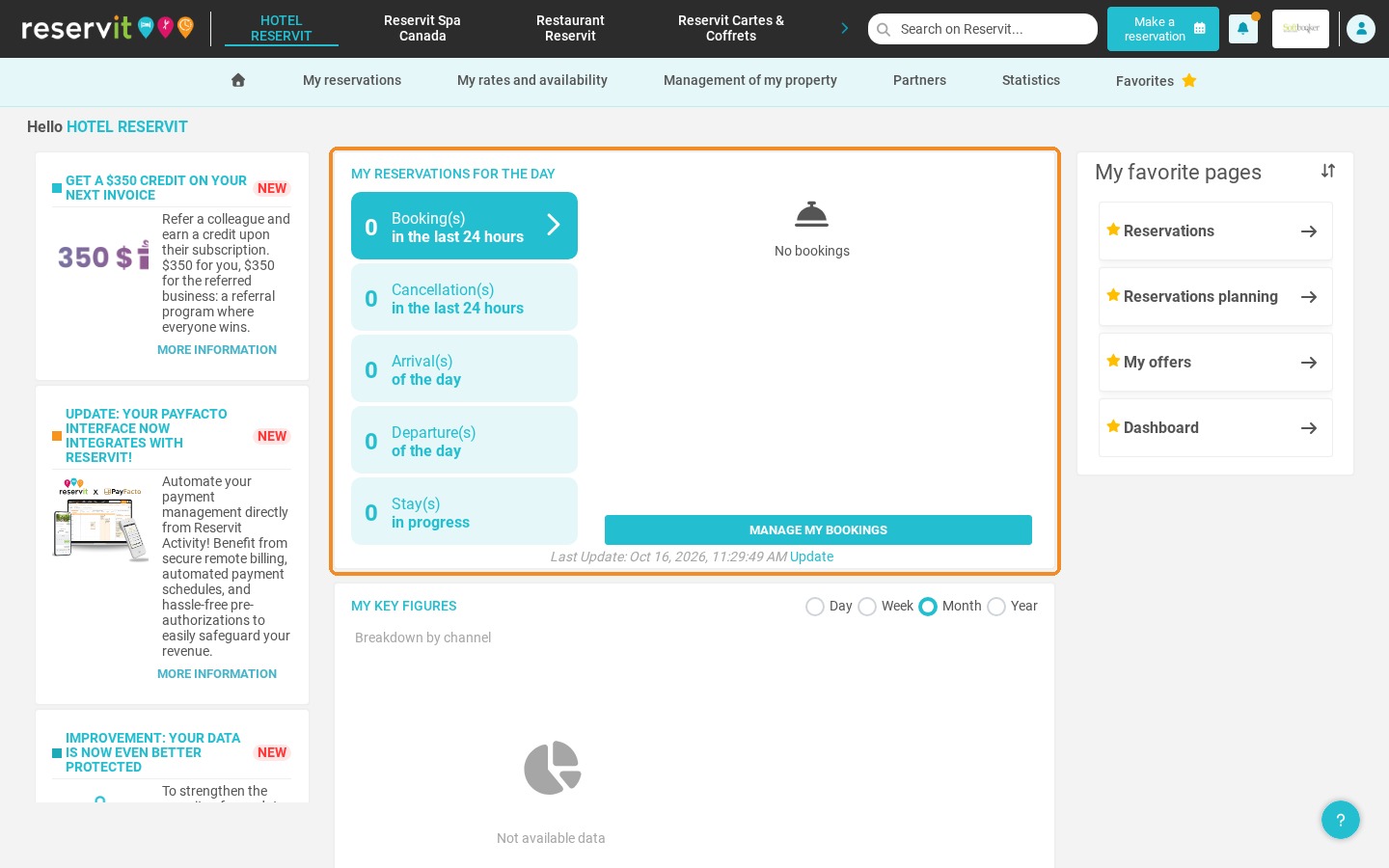
7. "My reservations for the day" shows the bookings and cancellations of the last 24 hours, as well as the arrivals, departures and stays in progress of the day. Click "Manage my bookings" to open the list of your reservations.
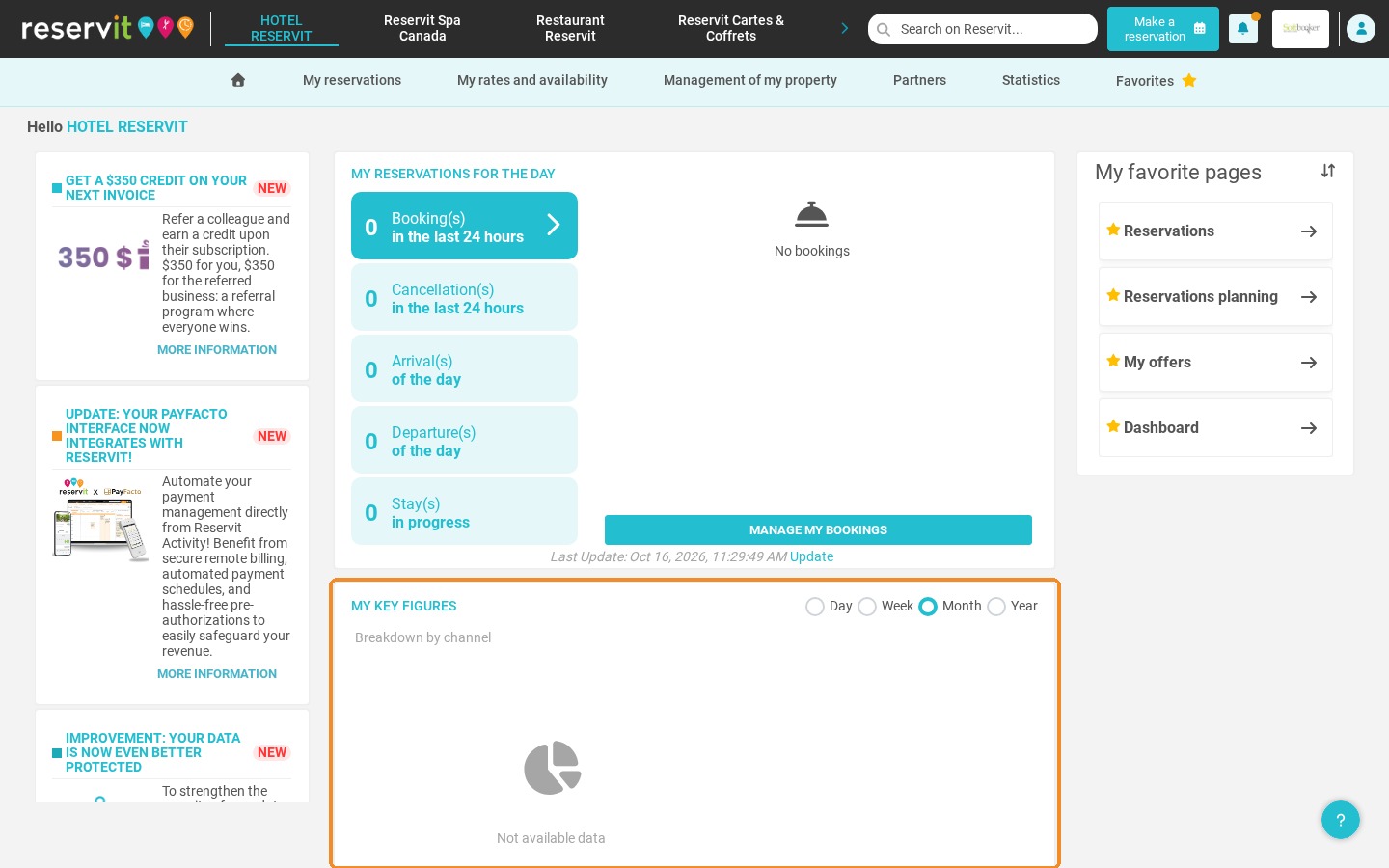
8. "My key figures" shows the breakdown of your activity by channel. Choose the period to display: day, week, month or year.
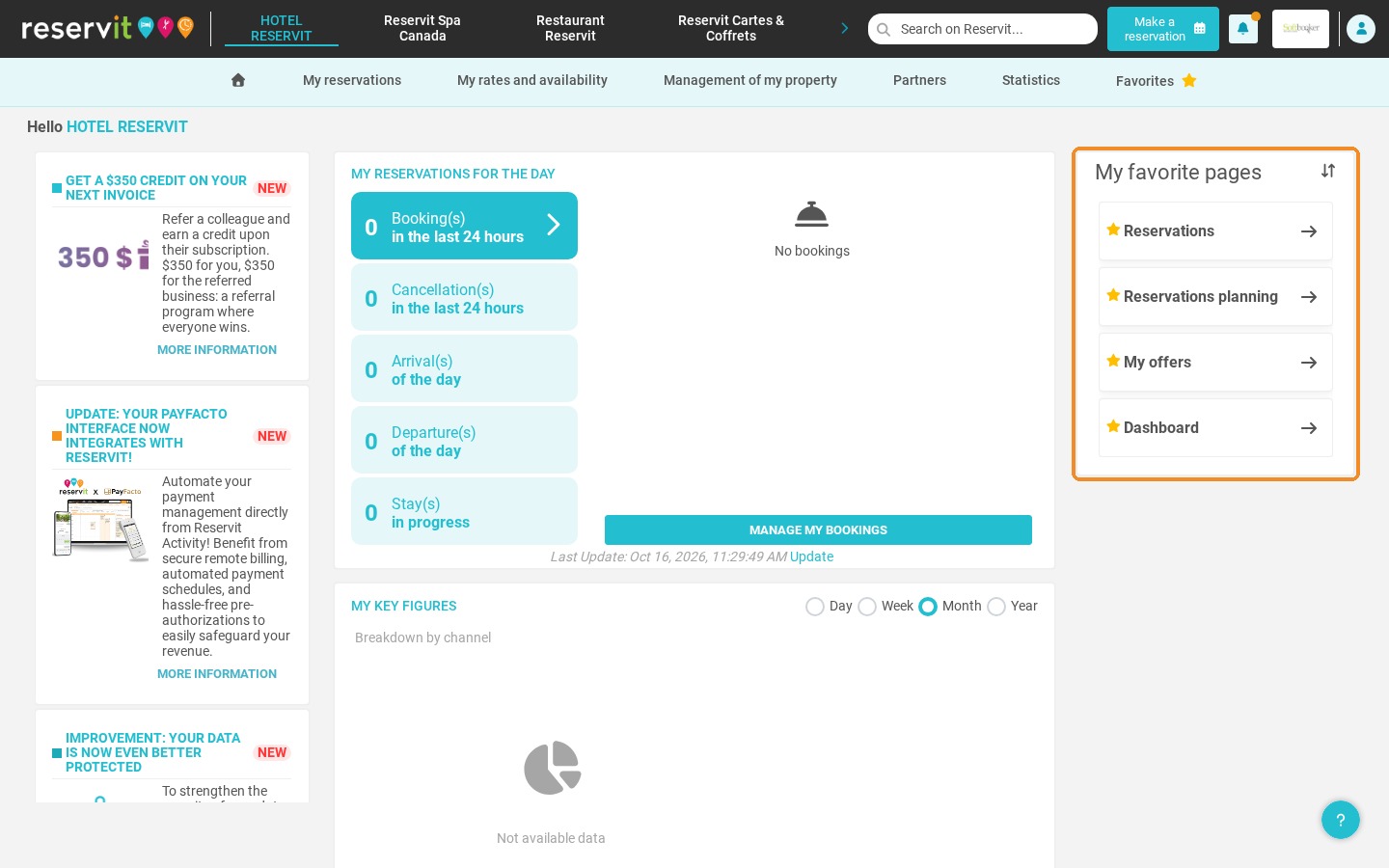
9. "My favorite pages" gives you one-click access to the pages you use most. Add a page to your favorites with the star at the top right of that page.
10. On the left, the news column presents the latest Reservit features and updates. Click "More information" to learn more.