Article Summary: This step-by-step tutorial explains how to easily apply discounts and adjust pricing on your customer invoices within Reservit Activities. You will learn the two primary methods for discounting: applying a global percentage or fixed amount to an entire invoice, or targeting a discount to a specific service line item. Mastering this billing feature allows you to seamlessly manage promotional offers, provide excellent customer service, and keep your financial records accurate.
The 4 key steps to apply a discount to an invoice:
-
Access the billing account: Navigate to your customer's specific billing account to view all active reservation lines and current balances.
-
Option 1 – Discount the entire invoice: Select all reservation lines, generate the Proforma invoice, and click the "Add Discount" button to apply a fixed amount or percentage to the overall total.
-
Option 2 – Discount a specific service: Click the pencil (edit) icon next to an individual account line to enter a targeted percentage or fixed discount just for that specific service.
-
Validate and verify: Click "Validate" or "Apply" to save your changes; the system will automatically recalculate the outstanding balance and display the discount clearly on the final generated invoice.
Why follow this guide? Knowing how to quickly and correctly apply discounts directly within the billing portal eliminates the need for manual math calculations and prevents accounting errors. This ensures your final invoices accurately reflect promotional rates or customer compensations, keeping your bookkeeping clean and your customers satisfied.
Alert: To apply a discount on a specific service or on an invoice in general, go to your customer's billing account
1. 1st possibility:
You can apply a discount to the entire invoice. To do so, select all the lines of the reservation and click on invoice.
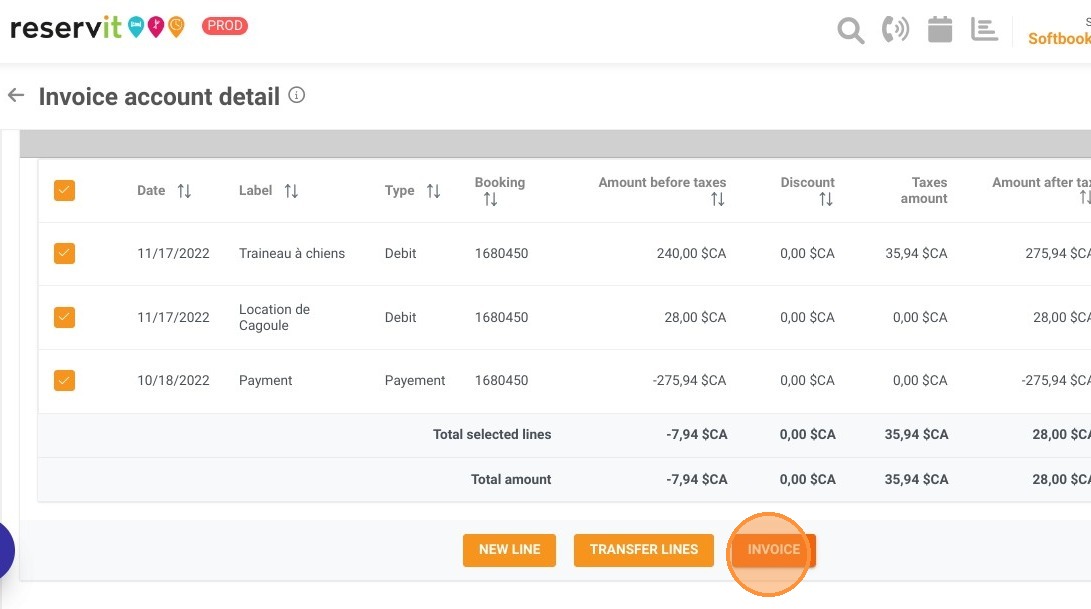
2. When you go to the Proforma invoice, you have the "Add Discount" button that appears. Click on it.
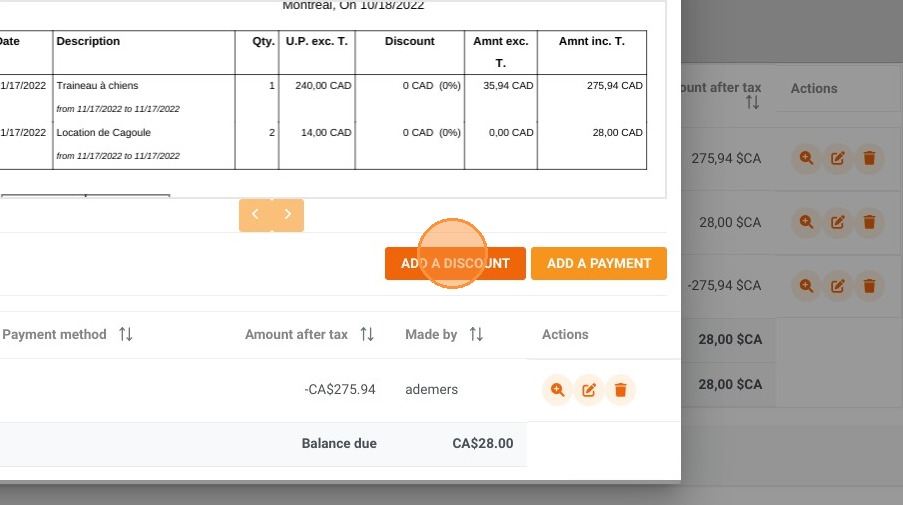
3. A window will appear allowing you to choose a discount of a fixed amount or a percentage and click on "Apply".
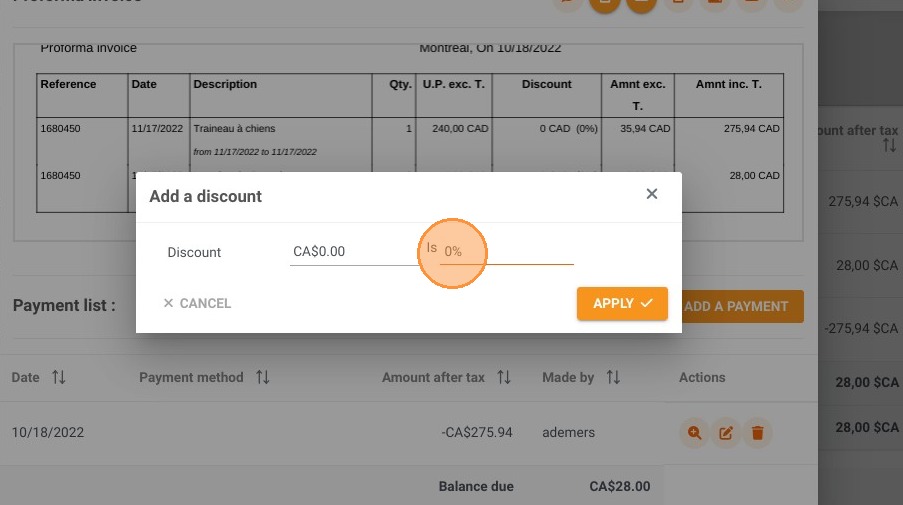
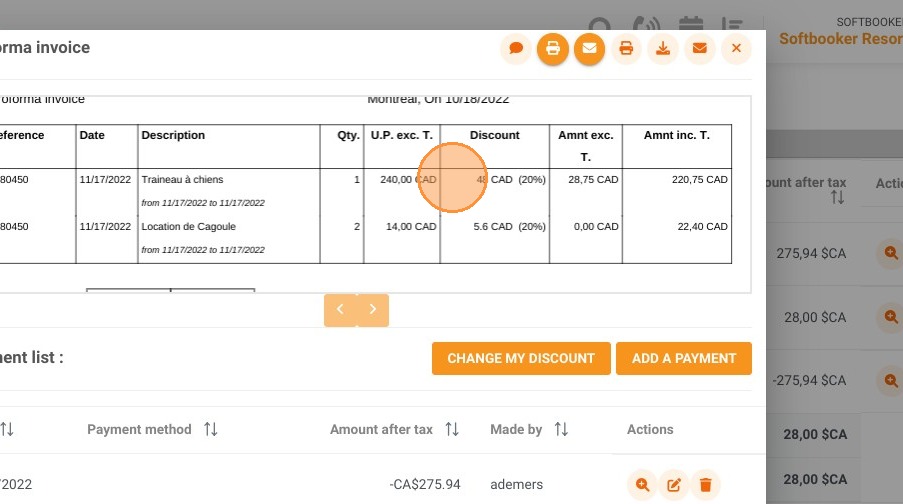
4. Here we have entered a discount of 20% which is a $48 discount on the price before taxes of the reservation for the first service.
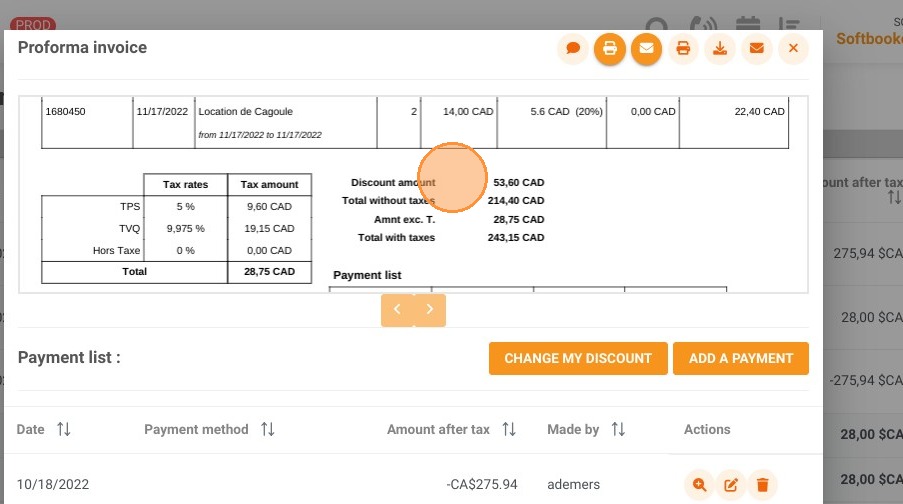
5. The discount amount, "53.60 CAD", also appears in the detail of the reservation amounts and the outstanding balance has been modified.
Alert: We just saw how to add a discount to an entire invoice. The tutorial for the 1st possibility to add a discount is over.
6. 2nd possibility: Add a discount on a specific account line (service).
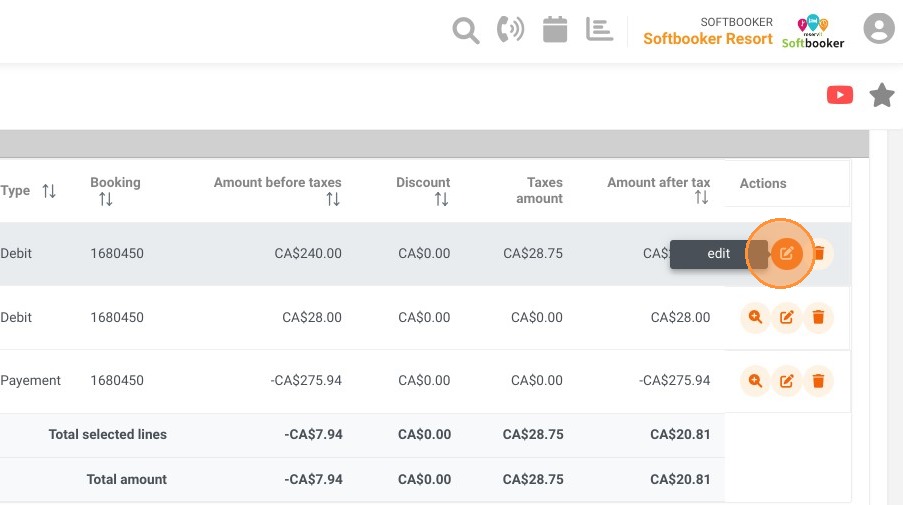
In the billing account, click on the icon with the pencil to edit the line on which you want to apply your discount.
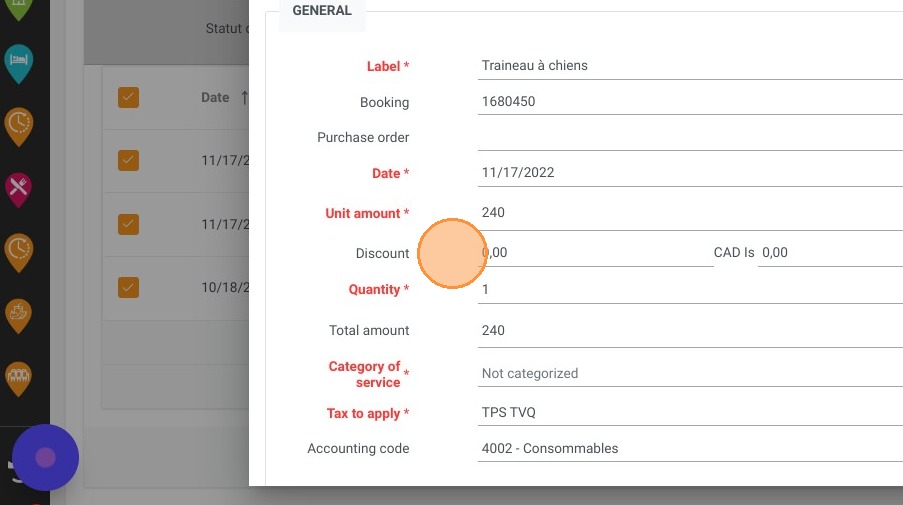
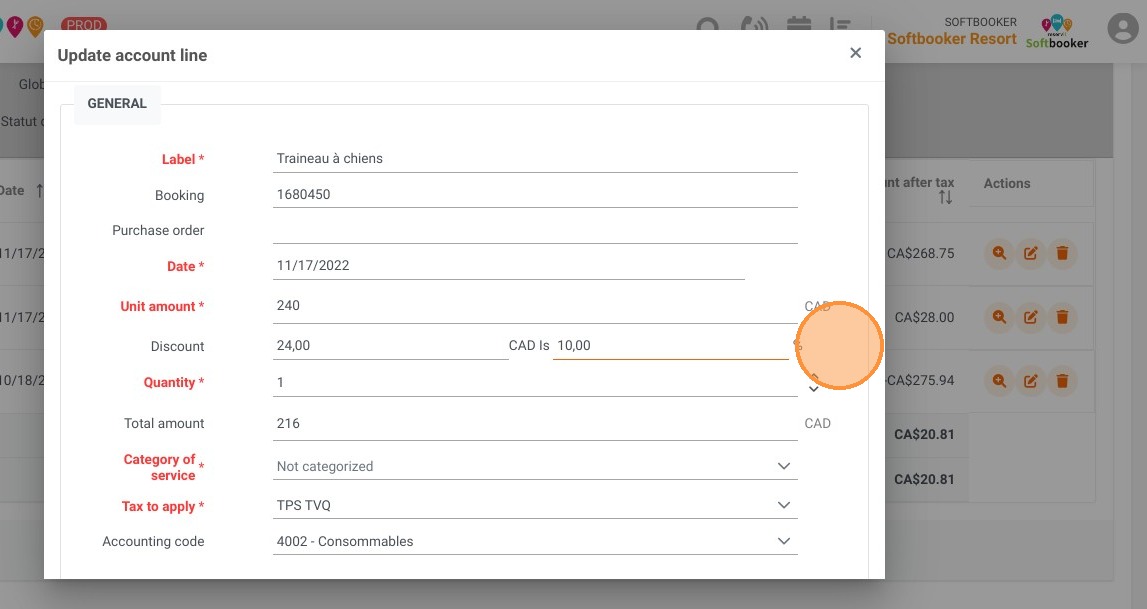
7. In the Discount field, enter the fixed or percentage amount you wish to apply to this service.
You will see the total amount decrease automatically.
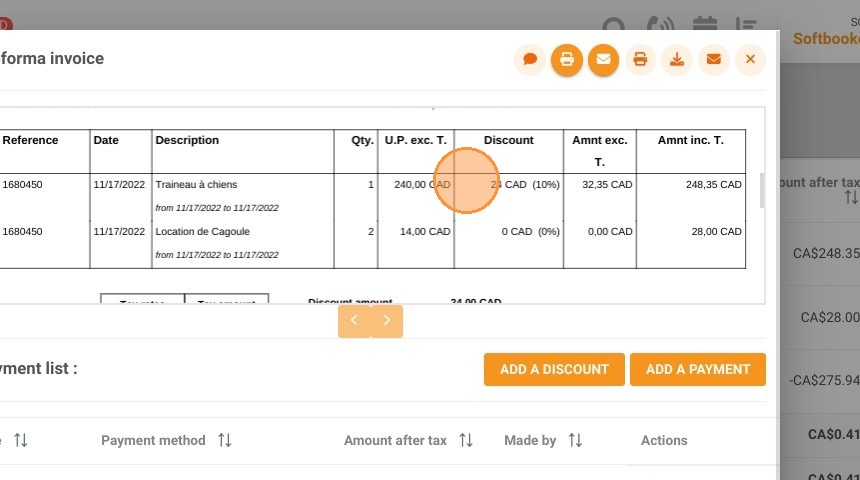
8. We have indicated here a 10% discount on this service, which is $24.
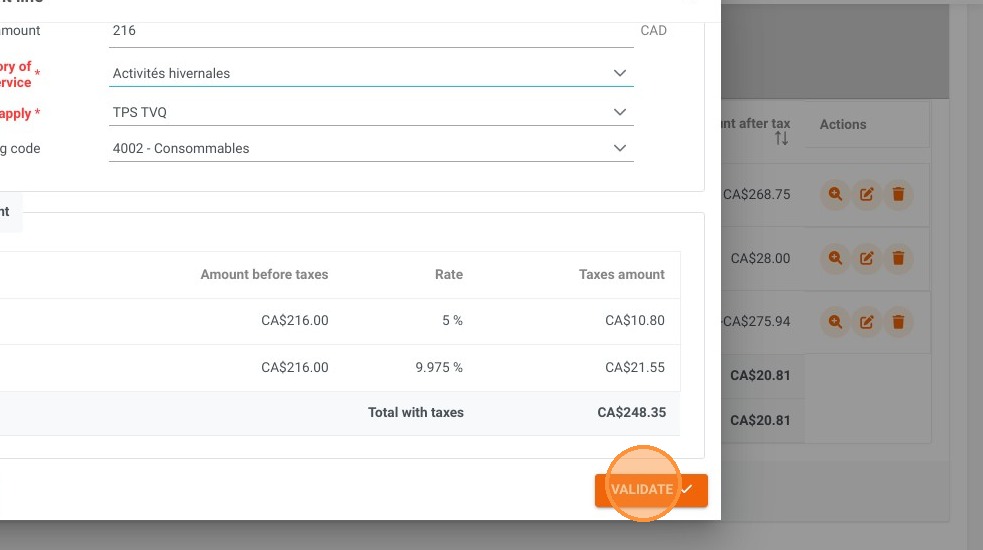
9. Click on "Validate" to confirm the changes.
10. When you bill your reservation, you will see the discount appear on your invoice.
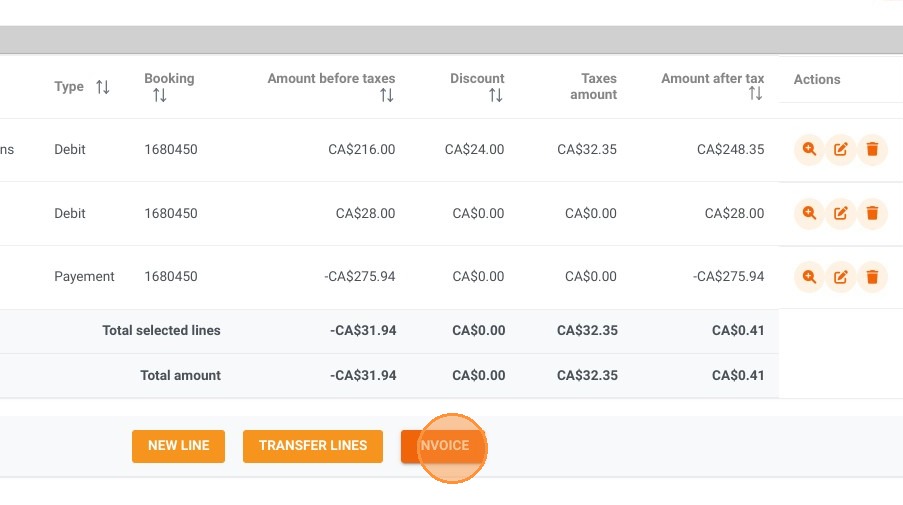
11. The tutorial for the 2nd possibility, to add a discount on a specific service, is finished.