Article Summary: This step-by-step tutorial explains how to effectively manage billing and generate invoices within Reservit Activities. You will learn how to access customer billing accounts, add additional service items, apply payments, and generate a finalized, numbered invoice. Mastering this process ensures accurate financial tracking and provides a smooth, professional checkout experience for your guests.
The 5 key steps to manage your billing process:
-
Access the invoicing portal: Search for the specific customer reservation and click on "INVOICING" to open their billing account.
-
Add additional items: If the customer purchased extra services or products, click "NEW LINE" to add these charges to their account before invoicing.
-
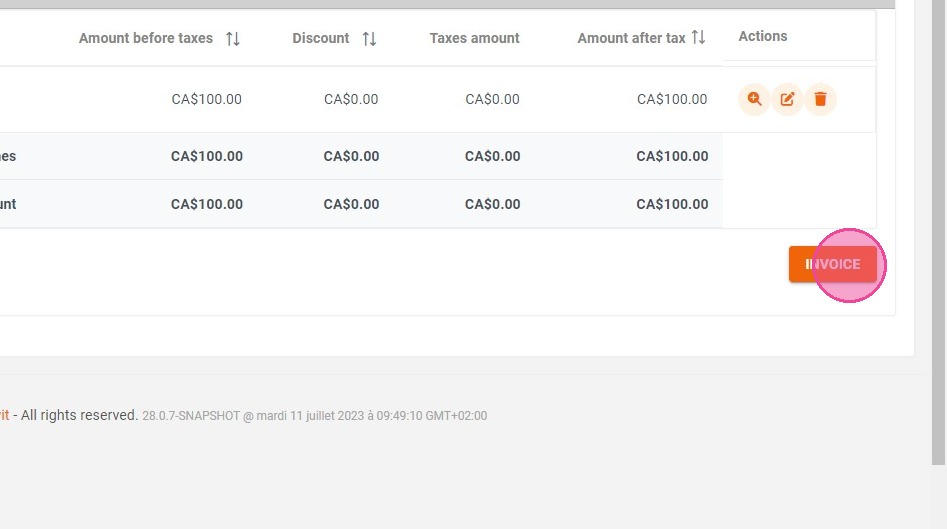
Draft the proforma invoice: Click the "INVOICE" button to generate a proforma draft, allowing you to review the total balance.
-
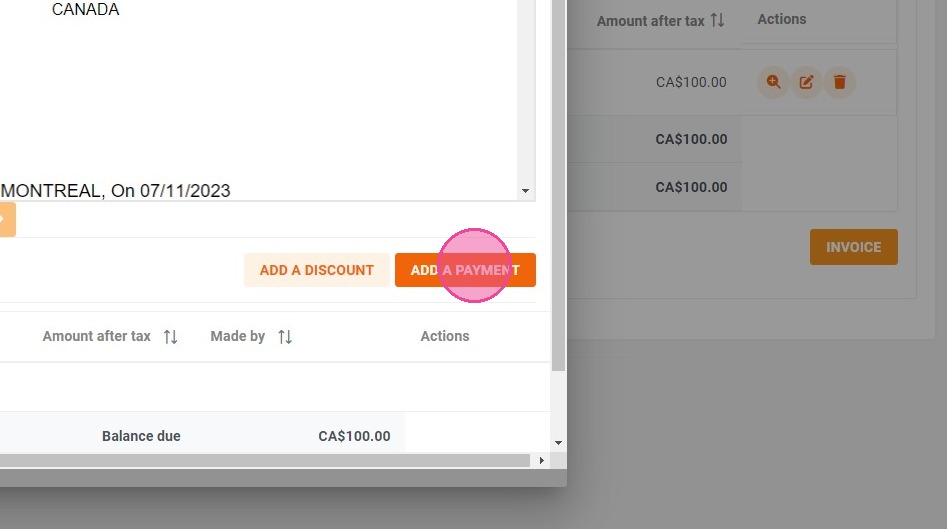
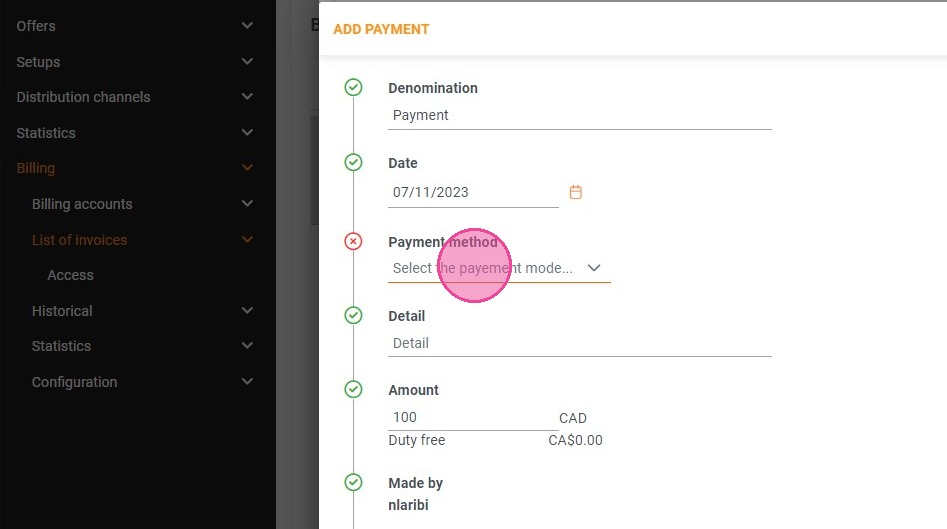
Record the payment: Click on "ADD PAYMENT" within the proforma view and select the appropriate payment method used by the customer.
-
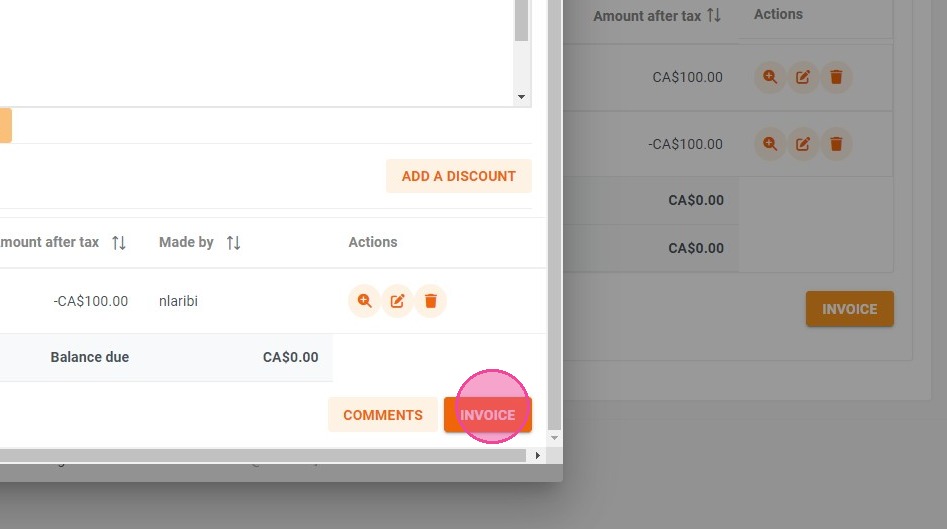
Finalize the invoice: Click "INVOICE" one last time to validate the transaction and generate the final, officially numbered invoice for your records.
Why follow this guide? Standardizing your invoicing workflow helps prevent costly accounting errors and ensures your financial data is always up to date. By following these clear steps, you save valuable administrative time, keep your billing organized, and provide your customers with accurate, professional receipts.
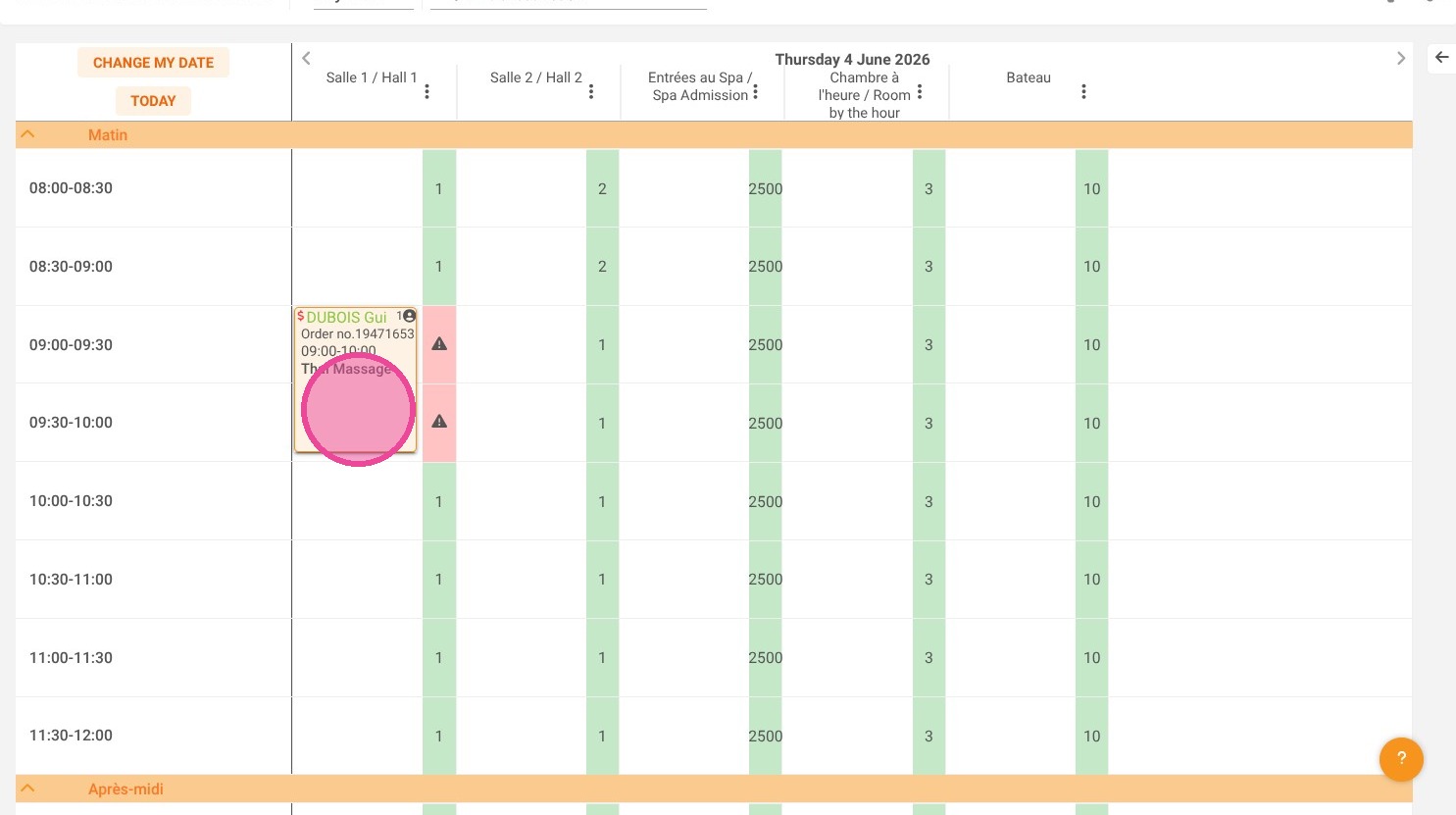
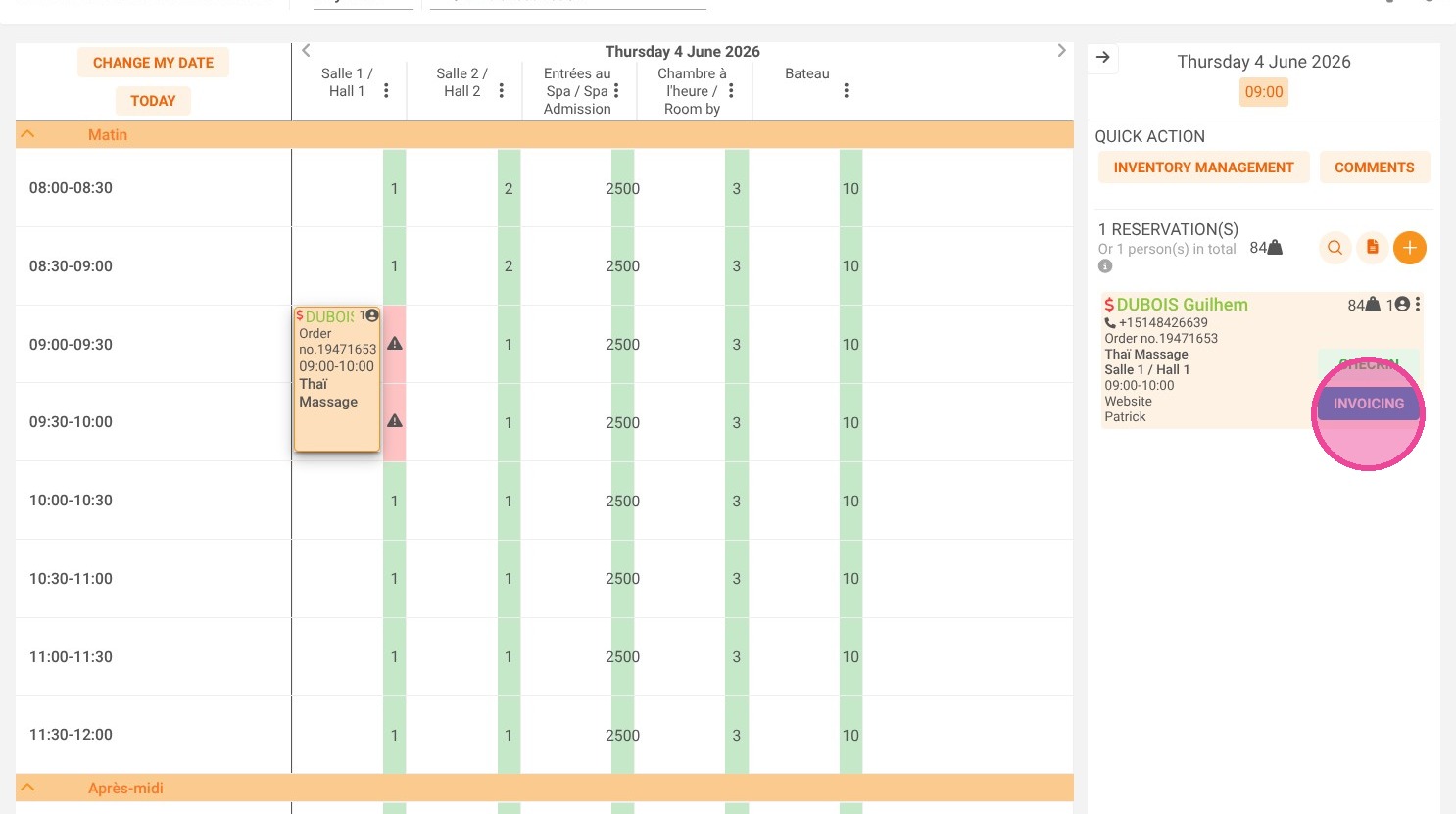
1. Search for the reservation and click on "INVOICING"
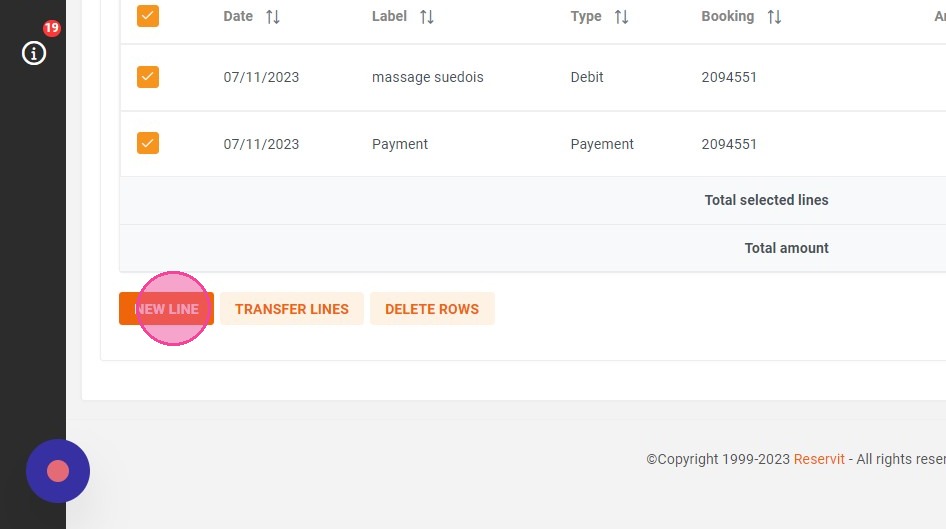
2. In the corresponding billing account, if you need to add an additional item to be billed, click "NEW LINE".
3. Otherwise, click directly on "INVOICE".
4. The proforma, the draft of your invoice, is displayed. Click on "ADD PAYMENT".
5. Select a payment method.
6. Once you're ready to generate your final invoice, click on "INVOICE" again.
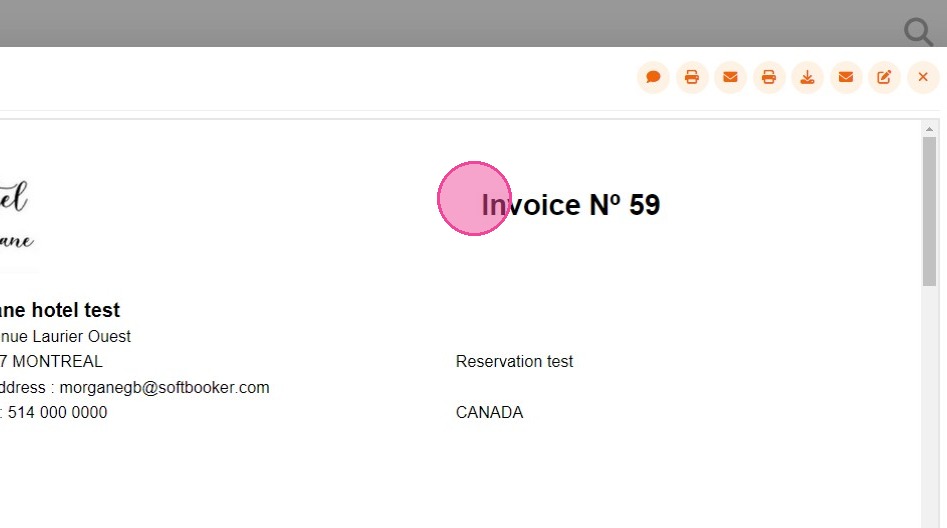
7. You will get your final invoice with a specific number assigned