Article summary: This step-by-step guide explains how to easily edit and customize the Private Data Protection message displayed to your guests during the booking process in Reservit Accommodation. You will learn how to bypass the default system text to insert your property's specific privacy terms or GDPR compliance statement. Mastering this quick configuration ensures your booking engine remains fully compliant with current data privacy regulations while clearly communicating your standards to potential guests.
The 4 key steps to update your private data protection message:
-
Access the privacy settings: Use the main Reservit search bar to look up "data" and navigate directly to the "Personal Data Protection" page.
-
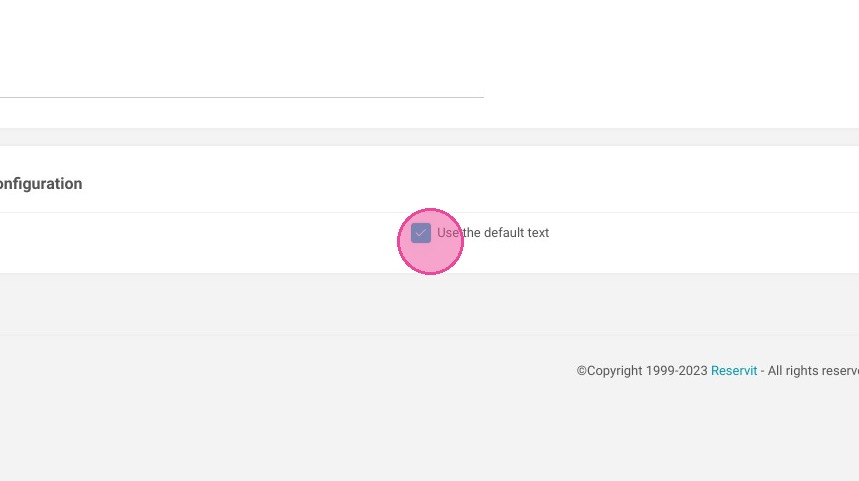
Disable the default text: Uncheck the default message box to unlock the text editor and enable custom wording.
-
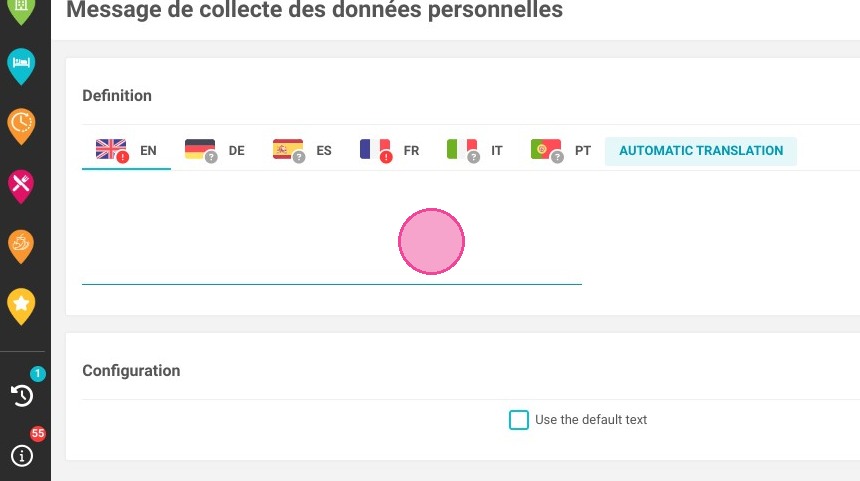
Insert your custom policy: Type or paste your property's specific data protection terms and privacy compliance statement directly into the text box.
-
Save and publish: Click "SAVE" to finalize your changes and immediately apply your personalized privacy message to your online booking engine.
Why follow this guide? Customizing your data protection message guarantees that your property explicitly complies with local and international privacy laws (such as GDPR) right at the point of booking. This simple but crucial adjustment prevents potential legal liabilities and builds immediate trust with your guests by being fully transparent about how their personal information is handled.
1. Click "Search on Reservit..."
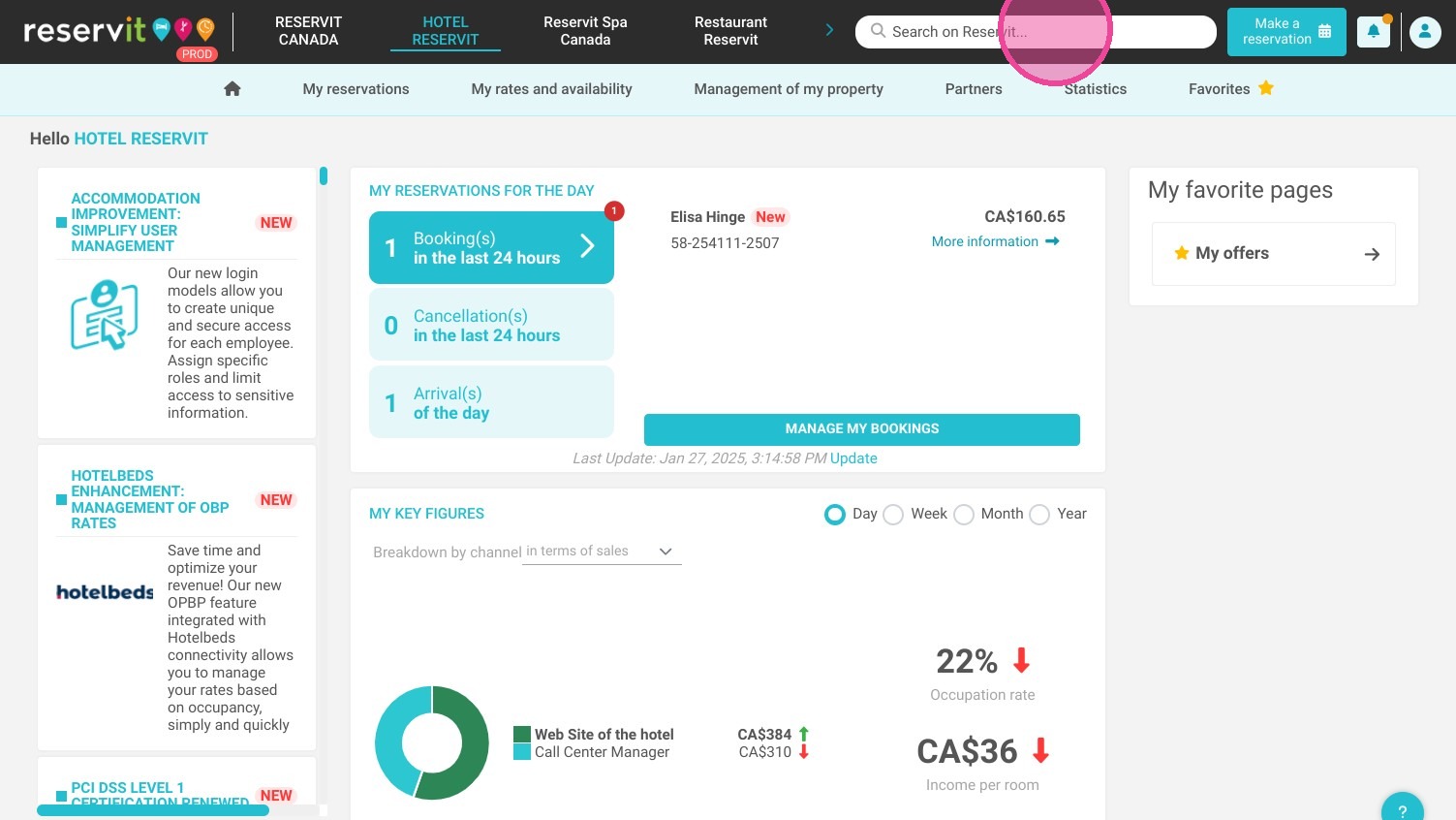
2. Type "data"
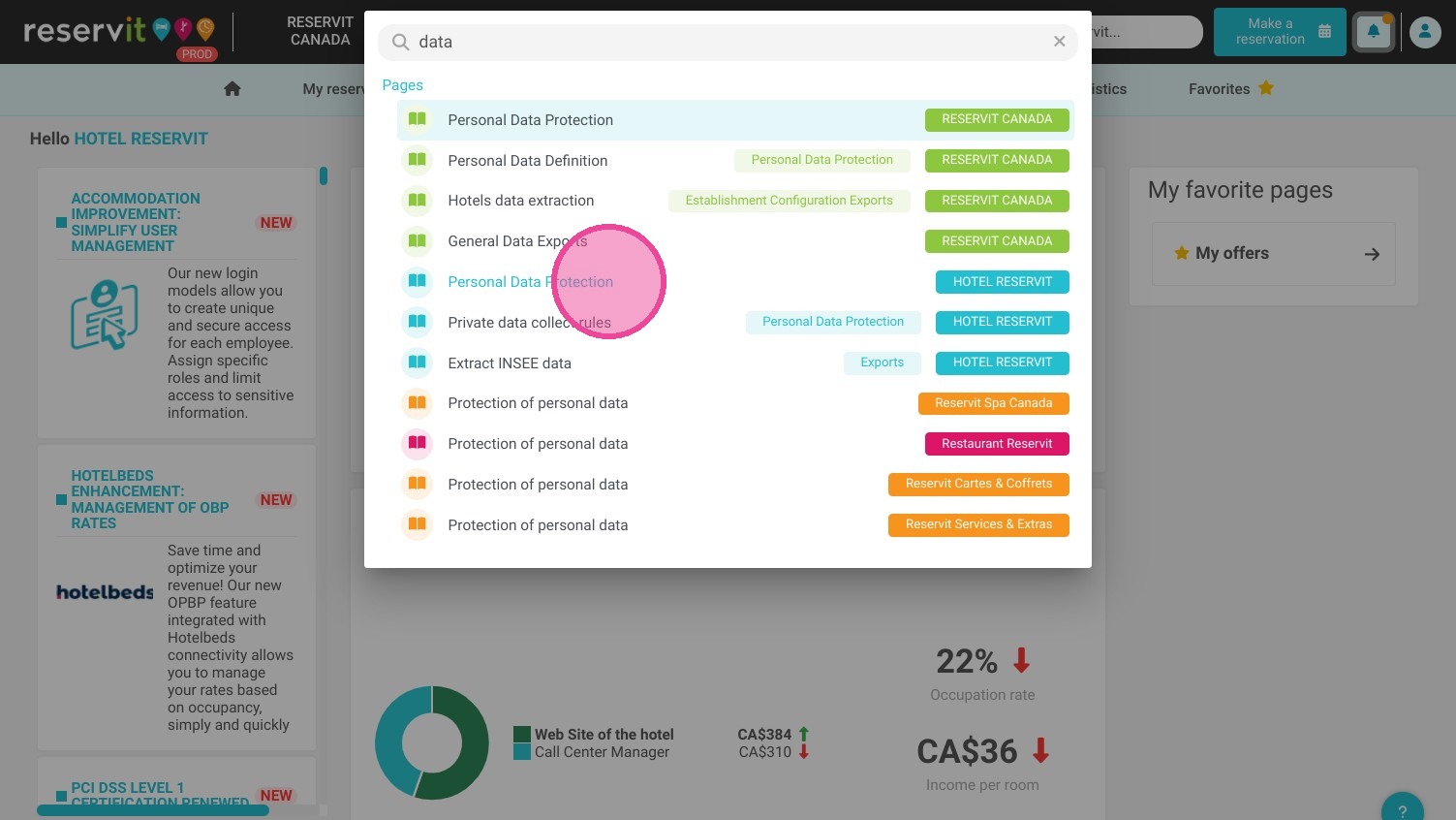
3. Click "Personal Data Protection"
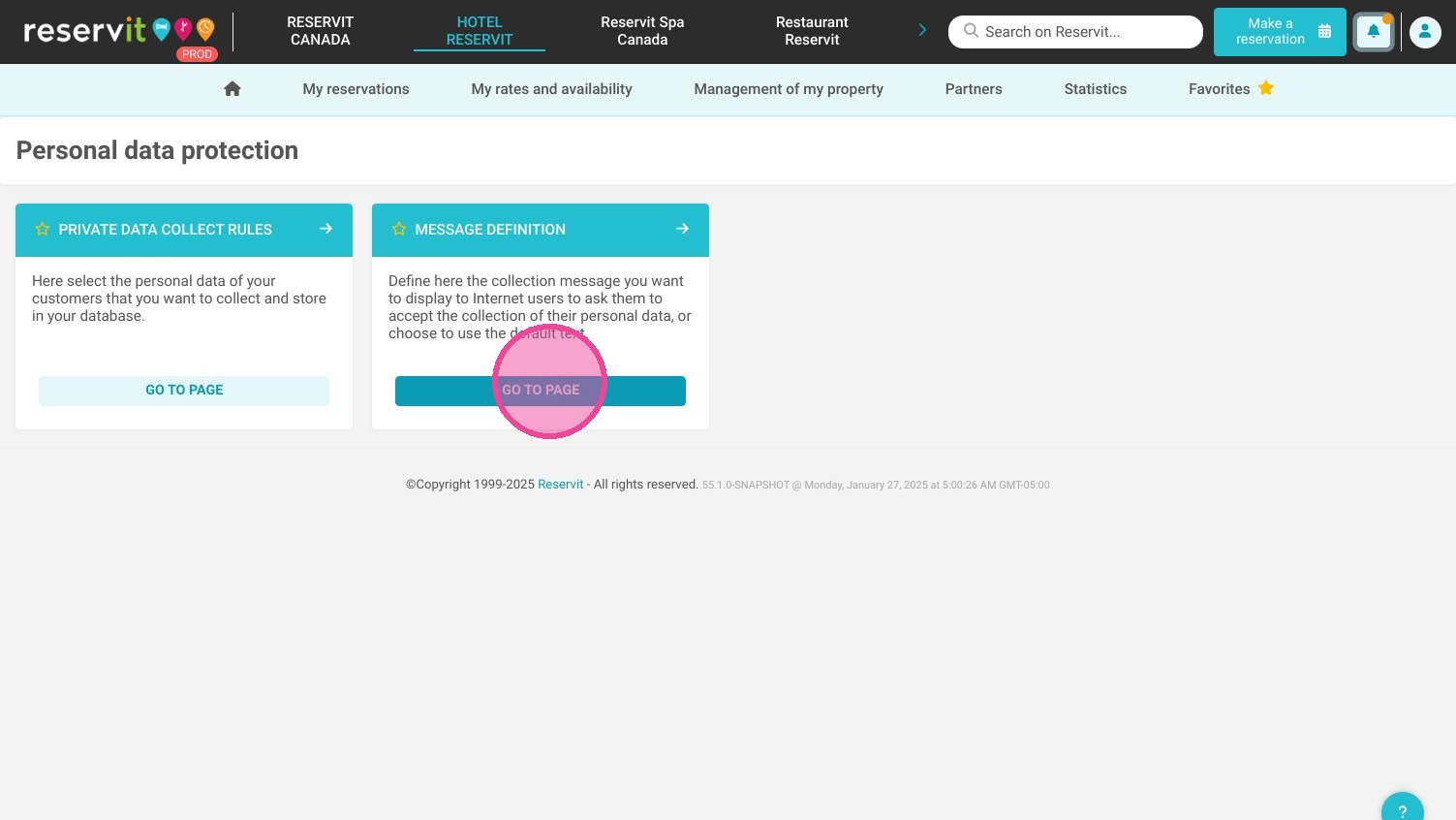
4. Click "Go to page"
5. A default text is displayed. Uncheck the box if you want to replace it with a personalized text
6. Then you can write the text you want in this box.
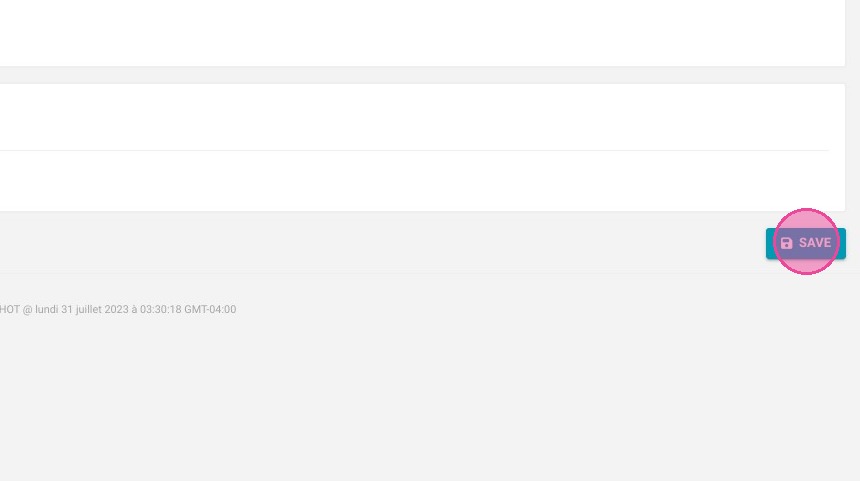
7. Click "SAVE" when you are done.