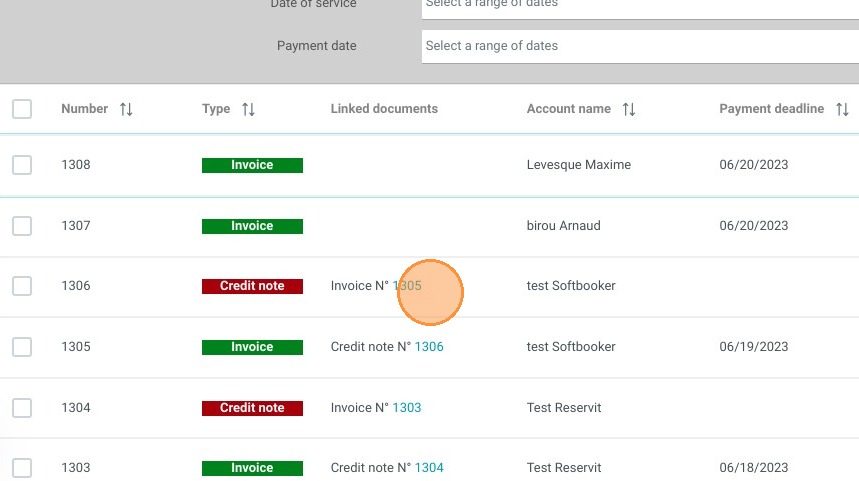
Article Summary: This comprehensive guide explains how to efficiently access, search, and manage your invoices within the Reservit PMS system. You will learn how to navigate the billing dashboard, apply search filters to find specific records, and utilize essential tools to download or print your financial documents. Mastering this process ensures streamlined accounting and better control over your property's daily billing operations.
The 4 key steps to manage your invoices in Reservit PMS:
-
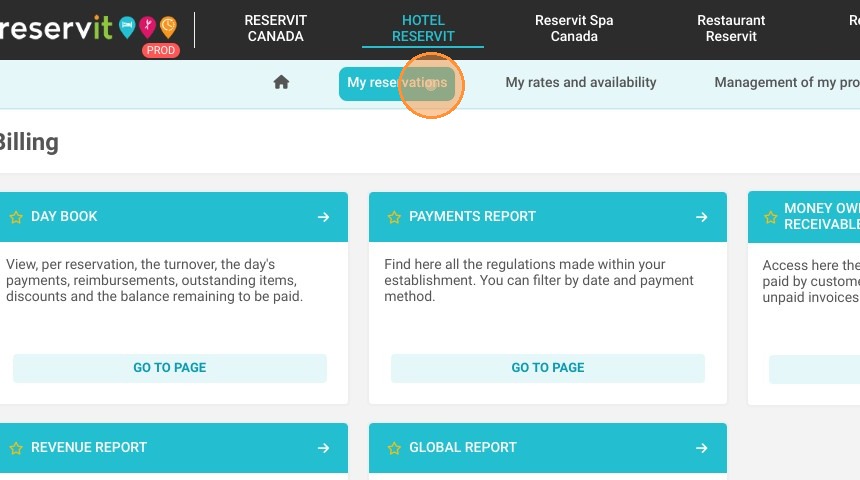
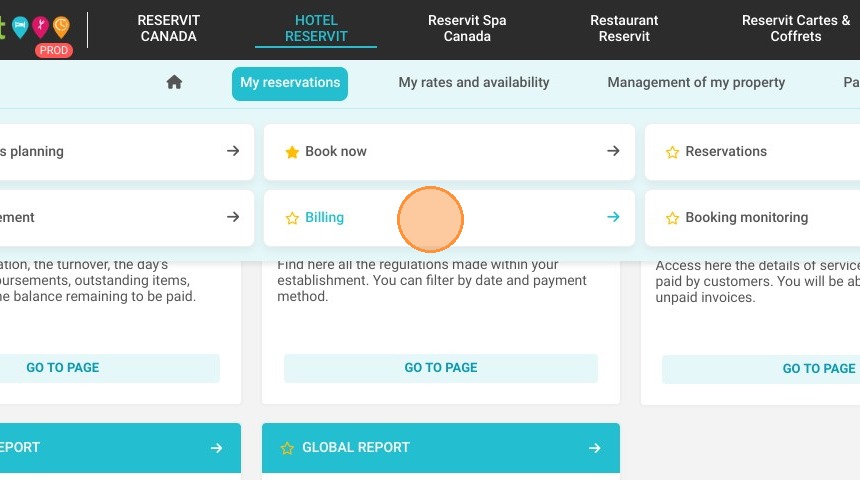
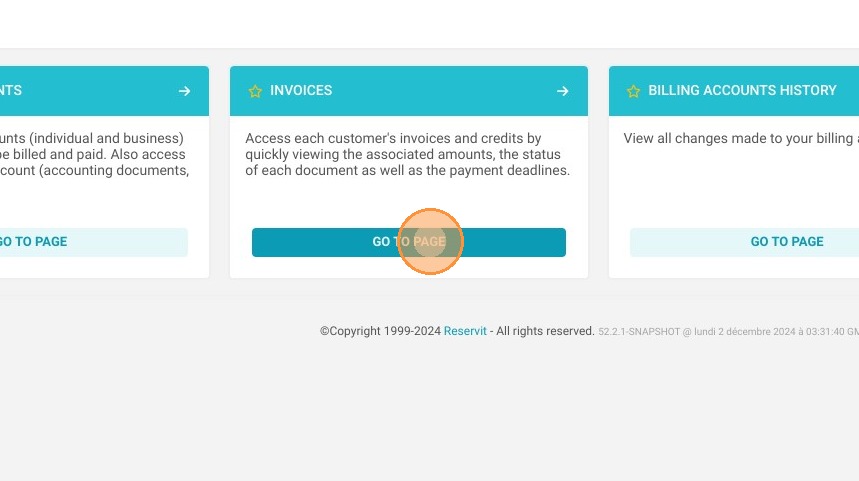
Access the Billing Menu: Navigate to "My reservations", then click on "Billing" followed by "Invoices" to open your financial dashboard.
-
Search and Filter: Utilize the search bar and advanced filters to quickly pinpoint specific invoices by name or document number.
-
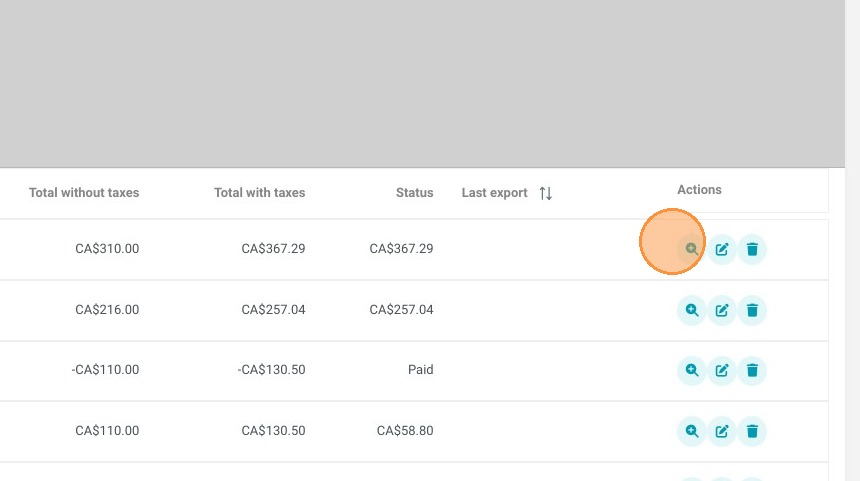
View and Navigate Documents: Click on any individual document to open it and seamlessly flip through the different pages of your invoices.
-
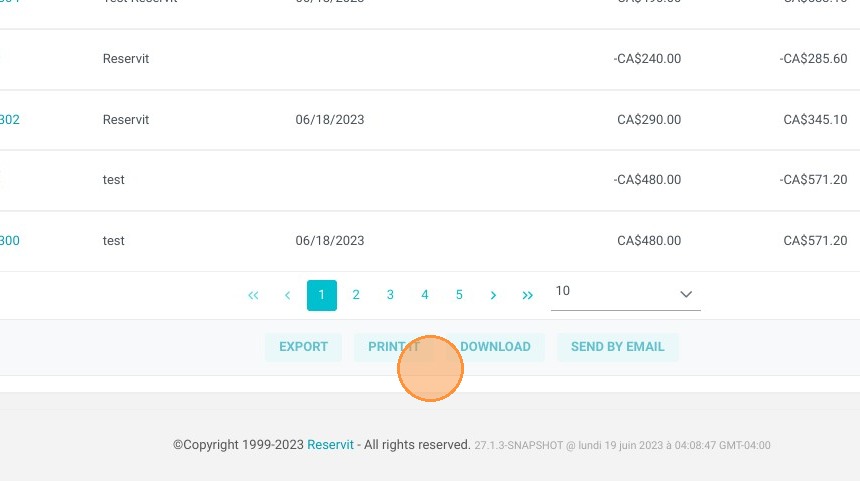
Export and Print: Use the built-in document tools to easily download or print your invoices for your physical or digital accounting records.
Why follow this guide? Following this tutorial will save you valuable time during your daily accounting routine by helping you quickly retrieve, organize, and export crucial financial data without errors. It streamlines your billing management workflow, ensuring your property's financial records are always accurate, secure, and easily accessible.
1. Click "My reservations" then ''Billing'' and "Invoices"
2. Here you will find all kinds of filters and a search bar
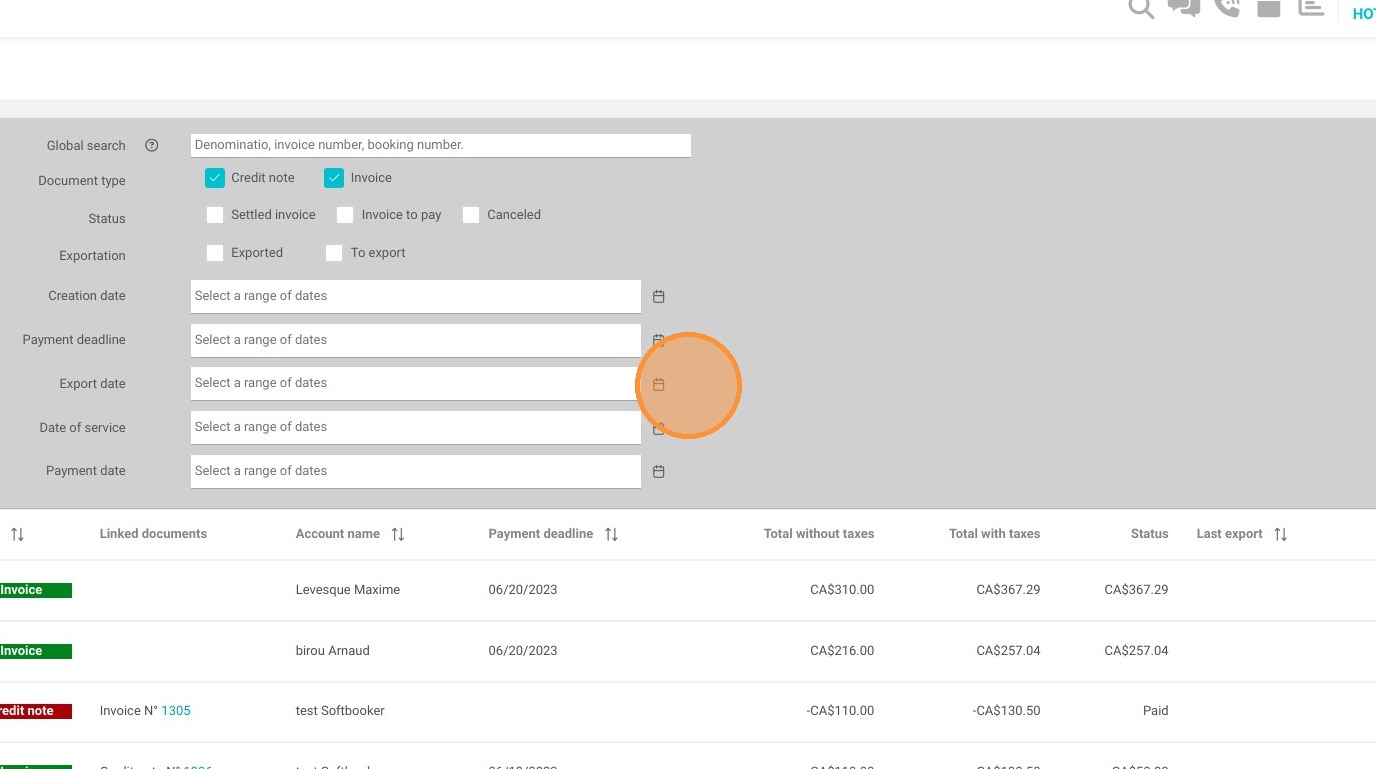
3. Click here to access the document
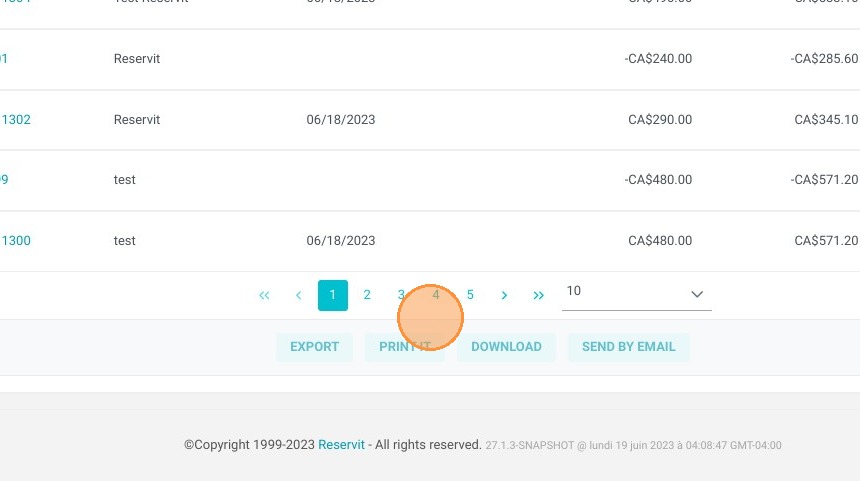
4. Here you can see all the different pages of documents; you can select one directly
5. Here you will find all kinds of tools for your documents: printing, downloading, etc.
6. Here you can see the number of each document
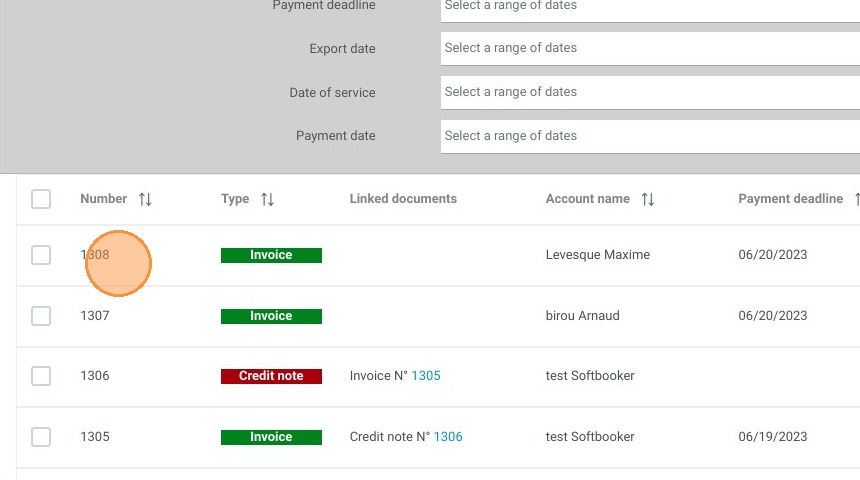
7. Here you can see the name of each document, if any.