

Article Summary: This step-by-step guide explains how to perform a bulk download of your billing documents on the Reservit Accommodation platform. You will learn how to filter financial records, select multiple billing statements at once, and distinguish between downloading documents and exporting accounting data. Efficiently retrieving your invoices saves valuable administrative time during monthly accounting reviews and financial auditing.
The 5 Key Steps to Download Your Invoices in Bulk on Reservit Accommodation:
-
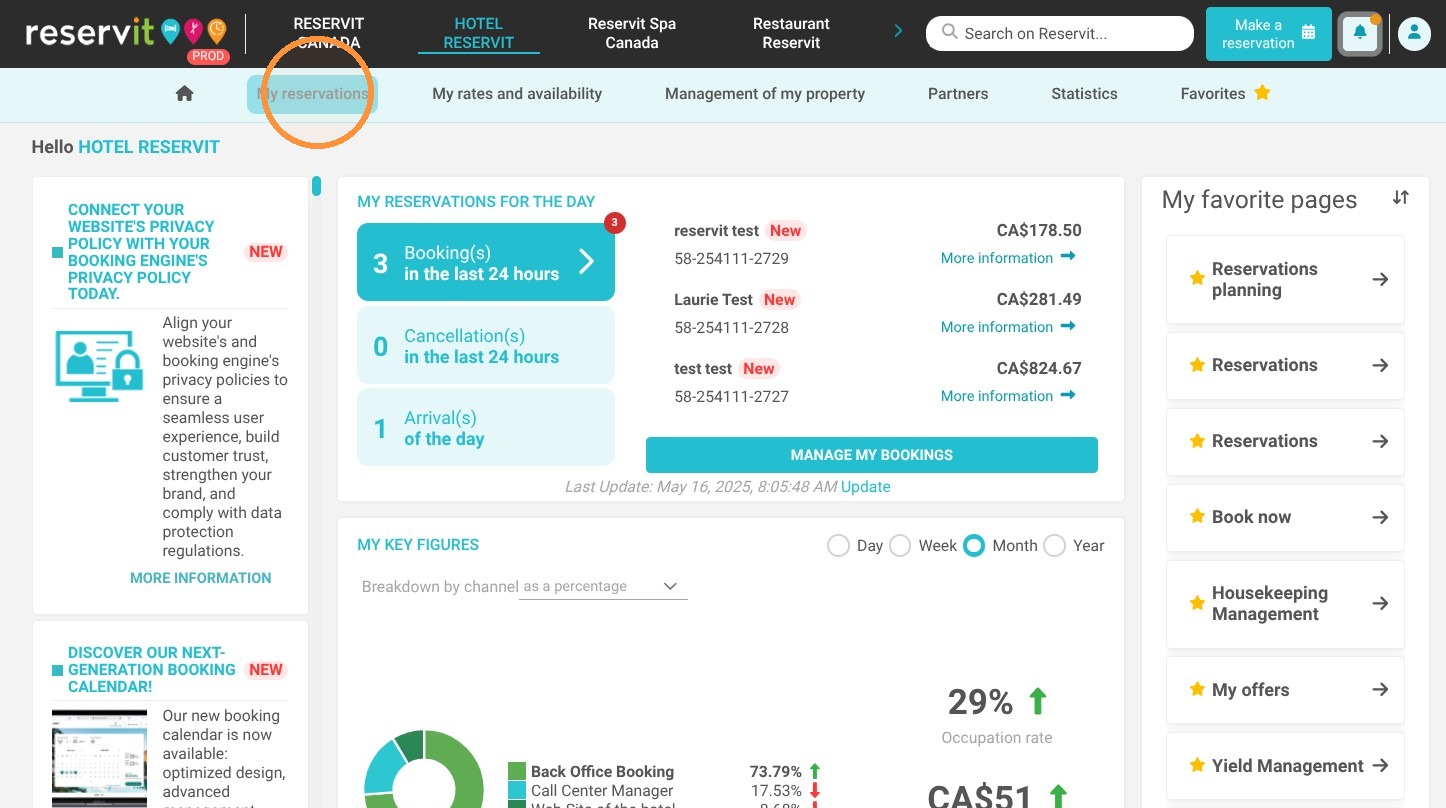
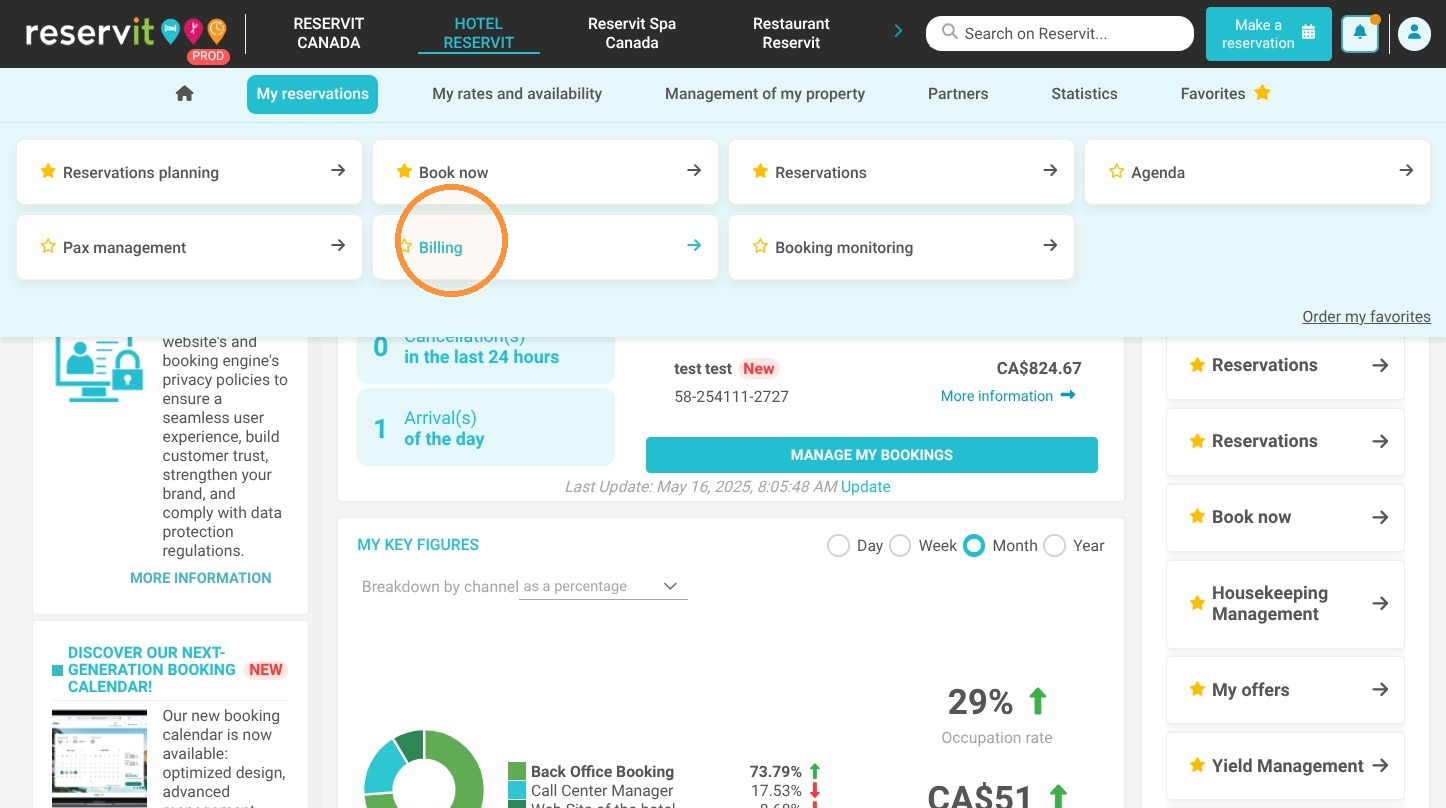
Navigate to Billing: Go to the "My reservations" menu and select "Billing" to access your financial control panel.
-
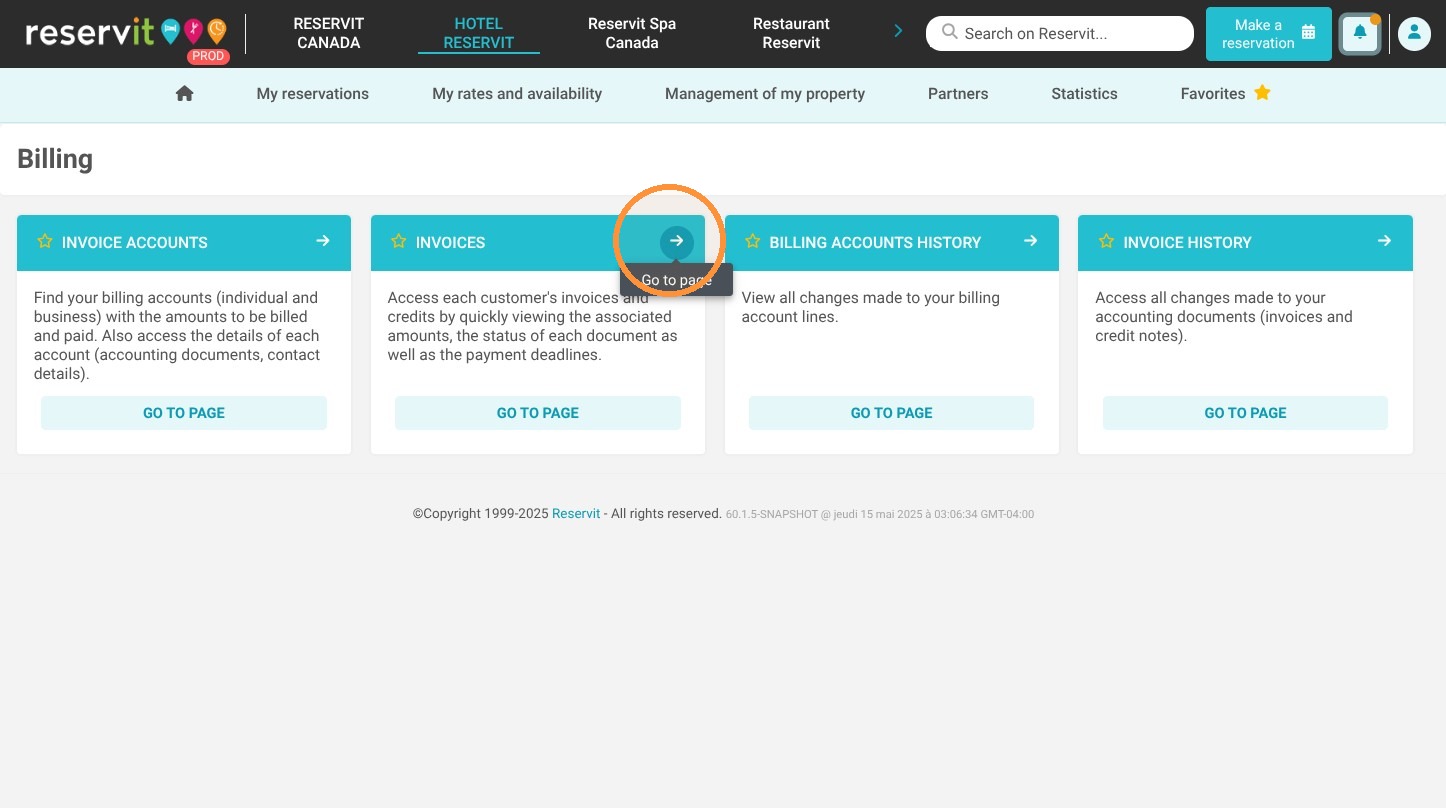
Access the Invoices Section: Click on the "Invoices" tab to display your complete list of billing documents and receipts.
-
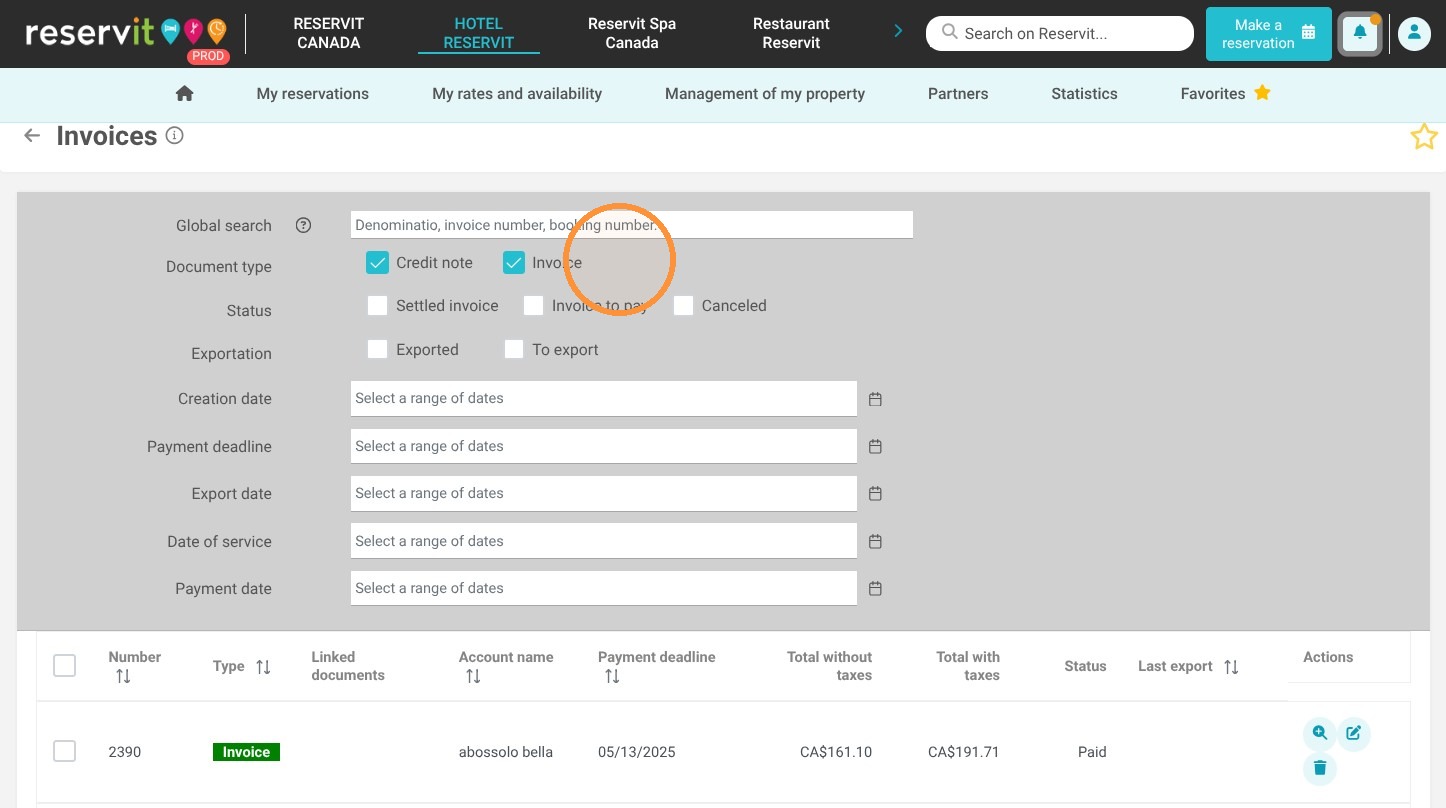
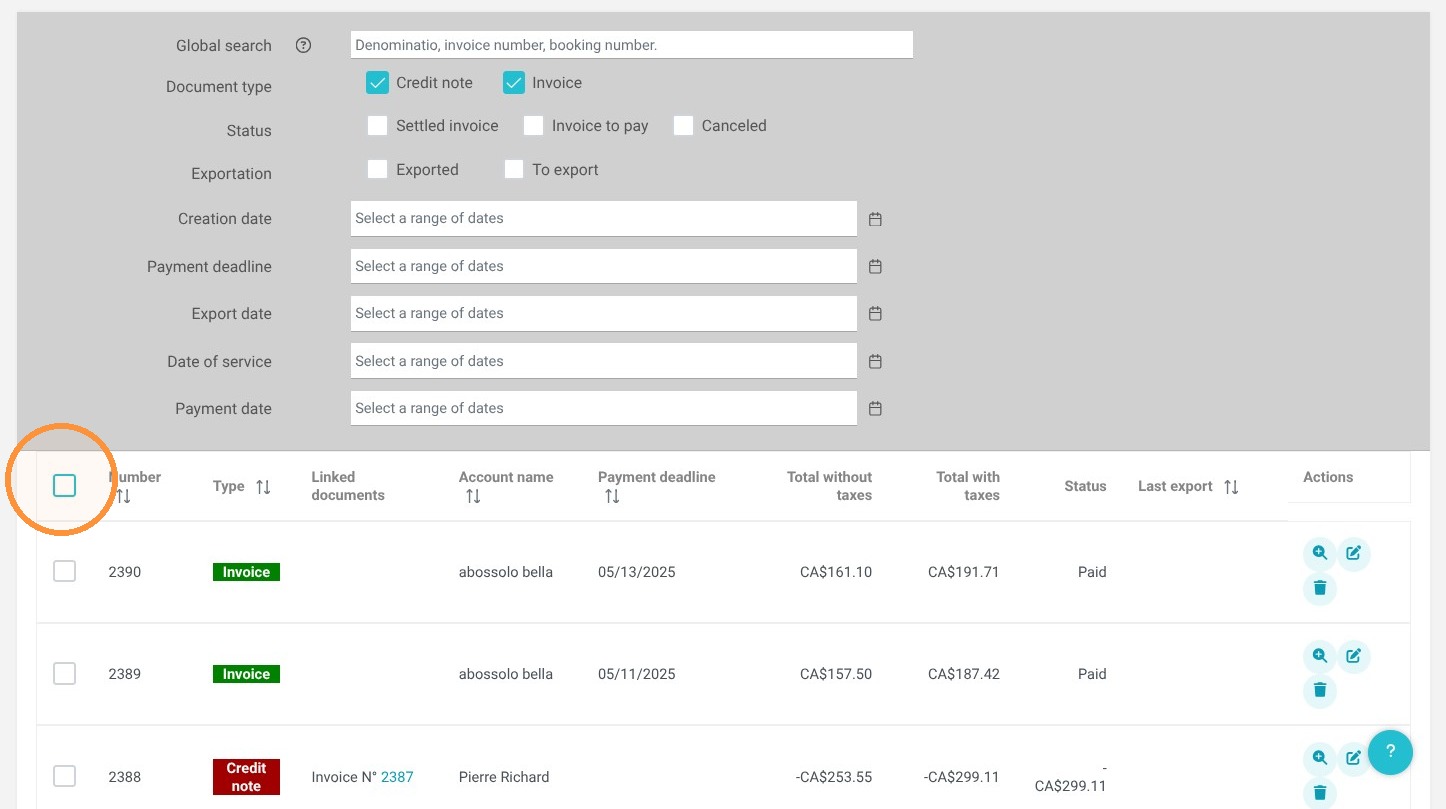
Filter Your Documents: Use the available filters to specify date ranges and generate the exact list of invoices you need.
-
Select All Invoices: Check the top selection box above the table to highlight all displayed documents simultaneously.
-
Execute the Download: Click the "Download" button to save your documents (note that the "Export" button is reserved for accounting software integration).
Why follow this guide? Following this guide streamlines your financial administration, helping you retrieve multiple billing statements in seconds while preventing confusion between PDF downloads and accounting file exports.
1. Click "My reservations"
2. Click "Billing"
3. Click "Invoices".
4. Use the filters to select the list of documents you want to download.
5. Check the box at the top of the list to select all documents.
6. Click "Download".
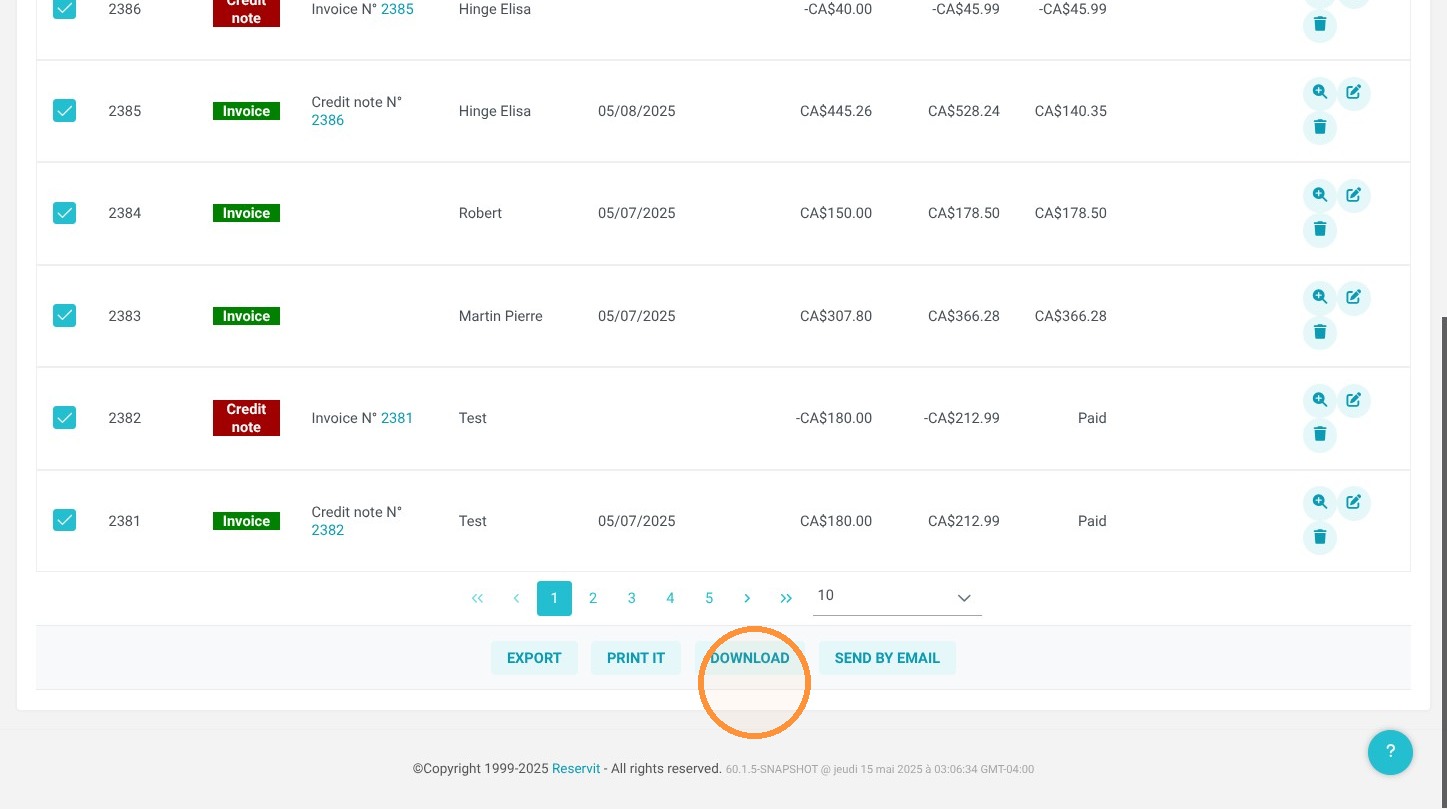
Note: the "Export" button does not download your invoices. It exports them in a format compatible with your accounting software.