Help for use

How to Set Up an Offer for GDS in Reservit | Configure Global Distribution Systems

Article Summary: This comprehensive tutorial explains how to effectively set up and configure a new pricing offer for Global Distribution Systems (GDS) within Reservit Accommodation. You will learn how to accurately create your specific rate plan, map it to your Property Management System (PMS), and seamlessly synchronize your data with your chosen GDS partner. Mastering this technical integration ensures your room rates and availability are flawlessly distributed to global travel agents, maximizing your property's international booking potential.

The 5 key steps to set up a GDS offer:

  • Create the rate plan: Navigate to the "My offers" menu to add a new price plan, carefully defining your exact rates and selecting the specific rooms eligible for this offer.

  • Assign the distribution channel: Securely link the rate by selecting "My Partners - GDS/IDS" as your sole distribution channel, apply any necessary restrictions, and publish the offer.

  • Map your external PMS: Copy the newly generated Reservit offer identifier (ID) and paste it into your external PMS to ensure future reservations integrate correctly without manual data entry.

  • Send the ID to your GDS: Provide your Reservit offer ID directly to your GDS partner so they can officially map the rate code within their global network.

  • Request final synchronization: Once the GDS confirms the mapping, contact Reservit support to push the final synchronization of your prices and availability across the system.

Why follow this guide? Following this precise setup workflow ensures a flawless technical integration between your booking engine, PMS, and global networks, preventing costly synchronization errors or mismatched rates. By correctly configuring your GDS offers from the start, you automate your international distribution strategy and guarantee reliable, real-time availability for travel agents worldwide.

Part 1 - Creation of the Reservit Offer

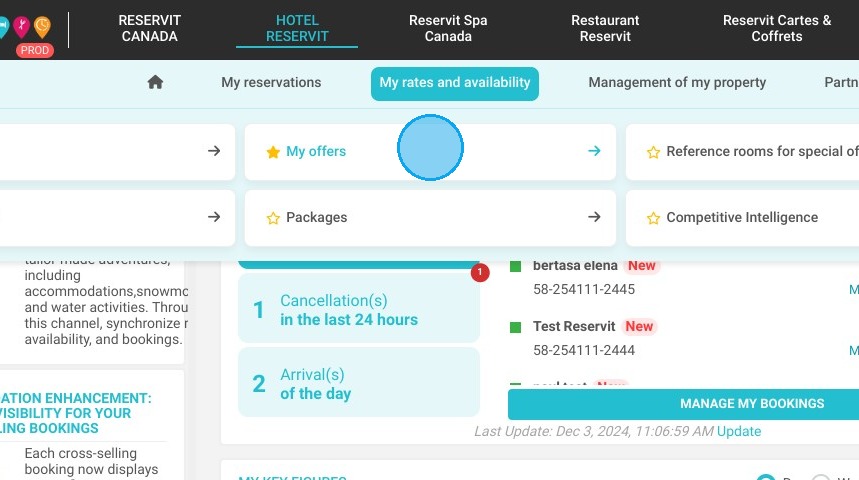
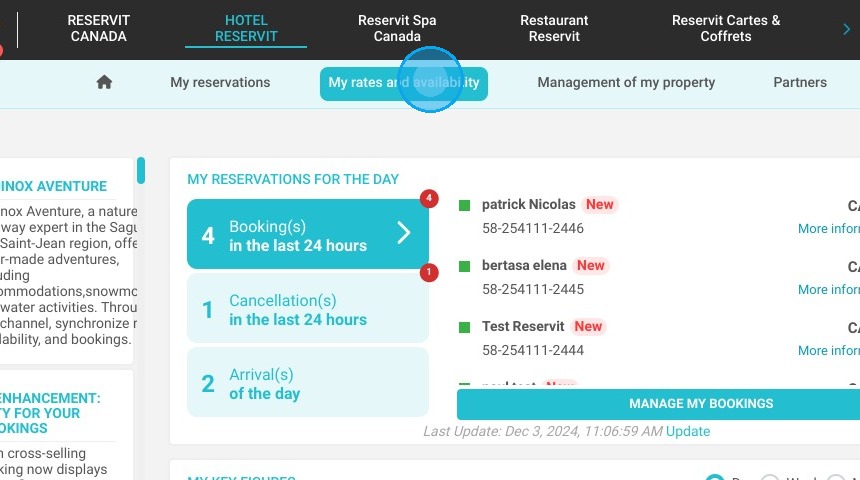
1. Click "My rates and availability" then '' My offers''
https://colony-recorder.s3.amazonaws.com/files/2024-12-03/b422c681-34f2-4dd7-8952-52a72c0a32ea/ascreenshot_a2002fcd478c4b788b4bdf5ba00cd4d1_text_export.jpeg
https://colony-recorder.s3.amazonaws.com/files/2024-12-03/7d330e26-458c-4588-9b17-71a32fb95280/ascreenshot_97c437f6d61941ffbc30a5f58b32257f_text_export.jpeg

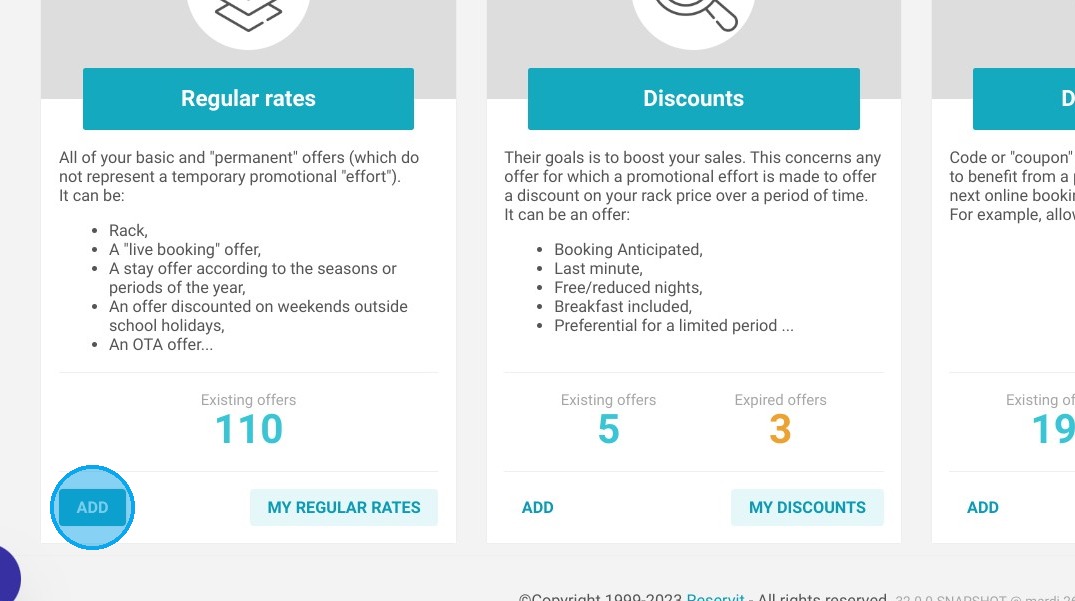
2. Add a new price plan

https://colony-recorder.s3.amazonaws.com/files/2023-09-26/e518e78d-0027-4439-b5be-20497e054a6c/ascreenshot_6c369b92379f4e0b901a6b80f8e60b42_text_export.jpeg

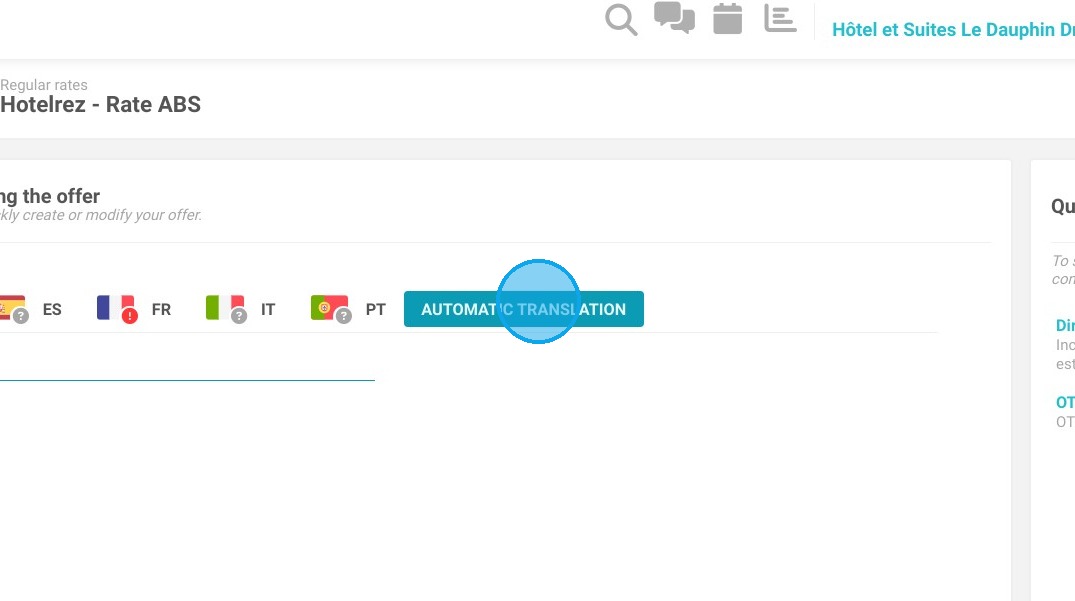
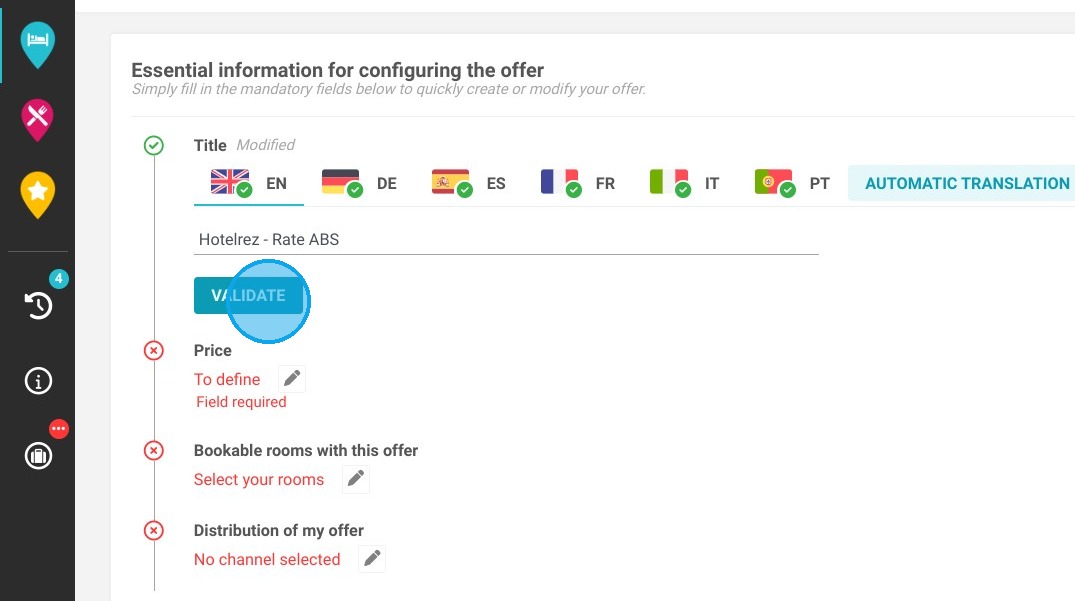
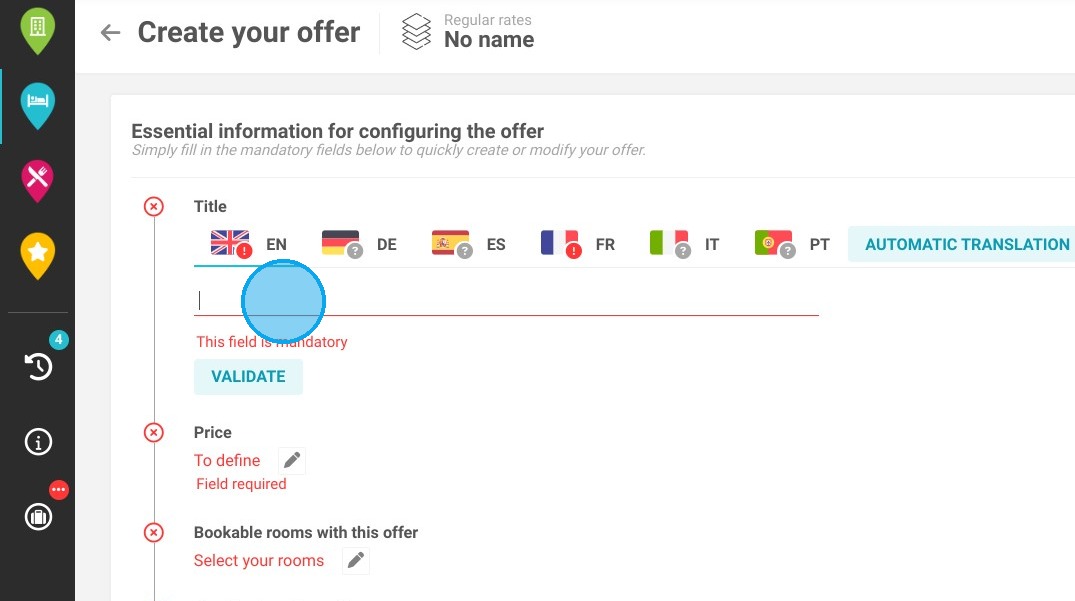
3. Name your offer, click on automatic translation and validate.
https://colony-recorder.s3.amazonaws.com/files/2023-09-26/4c6d8284-3881-40ce-9c14-97f611367f5f/ascreenshot_9e3504e0331345759026bd0ac8b87303_text_export.jpeg
https://colony-recorder.s3.amazonaws.com/files/2023-09-26/2389b479-4133-4cbf-820f-d991ae805f96/ascreenshot_b14e77f191e74f0da42c82192677984f_text_export.jpeg
https://colony-recorder.s3.amazonaws.com/files/2023-09-26/5a93a0ae-72d0-495d-acf3-df537e6a42b5/ascreenshot_bf913342c73b47cd9e7146df65734cdd_text_export.jpeg

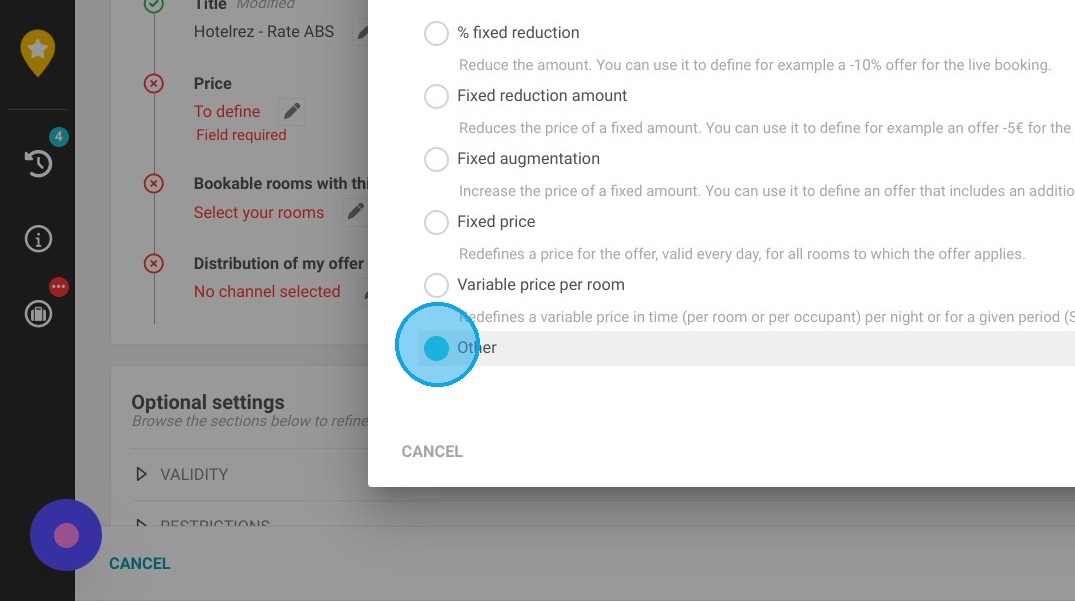
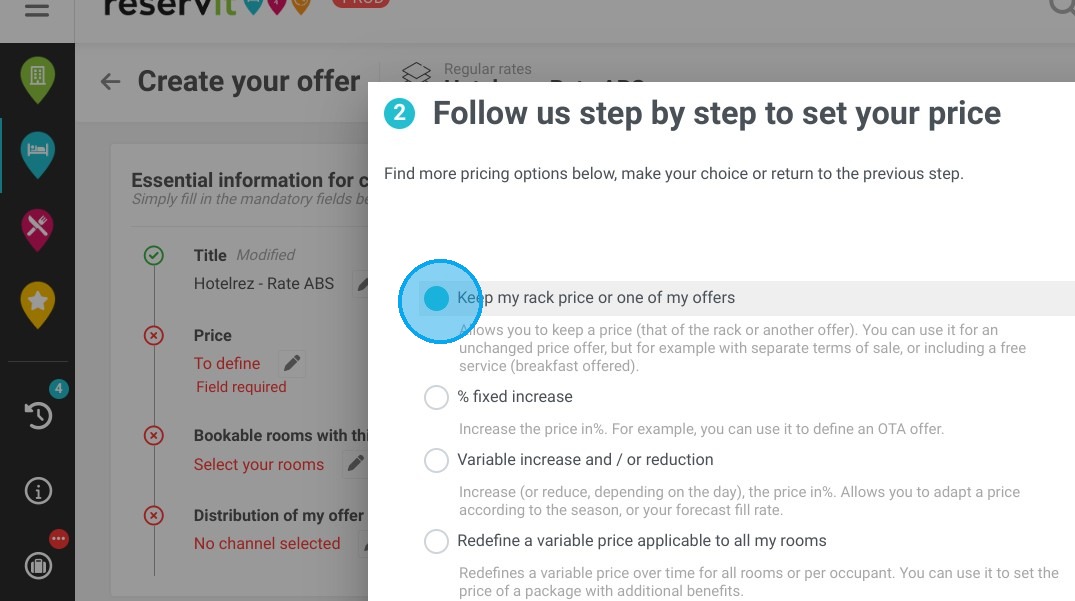
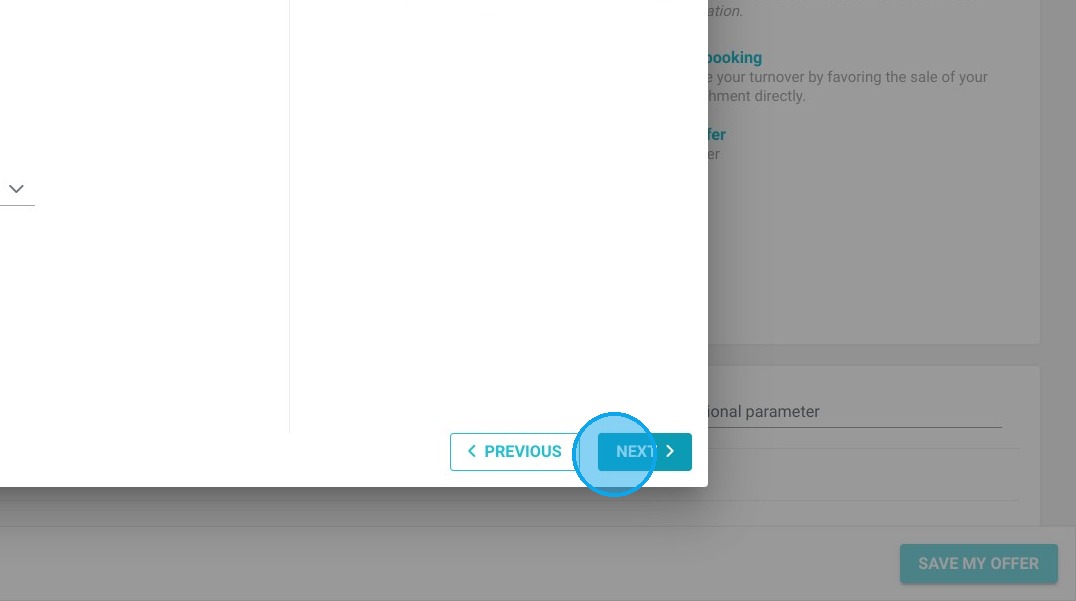
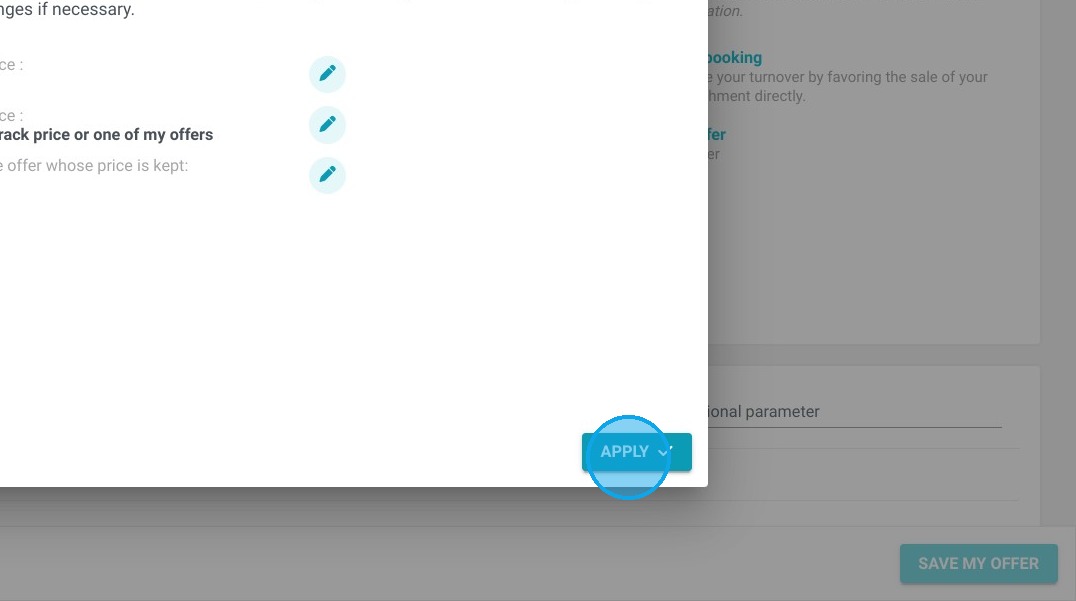
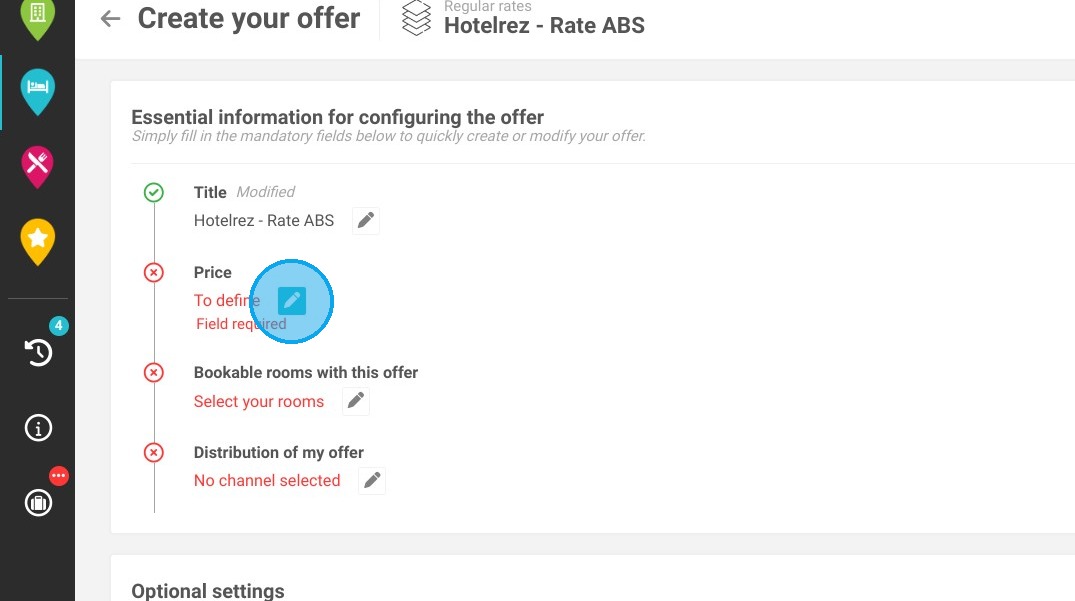
4. Next, define the price you wish to send to the GDS.
https://colony-recorder.s3.amazonaws.com/files/2023-09-26/f15f1ac2-3b6b-4d06-89ab-07e7fa345e7b/ascreenshot_fc414206d1a0403484b1882d649d0173_text_export.jpeg
https://colony-recorder.s3.amazonaws.com/files/2023-09-26/a1bb21cd-0c8d-4aec-a330-f98d78443567/ascreenshot_06d31fdd52d943d0a148f88caebfa4f2_text_export.jpeg
https://colony-recorder.s3.amazonaws.com/files/2023-09-26/d64069fb-0817-4e3c-b3fb-3824c9384ca3/ascreenshot_cf1ff5b04ba147149079d6225572b4c6_text_export.jpeg
https://colony-recorder.s3.amazonaws.com/files/2023-09-26/65d9e769-ec77-43c8-8d8e-e851adee2202/ascreenshot_59c8648fc0af4ba9b5b7e72e2c1ac052_text_export.jpeg
https://colony-recorder.s3.amazonaws.com/files/2023-09-26/ee61f58b-d07c-4b25-a81b-ec161096b7ef/ascreenshot_b60b518ef31c4d7abd3d9df1b2e2c799_text_export.jpeg

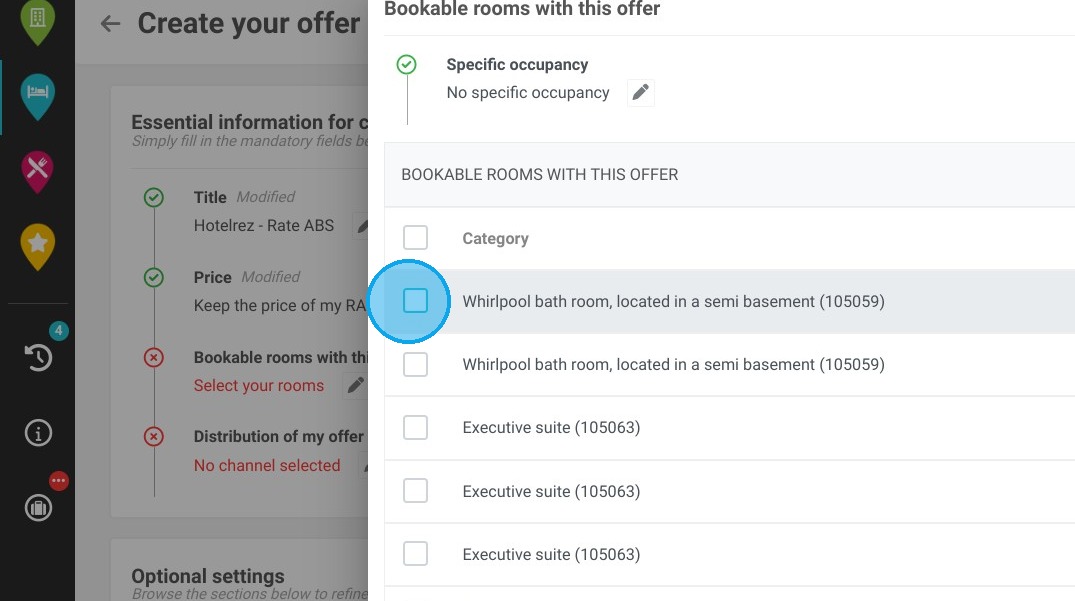
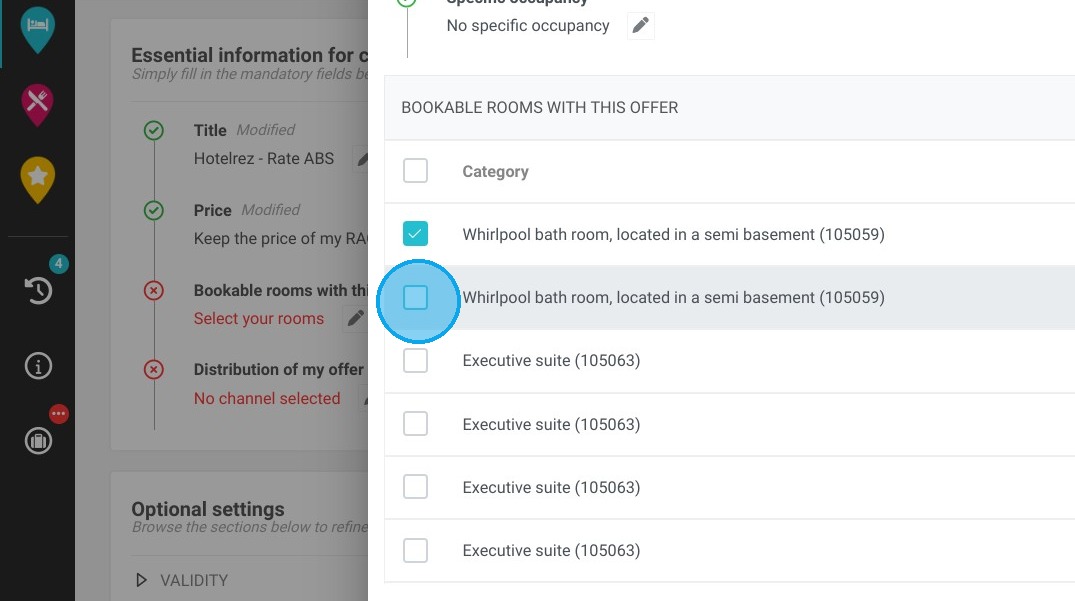
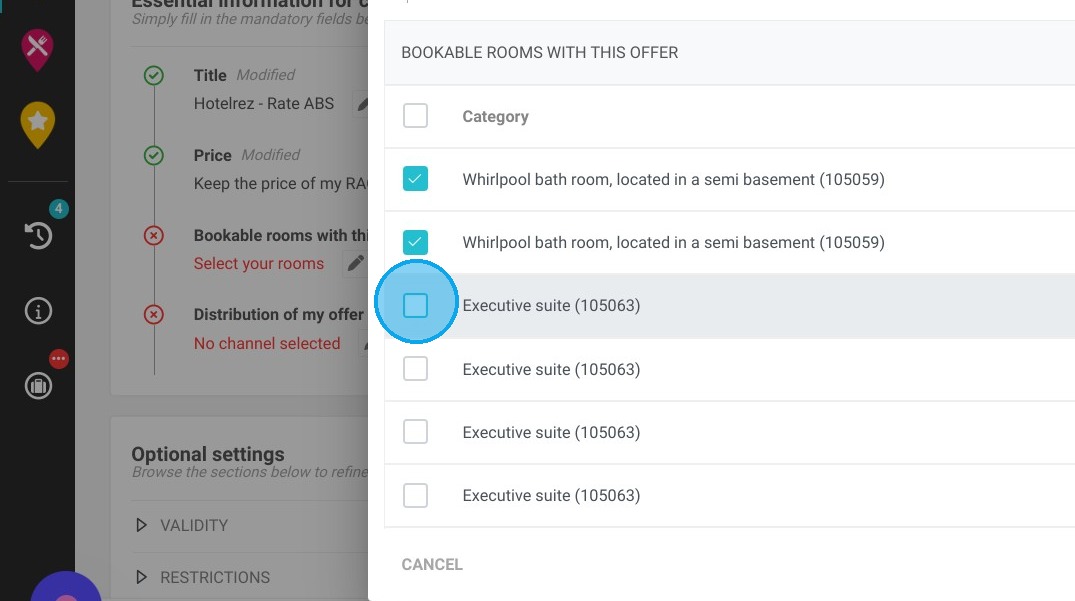
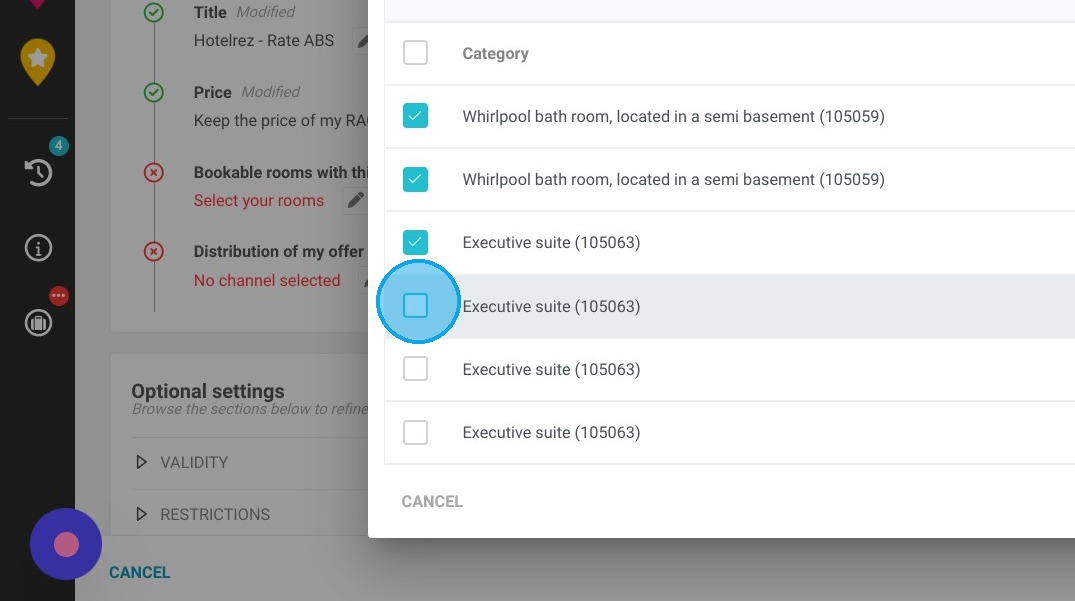
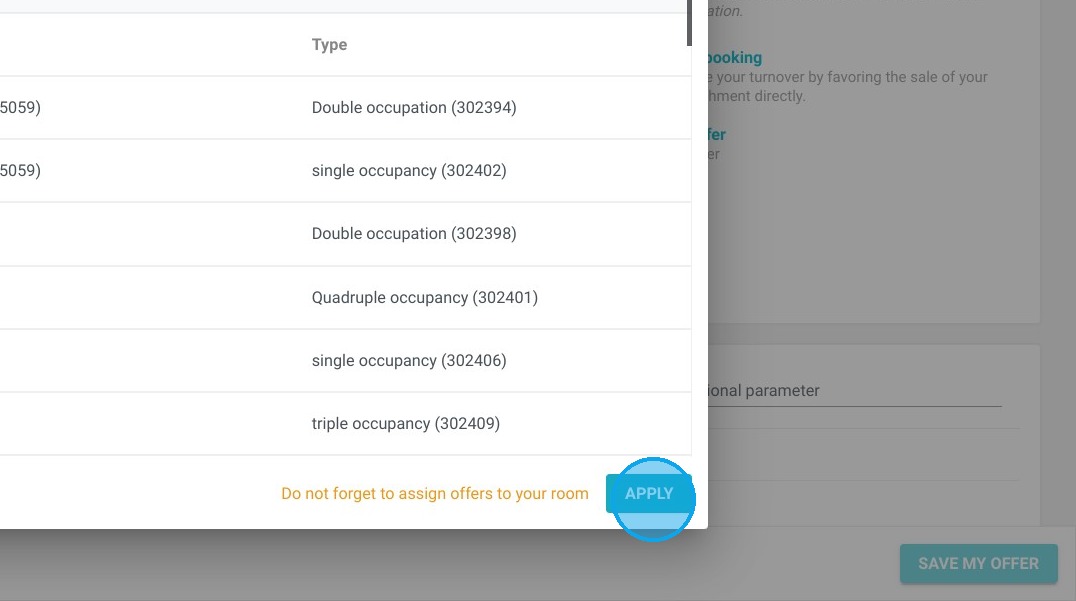
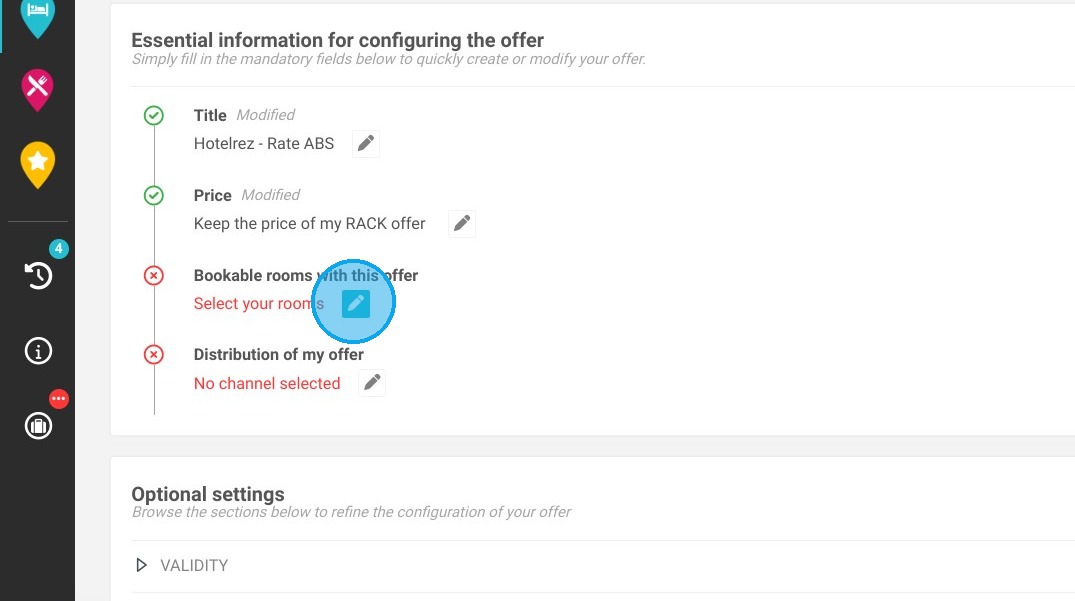
5. Select the rooms that can be booked for this offer
https://colony-recorder.s3.amazonaws.com/files/2023-09-26/402afc66-9c10-421c-b070-6cc66fbe8055/ascreenshot_b7c111530b4342e987284c3b4dcf057a_text_export.jpeg
https://colony-recorder.s3.amazonaws.com/files/2023-09-26/815e1195-25b6-41af-9e58-0a8fae487ea0/ascreenshot_c6701413a5c84e41a548ca05d2ee3c37_text_export.jpeg
https://colony-recorder.s3.amazonaws.com/files/2023-09-26/63a9c960-0bec-420c-ac64-b54d2aad5891/ascreenshot_9c46c69c728044468733f5392751cacd_text_export.jpeg
https://colony-recorder.s3.amazonaws.com/files/2023-09-26/a5413dea-1fe5-46ca-ab93-d7445d65e825/ascreenshot_d23da69f55b84cd9bfd0effaafd4948d_text_export.jpeg
https://colony-recorder.s3.amazonaws.com/files/2023-09-26/91961927-52c8-403c-a951-700ca9ea3f6f/ascreenshot_a6f62e6f306c41c59f3eb5efb66b85ca_text_export.jpeg
https://colony-recorder.s3.amazonaws.com/files/2023-09-26/4abf7be3-dc50-46b8-afe4-1a3f42c37b91/ascreenshot_c3f14c75ed5b42cfb4a94340faf6889e_text_export.jpeg

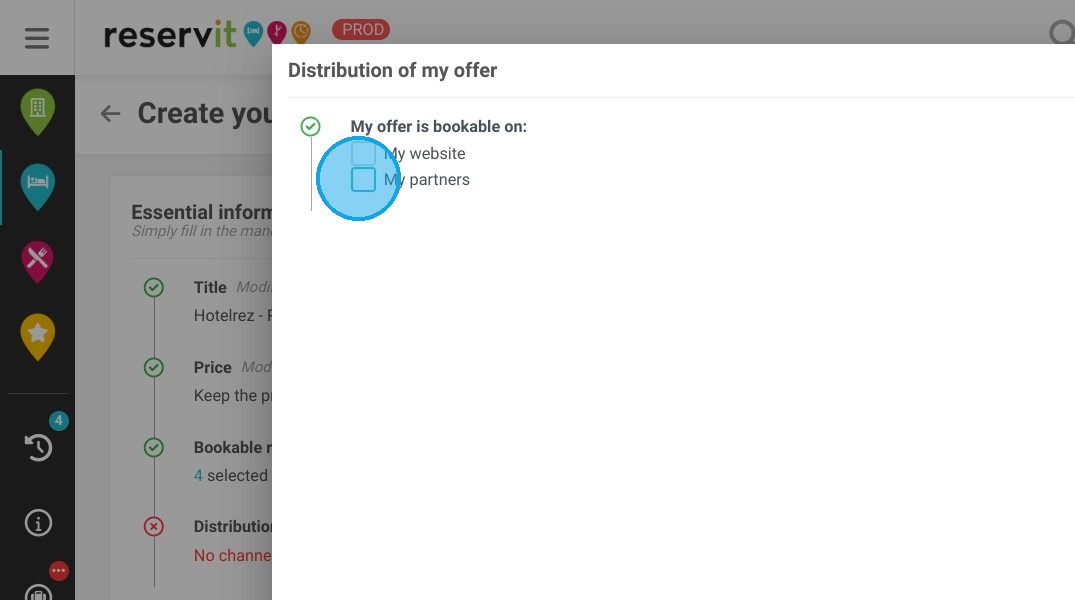
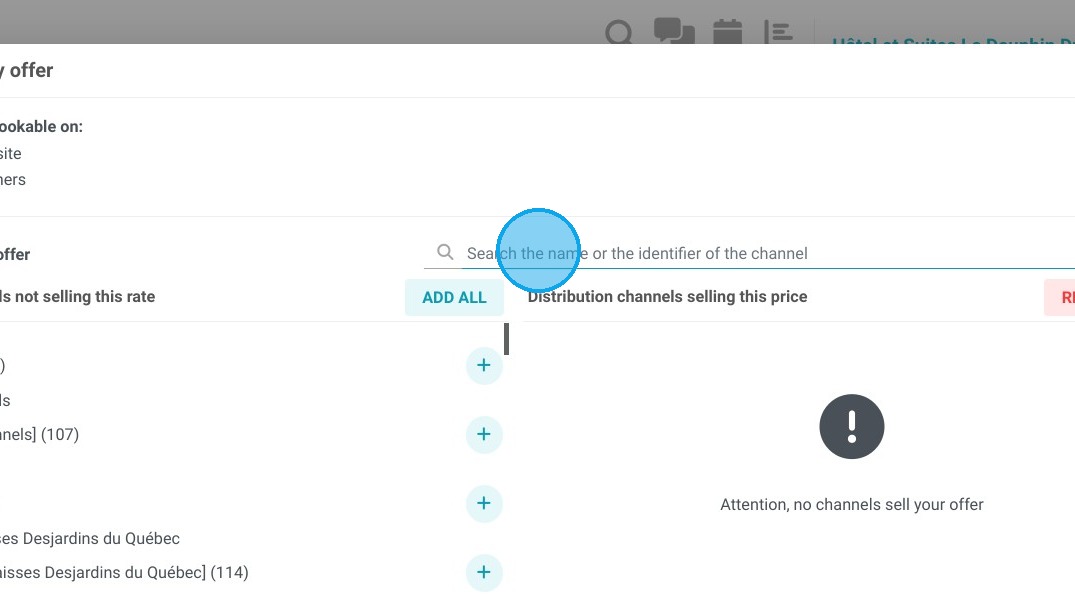
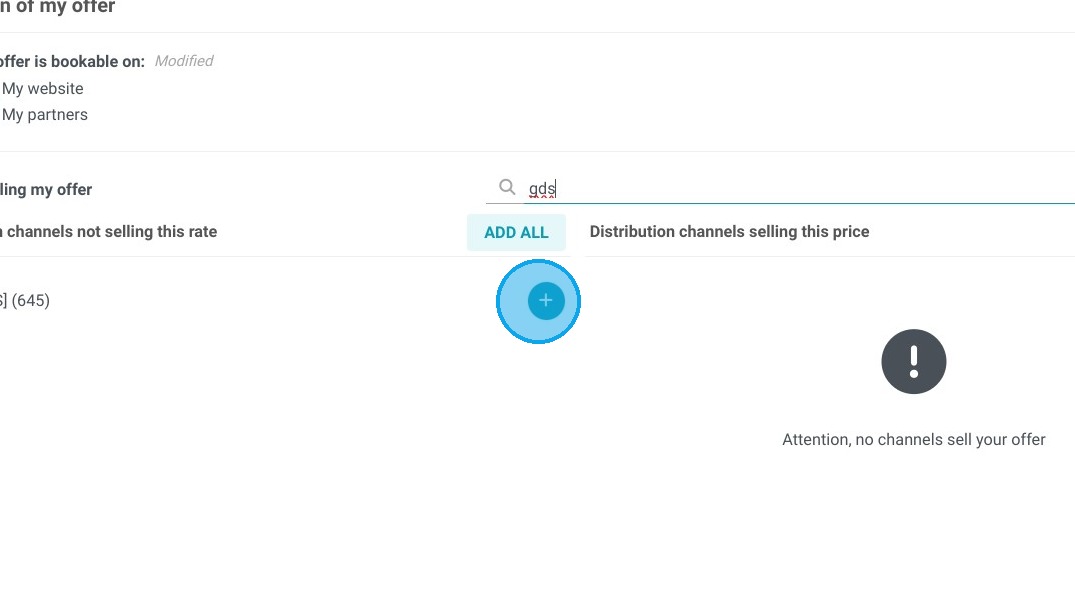
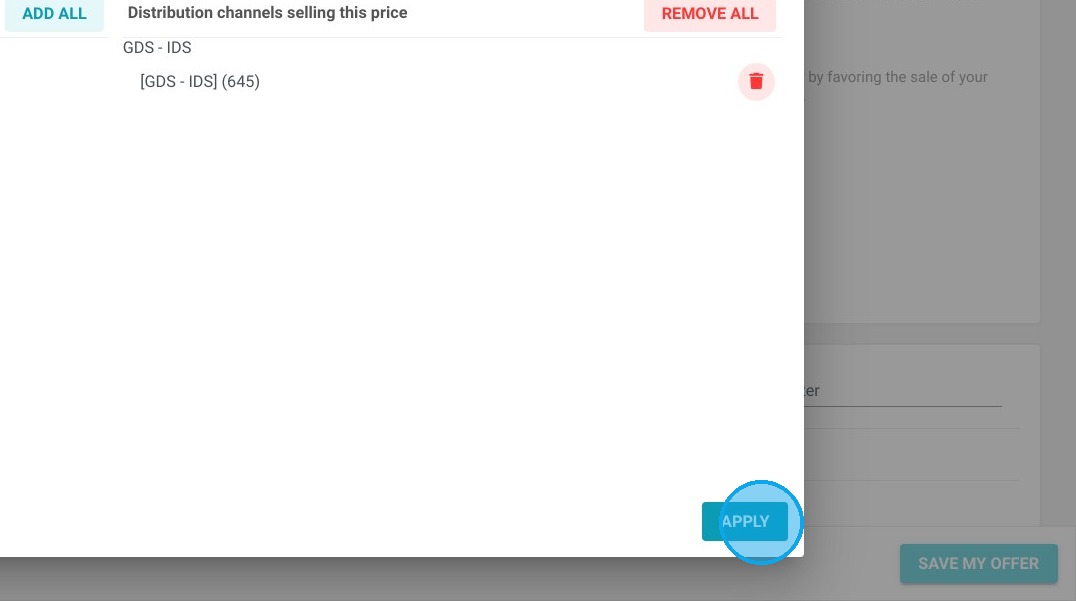
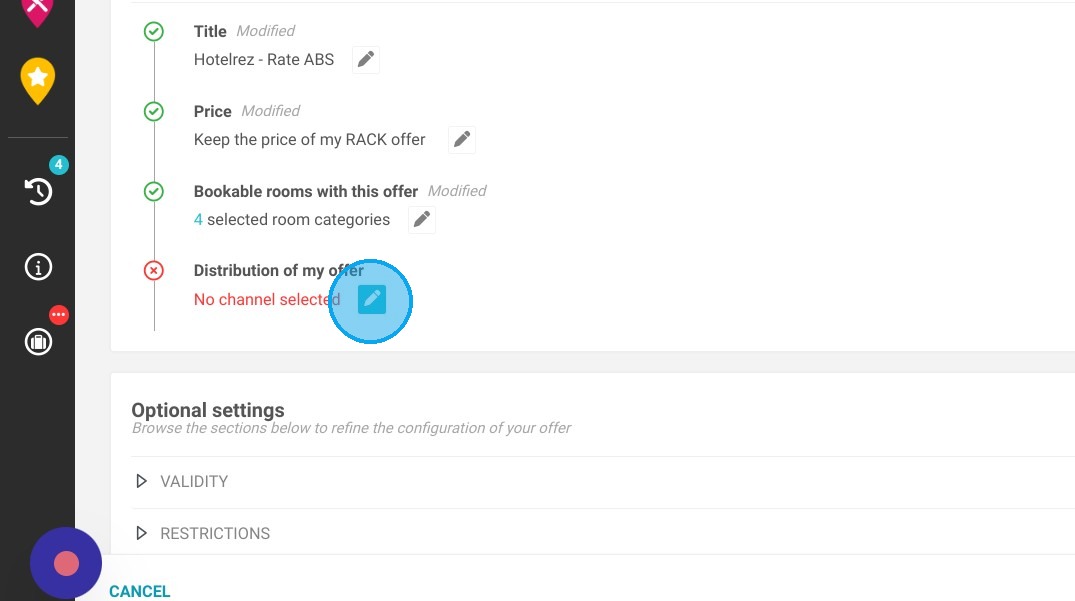
6. Select the distribution channel, i.e. My Partners - GDS/IDS
https://colony-recorder.s3.amazonaws.com/files/2023-09-26/66409a2f-13f8-4992-a340-b89a8a20f903/ascreenshot_3faeefa5822549edab03b2f36d9d669e_text_export.jpeg
https://colony-recorder.s3.amazonaws.com/files/2023-09-26/b22f286f-84fc-4751-b9bc-7581a7c59343/ascreenshot_2c1bdd3948f644edaba9642c96f87ade_text_export.jpeg
https://colony-recorder.s3.amazonaws.com/files/2023-09-26/6c77ab06-018c-443e-a30f-8a06b594b4b6/ascreenshot_19111d5eab6f48d89d8ac5685289f236_text_export.jpeg
https://colony-recorder.s3.amazonaws.com/files/2023-09-26/3d5d99f8-35ce-4ef2-a292-95ae51a43f52/ascreenshot_fd6b75d2a41e488583a8eea4d432255c_text_export.jpeg
https://colony-recorder.s3.amazonaws.com/files/2023-09-26/42016729-3778-4af8-a8aa-efc105116dbe/ascreenshot_62c85bbe94e24748af305ce6ef791390_text_export.jpeg

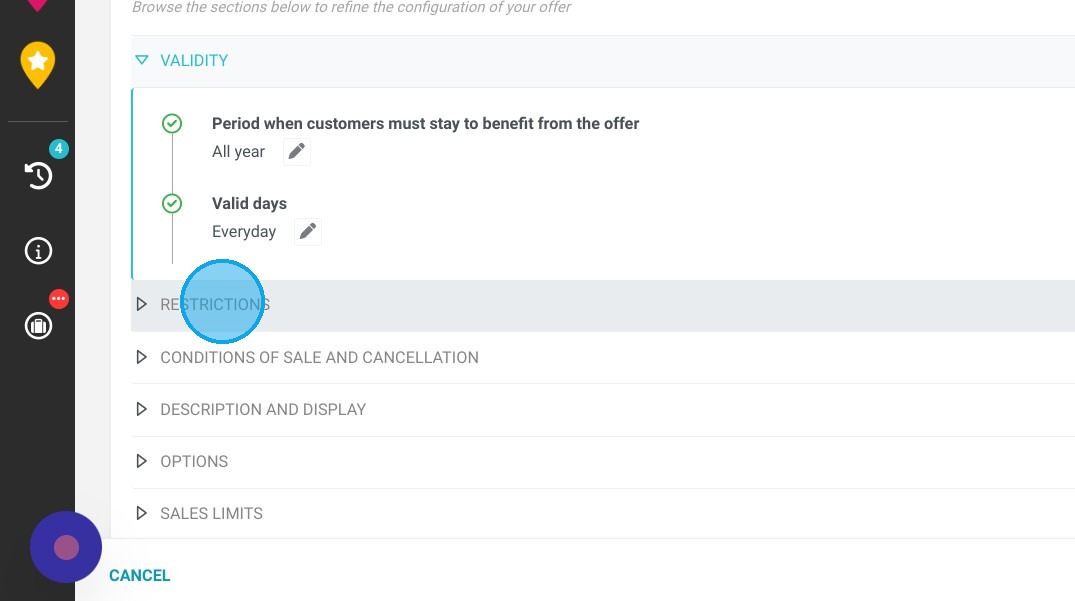
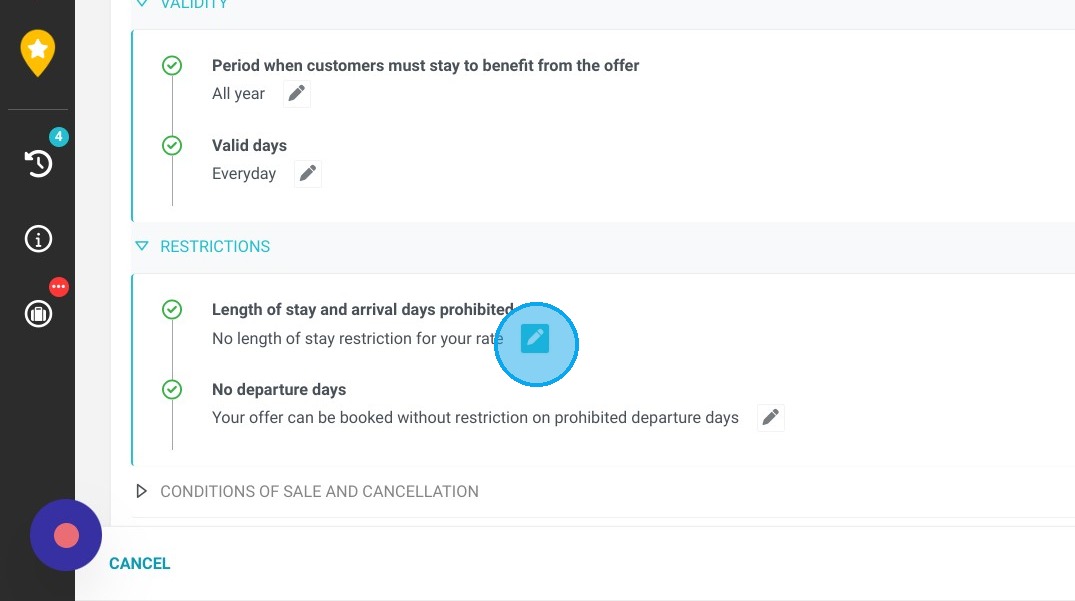
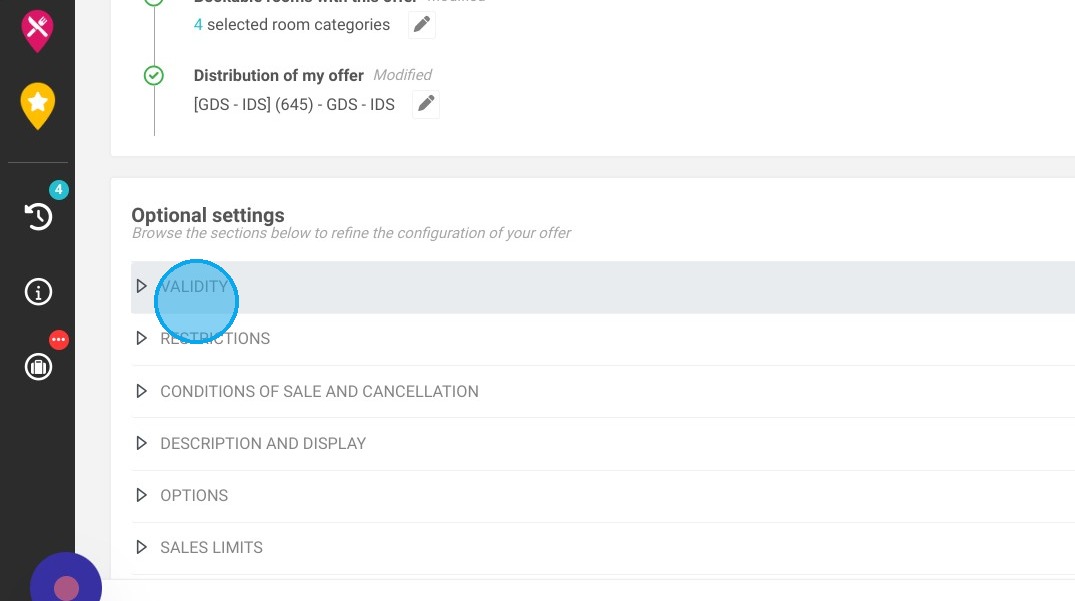
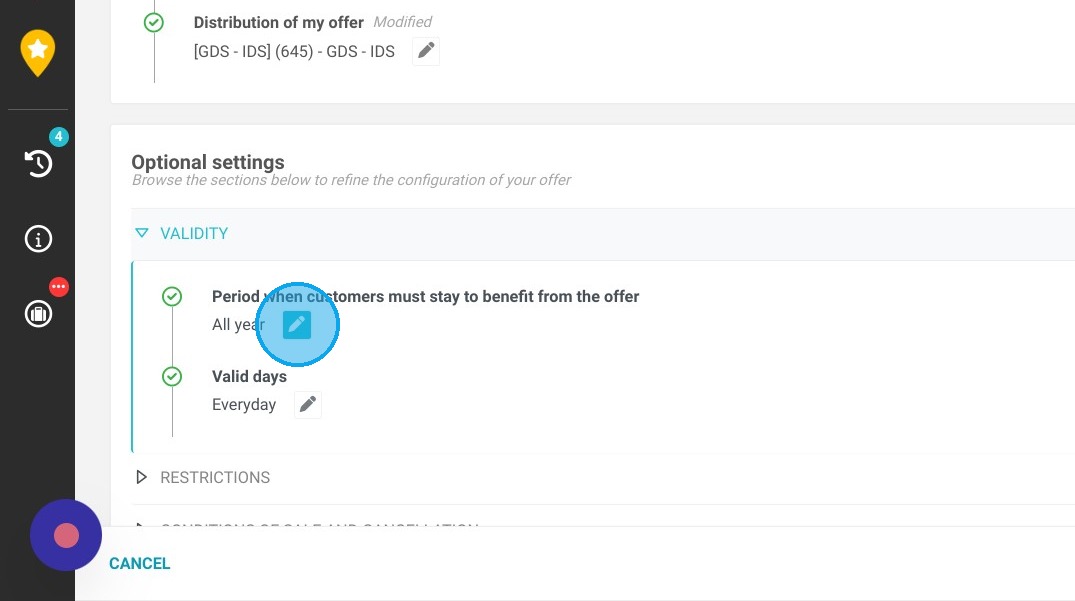
7. You can then configure optional settings such as length of stay and prohibited departure days in the "Restrictions" section.
https://colony-recorder.s3.amazonaws.com/files/2023-09-26/6f296c3d-0161-46ac-8dd7-43d66f1f7838/ascreenshot_18d048a1e3974e4fa0486a07aa196fc6_text_export.jpeg
https://colony-recorder.s3.amazonaws.com/files/2023-09-26/43ae3a38-0736-4f69-b8c9-5b83ac91b7f2/ascreenshot_94e6b1c50b714c9e94e56d23751c679d_text_export.jpeg
https://colony-recorder.s3.amazonaws.com/files/2023-09-26/905cd85f-b9bb-41f0-816f-3b408f0454c9/ascreenshot_1b6f505d7d614ea9ae8a6fcc9d90d6c8_text_export.jpeg
https://colony-recorder.s3.amazonaws.com/files/2023-09-26/1c61c4b4-7560-48c5-b6a3-e9d7c81ee3b5/ascreenshot_effa6f58bf5c4542b854715f6c2298d7_text_export.jpeg

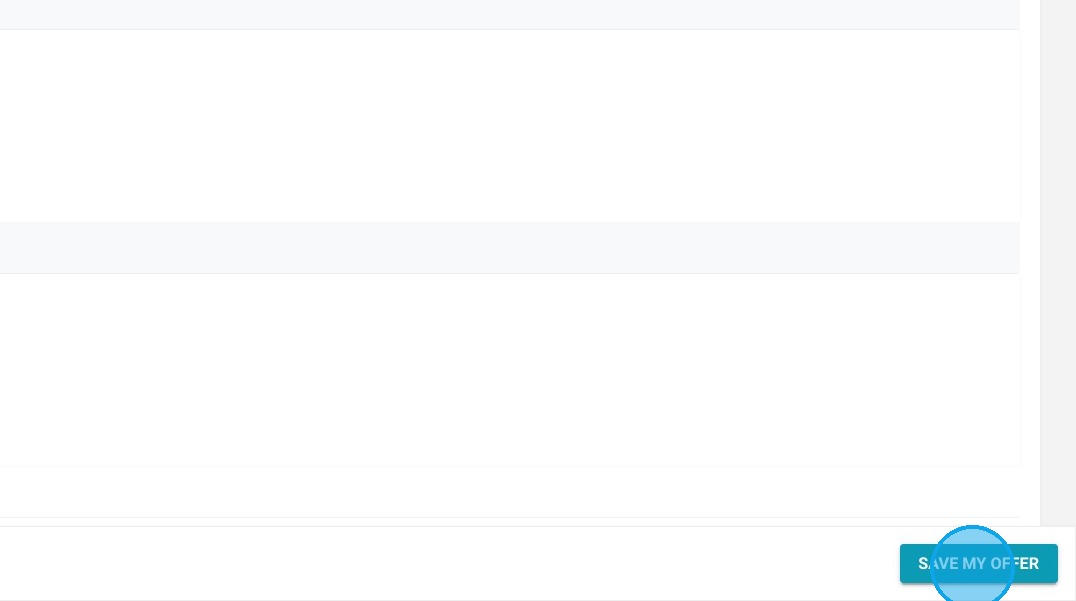
8. Once you've finalized your configuration, save your offer.
https://colony-recorder.s3.amazonaws.com/files/2023-09-26/7c6f0bc8-58f0-49a8-8917-a1cd0d0bcde3/ascreenshot_10544413203d4623b1779608ff42b84a_text_export.jpeg

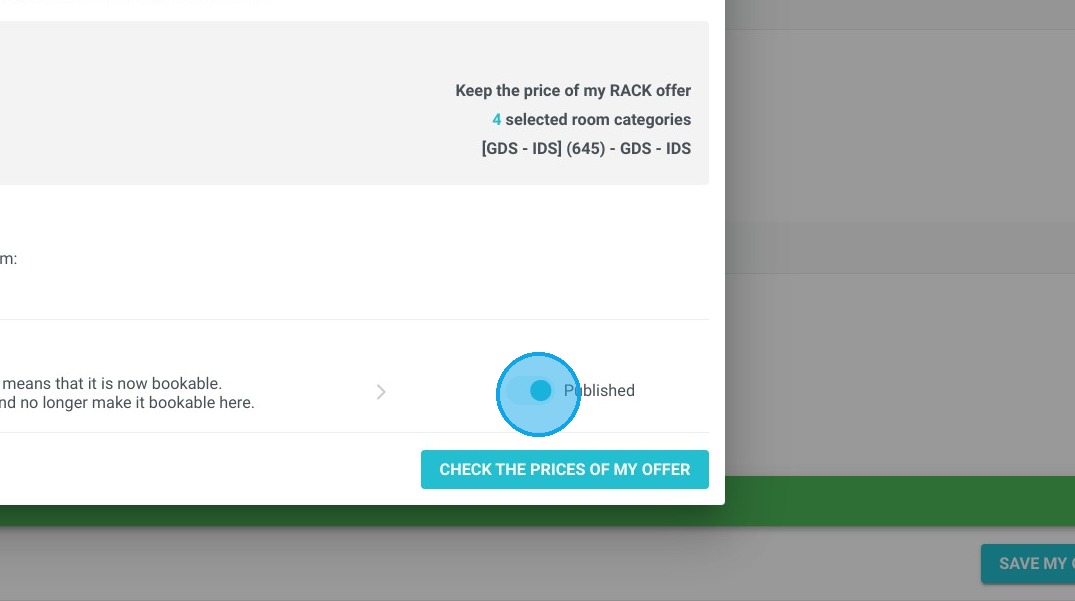
9. Then publish your offer.

https://colony-recorder.s3.amazonaws.com/files/2023-09-26/feb0b55b-9ca6-492b-9276-271b9cd679e1/ascreenshot_c11c67efb6234f8ca6db20588e09a306_text_export.jpeg

10. Then find the identifier of the offer you've just created and copy it by clicking on it: "(id:3523599)".
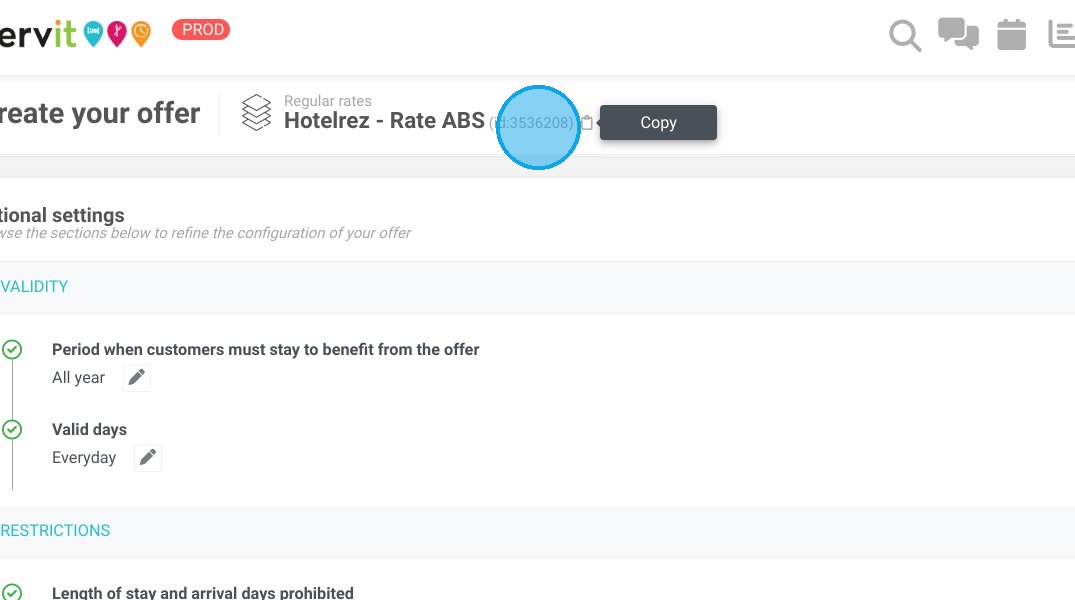
https://colony-recorder.s3.amazonaws.com/files/2023-09-26/ca51f815-873b-4810-9fcf-0907e7d9e1b5/ascreenshot_0abdccd6e88a4bedbec094e16f5eef40_text_export.jpeg

Part 2 - PMS configuration

Tip: Part 2 applies only if you have a PMS external to Reservit.
If you use Reservit PMS, go directly to part 3.

11. Go to your PMS and paste the Reservit offer identifier (copied earlier) into the relevant fare to ensure that reservations are properly integrated into your PMS.

Part 3 - GDS configuration

12. Send the Reservit offer ID directly to the GDS, so that it can perform the mapping.
Don't forget to send the GDS the rates clouding instructions.

Part 4 - Synchronizing Reservit with the GDS

13. Once you have received confirmation from the GDS that the Reservit offer ID has been mapped and added to the GDS, contact Reservit support to request synchronization of the prices and rates for the offer in question with the GDS.

Once this step has been completed, the GDS confirms receipt of the prices and availabilities for the offer.