Article Summary: This tutorial explains how to set up and keep your cancellation policy up to date in Reservit Accommodation so that it is correctly passed on to our partner Wihp (Meta I/O). You will learn how to check your sales terms, edit your cancellation and no-show fees, and keep your custom texts consistent. Keeping this information up to date guarantees full transparency for travelers who book through these channels.
The 5 Key Steps to Update Your Cancellation Policy for Wihp:
-
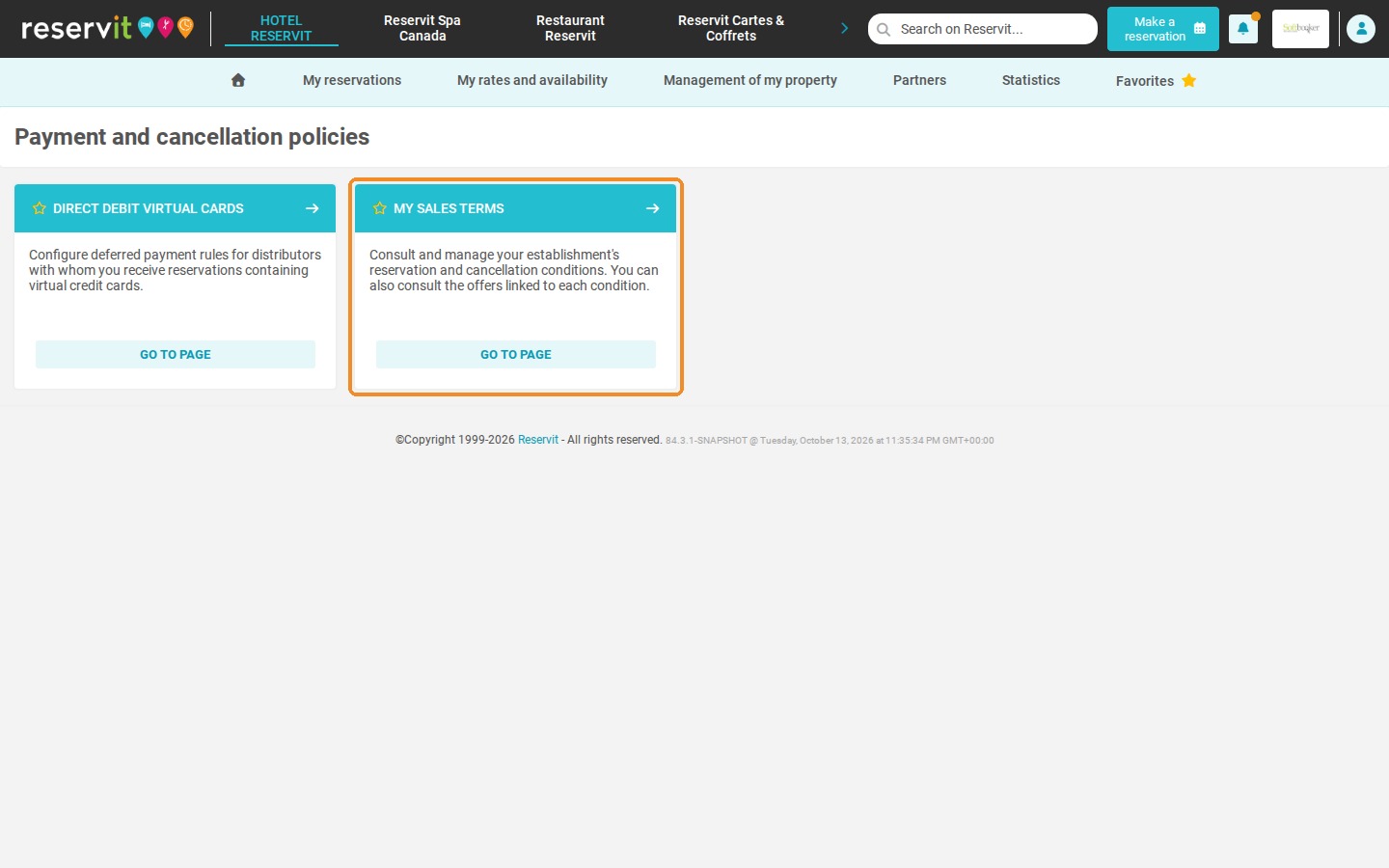
Open your sales terms: Click "Management of my property" > "Payment and cancellation policies", then "GO TO PAGE" on the "MY SALES TERMS" tile.
-
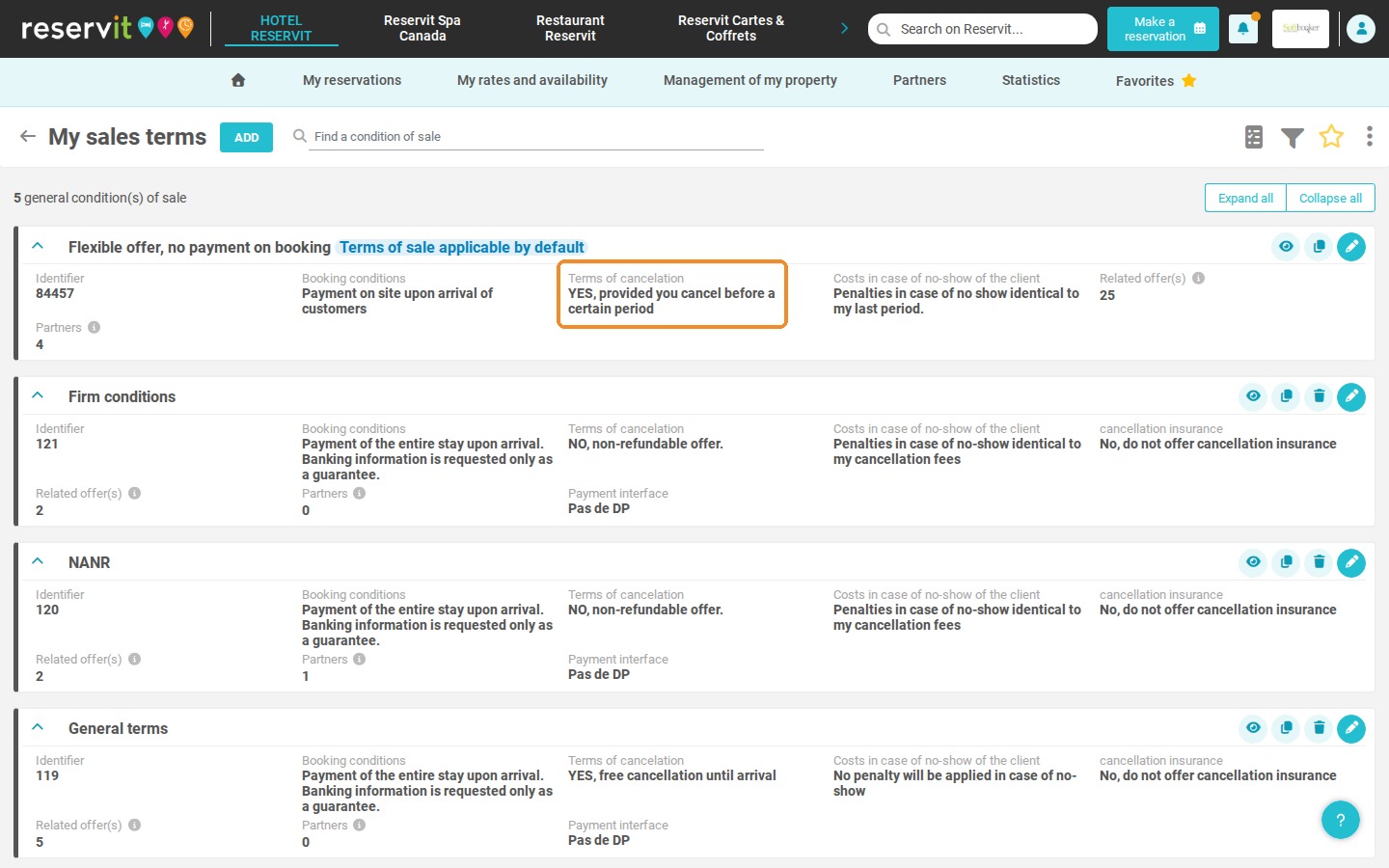
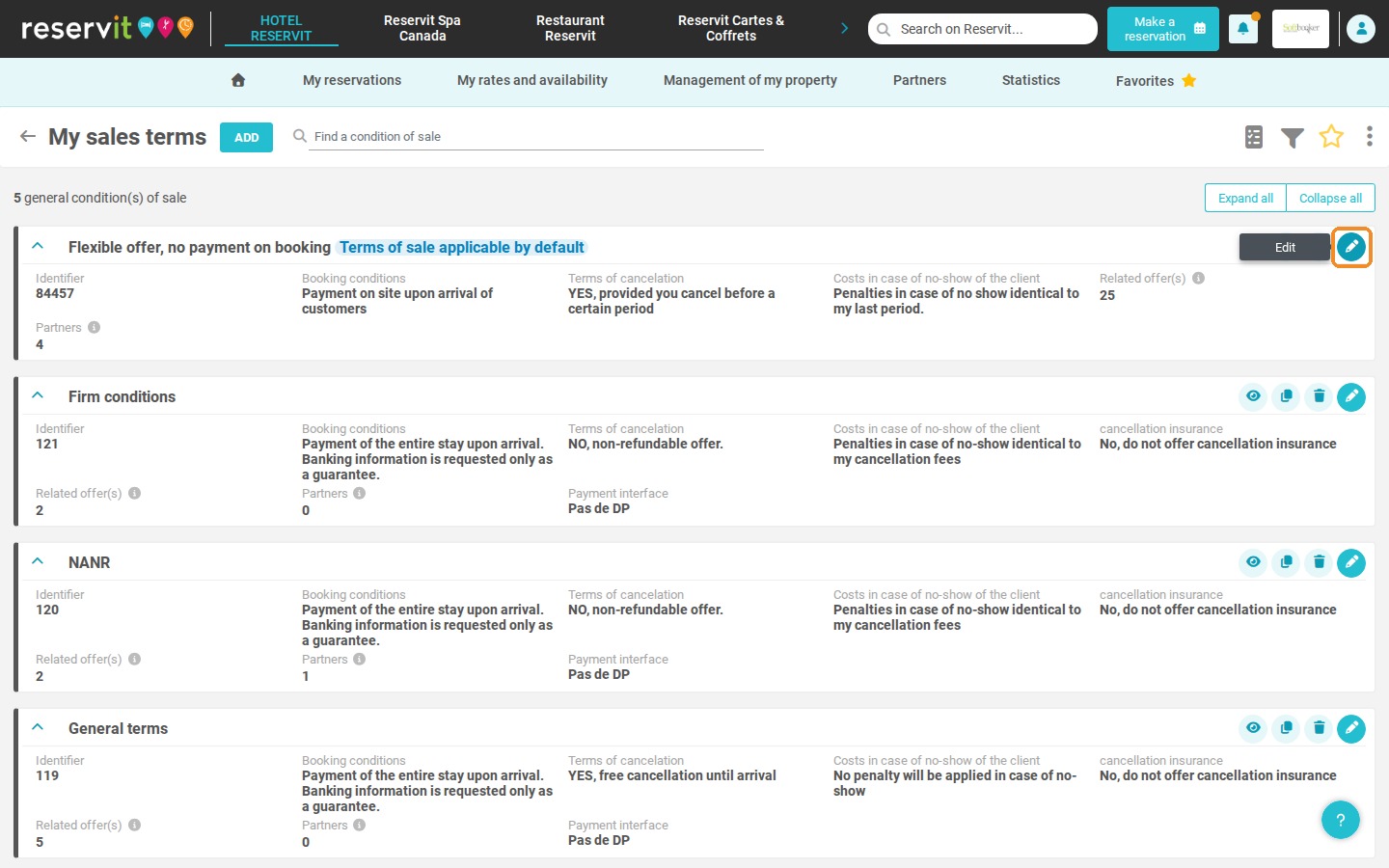
Edit the condition: Check the terms of cancellation displayed and click the pencil icon ("Edit") if changes are needed.
-
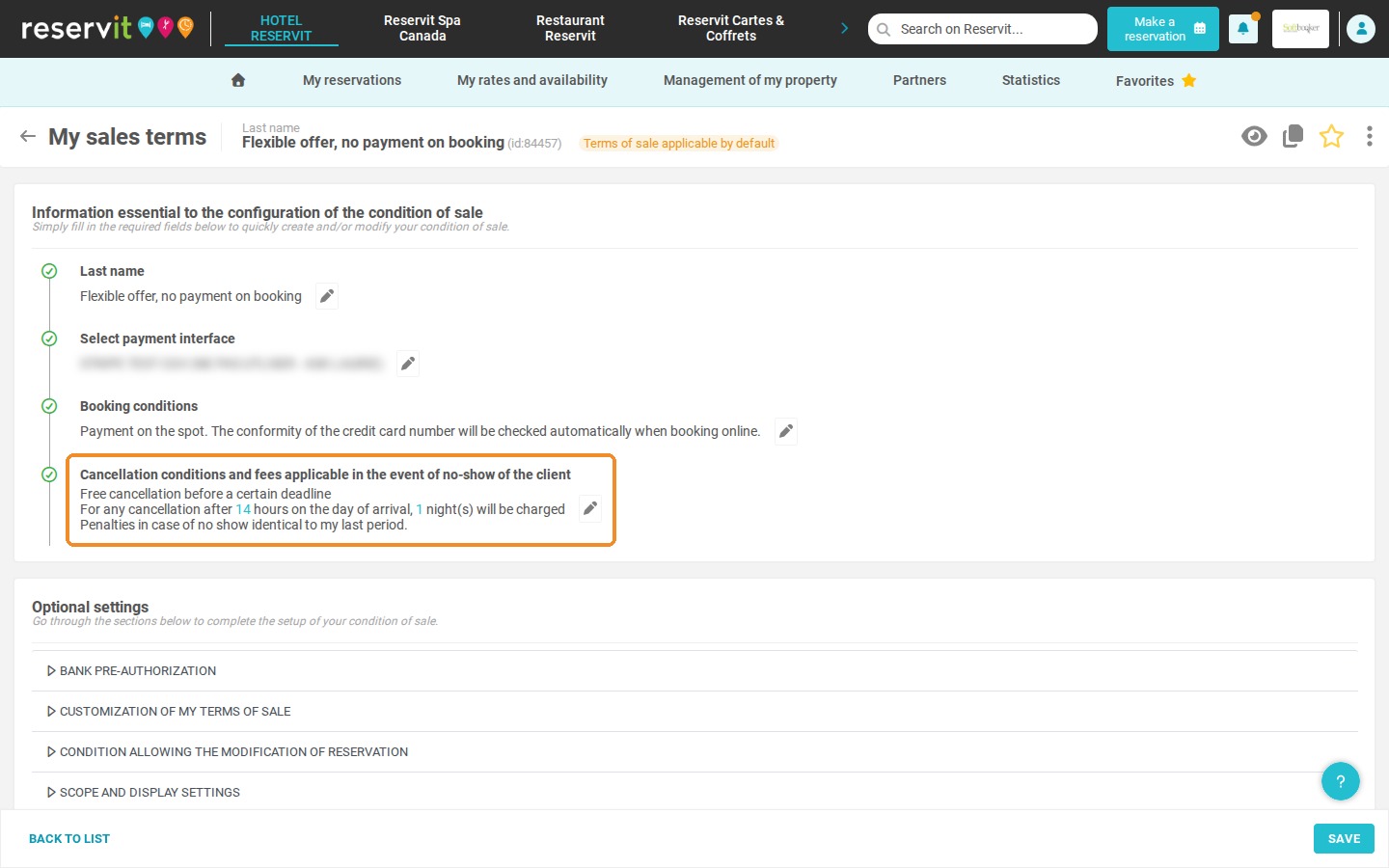
Open the cancellation settings: Click the pencil next to "Cancellation conditions and fees applicable in the event of no-show of the client".
-
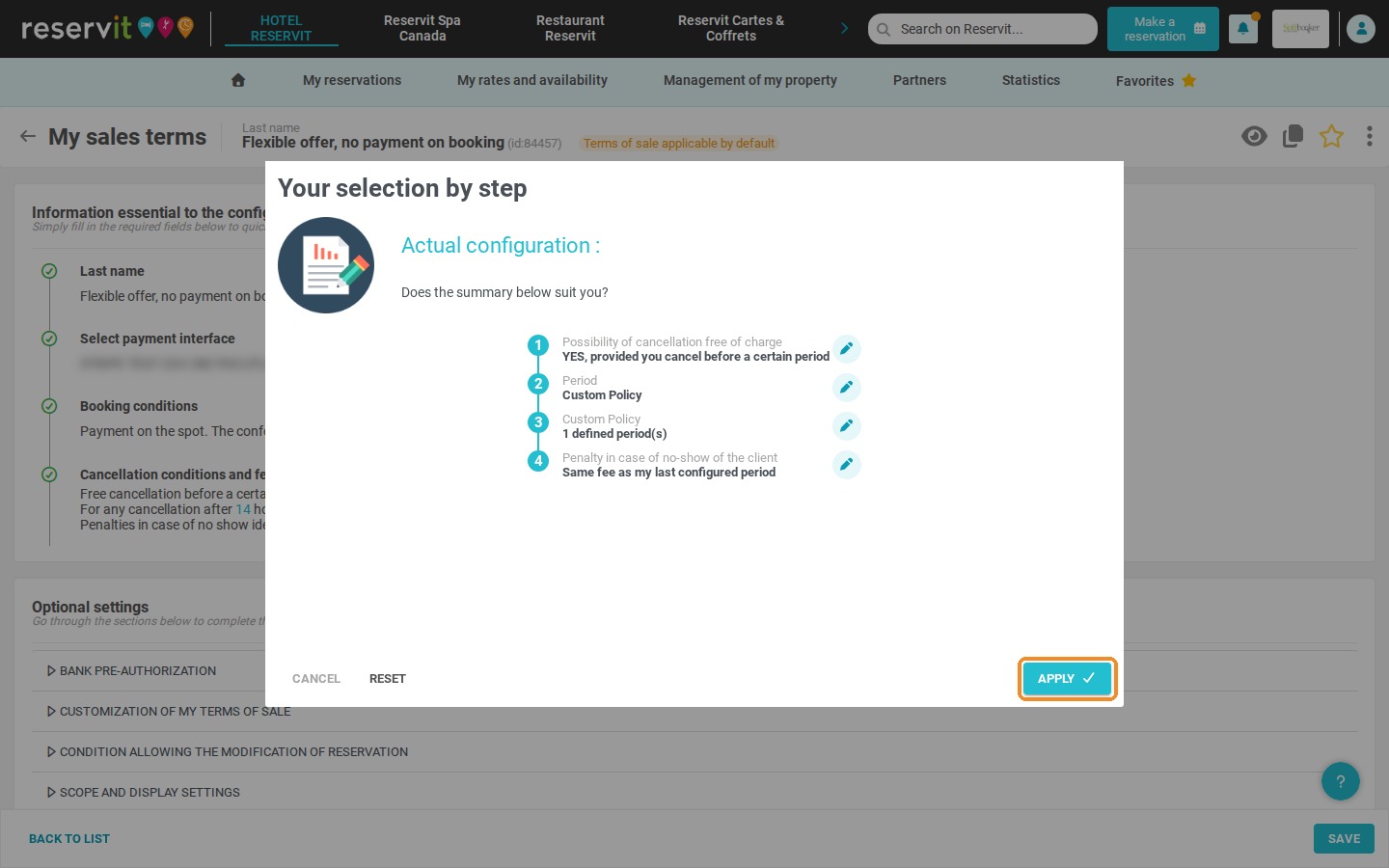
Select and apply your rules: Choose the options that match your cancellation policy (deadlines, fees), then click "APPLY".
-
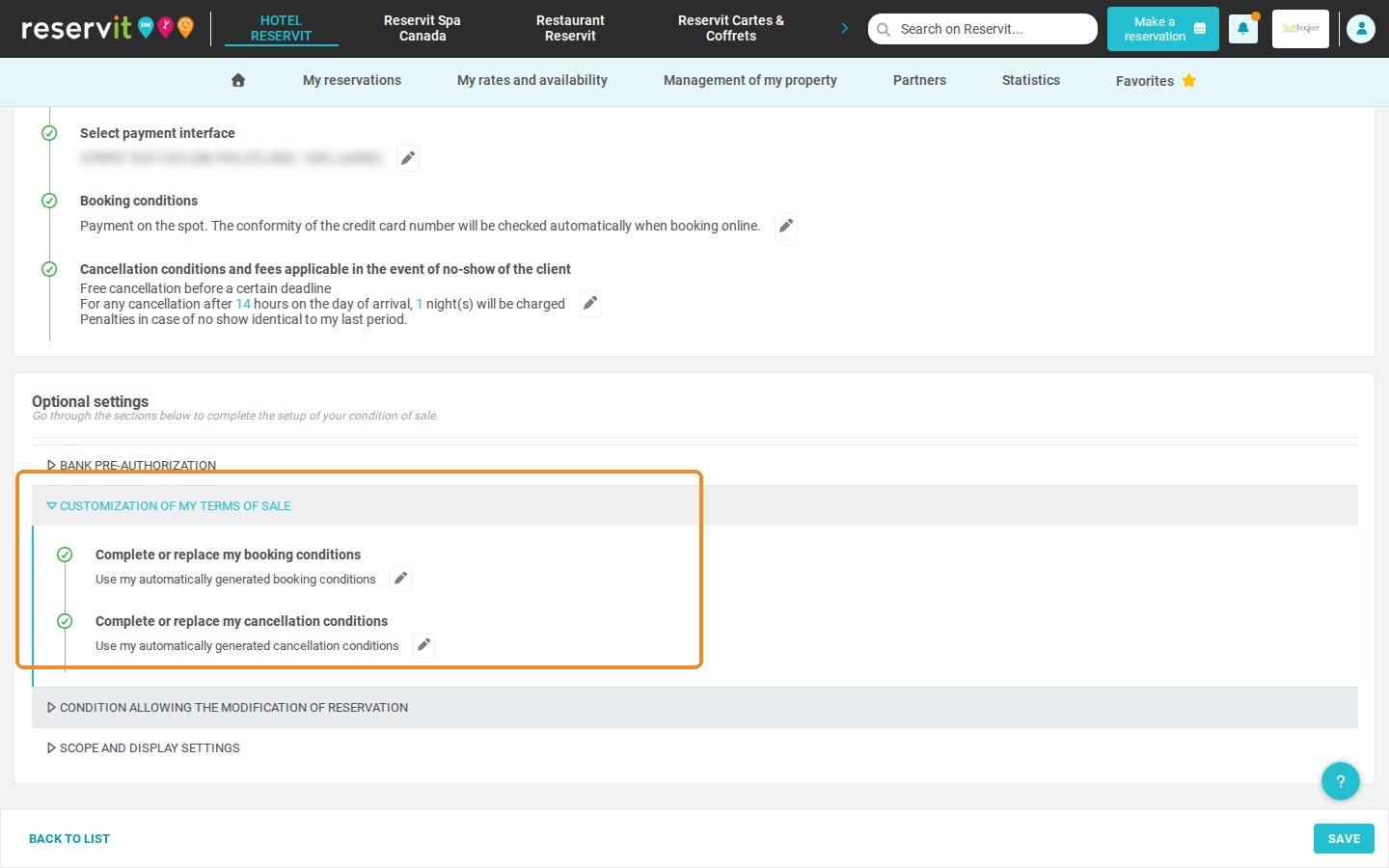
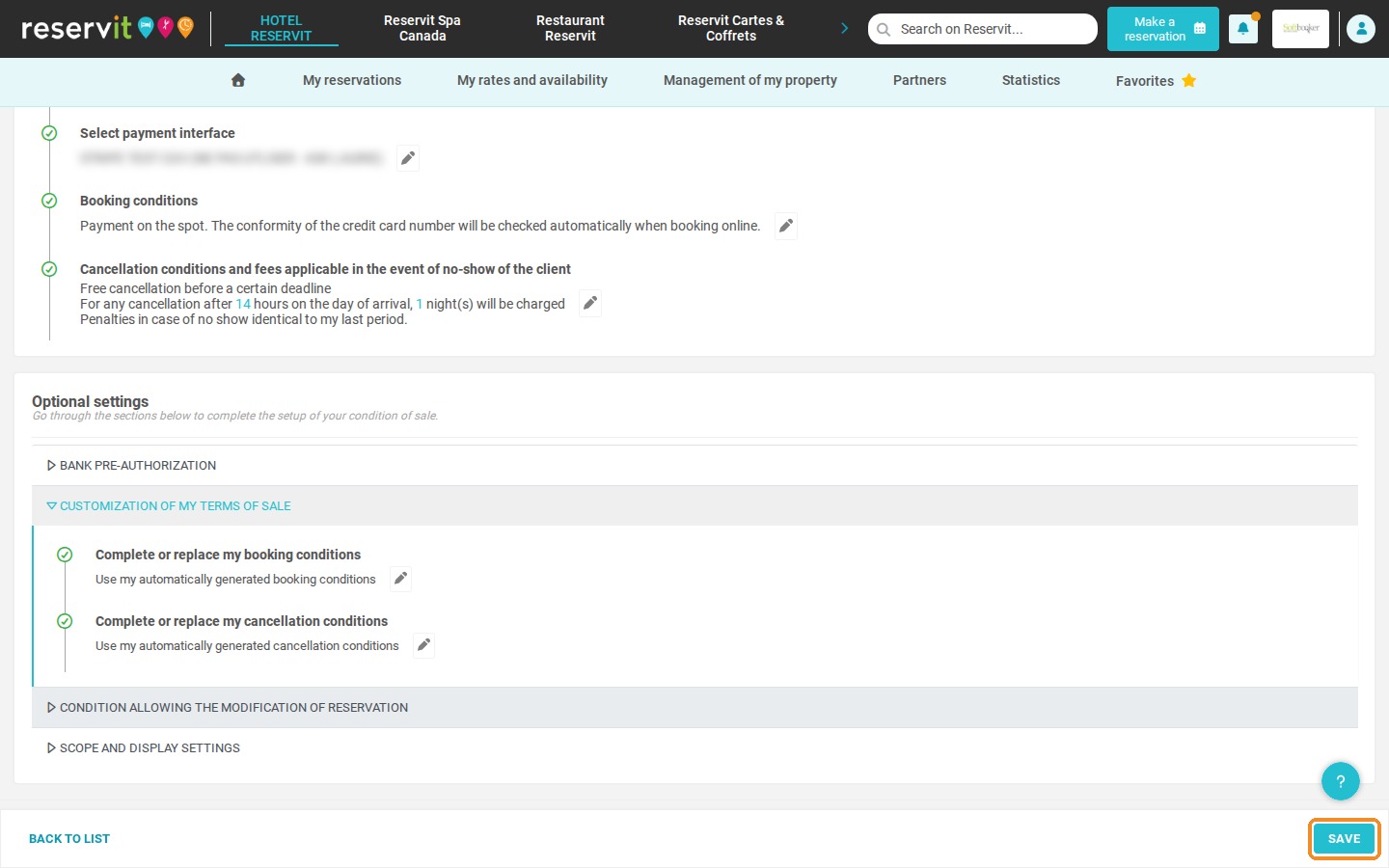
Check your custom texts: Make sure any custom text in "CUSTOMIZATION OF MY TERMS OF SALE" matches your new rules, then click "SAVE".
Why Follow This Guide? An accurate cancellation policy protects your property in case of a dispute or a cancellation by a guest coming from the channels managed by Wihp. It also prevents contradictory information from being displayed on metasearch sites and makes your booking process clearer.
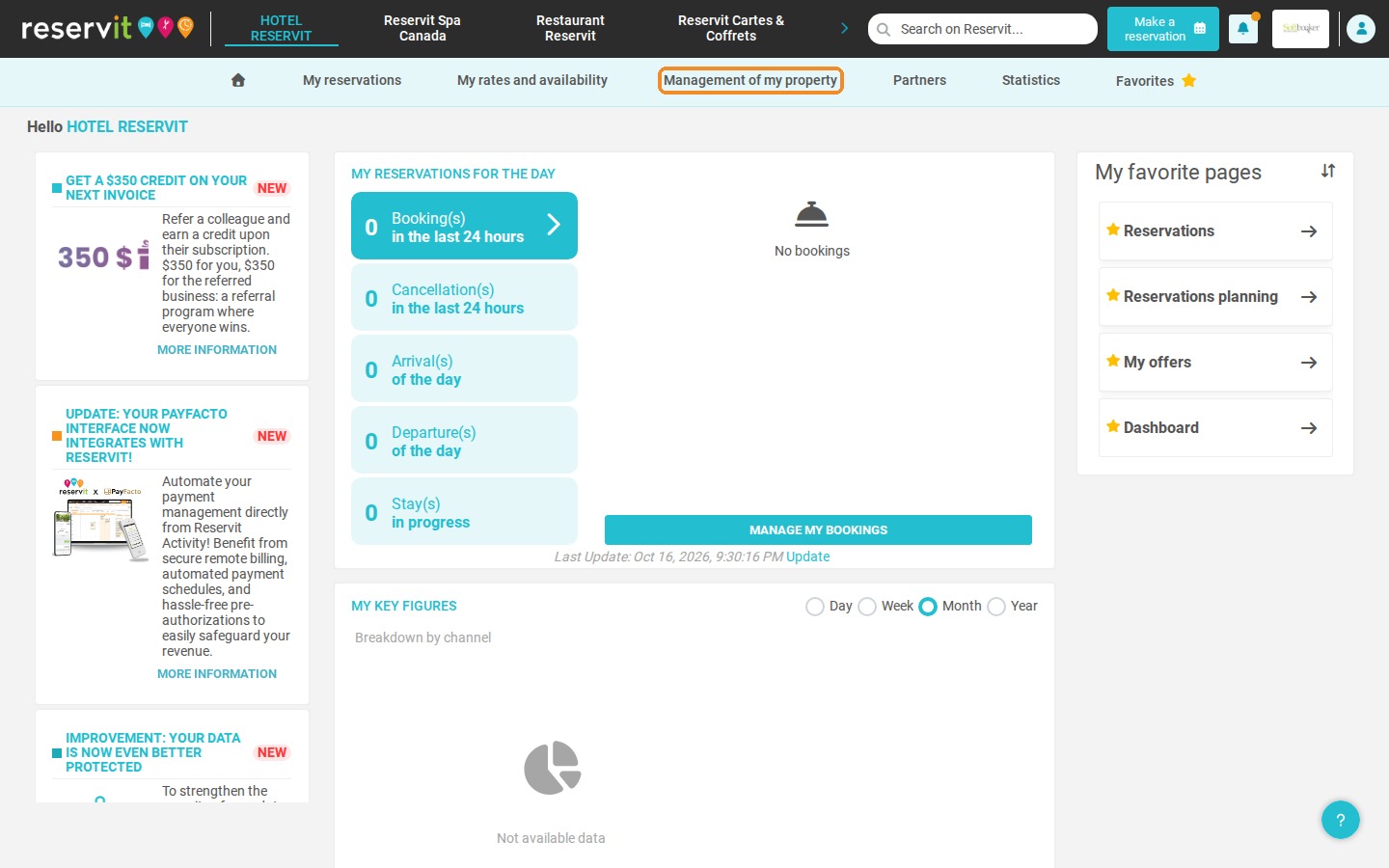
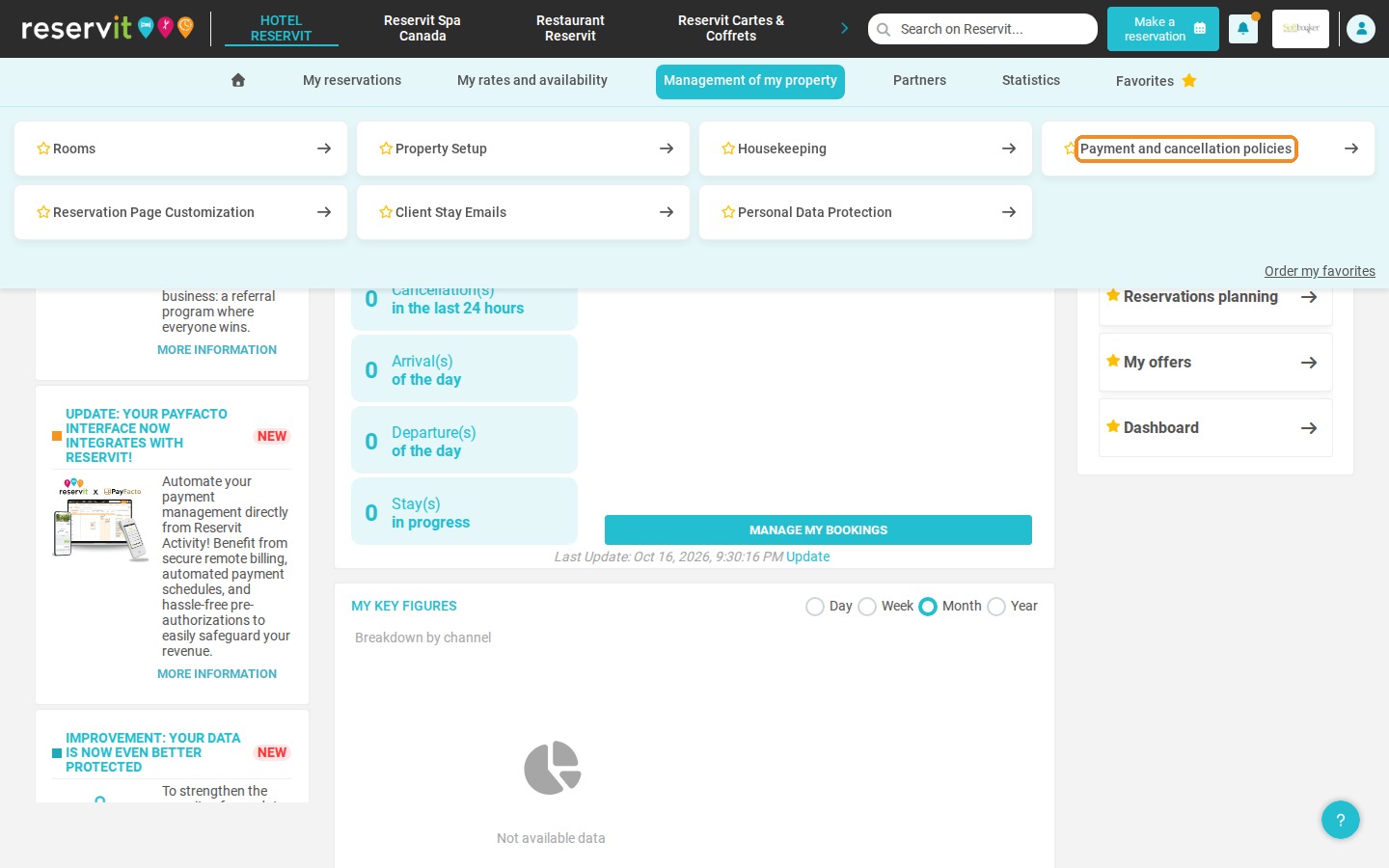
1. Your cancellation policy is used by our partner Wihp, so make sure this information matches the policy you actually apply. Click "Management of my property" > "Payment and cancellation policies", then click "GO TO PAGE" on the "MY SALES TERMS" tile.
2. Check that the "Terms of cancelation" shown for your conditions of sale are the ones you apply. If not, click the pencil icon ("Edit") of the condition concerned to modify it.
3. Go to the "Cancellation conditions and fees applicable in the event of no-show of the client" section and click its pencil to make your changes.
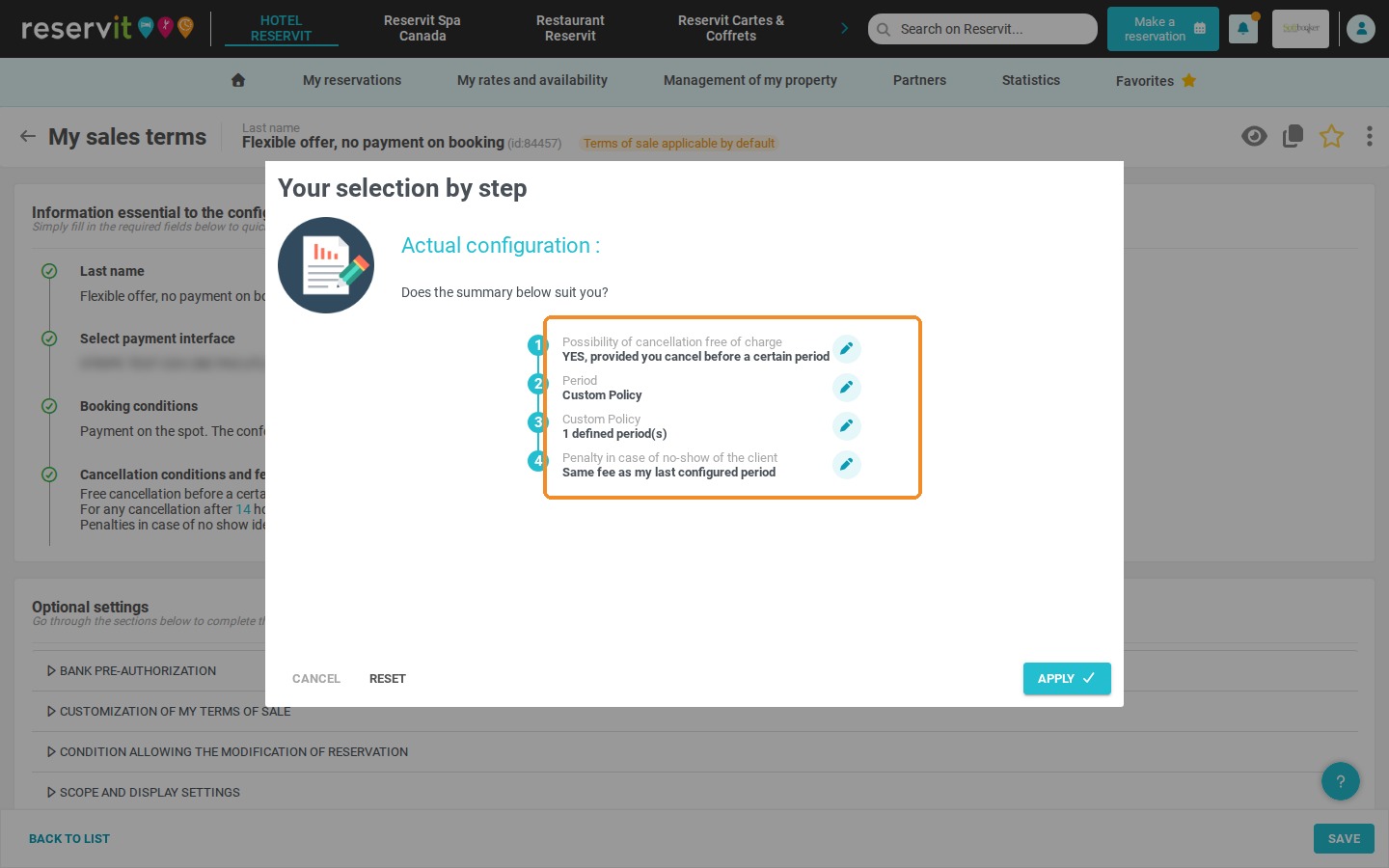
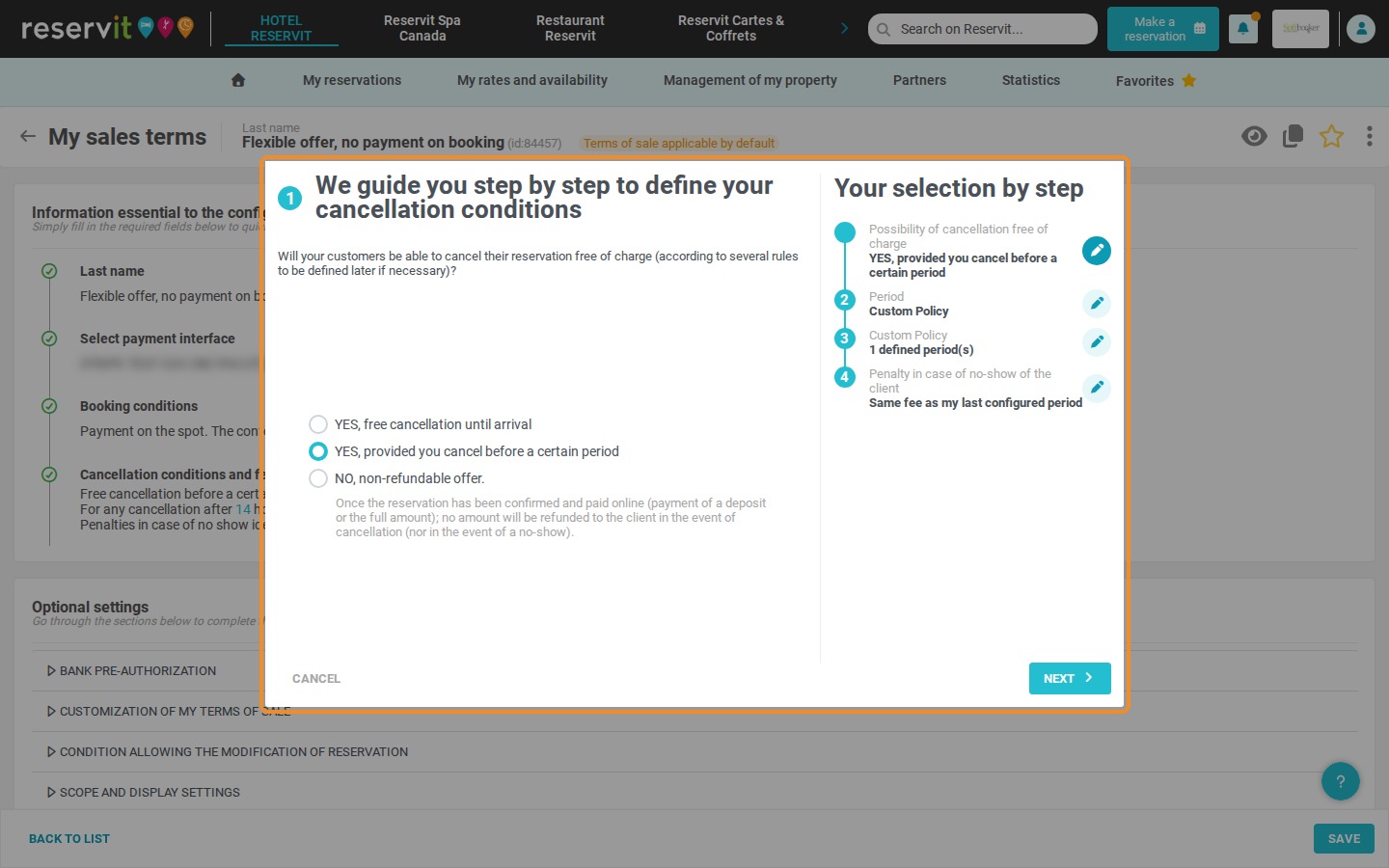
4. The "Your selection by step" window shows your current configuration. Click the pencil of a step to change it, select the options that match your cancellation policy and click "NEXT" to go through the steps. Then click "APPLY".
5. The text of your cancellation conditions is generated according to your selection. Be careful: if you added a custom text in the optional settings "CUSTOMIZATION OF MY TERMS OF SALE" ("Complete or replace my cancellation conditions"), it must be consistent with what you have just defined in "Cancellation conditions and fees applicable in the event of no-show of the client". Click "SAVE" to save your condition of sale.