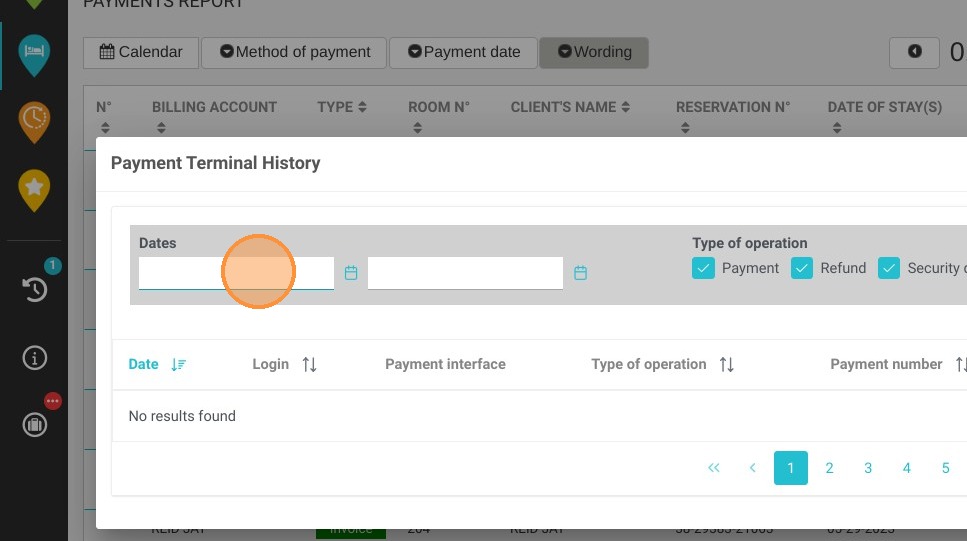
Article Summary: This practical guide provides step-by-step instructions on how to easily locate and generate payment terminal reports within the Reservit PMS. You will learn how to navigate the statistics dashboard, access your detailed payment history, and filter financial data by specific dates. Mastering this reporting feature allows you to effortlessly track your property's transaction history and streamline your daily financial reconciliation.
The 4 key steps to access your payment terminal reports:
-
Navigate to Statistics: Open the main menu, click on "Statistics," and access the internal reporting section.
-
Select Payment Reports: Click on the "Payment Report" module to open your property's financial tracking dashboard.
-
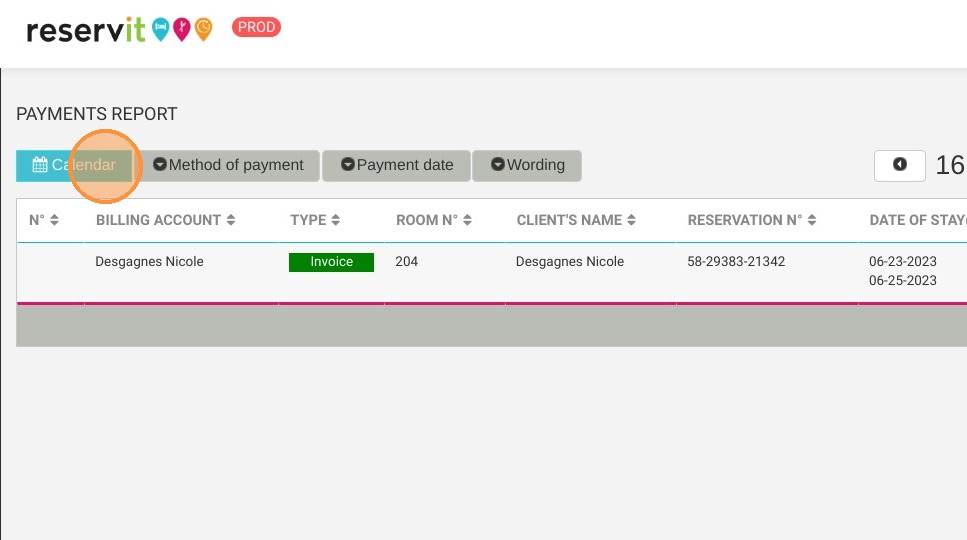
Open Terminal History: Navigate to the "Calendar" menu and select "Payment Terminal History" from the available options.
-
Filter by Date: Choose your required date range to instantly generate, view, and analyze your detailed transaction history.
Why follow this guide? Following this tutorial will save you valuable time during shift closures and accounting audits by giving you instant access to accurate, centralized transaction records. It optimizes your financial management, ensuring transparent tracking of all processed payments and preventing manual data extraction errors.
1. Click "Statistics"
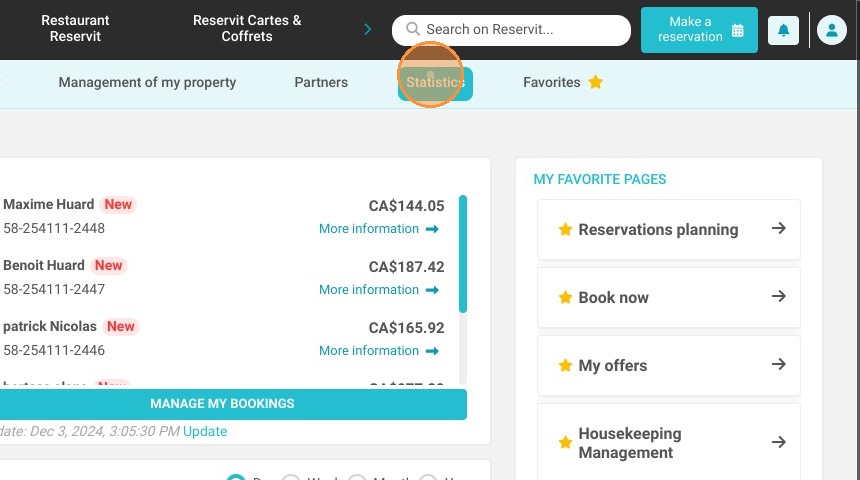
2. Click here.
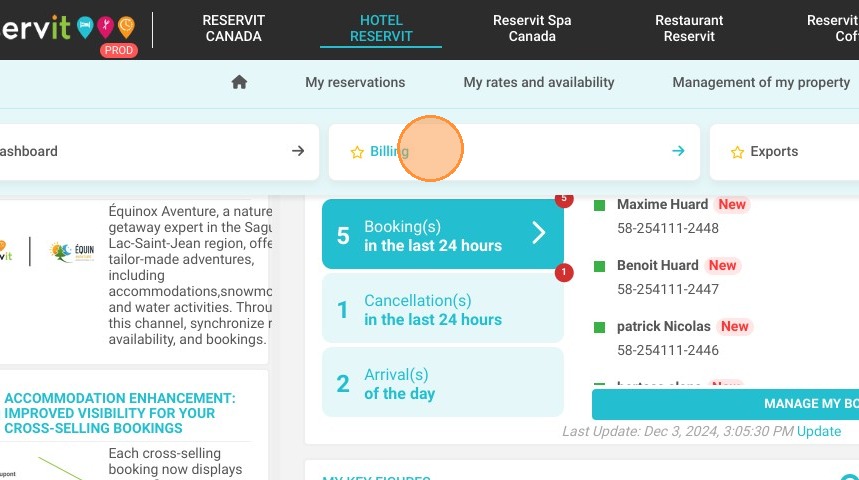
3. Then ''Payment Report''
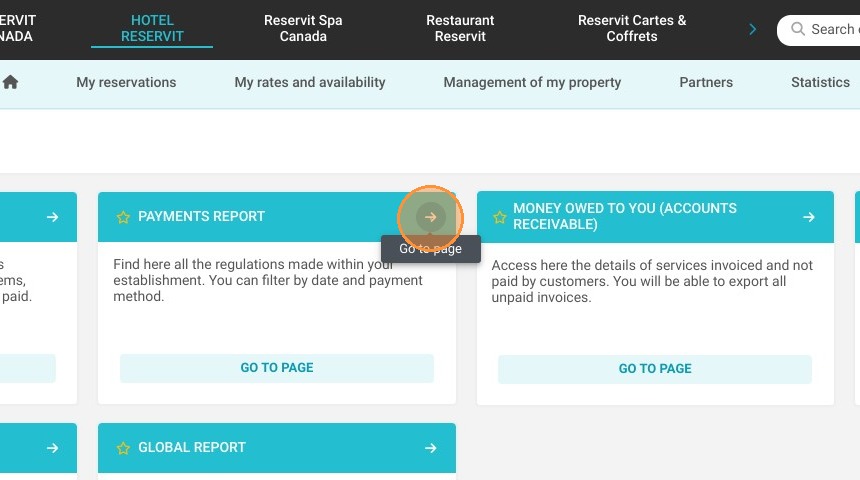
4. Click "Calendar"
5. Click "Payment Terminal History"
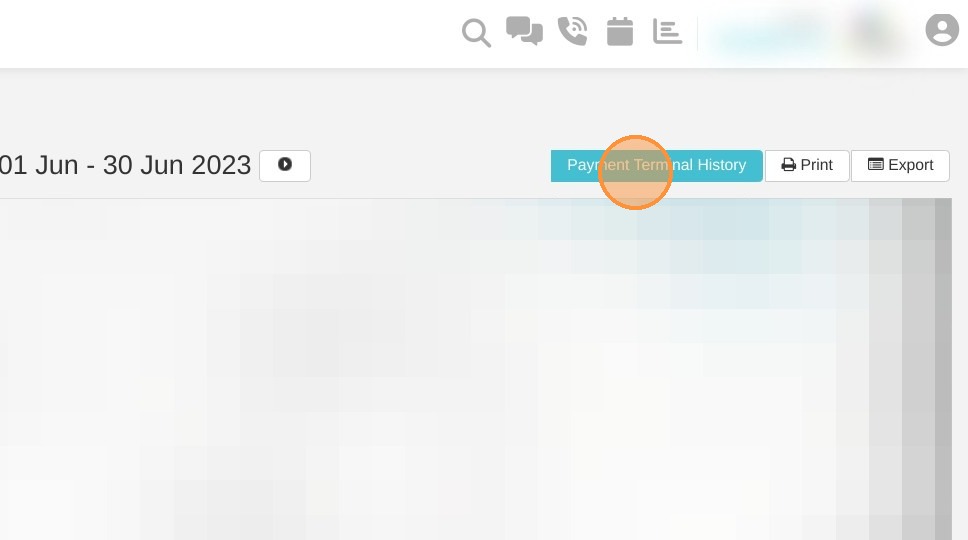
6. Select your dates and the report will now appear.