

Article Summary: This comprehensive guide explains how to seamlessly configure automatic security deposits and bank pre-authorizations within Reservit Accommodation. You will learn how to navigate your sales terms, customize surety amounts, and define specific collection rules based on guest arrival dates. Mastering this feature ensures robust revenue protection and fully automates your property's deposit collections for all direct and manual bookings.
The 5 key steps to configure automatic security deposits:
-
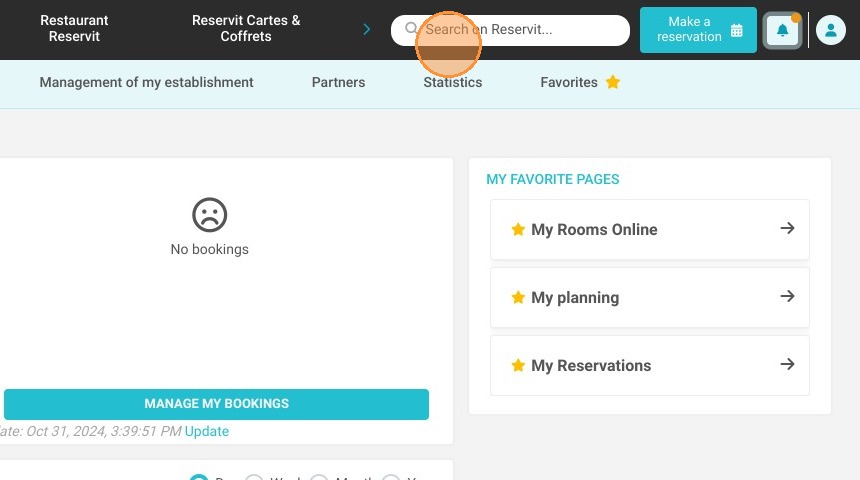
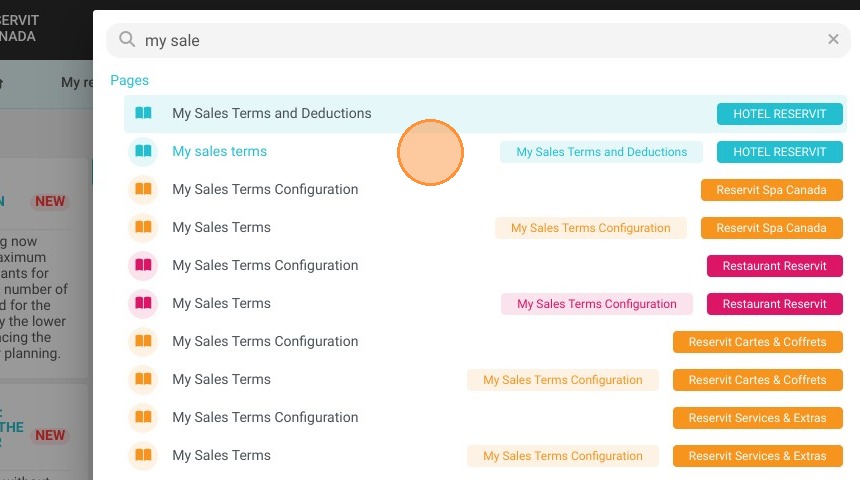
Access Your Sales Terms: Use the Reservit search bar to locate and open the "My sales terms" module.
-
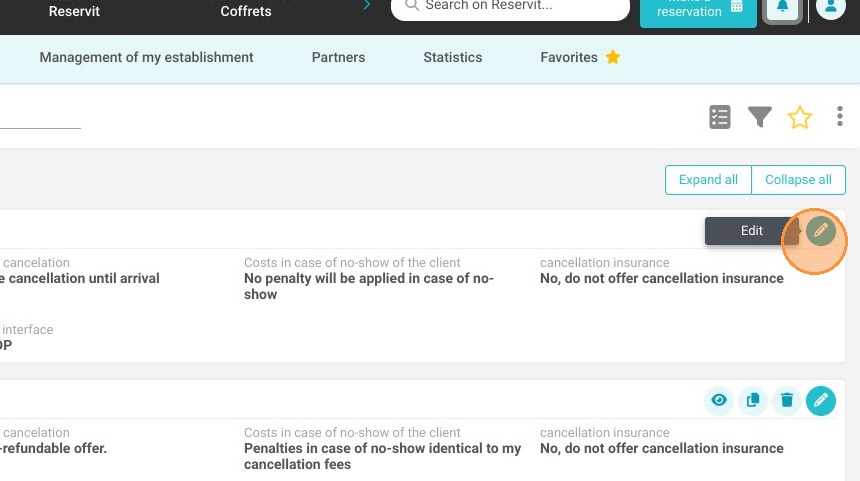
Edit the Conditions of Sale: Click "Add" to create a new condition or click the pencil icon to edit an existing general condition of sale tailored to your units.
-
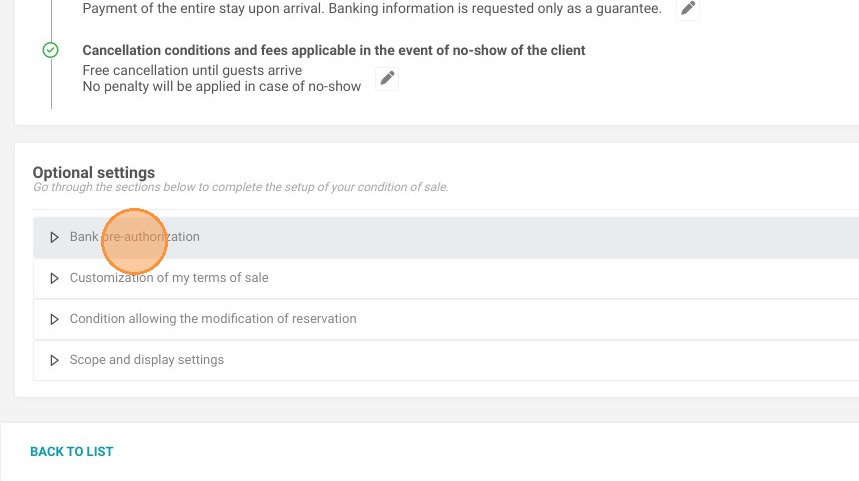
Set the Pre-Authorization Amount: Select "Bank pre-authorization" and click the pencil icon to securely customize the specific deposit amount required from the guest.
-
Define the Timeline Rules: Choose exactly when the pre-authorization should trigger (e.g., up to 2 days before arrival) and click "Apply" to confirm the configuration.
-
Review and Save: Click the eye icon to preview how the rule appears in your terms of sale, then click "Save" to activate your new security deposit settings.
Why follow this guide? Following this tutorial ensures your property's revenue is automatically protected against potential damages and late cancellations without requiring tedious manual card holds. It optimizes your daily front-desk workflow by completely automating security deposits for direct reservations, saving your staff valuable time prior to guest check-in.
1. Click on ''Search on Reservit''
2. Type "My sales terms" and click on it
Tip: The pre-authorization / security deposit rules are defined at the level of a general condition of sale. If you have different pre-authorization amounts depending on your units, then you will need to create a condition of sale by type or category of unit
3. Once on the screen for managing your conditions of sale, click on ''Add'' or edit an existing general condition of sale by clicking on the pencil
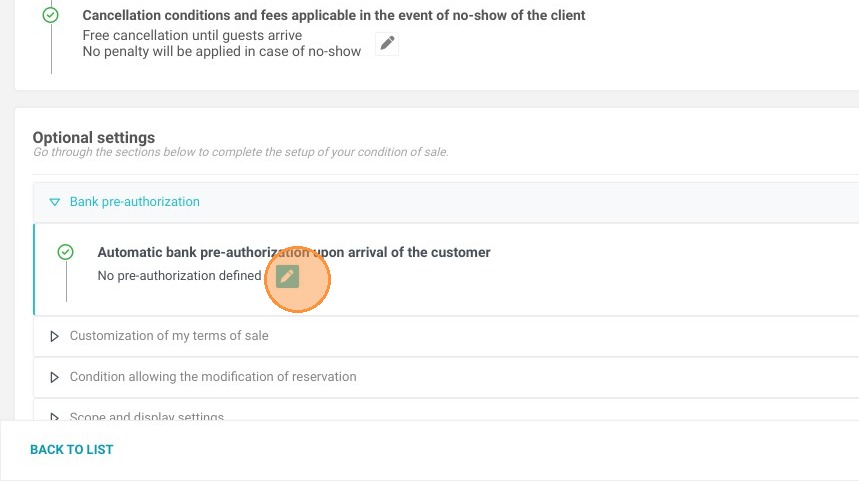
4. Click "Bank pre-authorization"
5. Then click on the pencil to customize the amount
6. Then define the rule you want to apply. Don't forget to click ''Apply'' once the configuration is complete.
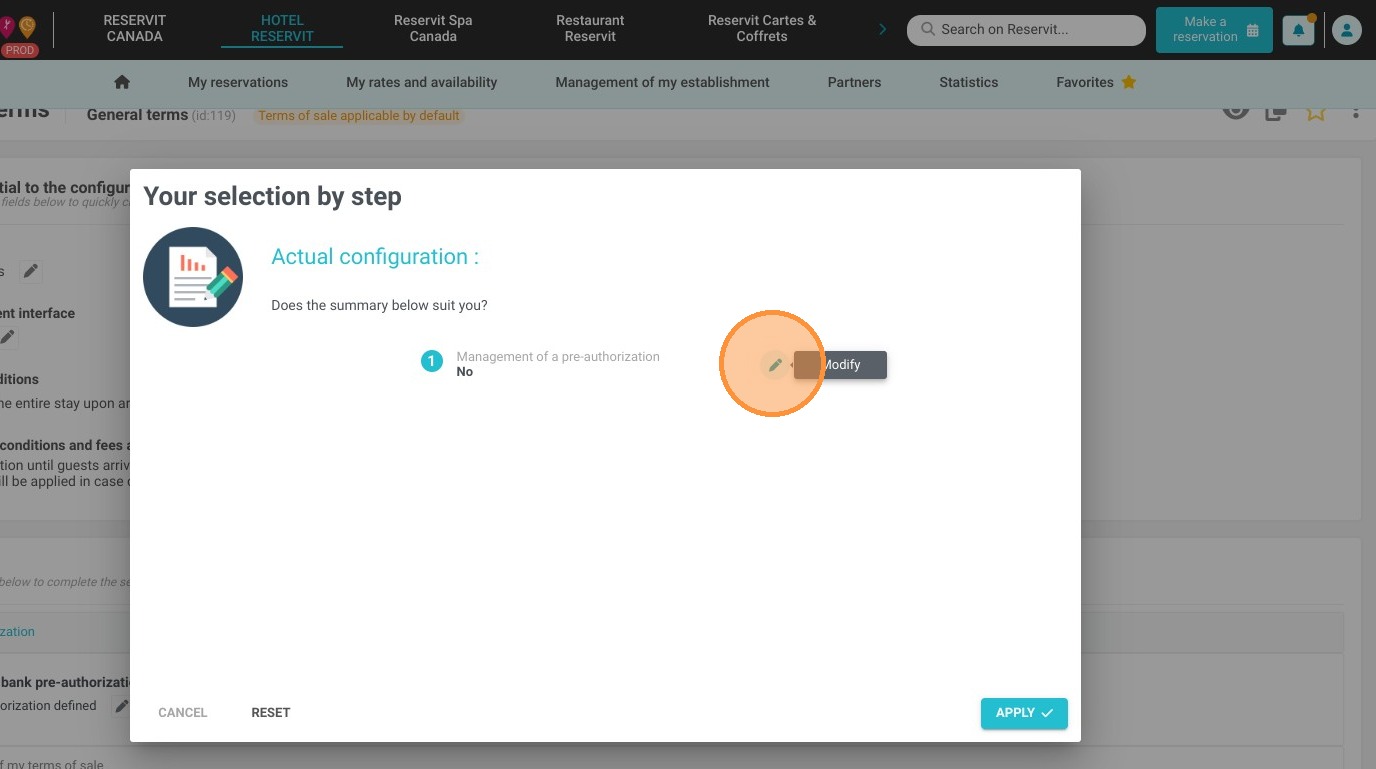
Tip: - A pre-authorization can be configured to be taken up to 2 days before the guest's arrival.
-
If you wish to take the pre-authorization on the day of arrival, indicate 0 days.
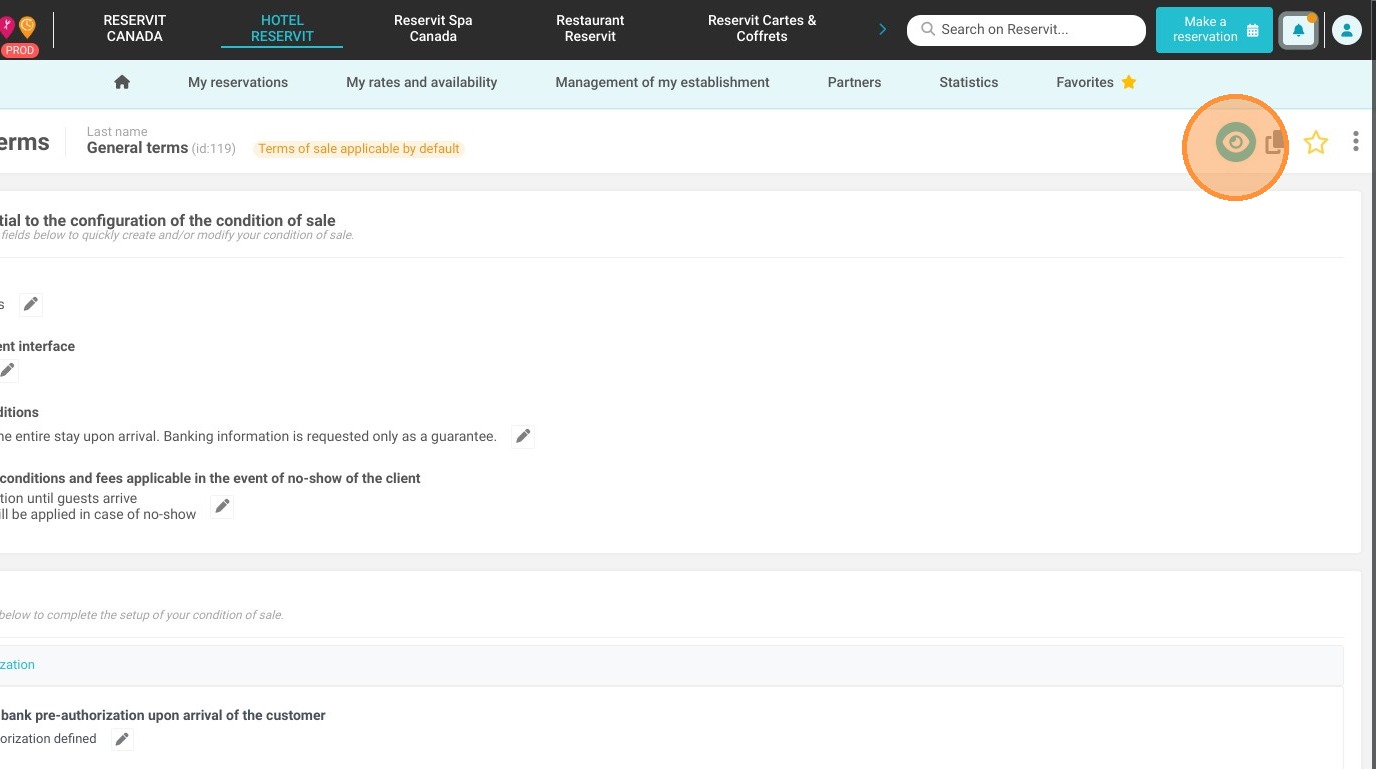
7. To view the result of this pre-authorization rule in your general conditions of sale, click the eye icon at the top right.
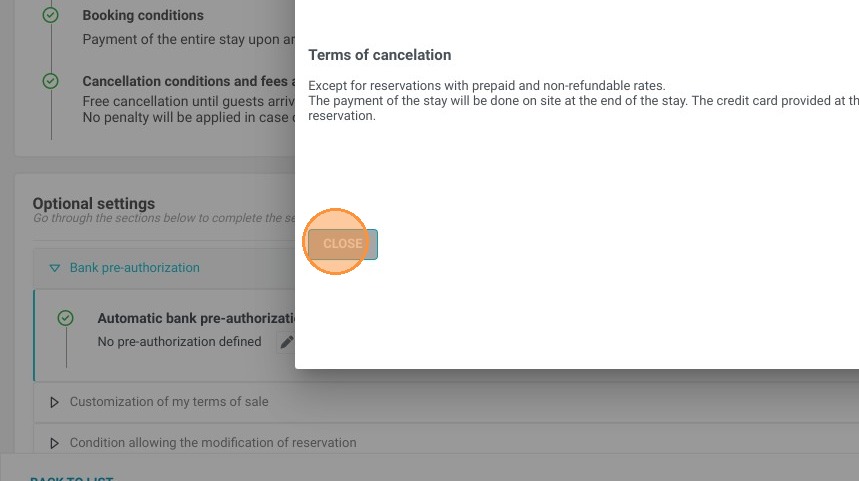
8. Click "Close"
9. Click "Save"
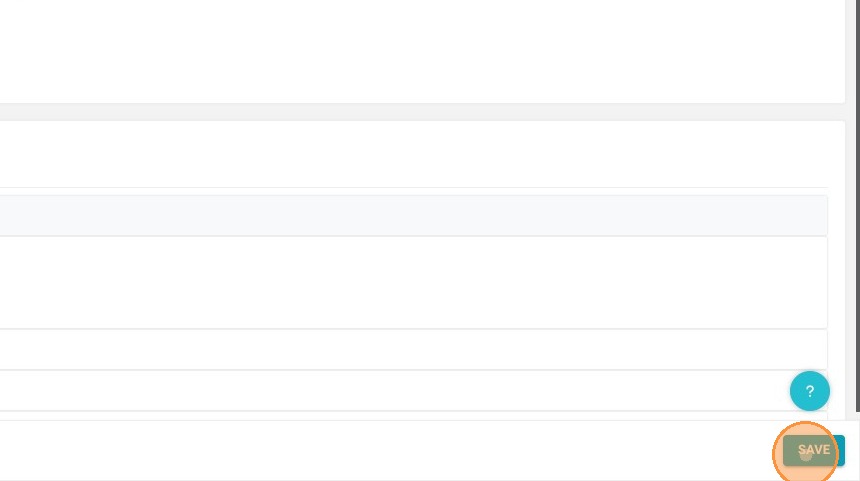
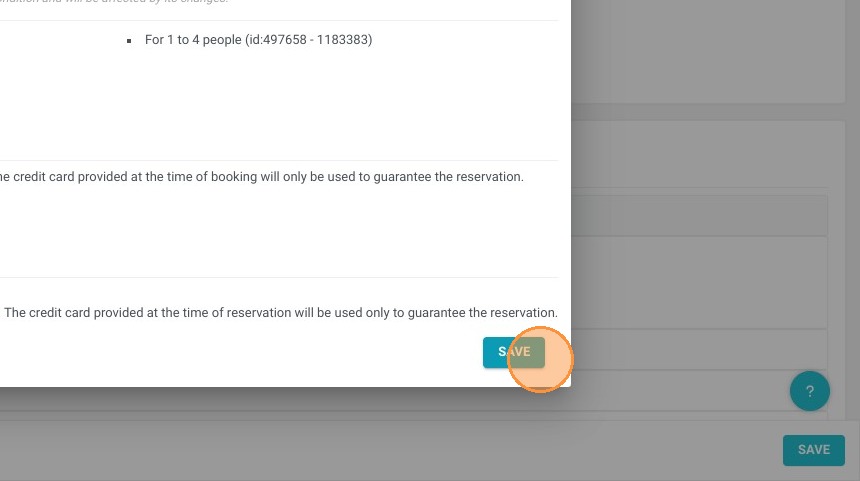
10. Click once again "Save"
Alert: Automatic pre-authorizations only apply to reservations taken manually and reservations made on your booking engine. They do not apply to reservations from distributors.
Tip: If the reservation concerns a long stay, your pre-authorization will be automatically renewed after 7 days and until the end of your client's stay with a maximum of D+7 from the departure date.
If you have manually taken the pre-authorization from your virtual payment terminal then the renewal will not apply. You will have to do it again manually.