

Article Summary: This guide explains how to properly cancel the second installment of a double drawdown payment processed via Stripe within the Reservit PMS. You will learn the triggers for automatic cancellations and discover how to manually update a reservation's status to stop upcoming scheduled payments. Mastering this process ensures accurate financial management and prevents unintended, erroneous charges on your guests' credit cards.
The 5 key steps to cancel a scheduled second installment:
-
Understand Automatic Cancellations: Note that the second scheduled payment cancels automatically if the guest cancels via the booking engine or if you cancel directly through the Reservation Planning dashboard.
-
Locate the Reservation: Navigate to your "Reservations" list or planning calendar and select the specific booking tied to the scheduled double payment.
-
Initiate the Cancellation: Click the trash can icon or select "Update booking status" to manually change the reservation to a canceled state.
-
Validate the Status Change: Click "Validate" to finalize the reservation update, which communicates with Stripe to effectively stop the upcoming payment.
-
Keep the Second Debit (Optional): If your cancellation policy requires it, navigate to the reservation management settings and select the prompt indicating "The second debit remains applicable" to retain the charge.
Why follow this guide? Following this tutorial prevents costly chargebacks and guest complaints by ensuring automated Stripe payments are accurately halted the moment a booking is canceled. It optimizes your daily payment operations and keeps your property's billing perfectly synchronized with real-time reservation statuses.
1. When cancelling a reservation on which a double payment is set up, the second payment will be automatically cancelled in the following cases:
a) the customer cancels their reservation through the booking engine;
b) the property cancels the reservation through the Reservation planning.
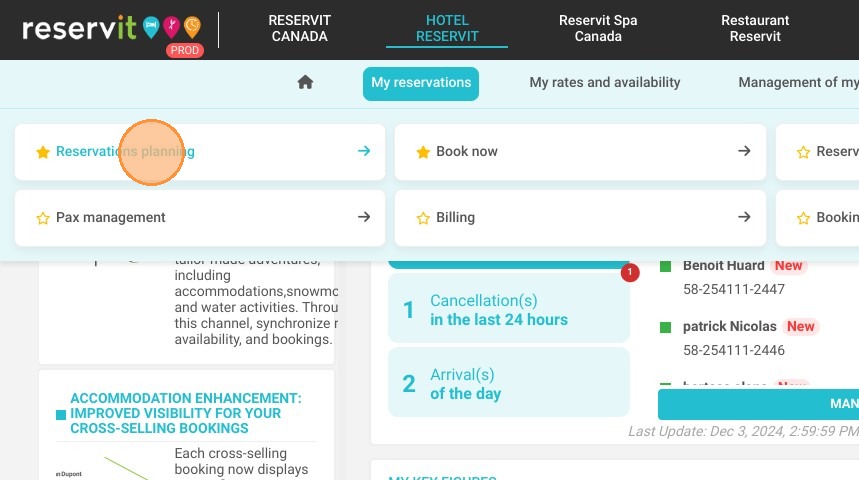
2. Select the concerned reservation
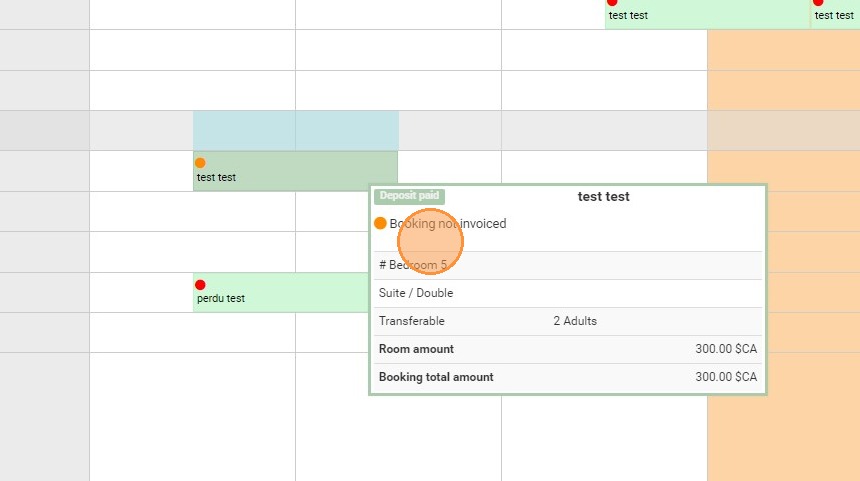
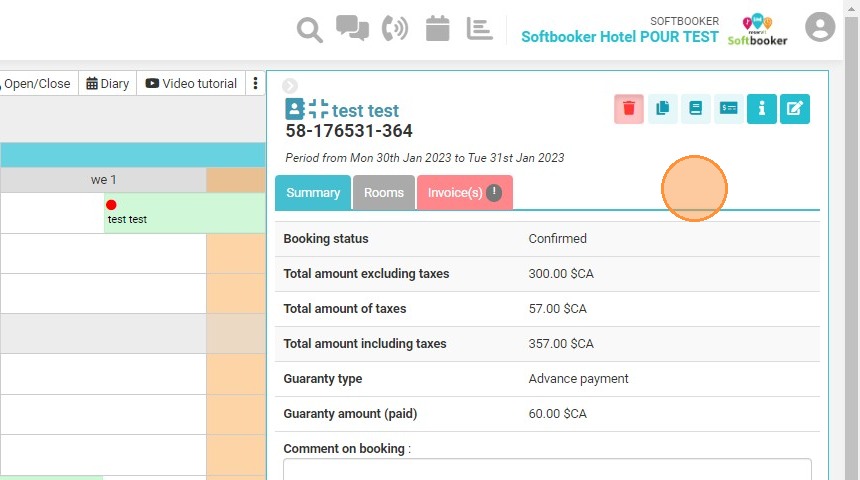
3. Click on the trash
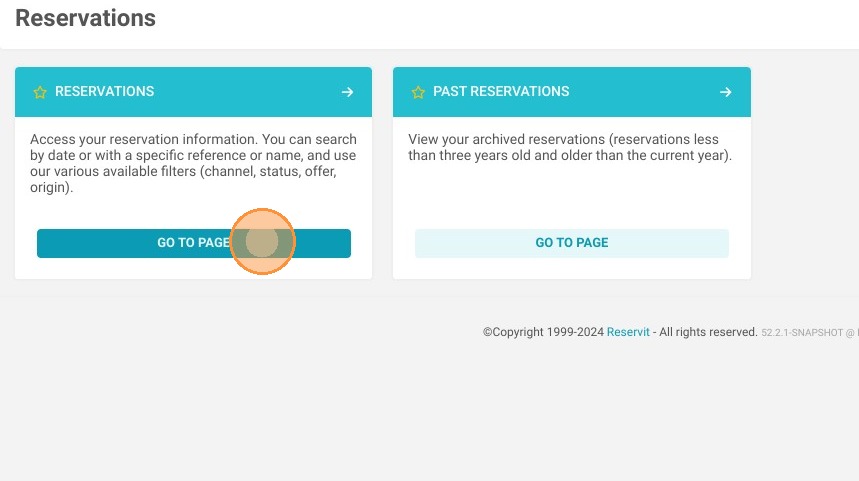
4. You can also cancel through "Reservations"
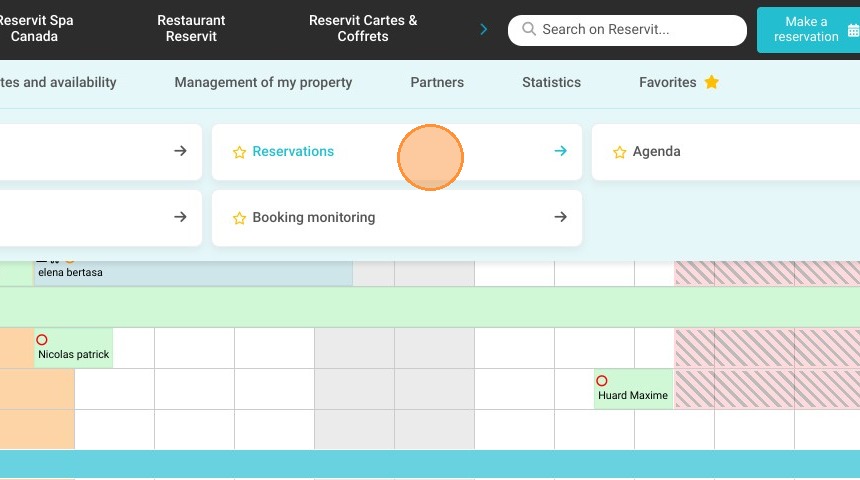
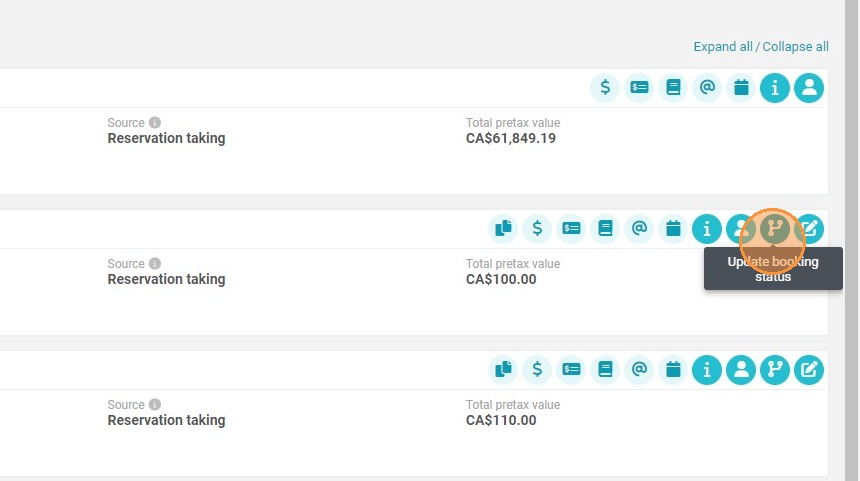
5. Then click on Update booking Status
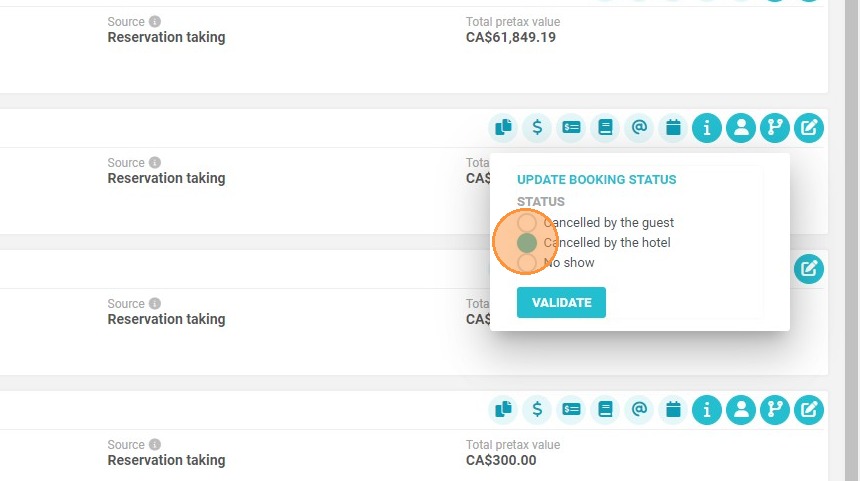
6. Click here.
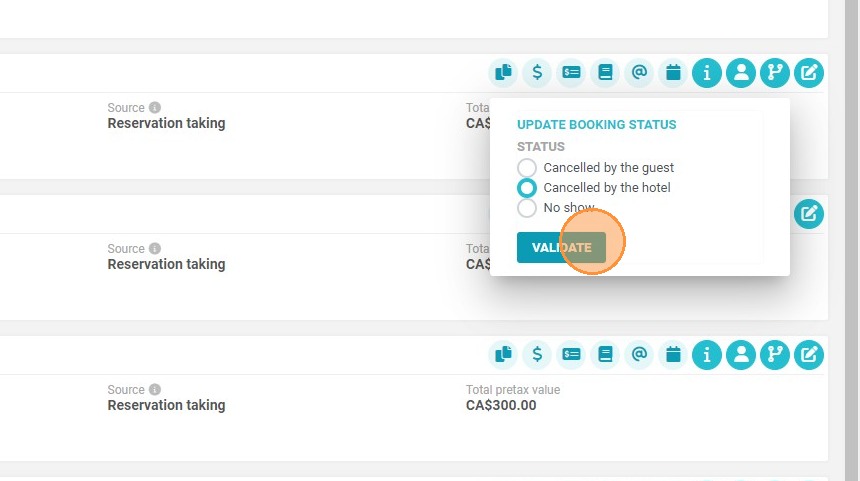
7. Click "VALIDATE"
Tip: It will be possible to keep the second debit in the following case: by going to the Manage reservations and selecting the sentence: The second debit remains applicable.