

Article summary: Learn how to effectively configure and manage the taxes applicable to your services and products within Reservit Activities. This step-by-step tutorial explains how to define your tax parameters—whether they are simple or compound—to ensure accurate billing for your customers. By doing so, you will guarantee total pricing compliance while automating your daily accounting calculations.
The 4 key steps to configure a tax:
-
Access the tax menu: Navigate to the "Managing my Activity" tab, go to "Tax Management," and select "Taxes."
-
Create a new rule: Click the "Add" button and assign a clear name to your tax or tax group (such as GST + QST or HST) so you can easily identify it in the system later.
-
Set the tax composition: Specify whether you are establishing a simplified, unified tax or a compound tax made up of multiple sub-taxes (like a lodging tax combined with a provincial tax).
-
Define the calculation parameters: Accurately fill out the application fields (fixed value or percentage, calculation base such as BT/HT/TTC, exact rate value, and accounting codes) to finalize the setup before applying it to your services.
Why follow this guide? Following this guide will secure your revenue collection by preventing costly billing errors caused by manual miscalculations. A rigorous and accurate initial setup will save you valuable time, guarantee full tax compliance, and significantly streamline your accounting department's daily workload.
1. Go to "Managing my Activity" then "Tax Management" and finally "Taxes"

2. Click on "Add" to start creating a new tax.
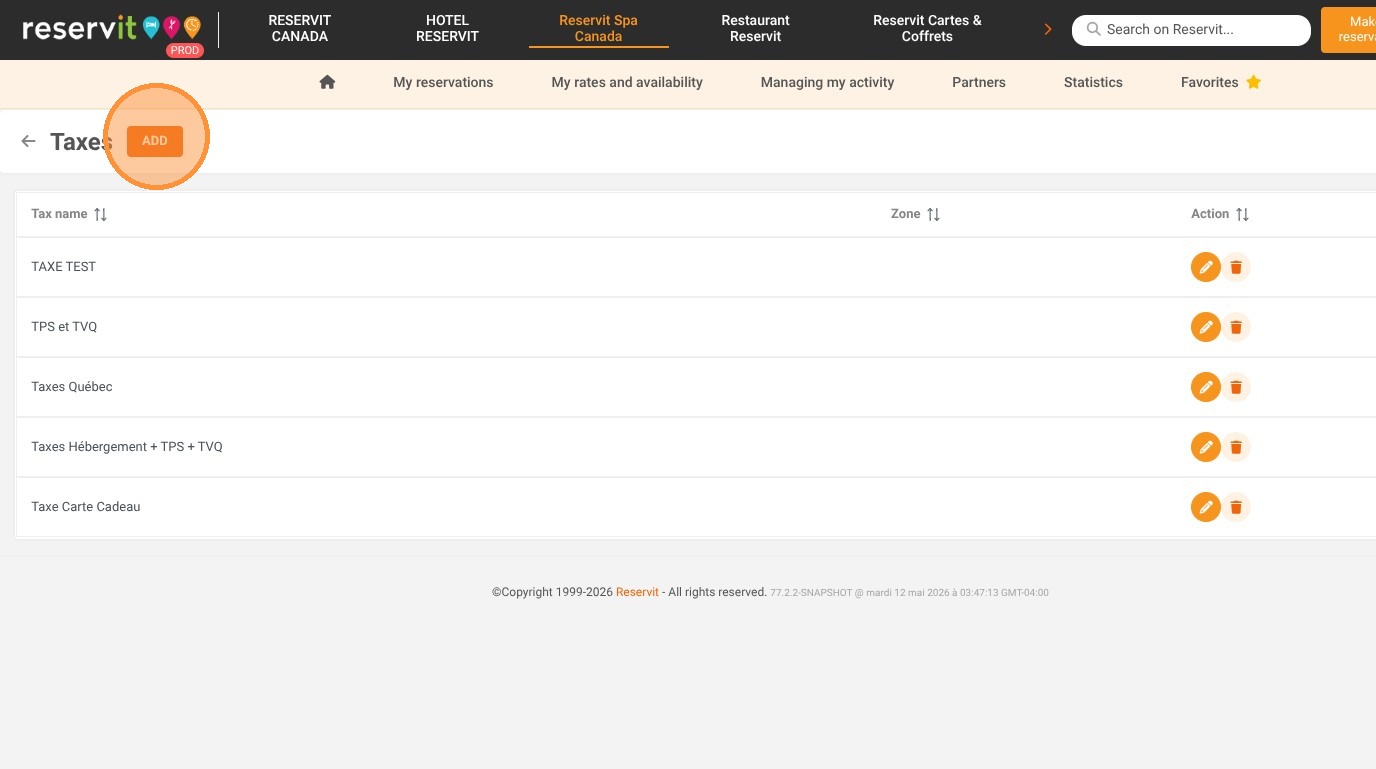
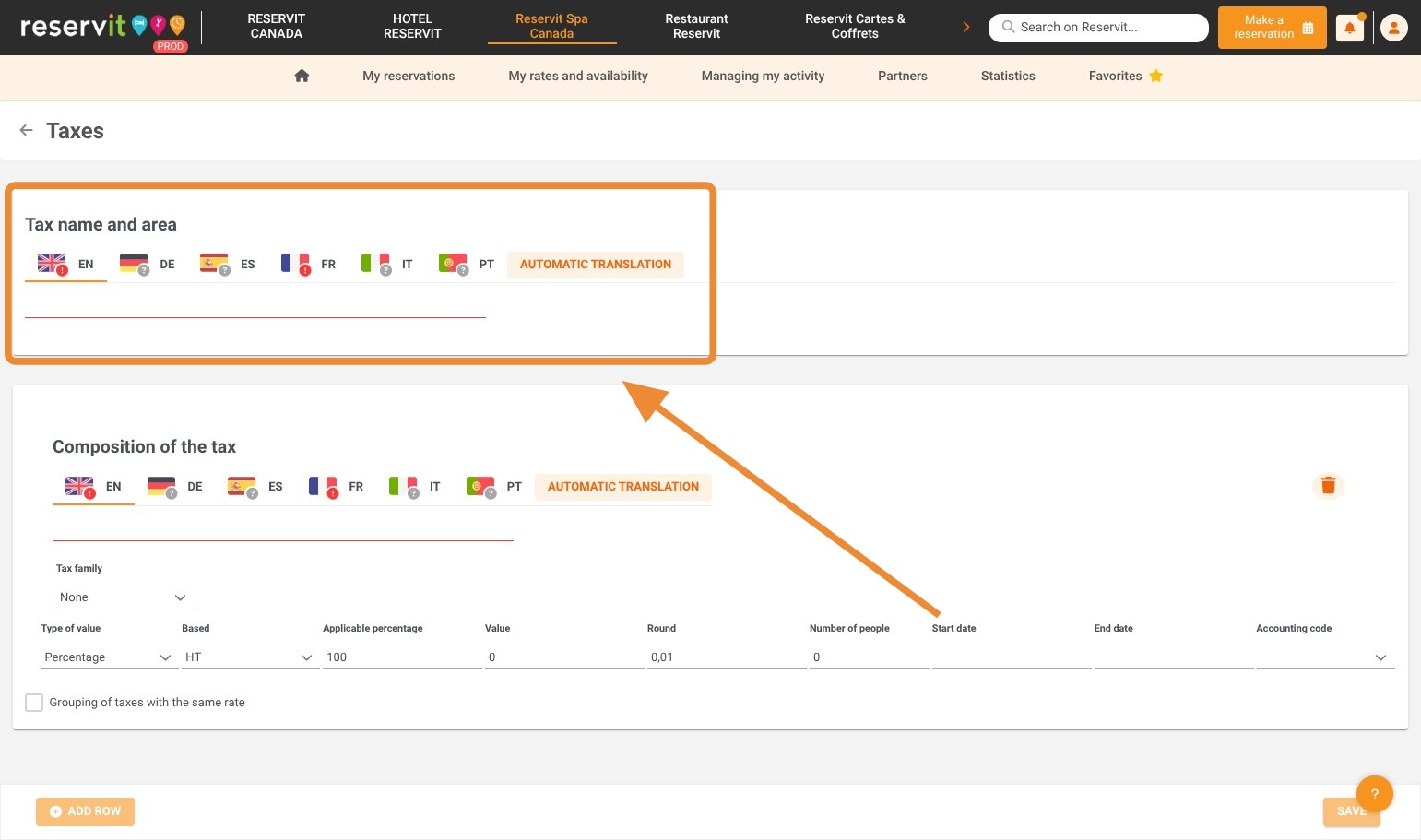
3. Name Your Tax. Give your tax or tax group a name so you can easily identify it in your software later. Example: GST + QST or HST.
4. Indicate the First Composition
Now, indicate the first tax composition. This may be the only tax you need to configure in the case of simplified or unified taxes (for example, the Canadian HST). In this example, we are creating a compound tax made of sub-taxes: Lodging Tax + a Provincial Tax.
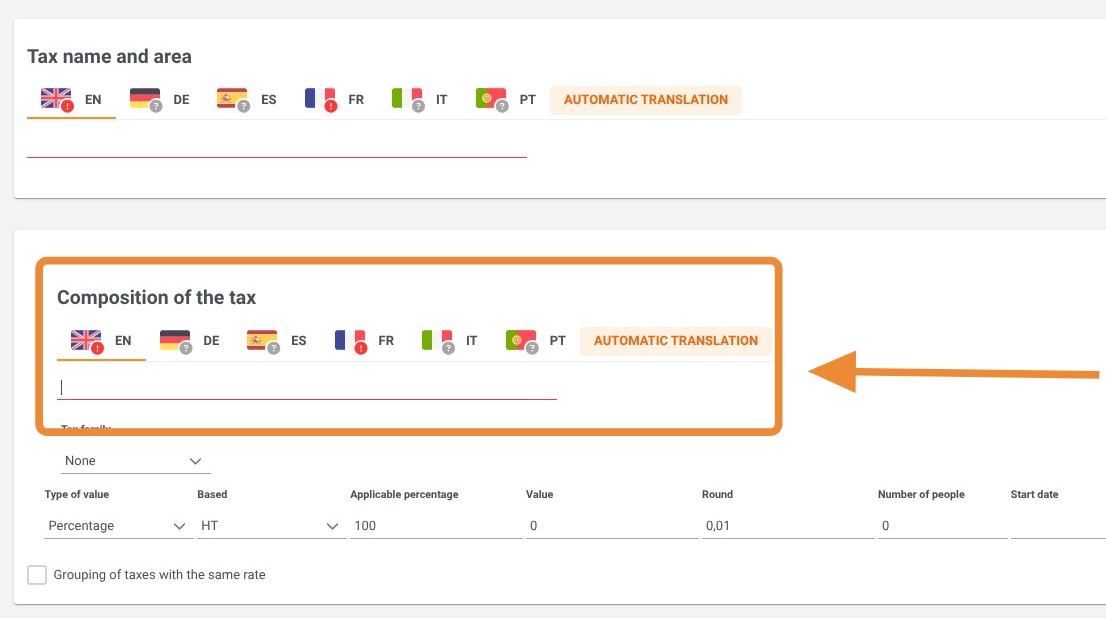
5. Define the Fields What do the different fields mean?
-
Tax Family: If this field is present, leave it blank.
-
Type of value: Indicates whether the tax is a fixed value (e.g., a $3 amount) or a percentage (e.g., 5%).
-
Based: This is the calculation base of the tax:
-
BT (Base Tax): The first tax level. This primarily applies to taxes that can themselves be subject to other taxes, such as a lodging tax. This tax applies only to the pre-tax amount.
-
HT (Pre-tax): The second tax level. The tax is calculated on the pre-tax amount, plus the BT tax amount.
-
TTC (All taxes included): The final tax level. The tax is calculated on the pre-tax amount, plus both the BT and HT tax amounts.
-
-
Applicable Percentage: Indicates what portion of the total amount the configured tax applies to. In the vast majority of cases, this value will be 100%.
-
Value: Corresponds to the actual tax rate (e.g., 3.5% or 15%).
-
Round: The rounding level used for the calculation. Leave this value at 0.01.
-
Number of People: Must be filled in if the tax depends on the number of guests. For example, if the tax only applies to one person, indicate it in this field.
-
Start Date: Can be filled in if the tax is scheduled to take effect on a specific date set by the government.
-
End Date: Can be filled in if the tax is scheduled to expire on a specific date set by the government.
-
Accounting Code: The reference code used in your accounting software for this specific tax.
6. Finalize and Apply Your tax is now configured and can be applied to your various services, products, and options.