Article Summary: This step-by-step tutorial explains how to set up and configure your customer registration form and risk acceptance waivers within Reservit Activities. You will learn how to customize guest information fields, designate mandatory requirements, and seamlessly integrate your terms of use into the booking process. Optimizing this form ensures you collect essential participant details upfront while keeping your business legally protected.
The 5 key steps to configure your registration form:
-
Navigate to property settings: Open the "Managing my activity" menu, go to "Property Setup," and select "Property Information."
-
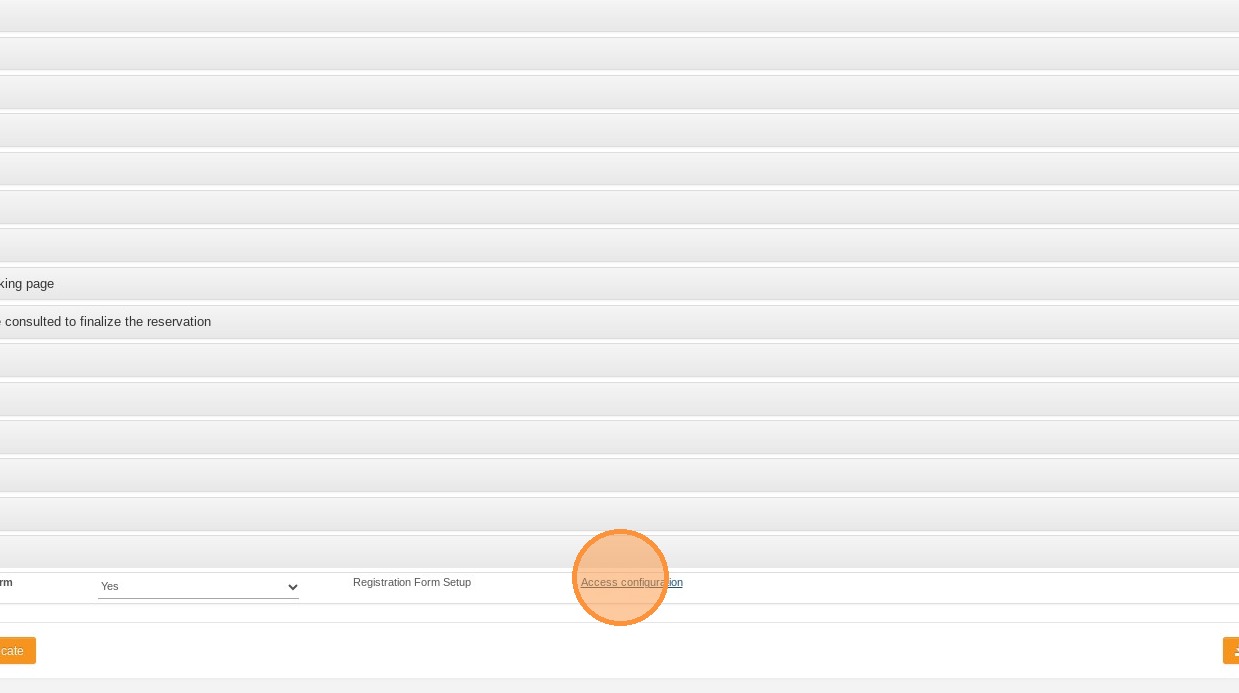
Access the form configuration: Click on the "Registration form" tab and select "Access configuration" to begin customizing your setup.
-
Select and customize fields: Choose the specific customer information fields you want to display on the form and check the boxes to make essential details mandatory.
-
Insert your terms of use: Add your business's specific terms of service or risk acceptance policies directly into the designated section of the form.
-
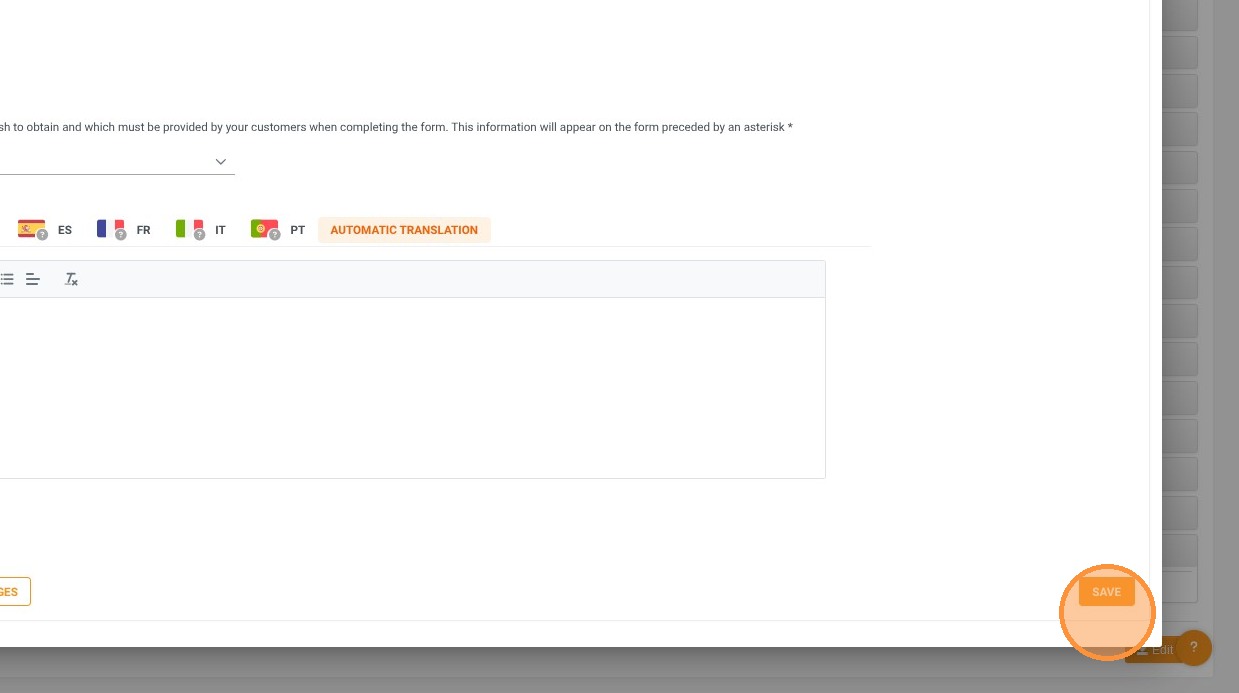
Save your changes: Click save to instantly update your configuration and apply these new registration requirements to your booking page.
Why follow this guide? Digitizing your registration form and mandatory risk acceptance directly within your booking flow saves valuable administrative time and eliminates the need for manual paperwork upon arrival. This proactive setup enhances your liability protection, reduces check-in bottlenecks, and guarantees a smoother, more professional experience for your guests.
1. Click "Managing my activity"
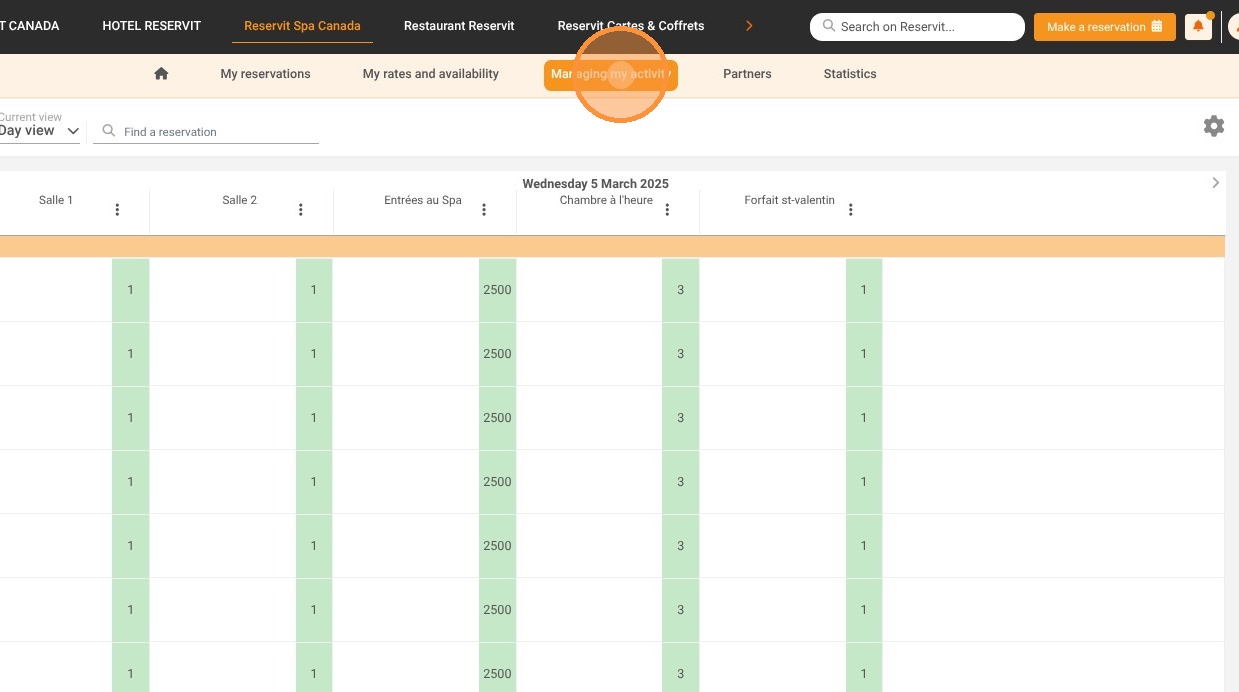
2. Then ''Property Setup''
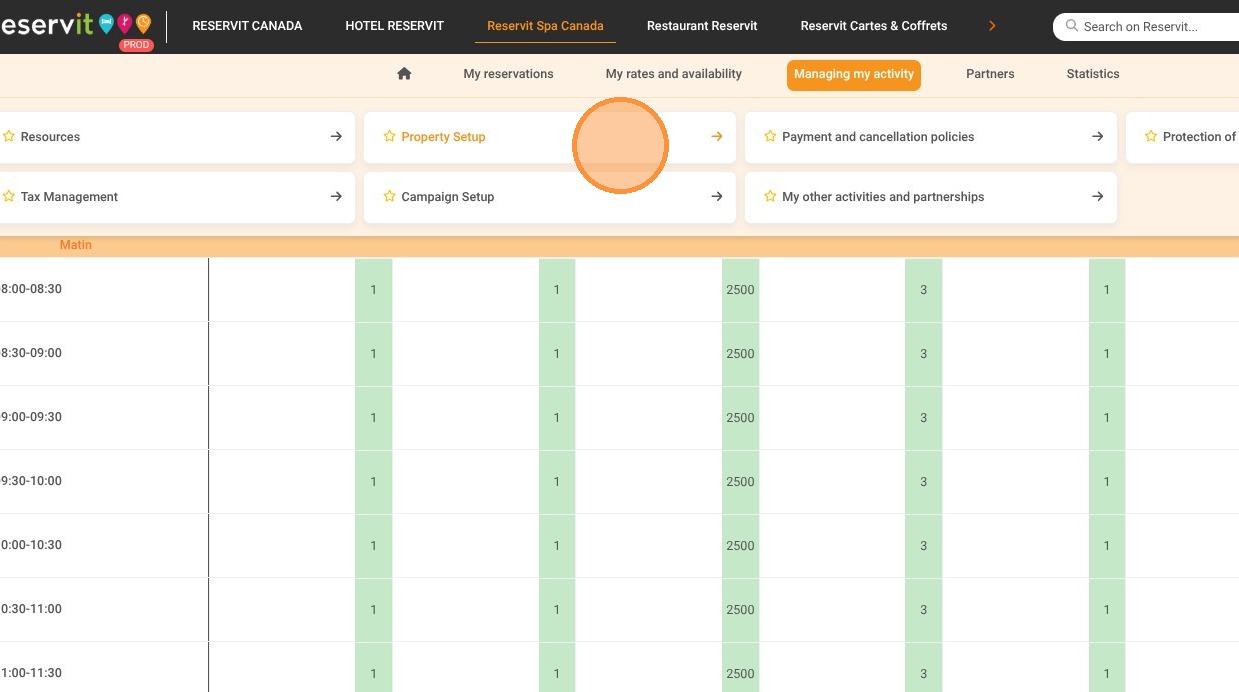
3. And ''Property Information''
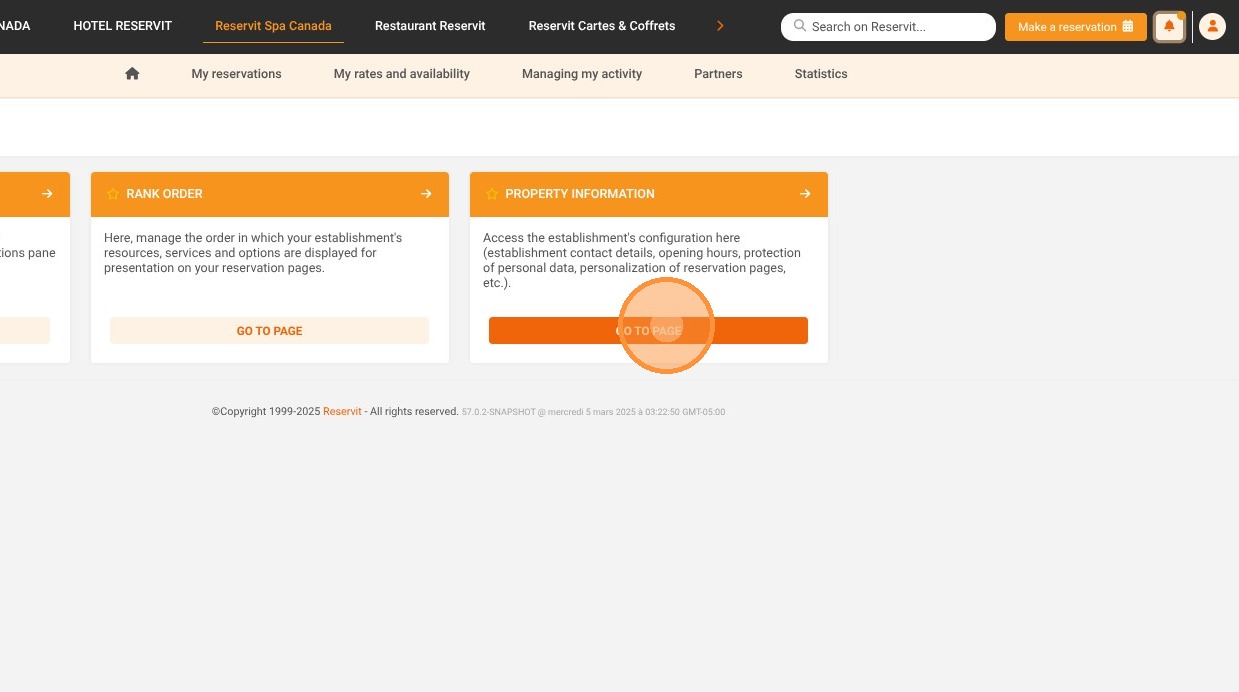
4. Click "Registration form"
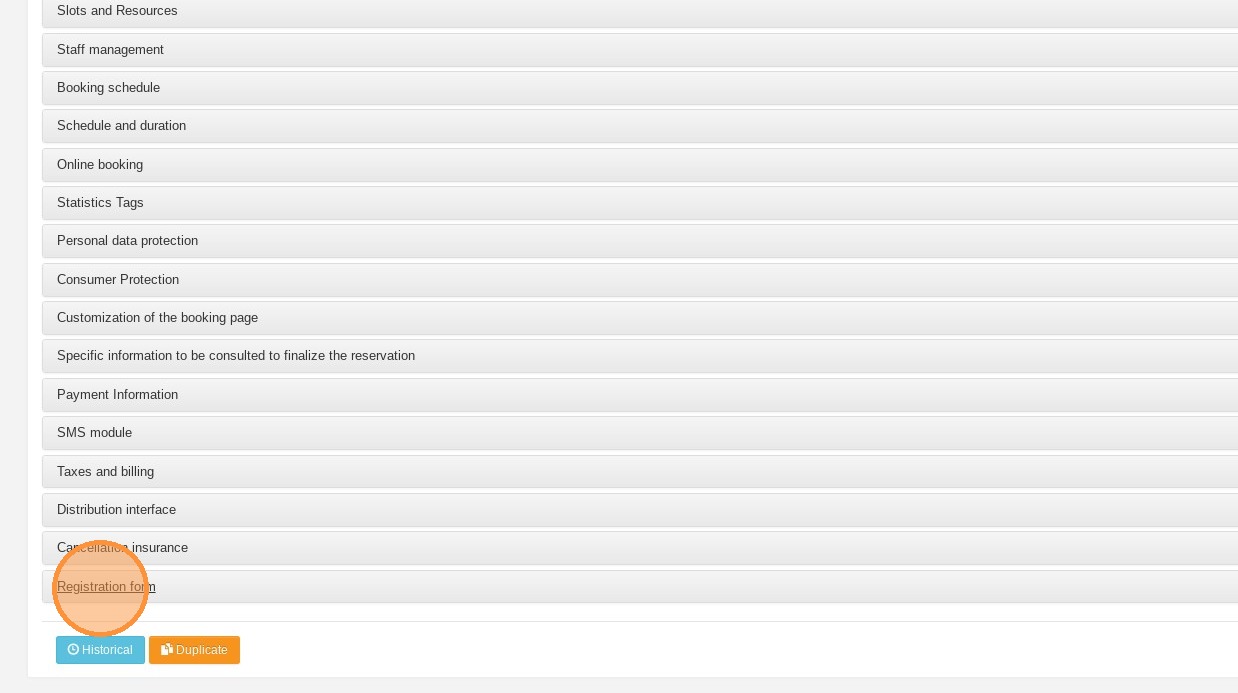
5. Click "Access configuration"
6. Fill in the following fields.
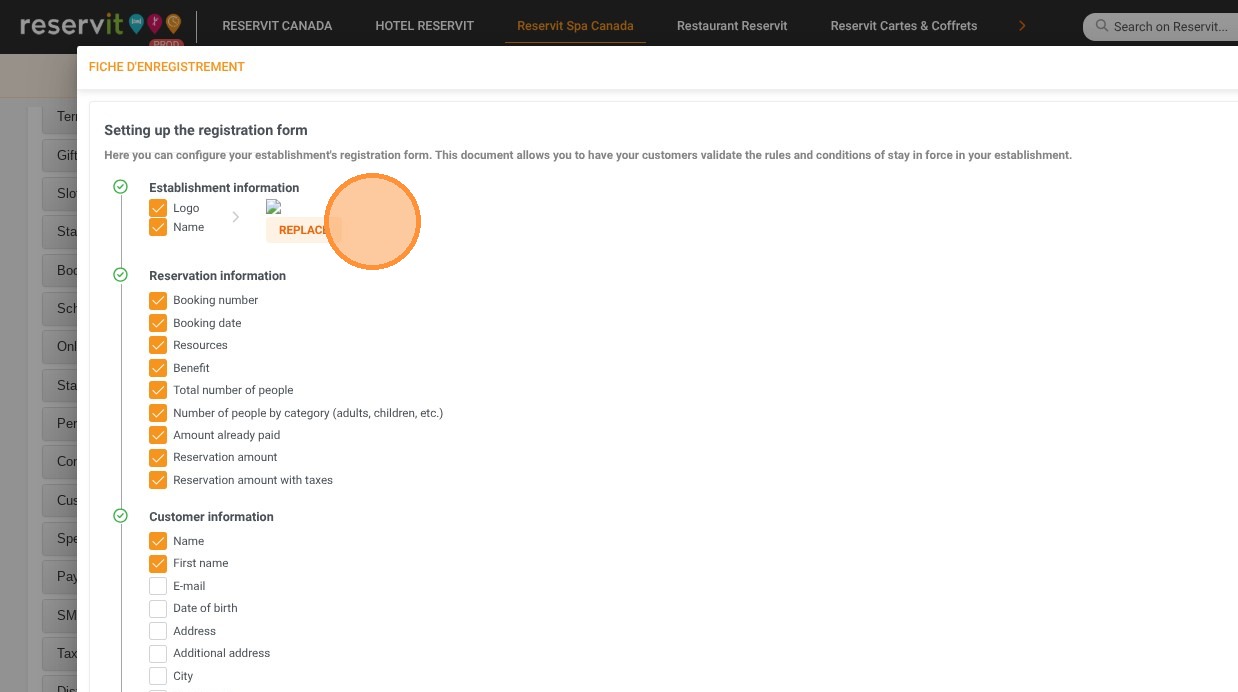
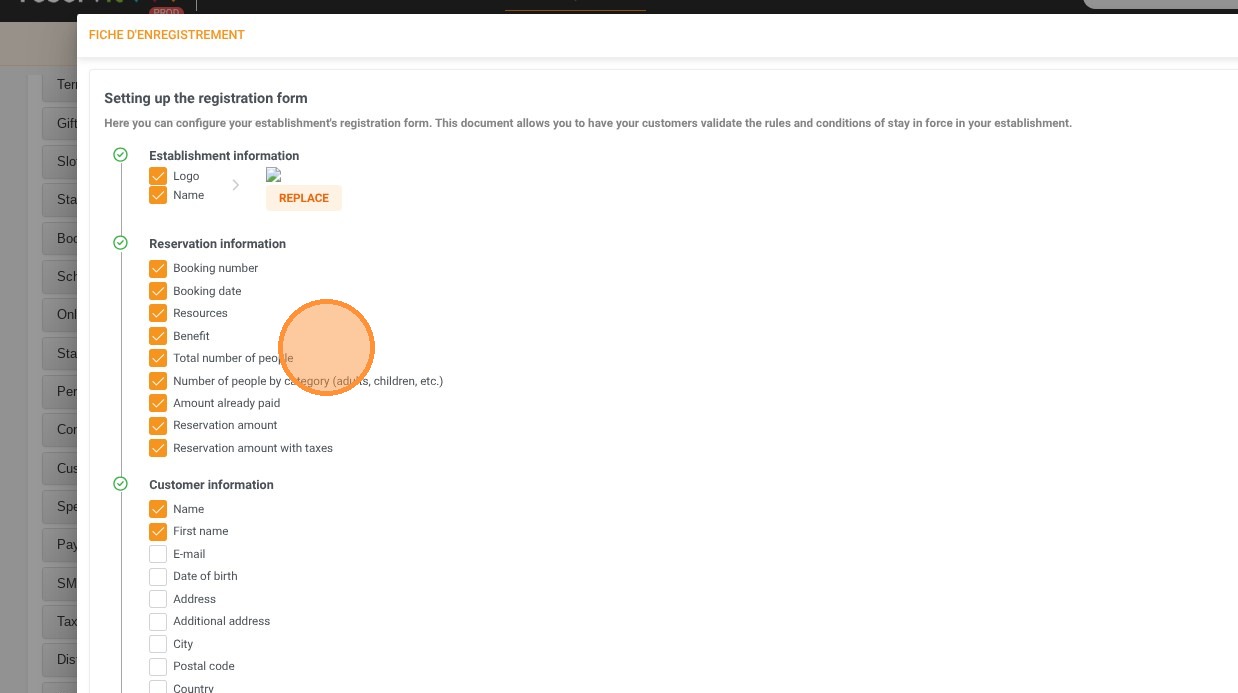
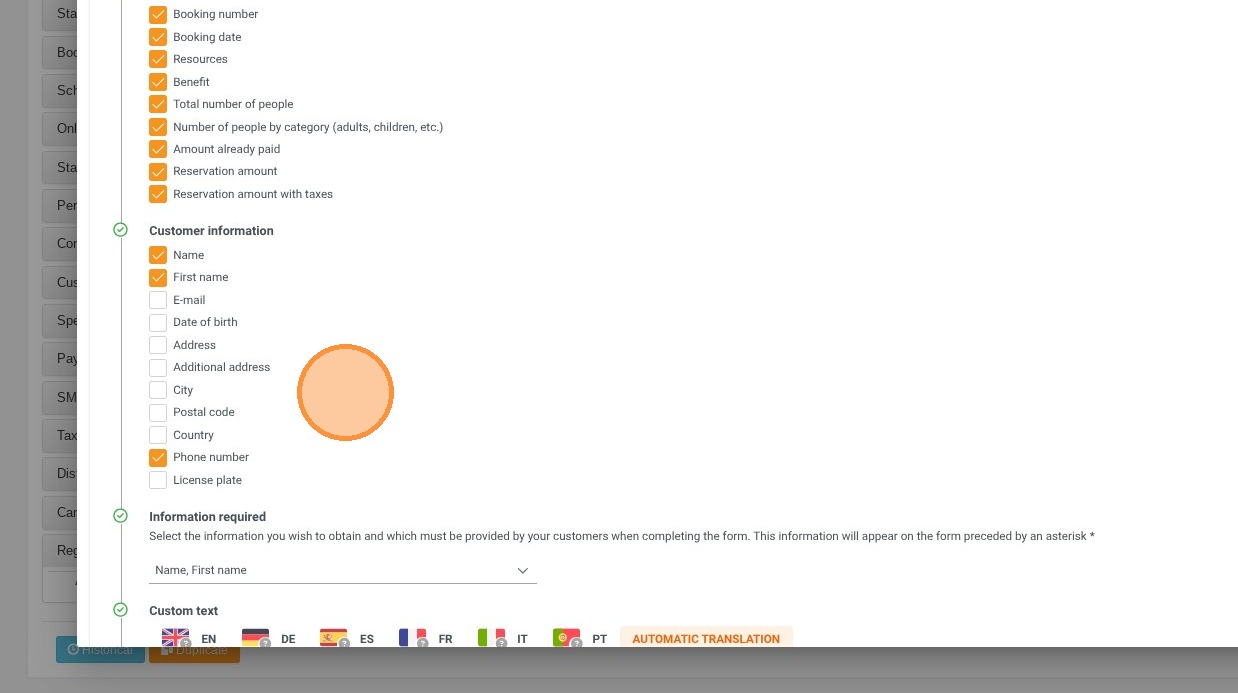
7. In this selection, you will have the option to make certain selected information mandatory.
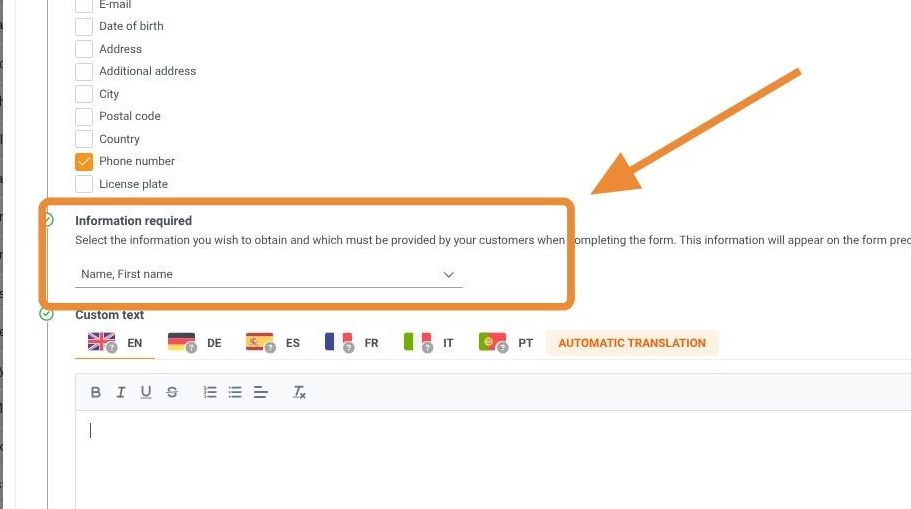
8. It is possible to insert your terms of use.
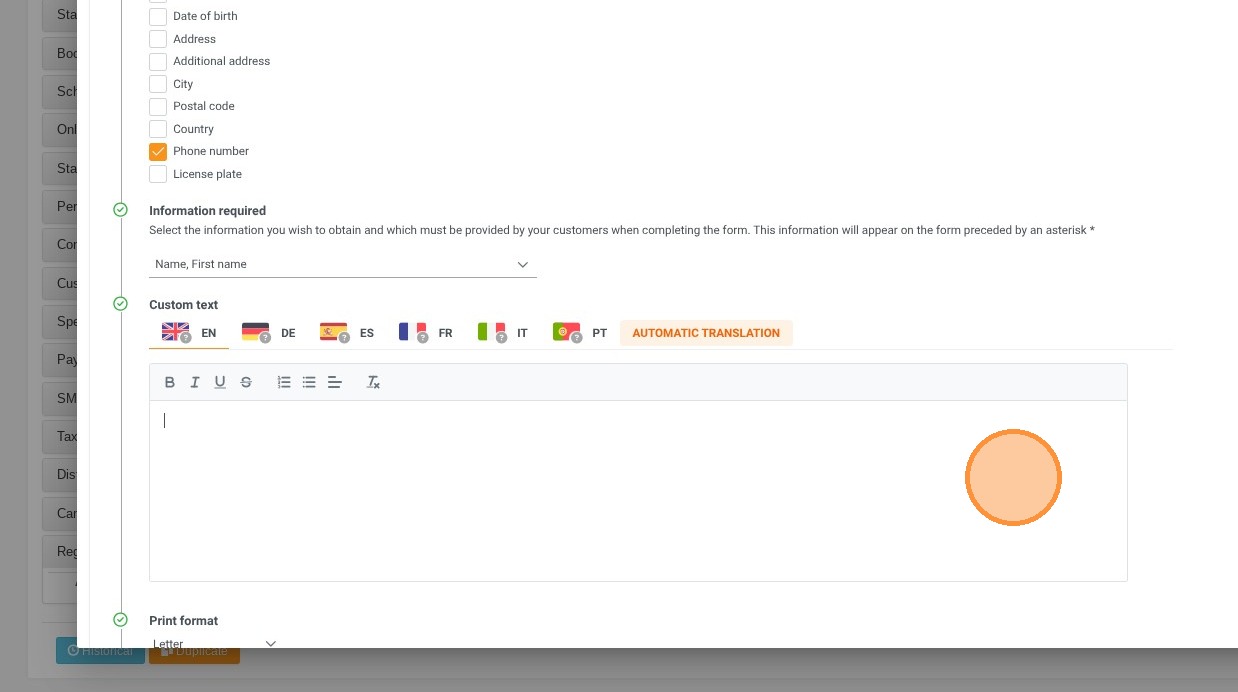
9. Don't forget to save.