Article summary: This step-by-step tutorial explains how to quickly create an internal reservation and securely process a payment using the integrated terminal in Reservit. You will learn how to efficiently select services, enter client details, configure automated confirmations, and capture credit card transactions in one seamless workflow. Mastering this feature ensures accurate accounting and provides a smooth, professional booking experience for your customers.
The 5 key steps to create a reservation with a payment:
-
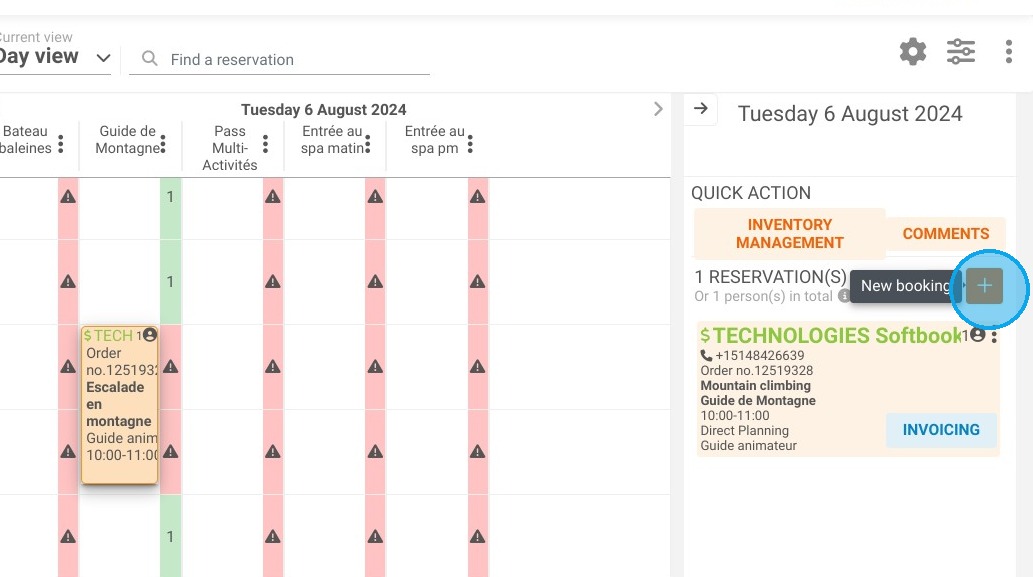
Initiate a new booking: Click the "+" button in your right-hand side panel to open the quick reservation tool.
-
Select service details: Choose the specific service or activity, select the preferred date and time, and indicate the number of participants.
-
Enter client information: Fill in the guest's contact details and check the designated box to automatically send them a booking confirmation email.
-
Update the booking status: Change the reservation status to "Deposit Paid" and click "Create" to generate the booking summary.
-
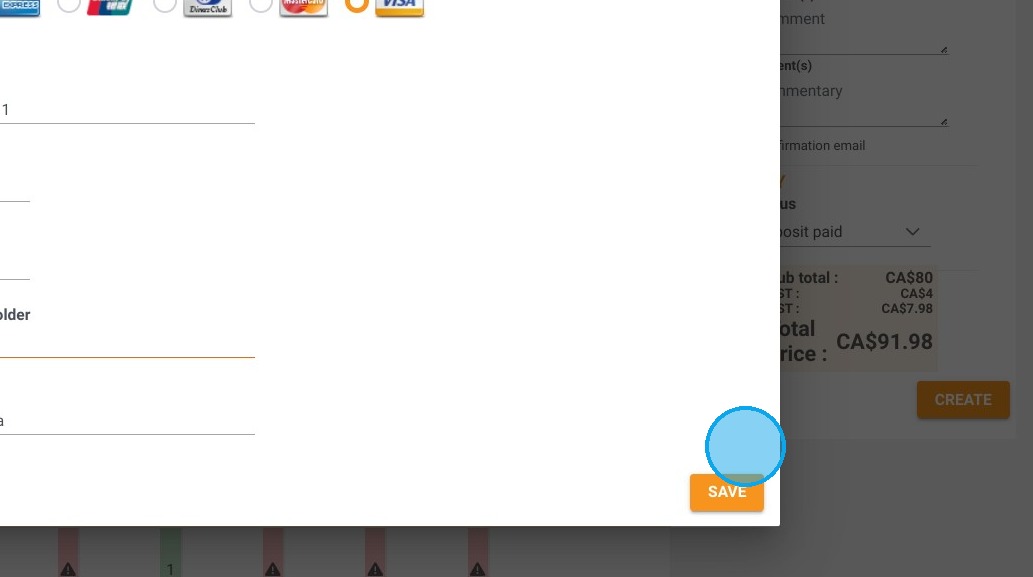
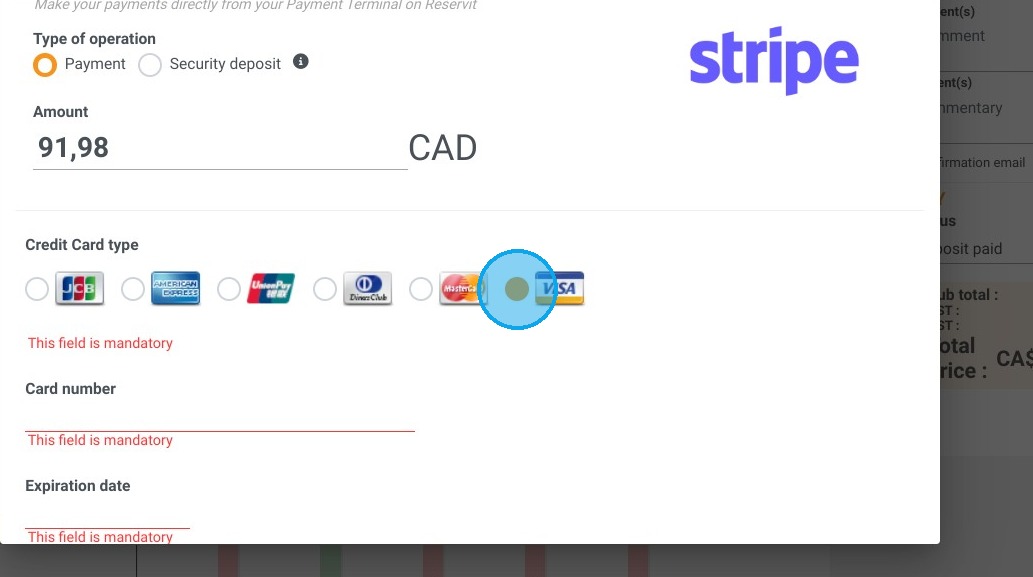
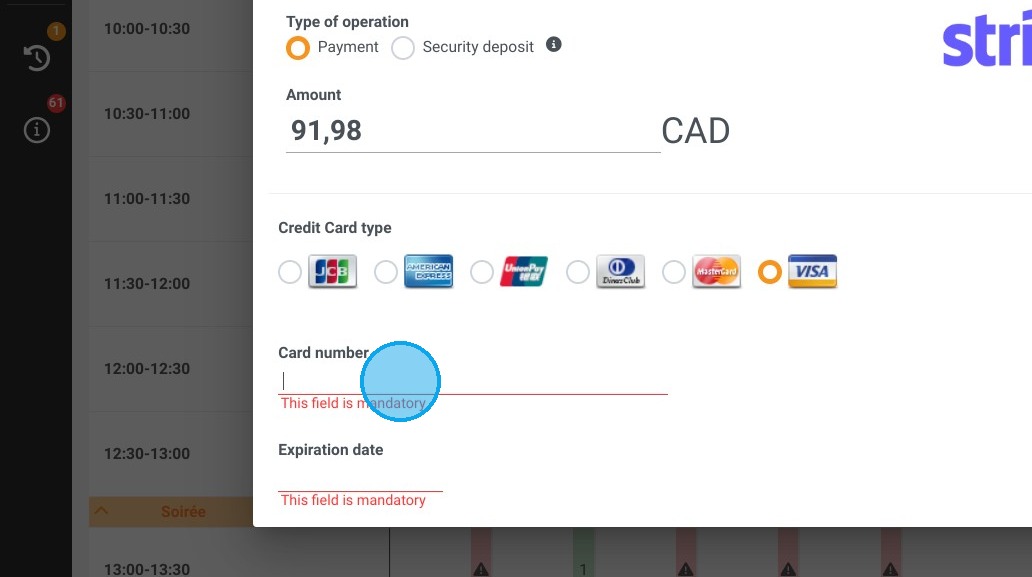
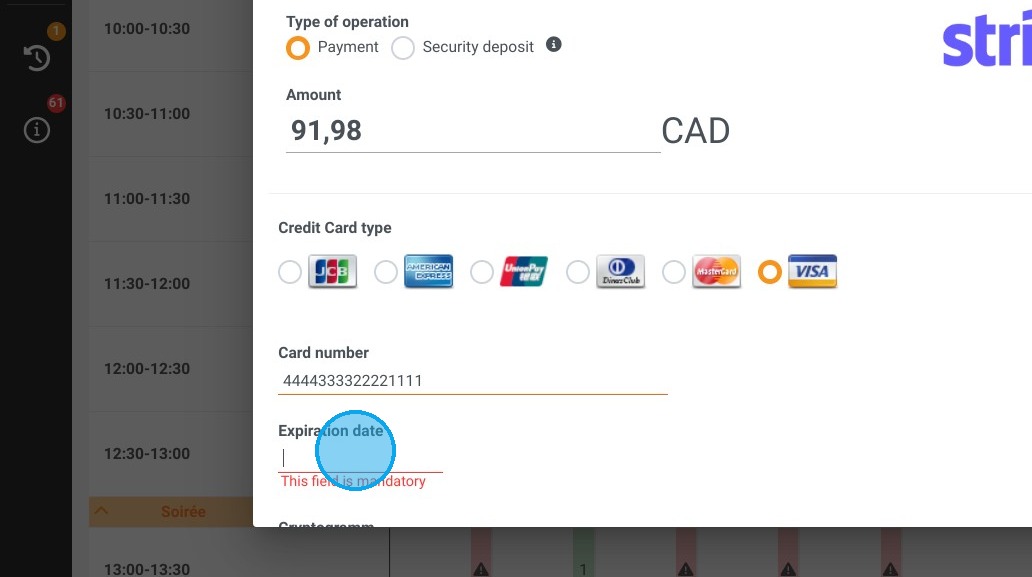
Process the transaction: Click on "Payment Terminal" from the summary window, enter the client's credit card information, and click "Save" to securely capture the funds.
Why follow this guide? Following this guide streamlines your front-desk operations by combining the scheduling and billing processes into a single, secure action. It helps you eliminate manual accounting errors, guarantees immediate payment collection, and saves your staff valuable administrative time during busy shifts.
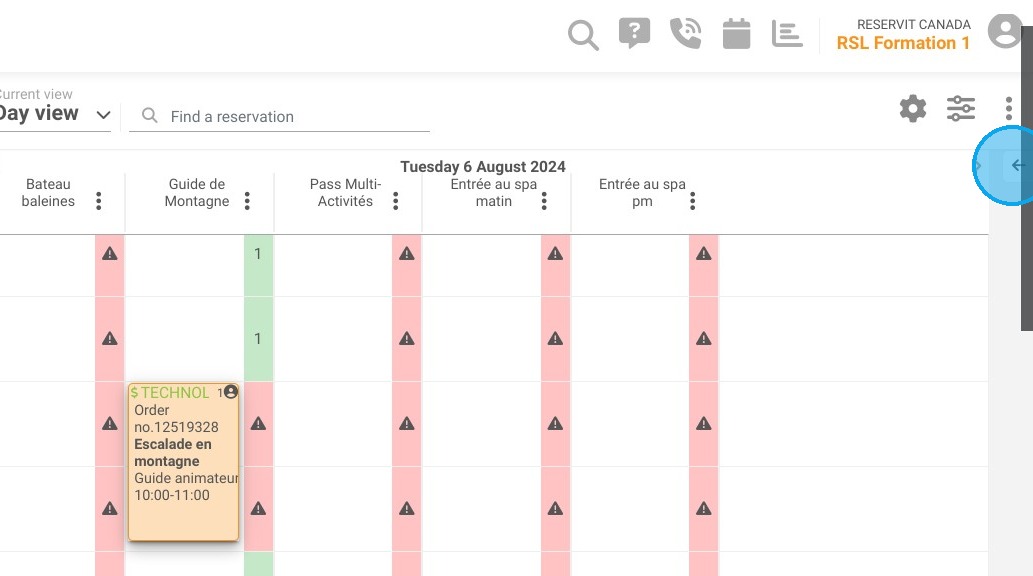
1. To quickly create an internal reservation and take a payment, click on the arrow to your right.
2. Then click on the + button to take a new reservation.
3. Select the desired service, then the date and time.
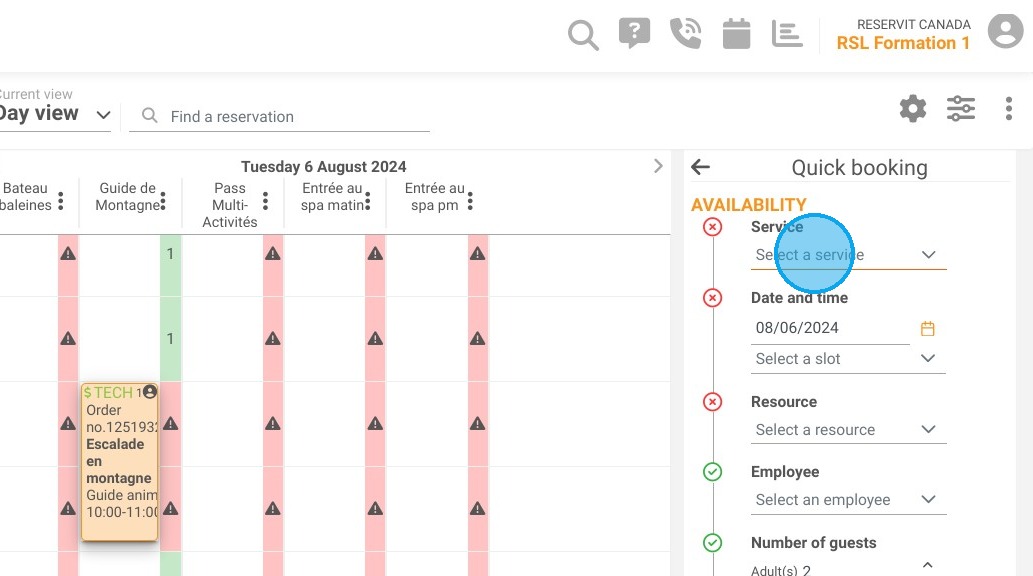
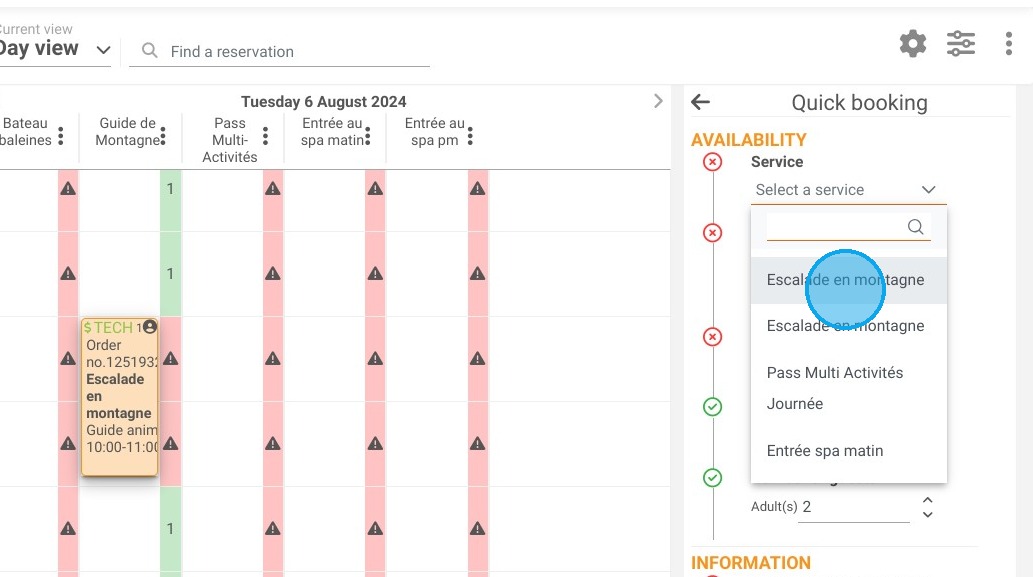
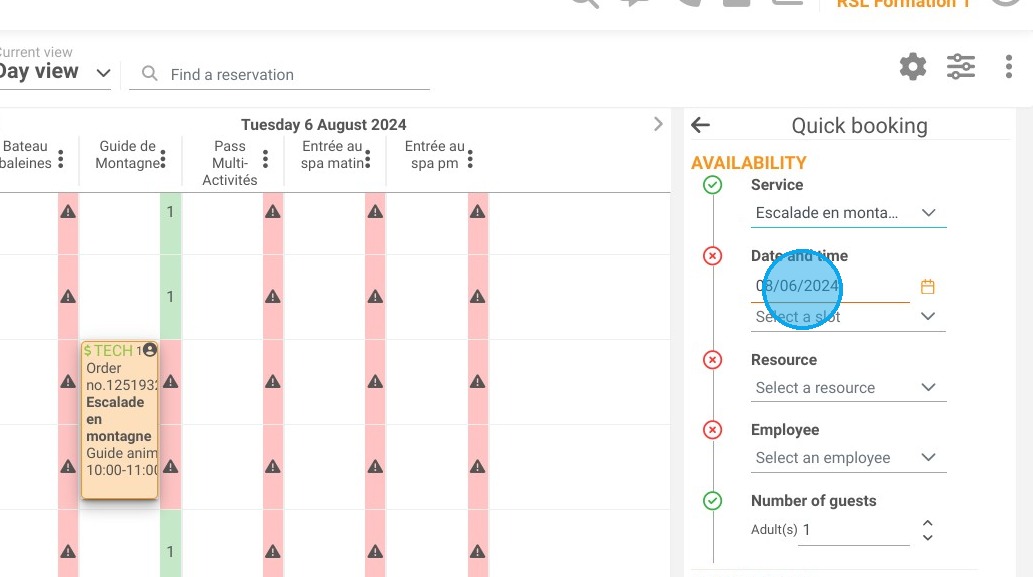
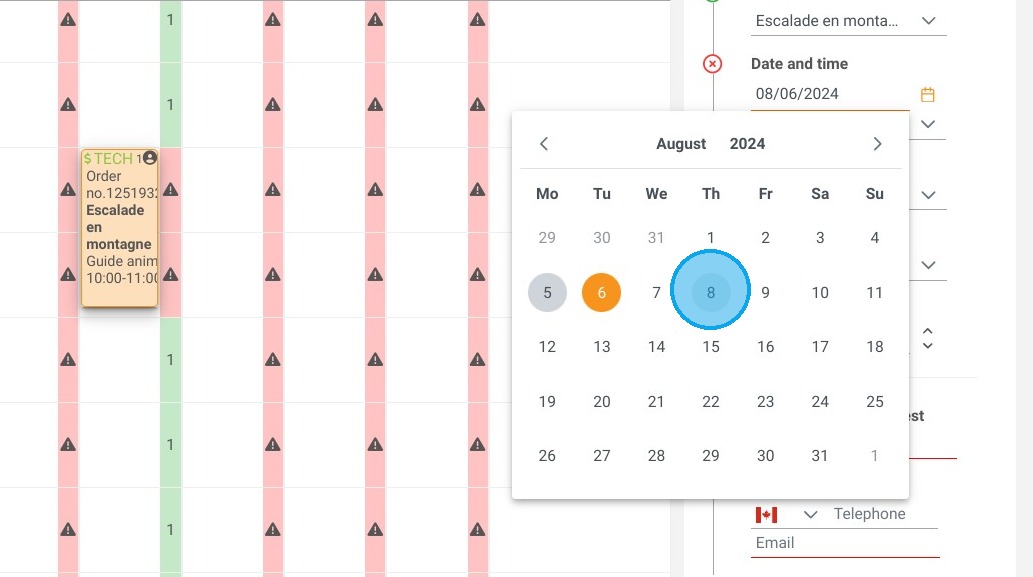
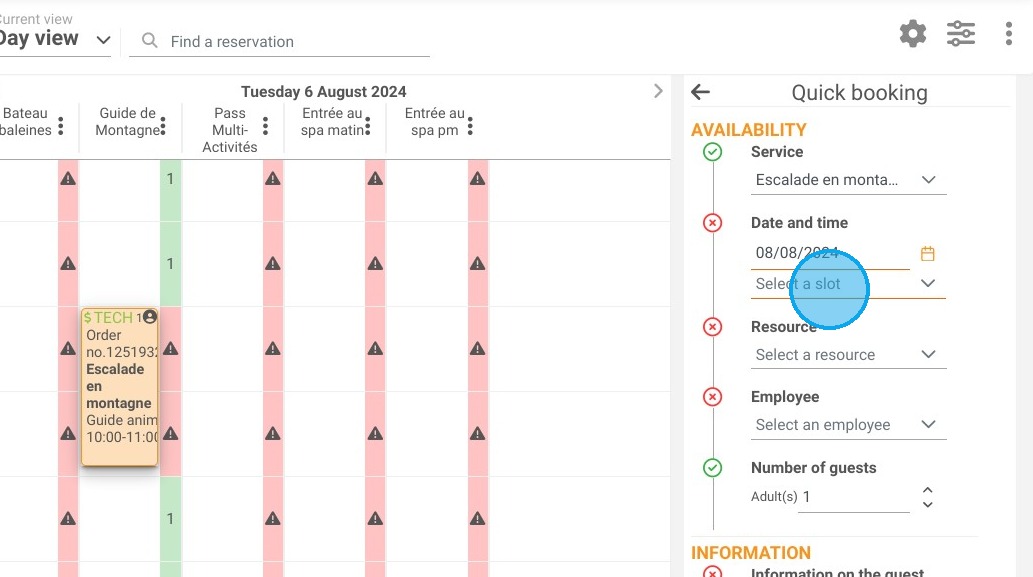
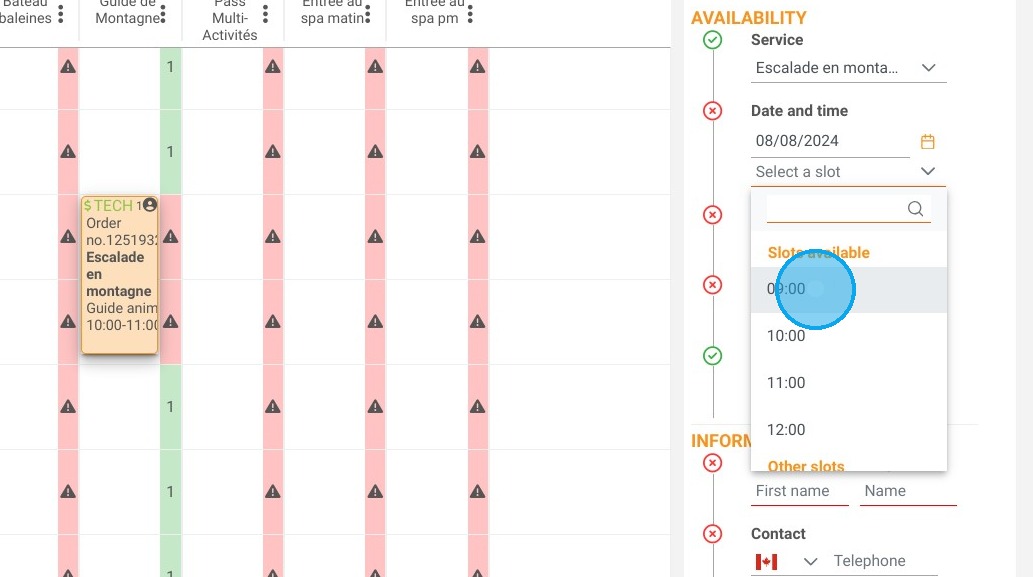
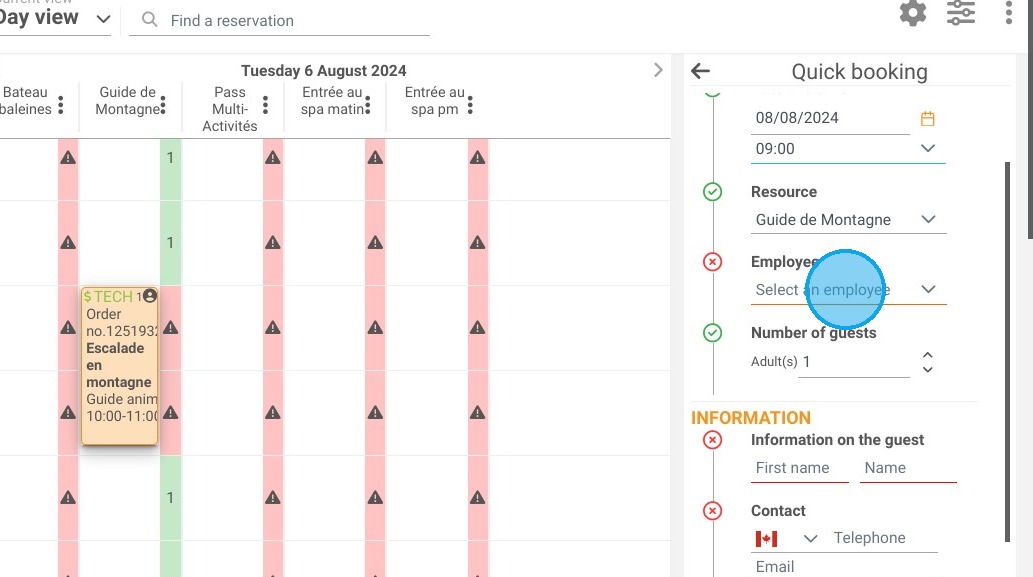
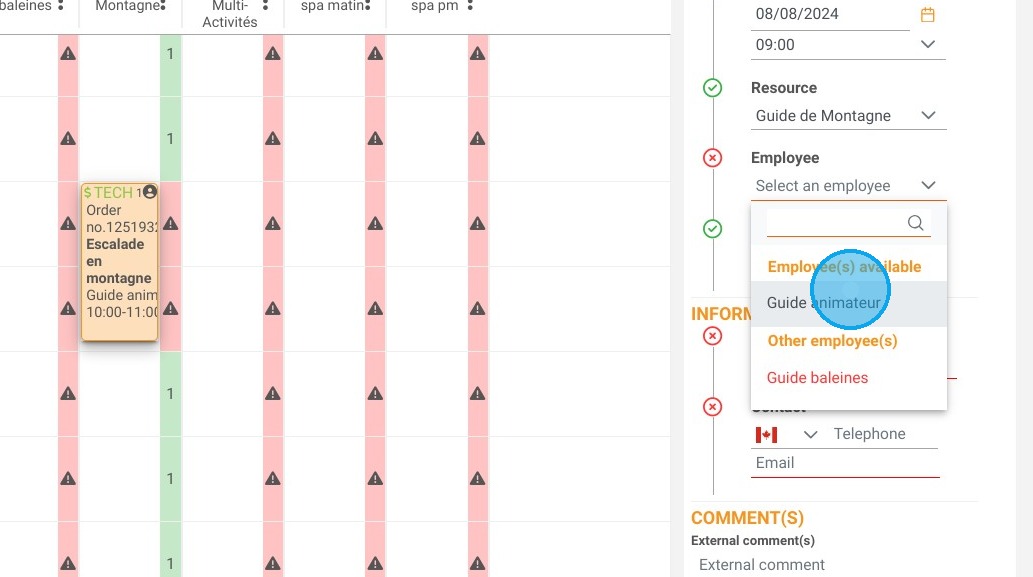
4. If team management is enabled, you can select the person who will lead this service. Otherwise, proceed to the next step and select the number of participants.
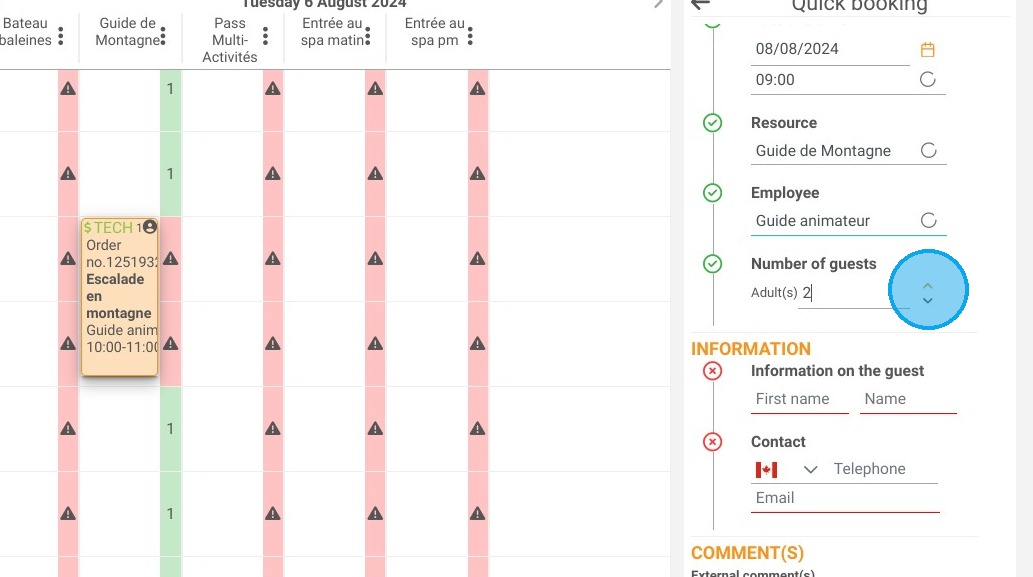
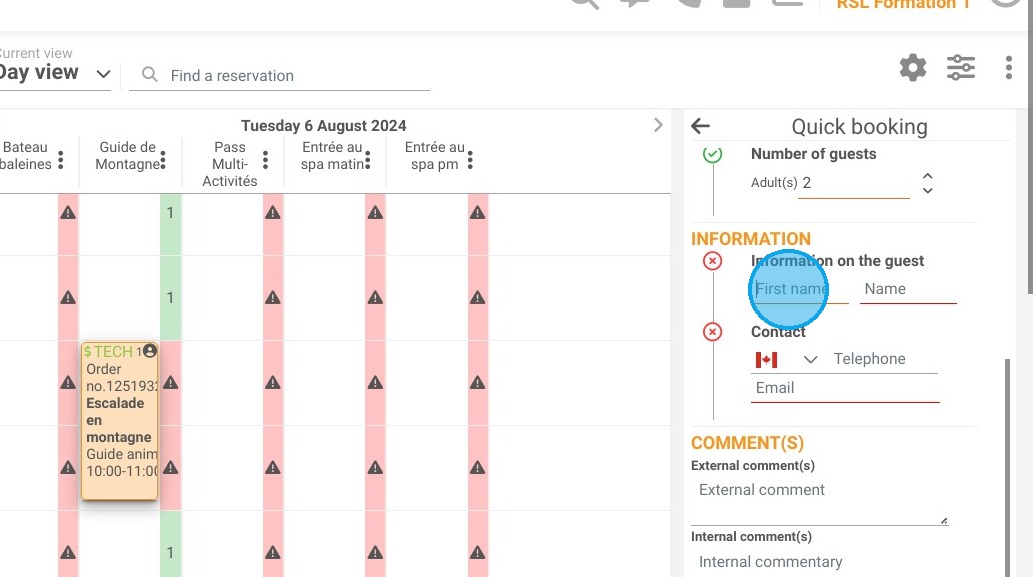
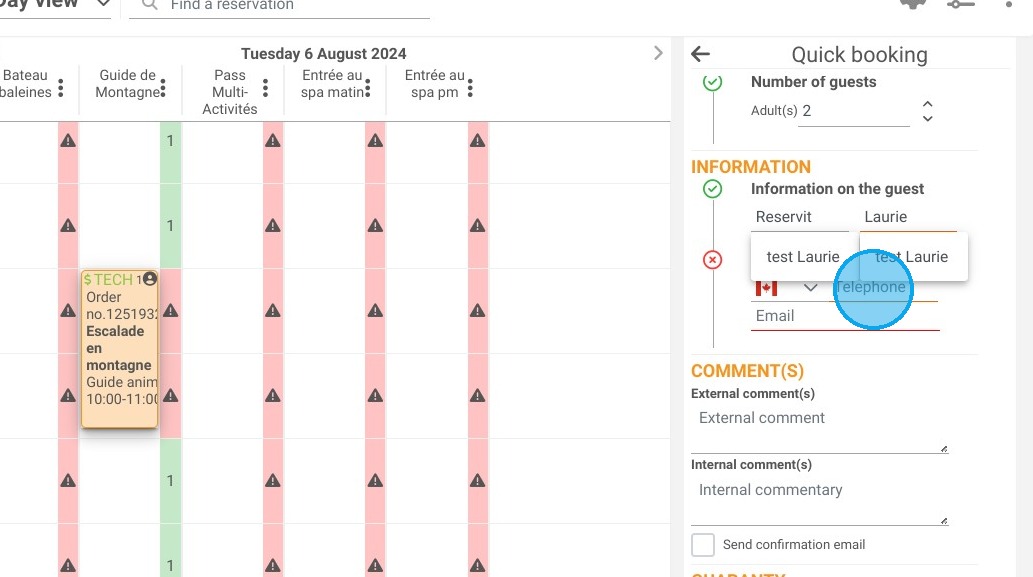
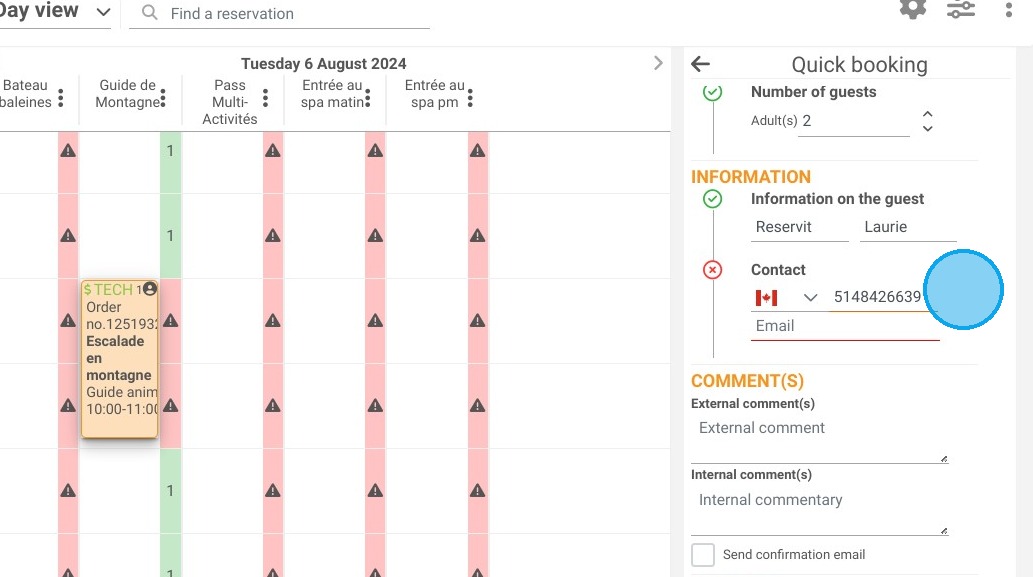
5. Enter the client information: last name, first name, phone number, email.
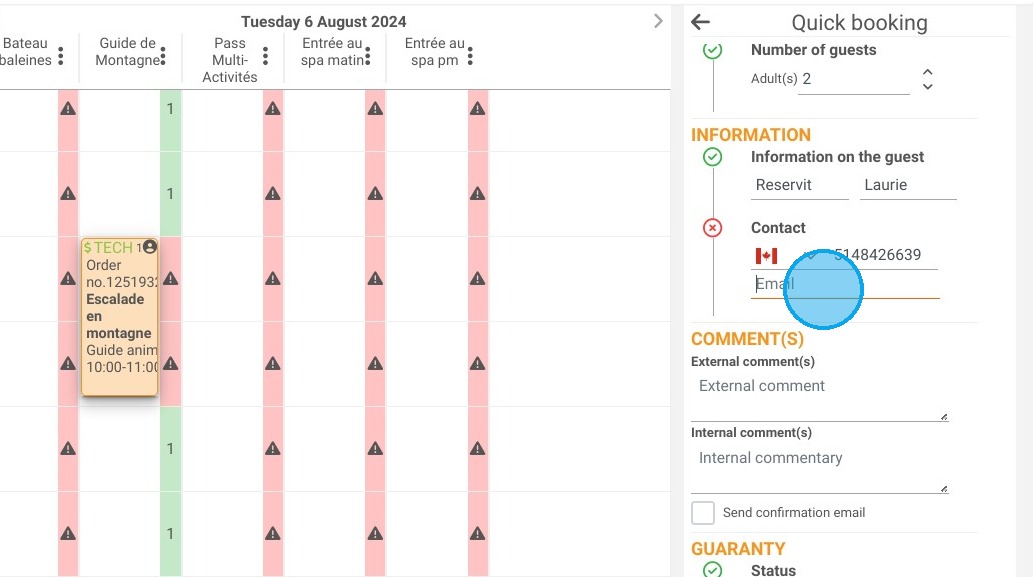
6. Check "send a confirmation email" if you want the client to receive a confirmation by email.
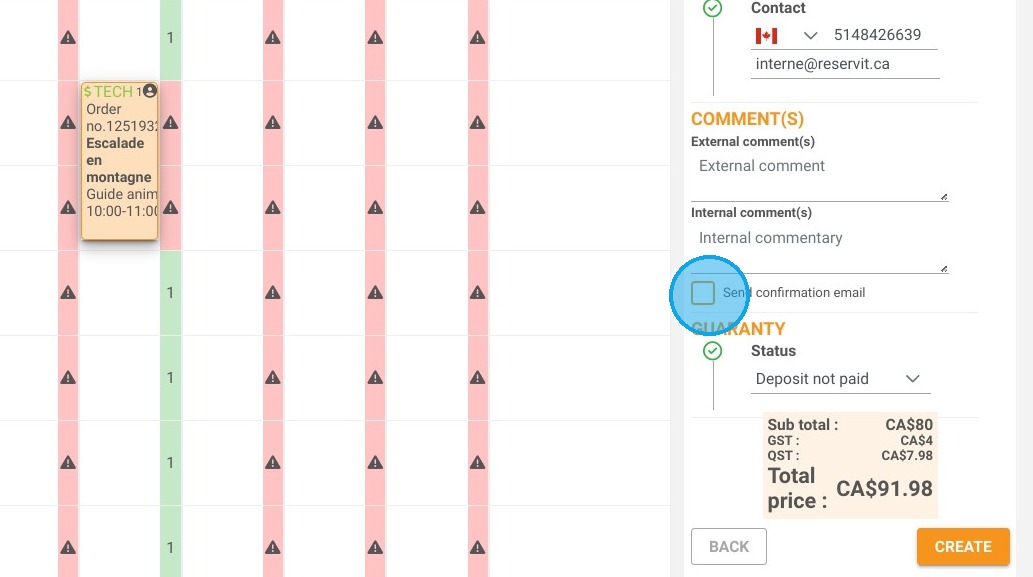
7. As we want to take a payment in this tutorial, select "Deposit Paid" under Status.
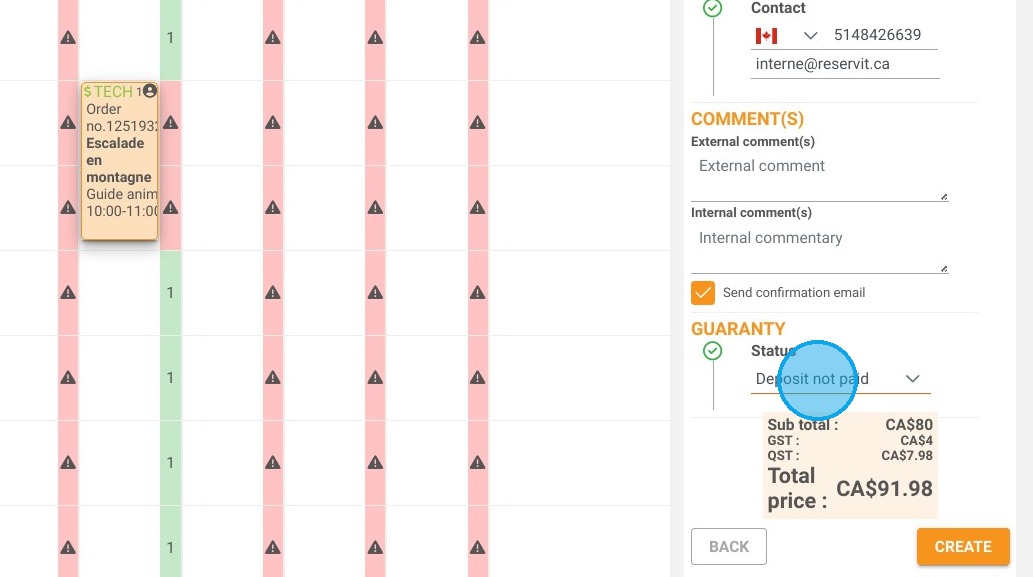
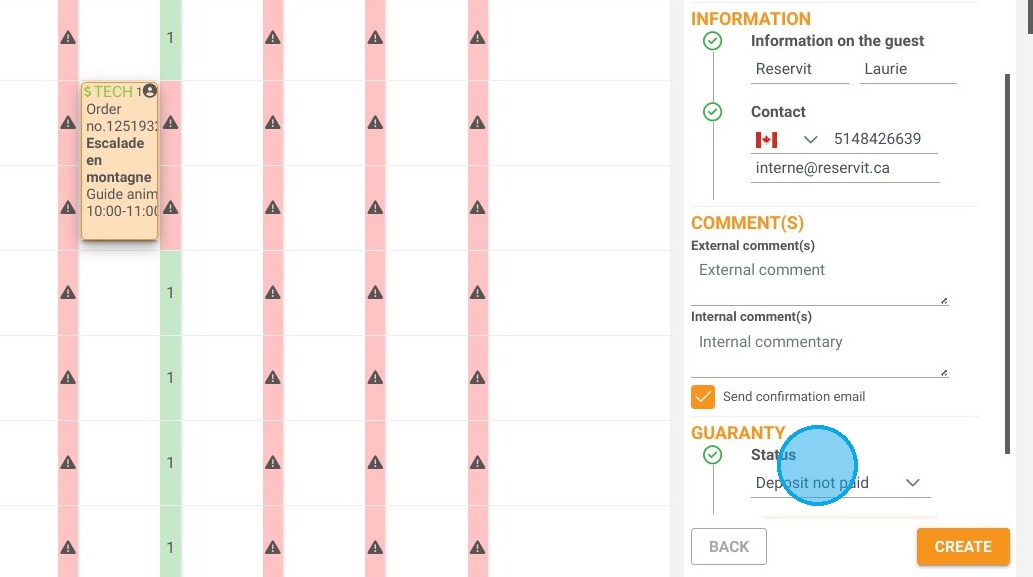
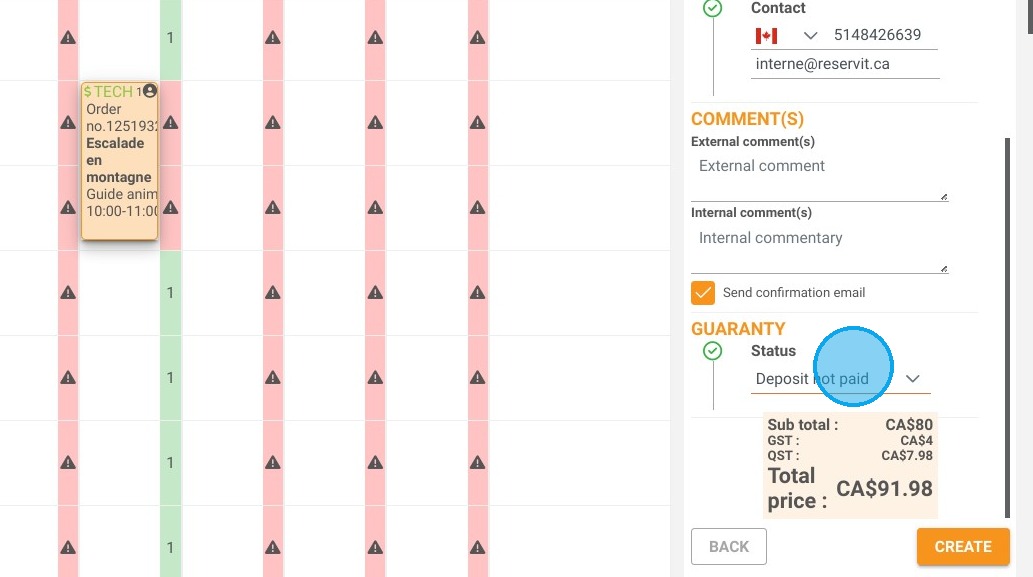
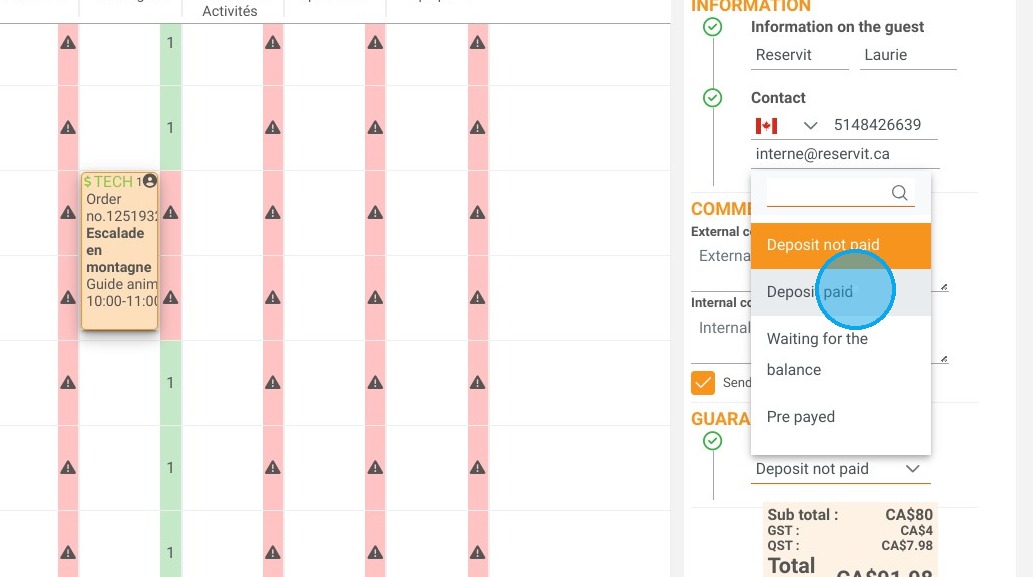
8. Then click on "CREATE"
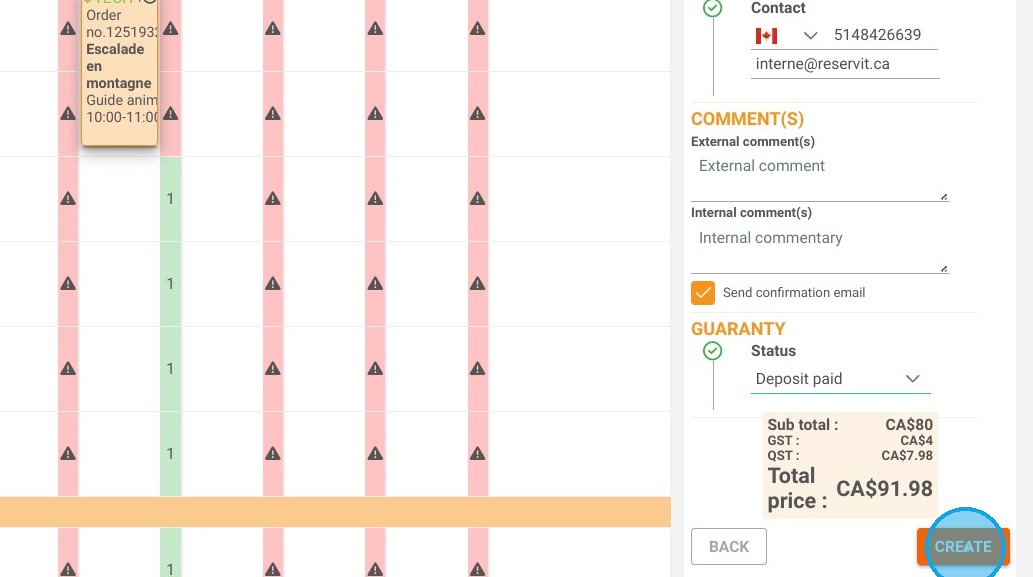
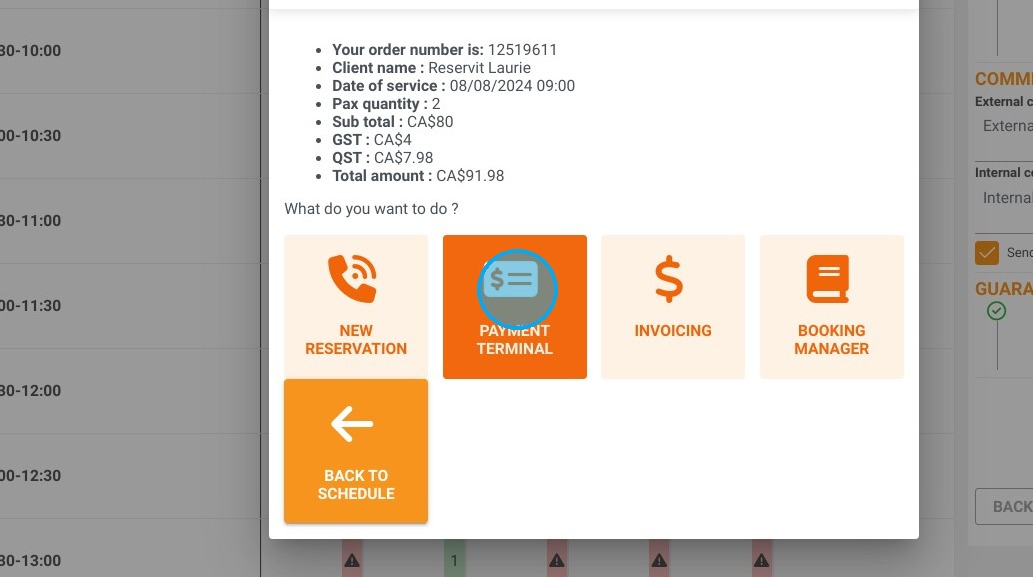
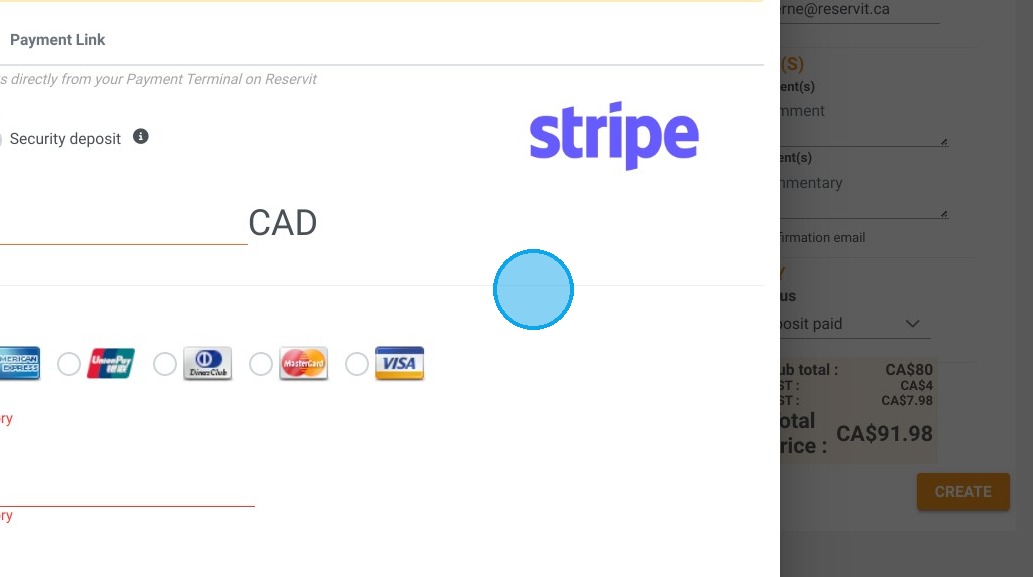
9. A window will appear with a summary of your reservation. To take the payment, click on "PAYMENT TERMINAL". Enter the payment amount and the client's credit card information.
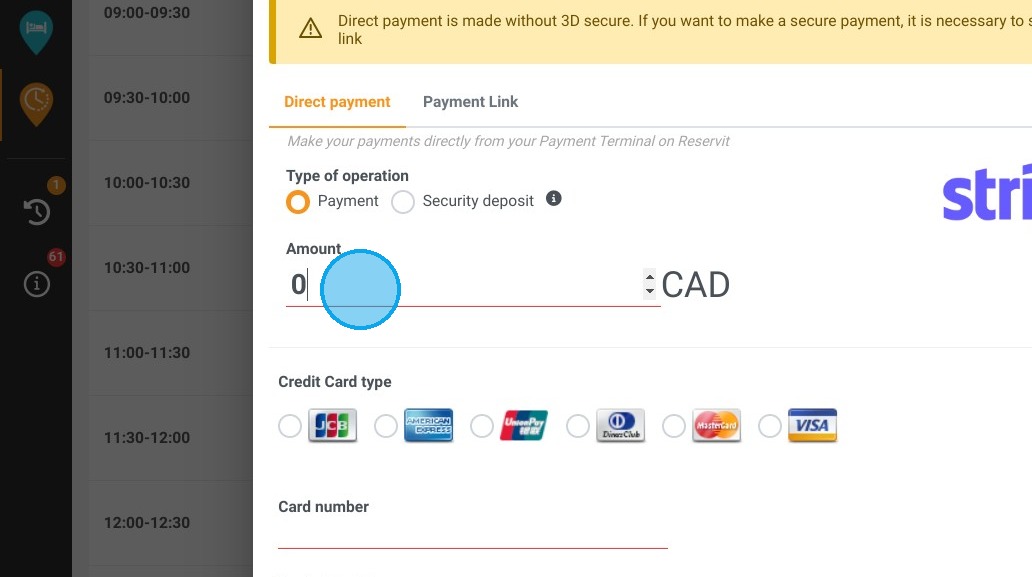
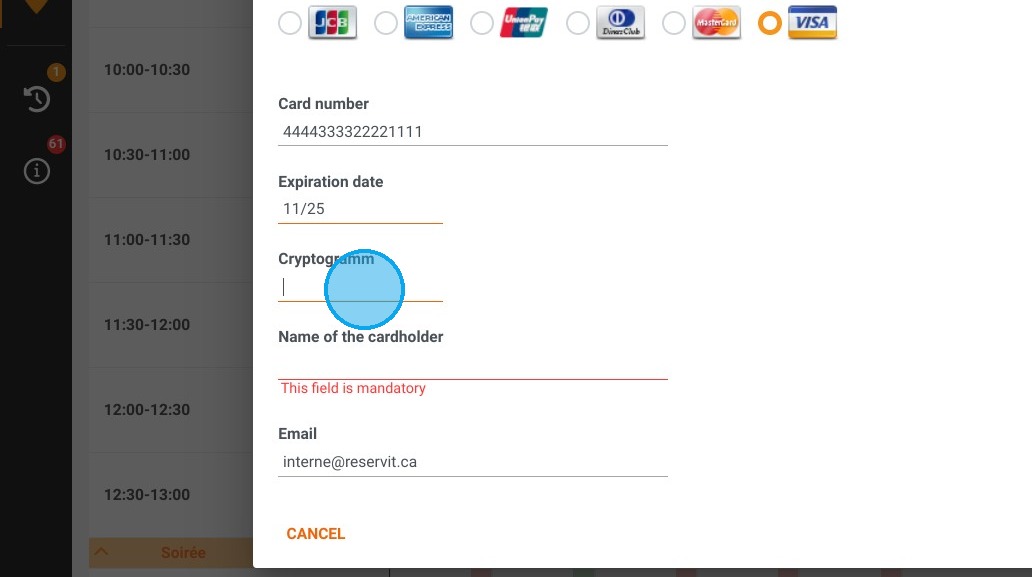
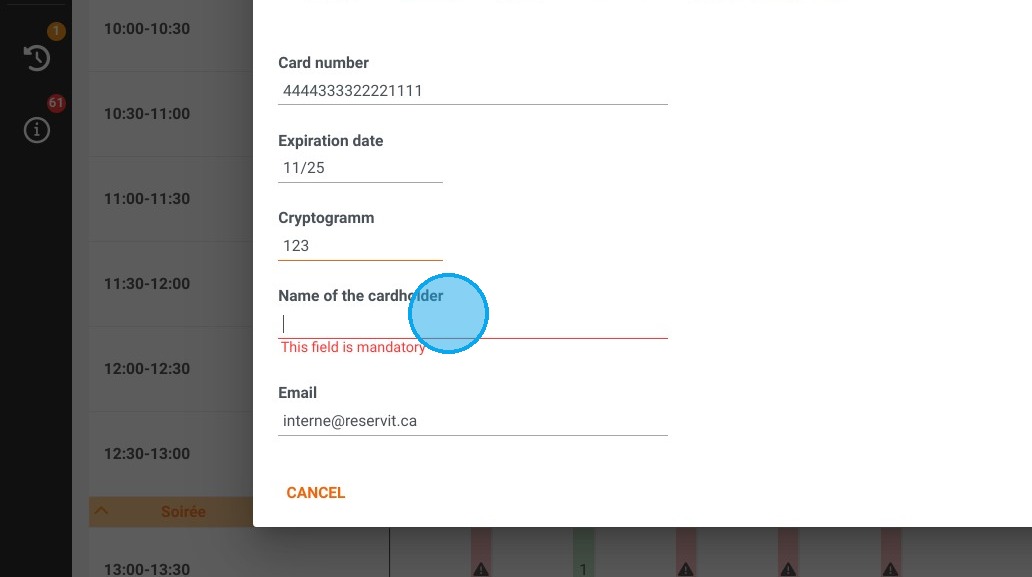
10. Then click "Save" to finish.