Article Summary: This tutorial explains how to use the quick booking module in Reservit Activities to enter a new order in just a few clicks. You will learn how to navigate from your calendar, quickly select services and resources, and instantly finalize the customer file. Thanks to this guide, you will significantly streamline your direct sales process during in-person or phone customer interactions.
The 5 key steps to make a quick booking:
-
Access the express module: From your calendar, expand the side panel located on the right side of the screen and click the "+" icon to start a new entry.
-
Define the service and schedule: Select the desired activity, then quickly choose a date and time slot from the available options.
-
Assign resources and participants: Assign the required equipment or staff member, then specify the exact number of participants by age group.
-
Enter customer information: Enter the buyer's contact details, add additional notes if necessary, and choose whether or not to send the email confirmation.
-
Select the guarantee and confirm: Choose the payment or guarantee method, then click "Create" to generate the summary and instantly hold the availability.
Why follow this guide? Using the quick booking module allows you to save valuable time and reduce queues during peak hours at the counter or over the phone. By simplifying your manual entry process, you offer a smooth experience to your customers while ensuring an instant, error-free update to your inventory.
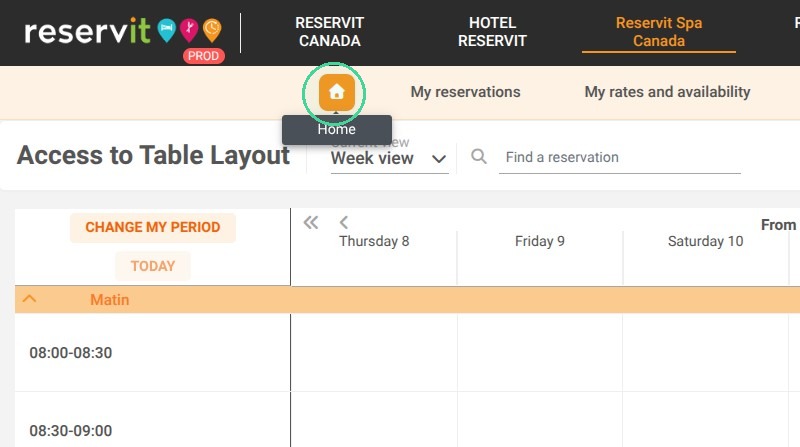
1. Access the reservation calendar.
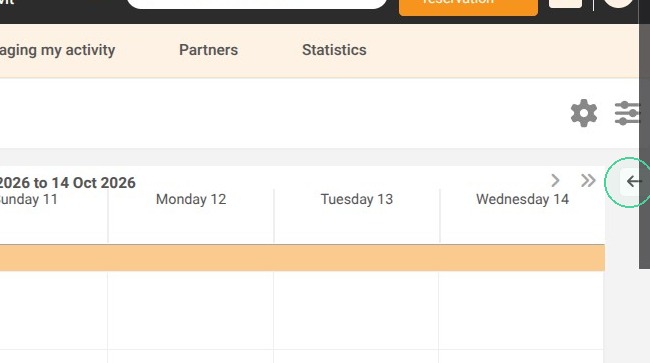
2. Click on the right side of the page to expand the quick booking menu.
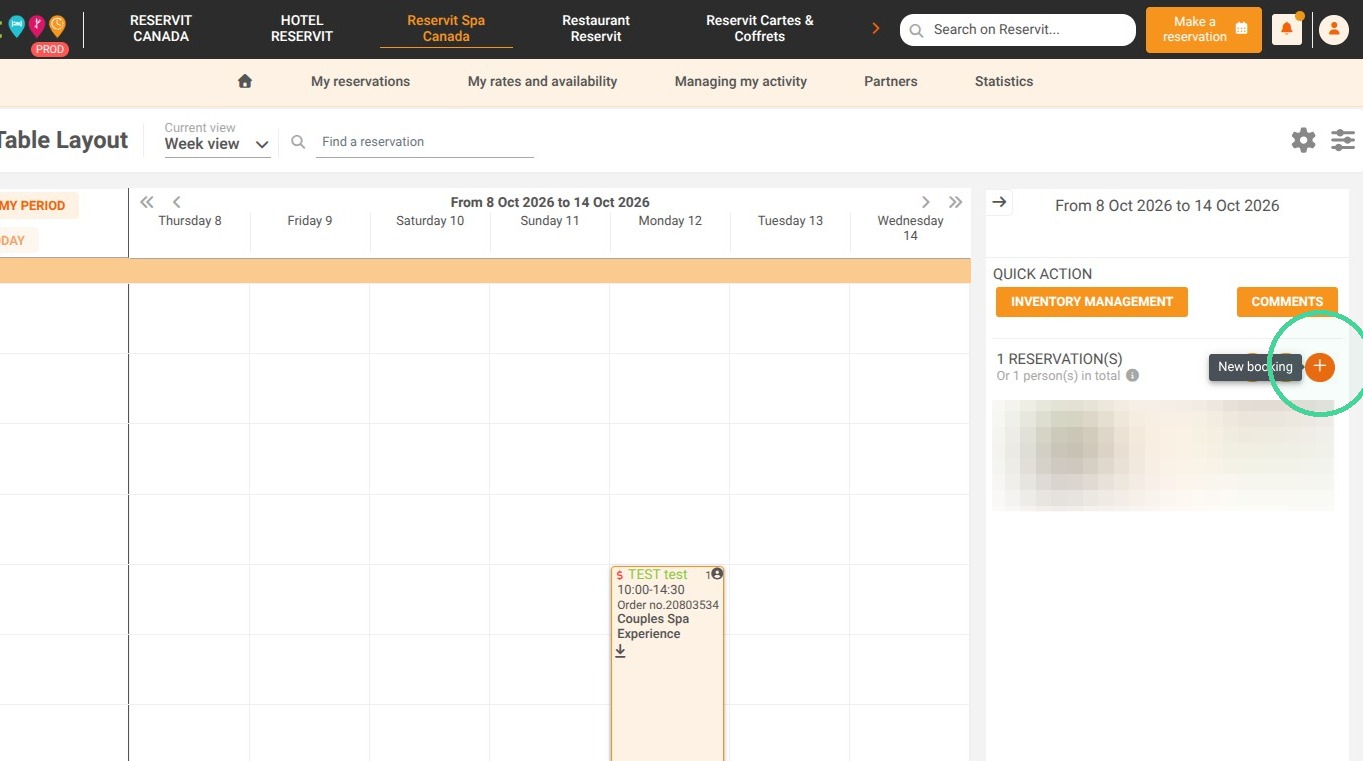
3. Click on the "+" to make a new reservation.
4. Select a service.
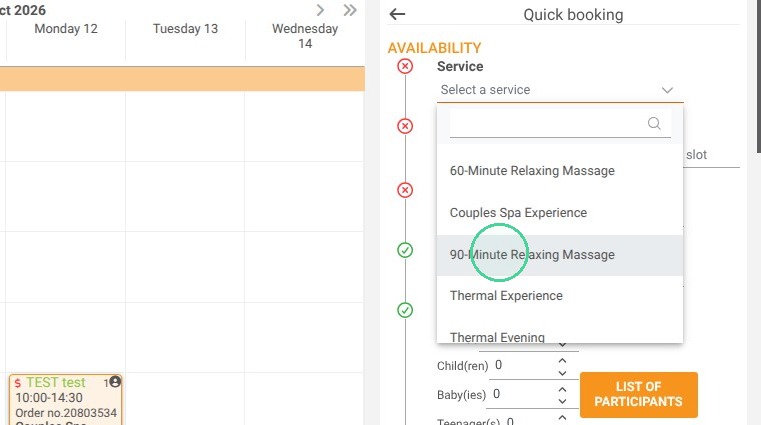
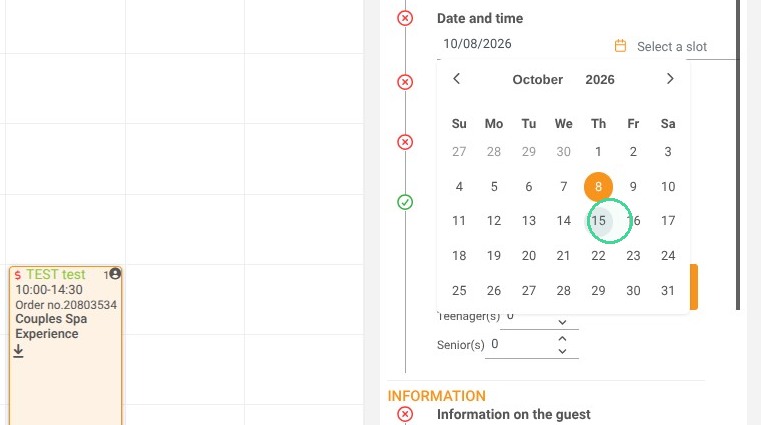
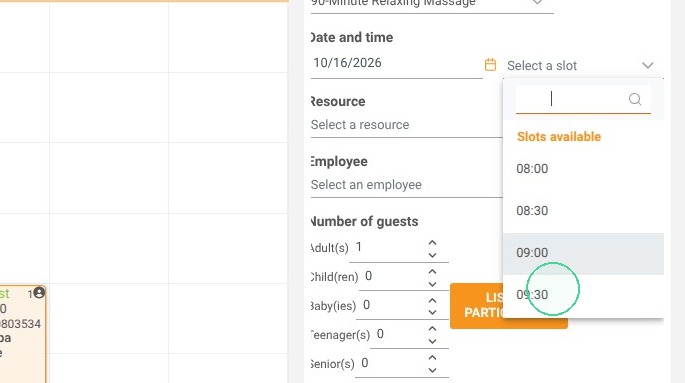
5. Select a date and time from those available.
6. Select a resource.
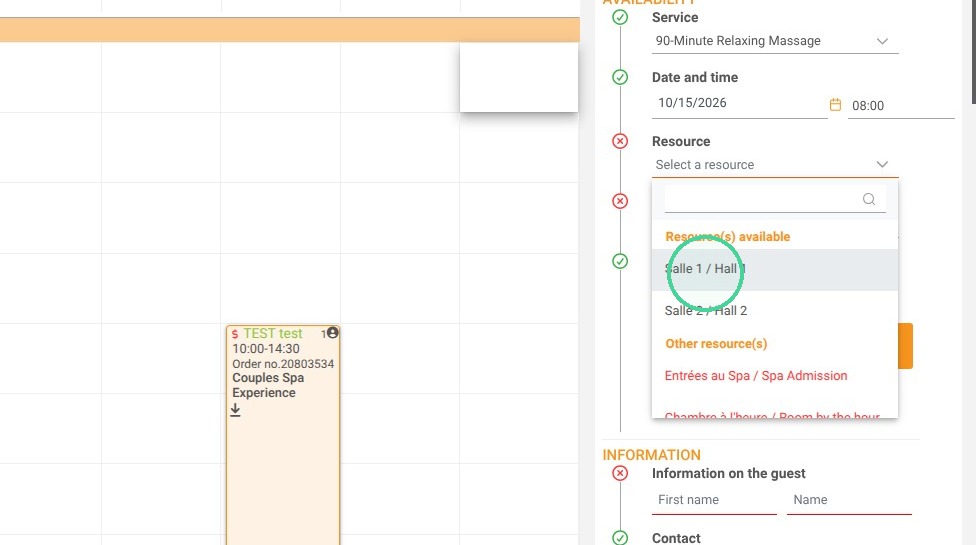
7. If necessary, select an employee.
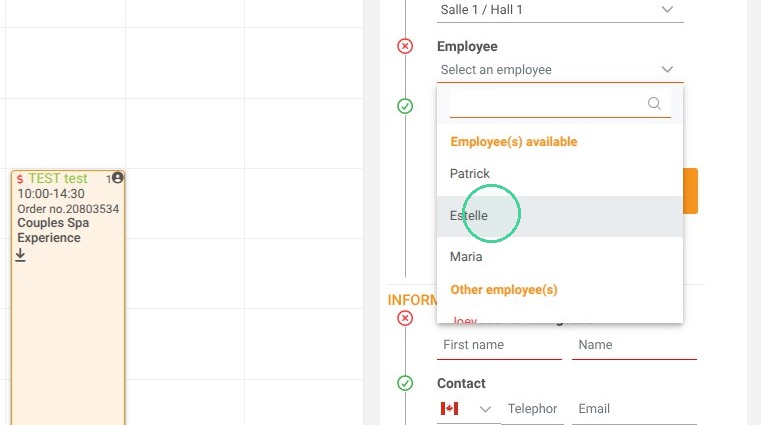
8. Choose the number of participants by age group.
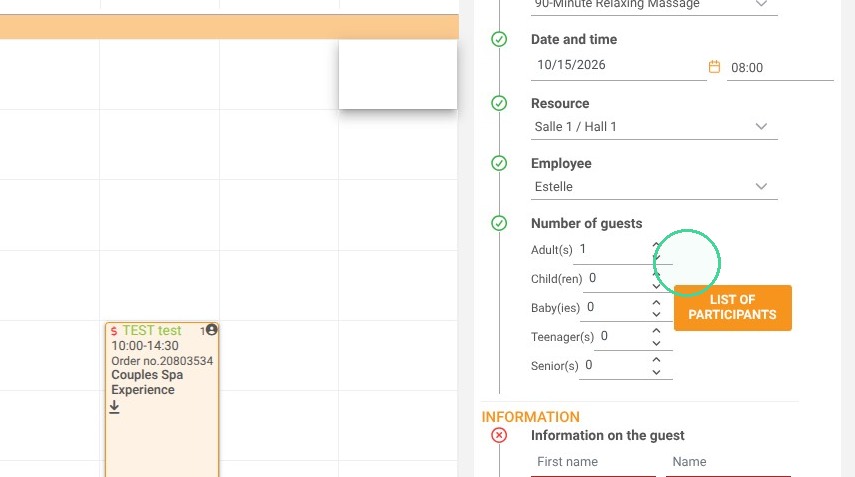
9. You can add additional information using the "LIST OF PARTICIPANT".
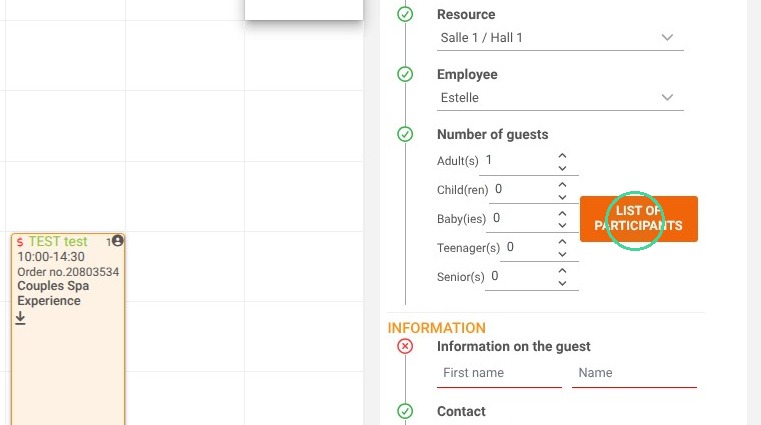
10. Enter the information there, then confirm.
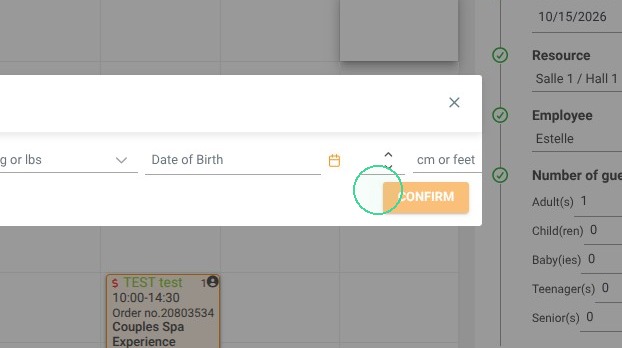
11. Enter the customer information.
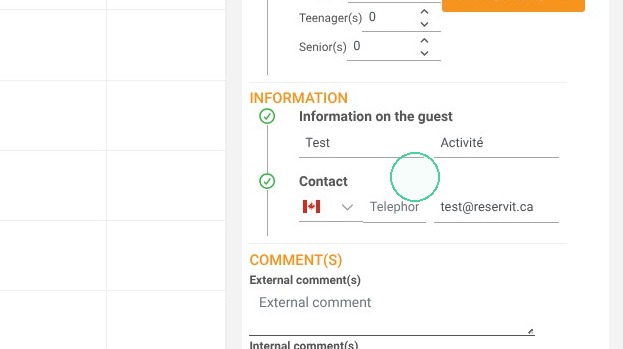
12. You can choose whether or not to send a confirmation email.
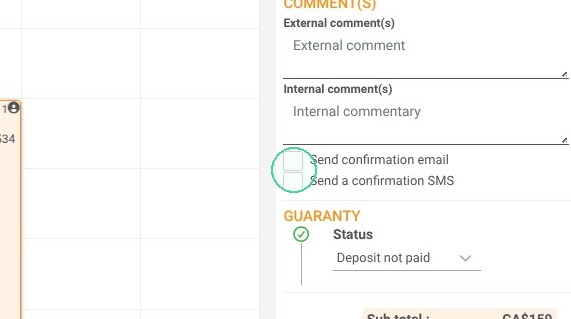
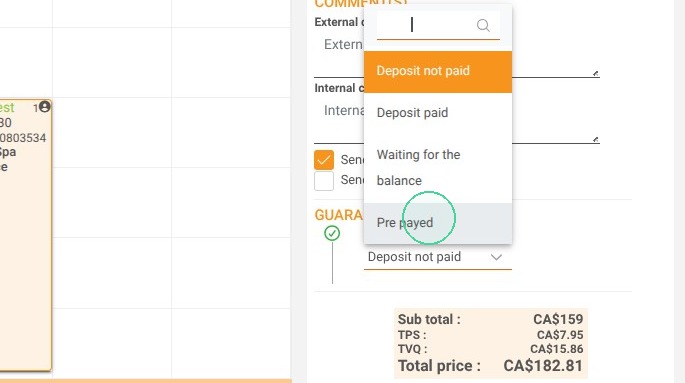
13. Select the guarantee/payment method.
14. To confirm the reservation, click on "CREATE".
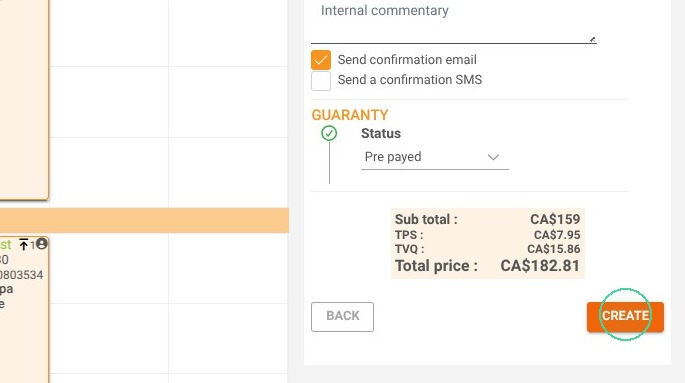
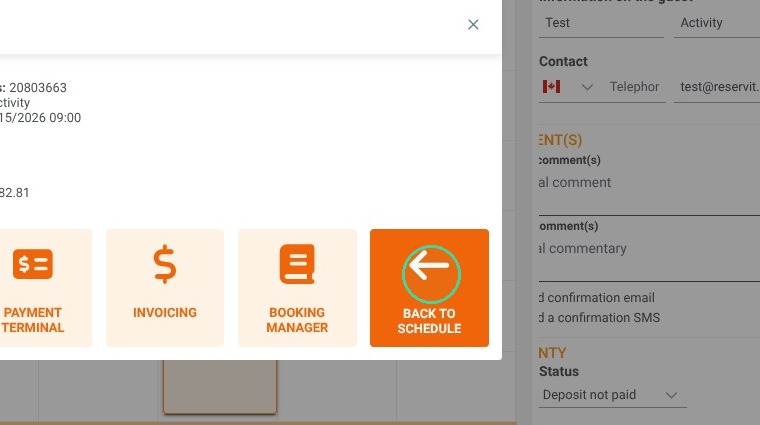
15. The reservation summary is displayed.
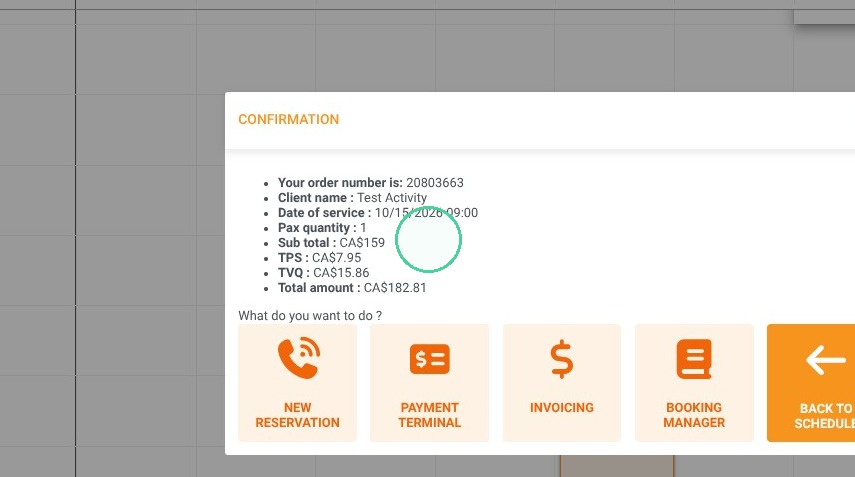
16. You can navigate to other actions in the system using the provided buttons.