Article summary: This comprehensive guide provides step-by-step instructions on how to effectively edit and configure your resources within the Reservit Activities platform. You will learn how to customize specific booking rules, adjust minimum and maximum capacities, and define precise arrival times for your guests. Mastering these inventory settings ensures your online availability accurately reflects your real-world operational capacity.
The 5 key steps to edit your resources:
-
Access the resource settings: Navigate to "Managing my activity" from your dashboard, open "Resources," and select "Resources Setup" to edit an existing item or add a new one.
-
Update general information: Enter or modify the basic details of your resource, such as its display name.
-
Configure booking rules: Choose your reservation type—either "per resource" (blocking the entire unit) or "per person" (allowing multiple bookings until full)—and set the minimum and maximum number of guests.
-
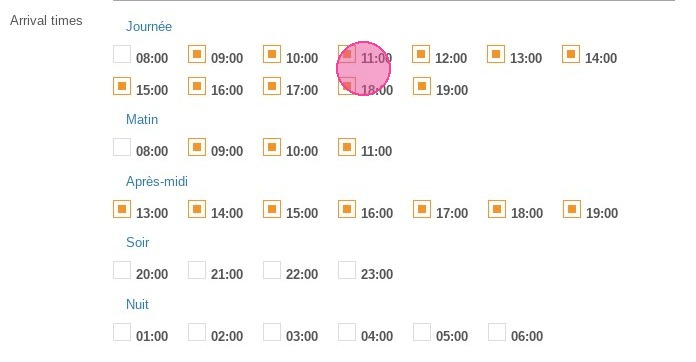
Manage availability and schedules: Adjust the default status to open, close, or delete the resource, and select the specific arrival times permitted for bookings.
-
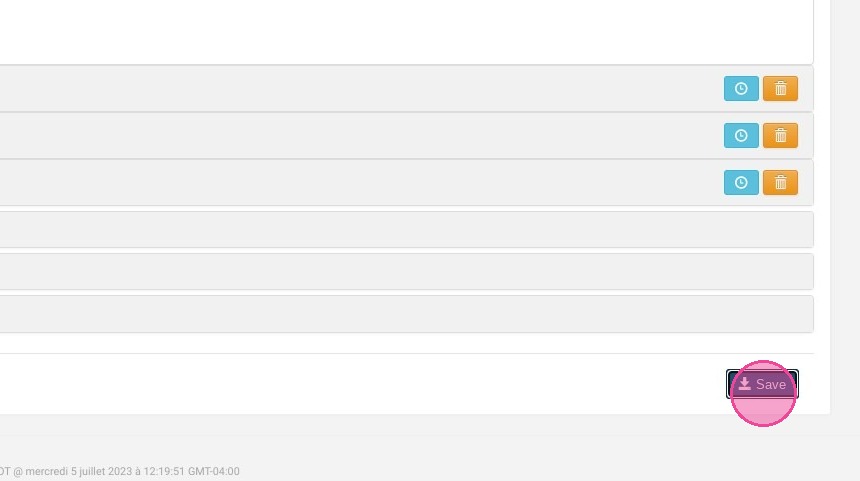
Save your changes: Click the "Save" button to immediately apply your updated configuration to your live booking engine.
Why follow this guide? Properly configuring your resource settings prevents costly overbookings and perfectly aligns your digital inventory with your physical capacity. By mastering these adjustments, you save valuable administrative time and ensure a seamless, error-free booking experience for your customers.
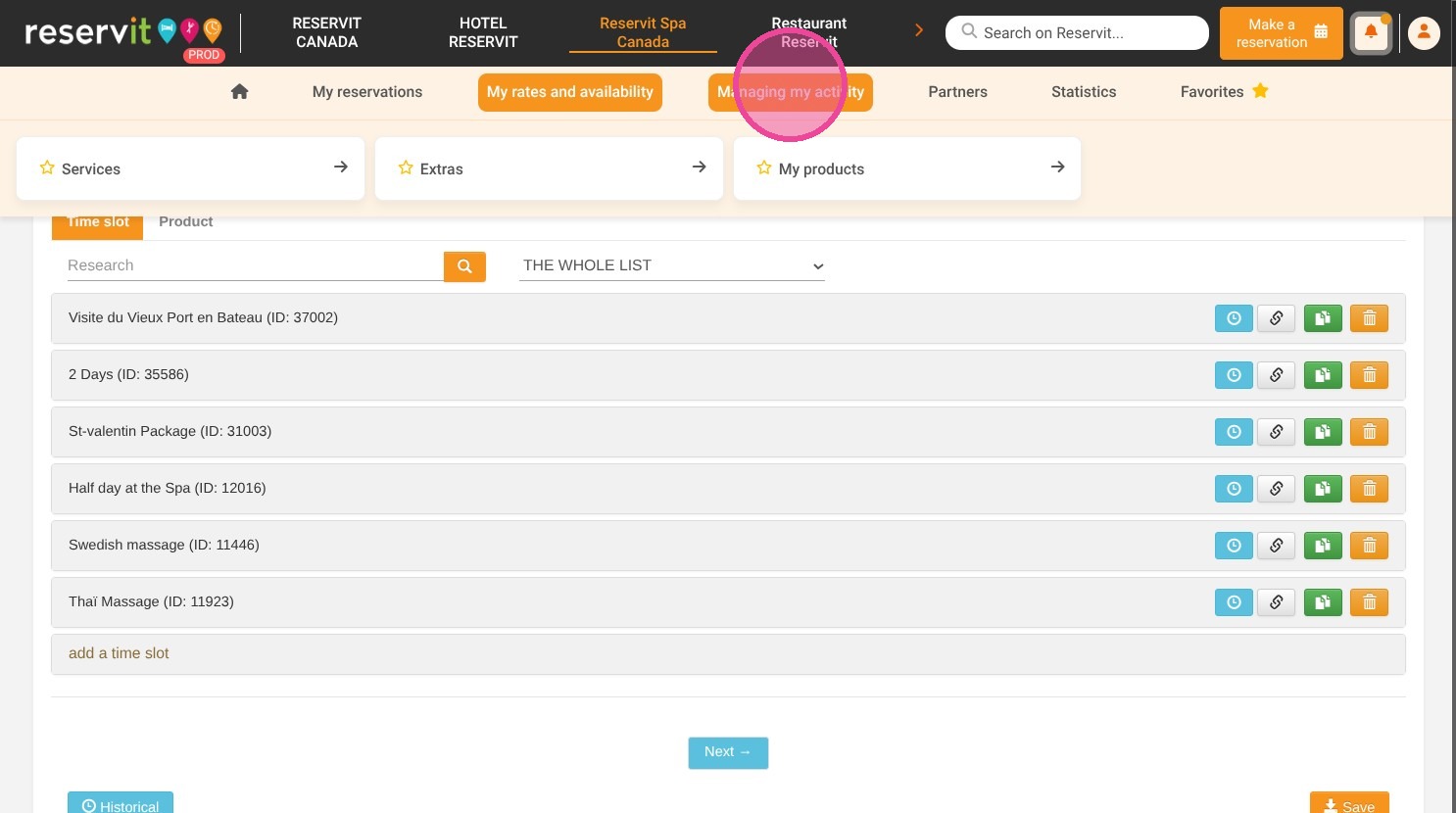
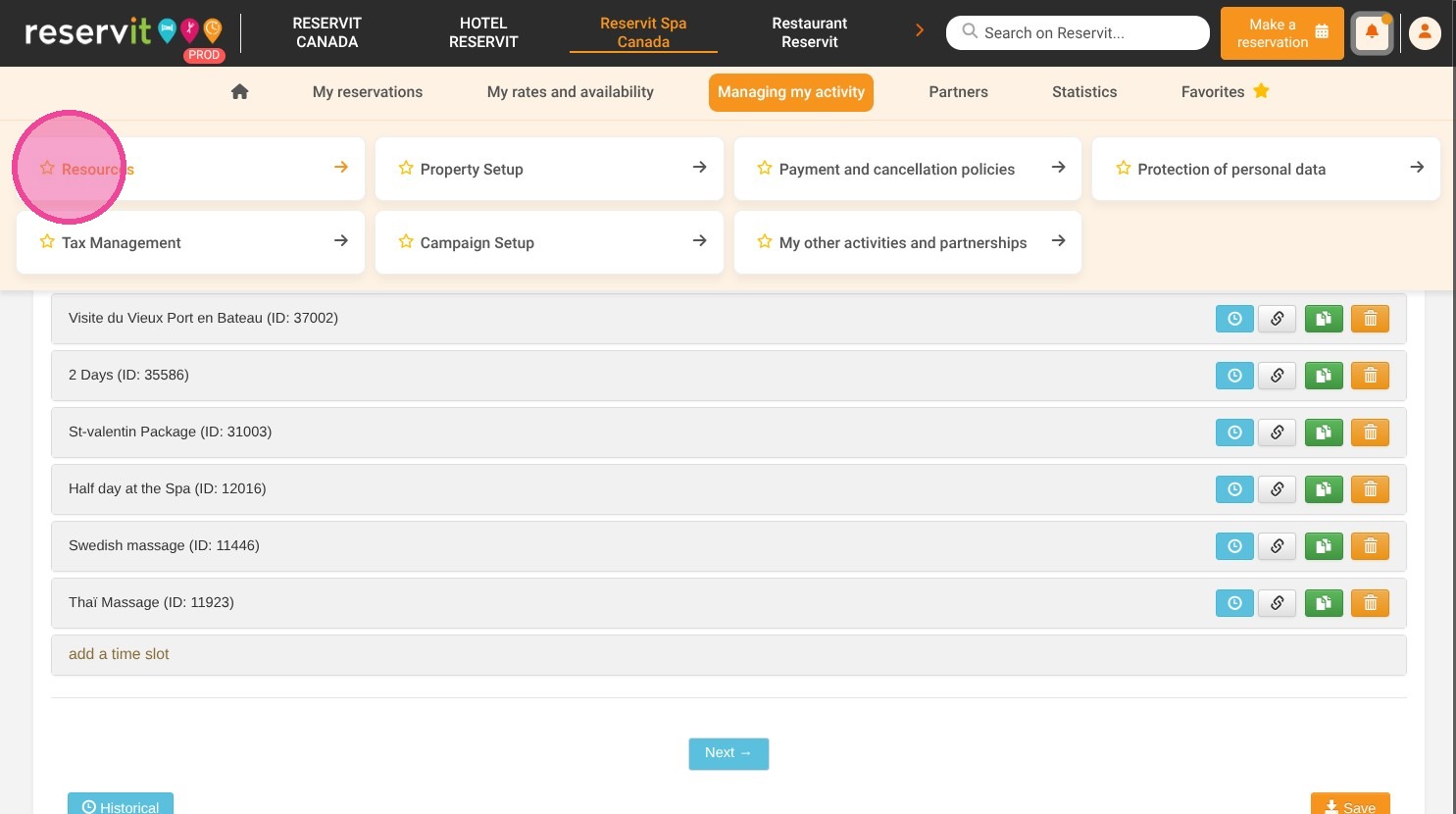
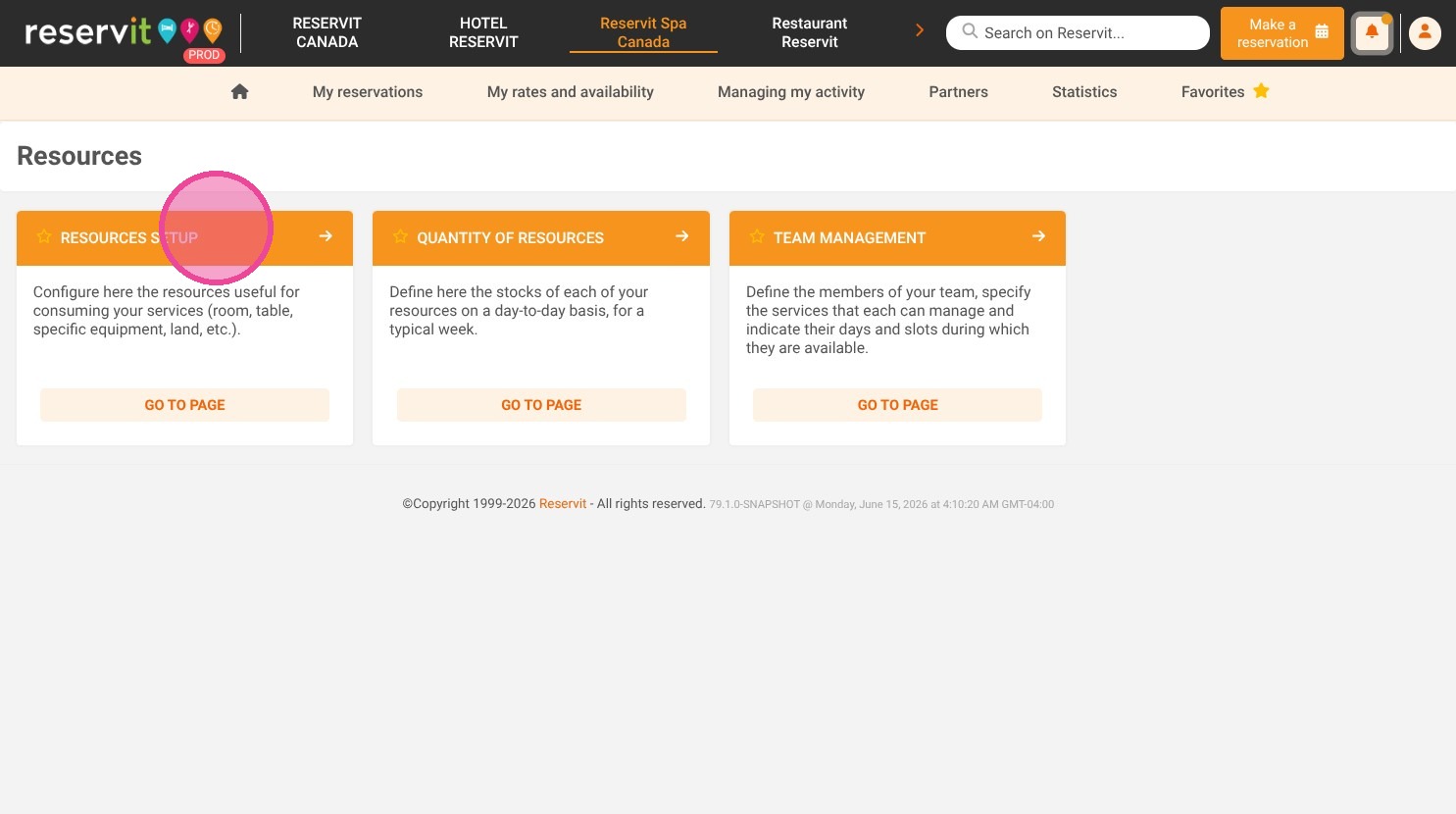
1. Select "Managing my activity," followed by "Resources," and then "Resources Setup."
2. Click on the resource you want to edit or "add a resource".

3. Enter resource's information like the name.
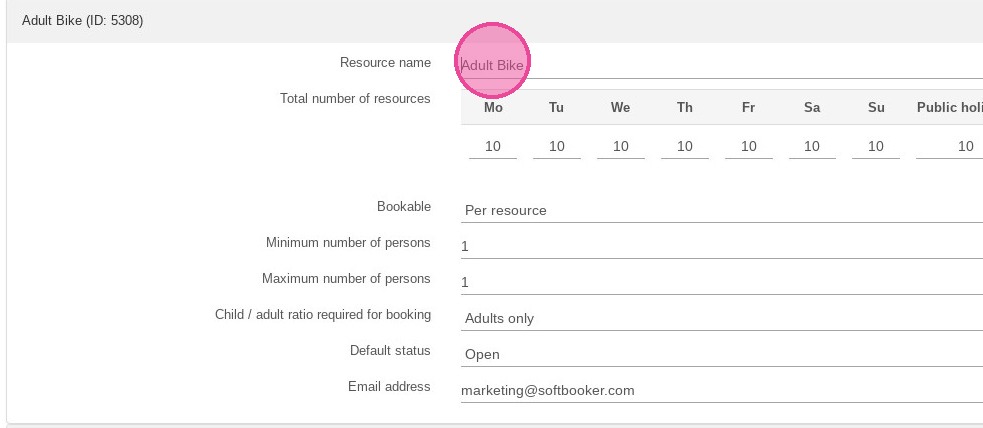
4. The resource can be booked either "per resource" (the resource will be blocked at the time of reservation) or "per person" ( until you reach the maximum number of people, people can still reserve the resource).
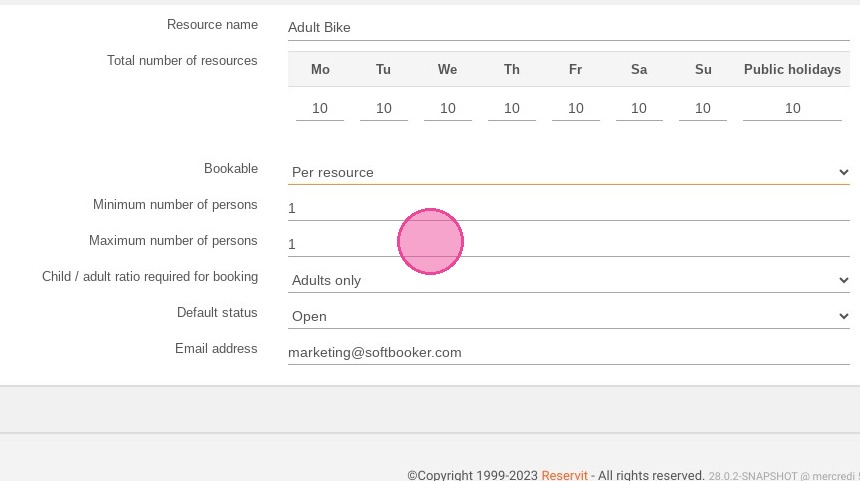
5. You can modify the minimum and maximum number of persons.
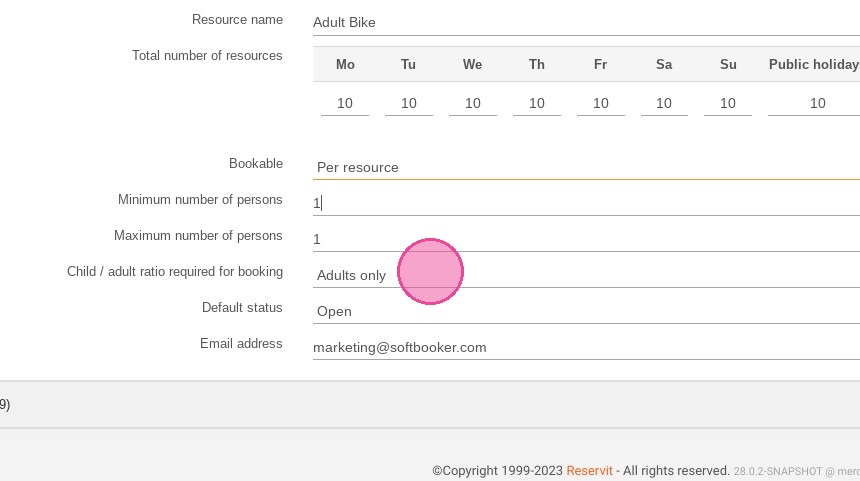
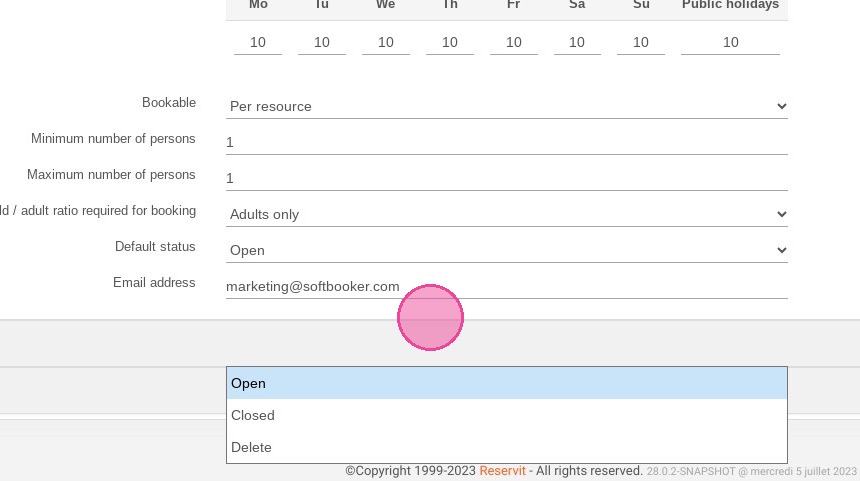
6. You can change the default status if you need to open/close the resource. If you select "delete", the resource will be deleted and you will have to create a new one.
7. You have the possibility to select the resource's arrival times.
8. Click "Save".