Article Summary: This step-by-step tutorial explains how to effectively create and manage special promotional offers for travel agencies within Reservit Accommodation. You will learn how to configure fixed percentage discounts, restrict visibility to targeted B2B partners, and apply specific localized tax settings. Mastering this configuration ensures you can easily nurture your professional partnerships and offer private, competitive rates without disrupting your public pricing strategy.
The 5 key steps to edit special offers for travel agencies:
-
Create a new agency rate: Navigate to your "Regular rates" menu and add a newly named offer specifically tailored for your travel agency partner.
-
Configure the discount: Edit the pricing setup to calculate and apply a fixed percentage reduction based on your standard reference rate (such as the Rack rate).
-
Assign rooms and partners: Select the eligible room types and strictly map the distribution channel to your chosen travel agency under the "My partners" section.
-
Adjust display settings: Open your description settings and disable the option to show the standard rack price alongside your new offer to prevent any B2B pricing confusion.
-
Apply specific taxes and save: Access the advanced configurations to assign specific regional taxes (such as Quebec lodging taxes) to the offer, then securely save your setup.
Why follow this guide? Following this precise setup completely prevents your confidential B2B rates from accidentally leaking to public distribution channels. It guarantees accurate automated billing and taxation for your agency bookings, securing your revenue and saving your accounting team hours of manual corrections.
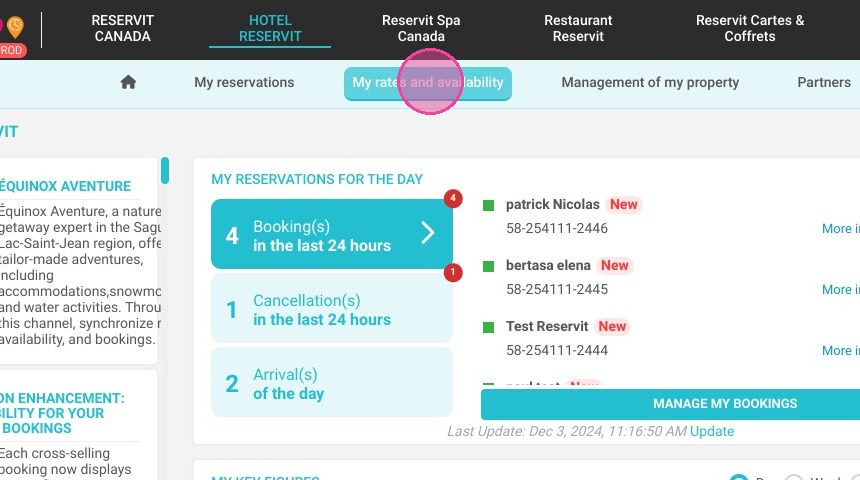
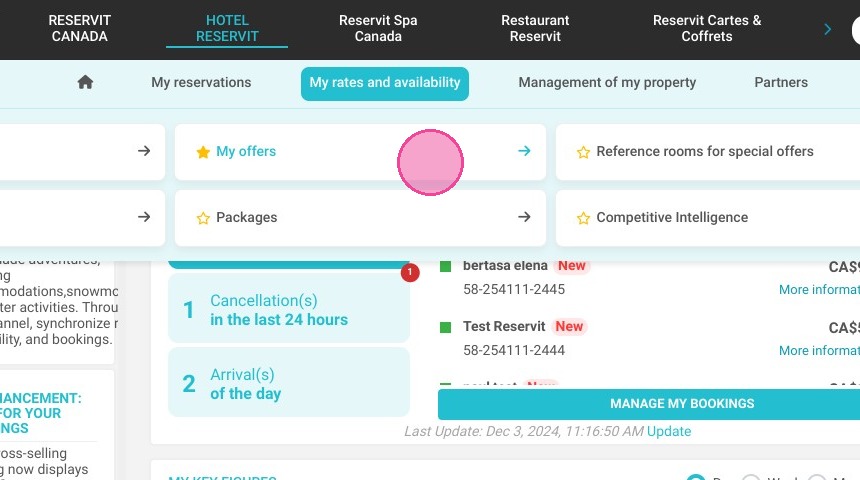
1. Click "My rates and availability" then ''My offers''
Create an offer for agencies
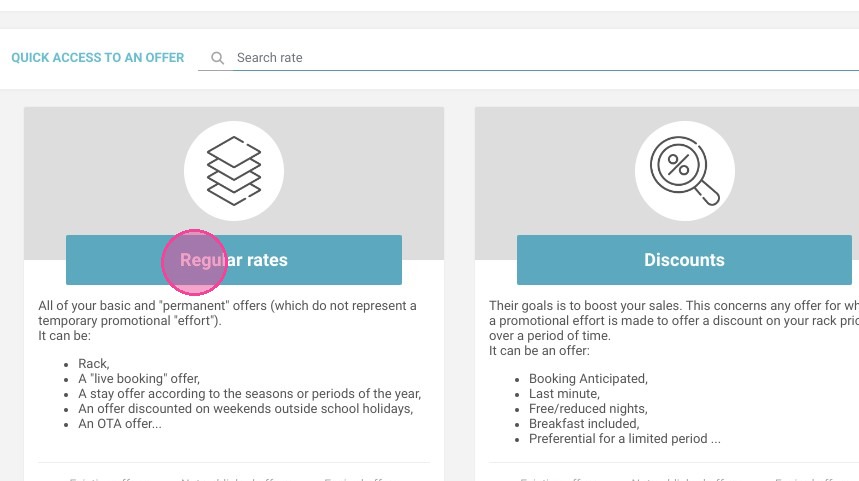
2. Click "Regular rates"
3. Click "ADD"
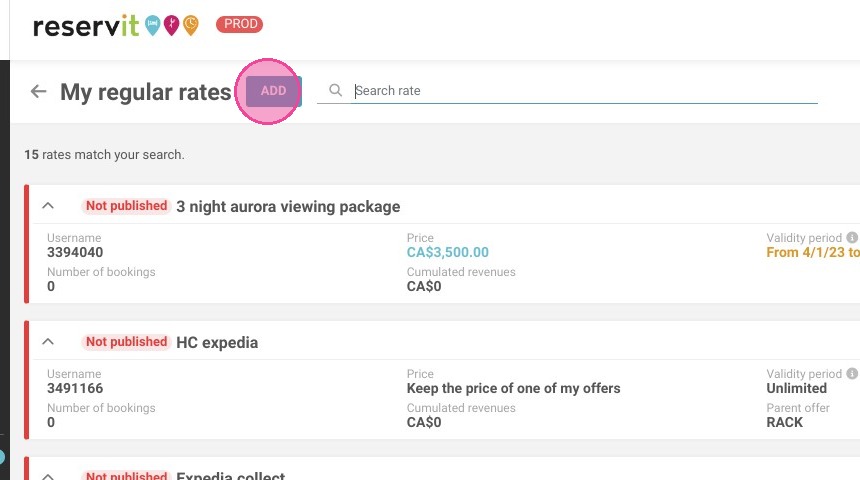
4. Add a name and click "AUTOMATIC TRANSLATION" and validate.
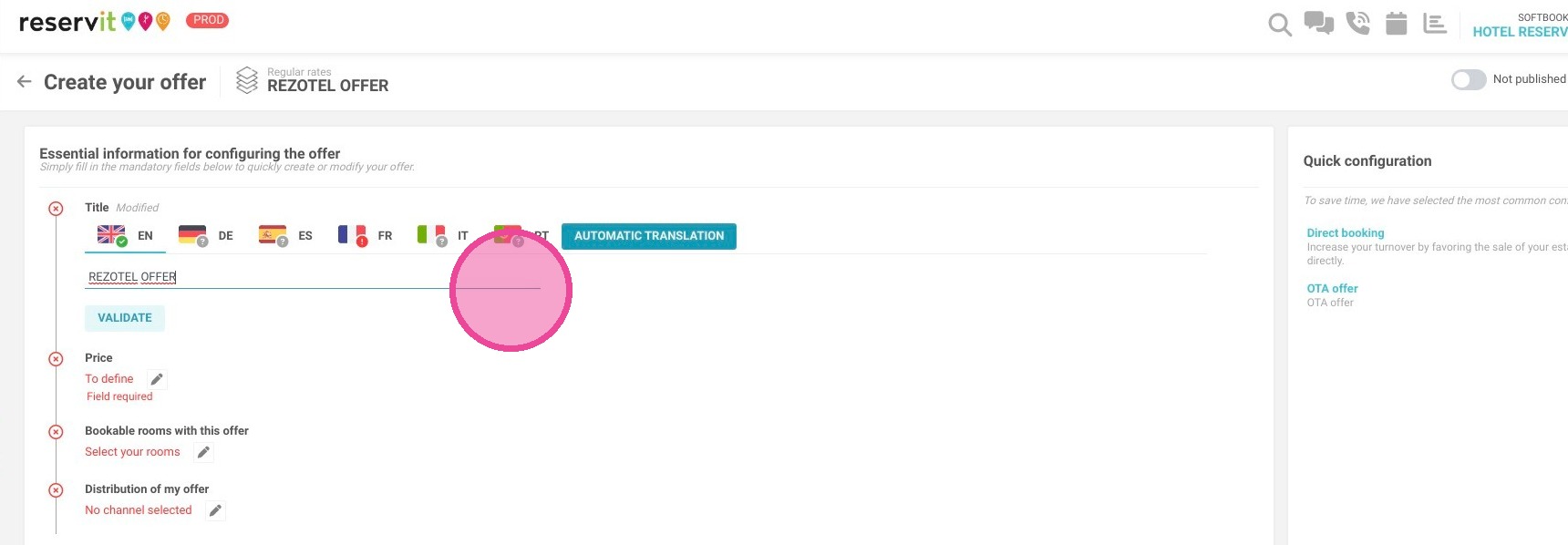
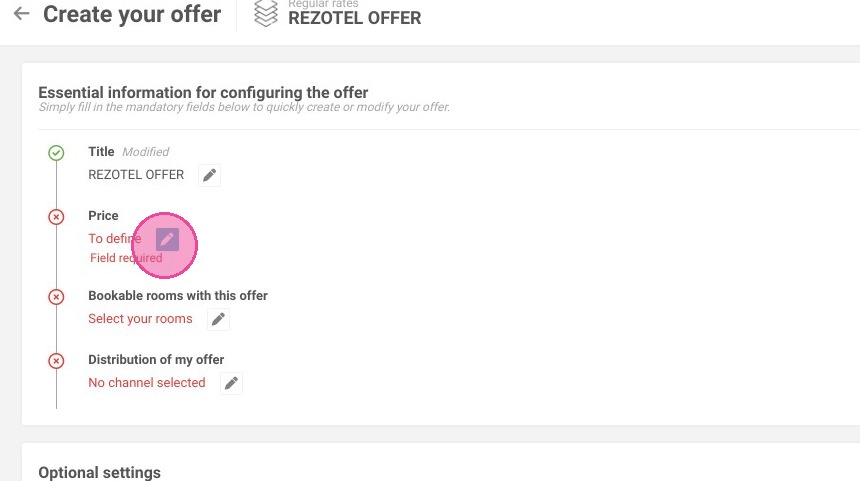
5. Now, you have to edit the price.
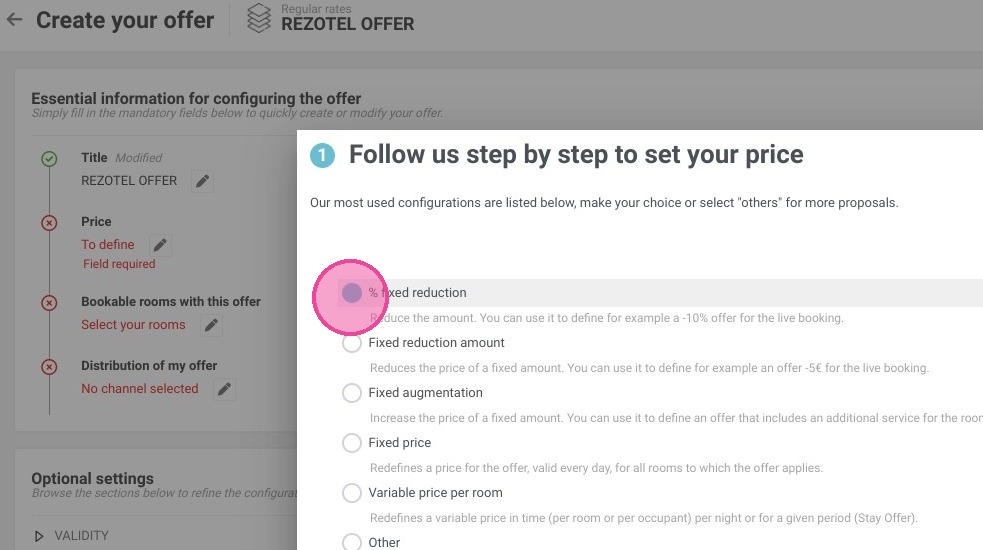
6. Select "%Fixed reduction"
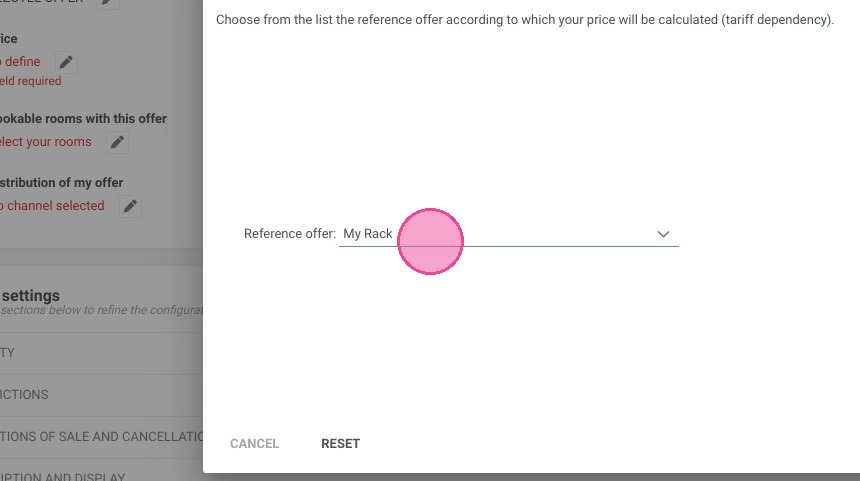
7. Select the reference offer for the reduction for example "RACK" and go next.
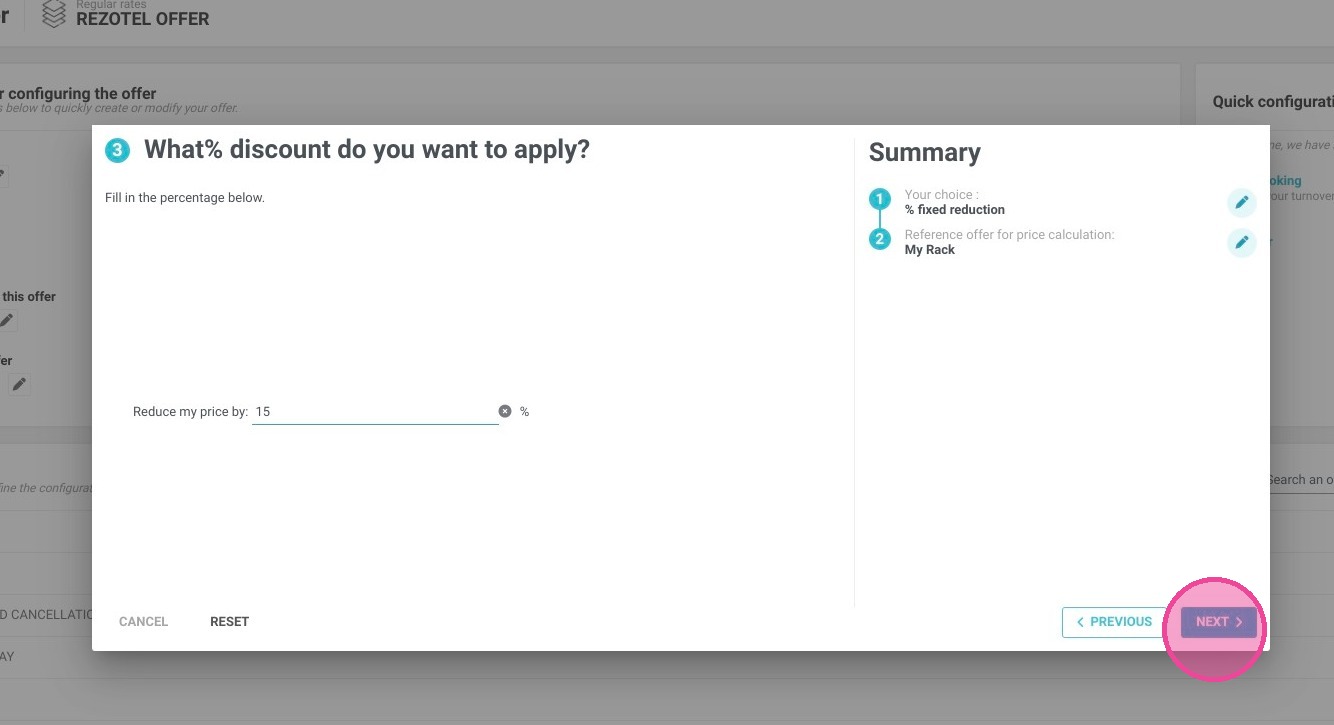
8. Add the discount you want to apply and click "Next".
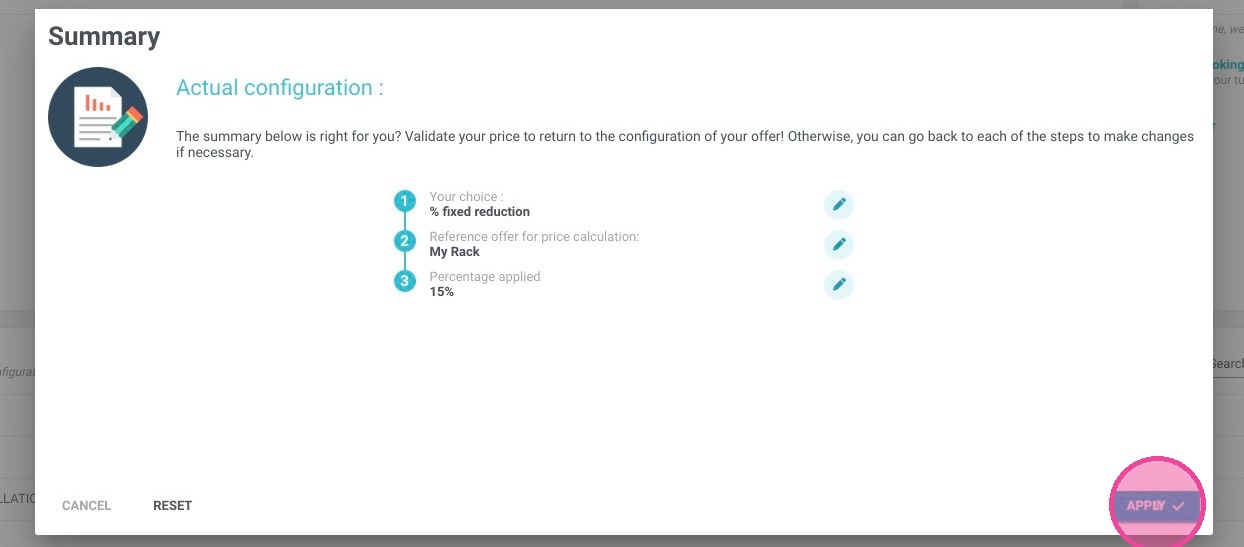
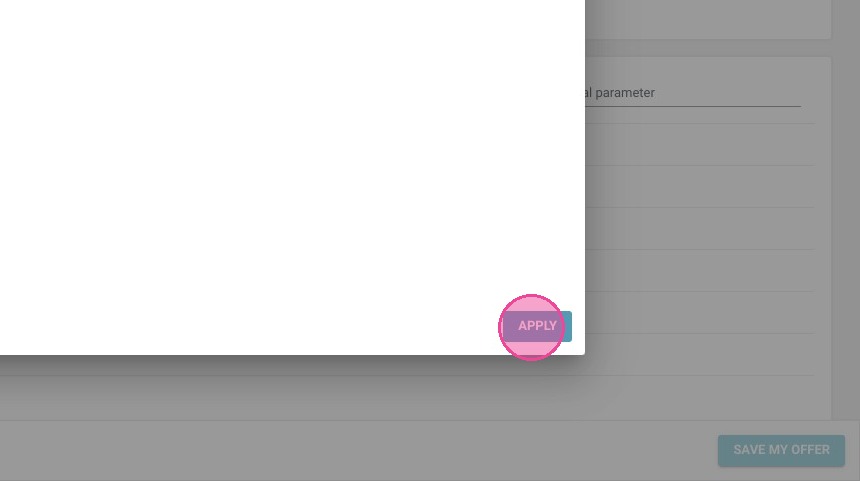
9. Check that the configuration is right for you and click "Apply".
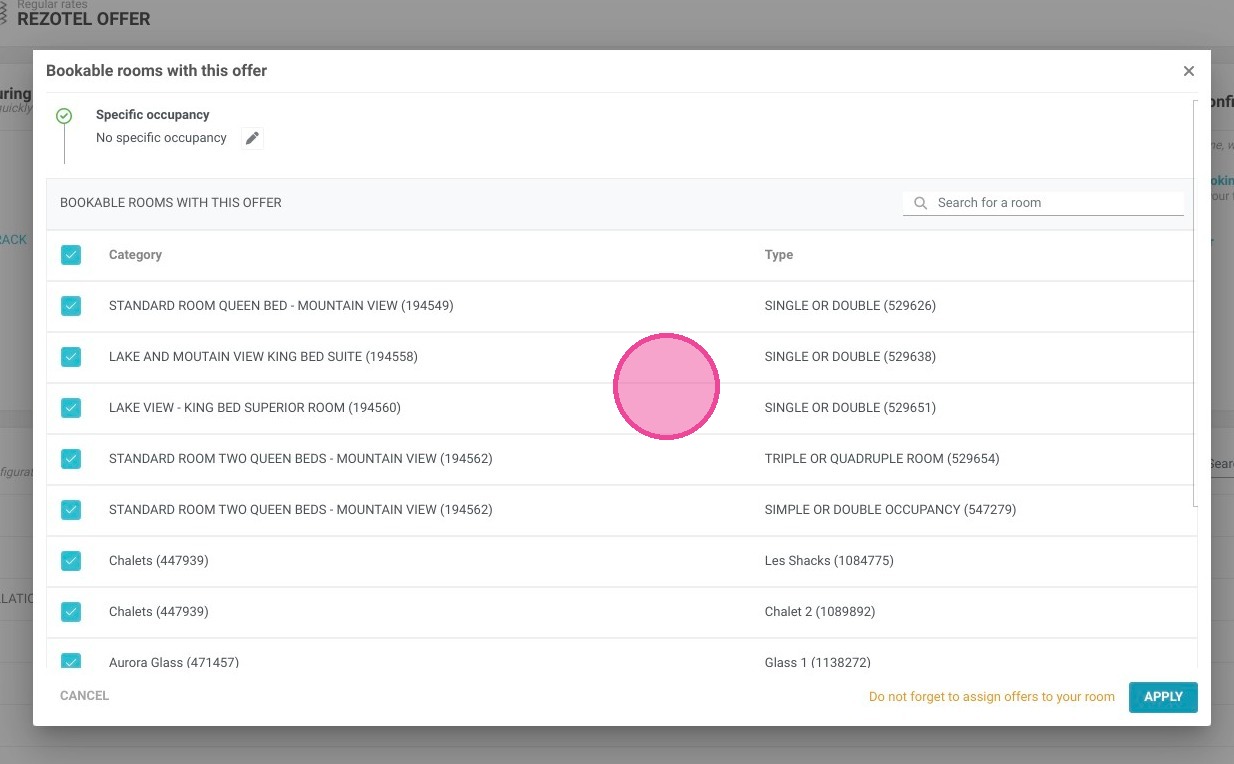
10. Now, select the rooms linked to your offer.
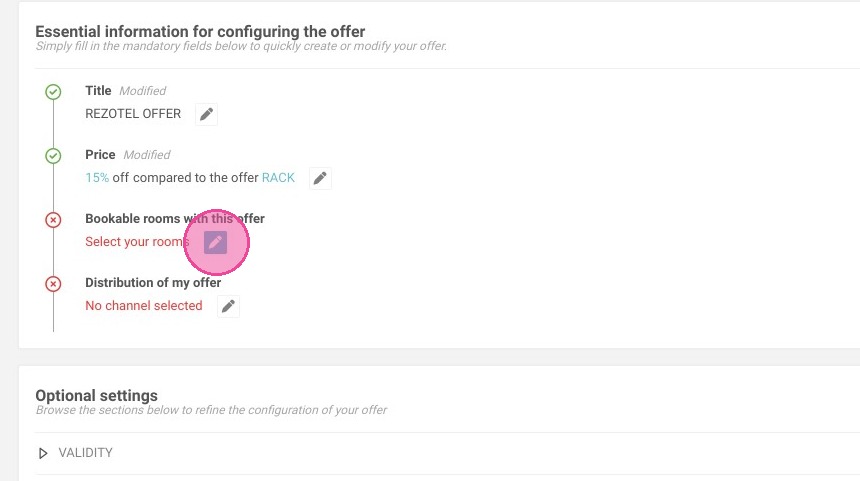
11. And click Apply
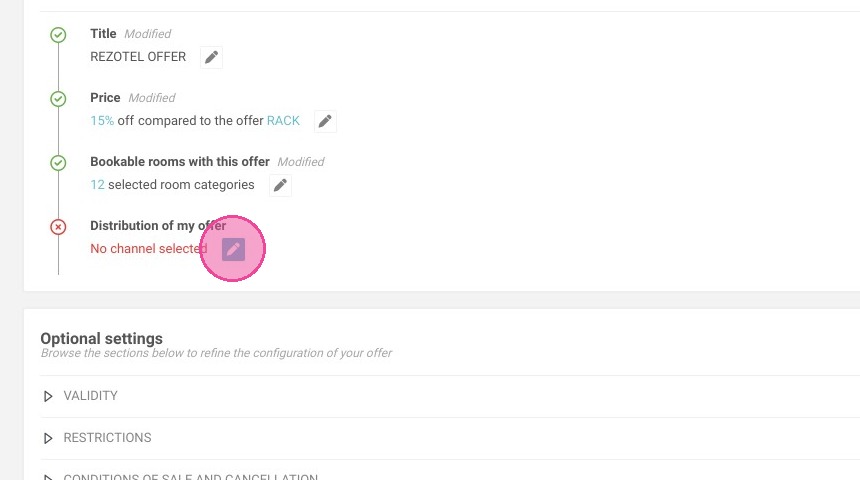
12. The next step is to choose your travel agency.
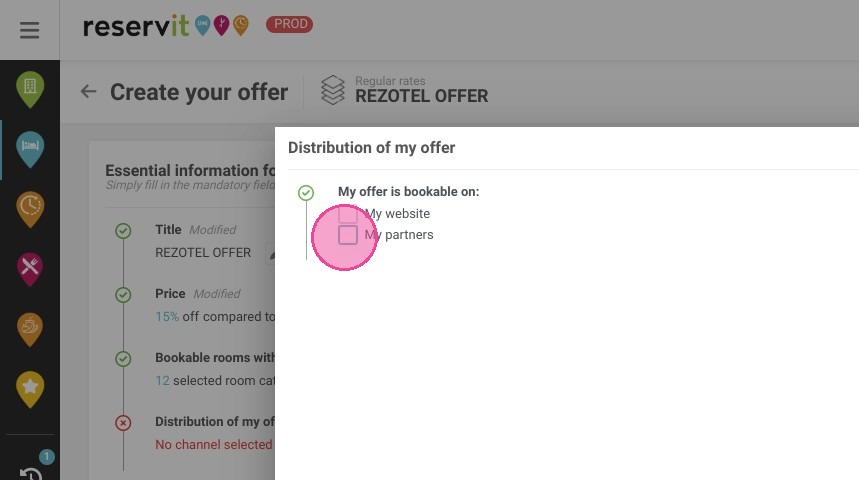
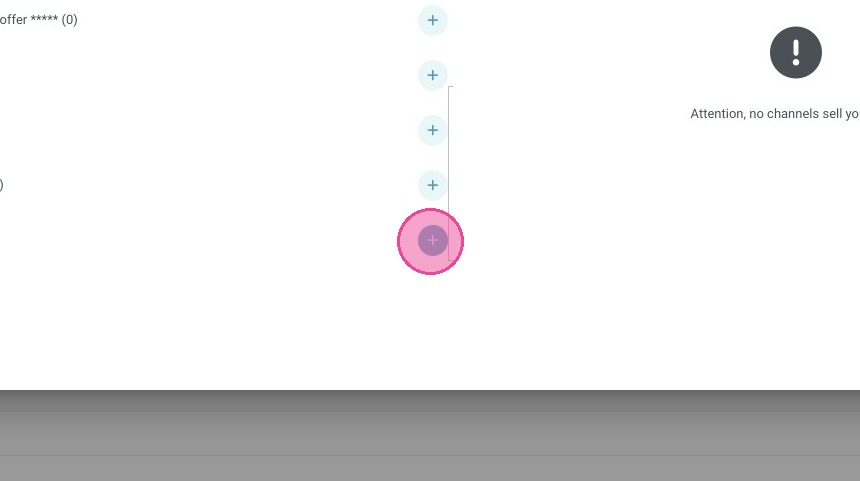
13. Select "My partners" and add the concerned Agency for this offer.
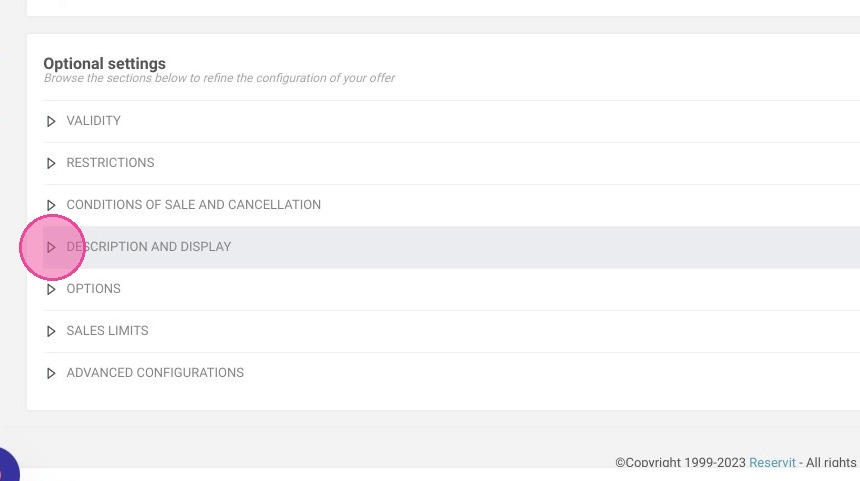
14. Scroll down to the optional settings part and click on "Description and display"
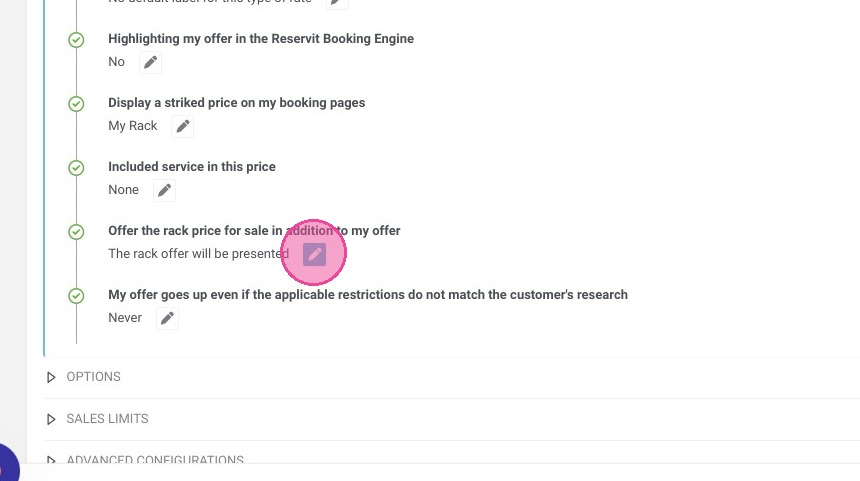
15. Edit the line "Offer the rack price for sale in addition to my offer"
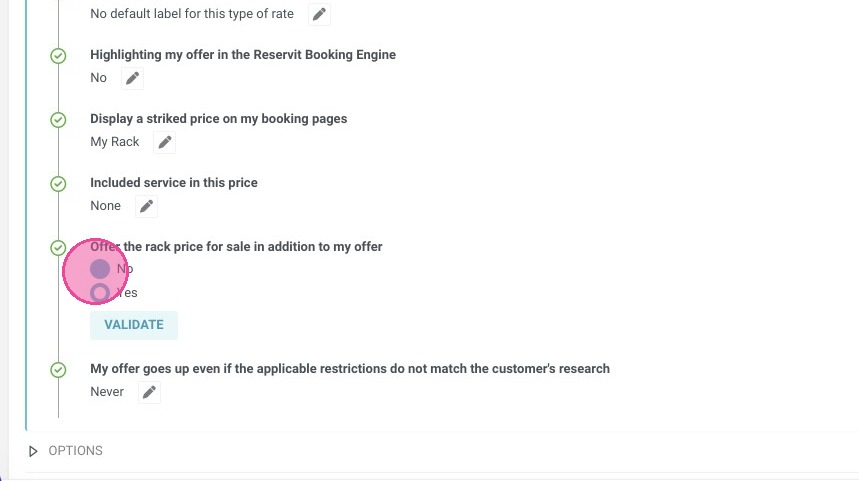
16. Select "No" and validate.
Use a specific Tax
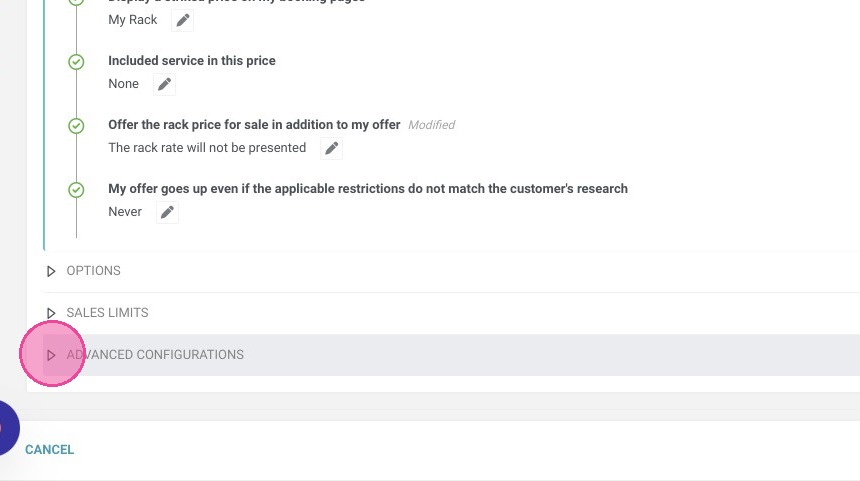
17. Next, click "Advanced configurations"
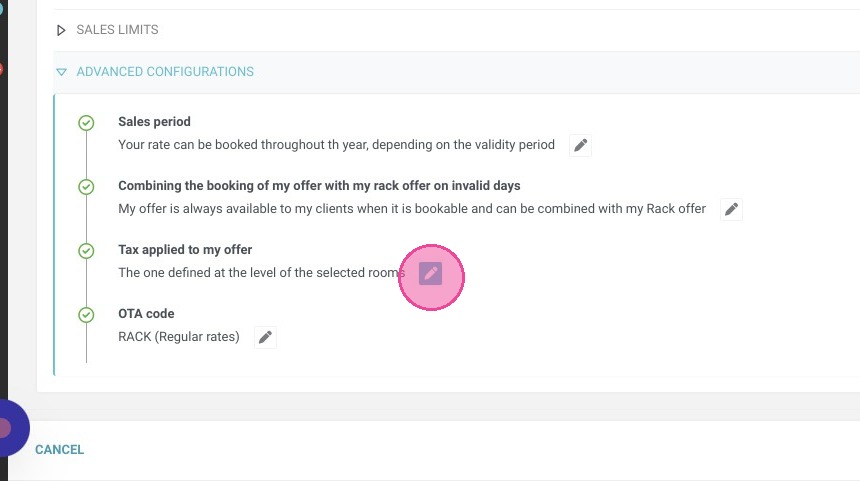
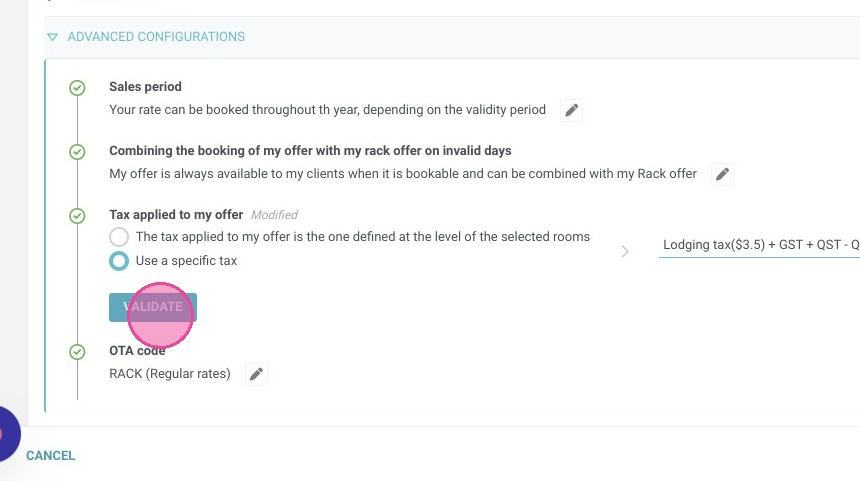
18. Edit the line "Tax applied to my offer"
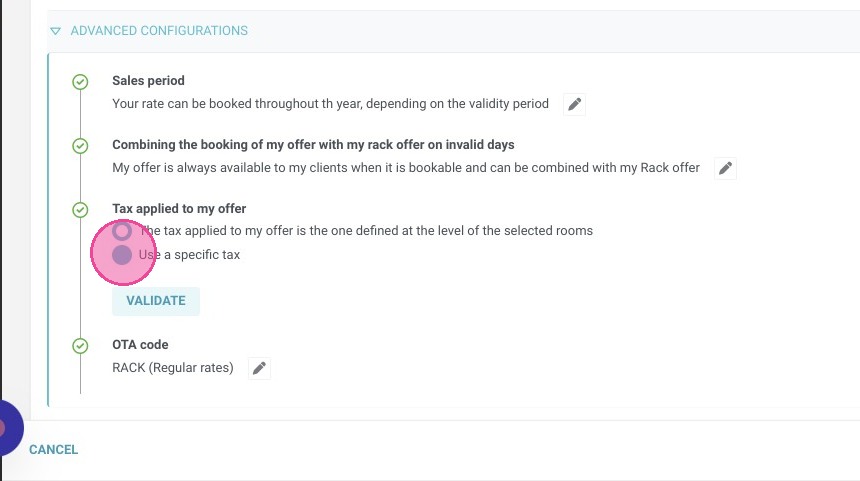
19. Select "Use a specific tax"
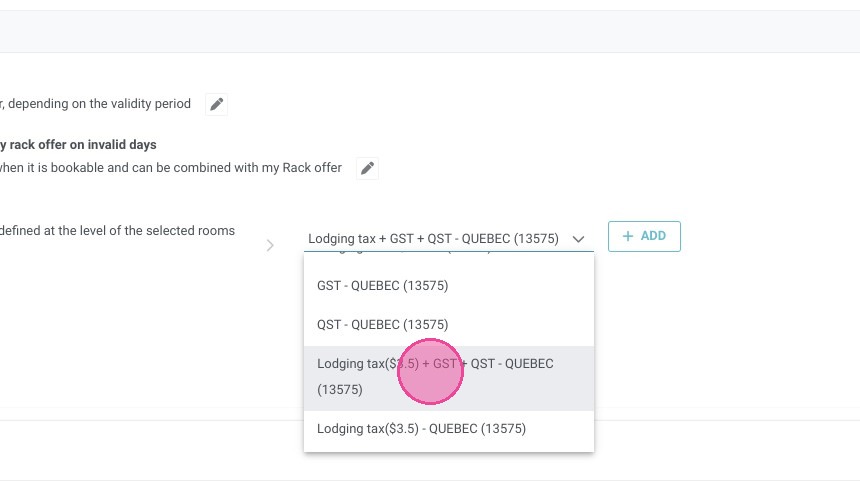
20. Choose "Lodging tax($3.5) + GST + QST - QUEBEC (13575)"
21. Click "VALIDATE"
22. Click "SAVE MY OFFER"