Article Summary: This step-by-step tutorial explains how to easily edit and manage your VRBO rates directly within Reservit Accommodation. You will learn how to navigate your regular rate plans, adjust specific pricing grids, set minimum stay restrictions, and properly map these updated offers to your VRBO distribution channel. Mastering this configuration ensures your vacation rental listings always display accurate, up-to-date pricing, helping you maximize revenue and avoid synchronization errors.
The 5 key steps to edit your rates for VRBO:
-
Access your VRBO offers: Navigate to your "My rates and availability" menu, select "Regular rates," and click on your existing VRBO offer to edit it (or add a new one).
-
Adjust pricing and restrictions: Use the pricing grid to update your nightly variables and apply any necessary booking rules, such as minimum lengths of stay.
-
Select units and valid dates: Choose the exact rooms or rental units that correspond to this pricing and clearly define the offer's active validity dates.
-
Assign the distribution channel: Ensure the offer is explicitly allocated to VRBO in your distribution settings before securely saving and publishing your newly updated rates.
-
Map your updated rates: Navigate to your distributors' configuration, open the VRBO "Rental units" settings, and assign your updated reference rate to each specific unit to finalize the synchronization.
Why follow this guide? Following this precise workflow ensures your property management software remains perfectly aligned with your live VRBO listings, preventing costly pricing discrepancies or double-booking risks. By properly mapping your updated rates and restrictions, you save valuable administrative time while fully optimizing your vacation rental's online revenue strategy.
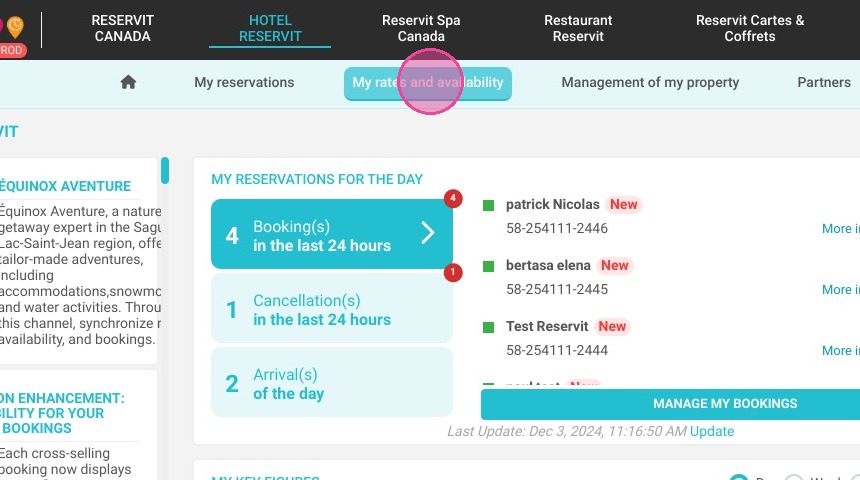
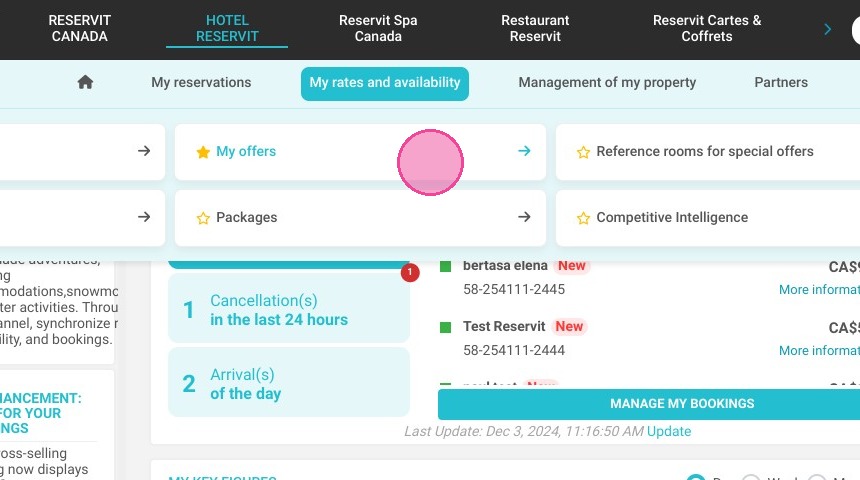
1. Click "My rates and availability" then ''My offers''
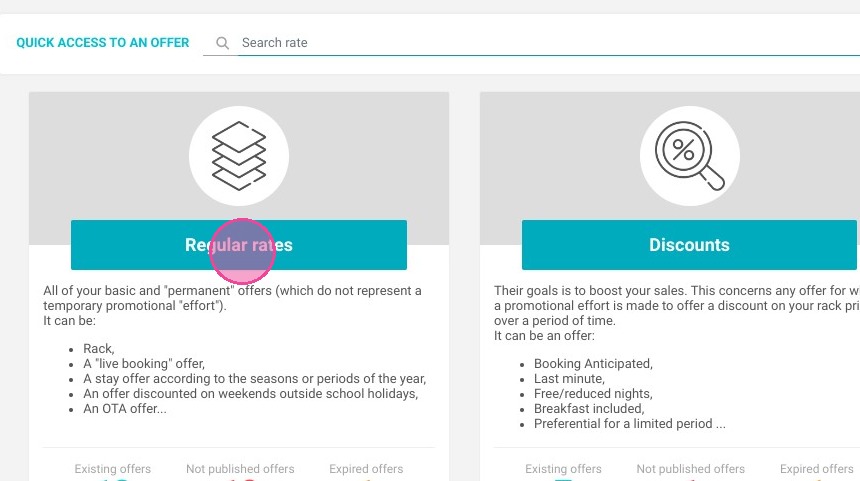
2. Click "Regular rates"
3. If you already have a VRBO offer, you will find it here otherwise you can add a new offer. To edit it, click on it.
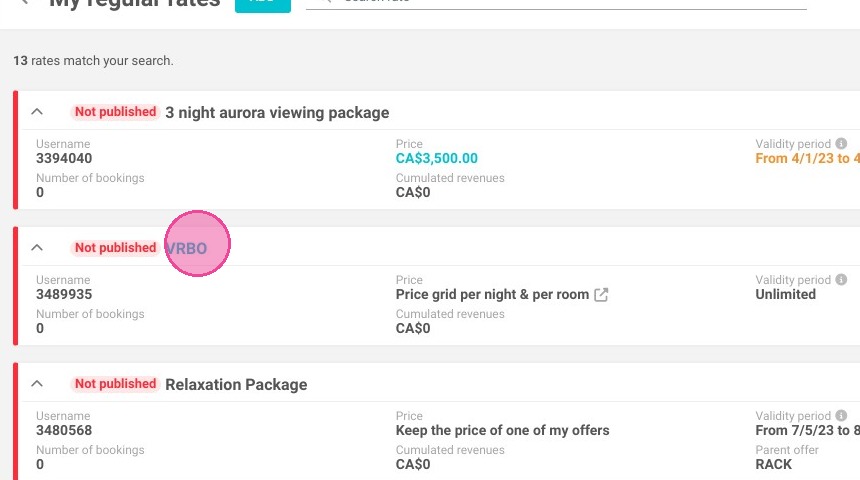
4. You can edit the price. Here, it's a variable price per night and unit.
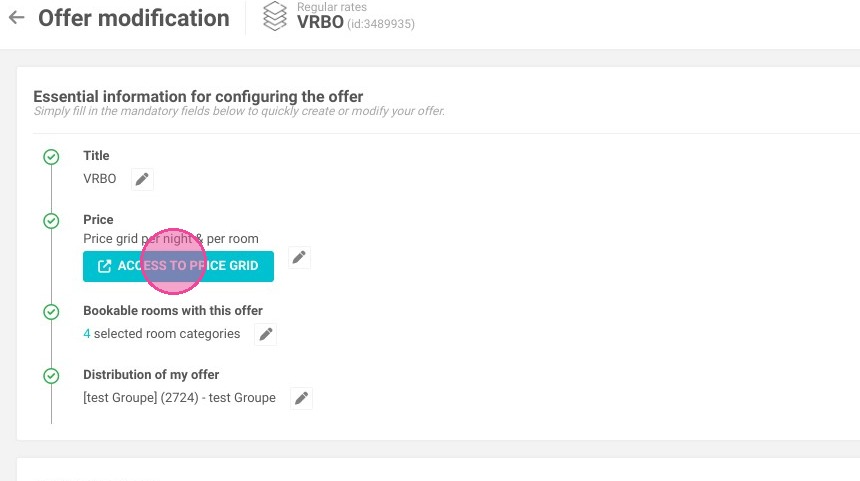
5. By clicking on the grid, you will be able to adjust the price.
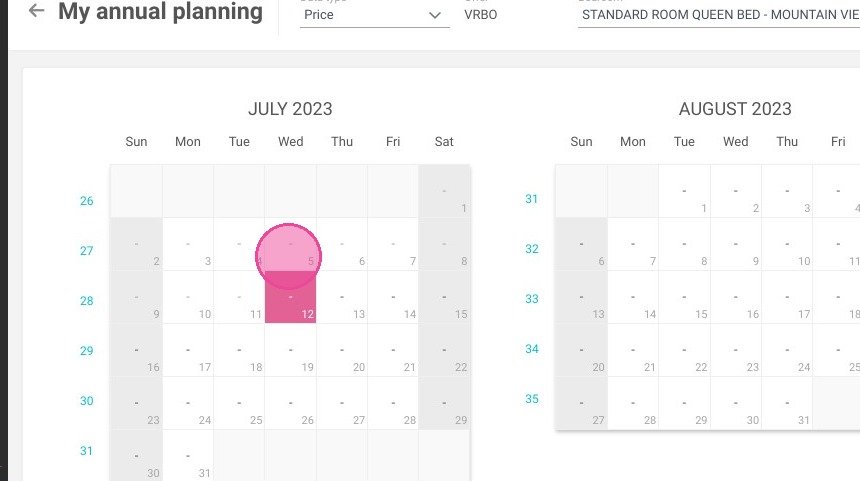
6. There are many other options to set up your price.
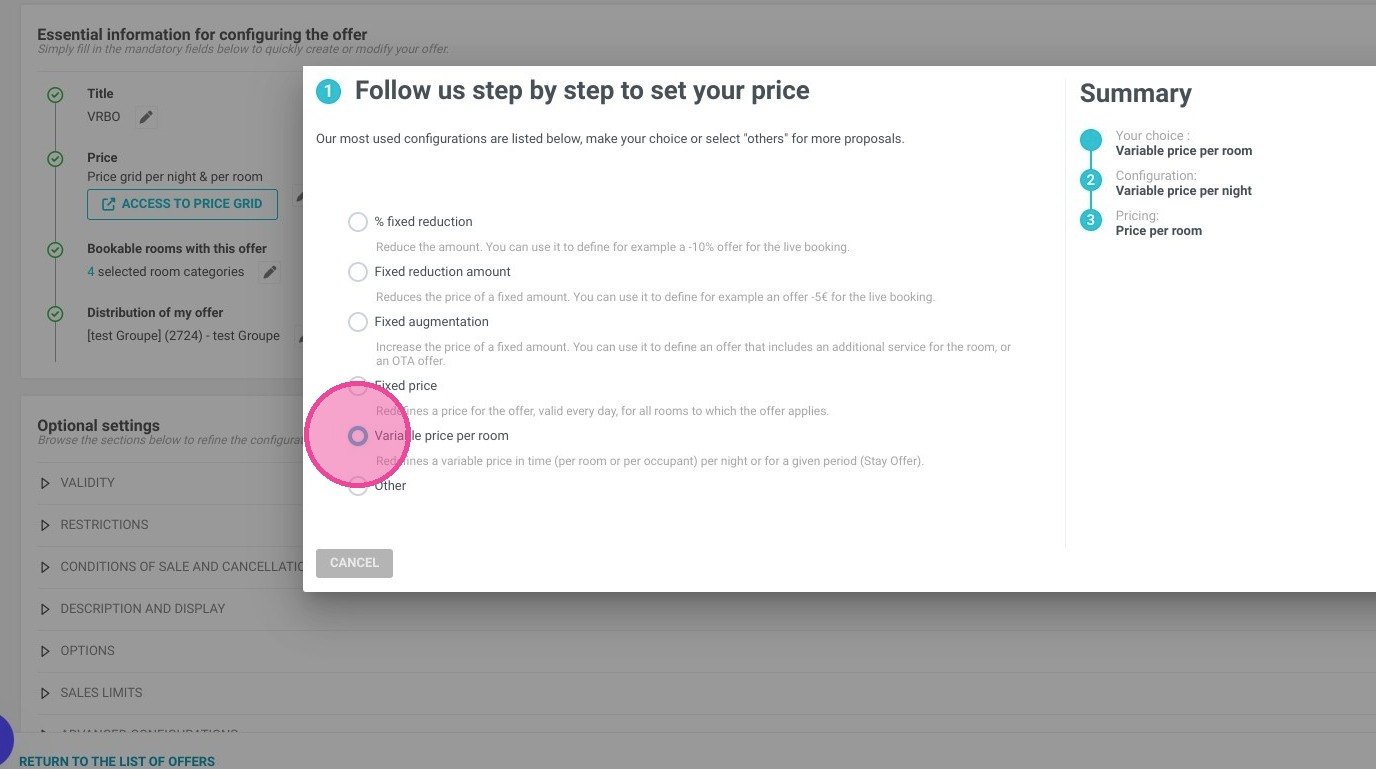
7. Choose the rooms/units concerned.
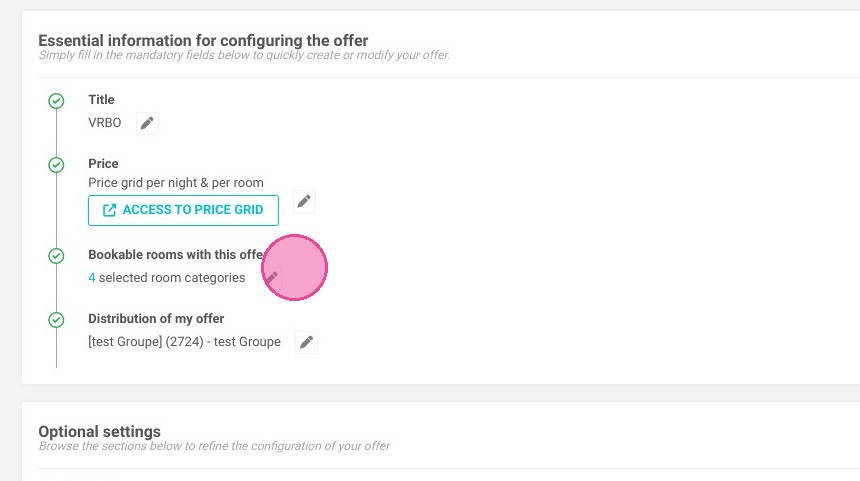
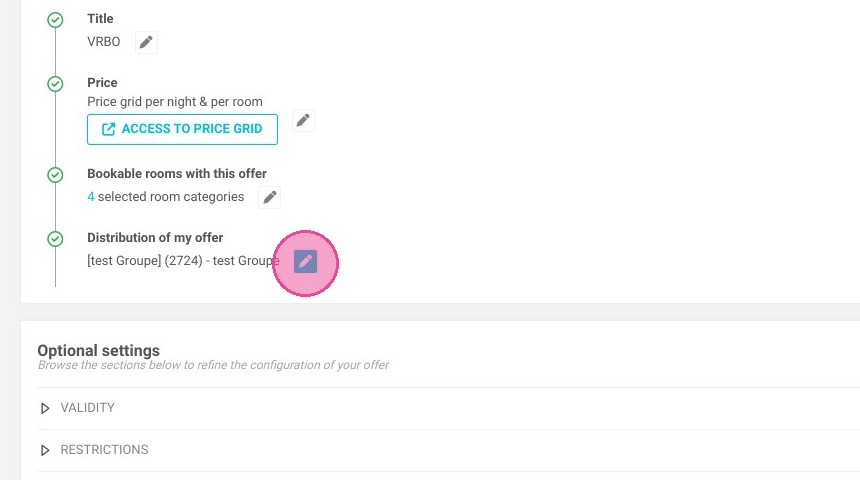
8. Select VRBO for the "Distribution of my offer" section.
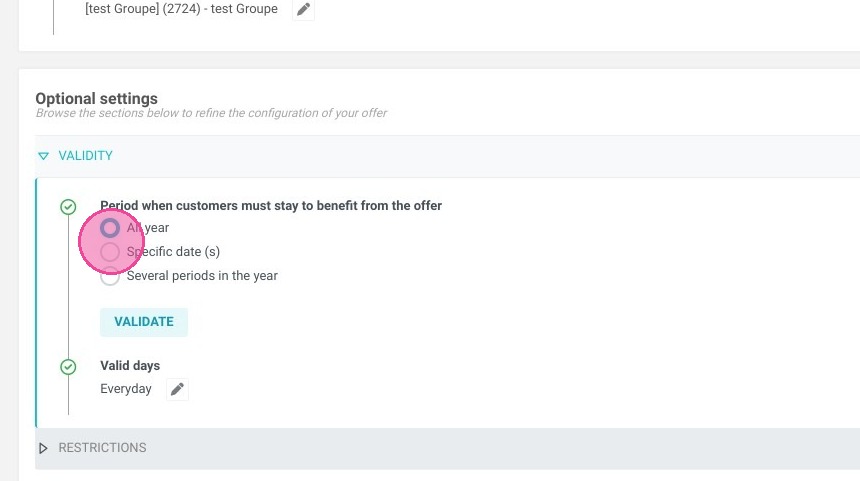
9. Click on the "VALIDITY" section and choose the validity dates for your offer.
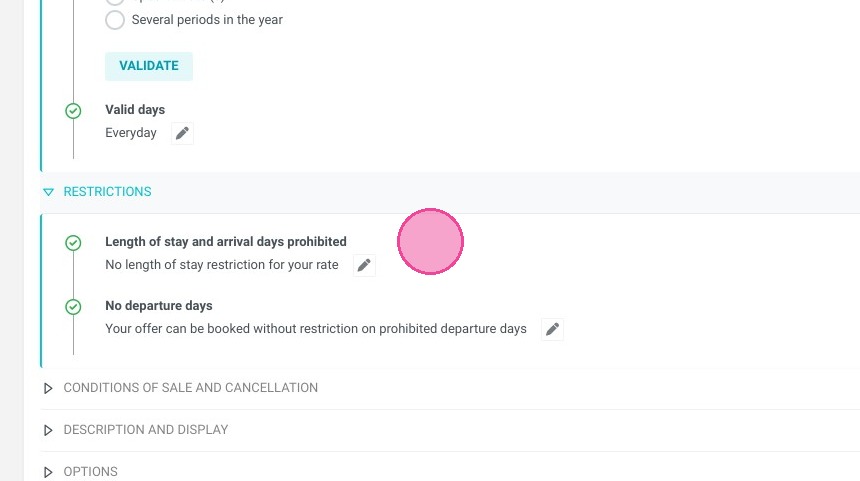
10. In "RESTRICTIONS", you have the option to select the minimum length of stay.
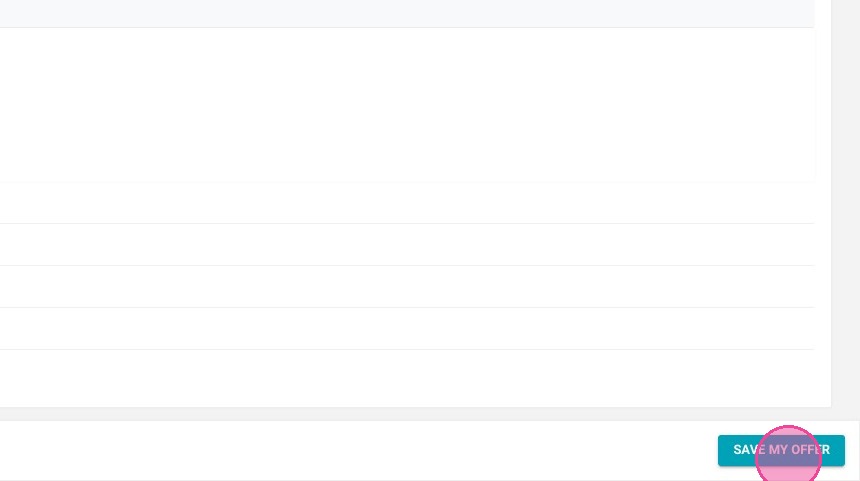
11. Click "SAVE MY OFFER" and remember to publish it.
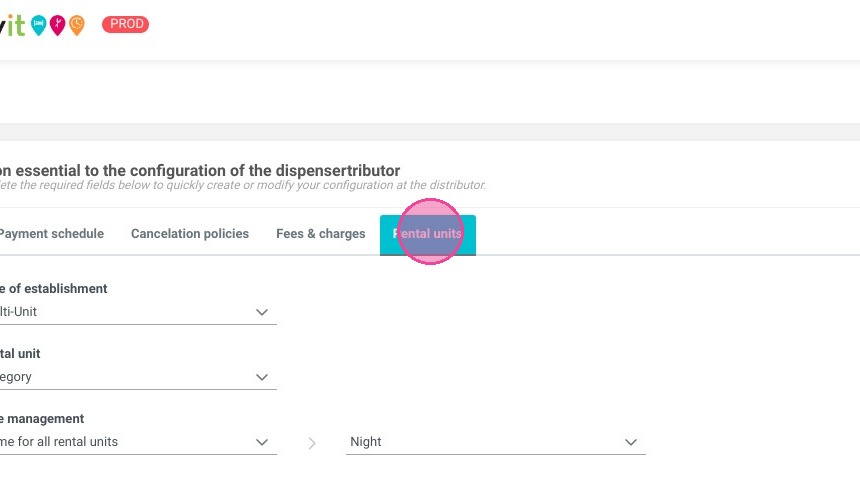
12. Next, click on the blue icon again > "Distribution channels" > "Distributors configuration"; you will be able to edit the criteria. To edit the offer, click on "Rental units".
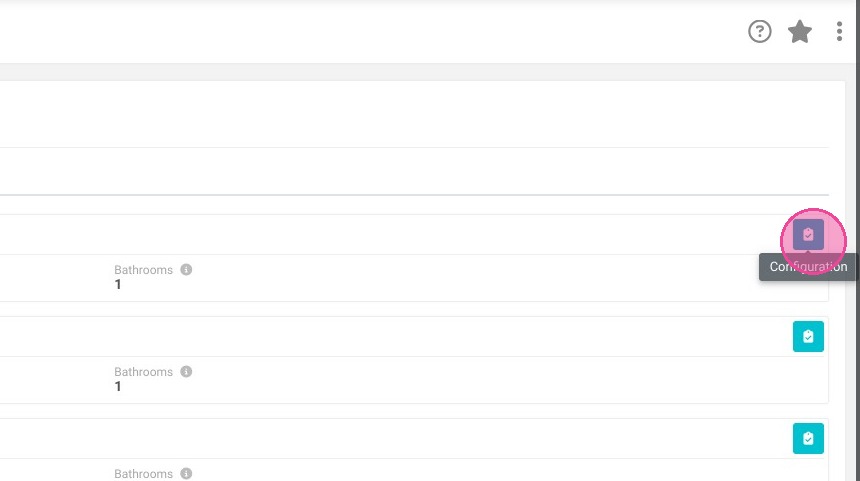
13. Click on the "Configuration" icon for each unit.
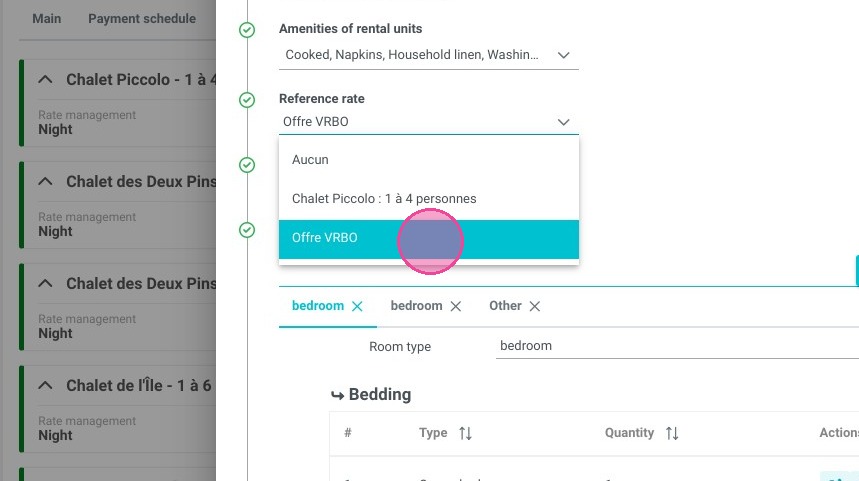
14. Select the appropriate reference rate from all the valid options.
15. Click "VALIDATE".
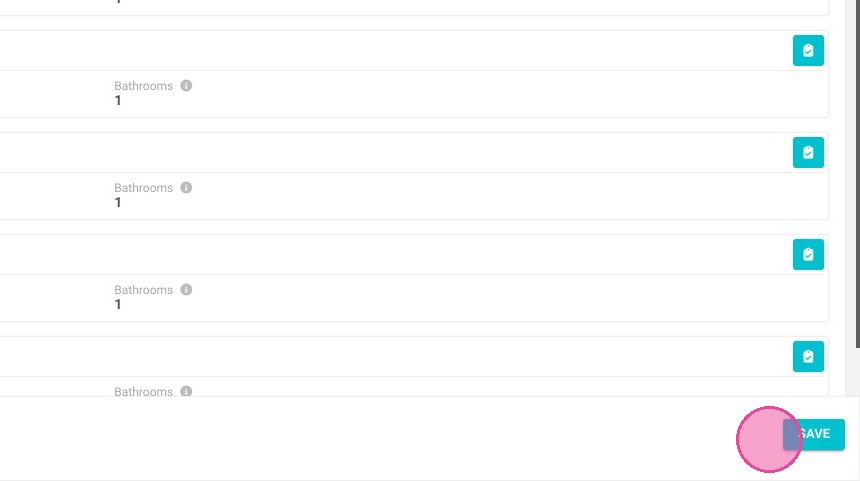
16. Click "Save".