Article Summary:
This practical guide explains how to update a guest’s contact details or change a billing address directly in your Reservit PMS software. You will learn how to customize billing information to meet your guests’ specific needs and ensure compliant accounting documents. This tutorial is essential for smooth guest account management and error-free invoice issuance.
The 5 key steps to update billing details:
Access the reservation: Select the guest file that needs to be updated.
Manage billing: Go to the dedicated tab to access the billing account.
Set up the address: Open the “Address List” section to view the current information.
Edit the information: Select the default address, edit it using the magnifying glass icon, or enter new contact details.
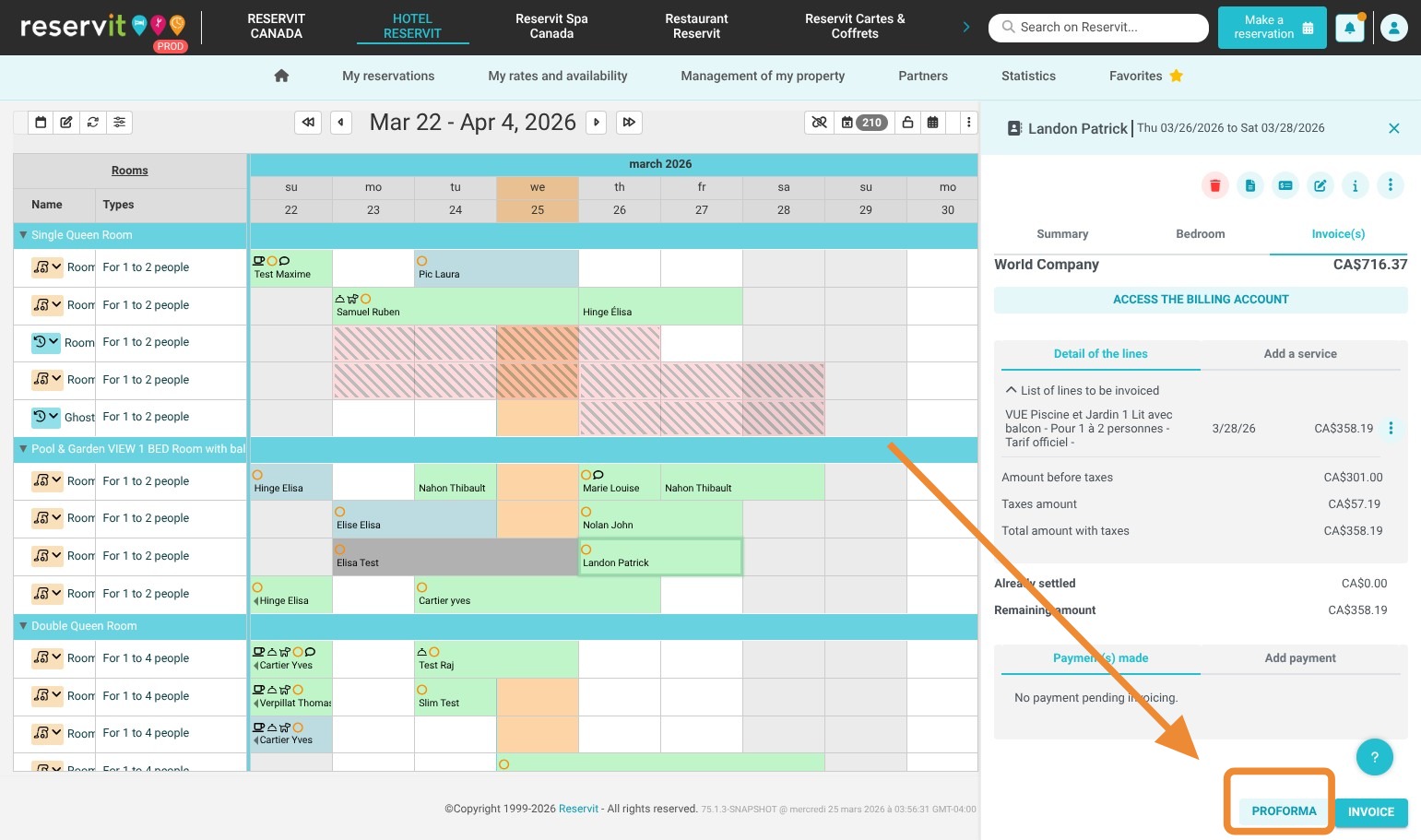
Final check: Review the pro forma invoice to confirm the displayed information before issuing the final invoice.
Why follow this guide?
By following these steps before closing the guest file, you can avoid irreversible billing errors and save time by ensuring the correct business or personal contact details are automatically displayed on your official documents.
By default, Reservit uses the contact details provided at the time of booking and displays them on the invoice. However, in some cases, it may be necessary to change the guest’s details on the invoice.
WARNING! These steps must be completed BEFORE issuing your final invoice. You can use the pro forma invoice to review the changes before issuing the final invoice
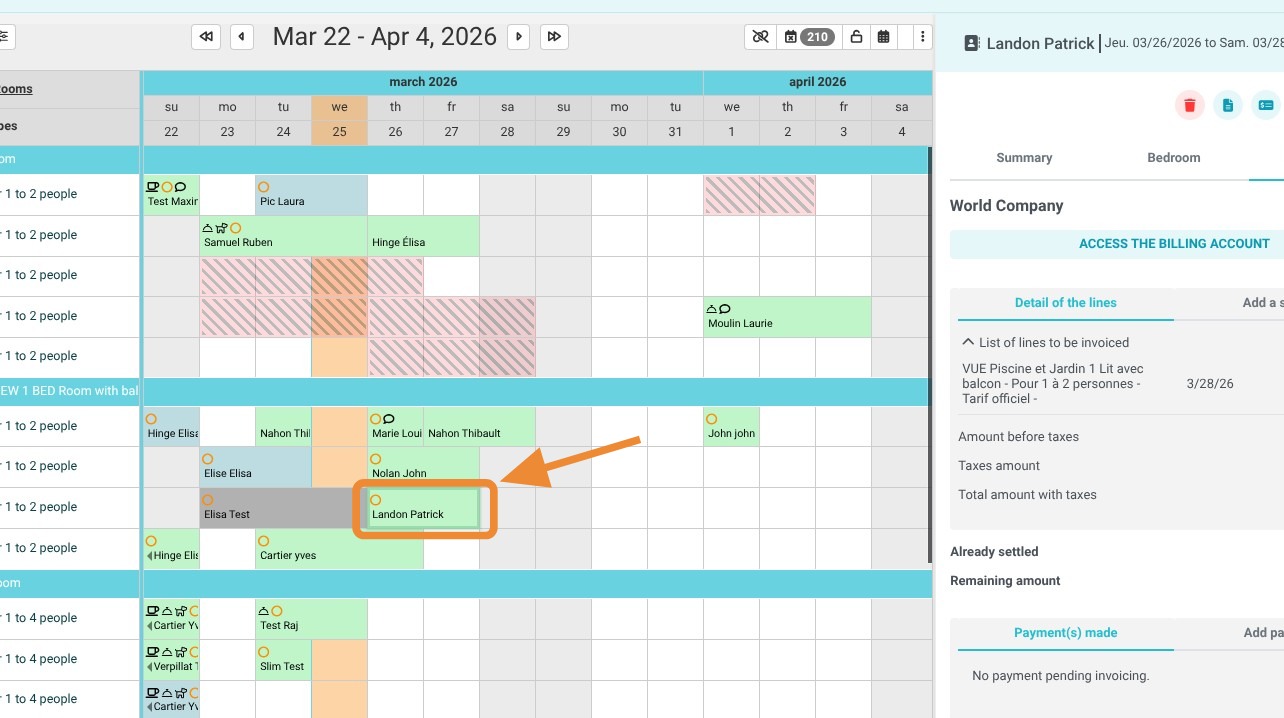
1. Click the reservation that needs to be updated.
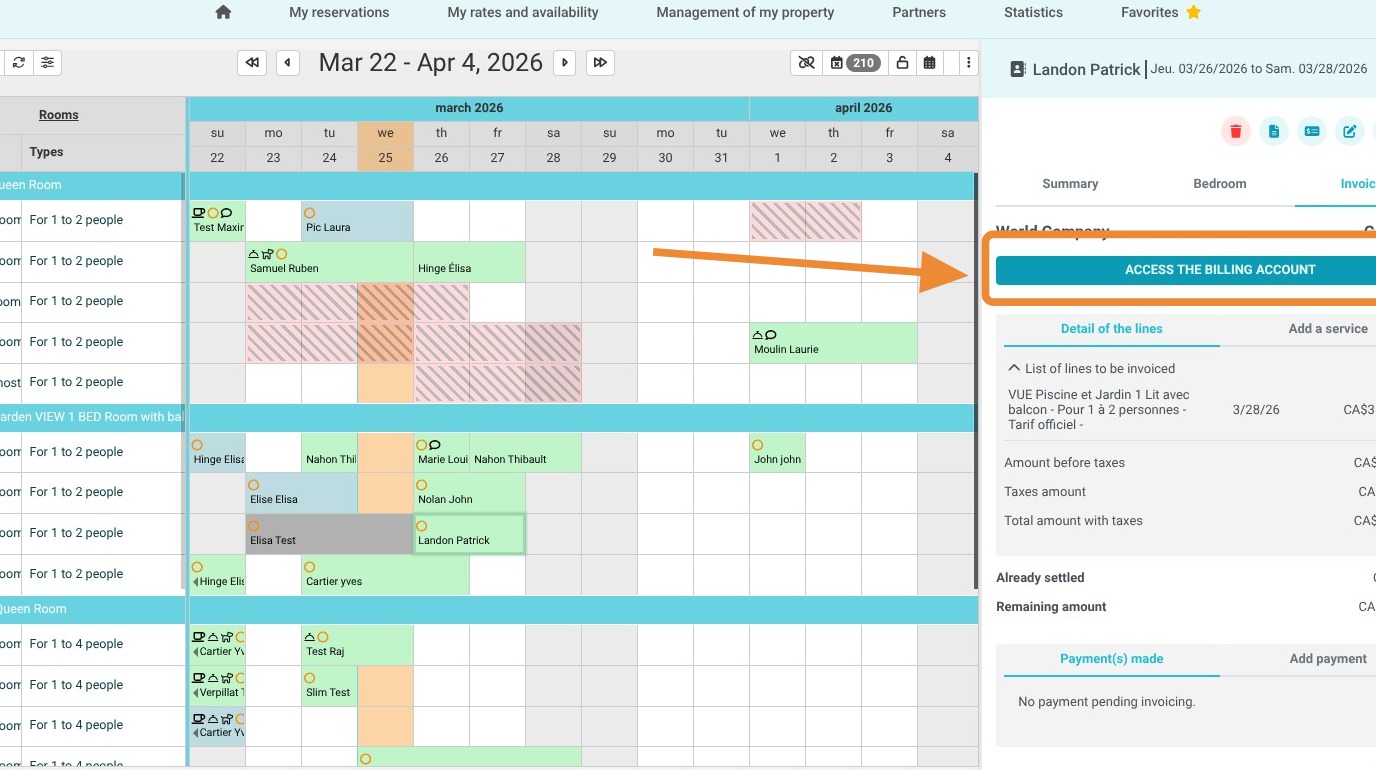
2. Then click “Access The Billing Account”
3. Go to “Address List”
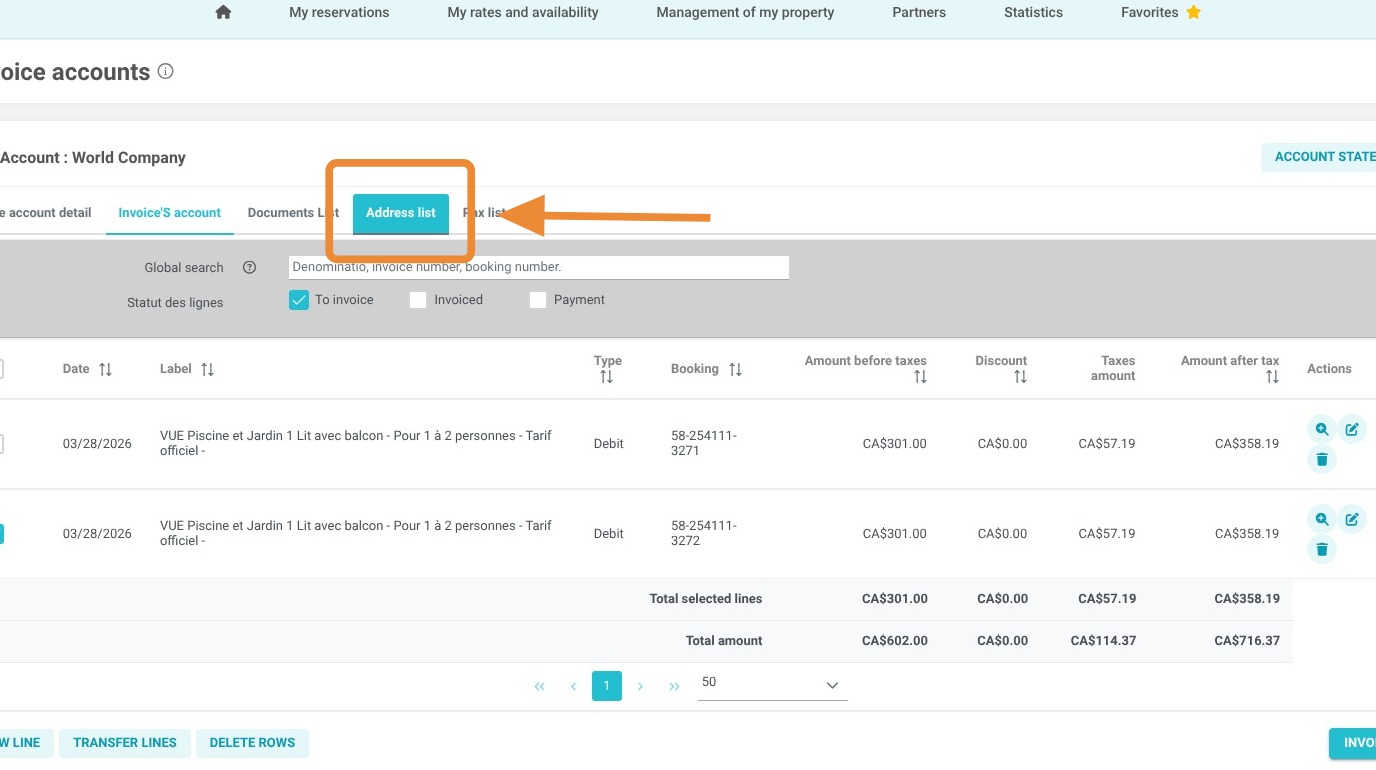
4. Here, you will find the address used by default when the reservation was created. This includes the guest’s first and last name. Select the address you want to use or enter a new one. You can also edit an existing address by clicking the magnifying glass.
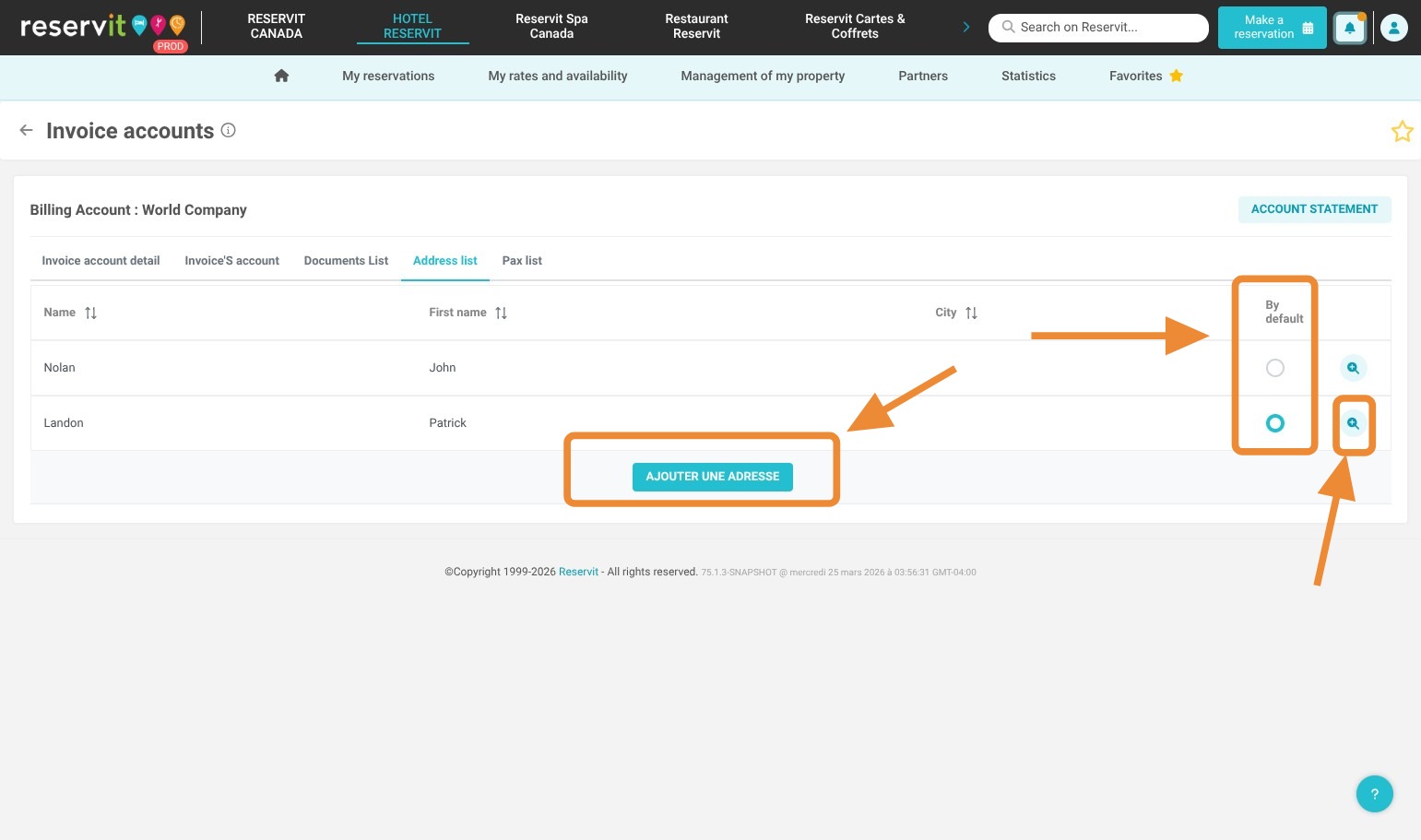
5. Once the changes have been made, go back to your “Proforma” invoice to confirm that the updates have been applied correctly.