

Article Summary: This tutorial explains how to quickly access the billing account and financial records for a cancelled accommodation reservation in your Reservit dashboard. You will learn the exact steps to locate specific invoicing documentation, allowing you to streamline your hotel accounting workflow. Please note that the billing account is automatically deleted upon cancellation unless a prior transaction (payment, refund, or manual service addition) was already recorded.
The 3 key steps to retrieve invoicing records for a cancelled booking:
-
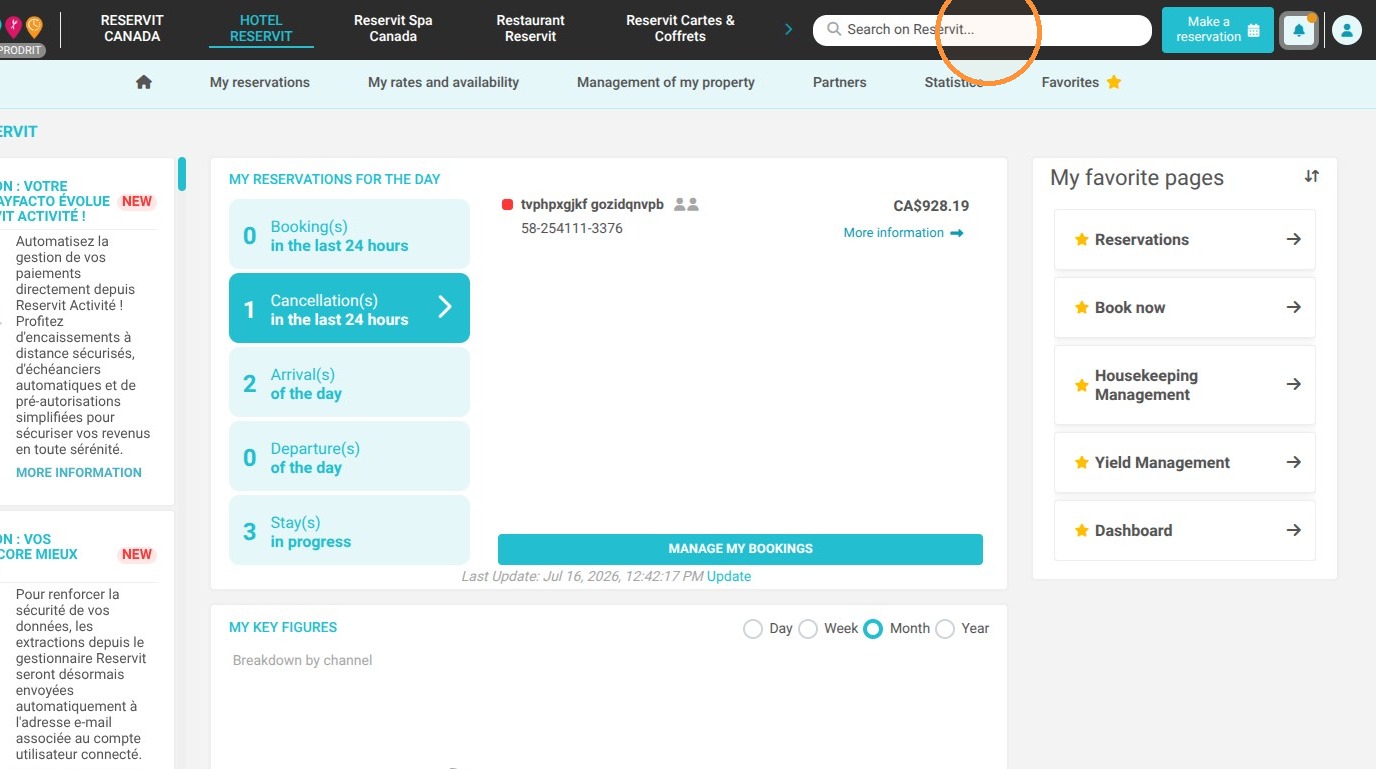
Search for the cancellation: Use the main search bar to locate the specific cancelled reservation in your system.
-
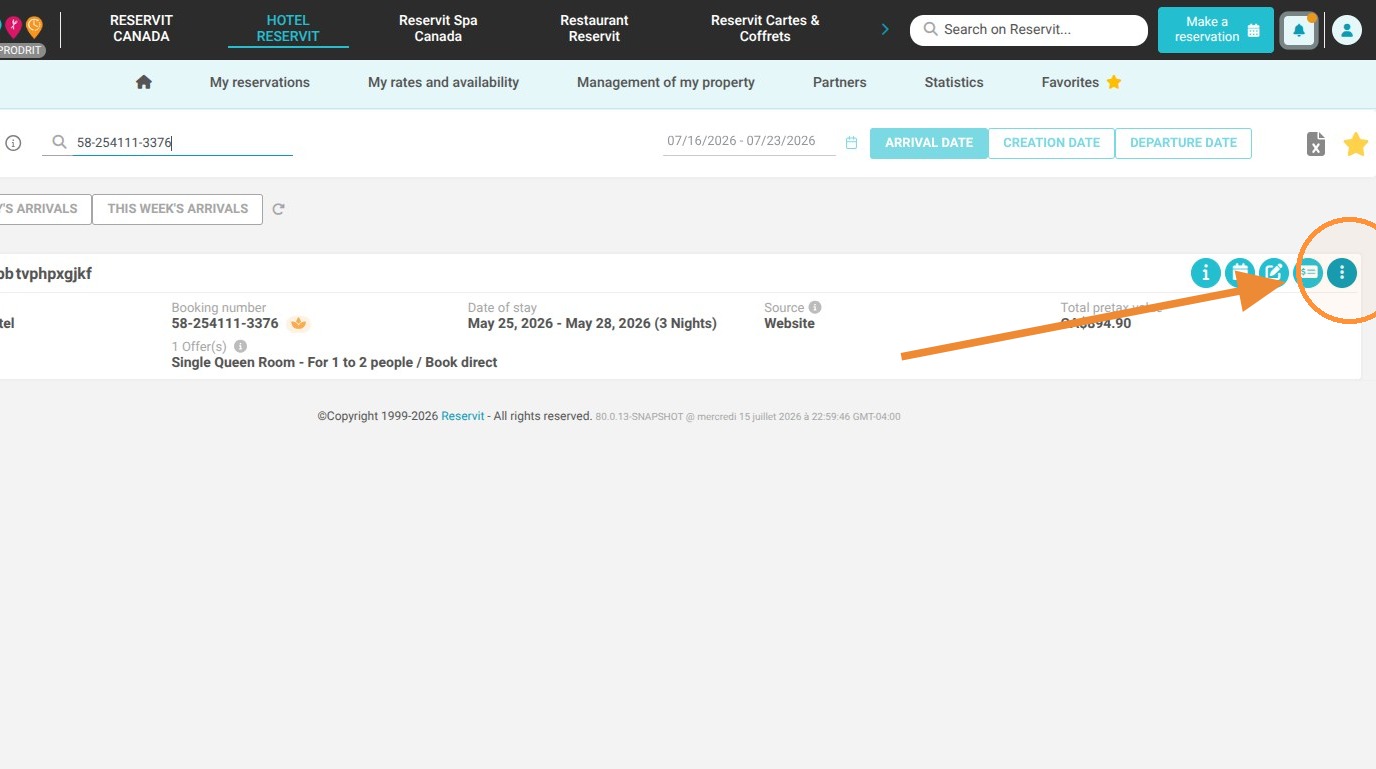
Expand the actions menu: Once the reservation is displayed, click on the "More actions" button to view advanced management options.
-
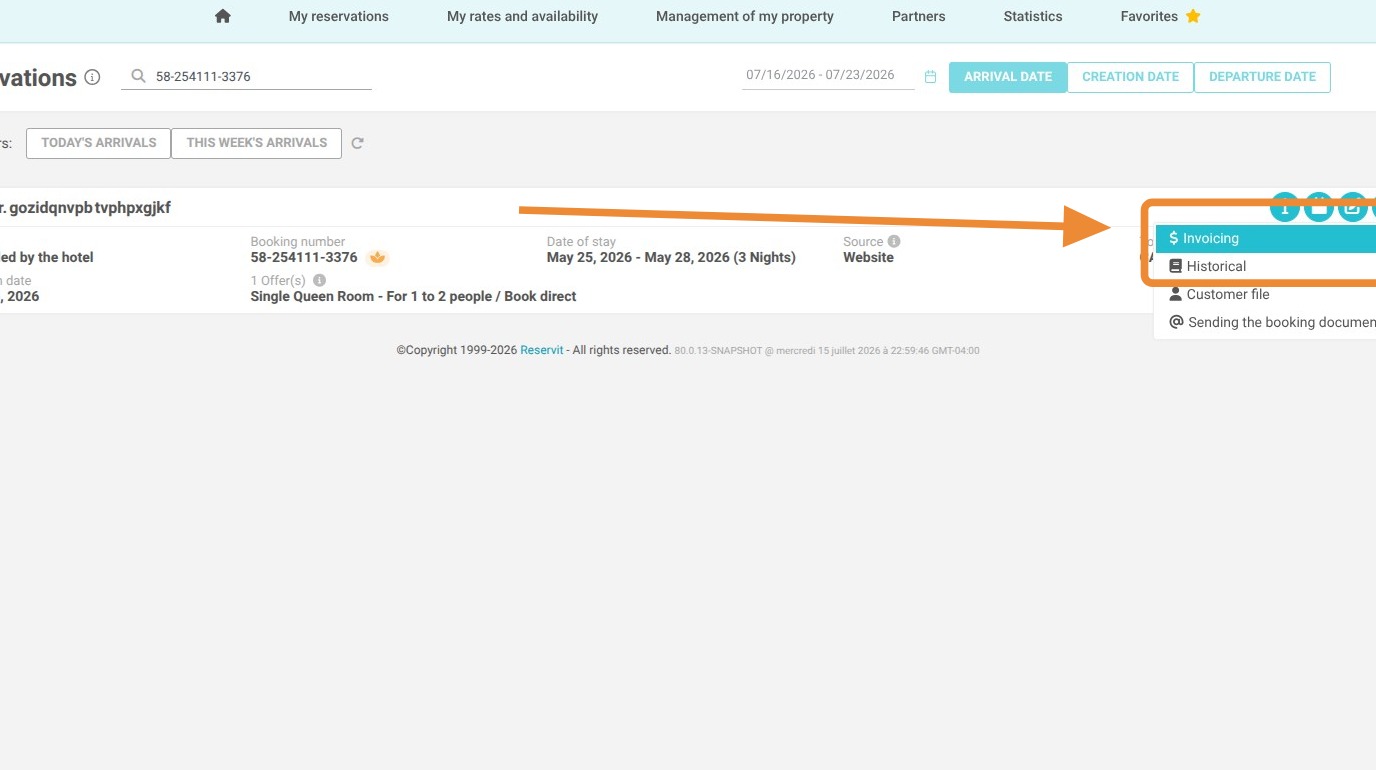
Navigate to invoicing: Select "Invoicing" from the menu to be instantly redirected to the client's detailed billing account.
Why follow this guide? This streamlined process saves you valuable time during financial reconciliation and ensures you never lose track of processed payments or refunds tied to cancellations. By following these steps and understanding the system's retention rules, you will avoid accounting errors and optimize your daily property management operations.
Alert: Please note that if no billing operation has been performed—whether it is a payment collection, a refund, or a manual addition of services—the billing account will be automatically deleted upon cancellation of the reservation.
1. Search for your cancelled reservation using the search bar.
2. Once the reservation is displayed, click on "More actions".
3. Then go to "Invoicing".
4. You will then be redirected to your client's billing account.