Article Summary: This quick tutorial explains how to easily add a Blind Carbon Copy (BCC) email address to your automated booking confirmations within Reservit Accommodation. You will learn how to navigate your property setup settings to configure a hidden email destination for all outgoing reservation notices. Mastering this simple configuration ensures your management or front desk team automatically receives duplicate copies of guest communications, keeping everyone informed without altering the customer's email experience.
The 4 Key Steps to Add a BCC Email Address:
-
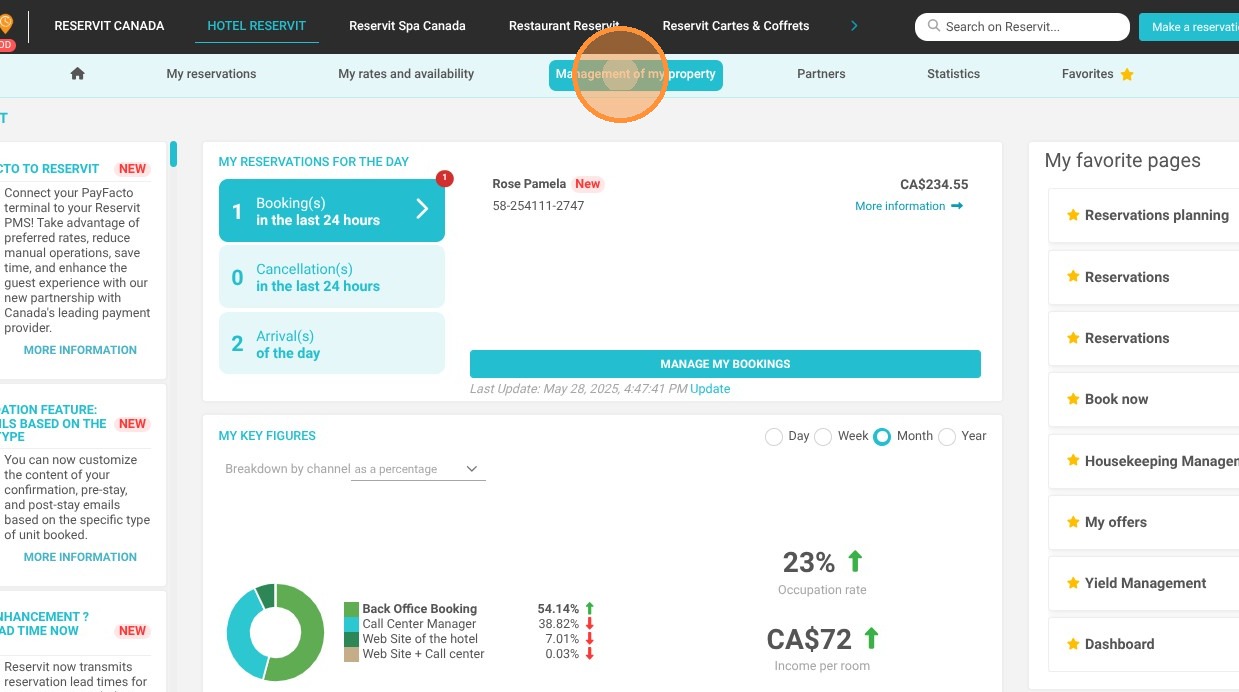
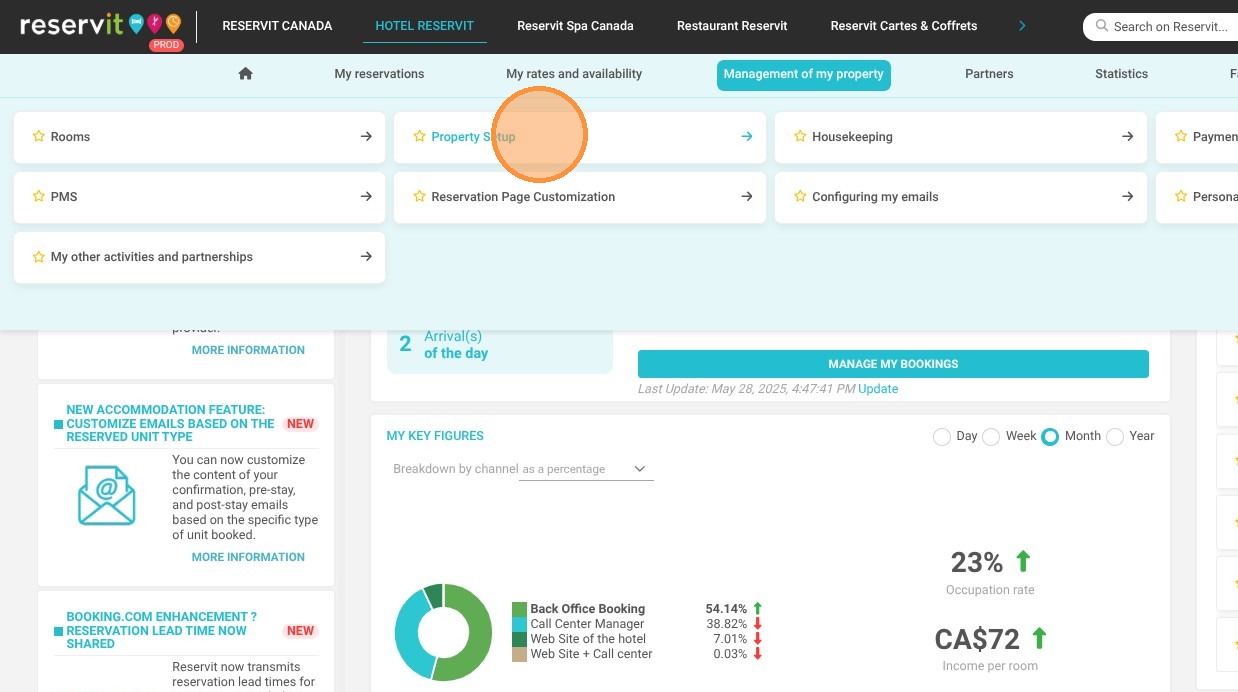
Navigate to Property Settings: Click on "Management of my property" from your main menu and select "Property Setup."
-
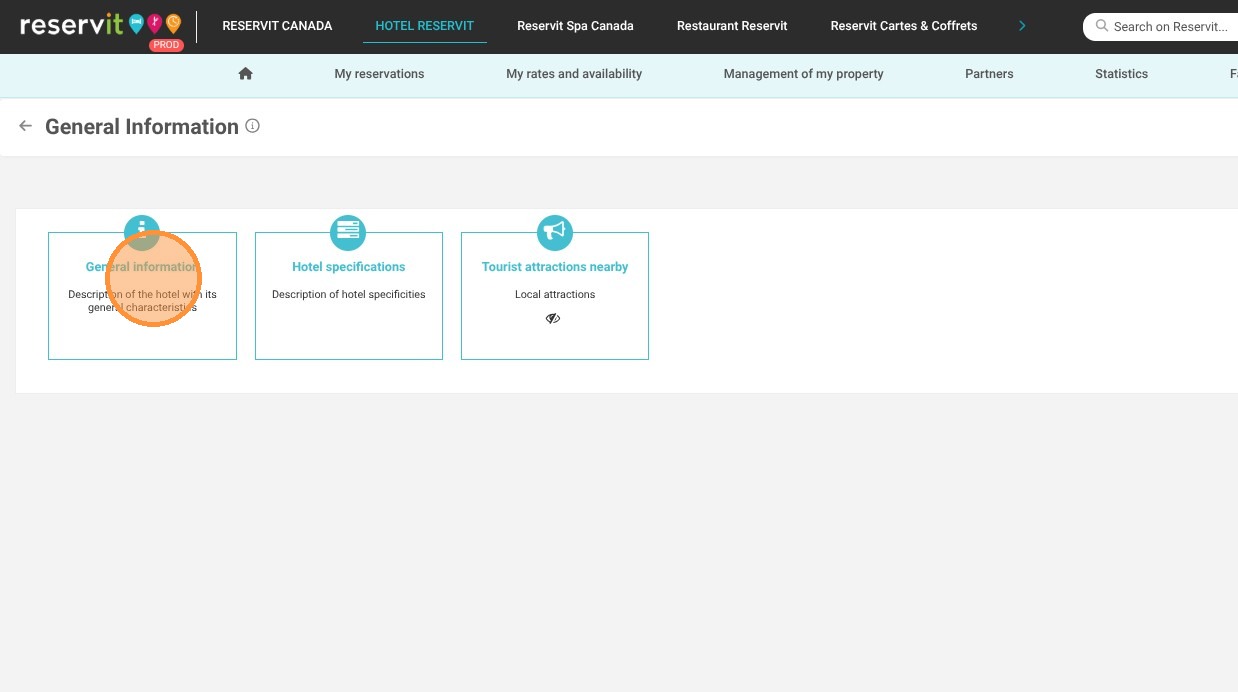
Access General Information: Click on the "General Information" tab (and select it again from the sub-menu) to open your core property configurations.
-
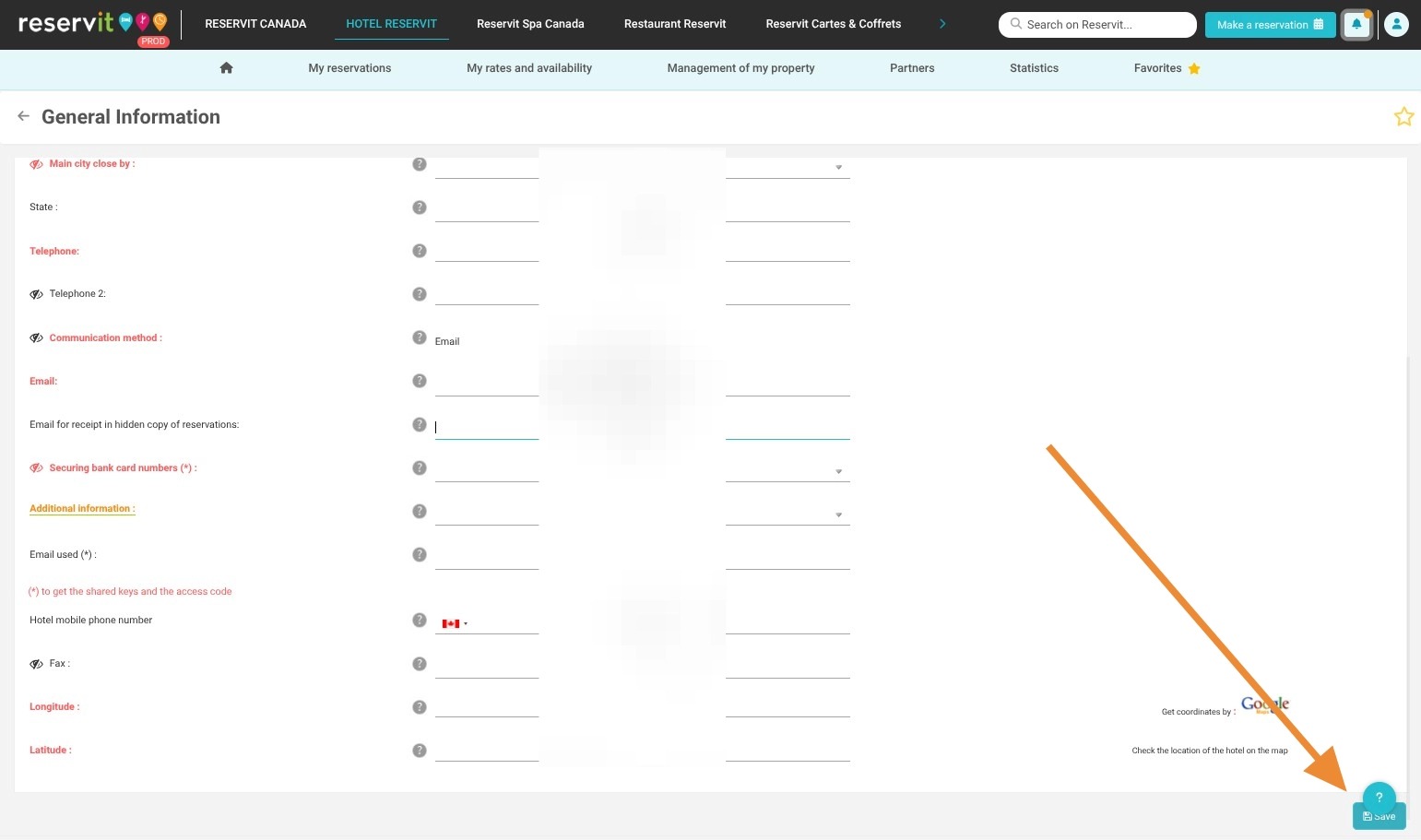
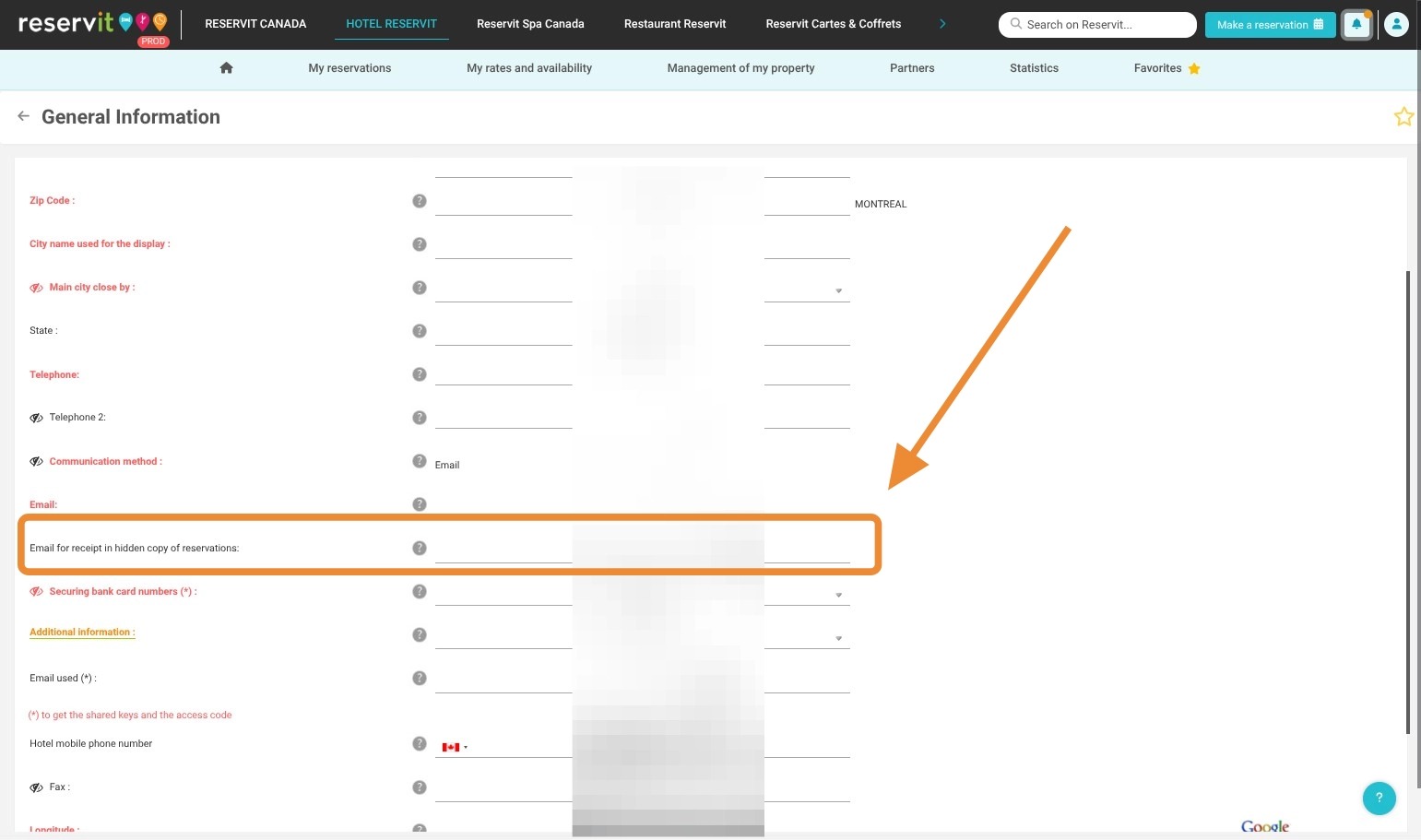
Enter the BCC Email: Locate the designated field labeled 'Email for receiving BCC copies of bookings' and accurately input the desired internal email address.
-
Save Your Configuration: Click the "Save" button located at the bottom right to apply the changes and instantly activate the automated email routing.
Why follow this guide? Following this guide optimizes your internal communication by automating the delivery of booking copies to your staff or managers. This one-time setup prevents manual email forwarding errors, saves valuable administrative time, and ensures a secure, centralized backup of all Reservit Accommodation reservation confirmations.
1. Click "Management of my property"
2. Then "Property Setup"
3. Click "General Information"
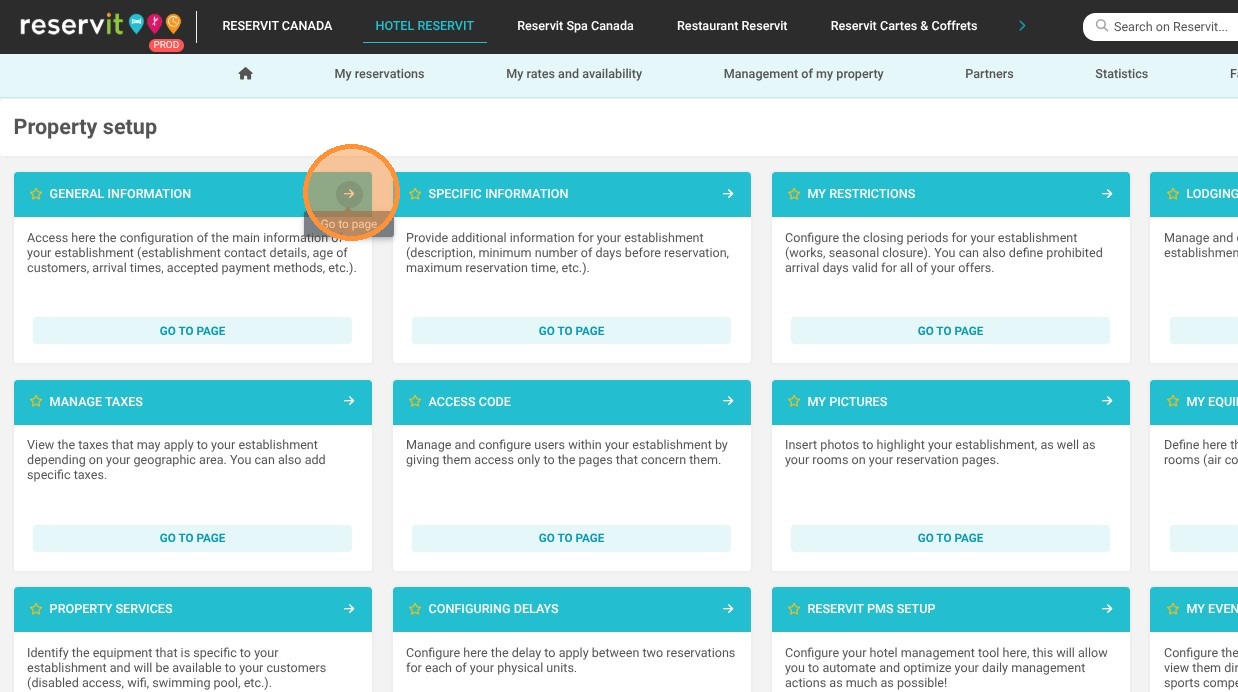
4. Then "General Information"
5. Enter the email address in the field labeled 'Email for receiving BCC copies of bookings'
6. Click 'Save' at the bottom right.