Article Summary: This tutorial explains how to easily customize your automated guest communications based on the specific type of accommodation booked within Reservit. You will learn how to draft unique arrival and departure instructions for individual unit categories and dynamically insert them into your automated pre-stay or post-stay emails. By personalizing these messages, you ensure each guest receives exactly the information they need for their specific rental, instantly elevating their overall booking experience.
The 5 key steps to customize your guest communications:
-
Access Room Categories: Navigate to the "Management of my property" menu and open your room or unit categories to edit a specific accommodation type.
-
Write Unit-Specific Instructions: Open the "Display & Services" tab and enter the unique arrival and departure instructions for that selected unit.
-
Configure Stay Emails: Go to your email configuration settings and select the specific client stay email (such as a pre-arrival message) you wish to update.
-
Insert Dynamic Tags: Use the email editor to search for and insert the "instruction" tags, placing them exactly where you want them in your email layout.
-
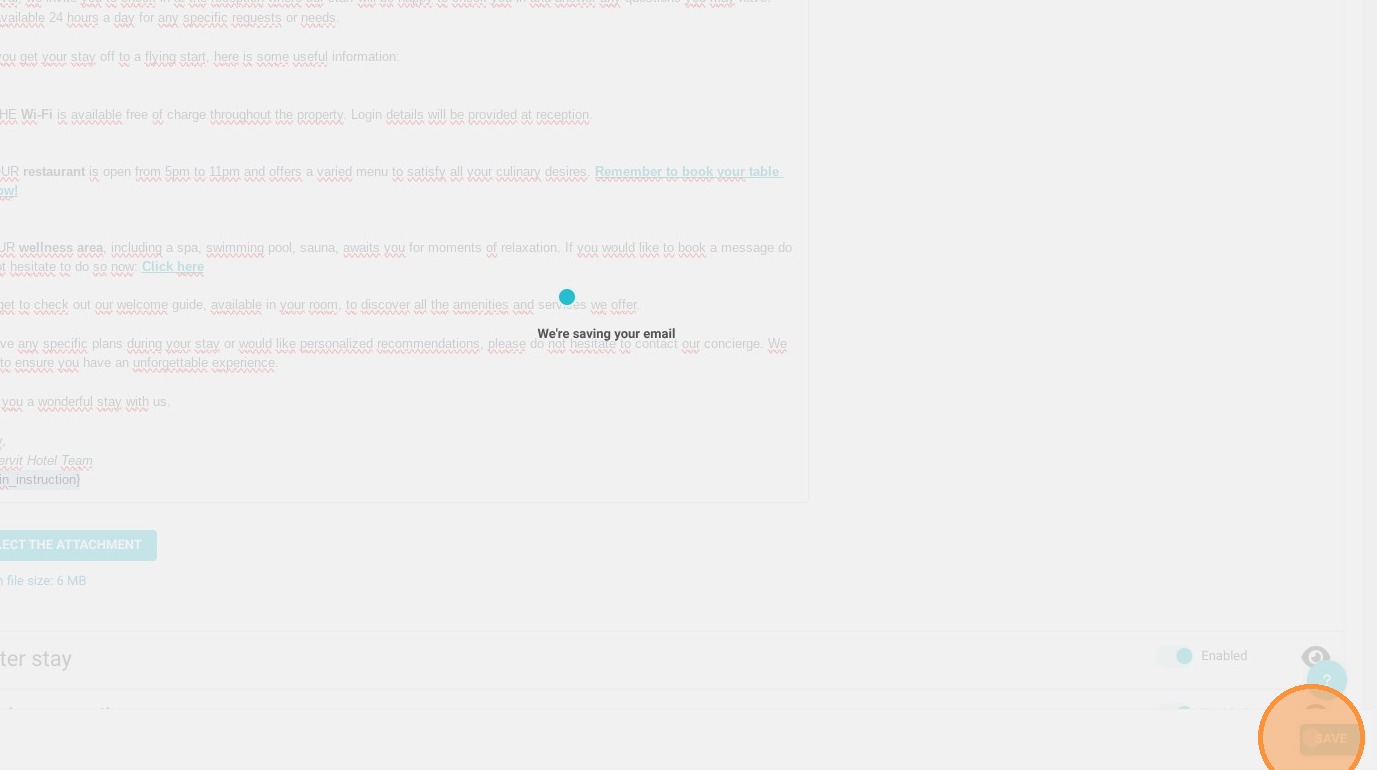
Save and Automate: Save your newly updated email template to automatically send personalized, unit-specific information to your future guests without any manual effort.
Why follow this guide? Setting up targeted, dynamic communication automates the delivery of critical check-in details, completely eliminating the need to manually message guests based on what they booked. This guide saves you valuable administrative time and prevents logistical errors, ensuring every guest receives the right instructions at exactly the right moment.
1. Click "Management of my property"
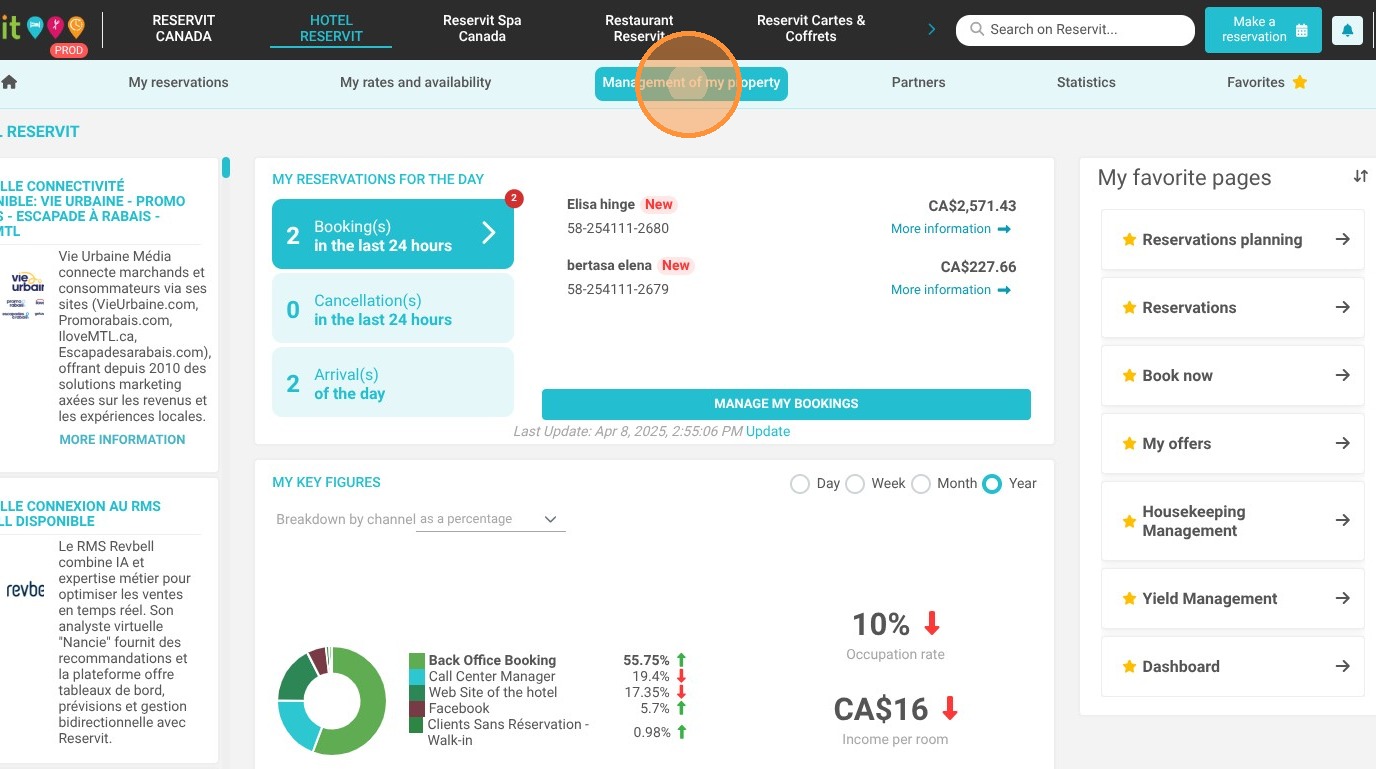
2. Then go to “My Rooms,” “My Units,” or any other relevant section name.
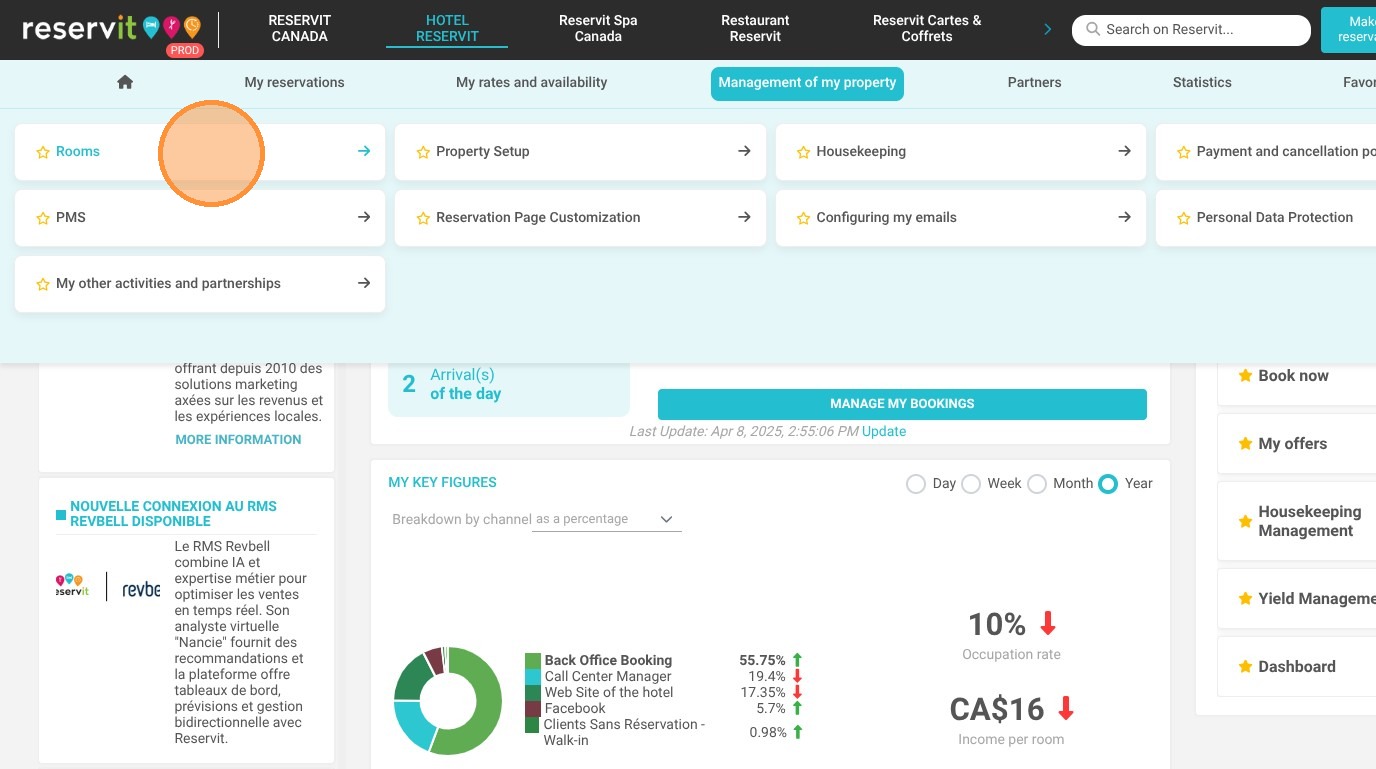
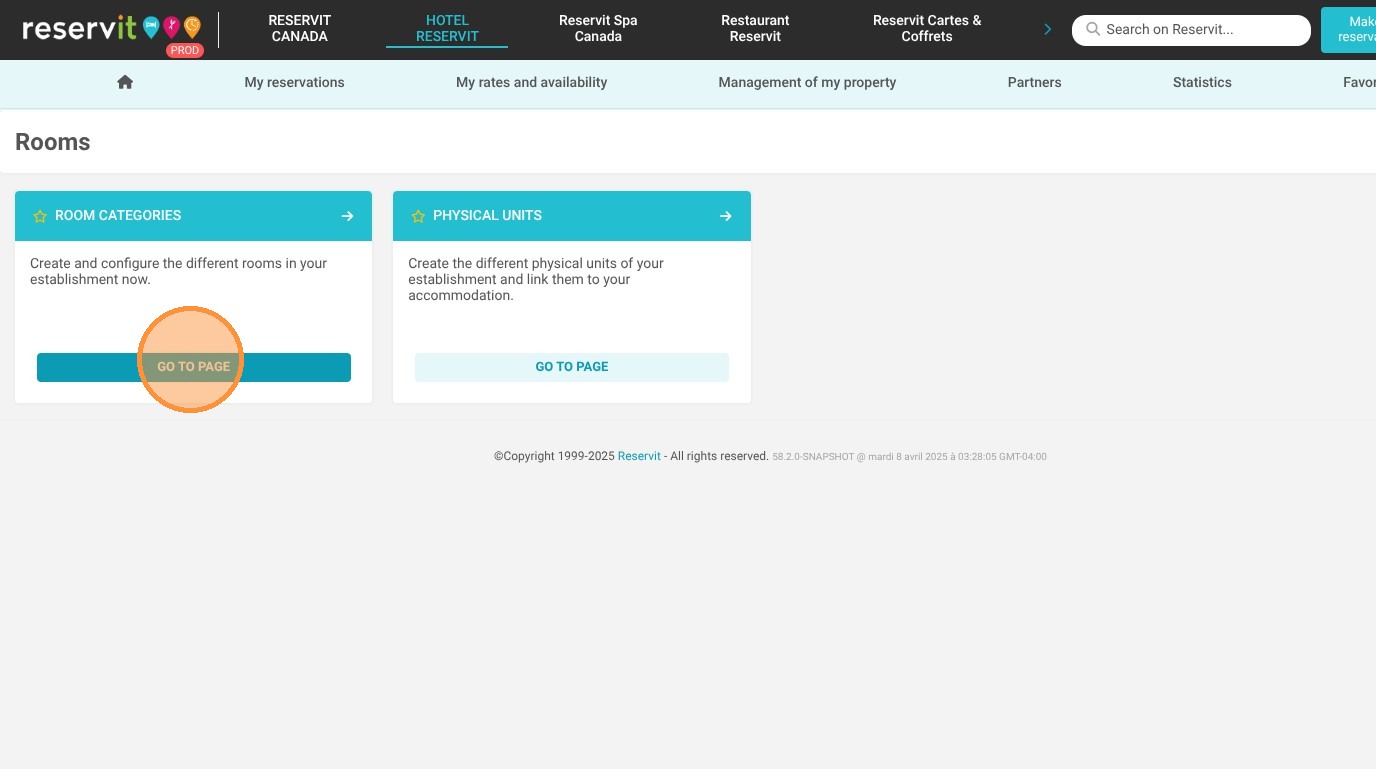
3. Click on “Room Categories”
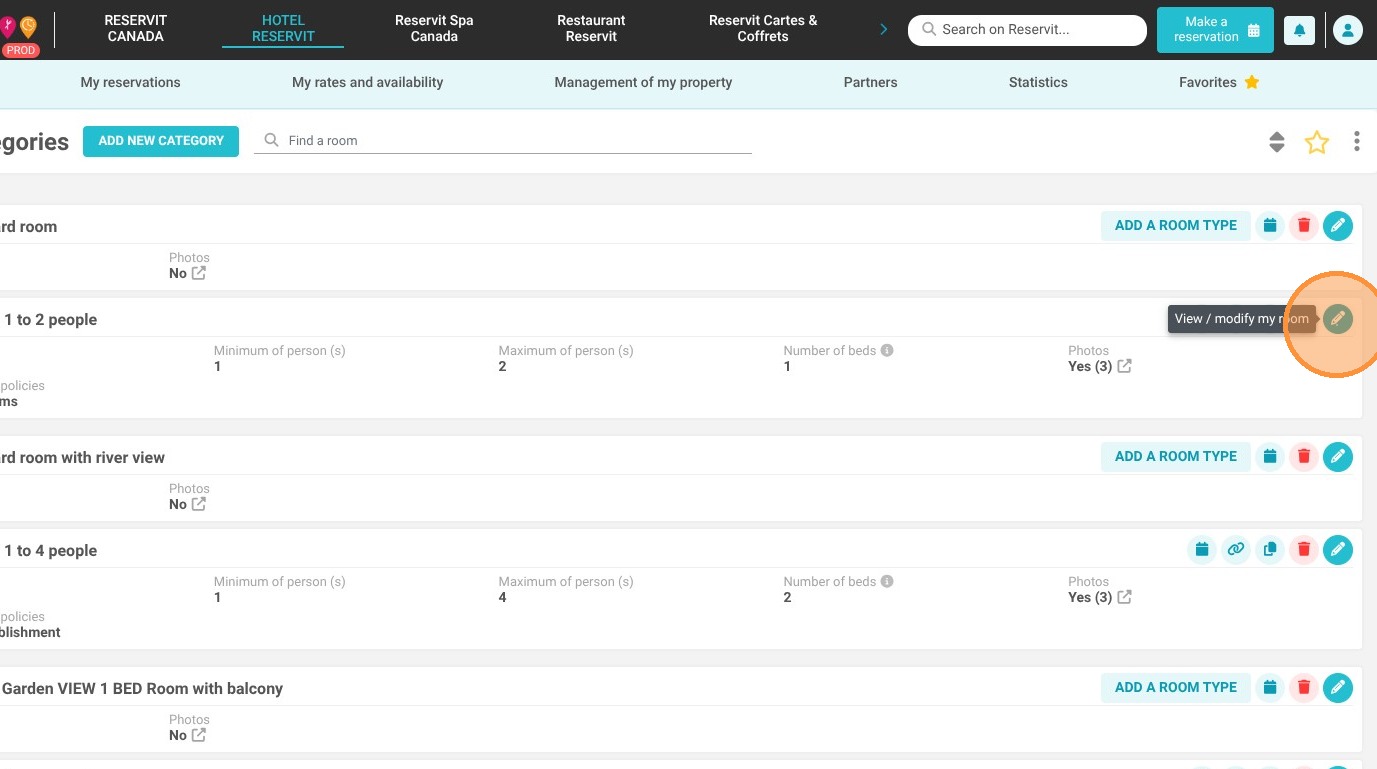
4. Select the unit type for which you want to provide arrival or departure information, then click the pencil icon to edit.
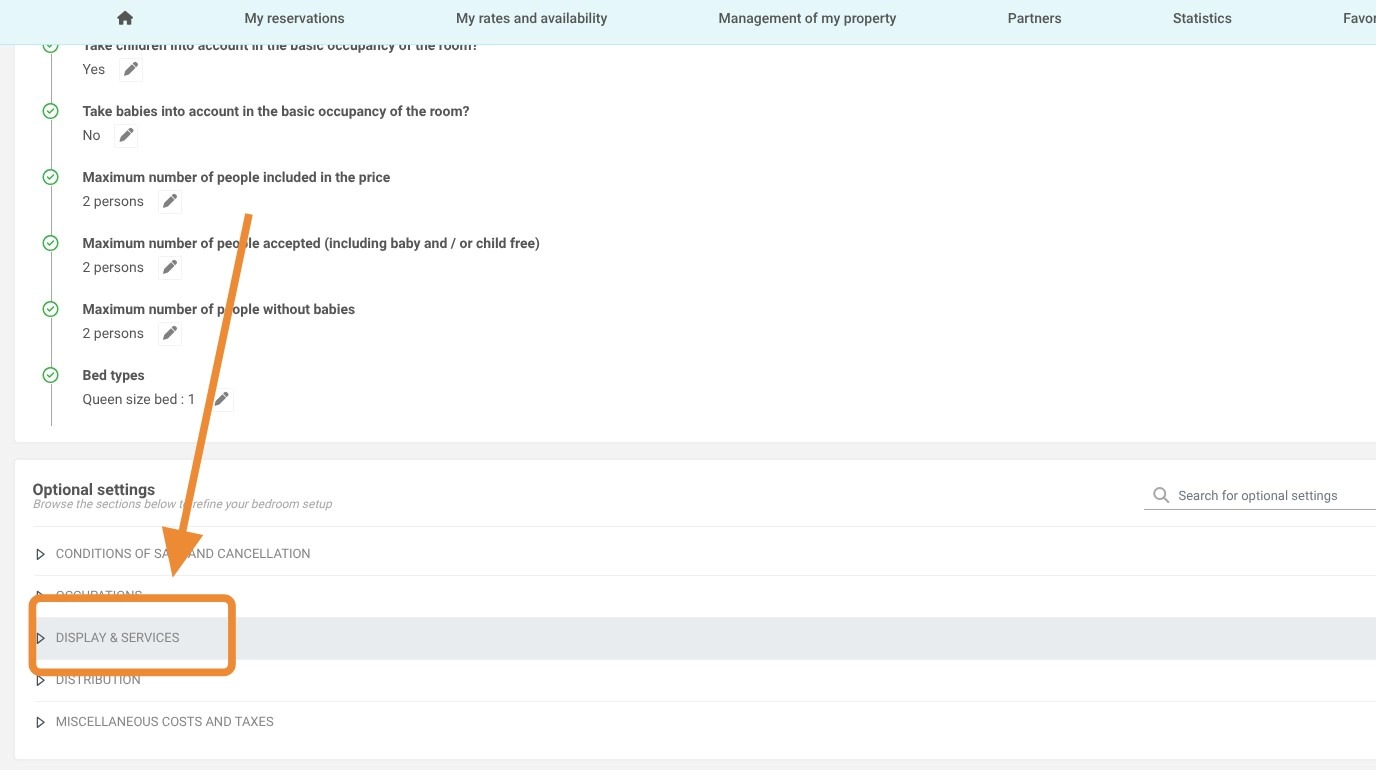
5. Click "DISPLAY & SERVICES"
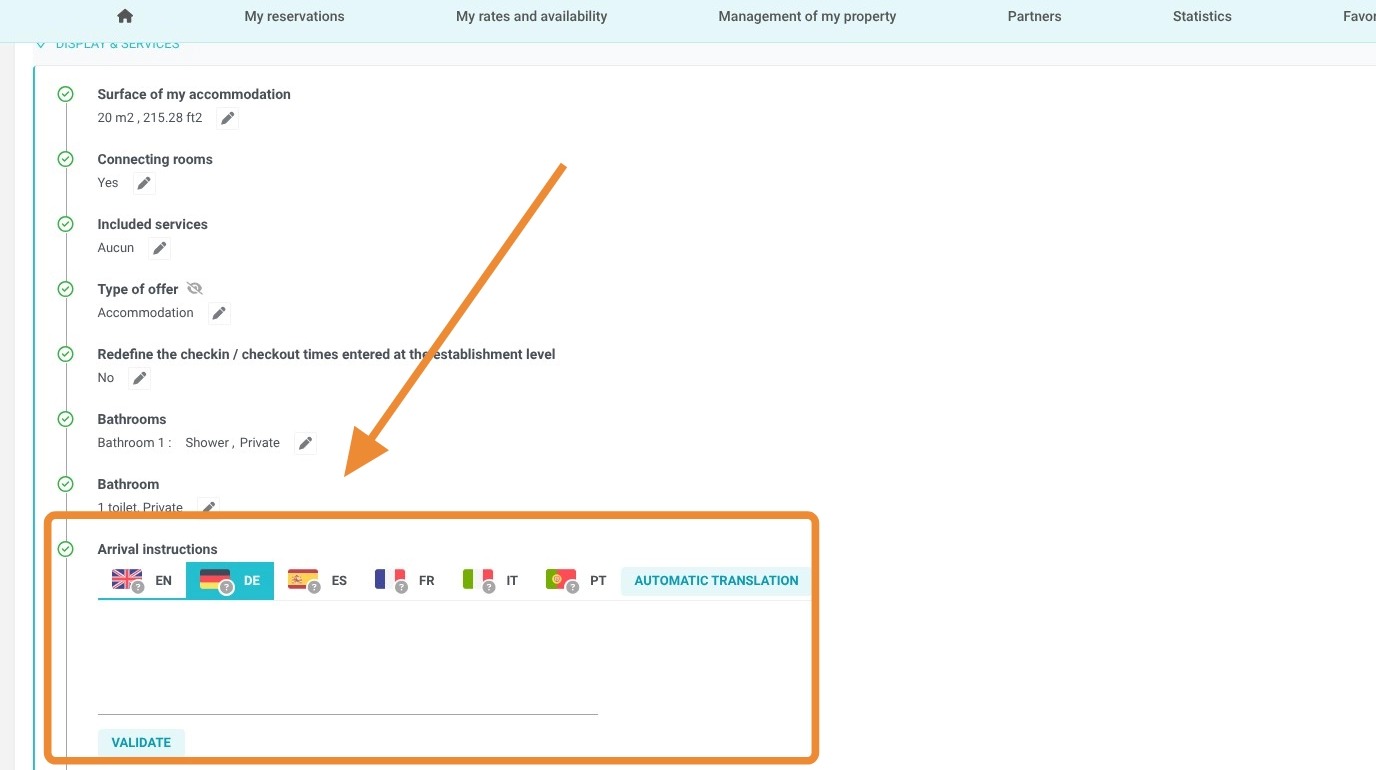
6. You will then see two fields: “Arrival Instructions” and “Departure Instructions”
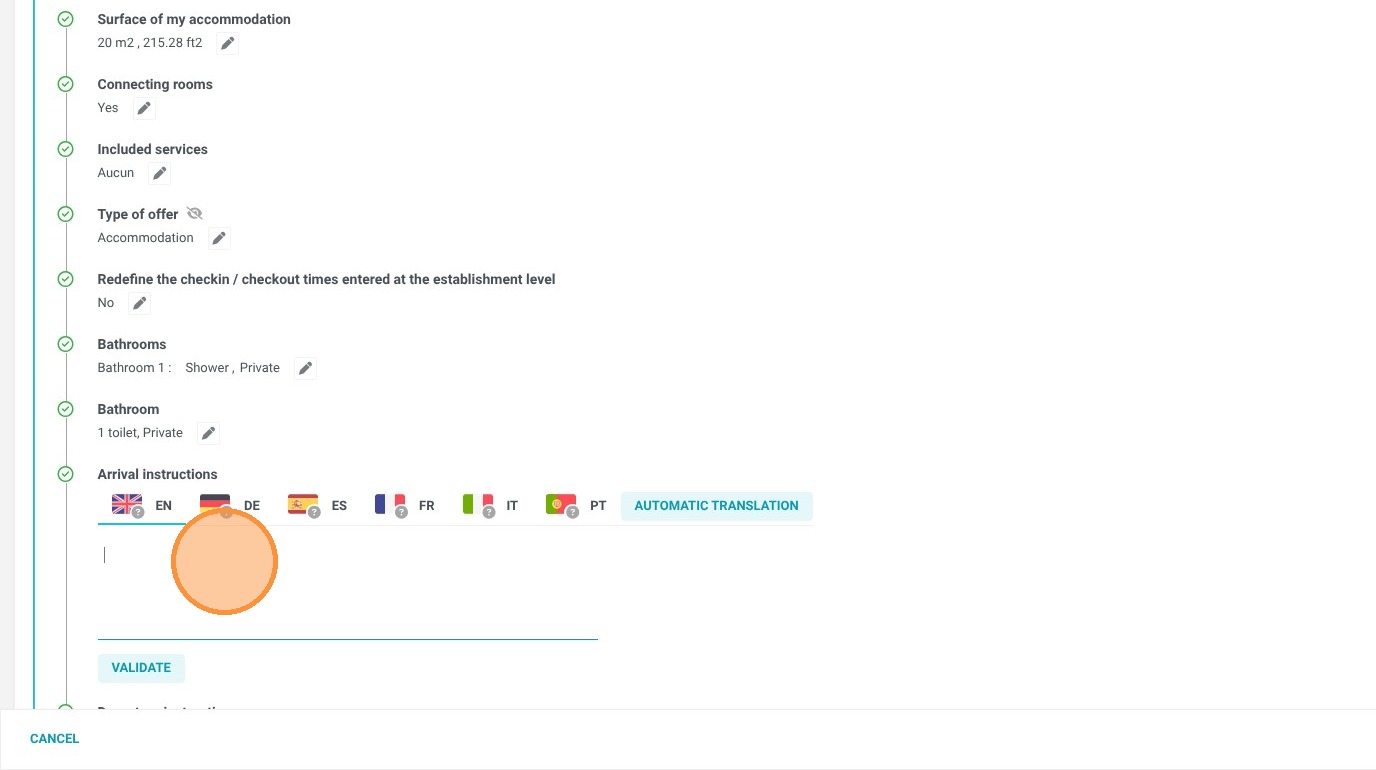
7. Enter the arrival and departure instructions for the selected unit type, then click “Validate”
8. Click "Save"
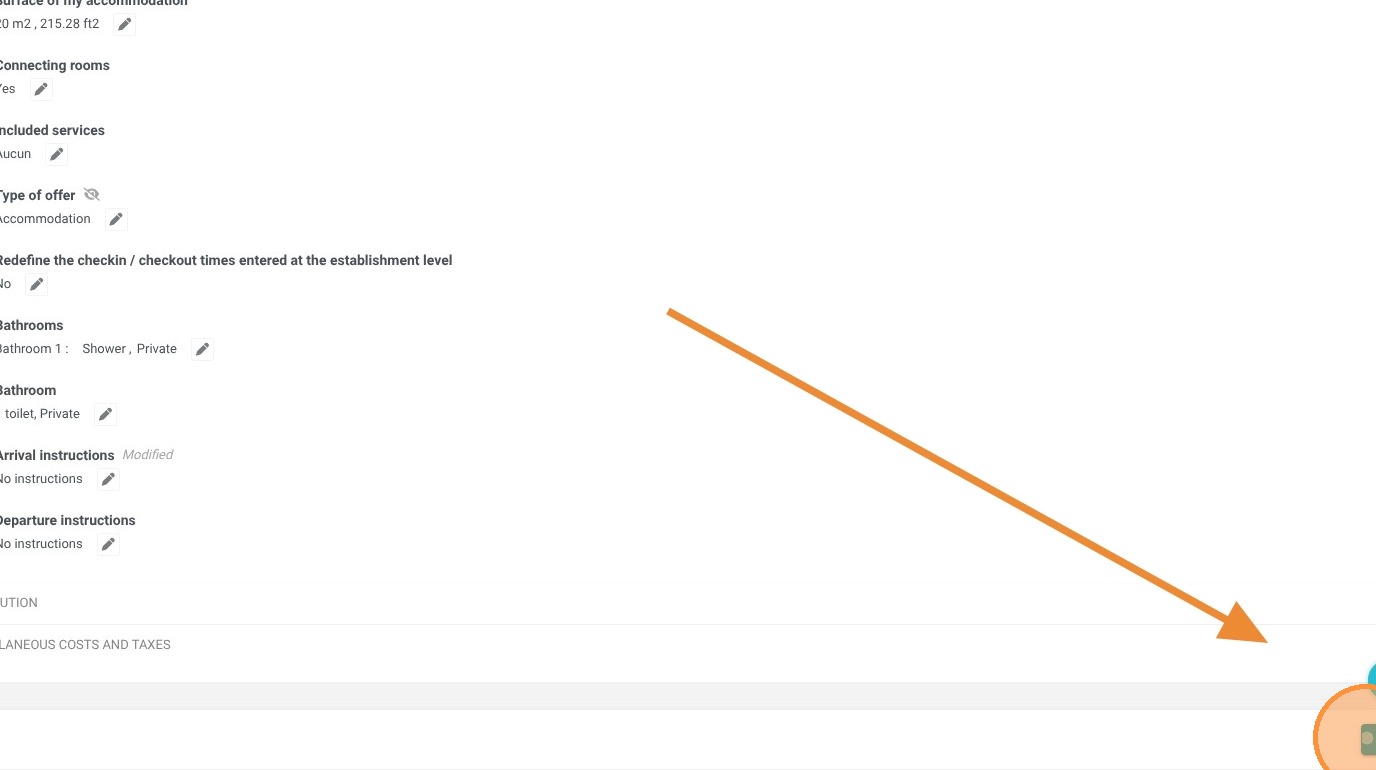
Tip: Arrival and departure instruction tags are available for guest stay emails and booking confirmation emails.
Assign these messages to your Confirmation, Pre-Stay, and Post-Stay Emails
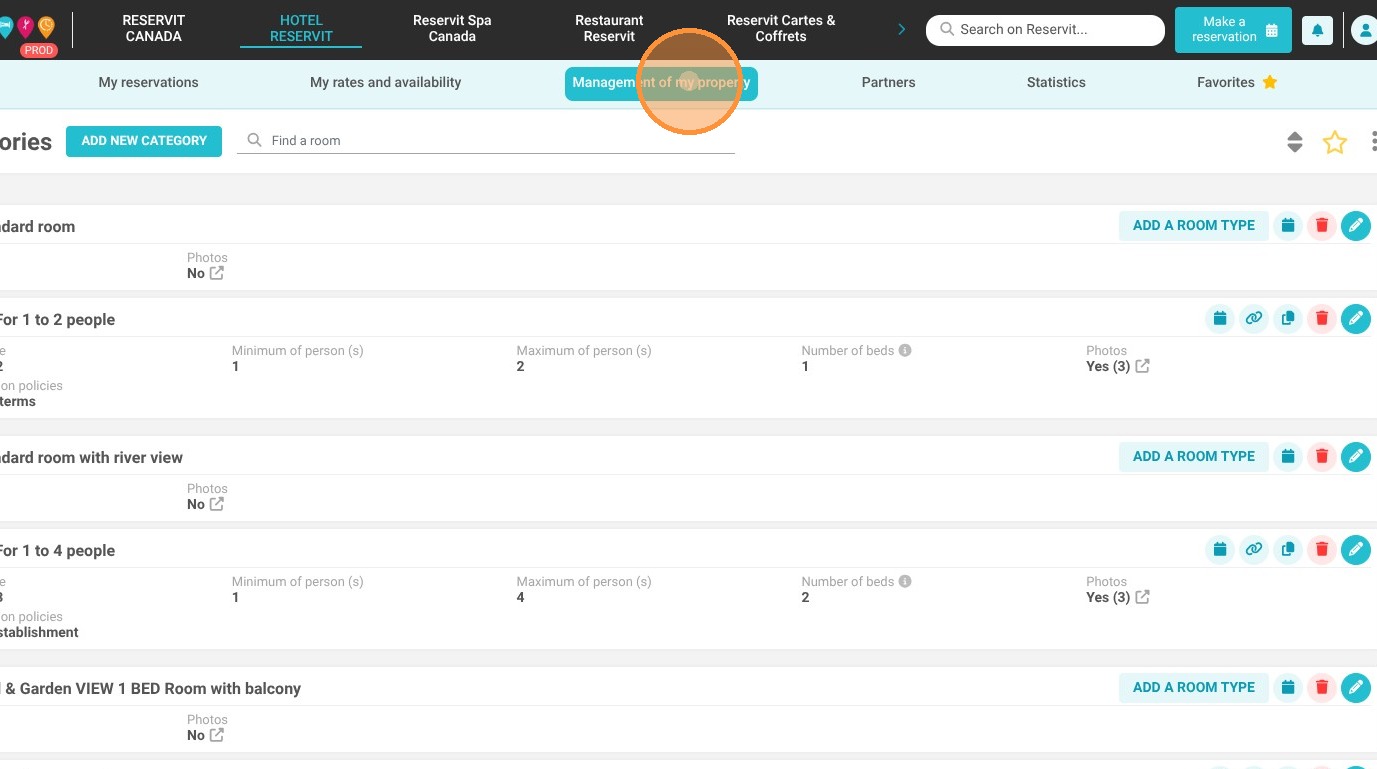
9. Click "Management of my property"
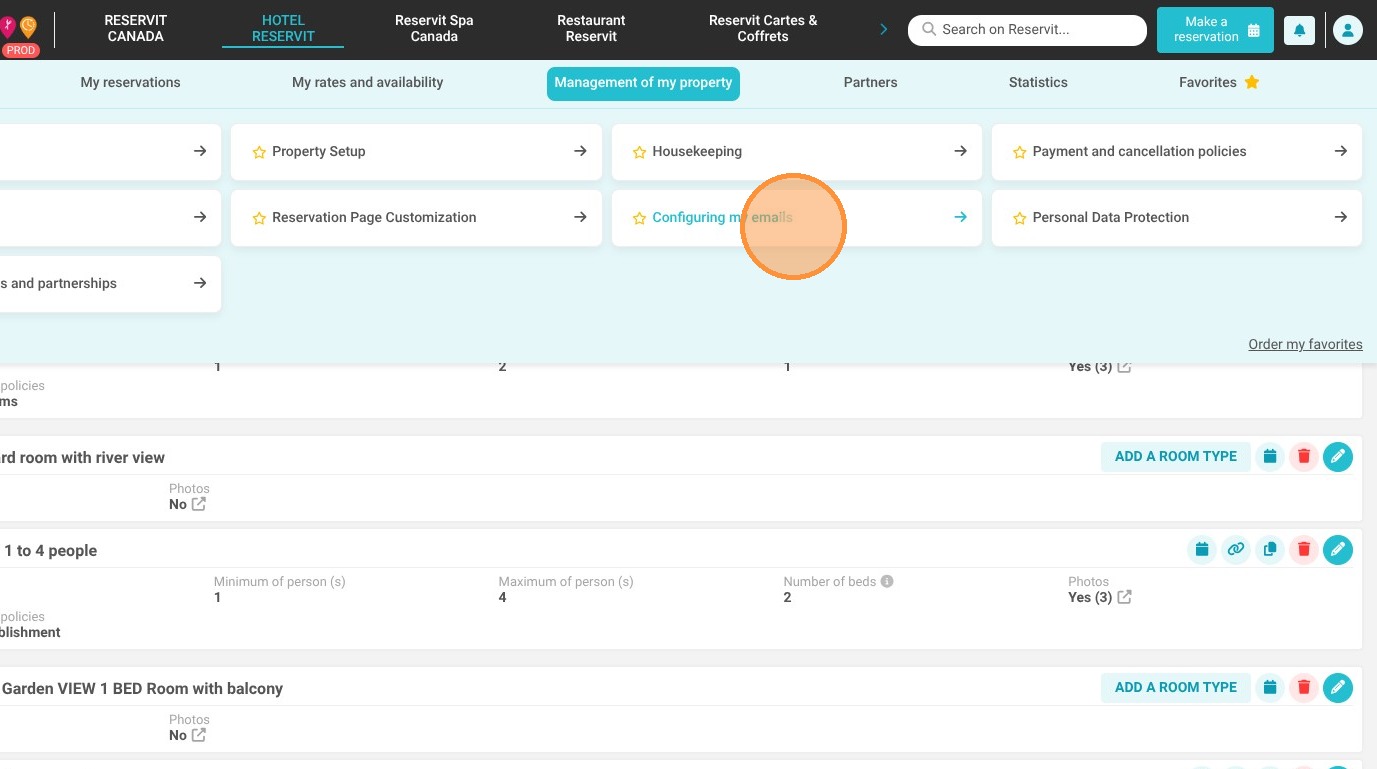
10. Then ''Configuring my emails''
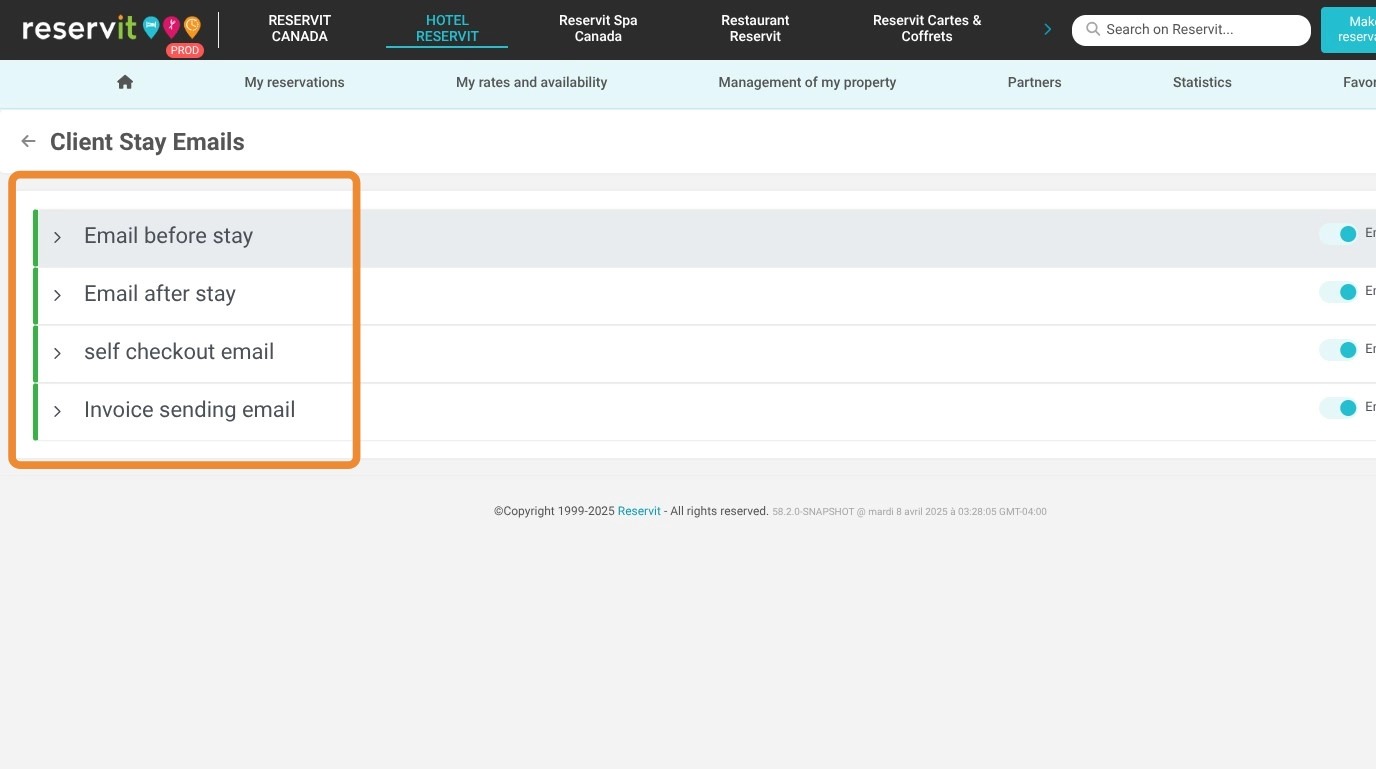
11. Then ''Client Stay Email''
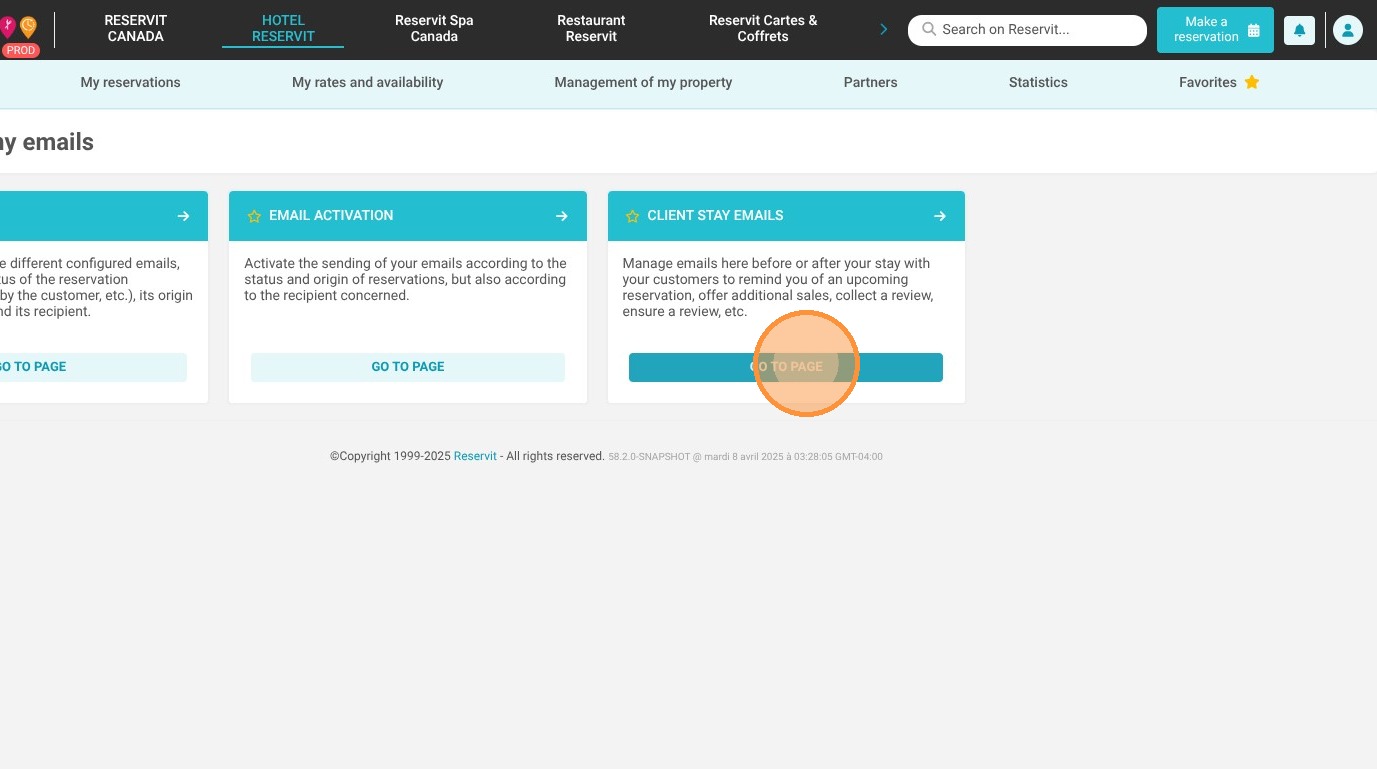
12. Choose when you want the information to be sent.
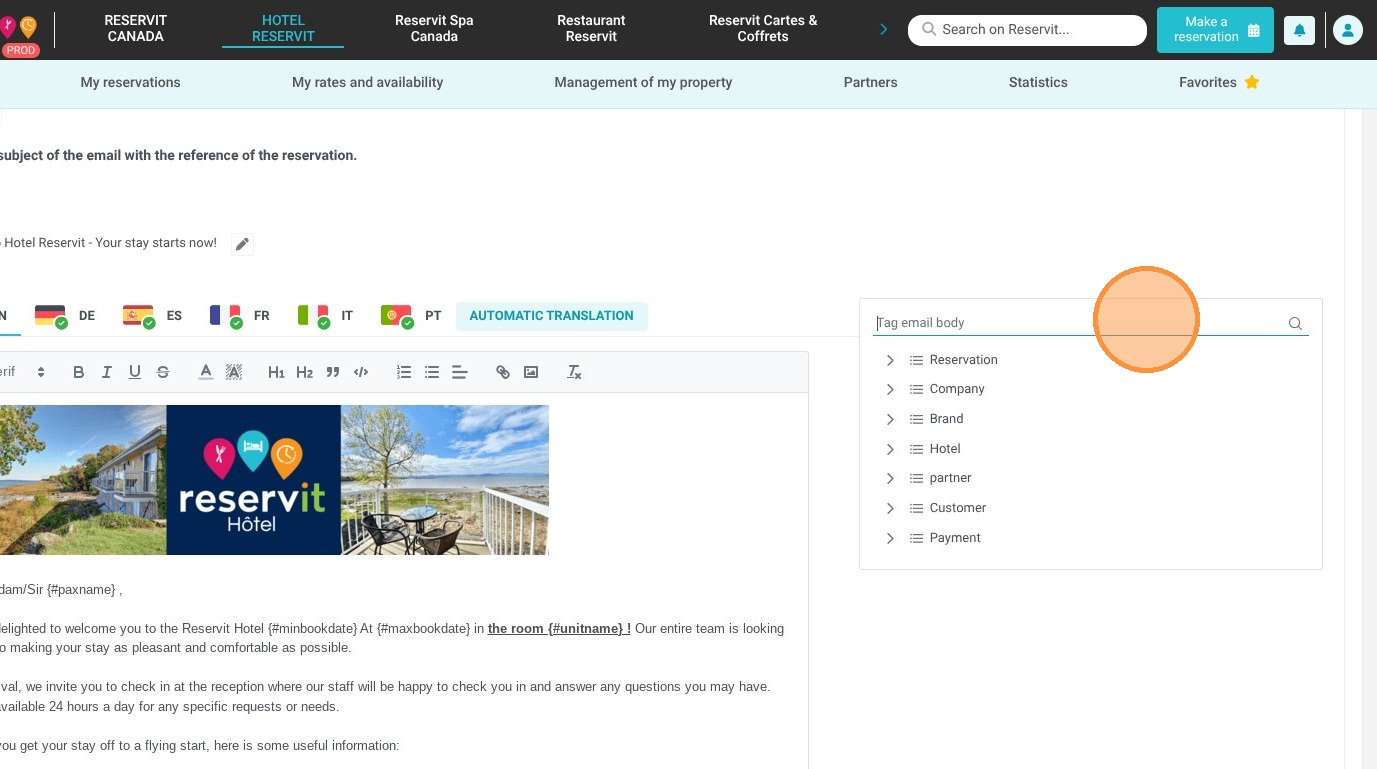
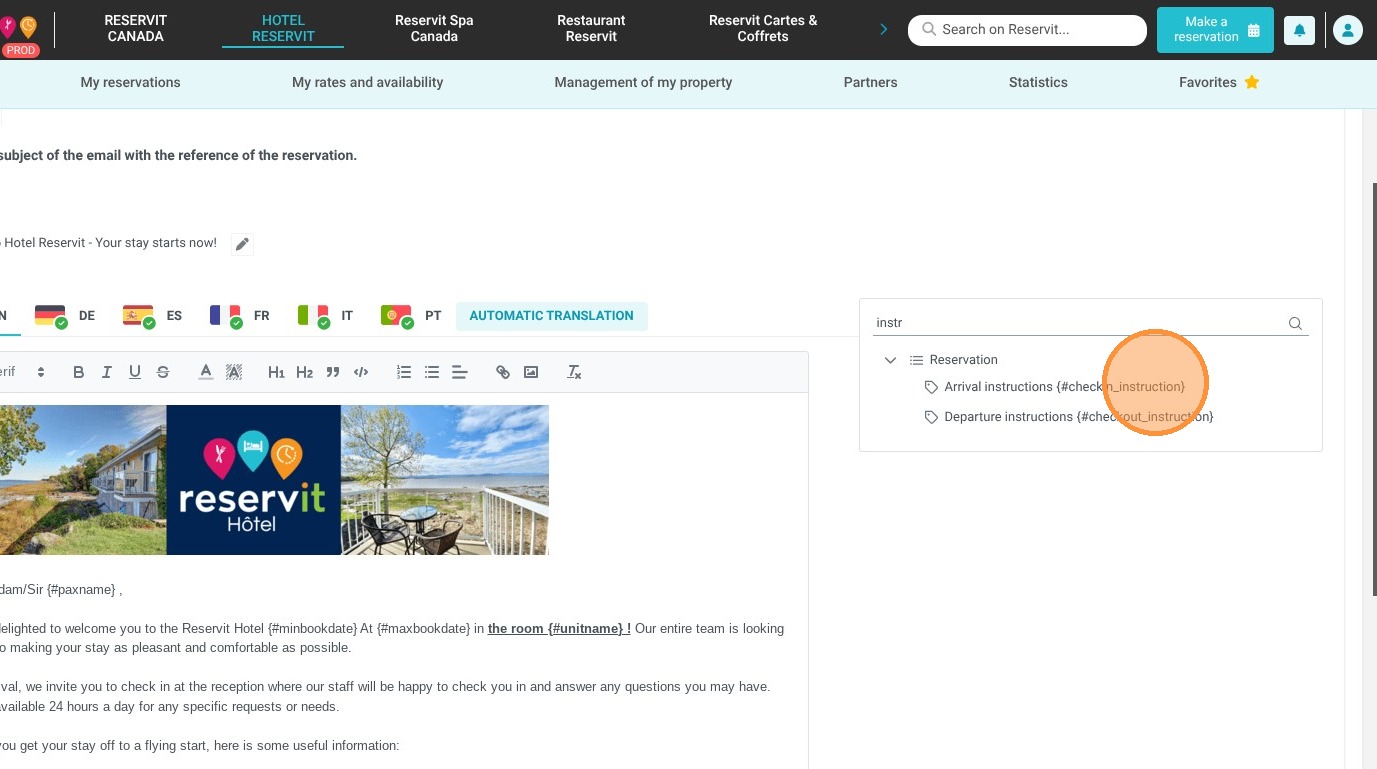
13. Go to the email editor, then search for the arrival and departure instruction tag. Type “instruction” in the search bar to find it quickly.
14. Click on the tag to insert it. By default, it will appear at the bottom of the email. You can then move it by copying and pasting the text.
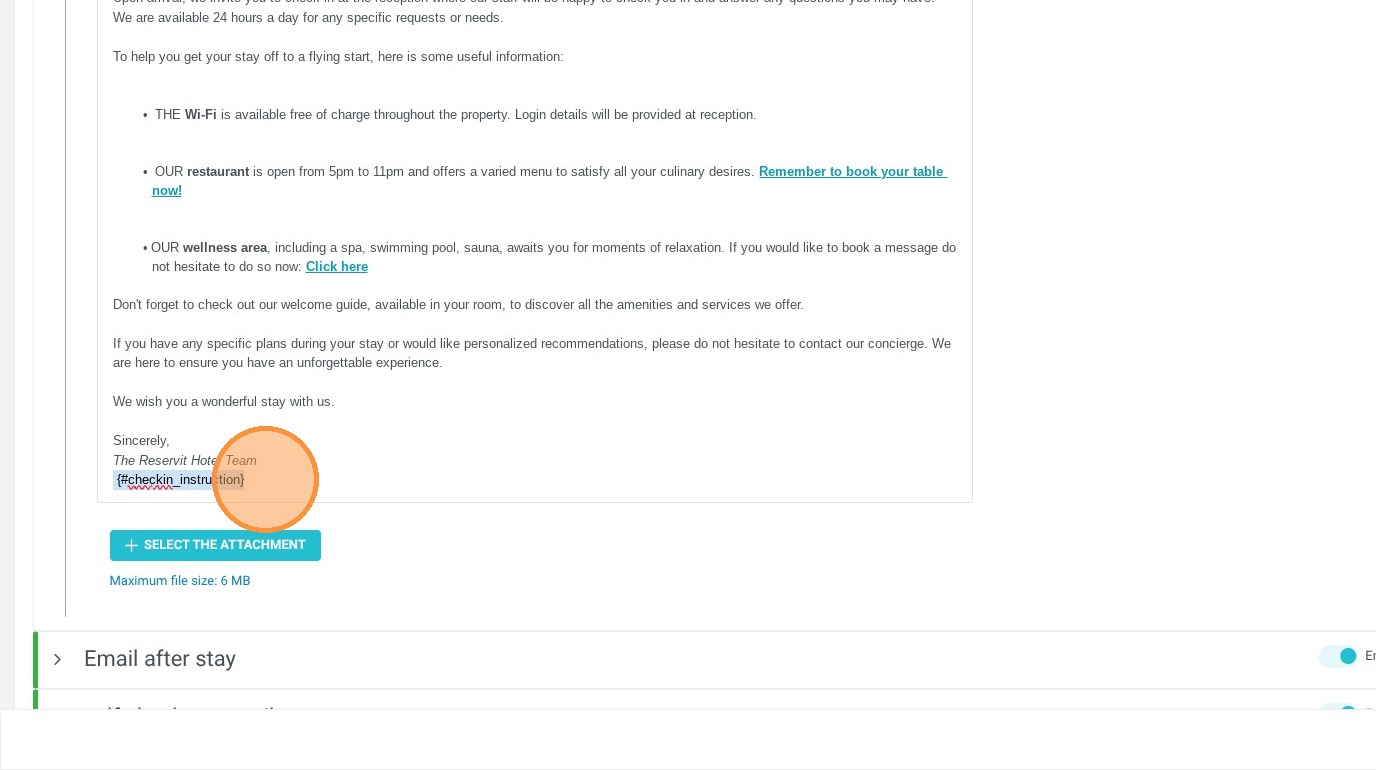
15. Click “Save.” That’s it! Your guests will now receive information specific to the type of unit they’ve booked.