Article summary: This step-by-step guide explains how to efficiently navigate the customer management system within Reservit to access and update guest profiles. You will learn how to search for specific clients, review their complete booking history, and accurately modify essential contact information. Mastering this feature ensures your database remains perfectly up-to-date for future marketing initiatives and reliable transactional communications.
The 4 key steps to manage and edit guest profiles:
-
Navigate to customer management: From your main dashboard, click on "My reservations" and select "Customer management" to access your guest database.
-
Search for a specific client: Use the search bar to look up guests by name, company, or city, or utilize the "Advanced Search" option for more specific queries.
-
Review guest details and history: Click on a client's name to open their profile, where you can view their current contact information and past booking history.
-
Modify and save information: Click "Modify" to update specific details such as the customer's email address, ensure all required fields are filled out, and save your changes.
Why follow this guide? Keeping your guest profiles perfectly accurate prevents communication errors and saves your front desk staff valuable time during the reservation and check-in process. A clean, up-to-date database is essential for securing your operational flow and maximizing the return on your future loyalty and marketing campaigns.
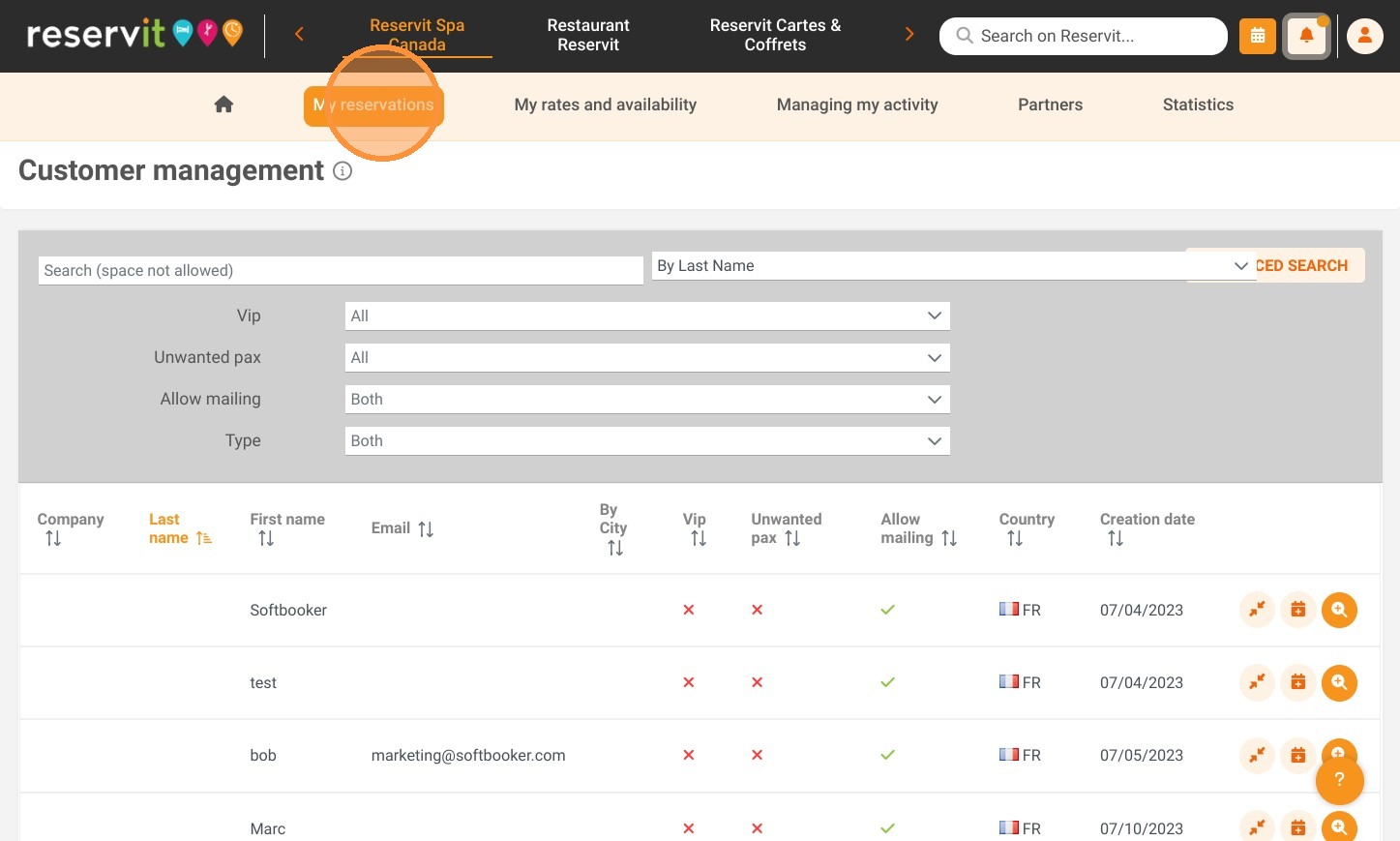
1. Click "My reservations"
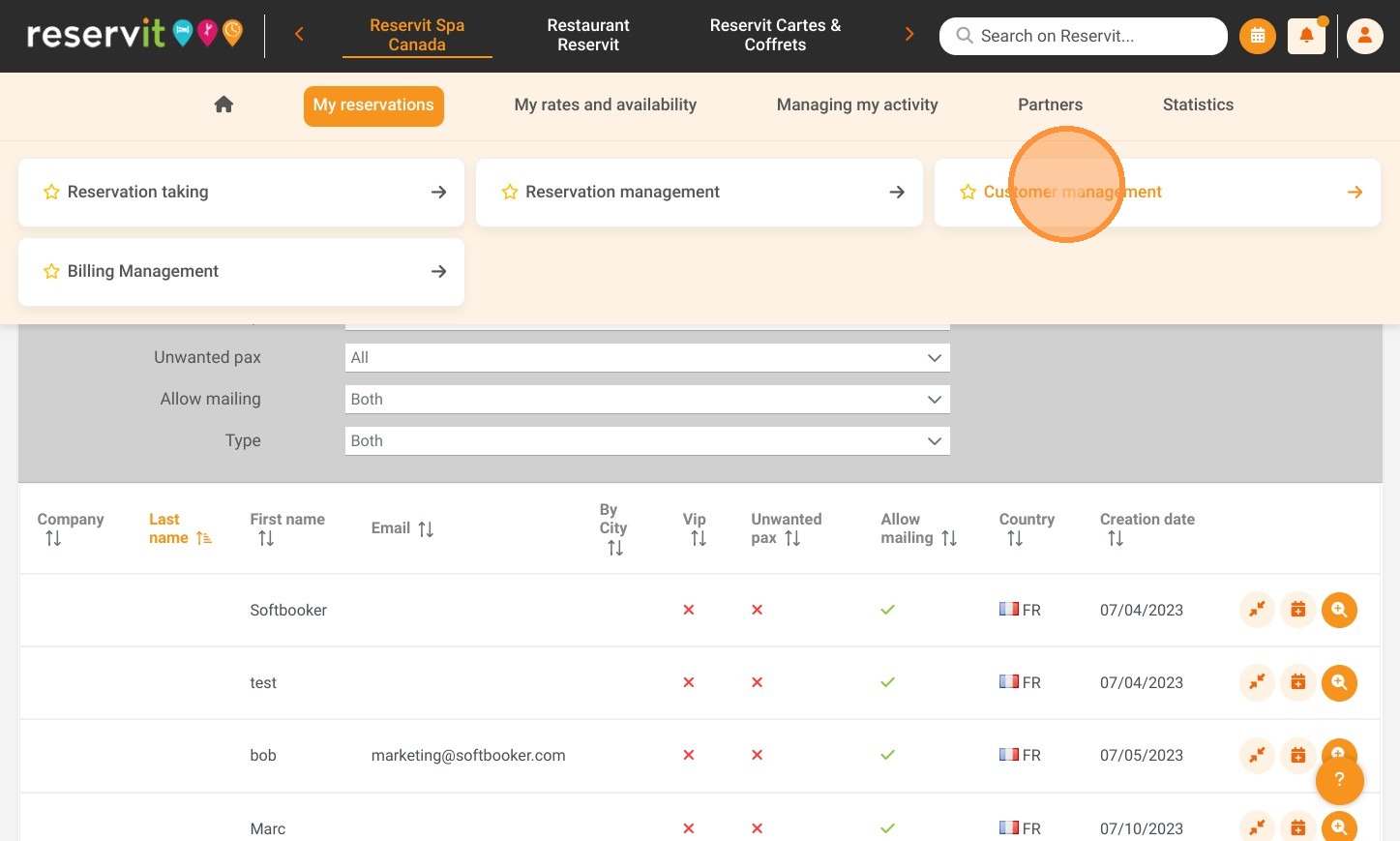
2. Click "Customer management"
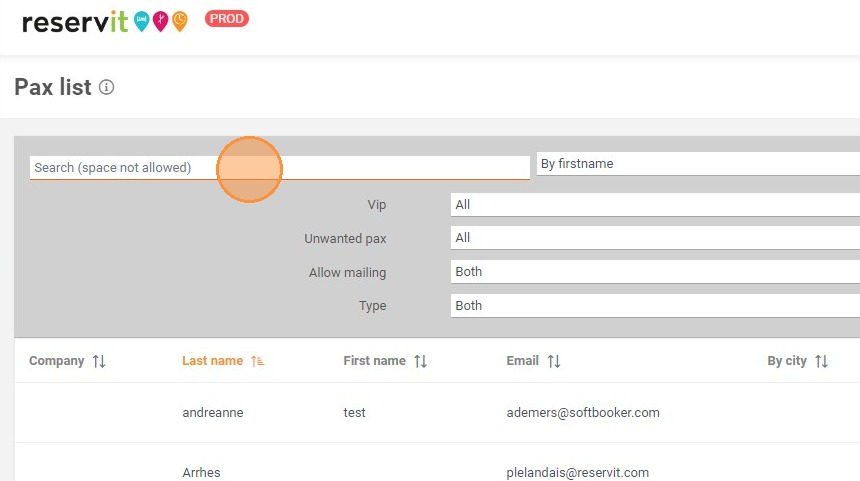
3. You can search by name, first name, company or city.
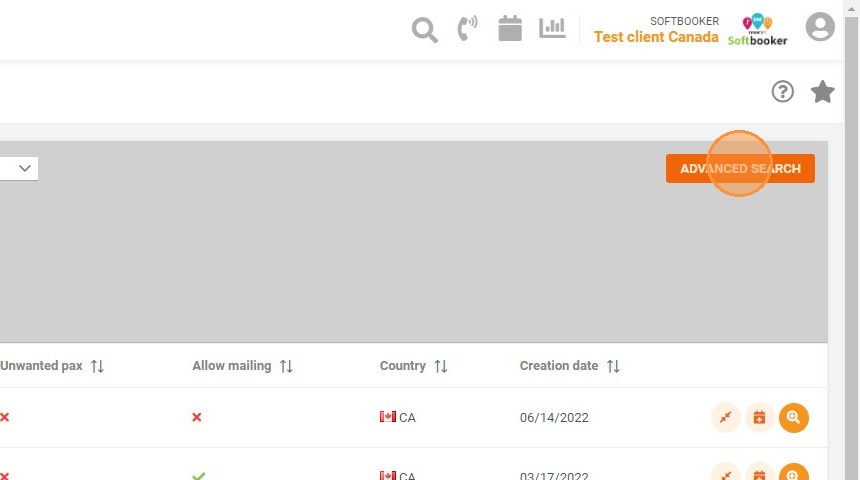
4. You can also perform a more specific search by clicking on ADVANCED SEARCH.
5. Click on the client to see this information.
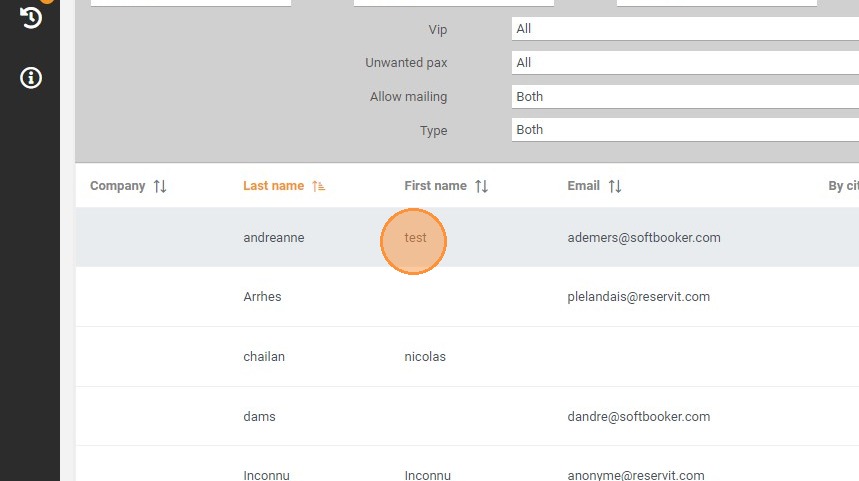
6. You will then see the client's information
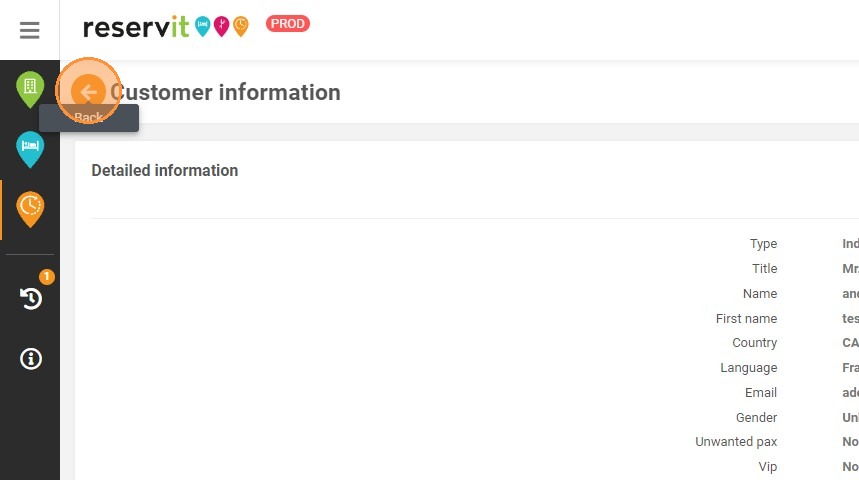
7. You can access the client's history in this section
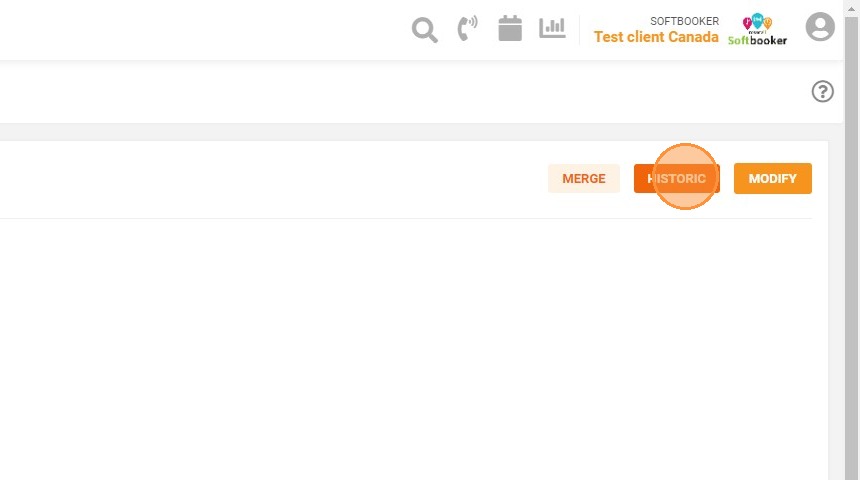
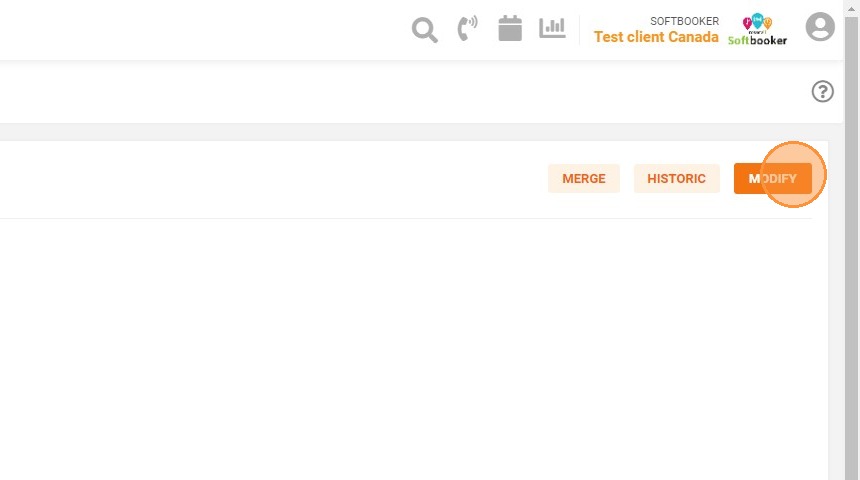
8. If you want to change the customer's information, you can click on "MODIFY"
9. For example, you can change the customer's email address
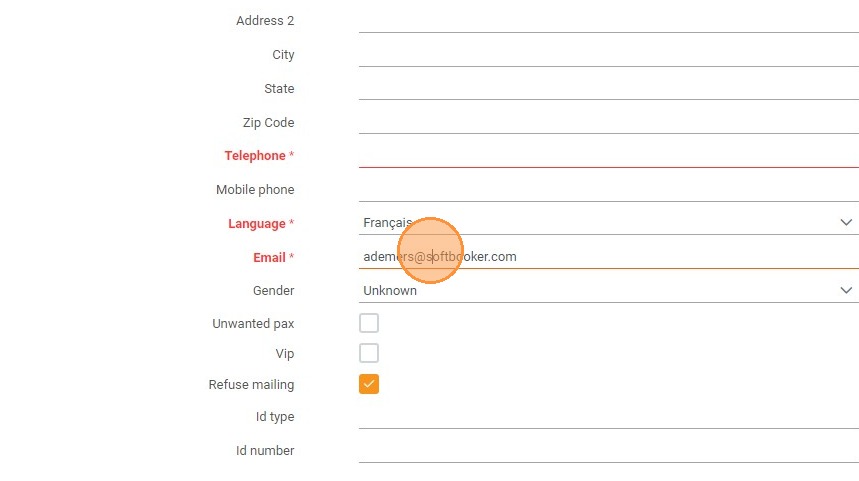
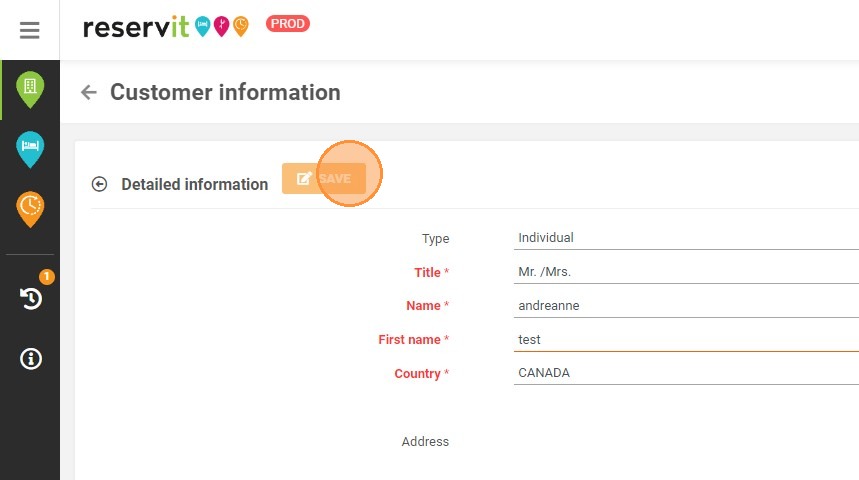
10. Do not forget to fill in the required fields!
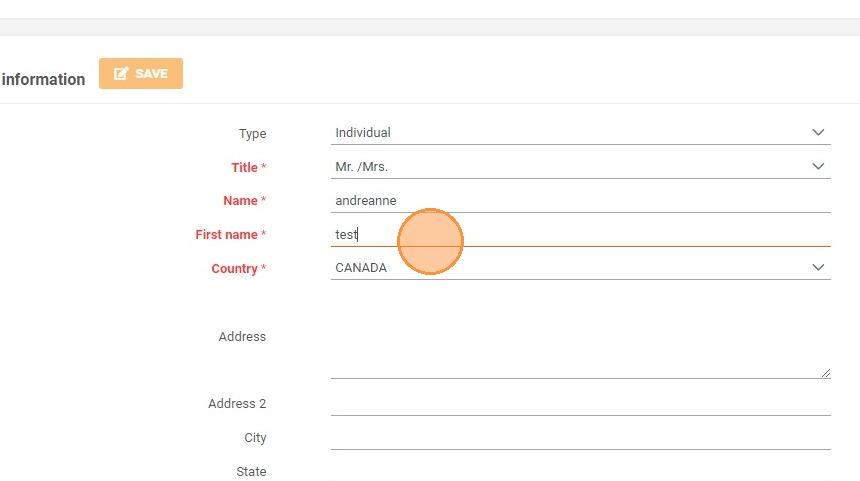
11. Then you can save and the new client information will be saved