Article summary: This straightforward guide provides step-by-step instructions on how to cancel a reservation within the Reservit Activities platform. You will learn how to quickly locate a specific client file, access its details, and modify its status to void the booking. Mastering this cancellation process ensures your online availability is immediately updated, helping you maximize your booking potential and keep your inventory accurate.
The 4 key steps to cancel a reservation:
-
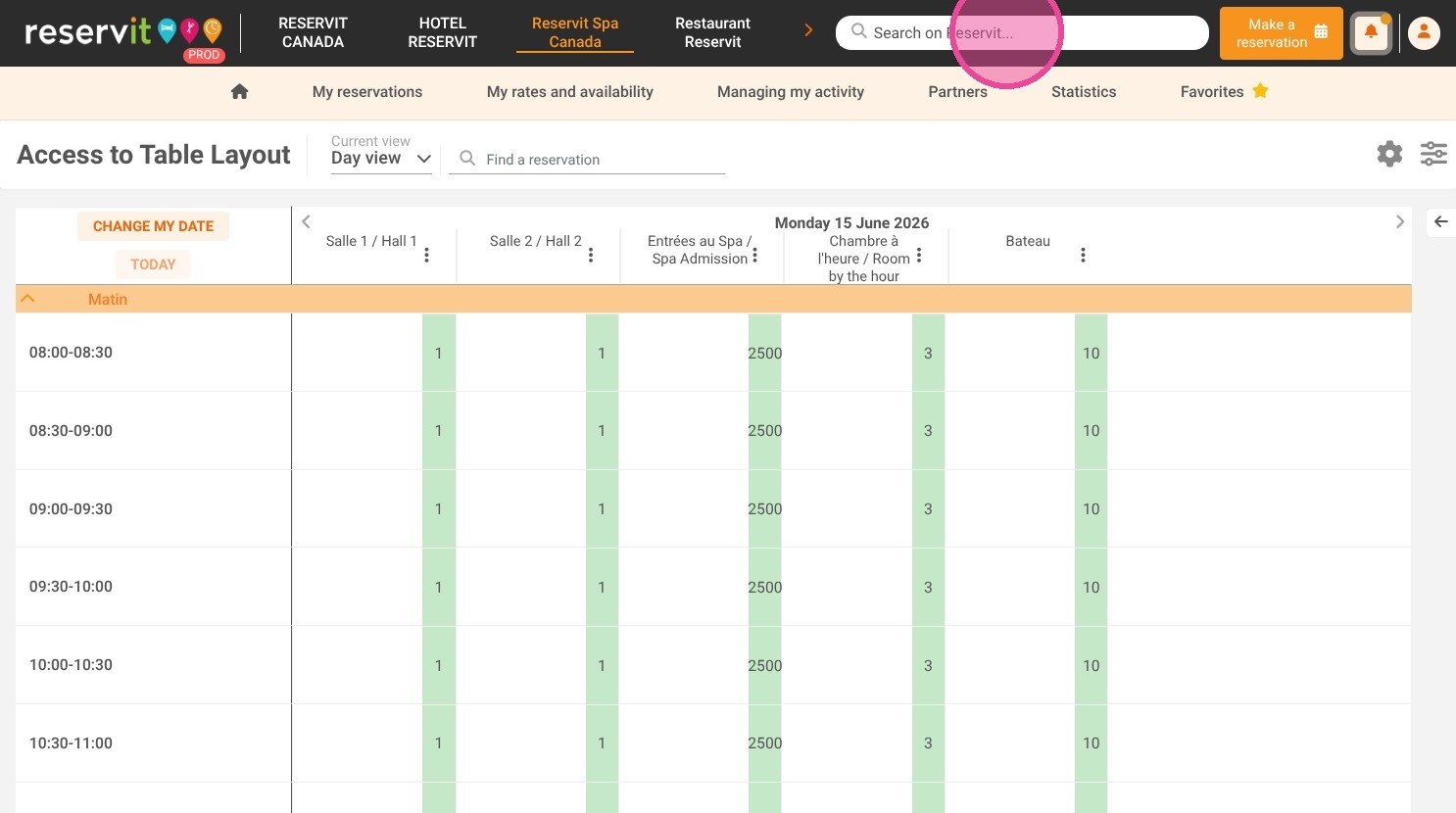
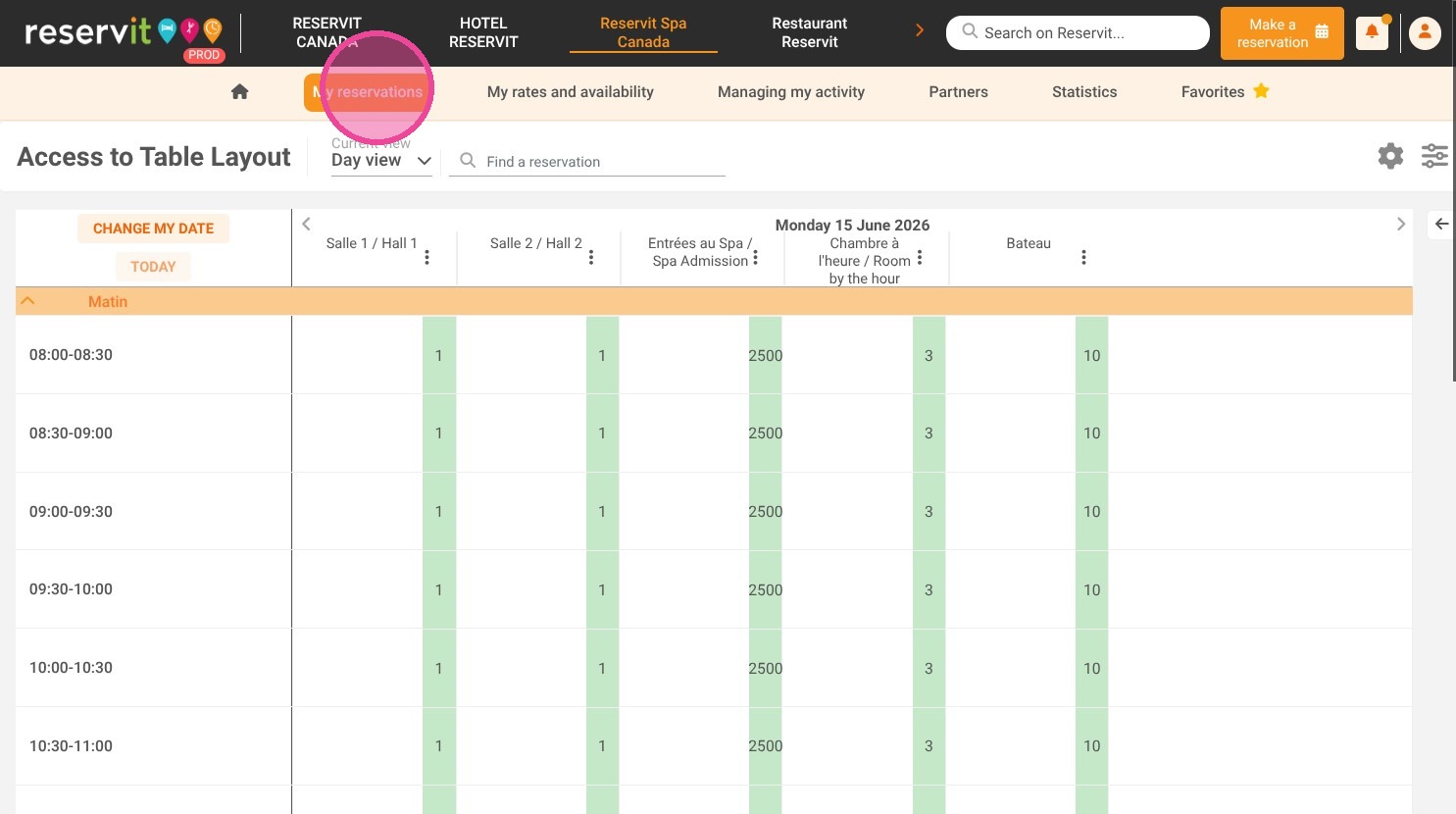
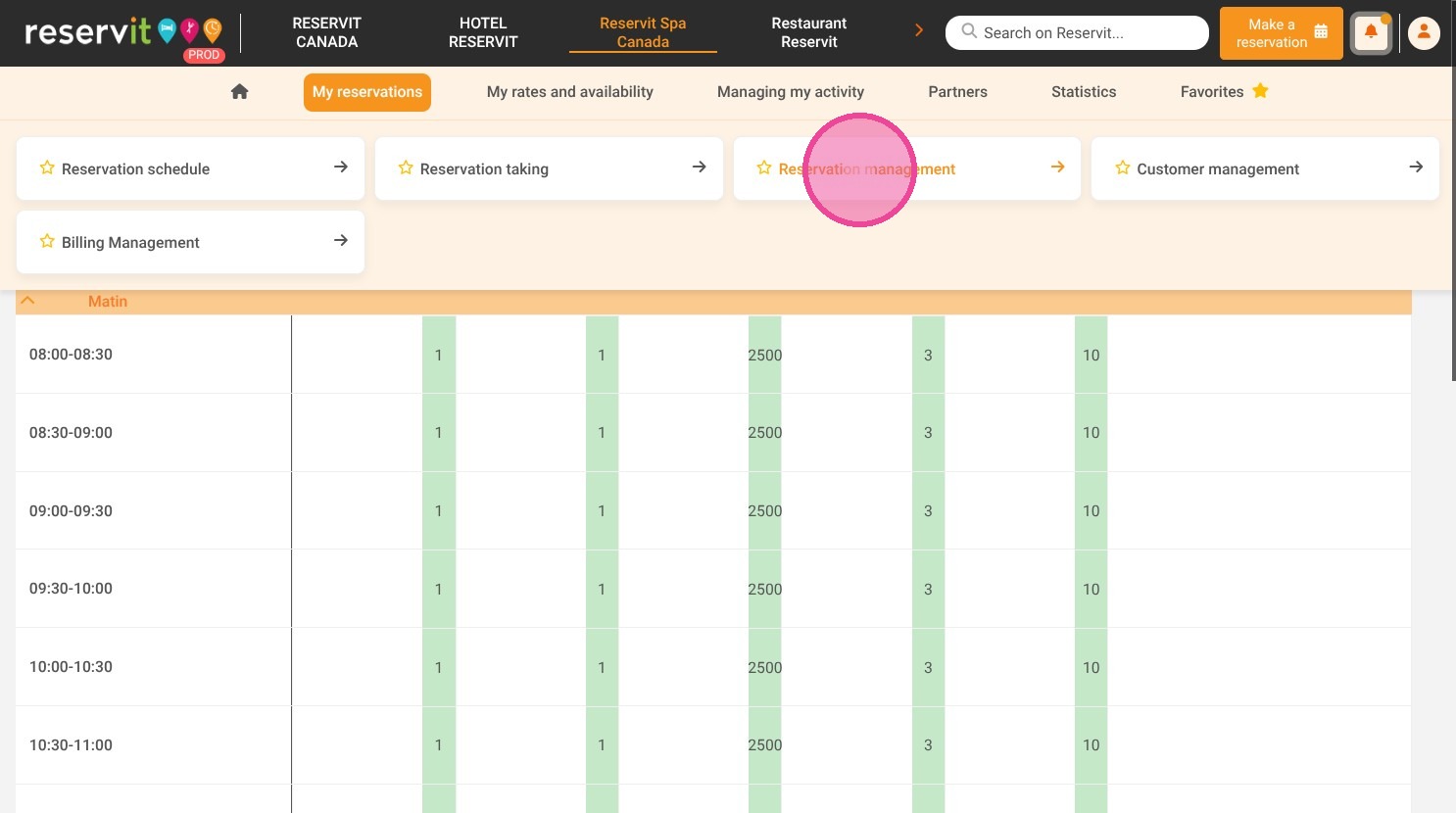
Find the specific booking: Use the "Search on Reservit" bar at the top right, or navigate to "Reservation management" to locate the client's file.
-
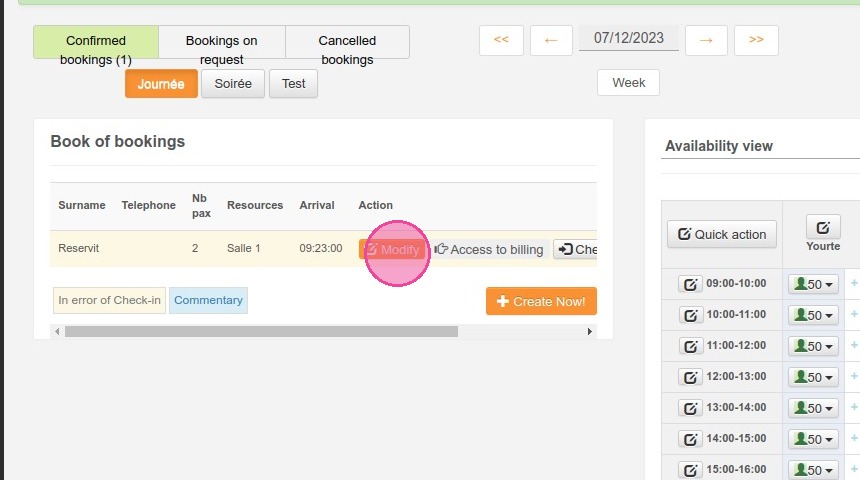
Open the reservation details: Once you have found the correct booking, click the "Modify" button to open the general information panel.
-
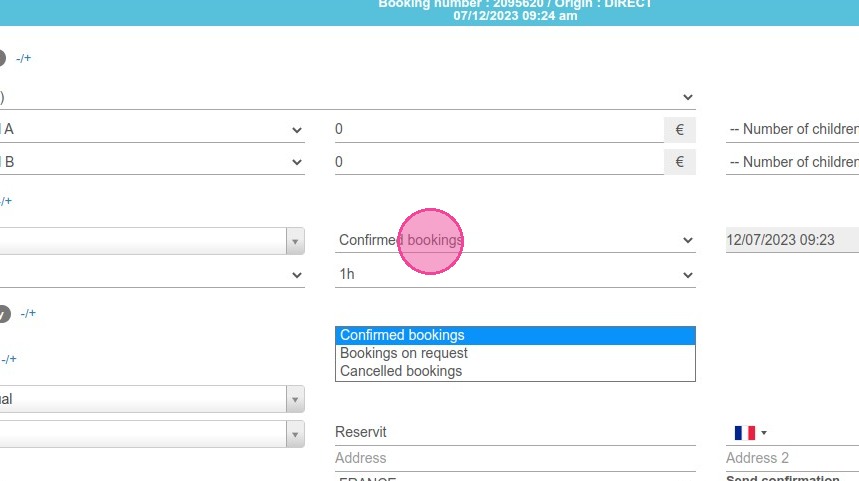
Update the booking status: Inside the General section, click on the current reservation status drop-down menu and select "Cancelled Bookings".
-
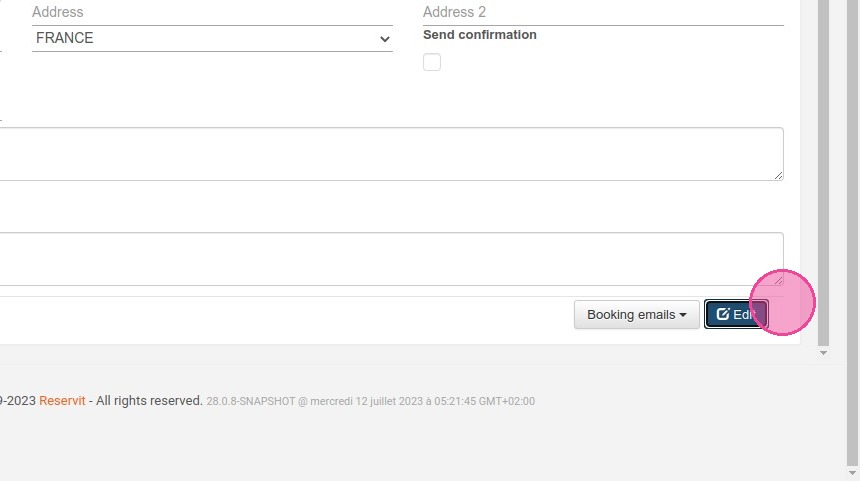
Finalize the cancellation: Click the "Modify" button one last time to save your changes and officially process the cancellation in your system.
Why follow this guide? Following this quick process ensures that canceled slots are instantly freed up in your calendar for new customers to book. It keeps your administrative reporting accurate and prevents the operational confusion of preparing for guests who will no longer arrive.
1. Select "Search on Reservit..." in the top right corner, or choose "Reservation management" under "My reservations."
2. Once you have found your reservation, click "MODIFY"
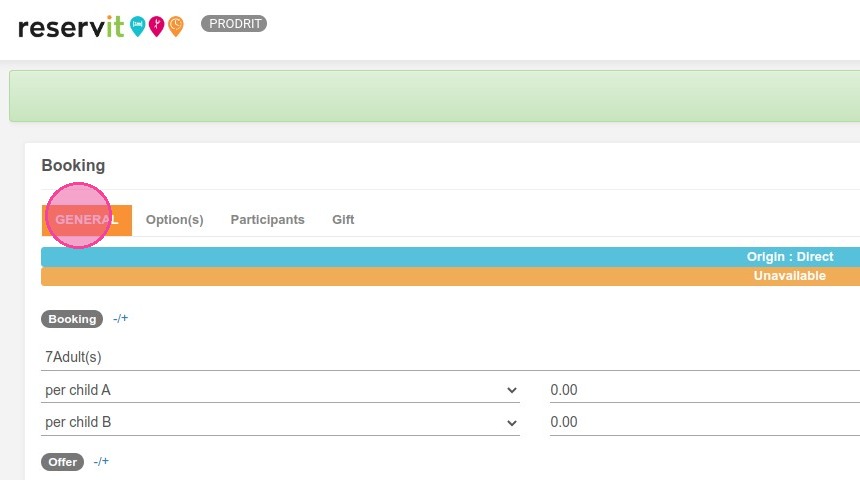
3. In GENERAL, you will see the reservation details. Changes can be made here
4. Click on the reservation status and choose "Cancelled Bookings"
5. Click "Modify" to finalize the cancellation.