Article summary: This step-by-step guide explains how to efficiently edit and update an existing reservation within the Reservit Activities platform. You will learn how to easily locate specific bookings, modify essential details like dates and times, manage extra options, and seamlessly handle cancellations. Mastering these reservation management tools ensures your booking system stays completely accurate while allowing you to provide fast and adaptable customer service.
The 5 key steps to edit and modify a reservation:
-
Locate the specific booking: Use the quick search bar or the advanced filters in the "Reservation management" menu to instantly find the client's file.
-
Update general reservation details: Click "Modify" to access the booking overview and easily adjust critical information such as the activity date or the offer timing.
-
Manage and customize extra options: Open the "Option(s)" tab to add new extras, adjust custom pricing, and update the payment status of specific add-ons.
-
Handle customer communications: Use the integrated email tools at the bottom of the page to easily resend updated booking confirmations directly to your clients.
-
Save modifications or cancel: Change the booking state to "Cancelled Bookings" if needed, and always click the "Edit" button to save and finalize all your new changes.
Why follow this guide? Following this guide streamlines your daily reservation management, allowing your staff to quickly and confidently adapt to last-minute customer requests. By knowing exactly how to modify or cancel bookings on the fly, you save valuable administrative time and eliminate the risk of costly scheduling errors.
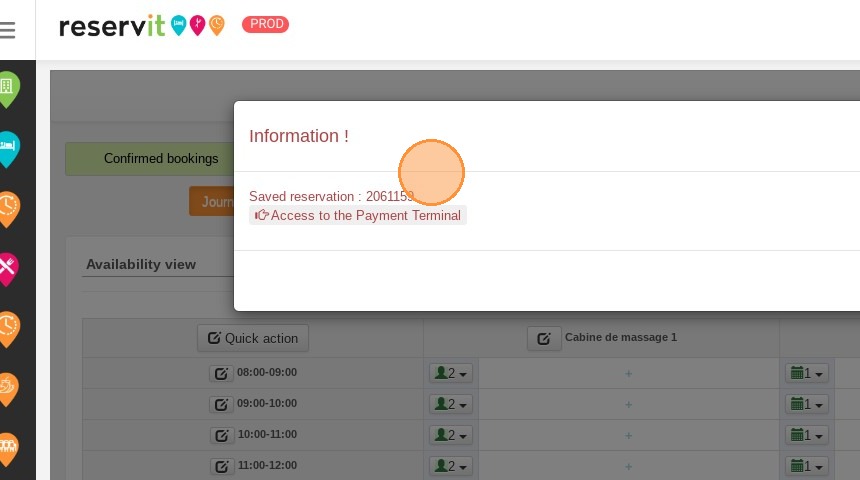
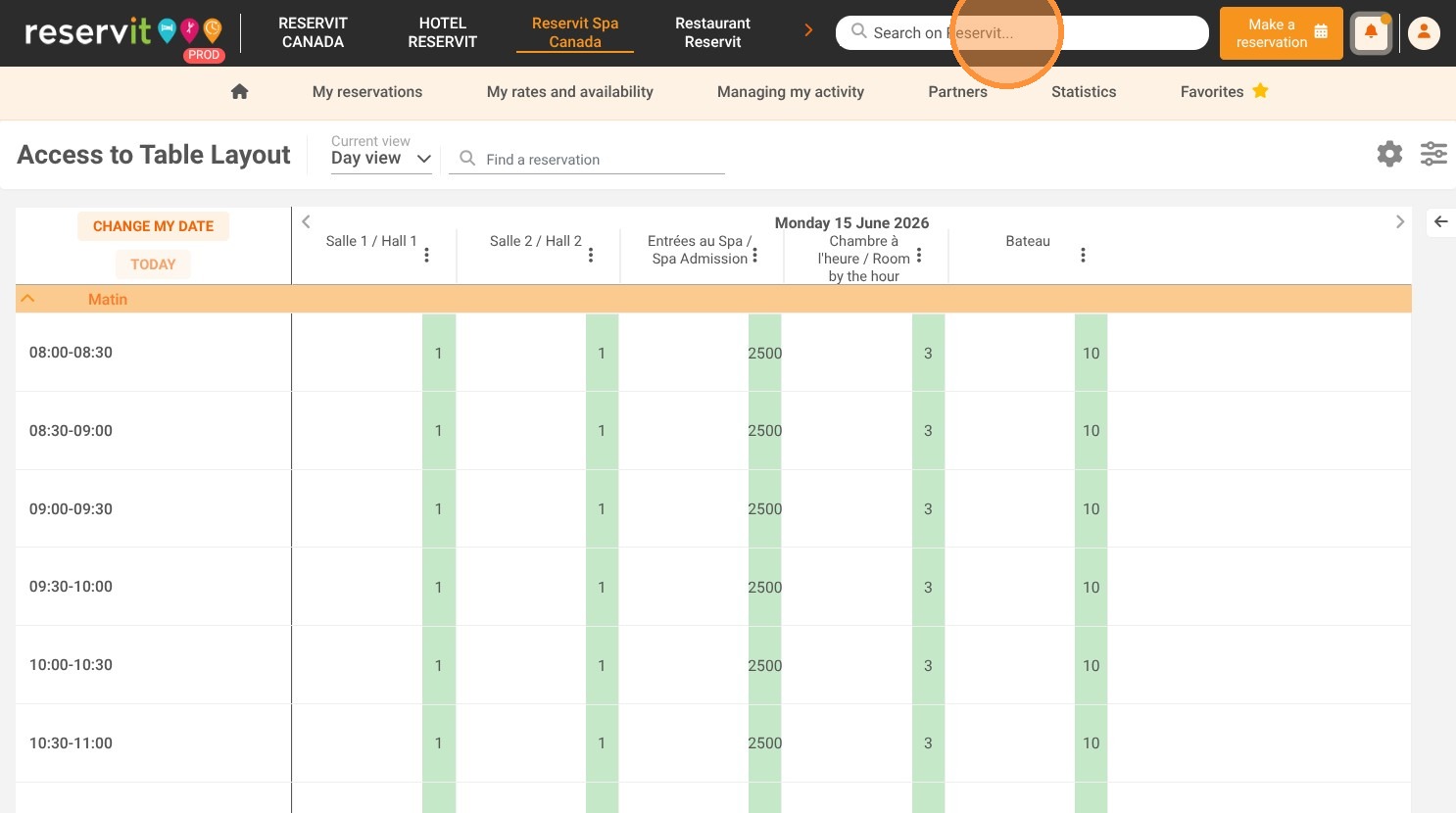
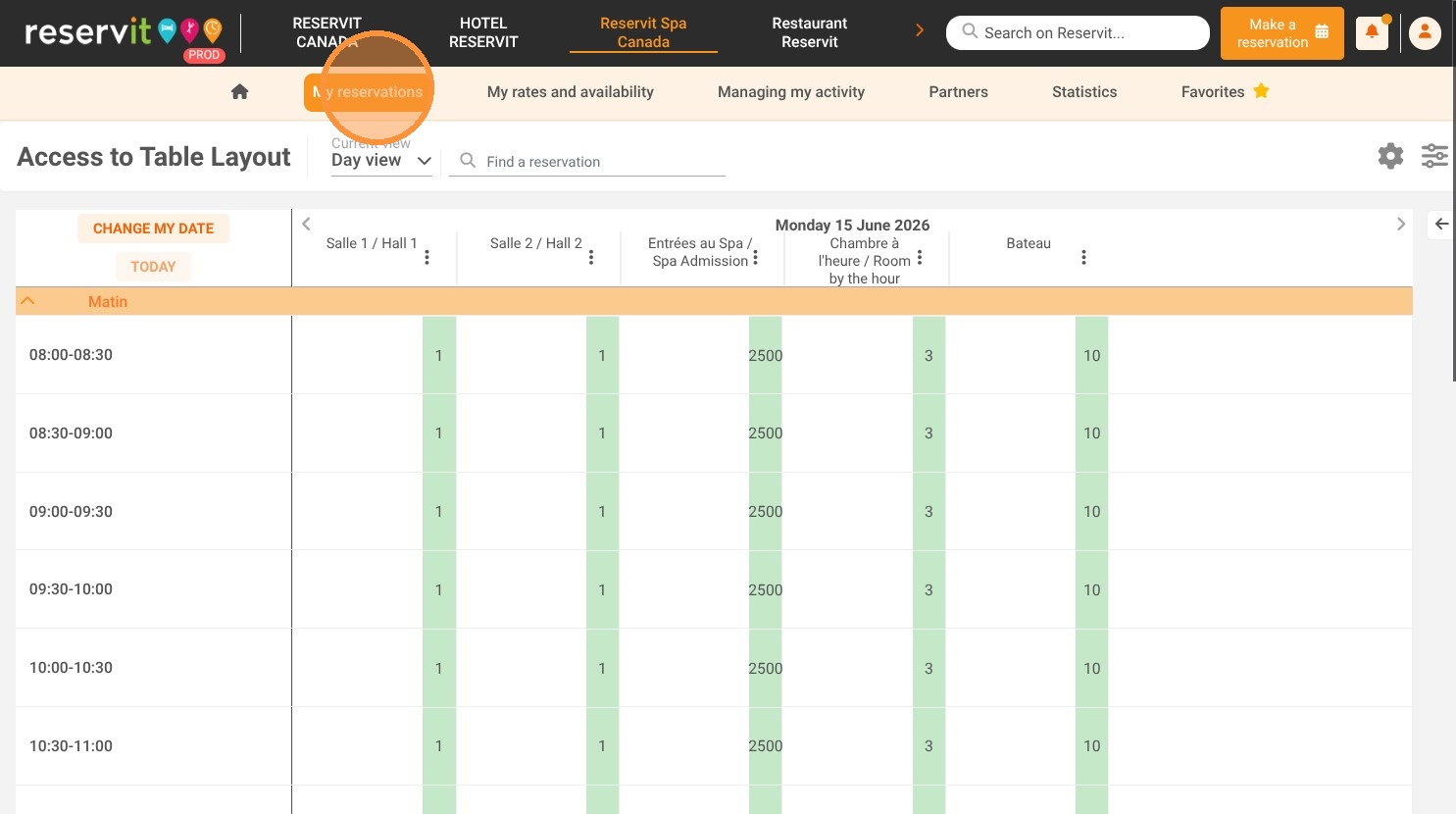
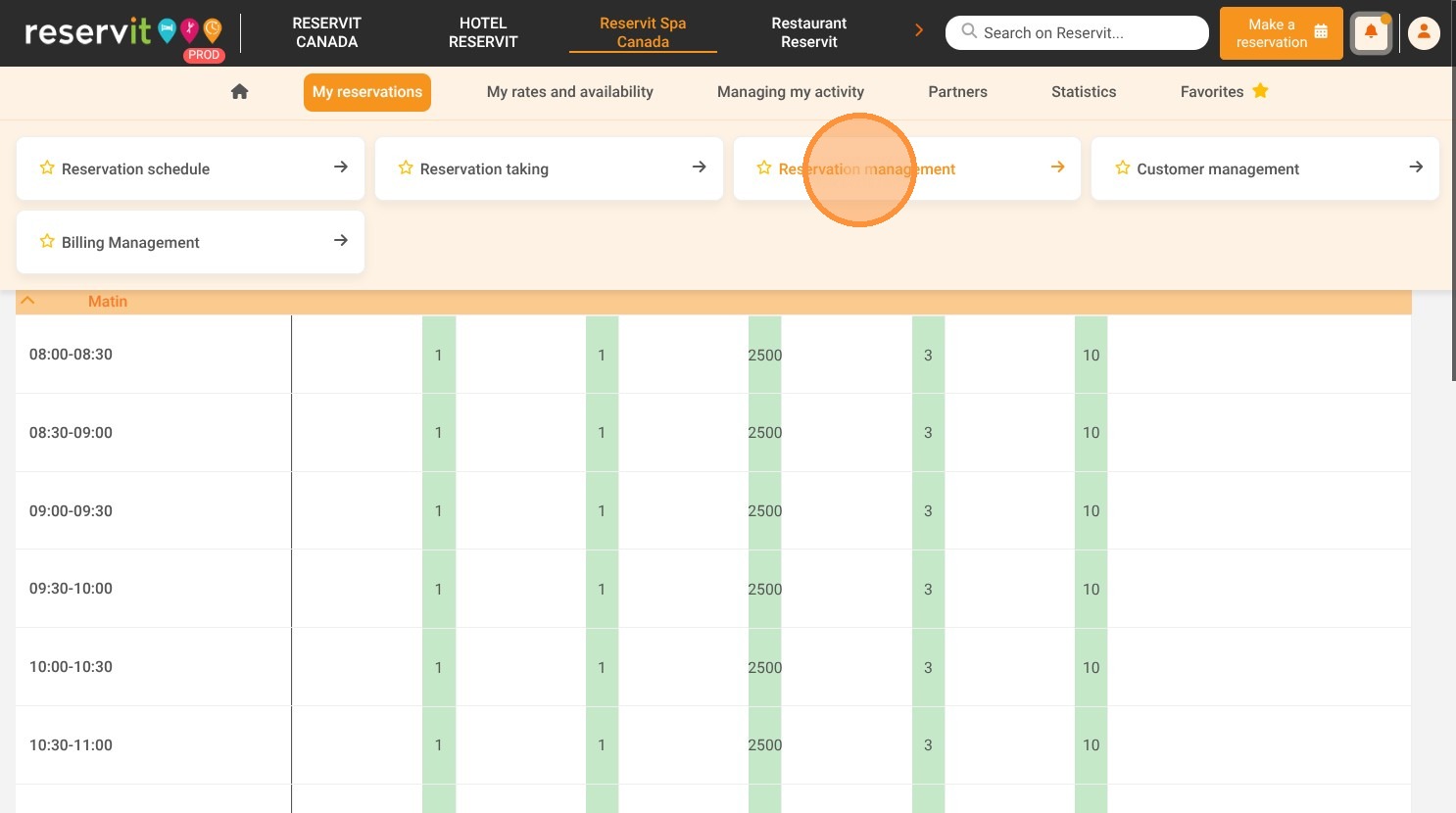
1. Select "Search on Reservit..." in the top right corner, or choose "Reservation management" under "My reservations."
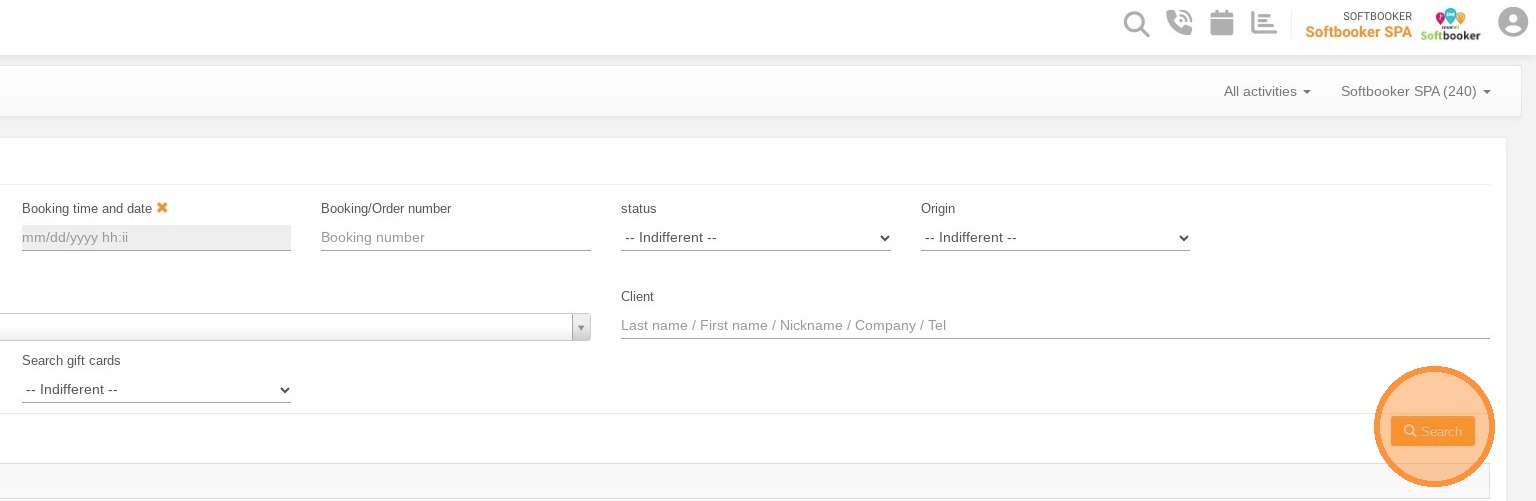
2. You can add filters to find your reservation more quickly (for example: name, number...), then click on "Search".
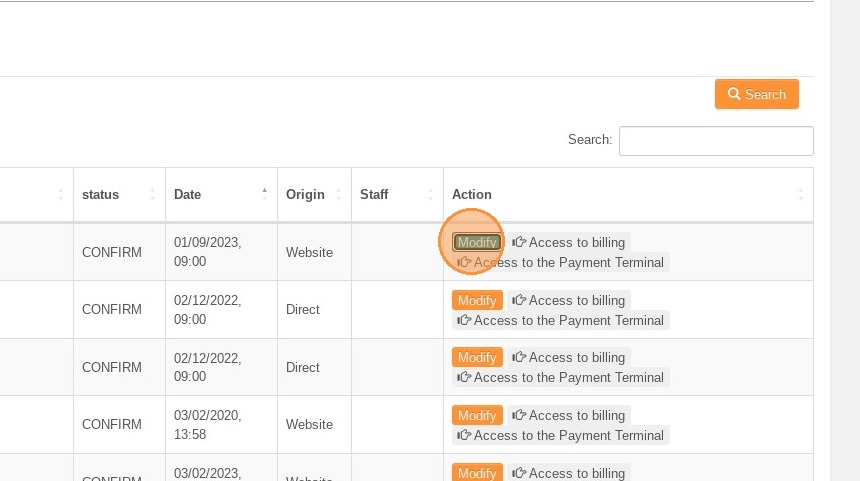
3. After finding the reservation, click on "Modify" to change or cancel the reservation.
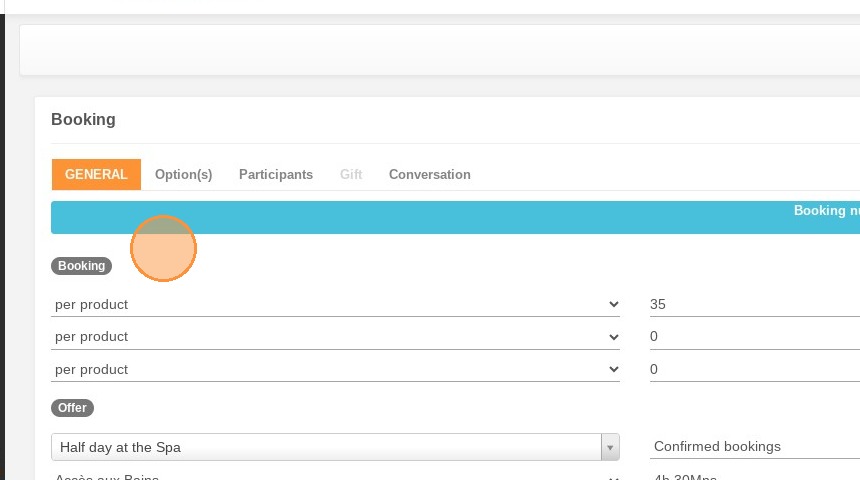
4. In "GENERAL", you will see all reservation details. You can make changes there.
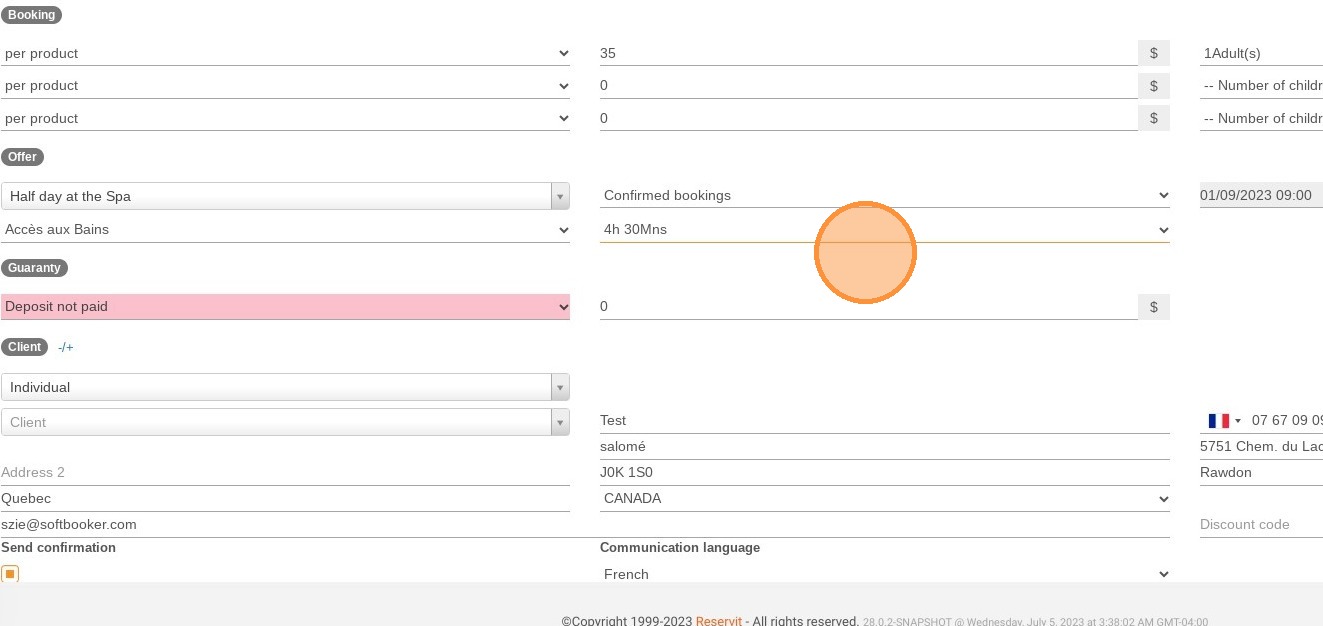
5. For example you can change the offer timing.
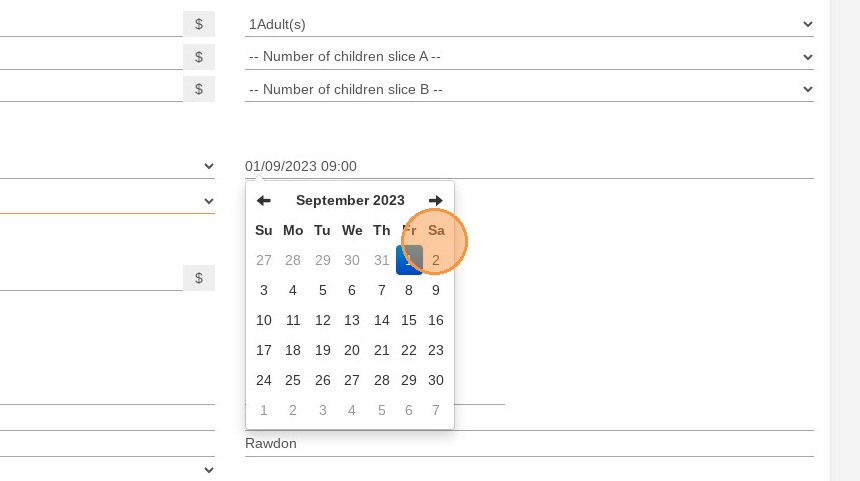
6. Or even the date.
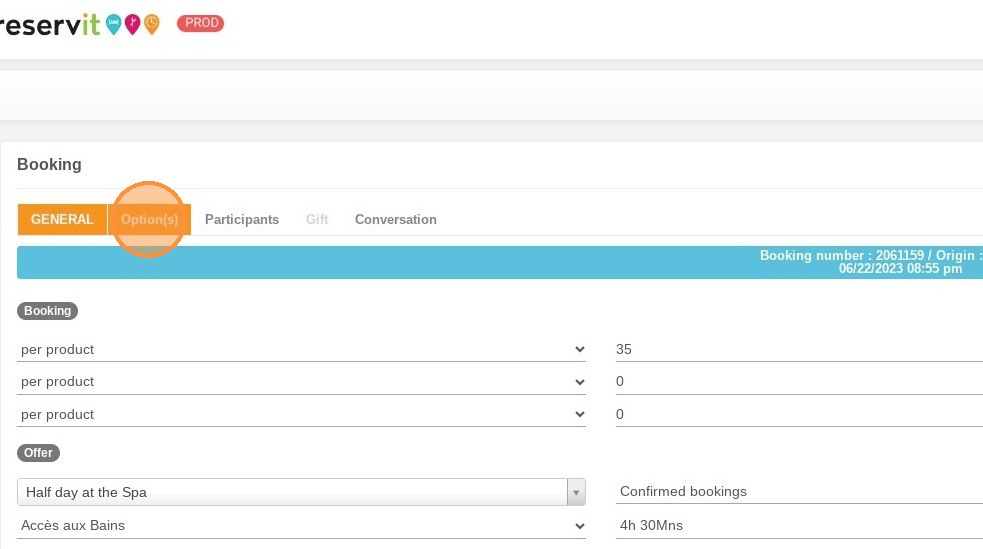
7. In case you need to add or modify some extras, click on "Option(s)".
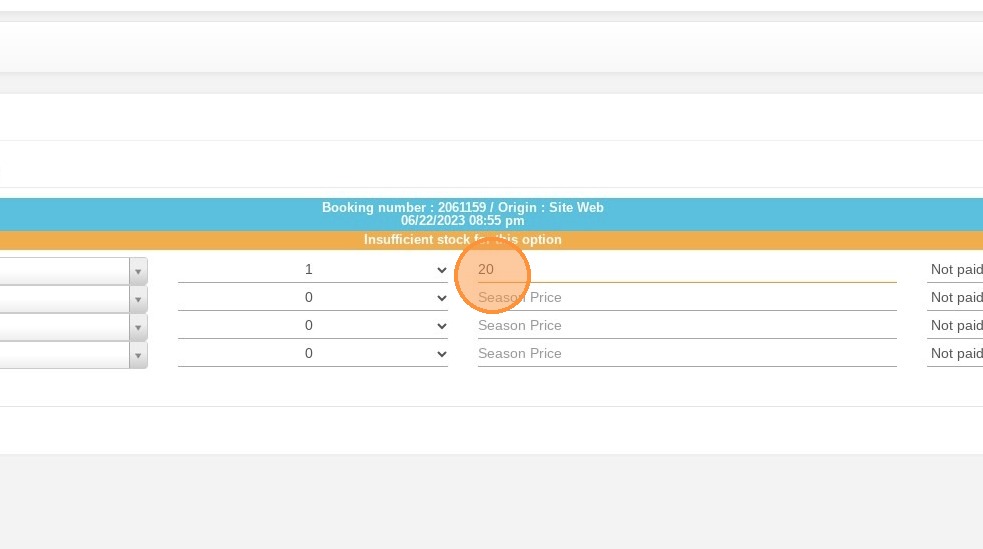
8. For example, you can add an extra and put your own price. You can also mention if it has already been paid.
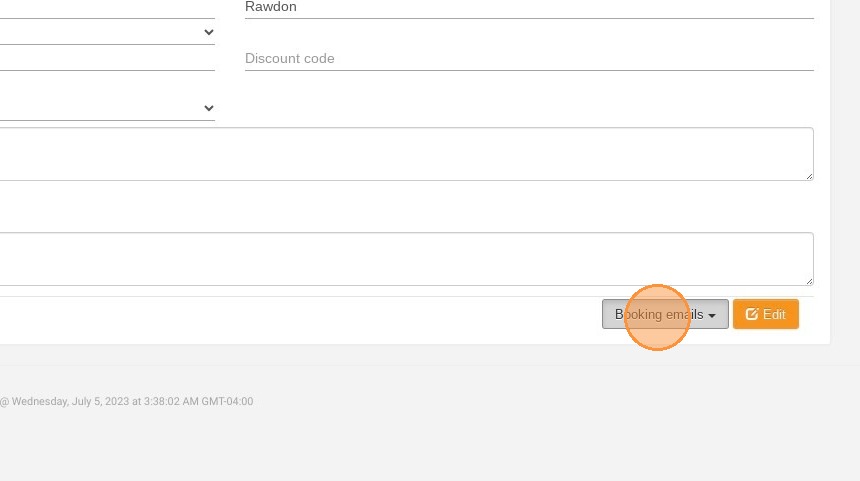
9. Back to "General", at the bottom right of your page you have the possibility to send booking emails to your customers by clicking on "Booking emails".
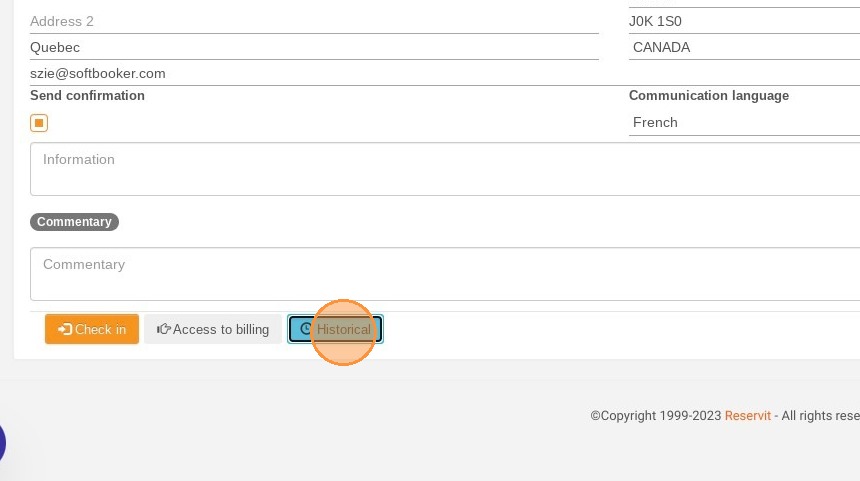
10. At the bottom left this time, you can check the reservation "Historical".
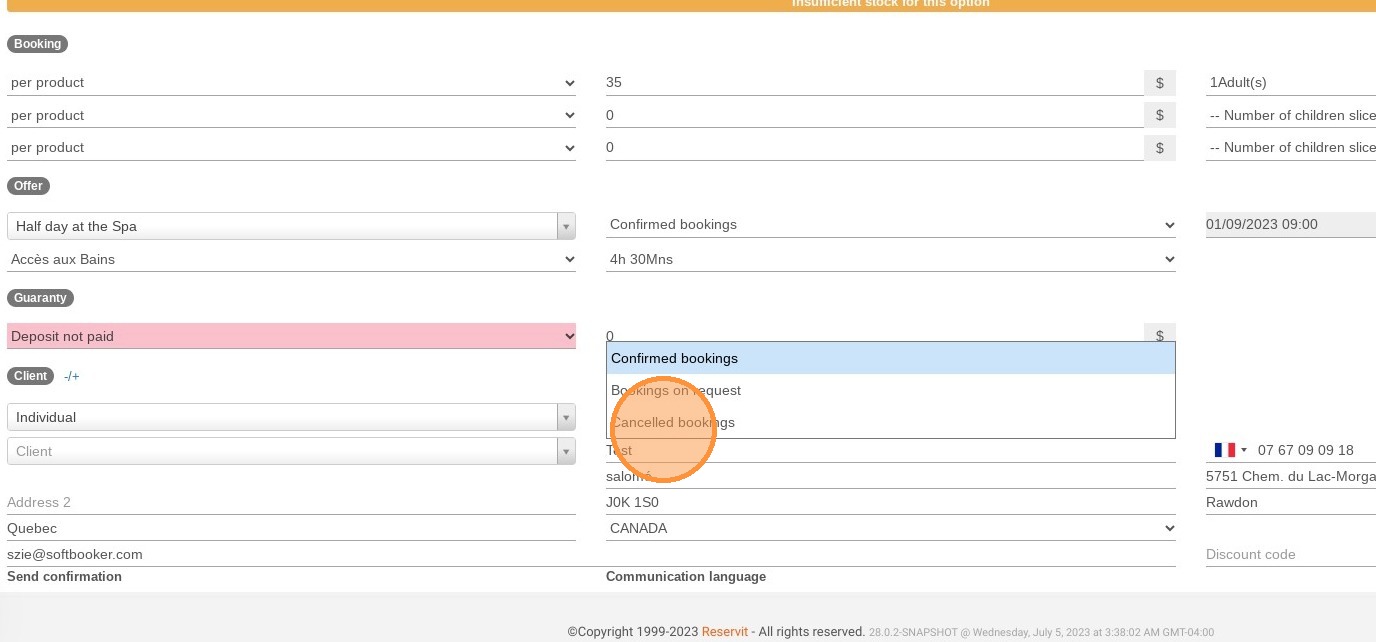
11. To cancel a reservation, click on the state and choose "Cancelled Bookings".
12. Once you have finished your changes, do not forget to click on "Edit" to save your work or to finalize cancelling the booking.
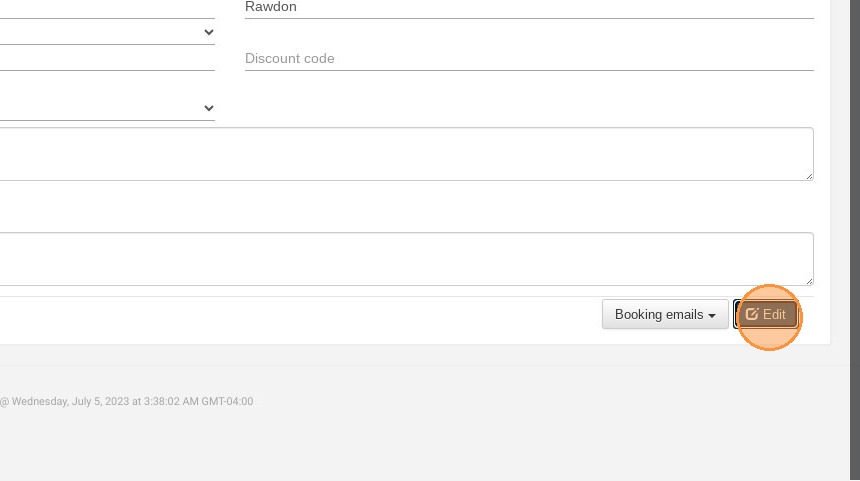
13. Finally, your booking will either be saved with the new changes or cancelled.